 ChatGPT,
 Claude,
 Gemini,
 Grok — all four for
Bluehost Professional Email: Recognizing Phishing Emails
Phishing is a deceptive tactic in which scammers pose as trusted companies, service providers, or colleagues to steal your login details, billing information, or personal data. Knowing how to spot a phishing email, and what to do when one reaches your Professional Email inbox, helps safeguard your account, helps protect your domain's reputation, and helps reduce the risk of unauthorized access to your hosting environment.
This guide outlines how to recognize common phishing warning signs, interpret automatic security warning banners, report suspicious messages directly within your webmail interface, and triage your account if you accidentally interact with a malicious link.
What Are Phishing Emails?
Phishing emails are fraudulent communications designed by cybercriminals to appear authentic. These messages often mimic reputable companies, financial institutions, or even internal team members to trick you into:
- Entering login credentials or payment card numbers on spoofed landing pages.
- Downloading attachments containing hidden malware, ransomware, or spyware.
- Approving fraudulent transactions or wire transfers under false pretenses.
How to Identify Phishing Emails
Before clicking any links, replying, or downloading files, inspect unverified messages for these common red flags:
- Scrutinize the Sender Address: Compare the display name against the actual sending email address and domain. Scammers frequently register lookalike domains using character swaps or typosquatting (e.g.,
[email protected]replacing the letter "l" with the numeral "1" to mimicexample.com). - Evaluate Message Tone and Urgency: Be cautious of messages creating artificial urgency, threatening immediate service cancellation, or demanding urgent credential updates (e.g., "URGENT: Your subscription for example.com is expiring within 24 hours. Click here to renew immediately.").
- Preview Destination URLs Before Clicking: Hover your mouse cursor over any hyperlink or button without clicking to view the destination URL preview in your browser status bar. Ensure the link points directly to the organization's official, verified domain rather than an unrelated third-party site (e.g., hovering over an
example.comlink that actually points tosecure-login-example.com). - Treat Unexpected Attachments with Caution: Never open unsolicited or unexpected file attachments—especially compressed archives (
.zip,.rar), disk images (.iso), or executable and HTML files (.exe,.html)—even if the sender's display name appears familiar.
Professional Email Security Warning Banners
Professional Email checks incoming messages for signs of spoofing or phishing, such as failed domain authentication (for example, SPF, DKIM, or DMARC) and known threats. When incoming mail fails authentication or triggers a warning, a color-coded banner may appear across the top of the message pane:
Yellow Banner — Use Caution
A yellow banner indicates that Professional Email could not fully verify the authenticity of the sender. While this does not necessarily mean the email is malicious, you should take extra precautions:
- Verify the sender's identity through an alternate, trusted channel (such as a phone call or direct message) before taking action.
- Do not disclose account details, passwords, or billing information.
- Avoid clicking embedded links or opening attachments until you confirm the email is authentic.
Red Banner — Likely Phishing
A red banner is a stronger warning indicating that the message has been flagged as a probable phishing or spoofing attempt:
- Do not click any links inside the email.
- Do not open or download any attachments.
- Do not reply to the sender.
- Proceed directly to reporting the email as phishing.
Log In to Professional Email Webmail
Option 1: Use the Login to Webmail Button
- Log in to your Bluehost Portal.
- From the left-hand navigation menu, click on the Email tab.
- Optional: In Professional Email, if multiple plans are listed, click Manage for the plan you want to use.
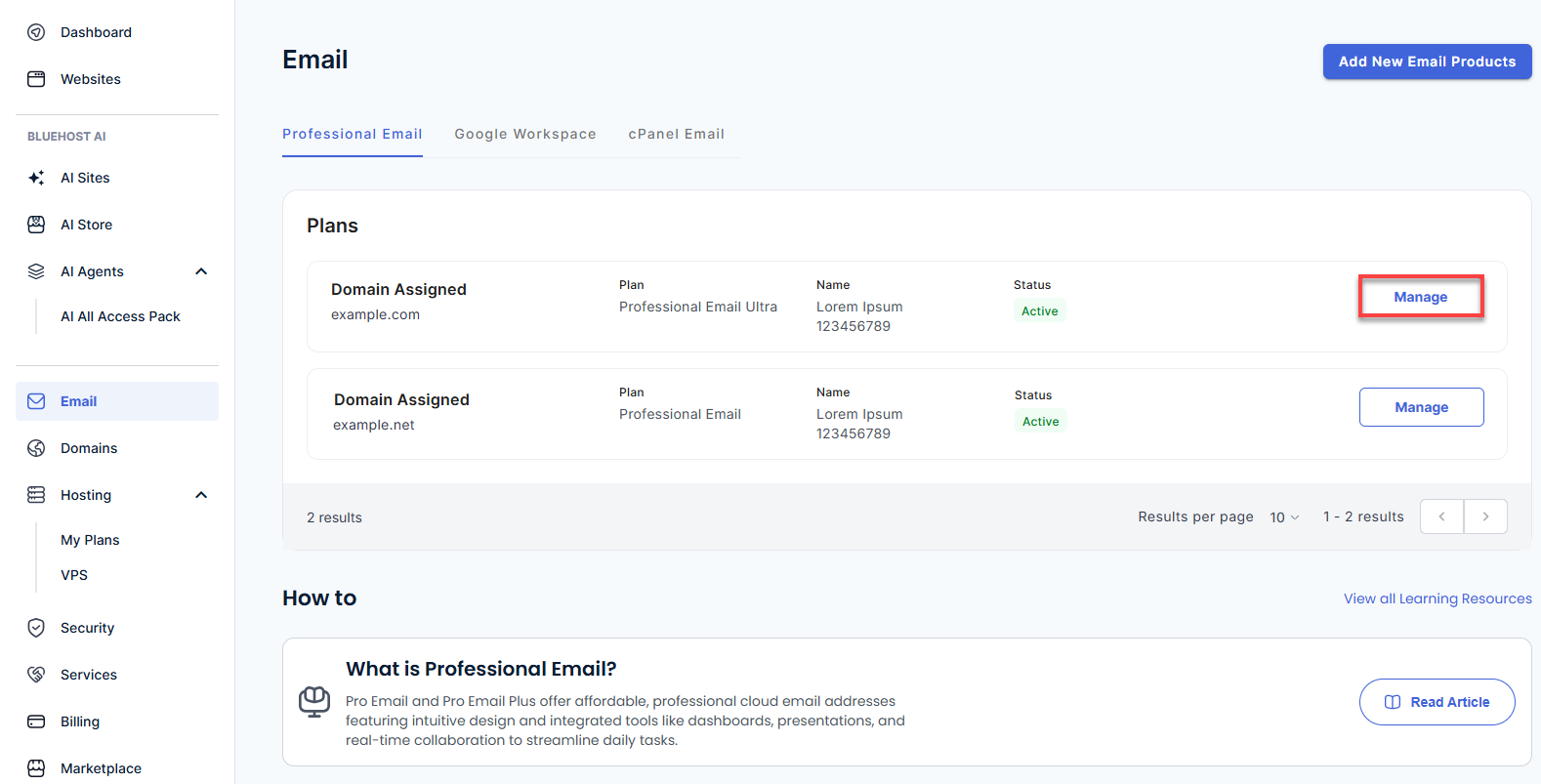
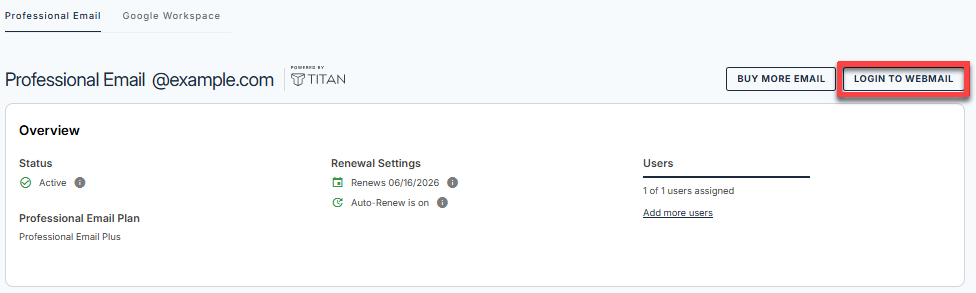
- You’ll be automatically redirected to the Email Management page, where you can manage your email settings and subscriptions.
- Click the Login to Webmail button.
- Enter your Professional Email username and password.
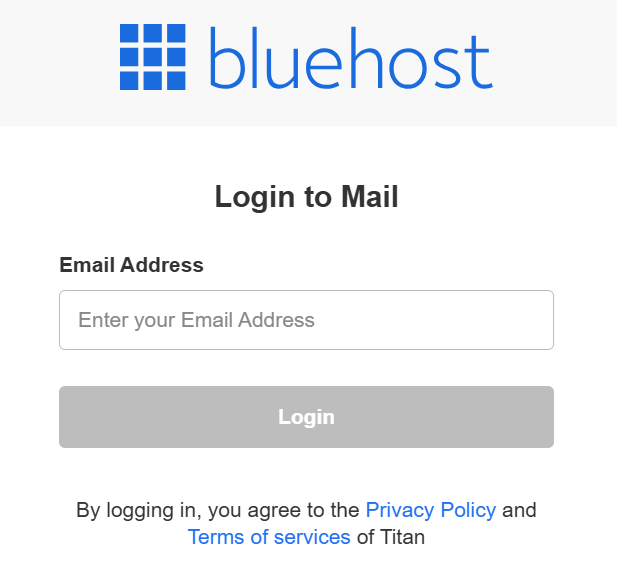
- Click Login.
Option 2: Use the Direct Login Link
- Go to the Professional Email login page.
- Enter your Professional Email username and password.
- Click Login.
How to Report Phishing Emails in Professional Email
Submitting phishing reports can help improve spam filtering and protect your inbox and the wider network:
- Open the suspicious email message.
- Click the More Actions icon (three vertical dots) in the upper email toolbar.
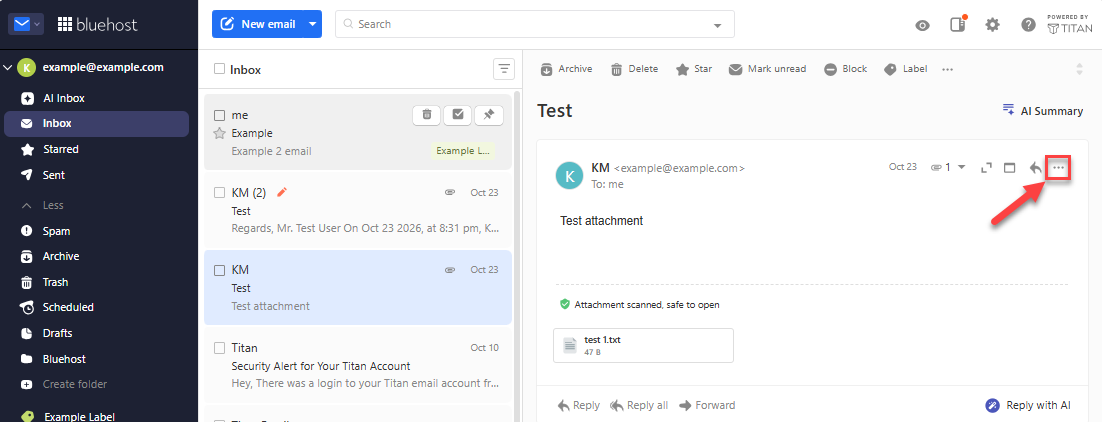
- Select Report phishing from the dropdown menu.
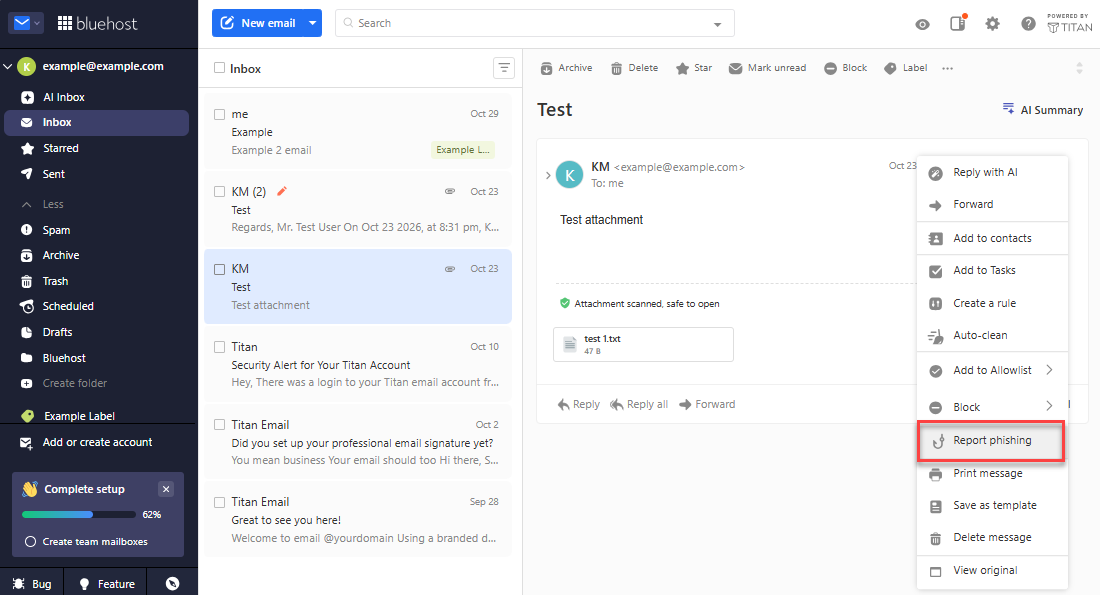
- A confirmation notice will appear once your report is submitted.
Proactive Steps to Keep Your Mailbox Secure
Implementing strong baseline security habits helps reduce the risk of unauthorized access, even if your email address or password is ever exposed:
- Enable Two-Factor Authentication (2FA): Turn on 2FA in your Professional Email settings. A secondary verification code helps prevent unauthorized logins, even if someone obtains your password.
- Always Inspect Senders, Links, and Urgency: Consistently check the authentic sender domain, hover over destination links, and pause whenever an email pressures you for immediate action.
- Keep DNS Records Updated: If your domain's DNS is managed through Bluehost, ensure it has valid MX, SPF, and DKIM records configured in your Bluehost Portal to help maintain proper mail authentication and reduce spoofing attempts.
Troubleshooting And Incident Response
Problem: I entered credentials or clicked a link from a suspicious email
Cause: The link led to a fake login portal designed to harvest your account credentials.
Solution:
- Change your Professional Email password immediately in your account settings.
- Enable Two-Factor Authentication (2FA) if it is not already active.
- Report the message using the Report phishing option.
- If you used the same password on other platforms or for your Bluehost hosting account, update those passwords immediately and enable 2FA on those services as well.
Problem: I reported an email as phishing, but I continue receiving similar messages
Cause: Spammers routinely rotate sending servers, throwaway domains, and spoofed headers to bypass email filters.
Solution:
- Continue reporting each message using Report phishing. Each report can help improve automated filtering.
- Avoid replying to unverified emails or clicking "unsubscribe" in them, as doing so can signal to scammers that your address is active.
Related Bluehost Articles
Summary
Staying vigilant when you review your Professional Email inbox helps keep your communications secure and helps protect your domain from unauthorized access. Phishing attacks commonly rely on deceptive domains, artificial urgency, and forged links to steal sensitive account data. By recognizing built-in yellow and red security banners, reporting suspicious messages directly from the webmail interface, keeping your domain's DNS records up to date (if your DNS is managed through Bluehost), and enabling Two-Factor Authentication (2FA), you can better defend your inbox against fraudulent activity.
If you need further assistance, Bluehost Chat Support is available 24 hours a day, 7days a week while Bluehost Phone Support is available 7 days a week from 7 am-12 midnight EST.
- Chat Support - While on our website, you should see a CHAT bubble in the bottom right-hand corner of the page. Click anywhere on the bubble to begin a chat session.
- Phone Support -
- US: 888-401-4678
- International: +1 801-765-9400
You may also refer to our Knowledge Base articles to help answer common questions and guide you through various setup, configuration, and troubleshooting steps.