 ChatGPT,
  Claude,
  Gemini,
  Grok — all four for
How to Connect Google Analytics to Bluehost
Google Analytics collects data from your WordPress website to help you understand who is visiting, where they come from, and what they do once they arrive. Connecting it to your site gives you the insight needed to reduce drop-off, improve your content, and turn more visitors into customers.
This article walks you through everything you need before you start, two ways to connect Google Analytics to WordPress using a plugin and how to confirm the connection is working.
Important: To measure your website with Google Analytics, you must first create a Google Analytics account and set up a property for your site.
Key takeaways
- Google Analytics integration tracks visitor behavior and traffic sources so you can make data-driven decisions.
- The MonsterInsights plugin lets you add Google Analytics to WordPress without writing any code.
- Use Google Analytics' Realtime report to confirm your setup is tracking visitors correctly.
- A fast, reliable hosting plan with one-click WordPress installation makes the whole setup smoother.
What you need before adding Google Analytics to WordPress
Before you connect Google Analytics, make sure you have the following in place.
Create a Google Analytics account
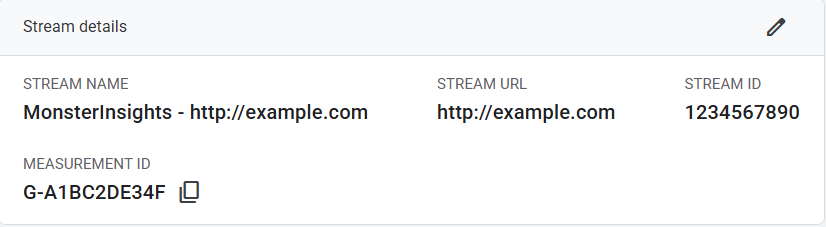
If you don't already have one, sign in to Google Analytics with your Google account and follow the setup steps to create a new property for your site. Once the property is created, you'll receive a Measurement ID (tracking ID) — you'll need this to connect WordPress to your Analytics property.
You can also locate your Measurement ID by following the steps below:
- Log in to your Google Analytics account.
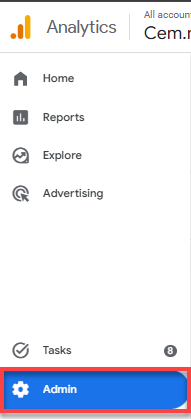
- In the left navigation menu, go to Admin.
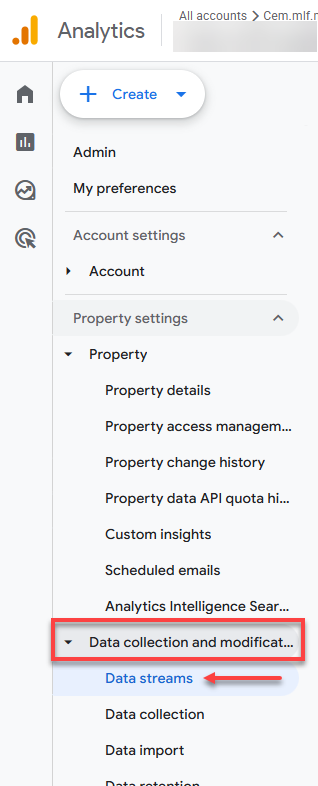
- Under Property settings, go to Data collection and modification. Click Data streams.
- Click your website to see your Measurement ID.
Make sure your WordPress site is ready
Confirm your WordPress site is installed and accessible. Bluehost offers one-click WordPress installation, which removes the technical setup work and gives you a stable environment for plugins and tracking scripts to run properly.
Connect Google Analytics using a plugin
The simplest way to add Google Analytics to WordPress is with a plugin. One of the most widely used options is MonsterInsights, which connects your site to Google Analytics without any coding. This plugin is available right away upon creating your website in your account.
- Log in to your WordPress dashboard.
- Go to Insights in your WordPress dashboard and select Launch Setup Wizard.
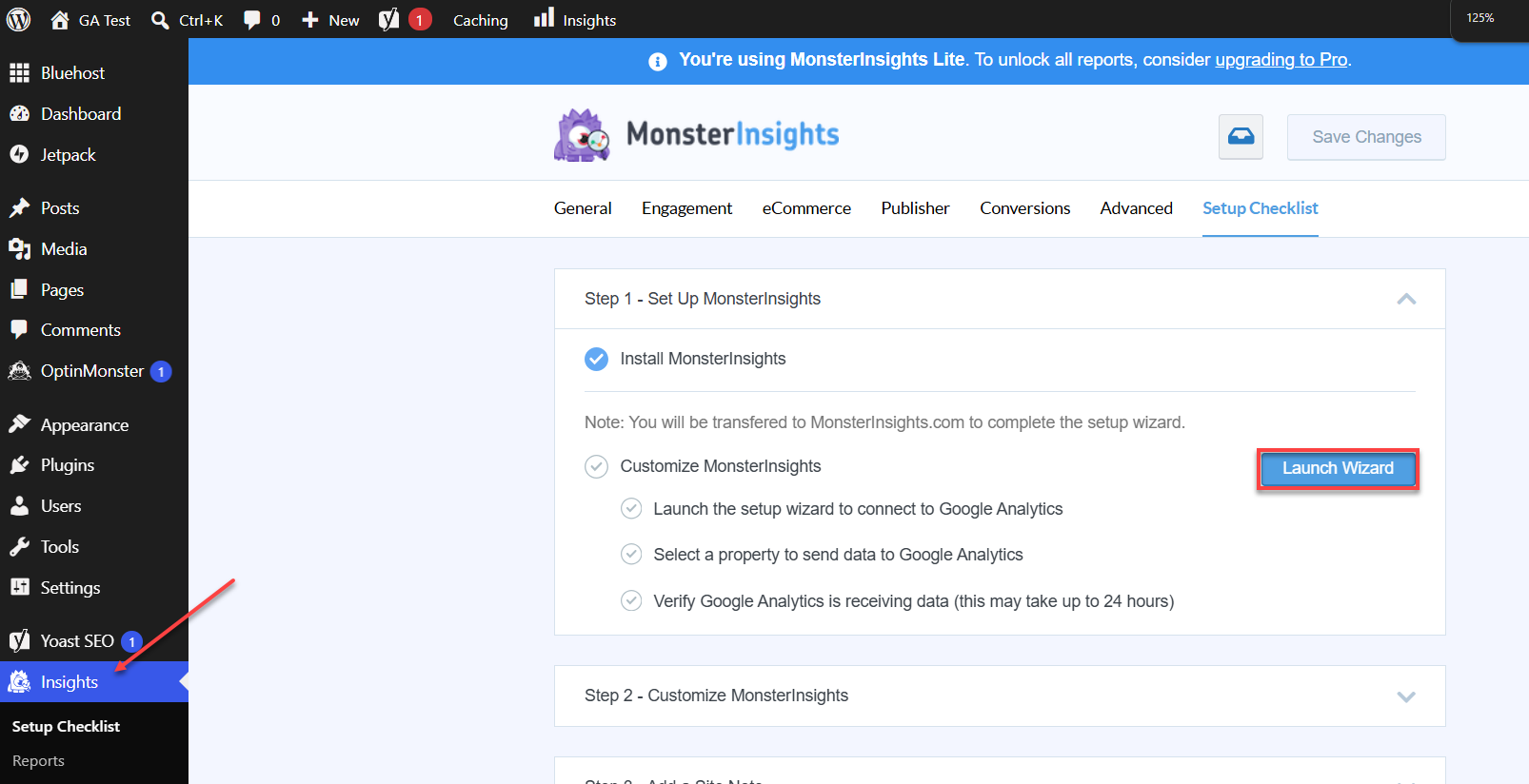
- Follow the on-screen instructions to connect your Google Analytics account.
Tip: Once connected, you can view key analytics data directly from your WordPress dashboard instead of switching between tabs.
Verify Google Analytics is working
Once your integration is in place, confirm it's tracking data correctly.
- Log in to your Google Analytics account.
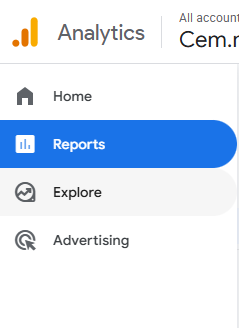
- Go to Reports from the left sidebar.
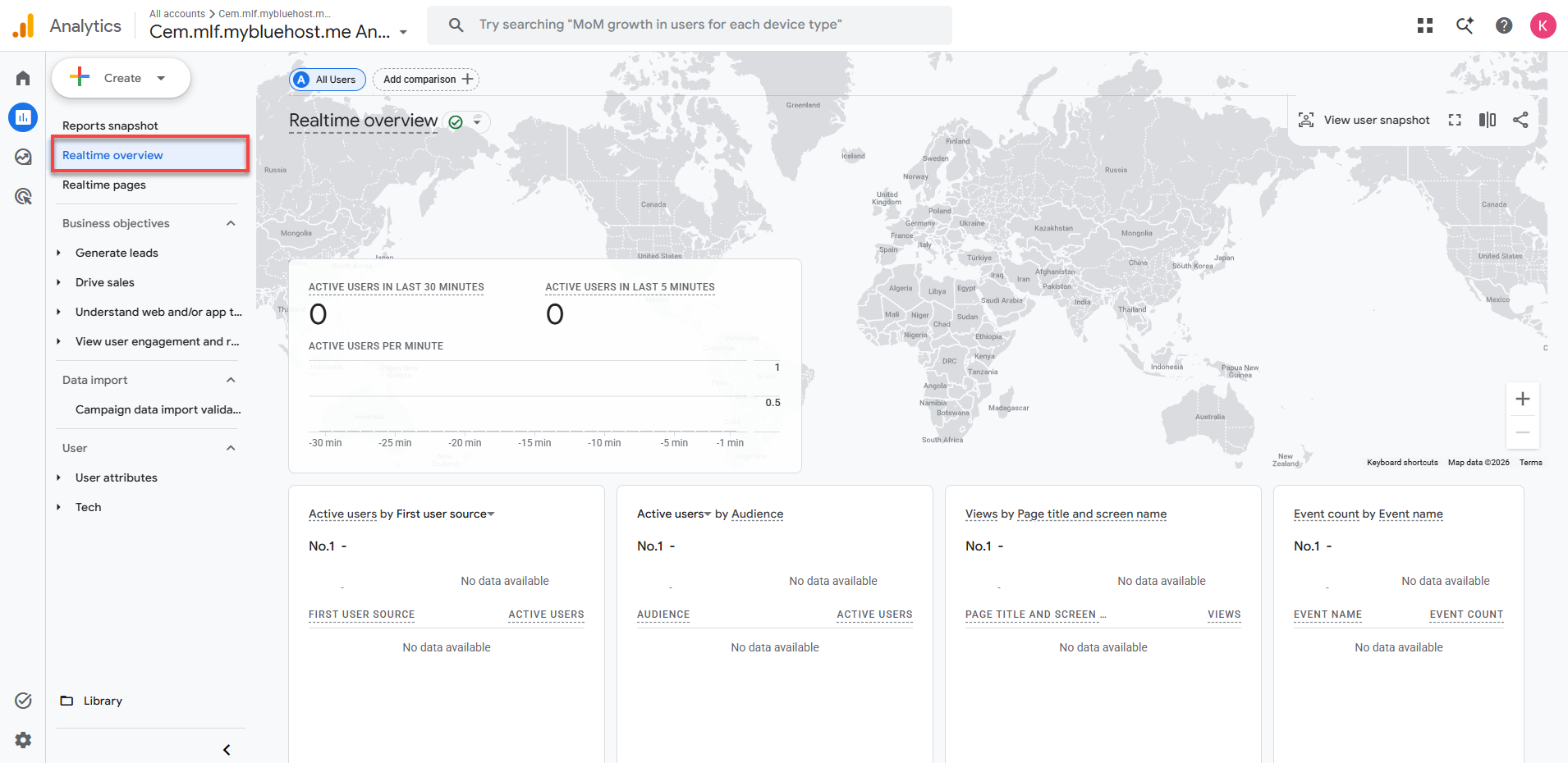
- Select Realtime overview.
- Open your WordPress website in a separate browser tab.
- If you see active users appear in the Realtime report, your setup is working.
Warning: If no data appears right away, wait a few hours and check again — tracking data can take time to populate. If the issue continues, contact your hosting provider's support team for troubleshooting help.
Q: How long does Google Analytics take to start tracking data?
A: Data typically starts appearing within a few hours of integration, though it can occasionally take up to 24 hours to show up in full reports.
Q: What if my Google Analytics isn't working?
A: Double-check that the tracking code was added correctly, clear your site cache, and use a tag-verification browser extension to confirm the code is firing. Also make sure you're viewing the correct property in your Analytics account.
Q: Is Google Analytics free to use?
A: Yes. The free version covers extensive tracking and reporting features suitable for most small businesses, bloggers, and website owners. Enterprises with higher data and reporting needs can upgrade to Google Analytics 360.
Summary
Connecting Google Analytics to WordPress is straightforward once you have your Measurement ID and a working WordPress site. Using a plugin like MonsterInsights, you can set up tracking in minutes without writing any code, then confirm it's working through the Realtime report in Google Analytics. With this in place, you'll have the visitor data you need to make smarter decisions about your content and grow your site.
If you need further assistance, Bluehost Chat Support is available 24 hours a day, 7days a week while Bluehost Phone Support is available 7 days a week from 7 am-12 midnight EST.
- Chat Support - While on our website, you should see a CHAT bubble in the bottom right-hand corner of the page. Click anywhere on the bubble to begin a chat session.
- Phone Support -
- US: 888-401-4678
- International: +1 801-765-9400
You may also refer to our Knowledge Base articles to help answer common questions and guide you through various setup, configuration, and troubleshooting steps.