 ChatGPT,
  Claude,
  Gemini,
  Grok — all four for
 Resetting the Admin Account Password With Softaculous
Managing your website securely includes keeping your administrative login details up to date. If you installed a script such as WordPress through Softaculous, you can conveniently update your admin password directly from your hosting control panel. The steps below walk you through the process of changing your admin credentials using the Softaculous interface.
How to Reset the Admin Account Password with Softaculous
- Log in to your Bluehost Portal.
- In the left-hand menu, click Hosting, then select My Plans.
- On the hosting details page, click the cPanel button.

- Your cPanel will open in a new tab.

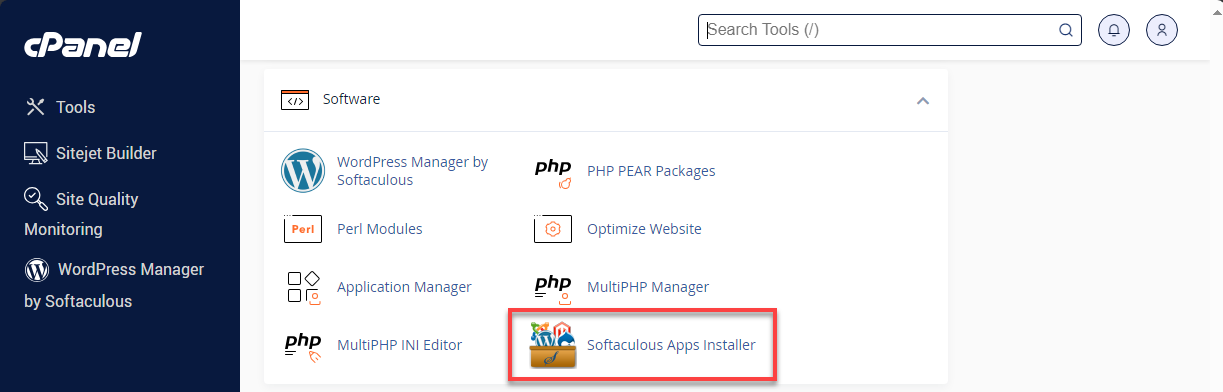
- Within the Software section, select the Softaculous Apps Installer.
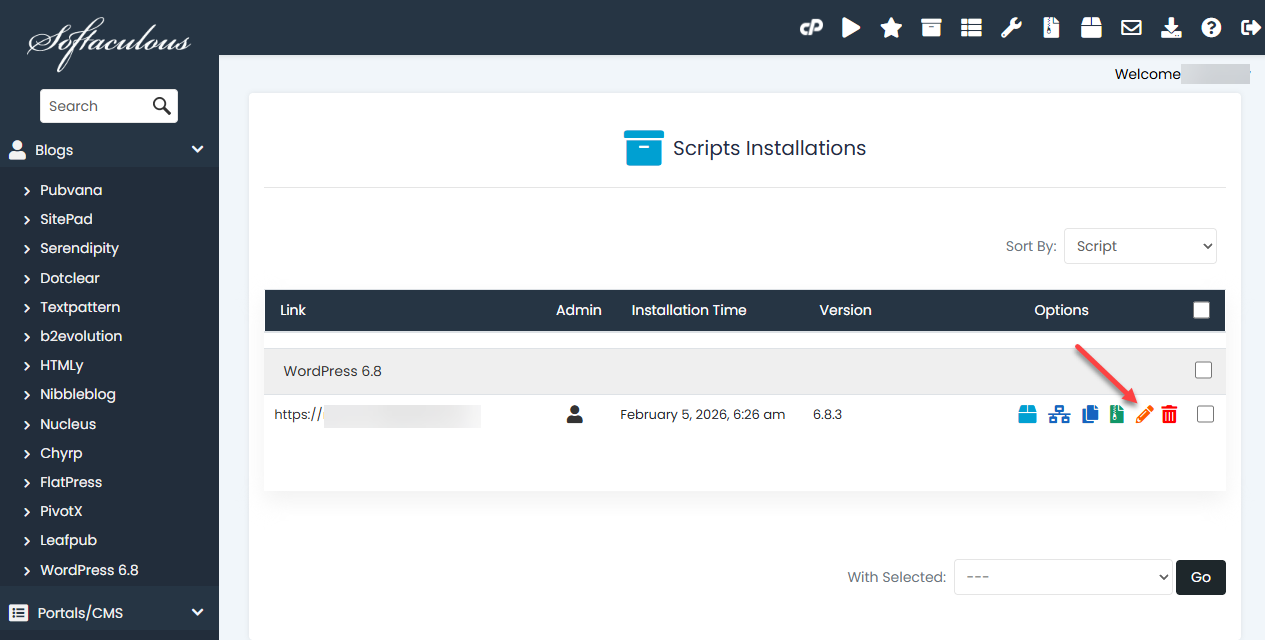
- On the main Softaculous screen, click the All Installations icon found in the top menu.

- Find the website installation you want to modify, then click the Edit icon.
- On the Edit Installation Details page, scroll until you see the Admin Account section.
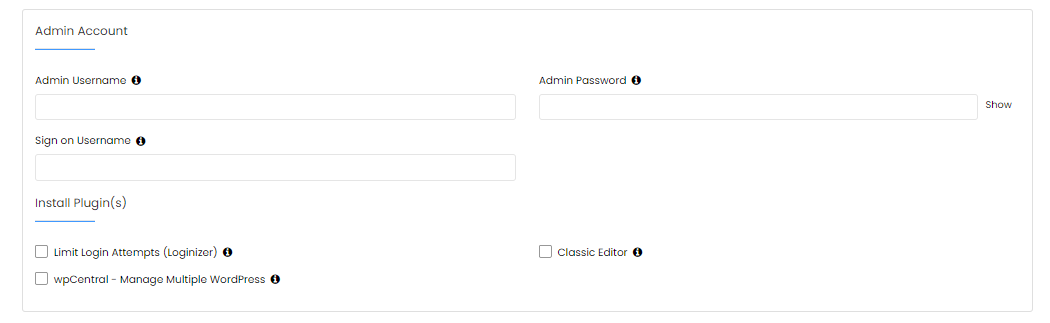
- Type your existing admin username into the Admin Username field.
-
Enter a new password in the Admin Password field.
-
After making changes, scroll down and click the Save Installation Details button.
- You will be taken to a confirmation screen. You can now sign in to your admin dashboard using the updated password.
Summary
Updating your admin password through Softaculous is a quick way to maintain the security of your website. By accessing the Softaculous Apps Installer, opening your list of installations, and editing your script’s settings, you can easily assign a new password to your admin account. Once saved, the changes apply immediately, allowing you to log in with your newly set credentials.
If you need further assistance, Bluehost Chat Support is available 24 hours a day, 7days a week while Bluehost Phone Support is available 7 days a week from 7 am-12 midnight EST.
- Chat Support - While on our website, you should see a CHAT bubble in the bottom right-hand corner of the page. Click anywhere on the bubble to begin a chat session.
- Phone Support -
- US: 888-401-4678
- International: +1 801-765-9400
You may also refer to our Knowledge Base articles to help answer common questions and guide you through various setup, configuration, and troubleshooting steps.