 ChatGPT,
  Claude,
  Gemini,
  Grok — all four for
 Purchase a Self-Managed VPS with DeepSeek Installation
DeepSeek gives you elite AI power for coding, data analysis, and technical tasks at a fraction of the usual cost. By pairing it with Bluehost Self-Managed VPS hosting, you can securely run this tool on your own private server to keep your business data safe. Setup is fully automated because you just select DeepSeek from the app menu during checkout.
- NVMe 2 (8 GB RAM / 4 vCPU) — The Absolute Minimum
- What you can run: Only the DeepSeek-R1 1.5B model.
- Why: An 8 GB server has about 6 GB to 7 GB of actual free memory after the Alma Linux operating system loads. The 1.5B model takes up about 1.5 GB to 2 GB of RAM, fitting perfectly.
- Performance: It will run at a decent, readable speed because you have 4 vCPU cores processing the math.
- Note: A 7B or 8B model will crash or completely freeze this server.
- NVMe 16 (16 GB RAM / 8 vCPU) — The Recommended Plan
- What you can run: The DeepSeek-R1 7B or 8B models.
- Why: These models require roughly 5 GB to 6 GB of RAM just to sit in memory. When you start asking them long questions, their memory usage spikes. A 16 GB server gives the AI the room it needs to "think" without crashing the server.
- Performance: Because these are CPU-only servers (no GPU), response times will be slow (about 2 to 5 words per second). The 8 vCPUs on this plan are highly necessary to keep the speed tolerable.
Legend :
- R1 - a model designed to "think"
- Local: Means the AI runs entirely on the hardware
- 1.5B / 7B / 8B: Refers to the model's size in "billions of parameters" (how many neural connections it has)
Why Use DeepSeek?
DeepSeek gives you top-tier AI smarts for writing code, solving math, and analyzing data at a fraction of the usual cost. Because it runs so efficiently, you save money while getting fast, incredibly smart answers to your toughest technical problems. Best of all, you can download it directly to your own computers to keep your business data completely safe and private.
Uses of DeepSeek
Here are the six most powerful ways industries and individuals are using DeepSeek to solve complex problems, cut costs, and protect their data:
- Powering AI Coding Agents": Development teams plug DeepSeek into multi-step coding tools (like Claude Code or OpenClaw). It can handle continuous loops of writing, testing, and fixing code without losing its train of thought.
- Repository-Wide Debugging: With its massive 1-million-token context window, developers feed entire codebases into the model to find bugs, refactor code, or map out system architecture.
- High-Volume Contract and Log Auditing: Due to its ultra-low API costs, businesses use DeepSeek to instantly scan, summarize, and extract unstructured data from thousands of legal documents or massive streams of server security logs simultaneously.
- Fully Offline Local Assisting: Everyday users and field workers run smaller, optimized versions of the model directly on standard consumer laptops, allowing them to use a powerful, fully capable AI without an internet connection.
- Complex Data Analysis: Financial analysts and data scientists use it to build intricate probability models, solve optimization problems, and evaluate game theory scenarios.
How to Purchase a Self-Managed VPS with DeepSeek Installation
We’ve created a short video on how to purchase a Self-Managed VPS with DeepSeek Installation.
To deploy and manage DeepSeek efficiently, start by purchasing a Self-Managed VPS Hosting from Bluehost. Follow these steps:

New to VPS or not sure where to start? No worries! At the top of the Self-Managed VPS purchase page, you’ll see the Pre-configured Setup section. This handy feature is perfect if you’re feeling a bit unsure—just pick the type of project you want, like WordPress Site, AI Agent/Claude Code, Dev/Staging, or eCommerce Store. We’ll take care of the rest by automatically filling in the best plan, operating system, and template for you.
- Super simple for beginners or anyone who just wants a quick setup
- Instantly get the recommended settings for your project
- Skip the guesswork and save time
- You can still customize things later if you want
- In your browser, go to https://www.bluehost.com/vps-hosting.
- Click the Choose Plan button under your preferred VPS hosting plan.
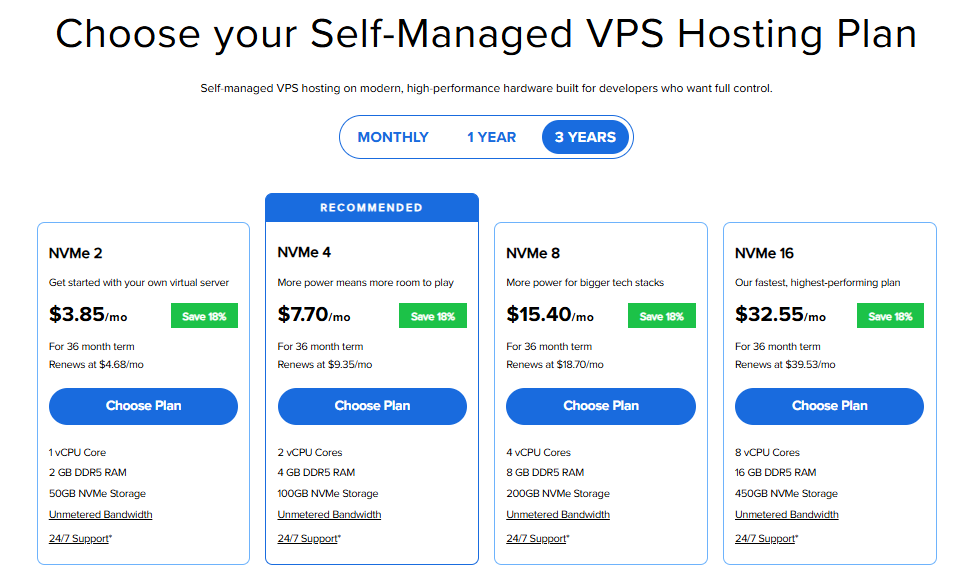
Important: Pricing is subject to change—please visit https://www.bluehost.com/vps-hosting for the current introductory/sign-up offer for Bluehost VPS Hosting. For the most up-to-date renewal pricing, visit your Bluehost Portal Renewal Center.
- Select your preferred Data Center location.

- On the Cart page, you can configure your server to fit your needs in the following section:
- Hardware:
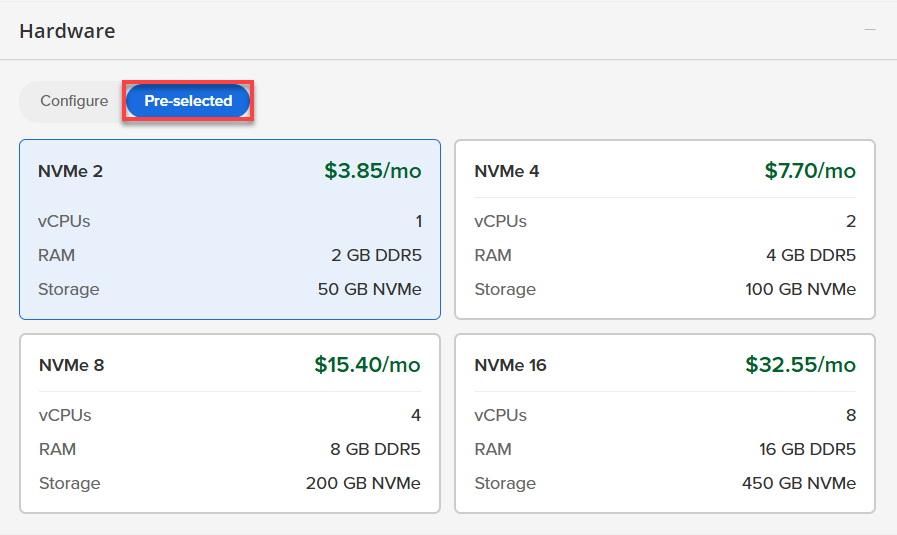
- Pre-selected:
You can select a different Self-Managed VPS plan in this section.
- Configure:
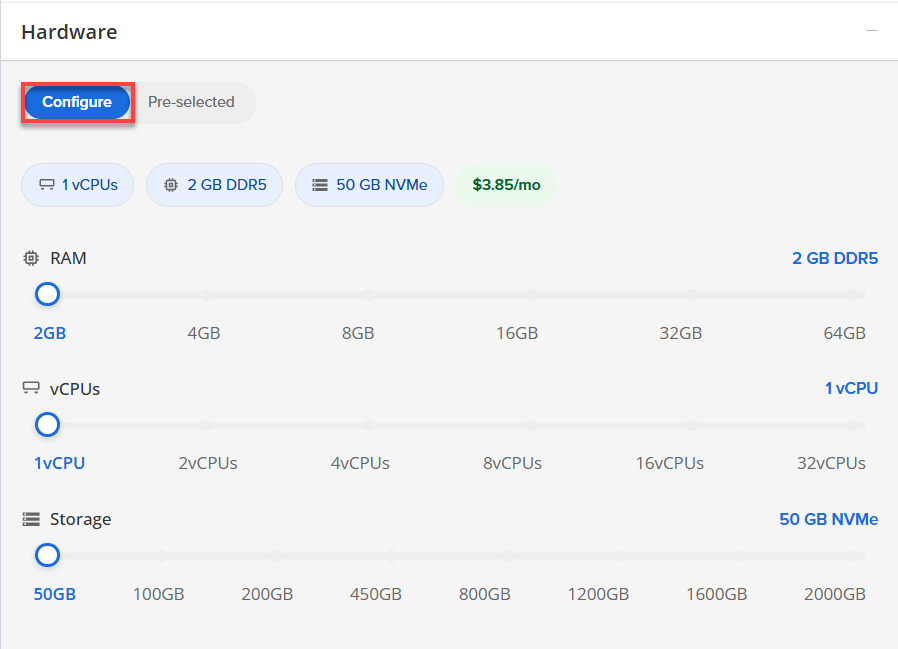
Click Configure to customize your package.
Note that your changes help customize your plan, and the overall cost will adjust accordingly to fit your needs.
- Pre-selected:
- Software:
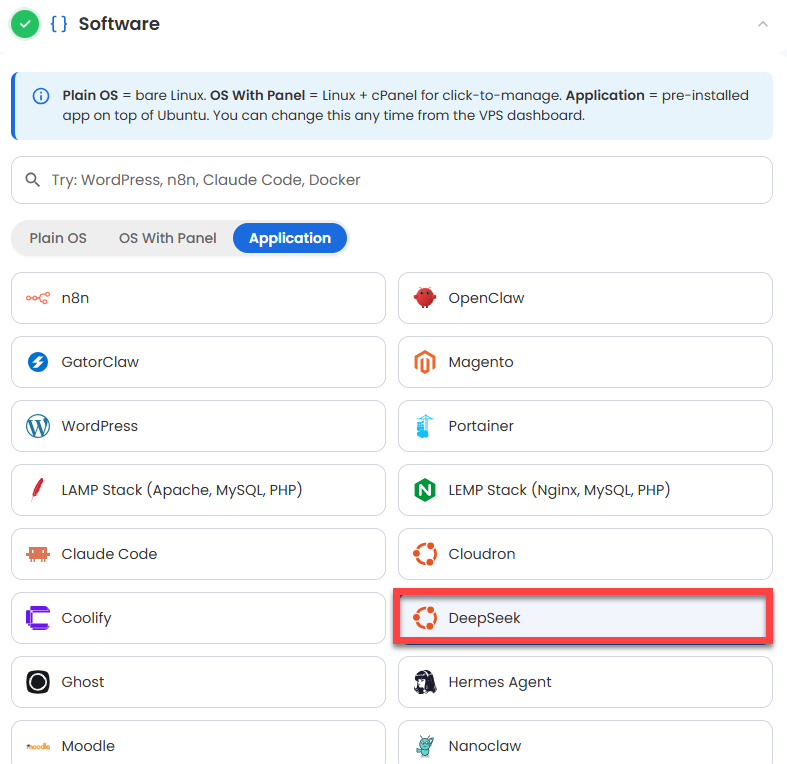
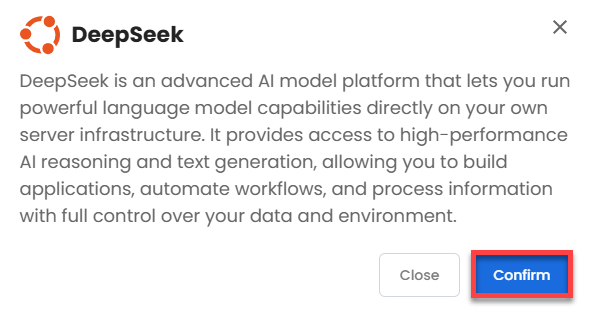
- Click on the Application tab.
- Choose DeepSeek.
- Click Confirm to continue.
- Hardware:
- Add-Ons:
- Support & Security:
- Premium Support - Recurring:
This service provides you with priority access to our expert team for faster responses and personalized assistance whenever you need it.

- Premium Support - Recurring:
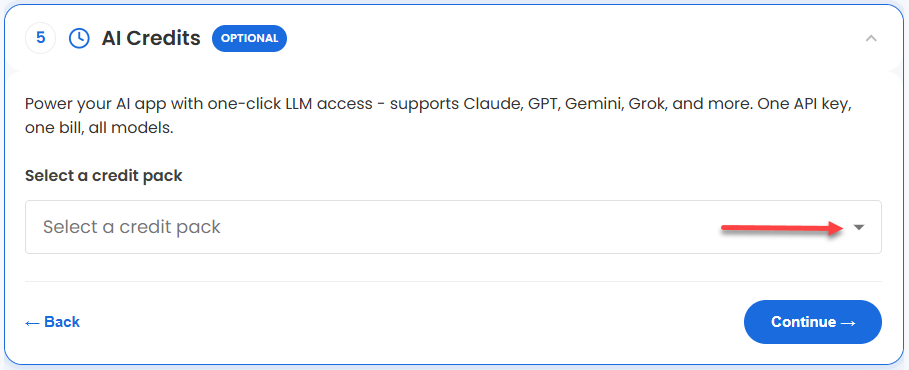
- AI Credits:
Purchase an AI credit package to effortlessly connect your application to leading LLMs through a single API key and bill. This step is optional.
- In the Advanced options:
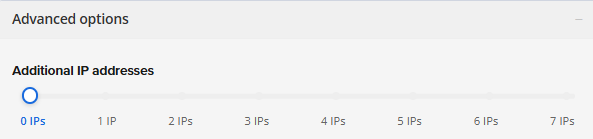
- Extra IP's: You can add extra IP addresses for an additional fee.
Pricing changes based on how many IPs you add. - Hostname: Assign a custom hostname to easily identify your server. This is optional.
- SSH Key: Add an SSH public key for secure, password-less access after provisioning.
- Extra IP's: You can add extra IP addresses for an additional fee.
- Support & Security:
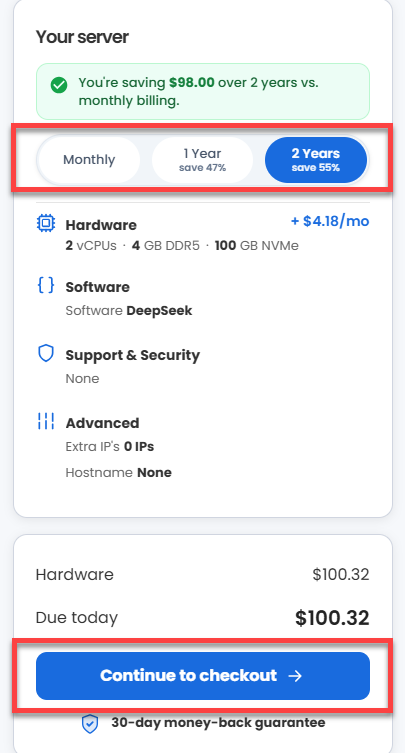
- Select your preferred billing term and view your Order Summary. Click the Continue to Checkout button to proceed.
- Do the following on the Checkout page:
If you're new with Bluehost:
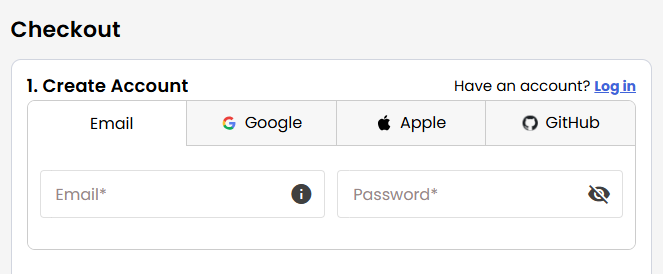
- Create your Bluehost account by using your email address or by connecting with your Google, Apple, or GitHub account — whichever you prefer!
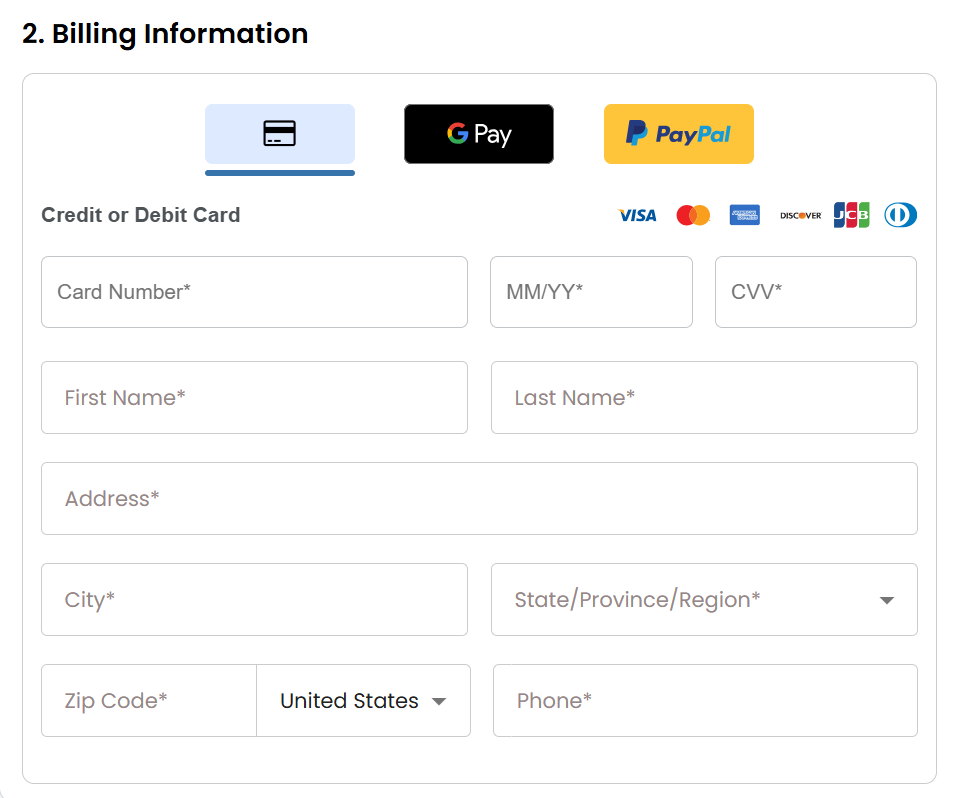
- Select your preferred payment method: credit card, Google Pay, or PayPal. Enter your billing information.
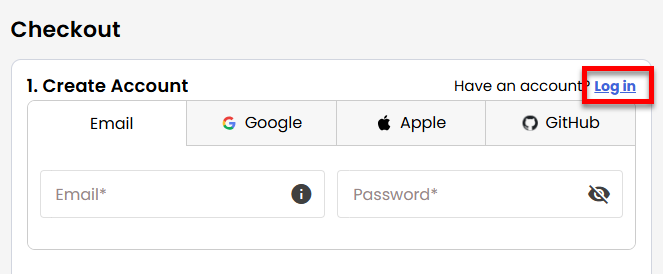
If you have an account with us, you will see your Bluehost login details when you are logged into your Bluehost Portal. If you are not logged in, please click the Log In link.
- Create your Bluehost account by using your email address or by connecting with your Google, Apple, or GitHub account — whichever you prefer!
- In the Shopping Cart section, you can still adjust your billing term if needed.
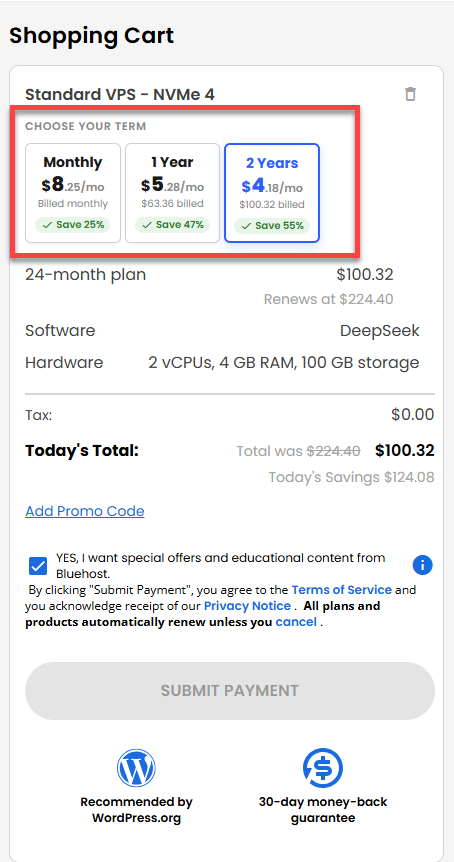
- Review the items in your cart, add a Promo Code if you have one, and then click Submit Payment to complete the purchase.
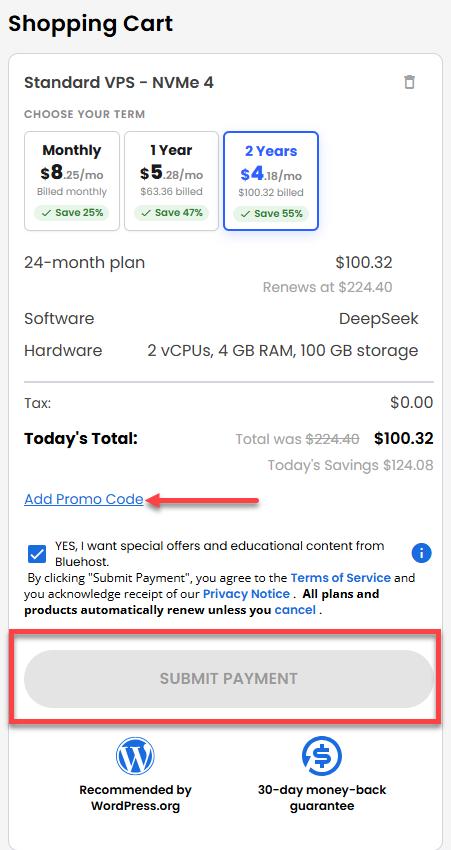
After checkout, your Self-Managed VPS will begin setting up. Once it’s ready, you can find it under the Hosting tab in your Bluehost Portal.
How to Test and Verify Your DeepSeek Setup
Here is how to quickly check your server, run DeepSeek commands, and make sure everything is working safely.
- Log in to your server via SSH.
When you log in to your server for the first time via SSH, you're greeted with a welcome message that includes all the essential commands and instructions for verifying DeepSeek. The content looks like this:
ssh [email protected]Example Output
Welcome to Ubuntu 24.04.4 LTS (GNU/Linux 6.8.0-124-generic x86_64) ******************************************************************************** DeepSeek AI Server API : http://123.45.67.89:11434 (Ollama-compatible REST) SSH : port 22 | UFW enabled - all other ports blocked Default model : deepseek-r1:1.5b (~1.1 GB, auto-pulled on first boot) Requirements: RAM : 4 GB minimum for this image (default model: deepseek-r1:1.5b) Larger models need more - see table below Model RAM requirements (minimum node RAM / recommended): deepseek-r1:1.5b -> 4 GB min / 8 GB recommended (default) deepseek-r1:7b -> 8 GB min / 16 GB recommended deepseek-r1:14b -> 16 GB min / 24 GB recommended Quick start: ollama run deepseek-r1:1.5b # interactive chat (default, needs 4 GB RAM) ollama list # list loaded models ollama pull deepseek-r1:7b # larger model (~4.7 GB, needs 8 GB RAM) ollama pull deepseek-r1:14b # pull an even larger model (~9 GB, needs 16 GB RAM) REST API: curl http://123.45.67.89:11434/api/tags curl -X POST http://123.45.67.89:11434/api/generate \ -H 'Content-Type: application/json' \ -d '{"model":"deepseek-r1:1.5b","prompt":"Hello","stream":false}' Service : systemctl status ollama Logs : /var/log/deepseek/deepseek.log Docs : cat /root/README.md ******************************************************************************** To delete this message of the day: rm -rf /etc/update-motd.d/99-deepseek Last login: Tue Jun 9 18:08:22 2026 from 180.190.20.22 - Check the Health of the Ollama Service:
Check if the service is active:
systemctl status ollama
Example Output
root@server-123456:~# systemctl status ollama ● ollama.service - Ollama Service Loaded: loaded (/etc/systemd/system/ollama.service; enabled; preset: enabled) Drop-In: /etc/systemd/system/ollama.service.d └─logging.conf, override.conf Active: active (running) since Tue 2026-06-09 17:22:47 UTC; 54min ago Main PID: 763 (ollama) Tasks: 39 (limit: 19161) Memory: 15.0G (peak: 15.0G) CPU: 7min 58.247s CGroup: /system.slice/ollama.service ├─ 763 /usr/local/bin/ollama serve └─6179 /usr/local/lib/ollama/llama-server --model /usr/share/ollama/.ollama/models/blobs/sha256-aabd4debf0> - Run and Manage DeepSeek Models via CLI:
ollama run deepseek-r1:1.5bExample Output
root@server-123456:~# ollama run deepseek-r1:1.5b pulling manifest pulling aabd4debf0c8: 100% ▕██████████████████████████████████████████████████████████▏ 1.1 GB pulling c5ad996bda6e: 100% ▕██████████████████████████████████████████████████████████▏ 556 B pulling 6e4c38e1172f: 100% ▕██████████████████████████████████████████████████████████▏ 1.1 KB pulling f4d24e9138dd: 100% ▕██████████████████████████████████████████████████████████▏ 148 B pulling a85fe2a2e58e: 100% ▕██████████████████████████████████████████████████████████▏ 487 B verifying sha256 digest writing manifest success >>> good morning Good morning! 🌞 How can I assist you today? >>> Send a message (/? for help) - Run the Test Suite:
prove /root/app_test/main.tExample Output
root@server-123456:~# prove /root/app_test/main.t             prove /root/app_test/main.t
/root/app_test/main.t .. ok
All tests successful.
Files=1, Tests=7,  0 wallclock secs ( 0.01 usr  0.01 sys +  0.04 cusr  0.03 csys = 0.09 CPU)
Result: PASS
Additional Information and Example Documentation Output
You can run cat /root/README.md to see more information and useful commands:
Example Output:
Docs    : cat /root/README.md
********************************************************************************
To delete this message of the day: rm -rf /etc/update-motd.d/99-deepseek
Last login: Tue Jun  9 21:26:30 2026 from 123.123.20.22
root@server-123456:~# cat /root/README.md
# DeepSeek

## Description

DeepSeek is an advanced AI model platform that lets you run powerful language model capabilities directly on your own server infrastructure.
It provides access to high-performance AI reasoning and text generation,
allowing you to build applications, automate workflows, and process information with full control over your data and environment.

## Minimum Requirements

### Node resources

| Resource | Minimum | Recommended |
|----------|---------|-------------|
| RAM      | 4 GB    | 8 GB (default model); see model table below for larger models |
| Disk     | 5 GB    | 20 GB+ (if pulling multiple or larger models) |
| GPU      | None (CPU-only supported) | NVIDIA (CUDA) or AMD (ROCm) GPU for faster inference |

> **GPU note:** Ollama automatically offloads model layers to any detected NVIDIA (CUDA)
> or AMD (ROCm) GPU. Without a GPU, inference runs on CPU only - functional but noticeably
> slower, especially for larger models. For production workloads or low-latency responses,
> a GPU-equipped node is strongly recommended.

### RAM requirements by model

RAM figures account for model weights (Q4_K_M quantization), KV cache at default context
length, Ollama runtime (~150 MB), and Ubuntu OS idle usage (~500 MB).

| Model              | Disk size | Min node RAM | Recommended RAM |
|--------------------|-----------|--------------|-----------------|
| deepseek-r1:1.5b   | ~1.1 GB   | 4 GB         | 8 GB            |
| deepseek-r1:7b     | ~4.7 GB   | 8 GB         | 16 GB           |
| deepseek-r1:14b    | ~9.0 GB   | 16 GB        | 24 GB           |
| deepseek-r1:32b    | ~20 GB    | 32 GB        | 32 GB           |
| deepseek-r1:70b    | ~43 GB    | 64 GB        | 64 GB           |

The default model pre-loaded on first boot is `deepseek-r1:1.5b`. Pulling a larger model
on a node with insufficient RAM will cause Ollama to return a `500 Internal Server Error`.

Following installation the virtual machine will have:
* DeepSeek REST API on port 11434 (Ollama-compatible, OpenAI-compatible)
* SSH on port 22

Ports are protected using ufw with default-deny incoming policy.

## Services

Service           | Port  | Protocol | Notes
------------------|-------|----------|------
SSH               | 22    | TCP      | UFW rate-limited
DeepSeek API      | 11434 | TCP      | Ollama runtime, OpenAI-compatible endpoint

## Links

* DeepSeek models on Ollama: https://ollama.com/library/deepseek-r1
* Ollama documentation: https://github.com/ollama/ollama
* Ollama REST API reference: https://github.com/ollama/ollama/blob/main/docs/api.md
* DeepSeek official site: https://www.deepseek.com

## How-to-use

### Interacting via CLI

SSH into the server and use the `ollama` command:

ollama list # list downloaded models
ollama run deepseek-r1:1.5b # interactive chat session (default, needs 4 GB RAM)
ollama pull deepseek-r1:7b # pull a larger model (~4.7 GB, needs 8 GB RAM)
ollama pull deepseek-r1:14b # pull an even larger model (~9 GB)
ollama rm deepseek-r1:1.5b # remove a model

### Interacting via REST API

The API is accessible from outside the server on port 11434:

# List available models
curl http://:11434/api/tags

# Generate a completion (non-streaming)
curl -X POST http://:11434/api/generate \
     -H 'Content-Type: application/json' \
     -d '{"model":"deepseek-r1:1.5b","prompt":"Explain quantum computing","stream":false}'

# Chat endpoint
curl -X POST http://:11434/api/chat \
     -H 'Content-Type: application/json' \
     -d '{"model":"deepseek-r1:1.5b","messages":[{"role":"user","content":"Hello"}]}'

# OpenAI-compatible endpoint
curl -X POST http://:11434/v1/chat/completions \
     -H 'Content-Type: application/json' \
     -d '{"model":"deepseek-r1:1.5b","messages":[{"role":"user","content":"Hello"}]}'

### Model storage

Models are stored in /usr/share/ollama/.ollama/models. Ensure sufficient disk space before pulling large models (7B models require ~4.7 GB, 14B ~9 GB, 32B ~20 GB).

### Service management

systemctl status  ollama       # check service status
systemctl restart ollama       # restart the service
journalctl -u ollama -f        # follow journal logs
tail -f /var/log/deepseek/deepseek.log   # follow file logs (rotated daily, 14 days)

### Running the test suite

prove /root/app_test/main.t

### Security note
The Ollama API on port 11434 is exposed to the network and does not provide authentication by default. Restrict access using cloud firewall/security groups, a reverse proxy with authentication, or deploy only on trusted private networks.
Summary
DeepSeek gives you elite AI power for coding, data analysis, and technical tasks at a fraction of the usual cost. By pairing it with Bluehost Self-Managed VPS Hosting, you can easily run this powerful tool on your own secure, private server to keep your business data completely safe. Best of all, setup is fully automated because you just select DeepSeek from the app menu during checkout, and Bluehost handles the installation for you.