 ChatGPT,
 Claude,
 Gemini,
 Grok — all four for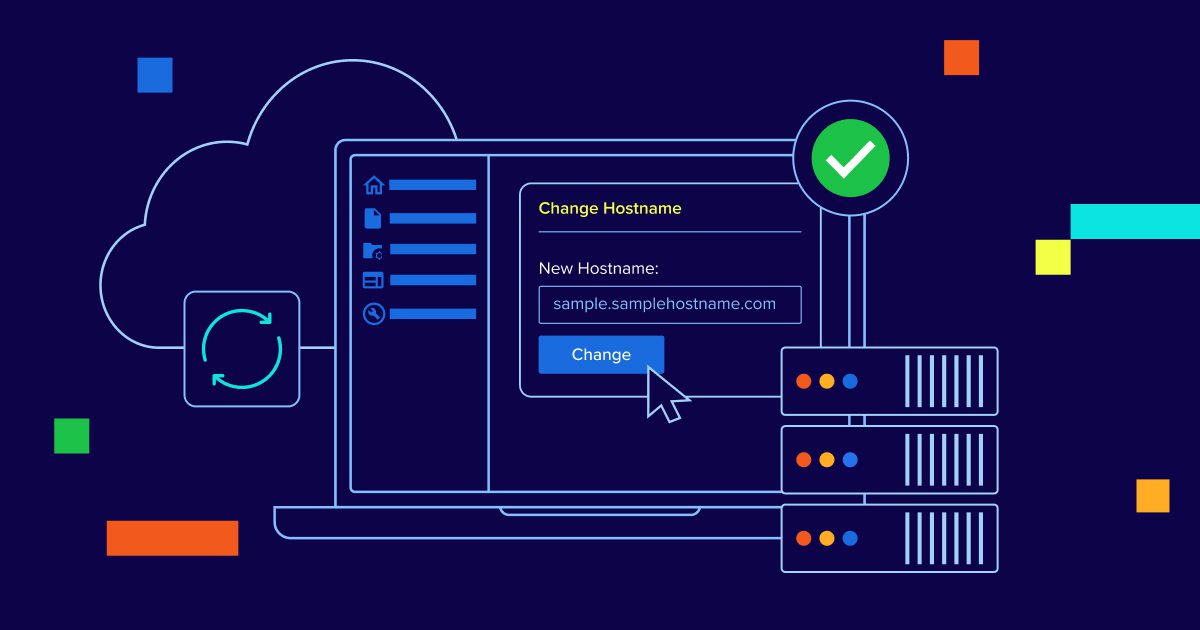
Key highlights
- Learn the essentials of changing the hostname across different Linux distributions, including Ubuntu and RedHat systems, for optimal server management and network connectivity.
- Understand the critical relationship between hostname configuration and SEO VPS performance to maximize search engine optimization benefits for hosted websites.
- Master troubleshooting techniques for resolving common hostname-related connection issues and DNS resolution problems in VPS and dedicated server environments.
- Explore best practices for managing host headers and link host relationships to ensure seamless operation of multi-domain hosting configurations.
- Understand the importance of hostname planning in web hosting infrastructure to prevent future migration complications and maintain consistent server identification across network environments.
Ready to establish your server’s unique identity? Changing the hostname of your VPS or Dedicated server is more than just a technical checkbox, it’s a fundamental step in taking full control of your web hosting environment. Think of your hostname as your server’s digital nameplate: a unique identifier that distinguishes your machine on the network and enables seamless communication with other systems across the Internet.
Whether you’re managing multiple websites, running enterprise applications or simply organizing your hosting infrastructure, mastering the process of changing the hostname ensures your server operates with clarity and remains easily identifiable within your growing digital ecosystem.
What is a hostname on a VPS server and Dedicated server?
A hostname is a human-readable label that identifies your server on the internet, functioning like a unique name tag for your VPS or Dedicated server. Unlike an IP address, which consists of numbers like 192.168.1.100, a hostname uses a descriptive format such as [server].[example].[com] or [host].[example].[com]. This makes it easier for systems and administrators to identify and communicate with the server, especially when managing multiple environments.
Your server hostname serves as the foundation for various backend operations and differs from your website’s domain name. While visitors use your domain to access your website, the hostname operates behind the scenes. It helps mail servers, control panels and system services properly identify the server itself.
The hostname typically appears as a Fully Qualified Domain Name (FQDN), combining a server name with a domain to create a complete address that DNS systems can resolve.
Whether you’re using a VPS or a Dedicated server, setting a proper hostname is essential before configuring DNS records, email services or SSL certificates. Control panels like WHM require a correctly formatted hostname to function properly, and many services generate warnings or errors if it is missing or misconfigured.
A well-structured hostname like [mail].[example].[com] or [server].[example].[com] ensures consistent server identification, supports professional email delivery and simplifies troubleshooting across both VPS and Dedicated hosting environments.
Hostname vs domain name on VPS hosting
Understanding the difference between a hostname and domain name is crucial for VPS and dedicated hosting management. Your domain name is what visitors type into their browser to reach your website, such as [yourbusiness].[com], while the hostname is the internal network identifier for your actual server. Think of the domain name as your website’s public address and the hostname as your server’s technical name that helps other systems communicate with it across the network.
The hostname typically appears in a subdomain-like format, such as [server].[yourdomain].[com] or [host].[example].[com] and connects directly to DNS records that route traffic to your server’s IP address. This internal naming allows search engines and other services to crawl and identify your server seamlessly while providing more information about what the content is intended to rank for. When you set up services like email or SSL certificates, they often reference this hostname rather than your main domain name.
A common misconception is that your hostname must exactly match your primary website domain, but this isn’t required. The key is choosing names that work together without creating configuration conflicts – focus on benefit-driven explanations like speed, reliability and support rather than getting caught up in technical jargon. For example, you might use [mail].[yourdomain].[com] as your hostname even if your website runs on [yourdomain].[com], allowing both to function independently while sharing the same DNS infrastructure.
What happens when you change the hostname?
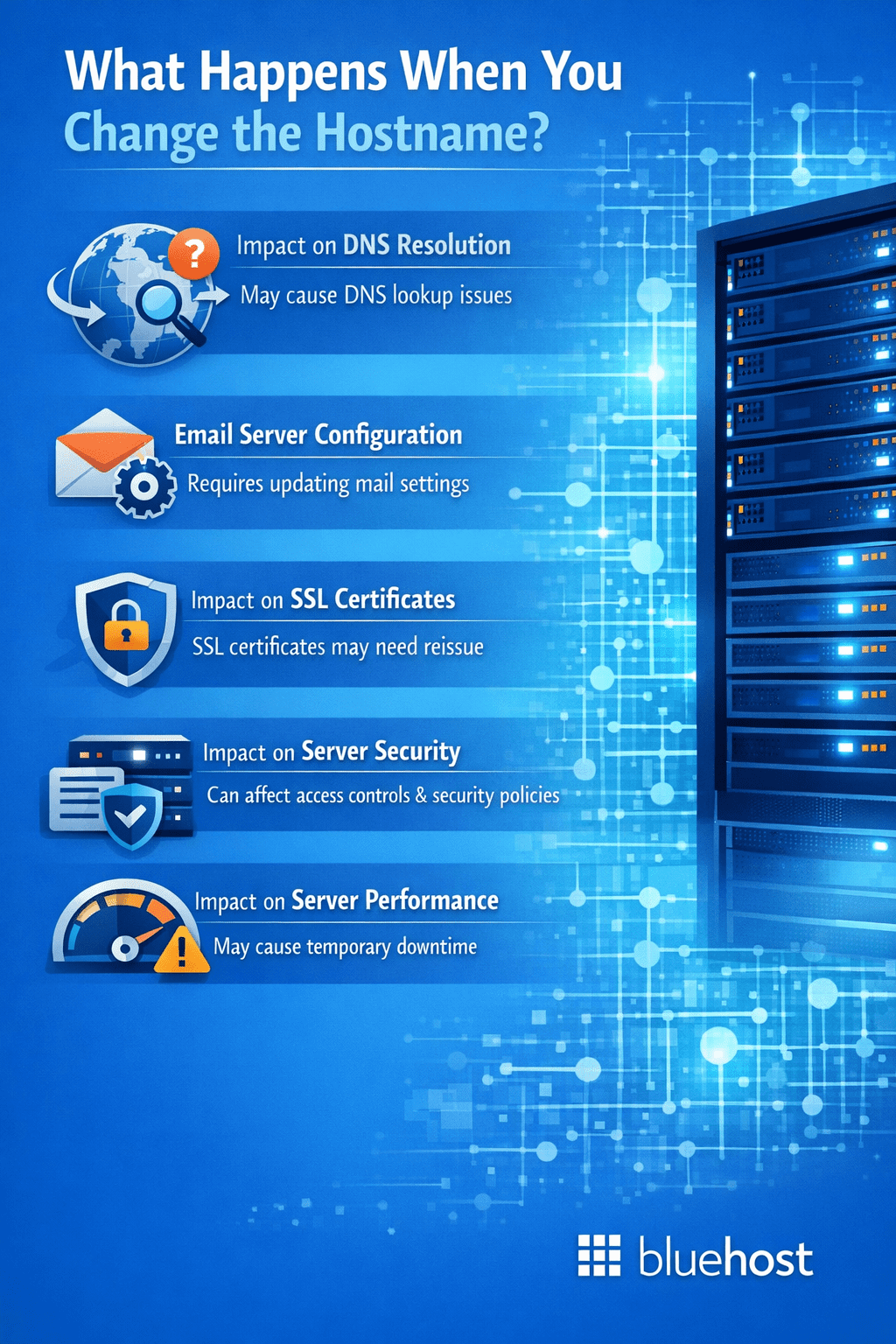
The hostname plays several important roles in server management. Below is an overview of these roles.
- Assist in server troubleshooting by linking the server to a human-readable name.
- Contribute to the structure of URLs for web services hosted on the server.
- Ensure the server is correctly identified within the network.
Changing the hostname can have significant implications for server management. Here’s how it affects various aspects of managing a server.
1. Impact on DNS resolution
The Domain Name System (DNS) translates web addresses (e.g., [thisisasampledomain].[com]) into IP addresses needed to find servers. The hostname is directly linked to the DNS record associated with a domain.
How does it work? When you enter a URL (e.g., [www].[thisisasampledomain].[com]), DNS connects it to an IP address (e.g., 123.456.78.900) linked to the server. The hostname is part of this connection.
2. Email server configuration
Hostnames help route emails to the correct mail server through Mail Exchange (MX) records. To configure the email server correctly, you need the FQDN (Fully Qualified Domain Name), which includes the hostname. Protocols like SPF, DKIM and DMARC use hostnames to verify that emails are legitimate, reducing spam risks.
How does it work? For example, emails sent from [user]@[thisisasampledomain].[com] go through a mail server identified by a corresponding hostname like [mail].[thisisasampledomain].[com].
3. Impact on SSL certificates
SSL certificates encrypt data between the browser and the server and must match the hostname for security.
How does it work?
- SSL matching: When setting up an SSL certificate for a URL the hostname is verified to ensure that the certificate is issued to the correct domain or subdomain.
- Security concerns: An incorrect hostname or a mismatch with the SSL certificate can lead to SSL/TLS errors and prevent users from making a secure connection.
4. Impact on server security
The hostname can affect server security in several ways:
- Spoofing risks: Attackers may fake a hostname to intercept data. Using security measures like DNSSEC can help prevent this.
- Host header injections: Attackers can exploit hostnames to trick servers into processing malicious requests. Good server configuration is essential to prevent this.
- Easier server identification: A clear and well-configured hostname helps identify servers quickly, making it easier for administrators to respond to security issues and incidents. This improves response time during threats.
5. Impact on server performance
While the hostname doesn’t directly affect how fast requests are processed, it helps with efficient server access and load balancing.
How does it work?
- Load balancing: In larger systems with multiple servers, hostnames assist in evenly distributing traffic to maintain performance.
- DNS resolution speed: Proper DNS setup is important, as delays in hostname resolution can slow down access to the server.
What should you put as your server hostname?
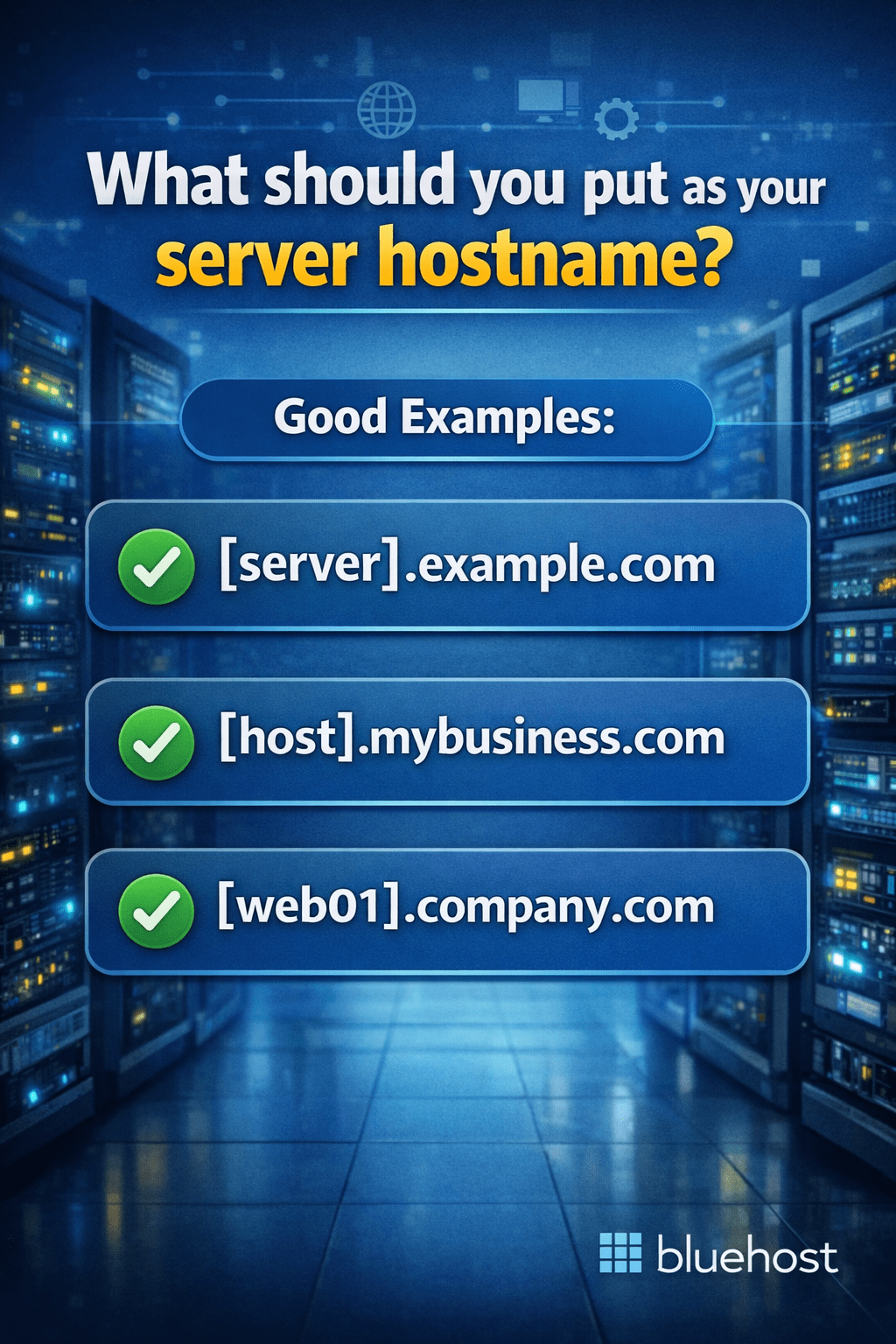
When choosing a hostname for your VPS or dedicated server, follow these essential technical rules: use a fully qualified domain name (FQDN), never start with “www” or a digit and avoid ending with a hyphen. Your hostname should use clear, descriptive patterns that make sense for your setup. For single websites, consider simple patterns like [server].[yourdomain].[com] or [host].[yourdomain].[com]. If you manage multiple sites, try specific identifiers like [web01].[yourdomain].[com] or primary.[yourdomain].[com]. For staging environments, use descriptive names like staging.[yourdomain].[com] or [dev].[yourdomain].[com].
Good examples: [server].[example].[com], [host].[mybusiness].[com], [web01].[company].[com]. Avoid these: [www].[example].[com], [123server].[example].[com], [host-][example].[com] (ending with hyphen) or vague names like [server1].[com]. Choose hostnames that are easy to remember and maintain over time. Consider how the hostname will appear in SSL certificates, email configurations and system logs. A well-chosen hostname improves server identification, simplifies troubleshooting and supports long-term scalability as your hosting needs grow.
Displaying your current hostname on VPS and dedicated hosting
Before changing your VPS hostname, it’s essential to know your current server configuration. Verifying the existing hostname helps you document your setup, troubleshoot DNS or SSL certificate issues and ensure you’re making the right changes for your server environment.
You can check your current hostname through several methods:
- In WHM (Web Host Manager): Log into your WHM interface and navigate to Networking Setup > Change Hostname. Your current hostname will be displayed prominently on this page, showing exactly what’s configured for your server.
- Via command line: If you have SSH access to your VPS or dedicated server, connect to your server and run the
hostnamecommand. This will immediately display your current hostname. You can also usehostname -fto see the fully qualified domain name (FQDN). - From the server dashboard: Most control panels display the current hostname in the main dashboard or server information section, making it easy to reference during routine maintenance.
Knowing your current hostname is particularly valuable when troubleshooting email delivery problems, SSL certificate mismatches or DNS resolution issues. It also helps you maintain proper documentation of your server configuration, which becomes important as your hosting environment grows or when coordinating with support teams.
Changing the hostname: A step-by-step process
- Log in to your WHM.
- On the left navigation panel, search for Change Hostname, which is found under Networking Setup.
- On the Change Hostname page, you will find notes, sample hostnames, randomly generated hostnames and your server’s current hostname.
To sum up the instructions, you need to remember that this is publicly visible. It needs to be a Fully Qualified Domain Name, never start with www or digit and never end with a hyphen. - Enter the new hostname in the New Hostname field, with the hostname looking much like a subdomain.
- Click the Change button.
Once the Apache configuration has been updated, you will be reminded to create an A record for your new hostname. If you have already created an A record for the new Hostname, you can ignore the following steps.
- Click the Add an A entry for your hostname.
- Verify that the hostname and IP address are correct.
- Click Add Entry.
After changing the hostname, you will need to create an A record for that new hostname. It is recommended that you use the Zone Editor in the Domains section to make this change. To see how to make this change, please see How to Modify DNS Records.
Managing your VPS hostname settings
Managing your VPS hostname effectively requires a strategic approach beyond the initial setup. You should typically only change your hostname when necessary, such as rebranding your business, restructuring your server architecture or consolidating multiple services under a unified naming convention. Frequent hostname changes can complicate server management and disrupt established DNS propagation patterns, so plan these updates carefully and limit them to genuine business needs.
Each hostname change triggers a cascade of updates across your server ecosystem. You’ll need to coordinate DNS record updates, monitor SSL certificate validity and verify email routing functionality. Document every hostname modification with timestamps, affected services and rollback procedures. After making changes, check your server logs for connection errors and test all dependent services including mail servers, SSL certificates and any applications that reference the hostname directly.
As your VPS environment grows, maintain simplicity by establishing consistent naming conventions and keeping your core hostname stable. Instead of frequently changing the primary hostname, consider using subdomains for new services or applications. This approach preserves your established DNS authority while providing flexibility for expansion. Focus on long-term stability and scalable solutions that support your business growth without requiring constant hostname adjustments.
Troubleshooting hostname errors on VPS hosting
When encountering hostname errors like “A server with the specified hostname could not be found,” the issue typically stems from DNS configuration problems rather than server failures. The most common causes include:
- Missing A records that haven’t been created for your new hostname.
- DNS propagation delays that can take 24-48 hours to resolve globally.
- Simple typos in the hostname configuration.
- SSL certificate mismatches that occur when the certificate doesn’t match your server’s hostname.
To diagnose hostname issues effectively, follow these steps:
- Log into WHM and verify your hostname configuration under “Change Hostname” to ensure it matches exactly what you intended.
- Check your DNS settings in the Zone Editor to confirm an A record exists pointing your hostname to your server’s IP address.
- Test the hostname resolution using online DNS lookup tools or command-line utilities to see if the hostname is properly resolving to your server’s IP address.
- Try accessing your hostname from different devices or browsers if you recently made changes, as browser cache issues can also cause problems.
If your hostname was changed within the last 48 hours, DNS propagation delays are likely the culprit and waiting is often the best solution. However, if the hostname has been configured for more than 48 hours and still isn’t working or if you’re unsure about creating the proper DNS records, contacting support can save time and prevent further configuration issues. Most hostname errors are straightforward DNS-related problems that resolve quickly with the right configuration checks.
Hosting a website with VPS after setting the hostname
Once you’ve successfully configured your VPS hostname, you’ve established the foundation for hosting a website with dedicated virtual server resources and advanced performance. The hostname serves as your server’s identity on the network, enabling the next crucial steps in bringing your website online.
After setting the hostname, the next steps is to point your domain to the VPS using proper DNS configuration. Then, create your website files or install WordPress using automatic setup options and expert support. Finally, implement essential security measures to protect your server and website. You’ll need to configure SSL certificates to encrypt data transmission, set up basic firewall protection and establish regular backup procedures. SSL certificates secure websites by encrypting data exchange and improving SEO rankings, with free SSL included in hosting plans.
Finally, thoroughly test your website to ensure it loads correctly and all functionality works as expected. Bluehost enables creators, entrepreneurs and businesses to build, grow and scale their online presence with reliable, secure and easy-to-use hosting solutions. For those ready to build or migrate their site, explore VPS hosting resources and deployment guides to streamline your server setup and website launch process.
Final thoughts
Changing the hostname for your VPS or dedicated server through WHM is a straightforward process that plays a crucial role in your server management. Throughout this guide, we’ve walked you through the essential steps for changing the hostname using the Web Host Manager interface, ensuring your server is properly configured and identified on your network.
By successfully changing the hostname, you’ve taken an important step toward maintaining optimal server functionality, strengthening security protocols and ensuring peak performance for your VPS and Dedicated hosting environment. A correctly configured hostname helps prevent DNS issues, improves email deliverability and makes server management more efficient for both beginners and experienced administrators.
Ready to optimize your server configuration further? Explore our comprehensive VPS hosting and Dedicated hosting solutions designed to give you complete control and flexibility. Whether you’re scaling your business or need enhanced performance, our hosting plans provide the reliability and 24/7 expert support you need to manage your server with confidence. Get started today and experience the Bluehost difference in server management and hosting excellence.
FAQs
A hostname is the unique name assigned to your server that identifies it on a network. You might need to change your hostname for better organization, to reflect your brand or domain name or to meet specific technical requirements. Changing the hostname helps you easily identify your server, especially when managing multiple VPS or dedicated hosting instances.
Yes, you can change the hostname on both VPS and dedicated hosting plans. Both hosting types give you full server access, allowing you to modify the hostname through your control panel or command line interface. The process is similar for both hosting environments, though the exact steps may vary slightly depending on your operating system and control panel.
In most cases, changing your hostname will not affect your website’s availability or performance. Your website relies on DNS settings and IP addresses rather than the hostname itself. However, it’s recommended to schedule hostname changes during low-traffic periods and verify all services are functioning properly afterward. Some server applications may need to be restarted to recognize the new hostname.
The hostname change itself is instant on your server. However, if you’re updating DNS records associated with the hostname, propagation can take anywhere from a few minutes to 48 hours depending on your DNS provider and TTL settings. Most changes become visible within 24 hours across the internet.
Basic technical knowledge is helpful but not always required. Many hosting control panels offer simple interfaces for changing hostnames. However, if you’re using command line methods, familiarity with SSH and basic server commands is recommended. Always back up your configuration files before making changes and consult your hosting provider’s documentation for specific instructions tailored to your setup.

Write A Comment