 ChatGPT,
 Claude,
 Gemini,
 Grok — all four for
Key highlights
- Learn how to upload and add images to WordPress posts and pages with ease.
- Understand different ways to insert images using the block editor and classic editor.
- Optimize images for WordPress to improve site speed and image SEO.
- Fix common image upload, display and alignment issues quickly.
- Enhance your WordPress site’s performance with Bluehost WordPress hosting tools.
Images can instantly transform a WordPress post from plain text into an engaging experience. Knowing how to add image to WordPress post the right way can make your content more visually appealing, easier to read and more engaging for visitors.
Adding images isn’t just about uploading a file. Choosing the right format, placing visuals correctly and optimizing them for speed and SEO all play an important role in content performance. If you want to add image to WordPress post without slowing down your site or affecting layout, understanding the process is essential.
This guide walks you through everything you need to confidently insert images to WordPress post, optimize visuals and create WordPress content that looks professional and performs better across devices and search results.
Here is a video guide we created to guide you through the steps.
Why does adding images matter?
Images improve the overall user experience of your website. They break long paragraphs, support your message visually and make content more shareable.
When you add image to WordPress post, you also improve page engagement and readability. Search engines value rich content, which makes images an important part of WordPress image SEO.
Understanding the value of images is only the first step. Next, let’s explore how to actually add them in WordPress.
How to add an image to WordPress?
WordPress offers multiple ways to insert images into posts and pages. Whether you use the block editor or the classic editor, the process is beginner-friendly.
Most users rely on the add media WordPress option or the WordPress image block to get the job done quickly.
Method 1: Uploading Images to the WordPress Media Library
You can upload one or multiple images into the Media Library so they are readily available to use on your WordPress blog post or page.
- Log in to your WordPress dashboard.
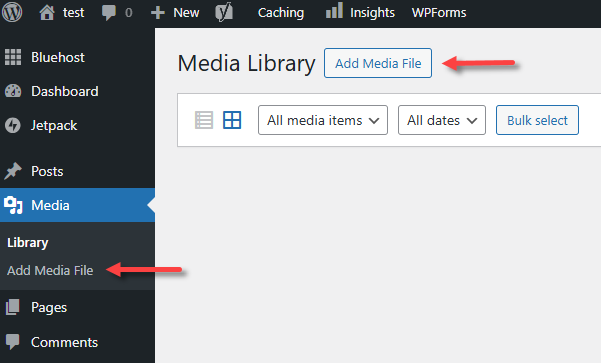
- Click Media on the left menu, then select Add Media File.You can also click the Add Media File button located at the top of the right pane.
- You can drag and drop your images ot the right pane. You can also click on the Select Files button to browse and select one or more images from your computer, then click Open.
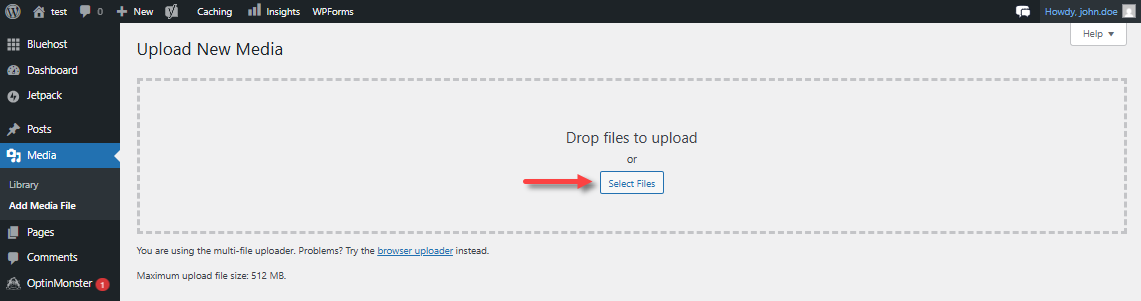
- Wait for your images to upload. Please note that the maximum file size allowed for a single upload is 512 MB.
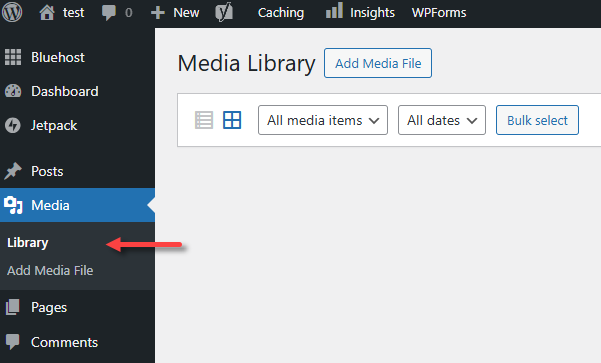
- Once uploaded, you can click on Library to view the uploaded images.
For troubleshooting WordPress images, please visit the article, Troubleshooting: Images not Displaying on Website
Method 2: Adding Images to WordPress Posts or Pages
All common image file types, such as JPG, PNG, and GIF, are accepted.
- In your WordPress dashboard, navigate to the post or page where you wish to add images.
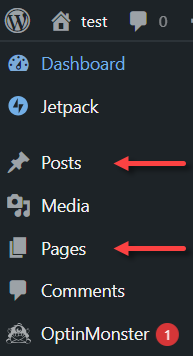
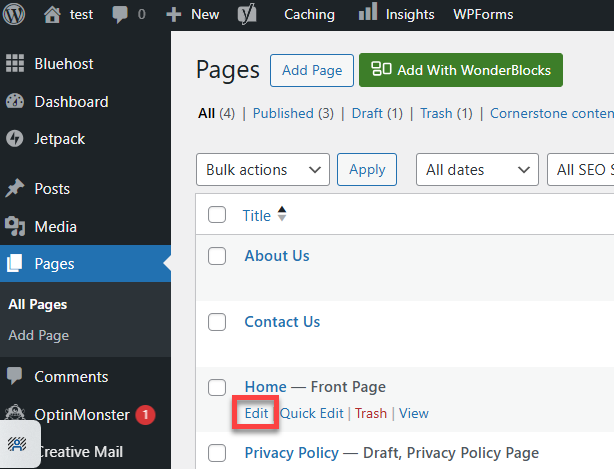
- Click the post or page title or select the Edit option below it.
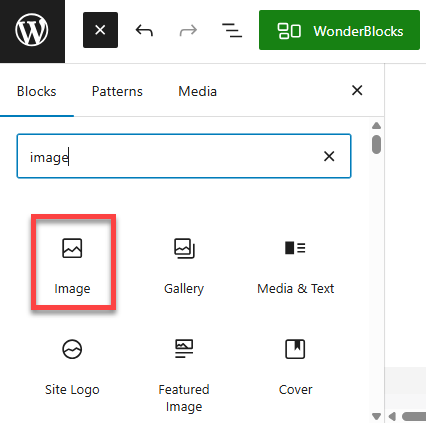
- Place your cursor on the page where you want to add the image, then click the Block Inserter or plus (+) icon in the top-right corner of your dashboard.

- In the Blocks menu, type “image” in the search box, and select the Image element. You can also scroll down to the Media section and then select Image.To add an image, go to the post or page where you want to insert an image or picture.
- There are several ways to add an image to your post or page:
- Upload a new image from your device.
- Use an image from your Media Library.
- Link to an image using a URL.
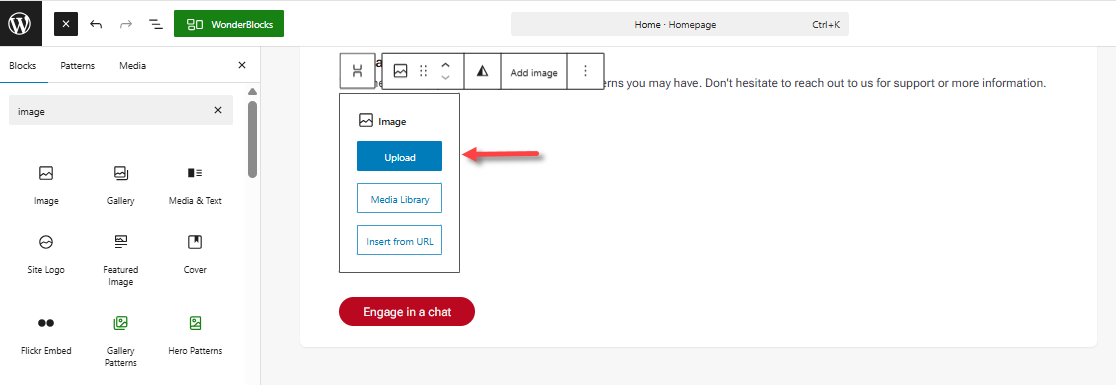
- To upload, click the Upload button, browse for your image file, then click Open.
- Once added, you can further customize your WordPress page using the available display settings, then click on Save or Publish at the top menu.
Adding images is important, but optimizing them ensures better speed and performance.
Read more: Ultimate WordPress Media Guide: Upload Photos, Videos & Galleries
Best practices for WordPress image optimization
Image optimization helps your site load faster and rank better. It’s essential to optimize images for WordPress before publishing.
1. File formats (JPG, PNG, WebP)
Choosing the right format matters. JPG works best for photographs, PNG is ideal for graphics and logos and WebP offers excellent compression with high quality.
Using modern formats helps you optimize images for WordPress performance.
2. Sizing and compression
Large image files can slow down your website. Always resize images to fit your content layout and compress them before uploading.
This not only improves speed but also supports better WordPress image SEO.
3. SEO: Alt text, filenames and captions
Every image should include descriptive alt text and a meaningful filename. These elements help search engines understand your images.
When you add image to WordPress post, adding proper metadata improves accessibility and boosts SEO.
Even with the right steps, image issues can happen. Let’s look at how to fix the most common ones.
Troubleshooting common image issues
Sometimes images don’t upload or display correctly. These issues are common and usually easy to fix.
1. Image not uploading
This often happens due to large file sizes or unsupported formats. Compressing the image or switching formats usually resolves the issue when you upload image to WordPress.
2. Image not displaying correctly
Theme conflicts or caching issues can prevent images from showing properly. Clearing cache or re-uploading the image usually helps.
3. Fixing alignment or layout issues
If your image alignment looks off, use the settings in the WordPress image block. You can adjust alignment, spacing and size to match your layout.
Proper alignment improves how users experience your content when you add image to WordPress post.
Beyond images, your hosting plays a major role in how your WordPress site performs.
Enhance your site with Bluehost media management
A well-designed WordPress site needs more than great content and images. It also needs reliable hosting to support performance, speed, and stability. This is where Bluehost plays an important role.
How does Bluehost make WordPress easier?
Bluehost is optimized for WordPress and simplifies media management. With one-click installations and built-in performance tools, we make it easier to add image to post WordPress without technical hassle.
Built-in tools for faster websites and image management
Bluehost offers caching, performance optimization and reliable servers. These features help images load faster and improve overall site performance and WordPress image SEO.
Ready to build a faster and more engaging WordPress site?
Start adding images the right way, optimize images for WordPress and choose reliable WordPress hosting with Bluehost to support your growth.
Final thoughts
Images play a key role in creating engaging WordPress content. When you add image to WordPress post the right way, your pages look better, load faster and perform stronger in search results.
To get the most out of your images, you also need reliable hosting. Bluehost WordPress hosting is built for speed, performance and easy media management. With WordPress-optimized tools and dependable infrastructure, Bluehost helps your images and content load smoothly across devices.
If you want a faster, more professional WordPress site, combine smart image practices with Bluehost WordPress hosting and set your website up for long-term success.
FAQs
Click on the image and use the alignment options in the editor toolbar. This works in both the block editor and classic editor.
Images between 1200 and 1600 pixels wide work well. Keep file sizes small to optimize images for WordPress performance.
Yes, you can select and upload image to WordPress in bulk using the media library. You can then insert multiple images into your post using add media WordPress.
Adding images does not slow down WordPress if they are optimized properly. Compress images, use the right file formats, and choose reliable hosting to maintain fast loading speeds.
Image plugins can help optimize images for WordPress automatically. They handle compression, resizing, and format conversion, saving time and improving performance.
Yes, you can replace an image in WordPress without changing its URL by using media replacement plugins. This helps preserve SEO and avoids broken image links.

Write A Comment