 ChatGPT,
 Claude,
 Gemini,
 Grok — all four for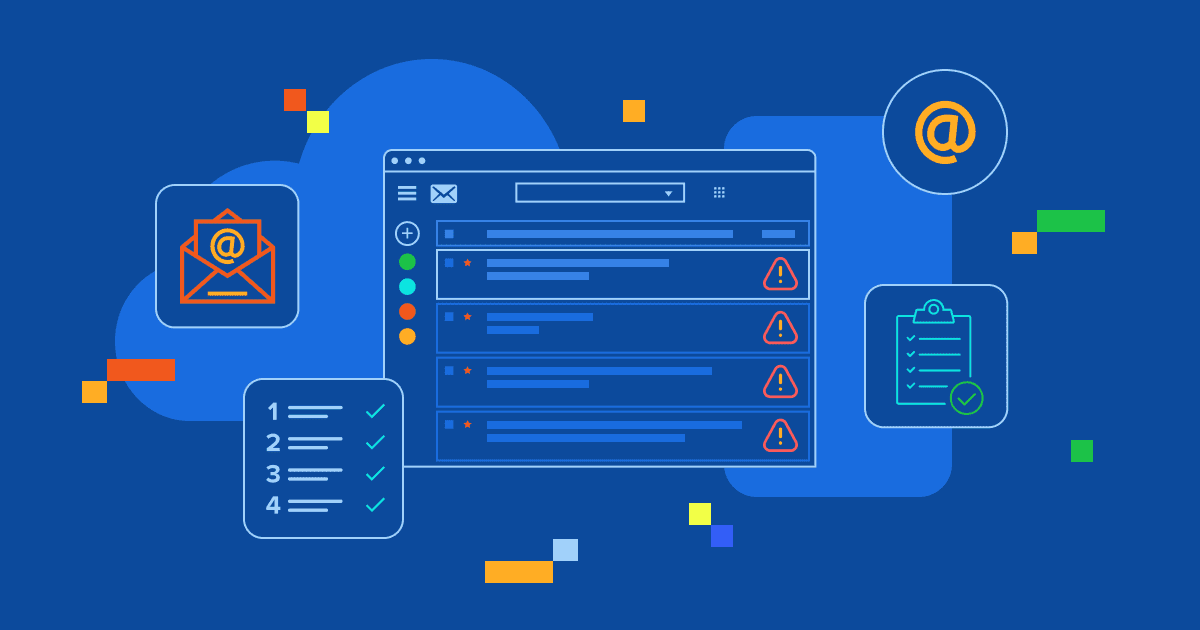
Key highlights
- Understand the various causes of email error messages, from invalid addresses to server issues.
- Learn the difference between temporary 4xx codes and permanent 5xx codes for effective troubleshooting.
- Explore common email error messages and discover practical fixes to ensure successful delivery.
- Uncover proven prevention strategies to minimize future email delivery failures and maintain sender reputation.
- Know exactly when to contact your email service provider or IT support for complex issues.
Ever sent an important email only to receive a cryptic error message in return? Email error messages are automated notifications that alert you when your message fails to reach its destination.
These errors typically stem from simple issues like email address typos, recipient’s full inboxes or temporary server problems. Understanding what these error messages mean is crucial as it helps you quickly identify the issue, resend your email correctly and avoid making the same mistake twice.
By learning to decode these messages, you will save valuable time and ensure your communications reach their intended recipients.
TL;DR
- Email error messages occur when your message fails to reach the recipient.
- Common causes include invalid email addresses, full mailboxes, server problems or authentication failures.
- 4xx error codes signal temporary issues that may resolve automatically.
- 5xx error codes indicate permanent problems requiring manual fixes before resending.
- Quick fixes: verify the recipient’s email address, wait before retrying, check your login credentials or contact the recipient or email provider.
- Understanding error codes helps you take the right action to ensure your important communications get delivered.
What are email error messages?
Email error messages are automated notifications that inform you when your email cannot be delivered to the intended recipient. When you encounter an email error message example like “unable to deliver message to the following address(es),” it means the email system has encountered a problem preventing successful delivery.
These messages serve as critical feedback from email servers, helping you understand what went wrong and how to fix the issue. Whether you are dealing with a simple typo email situation or more complex server problems, these notifications provide valuable diagnostic information.
Understanding email error messages is crucial for smooth email communication. If you’ve ever tried sending an important email only to receive an error message, you know how frustrating it can be. Identifying the specific type of error you’re experiencing is the first and most important step toward resolving the issue.
Key elements of email error messages
Email error messages contain specific components that help you identify and troubleshoot delivery issues. Let’s look at those elements in detail.
1. Error codes (numeric codes like 421, 452 and 550)
Email error messages typically include numeric codes that provide specific information about the delivery failure. These codes follow standardized protocols that help identify the exact nature of the problem. For instance, when you see an error like “550 5.1.1 The email account that you tried to reach does not exist,” the 550 status code tells you right away that this is a permanent delivery failure. This means the receiving mail server has rejected the message and it will not be delivered unless the email address is corrected.
2. Diagnostic text and server messages
Beyond numeric codes, email error messages contain descriptive text explaining the issue. Messages like “your message was not delivered because the destination computer was not found. carefully check that it was spelled correctly and try sending it again if there were any mistakes” provide clear guidance on potential solutions.
Now that you understand the key components of email error messages, you will be better equipped to interpret them when they appear. In the next section, we will explore the most common types of email errors you are likely to encounter and what each one means for your message delivery.
Understanding email error codes (4xx vs 5xx)
Email error codes are categorized into different ranges, with 4xx and 5xx being the most common for delivery failures. Understanding this distinction is crucial for determining your next steps.
| Error code | Error message | Meaning |
|---|---|---|
| 550 | Requested action not taken: mailbox unavailable | The recipient’s email address doesn’t exist or the mailbox is unavailable |
| 554 | Transaction failed / No valid recipients | The email was rejected because no valid recipient addresses were found |
| 5.7.1 | Delivery not authorized, message refused | Your email was blocked by the recipient’s email server due to authentication issues or spam filters |
| 421 | Service not available | The recipient’s mail server is temporarily unavailable or too busy to accept messages |
| 452 | Insufficient system storage | The recipient’s mailbox is full and cannot accept new messages |
| 451 | Requested action aborted: local error in processing | A temporary server error occurred while processing your email |
| 550 5.1.1 | User unknown / Mailbox not found | The email address you’re trying to reach doesn’t exist on the recipient’s server |
| 552 | Message size exceeds quota | Your email is too large and exceeds the recipient server’s size limit |
| 503 | Bad sequence of commands | The email server received commands in the wrong order during the sending process |
| 4.7.1 | Delivery temporarily suspended | Your email was temporarily blocked, often due to reputation or rate limiting issues |
1. Temporary email errors (4xx error codes)
Temporary errors indicate that the delivery failure is likely short-lived and may resolve itself. These errors suggest you should try resending your email later.
Common 4xx examples include:
- 421 – Service not available (server temporarily unavailable)
- 450 – Mailbox temporarily unavailable
- 452 – Insufficient system storage
- 441 – Connection refused temporarily
When resending the email usually works: If you encounter a message stating “a problem occurred during the delivery of this message. please try to resend the message later,” this typically indicates a 4xx error where the server is temporarily overwhelmed or undergoing maintenance.
2. Permanent email errors (5xx error codes)
Permanent errors indicate fundamental problems that won’t resolve on their own. These require investigation and correction before attempting to resend.
Common 5xx examples include:
- 550 – Mailbox unavailable or does not exist
- 551 – User not local or invalid address
- 552 – Mailbox full
- 553 – Invalid email address format
Why fixing the issue is required before resending: When you receive “recipient address rejected: user unknown (in reply to rcpt to command),” simply resending won’t work because the fundamental problem, an invalid recipient address, remains unchanged.
Now that you understand the difference between temporary and permanent email errors, let’s explore how to troubleshoot specific email error messages and implement effective solutions to prevent them from occurring in the future.
Common email error messages and fixes
Understanding email error message examples helps you quickly identify and resolve delivery issues. Let’s explore the most frequent error types you might encounter and their practical solutions.
| Error category | Common error message | Error code | What it means |
|---|---|---|---|
| Recipient address issues | “User unknown” or “Mailbox unavailable” | 550 | The recipient’s email address does not exist or is no longer active. |
| Recipient address issues | “Domain not found” | — | The domain in the email address does not exist or cannot be reached. |
| Mailbox and storage-related errors | “Mailbox full” or “Insufficient storage” | 452, 552 | The recipient’s mailbox has run out of storage space and cannot accept new emails. |
| Sender authentication and login errors | “Authentication failed” | — | The sending server could not verify the sender’s login credentials. |
| Sender authentication and login errors | “IP address has changed” | — | The sending IP address does not match what the mail server expects or allows. |
| Server and connection issues | “Connection timed out” or “Connection refused” | 421, 441 | The receiving mail server is temporarily unavailable or not responding. |
| Spam and security-related email errors | Emails blocked or flagged as spam | — | The email was rejected or filtered because it was identified as potential spam. |
These seven email error categories cover the vast majority of delivery problems you’ll encounter. By recognizing the error codes and messages in this table, you can diagnose issues faster and apply the right fix. Each category has specific troubleshooting steps that can help restore your email functionality.
Now that you understand the main types of email errors, let’s dive deeper into each category. We’ll start with one of the most common issues that causes emails to bounce back to your inbox.
1. Recipient address issues
“User Unknown” or “Mailbox Unavailable” (Error Code 550)
This error appears when the email address doesn’t exist on the recipient’s mail server. You might see variations like “gmail email address not found” or “email does not exist discord” depending on the email platform.
How to fix it:
- Double-check the spelling of the email address
- Verify that the domain name exists
- Contact the recipient through alternative channels to confirm their correct email address
- Remove invalid addresses from your mailing list to improve deliverability
“Domain Not Found”
When you see “your message couldn’t be delivered. the domain name system (DNS) reported that the recipient’s domain does not exist” or “email domain name not found,” it means the entire domain is unreachable.
How to fix it:
- Confirm the domain name spelling is correct
- Check if the organization has recently changed domains
- Use domain lookup tools to verify the domain exists
- Wait and retry later if it’s a temporary DNS issue
2. Mailbox and storage-related errors
“Mailbox Full” or “Insufficient Storage” (Error Codes 452, 552)
These errors occur when the recipient’s mailbox has reached its storage limit. The message “failed to send email. error: the mailbox is either inactive, soft-deleted or is hosted on-premise” can also indicate storage or account status issues.
How to fix it:
- Wait for the recipient to clear space in their mailbox
- Reach out through alternative communication channels to notify them
- Try sending a smaller message without large attachments
- Retry sending your email after a few days
3. Sender authentication and login errors
“Authentication Failed”
Authentication errors prevent your email from being sent due to credential problems. You might encounter “user authorization failed: access_token was given to another ip address” or “login could not be completed due to account cancellation.”
How to fix it:
- Verify your email password and username are correct
- Review your two-factor authentication settings
- Update your email client configuration with current settings
- Contact your email provider if account issues persist
“IP Address Has Changed”
Some email services flag location changes as security concerns, which can lead to authentication failures when you’re accessing your email from a new location or device.
How to fix it:
- Log into your email account through a web browser
- Verify your identity through the security prompts
- Update your email client settings if necessary
- Configure app-specific passwords for email clients
4. Server and connection issues
“Connection Timed Out” or “Connection Refused” (Error Codes 421, 441)
These errors indicate problems connecting to the destination email server. You might see “message cannot currently be transferred to node smtp due to connection error” or “returned mail: hostname cannot be resolved.”
How to fix it:
- Verify your internet connection is stable
- Confirm your email server settings are correct (SMTP, IMAP, POP3)
- Try sending from a different network
- Check with your email service provider for server status updates
- Wait and retry if it’s a temporary server issue
5. Spam and security-related email errors
Emails Blocked or Filtered as Spam
Security systems may block emails perceived as threats, resulting in messages like “your message wasn’t delivered because the recipient’s email provider rejected it.”
How to fix it:
- Review your email content for spam-like language or excessive capitalization
- Ensure proper email authentication is set up (SPF, DKIM, DMARC records)
- Ask recipients to whitelist your email address
- Use a reputable email service provider
- Avoid excessive formatting, too many links or large attachments
While preventing email errors is crucial, there will be times when you encounter error messages as a recipient. Understanding how to respond to these messages can help you quickly resolve delivery issues and maintain effective communication.
What to do when you receive an email error message?
When confronted with an email error message, resolving it doesn’t have to be overwhelming. Follow the steps below to address the issue systematically and get back to managing your inbox efficiently:
1. Read the entire error message carefully
Don’t just glance at the error, read every detail. Messages like “ups sorry, the email you provided doesn’t match our records. please try again” provide specific guidance on the issue.
2. Identify whether the error is temporary (4xx) or permanent (5xx)
Look for numeric codes to determine if you should retry immediately or investigate further. This distinction guides your troubleshooting strategy.
3. Double-check the recipient’s email address
Many errors stem from simple typos. When you see “enter valid email address” prompts or “address doesn’t exist” messages, verify spelling, domain and format accuracy.
4. Retry sending for temporary errors
For 4xx errors, wait 15-30 minutes before retrying. Temporary server issues often resolve quickly without intervention.
5. Contact the recipient if mailbox or address-related
For persistent 5xx errors related to invalid addresses or full mailboxes, reach out through alternative communication channels to verify current contact information.
6. Review authentication settings for login errors
Authentication failures require checking your email client configuration, passwords and security settings. Update these as needed to restore sending capability.
7. Use support links included in the error message
Many error messages include helpful support links or suggest contacting system administrators for assistance with complex technical issues.
While resolving individual errors is important, taking proactive steps to prevent them from occurring in the first place will save you time and frustration in the long run.
How to prevent email error messages in the future?
Understanding common email error messages helps you identify issues before they become recurring problems. To maintain reliable email communication and minimize delivery failures, implement these five preventive strategies that address the most common causes of email errors.
1. Always verify email addresses before sending
Email verification is your first line of defense against bounce rates and delivery failures. By validating addresses before hitting send, you prevent most common email errors at their source:
- Use email validation tools for bulk sending
- Maintain clean, updated contact lists
- Remove bounced addresses promptly
- Implement double opt-in for newsletter subscriptions
2. Keep attachment sizes within limits
Large attachments are a leading cause of email delivery failures. Most email servers impose strict size limits and exceeding them triggers automatic rejections:
- Compress large files before attaching
- Use cloud storage links for oversized content
- Follow recipient server size limitations
- Test attachment delivery with small groups first
3. Avoid spam-like language and formatting
Spam filters scan every email for suspicious patterns. Using professional language and proper formatting helps your messages reach the inbox instead of the spam folder:
- Minimize excessive capitalization and exclamation points
- Balance text-to-image ratios
- Use professional language and clear subject lines
- Include proper contact information in signatures
4. Maintain proper email authentication settings
Email authentication protocols verify your identity as a sender and build trust with receiving servers. Proper configuration significantly reduces the risk of rejection:
- Configure SPF, DKIM and DMARC records correctly
- Use consistent sending domains
- Monitor sender reputation scores
- Implement proper unsubscribe mechanisms
5. Use a reliable email service provider
Your email service provider plays a crucial role in delivery success. With Bluehost email solutions, you benefit from robust infrastructure and tools that prevent most technical errors:
- Strong deliverability records and reliable server performance
- Ensure adequate server capacity and 99.9% uptime guarantees
- Access comprehensive error reporting and analytics tools
- Benefit from professional 24/7 technical support to resolve issues quickly
While these preventive measures resolve most email delivery issues, some problems require expert intervention. Knowing when to escalate issues to technical support ensures quick resolution and prevents prolonged disruptions to your email communication.
When to contact your email provider or IT support?
Certain situations require professional assistance beyond basic troubleshooting:
1. Repeated authentication failures
If you consistently receive authentication errors despite correct credentials, contact support to investigate account security settings, server configurations or potential security breaches.
2. Persistent server or IP block errors
When multiple recipients report delivery failures or you encounter repeated connection errors, your sending IP might be blacklisted, requiring professional intervention.
3. Errors that do not resolve after basic troubleshooting
Complex technical errors involving DNS issues, server misconfigurations or protocol problems typically require expert assistance to resolve effectively.
Final thoughts
Email errors stem from various causes, typos, server issues or authentication problems. Understanding these errors is crucial for maintaining smooth communication and addressing underlying issues that could disrupt your business operations.
Most email errors are fixable with proper troubleshooting. Temporary errors (4xx codes) often resolve themselves, while permanent errors (5xx codes) require immediate attention. Use error codes as your troubleshooting roadmap and implement prevention strategies like maintaining clean contact lists and using proper authentication.
Don’t let email errors slow down your business. Bluehost professional email delivers reliable, secure business email with advanced spam protection, 24/7 support and seamless integration with your domain. Upgrade to Bluehost professional email today and ensure your important messages reach their destination every time.
FAQs
Email error messages are automated notifications that inform you when your email cannot be delivered to the intended recipient. They include diagnostic information like error codes and descriptive text to help identify and resolve delivery problems.
A 550 error is a permanent delivery failure indicating that the recipient’s mailbox is unavailable or does not exist. This requires verifying the email address accuracy before attempting to resend.
4xx errors are temporary failures that may resolve themselves (retry later), while 5xx errors are permanent failures requiring investigation and correction before resending.
This error occurs when the recipient’s email storage has reached capacity. The message cannot be delivered until the recipient deletes emails to free up space.
Temporary errors (4xx codes) often resolve automatically as servers come back online or clear backlogs. Permanent errors (5xx codes) require manual intervention to fix underlying issues.
For temporary errors, wait 15-30 minutes before retrying. For persistent issues, investigate the error message details and address underlying problems before resending.
While error codes are standardized, the specific wording and additional information vary between email providers. However, the basic diagnostic principles remain consistent across platforms.

Write A Comment