 ChatGPT,
 Claude,
 Gemini,
 Grok — all four for
Key highlights
- Choose the right website-building path by comparing AI-assisted setup for faster creation with manual WordPress setup for more control.
- Create a WordPress website step by step by defining your goal, adding brand details, building key pages, connecting a domain and publishing.
- Build a more useful website by including essential pages, clear navigation, strong calls to action, trust signals and easy contact options.
- Launch with confidence by checking mobile design, forms, links, SSL, SEO basics, analytics, backups and placeholder content before publishing.
Creating a WordPress website sounds simple until you start listing everything that goes into it.
You need a domain name and hosting to start with. You also need a setup method, a design, pages, content, images, plugins and a launch checklist. If you try to figure everything out from scratch, the process can quickly turn into too many tabs, too many choices and not enough progress.
The good news is that creating a WordPress website is much easier than it used to be. You no longer have to start with a blank page or make every design decision manually.
Today, you have two practical options:
- Use an AI-assisted website builder to create your site faster.
- Build your WordPress website manually for more hands-on control.
This guide walks through both methods so you can choose the approach that fits your goals, timeline and preferred level of control.
Why create a website with WordPress?
WordPress is one of the most flexible website-building platforms available. You can use it to create a business website, blog, portfolio, online store, service website, content hub or membership site.
The biggest advantage of WordPress is control. You can choose your own hosting, use your own domain, install themes, add plugins and move your website if your needs change later.
WordPress also has a large ecosystem of themes, plugins, developers, tutorials and community support. That means you can start with a simple site and expand it over time with features like contact forms, SEO tools, ecommerce, booking calendars, analytics and security tools.
Choosing the right host also matters. WordPress.org lists Bluehost as one of its recommended hosting providers, which makes it a strong option if you want WordPress hosting, domain setup and website-building tools in one place.
For more context, read more: What WordPress is.
What you need to make a WordPress website?
Before you start building, it helps to understand the basic pieces that make a WordPress website work.
| What you need | Why it matters |
|---|---|
| Website goal | Helps you decide what pages, features and calls to action your site needs |
| Domain name | Gives people a memorable address where they can find your website |
| Web hosting | Stores your website files and keeps your site online |
| WordPress | Powers your website’s content, pages, design and functionality |
| Theme or builder | Controls how your website looks and how pages are structured |
| Content and images | Explains who you are, what you offer and why visitors should trust you |
| Plugins | Add features like forms, SEO tools, analytics, security or ecommerce |
| Launch checklist | Helps you test everything before your site goes live |
Think of your website as a set of decisions, not one giant project. First, decide what your website should help you accomplish. Then choose the simplest path to get it online.
How to create a WordPress website?
WordPress AI builder brings the ease of creating a fully functional website using simple drag-and-drop features. This gives you more control over each decision, including your host, theme, plugins, layout and settings. Here are simple steps that you can use to create your website using the WordPress AI builder.
Step 1: Choose a domain name
Start with a domain name that is simple and easy to remember.
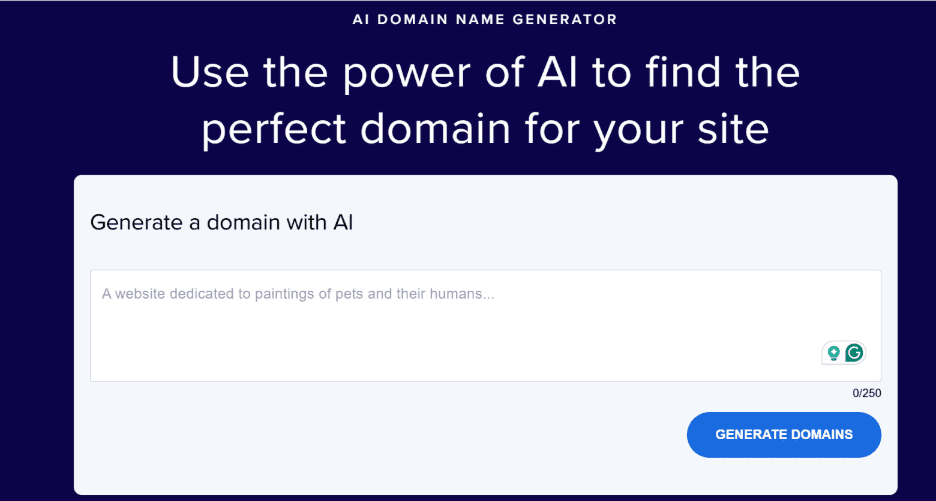
Use these tips:
- Keep it short.
- Use your business or brand name when possible.
- Avoid unnecessary hyphens and numbers.
- Choose a familiar domain extension, such as
.com, if available. - Make sure it is easy to say out loud.
- Avoid names that are too similar to another brand.
Your domain should make sense today but also give your website room to grow.
Also read: Domain vs Website: Key Differences Explained & Why Both Matter
Step 2: Choose WordPress hosting
WordPress hosting is what keeps your website online. When someone visits your domain, your hosting provider delivers the website files to their browser.
For a smoother WordPress website setup, look for hosting that includes:
- WordPress support
- Easy WordPress installation
- SSL certificate
- Backups
- Security tools
- Customer support
- Good performance
- Room to grow as your site gets more traffic
The right hosting setup saves time later. It can also make WordPress easier to manage as your site grows. You can explore our WordPress hosting options if you want hosting built around WordPress setup and publishing.
Step 3: Install WordPress
Most hosting providers offer a guided WordPress installation process. This is easier than manually uploading WordPress files, creating a database and configuring technical settings yourself.
A typical guided setup may ask you to:
- Log in to your hosting account.
- Choose the option to create a new website.
- Select WordPress.
- Add your site name.
- Choose your domain.
- Create your WordPress login.
- Complete the installation.
You can install WordPress manually, but guided setup is usually faster and reduces the chance of configuration errors. After this step, you can answer a few questions to let the WordPress AI builder create the first version of your site. If you want to do it manually, you can go ahead and follow the below steps.
Read more: How to install WordPress.
Step 4: Pick a WordPress theme
A WordPress theme controls the look and layout of your website.
When choosing a theme, look for one that is:
- Mobile responsive
- Fast-loading
- Regularly updated
- Compatible with the WordPress block editor
- Well-reviewed
- Suitable for your website type
- Easy to customize
- Not overloaded with features you won’t use
Avoid choosing a theme only because the demo looks impressive. Make sure it fits the kind of content you actually have. A theme made for a photography portfolio may not work well for a service business, and a complex multipurpose theme may add more settings, scripts and design choices than your site actually needs.
Step 5: Create your key pages
Once your theme is active, start building your most important pages.
Most websites need:
- Homepage: Introduces your business and guides visitors to the next step.
- About page: Explains who you are and why people should trust you.
- Services or products page: Describes what you offer.
- Contact page: Makes it easy for visitors to reach you.
- Blog: Helps you publish helpful content and attract search traffic.
- Privacy policy: Explains how visitor information is handled.
- FAQ or testimonials page: Answers common questions and builds trust.
Don’t try to write perfect copy on the first pass. Start with clear, useful information. You can improve the wording later.
Step 6: Customize your website design
After your pages are created, customize the parts of your site that visitors use most.
Focus on:
- Logo
- Colors
- Fonts
- Header
- Footer
- Navigation menu
- Buttons
- Homepage sections
- Contact details
- Mobile layout
Keep the design simple. Visitors should be able to understand what you do, find key pages and take action without confusion.
A clear website is usually better than a complicated one.
Step 7: Install essential WordPress plugins
Plugins add extra features to your WordPress website. But more plugins do not always mean a better site.
Start with the essentials:
| Plugin type | What it helps with |
|---|---|
| SEO | Page titles, meta descriptions, sitemaps and search optimization |
| Forms | Contact forms, quote requests, booking inquiries |
| Analytics | Visitor tracking and performance insights |
| Security | Protection from suspicious activity |
| Backups | Site recovery if something goes wrong |
| Ecommerce | Online store features, payments and product pages |
| Performance | Caching, image optimization and speed improvements |
Only install plugins you actually need. Too many plugins can slow down your site, create conflicts or make maintenance harder. Keep them updated and delete inactive plugins.
For SEO setup, tools like Yoast SEO can help with titles, meta descriptions, sitemaps and on-page optimization.
Step 8: Test and launch your website
Before you publish, test the full experience.
Check:
- Every page loads correctly.
- The site works on mobile.
- Contact forms submit properly.
- Buttons and links work.
- Images are compressed.
- SSL is active.
- Navigation is clear.
- No placeholder copy remains.
- Page titles and meta descriptions are added.
- Analytics and Google Search Console are connected.
- Backups and security basics are in place.
Once everything is ready, publish your website and start sharing it with your audience.
What pages should a WordPress website have?
No matter which method you choose, your website should make it easy for visitors to understand who you are, what you offer and what to do next.
A strong WordPress website usually includes the following elements.
A clear homepage headline
Your homepage should quickly answer three questions:
- What do you offer?
- Who is it for?
- What should visitors do next?
For example:
Custom furniture built for Austin homes and businesses.
That is clearer than:
Welcome to our website.
Simple navigation
Your menu should help visitors find important pages quickly.
For most websites, five to seven main menu items are enough. Avoid cluttering your navigation with every possible page.
A strong call to action
Every website should guide visitors toward a next step.
Examples include:
- Request a quote
- Book a consultation
- Shop now
- View services
- Contact us
- Subscribe
- Download the guide
Use one main call to action throughout your website so visitors are not overwhelmed.
Trust signals
People want to know they can trust you before they contact you or make a purchase.
Add trust signals such as:
- Testimonials
- Reviews
- Case studies
- Certifications
- Years in business
- Client logos
- Portfolio examples
- Before-and-after photos
- Secure checkout badges, if selling online
Easy contact options
Make it simple for visitors to reach you.
Include:
- Contact form
- Email address
- Phone number, if relevant
- Business address, if relevant
- Hours of operation
- Social links
- Map, if location-based
Don’t hide your contact details. If the goal is to get leads, make the path obvious.
How to plan your WordPress website structure before you build?
Site structure, also called information architecture, is how your pages relate to each other through menus, parent and child page groupings and internal links. Planning this before you build prevents you from reorganizing content later.
Search engines follow these connections to index your pages accurately, and visitors use them to move between pages without getting lost.
A simple sitemap for a small business website might look like this:
- Home
- About
- Services
- Kitchen renovation
- Bathroom remodeling
- Custom carpentry
- Blog
- Before and after projects
- Home improvement tips
- Contact
Keep these principles in mind as you map out your pages:
- Limit your main navigation to five to seven items. Group related pages as sub-pages so the menu stays clean.
- Keep key pages close to the homepage. Any page that matters should be reachable in two clicks or fewer.
- Use clear, descriptive URLs. A permalink like
/services/bathroom-remodelingtells visitors and search engines more than a generic ID string. - Connect related pages with internal links. Link from services pages to related blog posts, from blog posts to service pages and from key pages to your contact page.
Internal linking helps people explore your site and helps search engines understand how your content is organized.
How much does it cost to make a WordPress website?
The cost of a WordPress website depends on how you build it and what features you need.
WordPress itself is free, but a complete website may include costs such as:
- Domain name
- Web hosting
- Premium theme
- Premium plugins
- Business email
- Ecommerce tools
- Security or backup tools
- Professional design or SEO help
- Ongoing maintenance
An AI-assisted builder may package some setup, hosting and publishing tools together, while a manual setup may involve choosing each tool separately.
For a simple website, your main costs are usually domain and hosting. For an online store or more advanced business website, costs may increase depending on payments, shipping, product pages, booking tools or custom functionality.
Before choosing a plan, review what is included and what may cost extra later. You can compare our current WordPress hosting plans to see what is included.
How long does it take to create a WordPress website?
The timeline depends on your method and how much content you already have.
An AI-assisted builder can help you generate a first draft in minutes. But you should still plan time to review the copy, adjust images, add missing details, connect your domain and test the site before publishing.
A basic website may be ready the same day. A polished small business website may take a few days, especially if you need to gather images, write service descriptions or refine your pages.
Manual WordPress setup usually takes longer because you are choosing the theme, building pages, installing plugins and configuring settings yourself.
The fastest path is not always the best if you publish before reviewing your content. Take time to make sure the site is accurate, clear and useful.
How to make your WordPress website look professional?
You don’t need an expensive custom design to make your website feel polished. Small decisions can make a big difference.
Keep the layout simple
A simple layout is easier to read and easier to navigate. Don’t add sections just to fill space. Every section should help visitors understand your business or take action.
Use real images when possible
Stock images can work, but real photos often build more trust. Use photos of your products, workspace, team, completed projects or happy customers when appropriate.
Make your copy specific
Generic copy makes websites feel forgettable.
Instead of:
We provide high-quality services.
Try:
We build custom dining tables, desks and shelving for homeowners and small businesses in Austin.
Specific copy helps visitors understand exactly what you do.
Use one clear call to action
Don’t ask visitors to do too many things at once. Choose the main action you want them to take and repeat it in key places.
Check the mobile experience
Many visitors will see your website on a phone. Review your site on mobile before publishing.
Check that:
- Text is readable.
- Buttons are easy to tap.
- Forms are simple to complete.
- Images fit the screen.
- Navigation works smoothly.
Keep colors and fonts consistent
Use a small set of colors and fonts across the site. Too many styles can make a website feel messy.
Make contact information easy to find
If people have to hunt for your phone number or contact form, they may leave. Add contact options to your header, footer or main call-to-action sections.
Common mistakes to avoid when creating a WordPress website
A few common mistakes can make a new website harder to use, slower to launch or less effective.
Starting without a clear goal
Before building, decide what the website should do. Is it meant to generate leads, sell products, showcase work, build authority or support an existing business?
Your goal should shape your pages, copy and calls to action.
Choosing a complicated theme
If you build manually, avoid themes that are harder to manage than your website requires. A simple, fast, flexible theme is often better than a complex one with too many options.
Installing too many plugins
Plugins are useful, but too many can slow down your site or create conflicts. Start with essentials and add more only when needed.
Forgetting mobile users
Always check your website on mobile. A site that looks good on desktop may still have awkward spacing, oversized images or hard-to-tap buttons on a phone.
Not testing forms
If your contact form does not work, you may lose leads without knowing it. Submit a test form before launch.
Ignoring SEO basics
At minimum, add page titles, meta descriptions, clear headings, internal links and descriptive image alt text. Connect your site to Google Search Console so you can monitor performance.
Not keeping the site updated
A website needs maintenance. Update content, plugins, themes and business details regularly.
WordPress website launch checklist
Before publishing your website, run through this checklist:
- Domain is selected or connected.
- SSL is active.
- Homepage headline is clear.
- Navigation works.
- Contact form has been tested.
- Website looks good on mobile.
- Images are optimized.
- Main call to action is visible.
- Services or products are clearly explained.
- Contact details are correct.
- SEO titles and meta descriptions are added.
- Analytics are connected.
- Backups and security basics are in place.
- Placeholder content is removed.
- Legal pages are added where needed.
- Website is ready to publish.
Taking a few extra minutes to test your site can help you avoid common launch mistakes.
Final thoughts
Creating a WordPress website comes down to choosing the path that fits your goals. An WordPress AI Builder can help you move faster and the setup gives you more control over themes, plugins and layout decisions.
No matter how you create your website, it still needs the same foundation: a clear goal, a domain name, reliable hosting, useful pages, strong calls to action, SEO basics and a launch checklist. Bluehost gives you the tools to bring those pieces together, from WordPress hosting and domain setup to website-building support and launch guidance.
Ready to create your WordPress website faster? Start with Bluehost WordPress hosting and get online today.
FAQs
Yes. You can create a WordPress website without coding by using an AI-assisted website builder, a guided WordPress setup or a customizable WordPress theme. The right option depends on how much control you want and how quickly you want to launch.
The easiest way is to use a WordPress AI builder that gives you control over designing and editing ability with complete ease. This reduces the need to start from a blank theme.
Yes, AI can help create a website for you. You can simply answer a few questions and follow the guided steps. WordPress AI builder creates your first draft and gives you control to edit the blocks without any technical knowledge.
No. You can build a WordPress website without coding, especially if you use a guided setup, a flexible WordPress theme or an AI-assisted builder.
Yes. WordPress websites can be edited after launch. Depending on your setup, you can update pages manually through WordPress or use block editor to change your layout and design.
Most websites need a homepage, about page, services or products page and contact page. Depending on your goals, you may also need a blog, testimonials, portfolio, FAQ page, privacy policy or online store pages.
WordPress software is free, but you may need to pay for a domain name, hosting, premium themes, premium plugins, ecommerce tools or professional services. Costs vary depending on your website type and features.
Creating the first draft of your WordPress website is usually simple. it takes very less time when using the guided setup with WordPress AI builder. You can later go and polish your site that is fully functional and aligned with SEO.
Yes. WordPress can support online stores, usually with ecommerce tools such as WooCommerce. You’ll need product pages, payment setup, shipping or delivery settings, store policies and security basics. You can explore our WooCommerce hosting if your goal is to build an online store.
Yes, if you want a self-hosted WordPress website. Your domain is your website address and hosting keeps your website online.
Keep your content, plugins, themes and WordPress version updated. Review your pages regularly, check forms, monitor performance, add fresh content and back up your site.

Write A Comment