



Key highlights
- A domain transfer moves your domain’s registration from one registrar to another, while domain forwarding simply redirects visitors from one domain URL to a different destination without changing registrars.
- Domain transfers typically require an authorization (EPP) code and usually take about 5–7 days to complete, though they can finish faster when both registrars approve promptly.
- Domain forwarding uses 301 (permanent) or 302 (temporary) redirects. A 301 redirect passes link equity to the destination and is the recommended choice for SEO.
- A domain cannot be transferred within 60 days of its initial registration or within 60 days of a previous transfer, per ICANN policy.
- Transferring a domain does not automatically move your DNS records. You must set them up again at the new registrar to keep your website and email running after the transfer.
- You do not have to choose between the two. Many site owners transfer their domain to a better registrar and then use forwarding to route traffic from old or unused domains to their main website.
You picked the wrong option and now your website is down.
It happens more often than you’d think. Someone hears they need to “move their domain” and assumes a transfer is the answer. They spend a week waiting, pay a transfer fee and then realize all they needed was a simple redirect that would have taken ten minutes. Or worse – they set up forwarding when they actually needed a full transfer, and now they’re juggling two registrar accounts, two billing cycles and two sets of DNS records they don’t fully understand.
Domain transfer and domain forwarding are not the same thing. They solve different problems, take different amounts of time and have different consequences for your website, your email and your search rankings. Choosing the wrong one doesn’t just waste an afternoon – it can take your site offline or cost you ranking signals you spent months building.
This guide tells you exactly what each one does, when to use each one and how to execute both correctly – including step-by-step through Bluehost.
What is domain transfer?
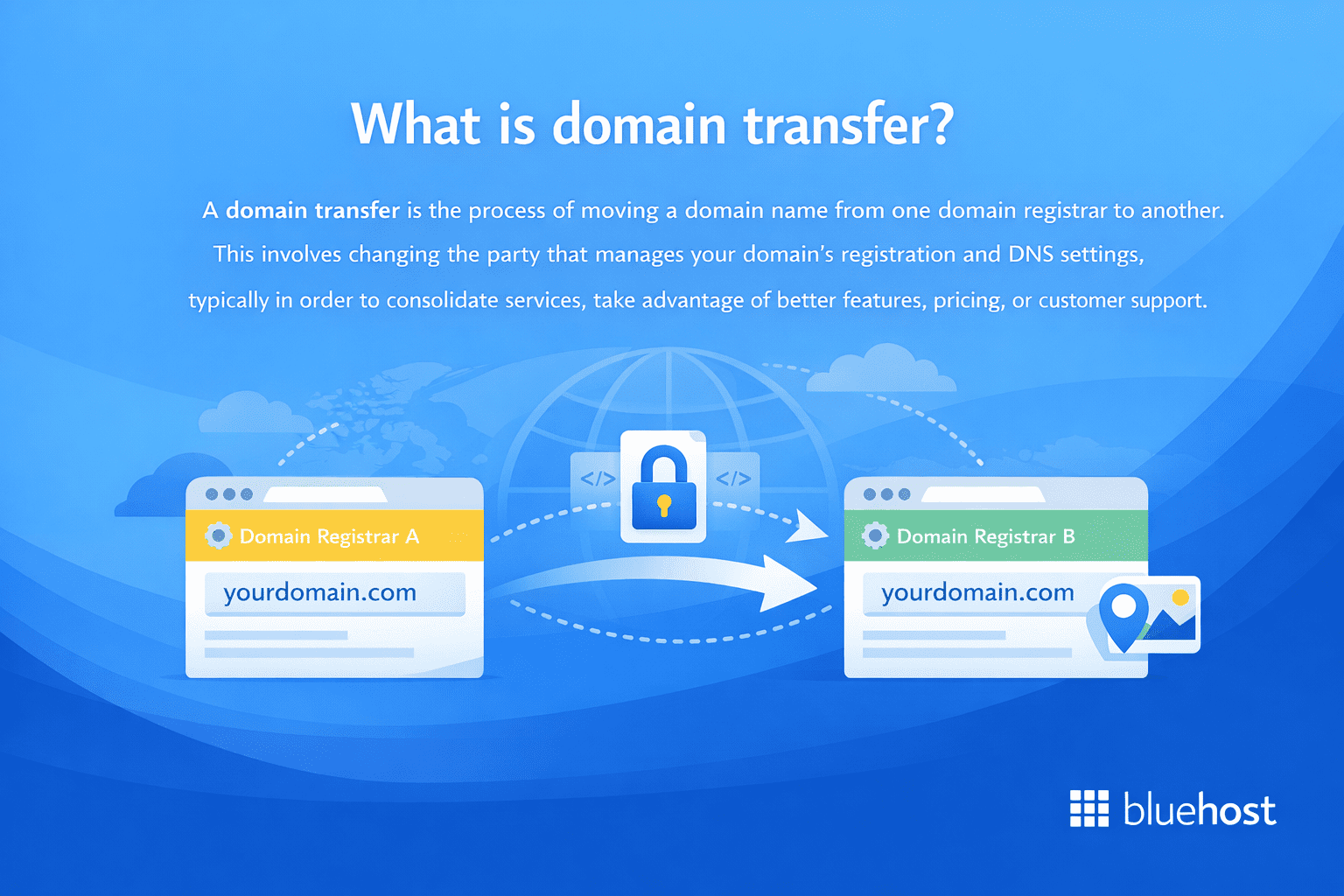
A domain transfer is the process of moving your domain name’s registration from one registrar to another. The domain name itself – for example, [yourbusiness].com – remains the same, but the company responsible for managing its registration changes. This is also called a domain name ownership transfer, though technically the owner stays the same; only the managing registrar changes.
Understanding domain transfer is important for website owners who want to switch providers for better pricing, improved customer support or to consolidate hosting and domain management under one platform.
How the domain name transfer process works?
The domain name transfer process follows rules set by ICANN (Internet Corporation for Assigned Names and Numbers). Here’s how it unfolds:
- Unlock your domain: Registrars lock domains by default to prevent unauthorized moves. To unlock the domain for transfer, log in to your current registrar’s control panel and disable the domain lock.
- Obtain your EPP code: Also called the domain transfer authorization code or EPP code (Extensible Provisioning Protocol), this is a unique password your current registrar provides to authenticate the transfer request.
- Submit a domain transfer request: Go to your new registrar, enter your domain name and provide the authorization code.
- Confirm via email: Both registrars send confirmation emails. You may need to approve the transfer from both sides.
- Wait for completion: The transfer processes over several days per ICANN rules.
Domain transfer requirements you need to know
Before initiating a transfer, confirm you meet these domain transfer requirements:
- The domain must be at least 60 days old
- The domain must not have been transferred within the past 60 days – this is known as the domain transfer 60-day lock
- The domain must not be expired or in a redemption period
- Your WHOIS contact email must be accurate and accessible
- The domain must be unlocked at the current registrar
- Domain privacy settings must be set to public before initiating the transfer
These rules are part of ICANN domain transfer policy and apply to nearly all generic top-level domains (gTLDs) such as .com, .net and .org.
How long does a domain transfer take?
Domain transfers can take anywhere from 30 minutes to 8 days, depending on your current registrar. The process moves faster when both parties approve the transfer promptly. The most common cause of delays is a missed confirmation email or a domain that remains locked at the current registrar.
Who takes care of the domain transfer?
A domain transfer involves three parties working in sequence. Your current registrar – the losing registrar – is responsible for unlocking the domain, providing your EPP authorization code and approving the outgoing transfer request. You, as the domain owner, initiate the process by requesting that code, unlocking the domain and submitting the transfer to the new registrar. The gaining registrar – such as Bluehost – handles the technical coordination from that point forward, communicating with the losing registrar and processing the transfer according to ICANN requirements.
In practice, your active role is limited to a few preparatory steps: unlocking the domain, retrieving the EPP code and confirming authorization emails. Once you submit those details through the Bluehost portal, Bluehost manages the back-end exchange between registrars, monitors transfer status and keeps you informed throughout – so you’re not left wondering what’s happening or chasing updates across two provider accounts.
What is domain forwarding?
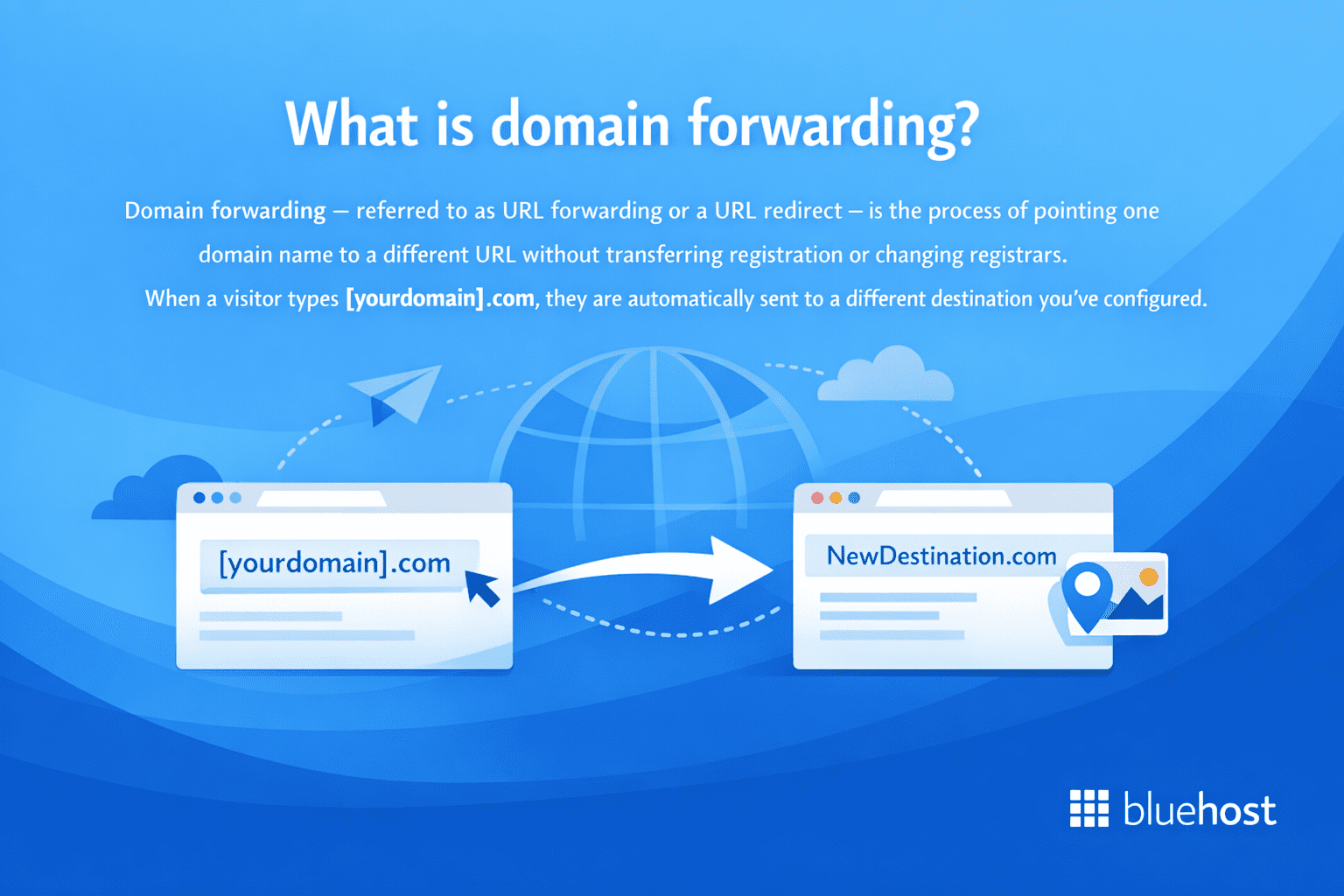
Domain forwarding referred to as URL forwarding or a URL redirect, is the process of pointing one domain name to a different URL without transferring registration or changing registrars. When a visitor types [yourdomain].com, they are automatically sent to a different destination you’ve configured.
Nothing moves in a domain forwarding setup. The domain stays registered at the same registrar, your hosting remains unchanged and your original domain simply acts as a pointer.
How does domain forwarding work?
When you configure domain forwarding, your registrar’s DNS settings are updated to route all traffic to a specified destination. Here’s what happens behind the scenes:
- The DNS query reaches your registrar’s name servers
- The registrar identifies the forwarding rule you configured
- The browser receives an HTTP instruction to load the destination URL
- The visitor lands on the destination site, often without noticing the redirect
Types of domain forwarding
- 301 Redirect (Permanent): Tells search engines the move is permanent. Passes most link equity to the destination. Use this for rebranding, site migrations or permanently retiring an old domain.
- 302 Redirect (Temporary): Signals a short-term move. The original URL stays indexed and link equity is not passed. Use only when you plan to revert the change.
- Masked/Stealth forwarding: The destination URL is hidden in the browser – visitors see the original domain in the address bar even after being redirected. This causes duplicate content issues and should never be used for SEO purposes.
Also read: How to Redirect a URL (301, 302 & More) – Beginner’s Guide
Domain transfer vs domain forwarding: Key differences at a glance
To help you choose the right option, here’s a direct comparison:
| Feature | Domain transfer | Domain forwarding |
|---|---|---|
| What changes | Registrar that manages your domain | Where visitors are sent in their browser |
| Domain ownership | You retain ownership; new registrar manages it | Unchanged |
| Website content | Unaffected unless hosting also moves | Visitors see the destination site’s content |
| Time to complete | 30 minutes to 8 days | Minutes to 48 hours (DNS propagation) |
| Requires EPP code | Yes | No |
| SEO impact | Minimal if done correctly | Depends on redirect type (301 vs. 302) |
| Best use case | Switching registrars or consolidating management | Pointing old or extra domains to a live site |
If you want to switch providers or consolidate your web hosting and domain under one account, a domain transfer service is the right choice. If you simply need traffic from one domain routed to another destination, a domain forwarding service accomplishes that without the complexity of a full transfer.
Which one should you use?
The right choice depends on what you’re actually trying to accomplish. Domain forwarding and domain transfer solve different problems – and mixing them up leads to unnecessary work or unintended disruption.
Choose domain forwarding if:
- You want visitors from an old or unused domain to land on your current website
- You own multiple domain variations (.net, .co, .org) and want them all pointing to one main site
- You’re rebranding and need the old domain to redirect traffic while the new site builds authority
- You’re running a short campaign URL that should route to a specific landing page
- You need a quick solution – forwarding takes minutes, not days
- Your domain registration and hosting are staying exactly where they are
Choose domain transfer if:
- You want to switch to a registrar with better pricing, support or features
- You’re consolidating your domain and hosting management under one provider
- You’ve purchased a domain from someone else and need to take full administrative control
- Your current registrar is shutting down or has become unreliable
- You want long-term ownership management at a provider you trust
Pro tip: You don’t have to choose one or the other. You can transfer your domain to a new registrar and set up forwarding from there. Many site owners do exactly this – transfer for better management, then configure forwarding to route legacy domains to the main site. Both tools work together.
Does domain forwarding affect SEO?
This is one of the most important questions for any website owner evaluating a domain forwarding service. The direct answer: it depends entirely on how the forwarding is configured.
- 301 permanent redirect: Search engines treat this as the original URL permanently moving to a new location. Most link equity and ranking signals pass to the destination. This is the SEO-recommended approach for permanent domain moves.
- 302 temporary redirect: Search engines continue treating the original URL as the primary address and do not reliably pass link equity. Use this only for short-term purposes.
- Redirect chains: Stacking multiple redirects – for example, Domain A forwards to Domain B, which forwards to Domain C – slows page load times and confuses crawlers. This can harm crawl efficiency and rankings over time.
Domain forwarding itself does not inherently damage SEO. Poor configuration does. Always use a 301 for permanent moves, ensure the destination page is properly indexed and avoid unnecessary redirect chains. When setting up a Bluehost domain redirect across multiple domains, review each redirect type individually to protect your SEO performance.
How to transfer a domain name: Step-by-step
Once you’ve confirmed a transfer is the right move, here’s how to transfer your domain name – including how to transfer a web domain to or from Bluehost.
How to transfer a domain to Bluehost
If you’re looking to transfer your domain to Bluehost for better pricing, support or consolidated management, the process has two stages: preparing your domain at your current registrar, then completing the transfer through your Bluehost account.
Stage 1: Prepare your domain at your current registrar
- Confirm eligibility: Make sure your domain was registered or transferred more than 60 days ago and is not subject to any legal disputes or holds.
- Update your domain contact information: Your registrant contact details will be used to verify ownership throughout the transfer. Make sure your email address is accurate and accessible – use a public email like Gmail rather than an address tied to the domain itself. Note that changing registrant information can trigger a 60-day transfer lock, so contact your current registrar before making any updates if the transfer is imminent.
- Update your nameservers: If you’ve already moved your website to Bluehost, update your nameservers before starting the transfer. During a transfer, nameservers typically stay as-is until the transfer completes, so the safest way to avoid disruption is to confirm your nameservers and DNS setup ahead of time – especially if your DNS is hosted with the losing registrar.
- Unlock your domain: Domains are locked by default to prevent unauthorized transfers. Log in to your current registrar and disable the domain lock to make it available for transfer.
- Obtain your EPP code: Request the EPP code – also called the Authorization Code or Auth code – from your current registrar. It’s a unique password made up of letters, numbers and special characters that authorizes the transfer. Your registrar will send it to your verified registrant email address.
- Verify your domain’s expiration date: Transfers can take up to 8 days. If your domain expires during the process, it may be locked again and cause the transfer to fail. Renew it first if the expiration date is close.
- Confirm email access: Make sure you can access the email address associated with your domain. Both your current registrar and Bluehost will send authorization emails to that address.
📌 Important: Transferring a domain does not automatically move your DNS records. You will need to set them up again in your Bluehost portal after the transfer is complete to keep your website running properly.
Stage 2: Complete the transfer at Bluehost
Step 1: Log in to your Bluehost Portal
Log in to your Bluehost Portal.
Step 2: Initiate the domain transfer
You can start the transfer from two places – choose whichever is easier for you.
Via the Domains tab:
On the Domains page, choose one of the following:
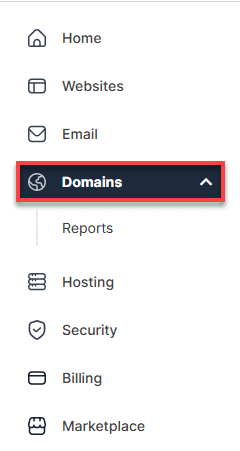
- Click on the left menu
- On the Domains page, choose one of the following:
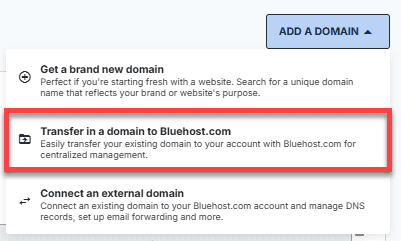
If your domain is not yet in your portal: Click the ‘Add a Domain’ menu on the right side panel and select ‘Transfer in a domain to Bluehost.com’.
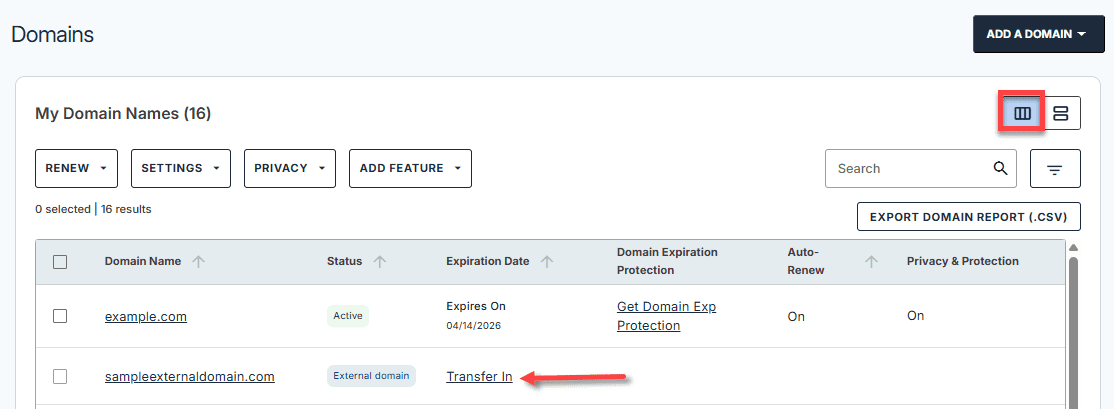
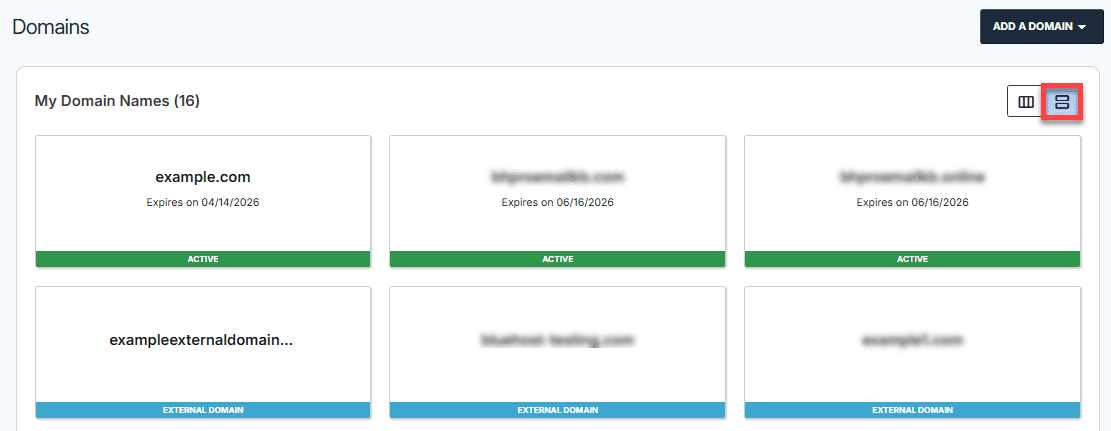
If your domain is already listed as an External Domain – you have two views in domains tab:
- List view: Click the Transfer In link directly next to the domain name
- Card view: Click on the domain card, then click the Transfer In button
Via the Marketplace:
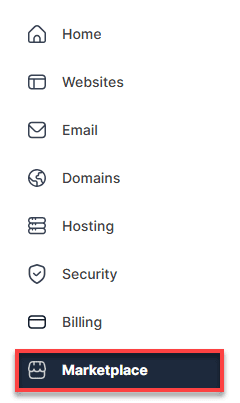
- Click Marketplace on the left menu
- In the Domains section, choose one of the following:
- Click ‘Transfer a Domain You Already Own’ under the search bar.
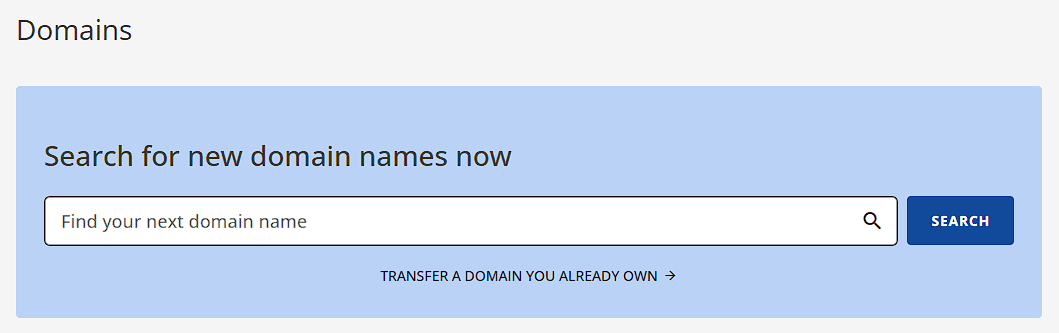
- Also, you can click the ‘Claim Offer’ button under the ‘Domain Transfer In’ card
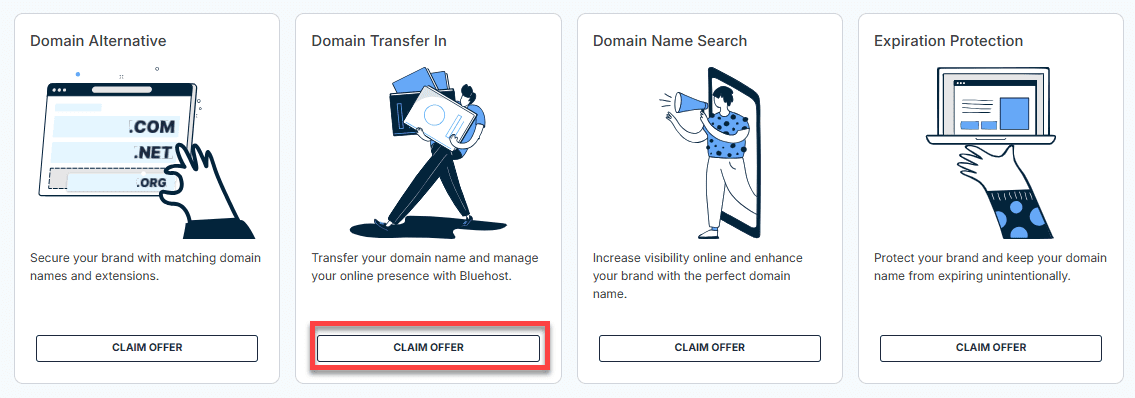
Once you have used either path above, you will land on the same Transfer page. Continue with Step 3 below.
Step 3: Enter your domain name
On the Transfer page, type in the domain name you want to transfer – without the www. Click Submit.
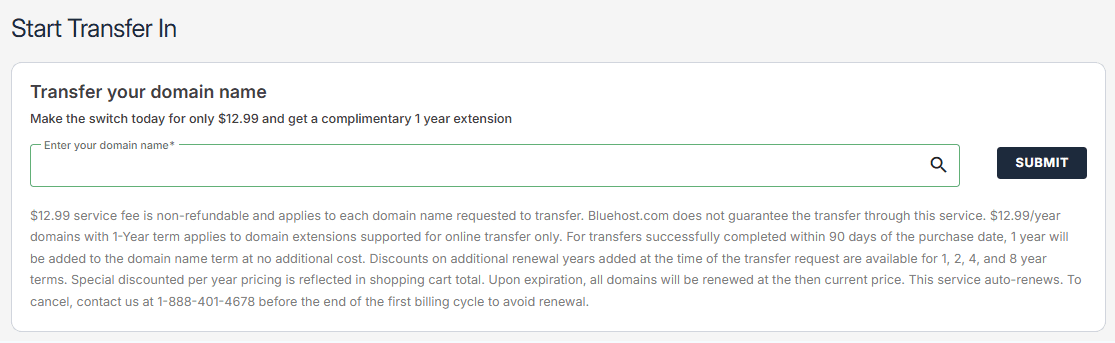
Step 4: Confirm eligibility and select your term
The system will automatically check whether your domain is eligible for transfer. If eligible, it will be added to your cart. Select your preferred registration term length from the dropdown menu.
Step 5: Review your order and proceed to checkout
Review your cart and order summary. Apply a promo code if you have one. Click Continue to Checkout.
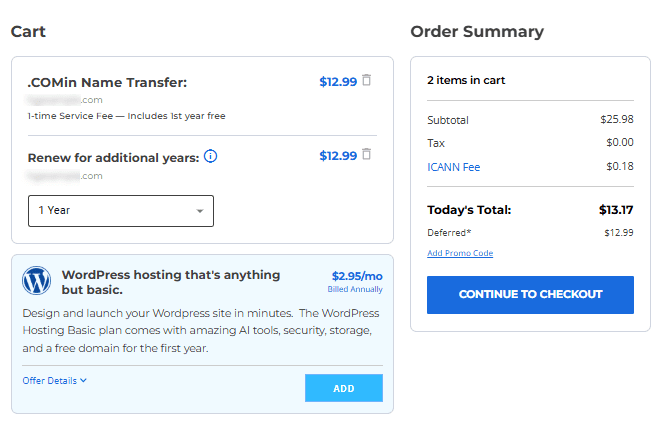
Step 6: Complete the payment
Process your payment. You may be prompted to add a new payment method. Keep your EPP code ready – you will need it in the next step.
Step 7: Go to Domains → Transfer Status
After completing the purchase, click Domains in the left menu and select Transfer Status.
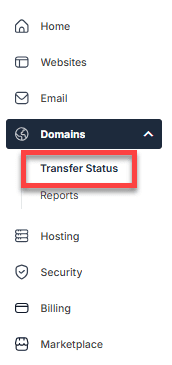
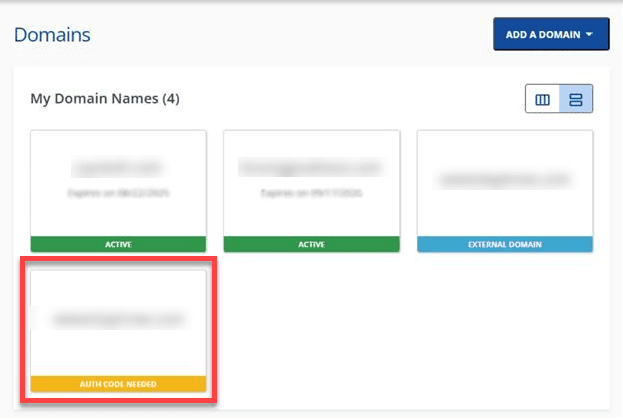
Step 8: Click on your domain showing “Auth Code Needed”
In Card View on the Transfer Status page, find your domain showing the status Auth Code Needed and click on it.
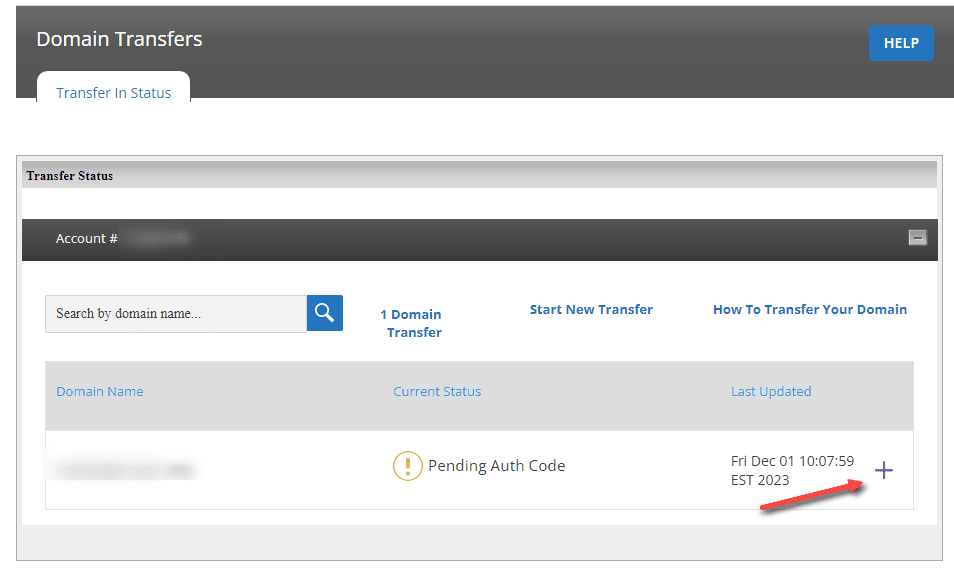
Step 9: Click the plus (+) icon next to Pending Auth Code
On the Domain Transfers page, click the plus (+) icon next to Pending Auth Code to open the EPP code entry field.
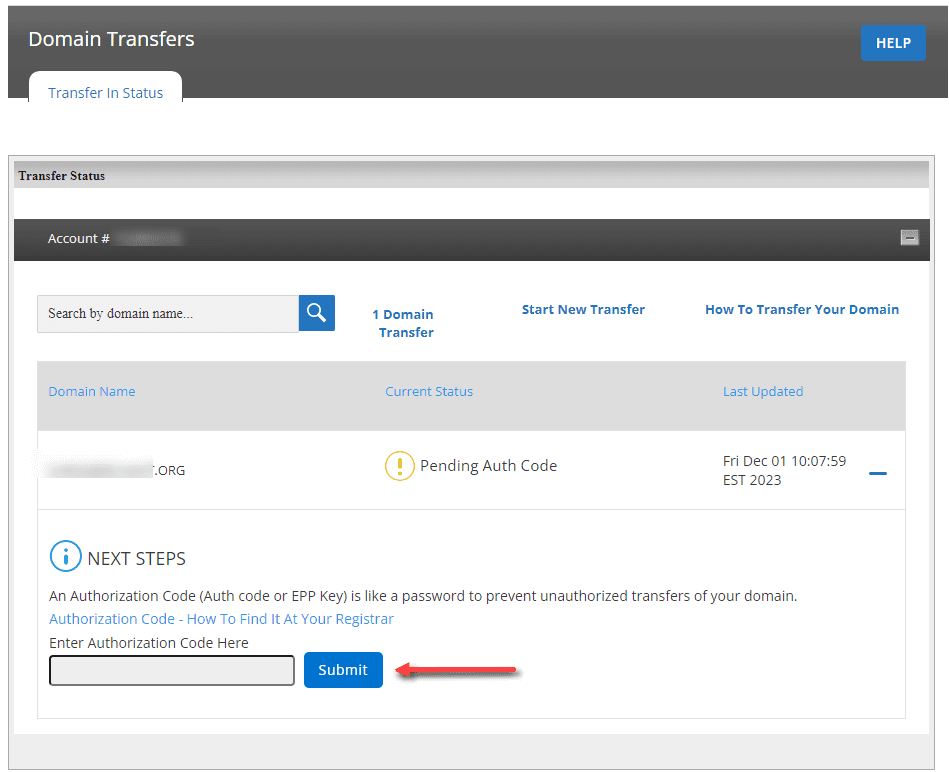
Step 10: Enter your EPP code and click Submit
Enter your EPP code exactly as provided by your registrar. It is case-sensitive – copy and paste it carefully with no extra spaces before or after. Click Submit.
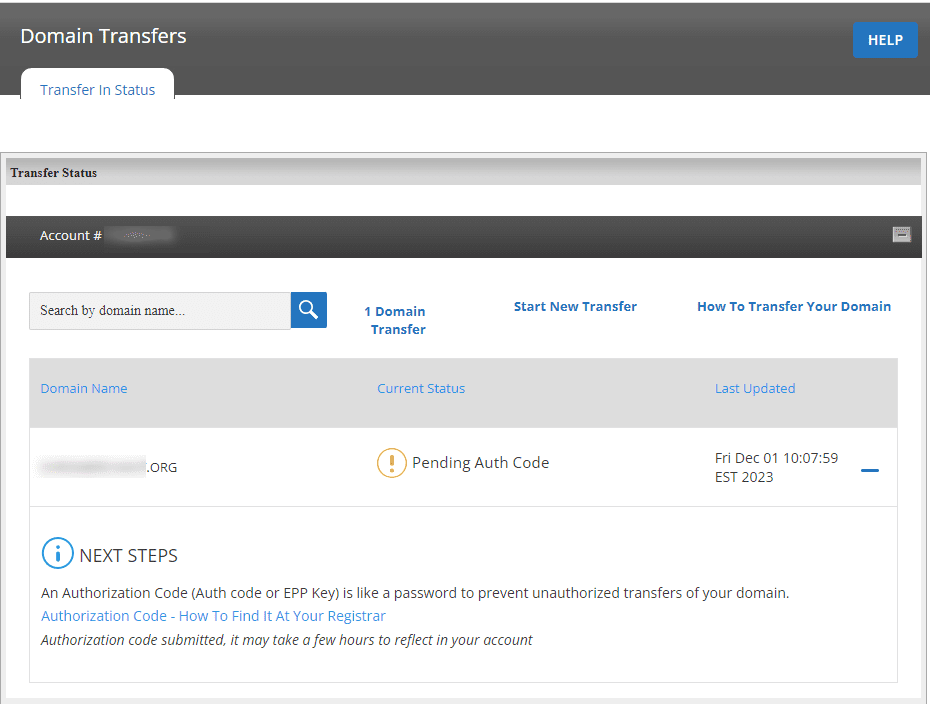
Step 11: Wait for verification
The system will automatically verify your domain and EPP code. The Transfer Status page will update to confirm verification is in progress. Allow some time for this check to complete.
Step 12: Check your transfer status
You can return to Domains → Transfer Status in your Account Manager at any time to monitor progress. Transfers can take anywhere from 30 minutes to 8 days depending on your current registrar.
Also read: How to Transfer A Domain Name To Us
Tips for a smooth domain transfer
- Back up your email accounts before initiating the transfer. DNS records do not move automatically during a domain transfer. Export all mailboxes and save your email settings so you can reconfigure them at the new registrar without losing messages.
- Update your WHOIS contact information at least 48 hours early. Both registrars send authorization emails to your registrant address. An outdated email means missed confirmations and a stalled transfer.
- Do not cancel your old hosting until the transfer fully completes. Transfers can take up to 8 days. Canceling early removes the DNS foundation your site currently runs on.
- Set your nameservers at Bluehost before the transfer finishes. Configuring DNS records in advance keeps your site live throughout the process – backed by Bluehost’s uptime guarantee.
- Renew your domain if expiration is within 30 days. An expiring domain can trigger an automatic lock mid-transfer, causing the request to fail.
How to transfer a domain from Bluehost to another registrar
If you need to move a domain out, here’s how to transfer a domain name from Bluehost following the same ICANN-governed flow:
Stage 1: Prepare your domain in Bluehost
Step 1: Review your domain contact information
Log in to your Bluehost Account Manager and click Domains in the left menu.
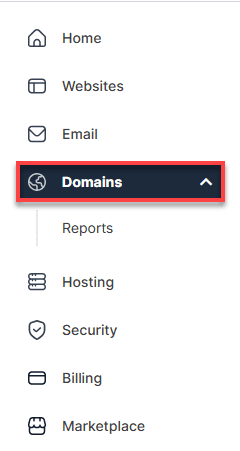
Click the Contacts tab and make sure your registrant email address is accurate and accessible.

Then follow the steps based on your user role:
If you are the Primary Contact (Owner or domain registrant):
- Click Edit next to Domain Contacts
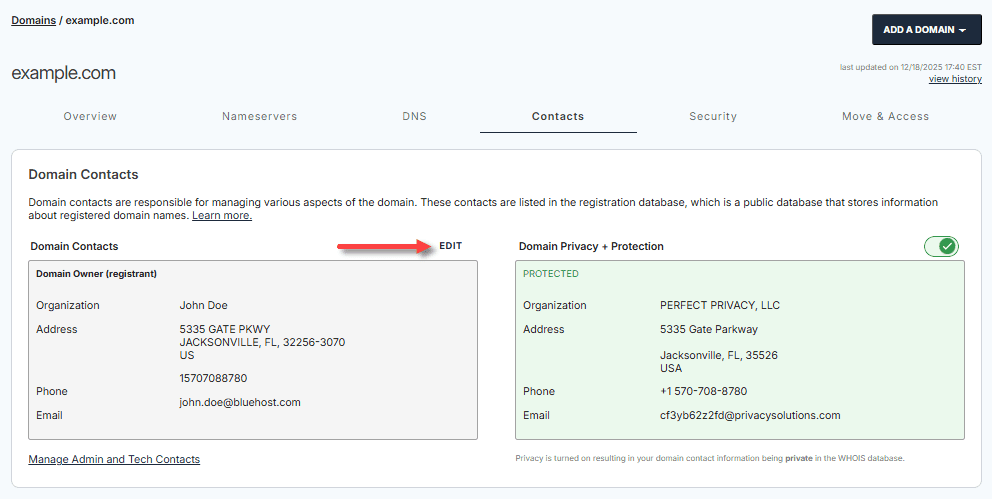
2. In the Edit Domain Owner pop-up, click the Change button
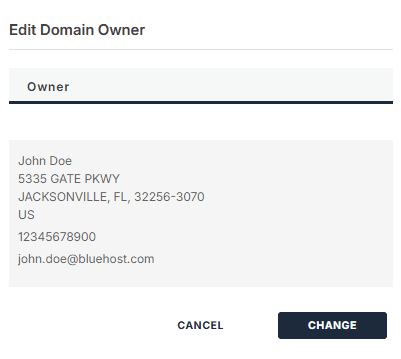
3. Make the necessary updates
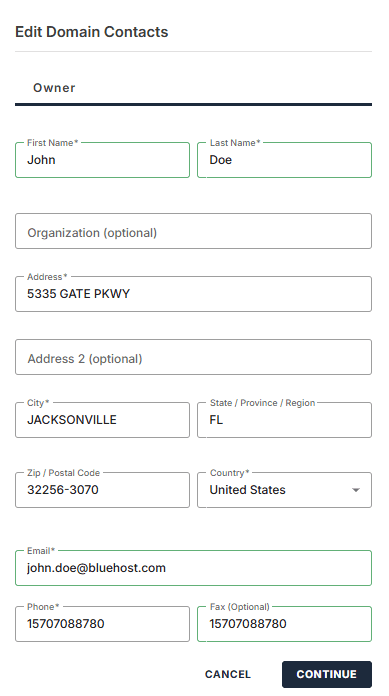
As required by ICANN, if you select Organization, you will have the option to decide whether your Organization is published in the RDDS (formerly WHOIS) as the Registered Name Holder of the domain.
- To publish the Organization, check the box
- To keep it unpublished, leave the box unchecked
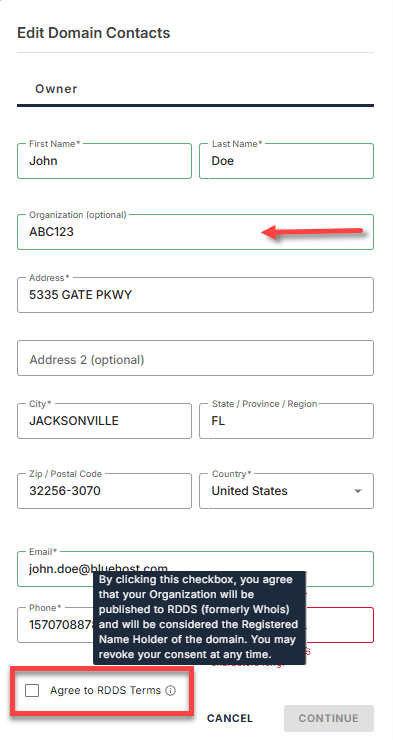
Click Continue,
Once done, you will see a banner notification confirming the changes.

If you are an Admin or Tech:
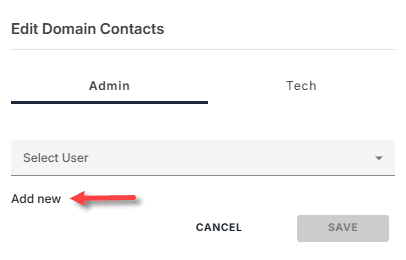
- Click the Manage Admin and Tech Contacts link
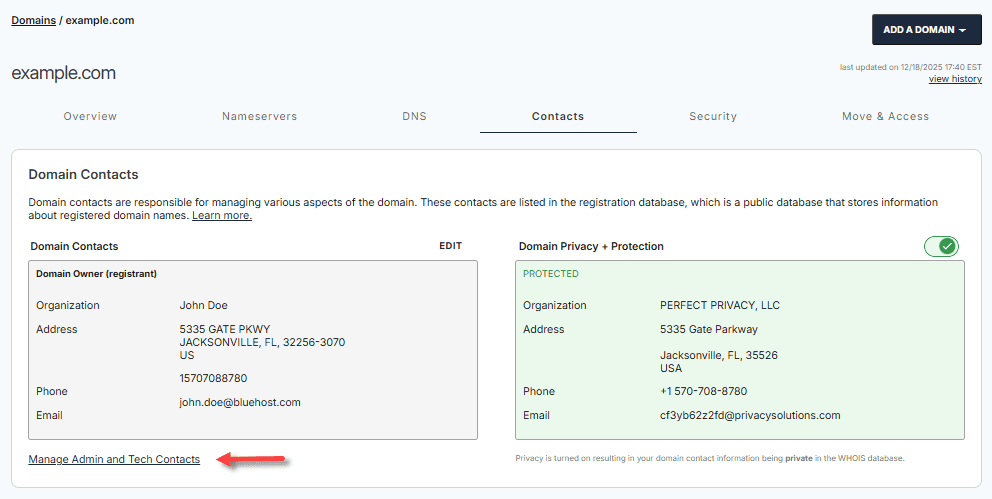
2. In the Edit Contacts pop-up window, select the tab for your role – Admin or Tech – then click Change.
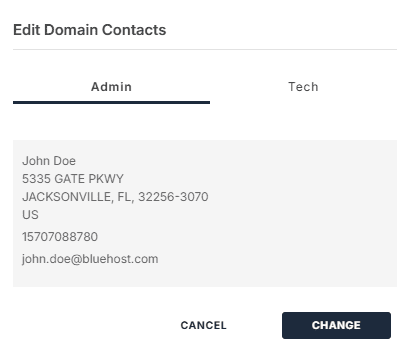
3. Select the existing user you want to assign as Admin or Tech under the Select User menu.
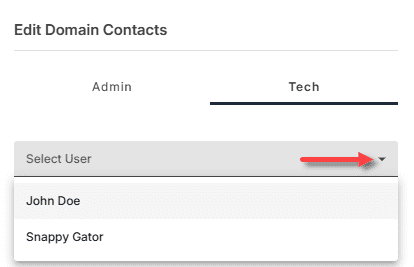
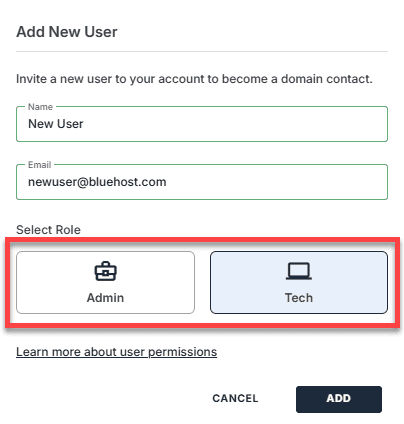
4. If you need to add a new user, click the Add New link
5. Enter the new user’s details, select their role and click Add.
Once your updates are saved, check your email for a verification message and click the link provided to approve the changes.
Step 2: Update your nameservers
If you’ve already moved your website to a new host, update your nameservers in your Bluehost Account Manager before starting the transfer. DNS changes cannot be made once a transfer is in progress, so do this first to minimize any downtime.
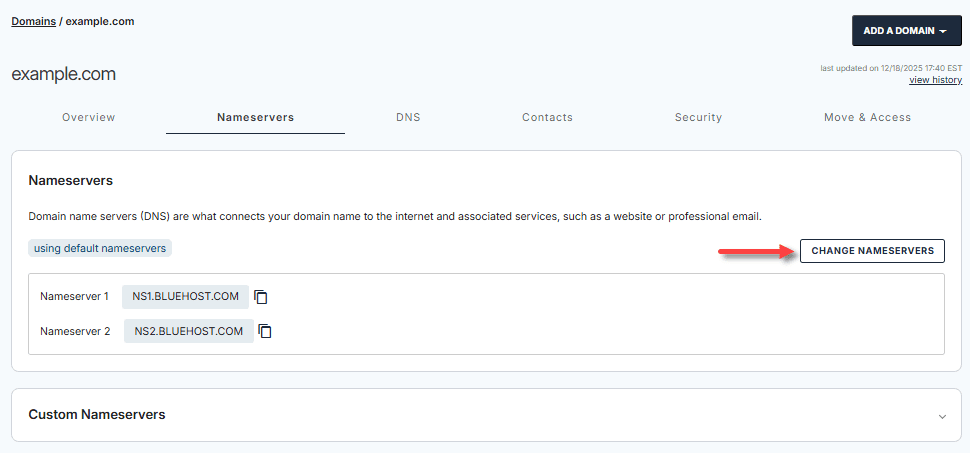
Also read: How to Navigate the Nameservers Tab in Bluehost Portal
Step 3: Unlock your domain
Domains are locked by default to prevent unauthorized transfers. In your Bluehost Account Manager, go to Domains, find your domain and disable the domain lock to make it available for transfer.
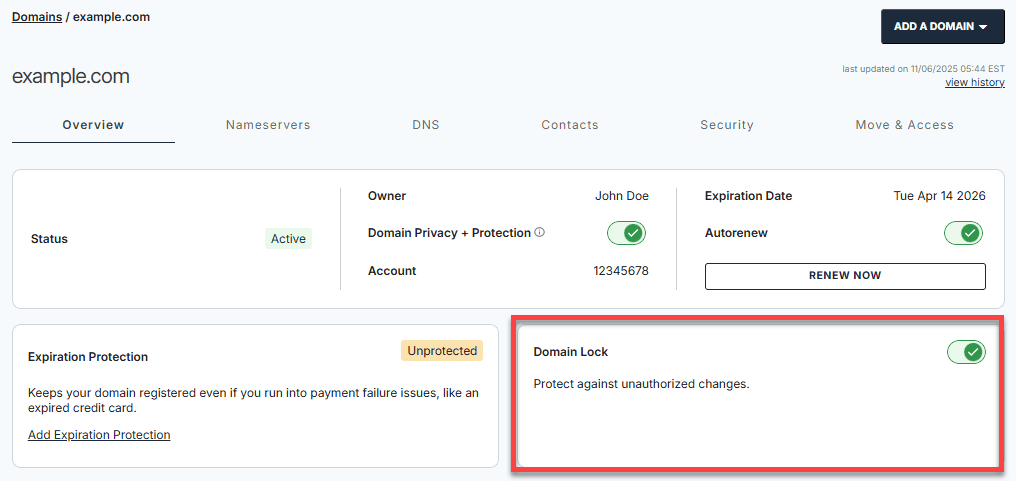
Also read: Understanding the Different Types of Domain Locks
Step 4: Request your EPP code
In your Bluehost Account Manager, go to Domains and request your EPP code – also called the Authorization Code or Auth code. Bluehost will send it to your registrant email address (not the general account email on file). It may take up to 24 hours to receive it.
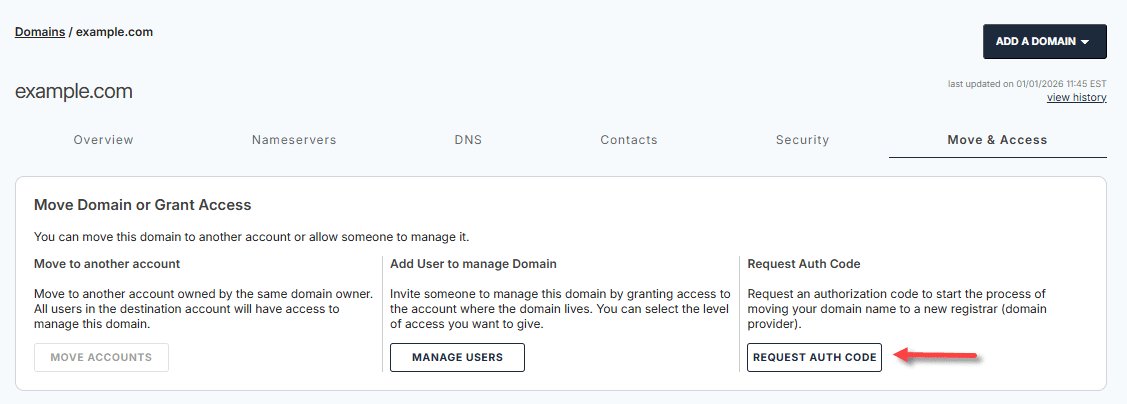
The EPP code is case- and character-specific. When copying and pasting it, make sure there are no extra spaces at the beginning or end.
Also read: How to Get Your EPP Code from Bluehost
Step 5: Start the transfer at your new registrar
- Log in to your account at your new registrar
- Begin their domain transfer process following their instructions
- Enter the EPP code that was sent to your registrant email address
- Complete any additional verification steps your new registrar requires
Step 6: Approve the transfer via email
After initiating the transfer, you will receive a verification email at your registrant email address. Follow the instructions in the email to confirm and approve the transfer request. Monitor your email closely and follow any additional instructions from your new registrar to ensure the process completes smoothly.
Now that you know how to transfer a domain to and from Bluehost, let’s cover the other option – domain forwarding. If you don’t need to move your registration and just want to route visitors from one domain to another, forwarding is the faster and simpler path. Here’s how to set it up.
Also read: How to Transfer a Domain Name to a New Registrar
How to forward a domain to another website?
Configuring domain forwarding is faster than a full transfer and requires no authorization code. Here are the steps to set up domain forwarding for most registrars, followed by the specific setup for Bluehost.
General domain forwarding steps
- Log in to your domain registrar or hosting control panel.
- Navigate to your Domains section and locate the Forwarding or Redirects option.
- Enter the source domain (the address you want to redirect from).
- Enter the destination URL (the full address where visitors should land).
- Select your redirect type: choose 301 (permanent) for SEO-safe forwarding or 302 (temporary) for short-term redirects.
- Save your settings – DNS propagation typically takes a few minutes to 48 hours.
Best practices for domain forwarding
Set up domain forwarding correctly from the start to protect your traffic and search performance over time.
- Always use 301 redirects for permanent moves: A 301 tells search engines the change is permanent and passes most link equity to the destination. Using a 302 by default means ranking signals stay tied to the old domain instead of building authority at the new one.
- Avoid redirect chains: When Domain A forwards to Domain B which forwards to Domain C, crawlers slow down and users experience added latency. Point each domain directly to its final destination.
- Audit your forwarded domains regularly: Destination URLs change over time. A forwarded domain pointing to a broken or outdated page wastes traffic and confuses visitors. Review all active redirects every few months to confirm each one still resolves correctly.
Troubleshooting: Why isn’t my domain forwarding?
If your domain forwarding isn’t working as expected, the issue is almost always one of these three causes:
- DNS propagation delay: Forwarding changes can take up to 48 hours to fully propagate across global DNS servers. If you’ve just configured the redirect, wait before assuming something is broken.
- Browser cache: Your browser may be serving a cached version of the old destination. Clear your cache or test the forwarding in a private/incognito window to see the current behavior.
- Conflicting A records: If your domain has an existing A record pointing to a server, it can override the forwarding rule. Check your DNS zone and remove or update any conflicting A records.
If the forwarding still isn’t resolving correctly after 48 hours, contact Bluehost’s 24/7 support team – they can audit your DNS settings and resolve the conflict directly.
Final thoughts
You now know the difference – and more importantly, you know which one you actually need.
If visitors need to find you at a new address, forwarding gets that done in minutes. If you’re tired of managing your domain somewhere that doesn’t serve you anymore, a transfer puts everything under one roof. And if you need both – a transfer first, then forwarding set up on top – that’s a completely valid path too.
Either way, the worst thing you can do now is nothing. An unmanaged domain is a liability. A domain sitting at the wrong registrar or pointing nowhere useful, is wasted potential every single day.
Bluehost makes both options straightforward – whether you’re moving a domain in or simply redirecting traffic from one address to another.
Ready to transfer your domain to Bluehost? Transfer your domain for a one-time transfer fee and get a complimentary one-year extension – plus 24/7 expert support and everything managed from one clean dashboard. Transfer your domain to Bluehost.
Just need to forward your domain? Set up domain forwarding in minutes – no EPP code, no waiting, no technical knowledge needed. Point any domain exactly where you want your visitors to land. Manage your domain forwarding with Bluehost.
FAQs
What is the difference between domain transfer and domain forwarding?
A domain transfer moves your domain’s registration from one registrar to another, changing who manages it administratively. Domain forwarding redirects website visitors from one domain to a different URL without changing the domain’s registrar or ownership. One is a management decision; the other is a traffic routing configuration.
How long does a domain transfer take?
Domain transfers can take anywhere from 30 minutes to 8 days, depending on your current registrar. The process can move faster if both registrars approve the transfer request quickly. The most common cause of delays is a missed confirmation email or a domain that hasn’t been unlocked at the current registrar.
What is an EPP code and why is it required?
An EPP code – also called a domain transfer authorization code – is a unique password generated by your current registrar to verify that you are authorized to initiate a transfer. You must provide this code to the new registrar when submitting your domain transfer request. Without it, the transfer cannot proceed.
Will my website go down during a domain transfer?
Your website does not need to go down during a transfer. Set up your DNS records at the new registrar before initiating the move. With nameservers already propagating, your site stays live throughout the process with minimal to zero disruption for visitors.
How do I transfer my domain name to a new registrar?
To transfer your domain name, unlock it at your current registrar, set domain privacy to public, request your EPP authorization code and confirm you have access to your registrant email. Then initiate the transfer at your new registrar by entering your domain name and EPP code. Both registrars will send confirmation emails that you must approve to complete the process. The transfer typically takes 30 minutes to 8 days depending on your current registrar. The complete step-by-step process is covered in the domain transfer section of this guide.
How much does a domain transfer cost?
Transfer fees vary by registrar and extension. Most .com transfers cost between $8 and $20. Bluehost includes a free one-year renewal with domain transfers, which offsets the fee. Review your new registrar’s pricing before initiating to avoid unexpected charges at checkout.
Do I lose my email when I transfer a domain?
Transferring a domain does not automatically affect email. If your email relies on DNS records at your current registrar, recreate those records at the new registrar after the transfer completes. Email hosted independently of your registrar continues working throughout the process uninterrupted.
Can I transfer a domain that was just registered?
No. ICANN’s domain transfer policy enforces a 60-day lock on all newly registered domains. You cannot transfer a domain within 60 days of its initial registration or within 60 days of a previous transfer. This rule applies universally to all gTLDs including .com, .net and .org.
Can I forward a domain without a hosting plan?
Yes. Domain forwarding requires no hosting plan. Configure it directly from your registrar’s dashboard to point any domain toward an existing website. This is useful for routing traffic from extra domains without additional hosting costs. Bluehost domain forwarding is managed through the Domains section of your account.
Does domain forwarding hurt my SEO?
Domain forwarding does not inherently hurt SEO. However, using a 302 (temporary) redirect instead of a 301 (permanent) redirect for a permanent move can cause ranking signals to be lost. Redirect chains, where multiple domains forward to one another in sequence, can also slow page load and affect crawl efficiency.
What is domain parking?
Domain parking means registering a domain name without attaching an active website to it. Parked domains typically display a placeholder page. Owners park domains to reserve a name for future use or to protect a brand from competitors. Unlike domain forwarding, a parked domain does not redirect visitors anywhere – it simply holds the address.

Write A Comment