


Key highlights
- Learn how FTP enables file transfers across the internet, allowing users to upload, download and manage files remotely.
- Understand the differences between various types of file transfer protocols and when to use each based on your security needs.
- Explore the practical applications of FTP, including website management, large file transfers and software distribution.
- Discover the risks of using standard FTP in untrusted networks and why secure alternatives are crucial for sensitive data.
- Uncover the benefits of Bluehost’s secure hosting services that support encrypted FTP transfers and robust password protection.
If you’ve ever uploaded a website, transferred a large file to your hosting account or moved data between two computers, chances are you’ve already used FTP. File Transfer Protocol (FTP) is one of the oldest and most reliable ways to move files across the internet and despite newer technologies, it still powers millions of websites and business systems today.
But what is FTP? How does it work behind the scenes? And is it still safe to use in 2026?
In this blog, we break it all down in simple terms, from what an FTP server does to the different secure versions like SFTP and FTPS, plus everyday use cases that actually matter. If you are a beginner, a website owner or just curious how files travel across the web, this is the only File Transfer Protocol explainer you need.
Let’s get started.
What is File Transfer Protocol (FTP)?
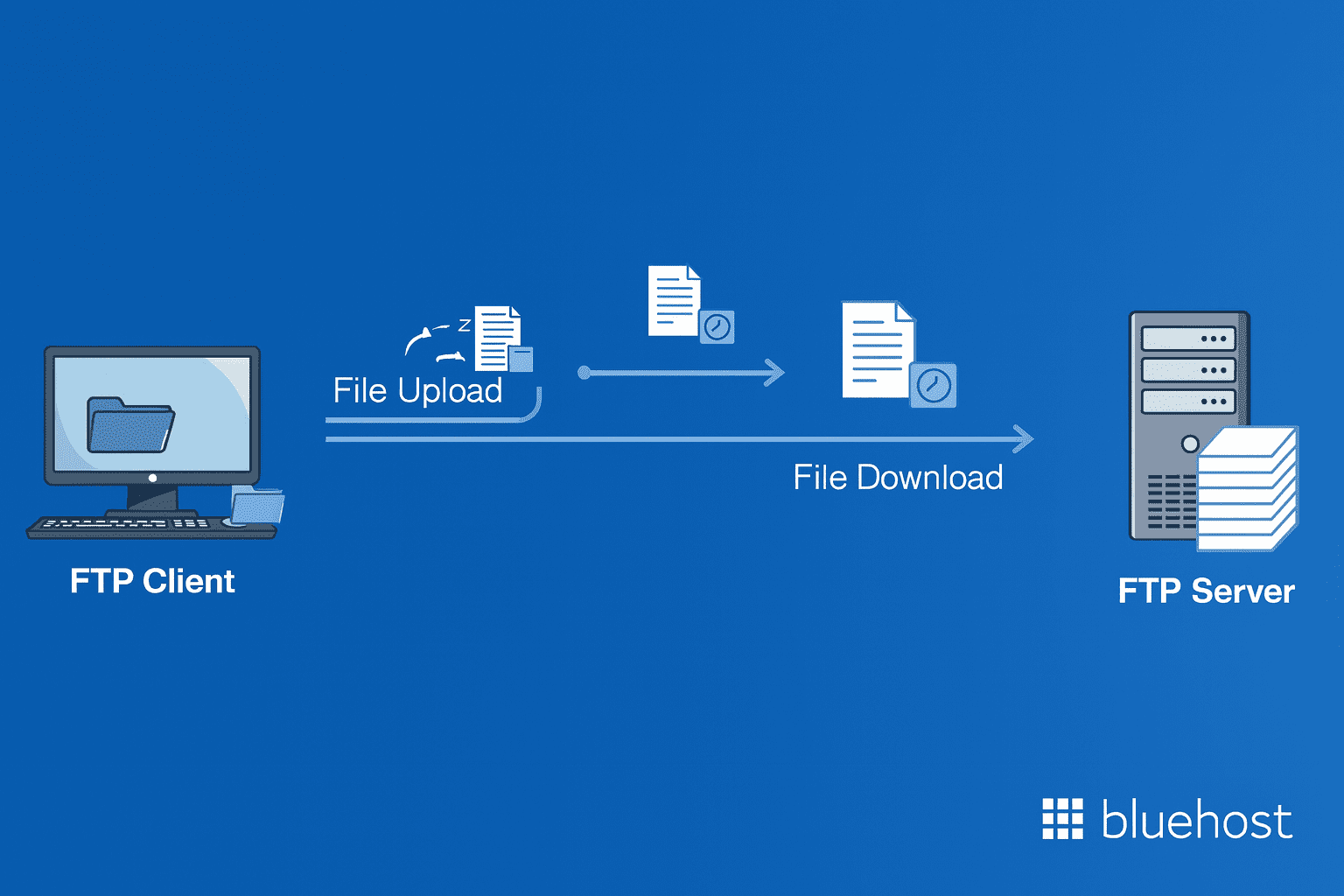
File Transfer Protocol (FTP) is a standard application-layer protocol for transferring files between computers over TCP/IP networks such as the Internet. At its core, FTP defines how two networked systems establish a session, authenticate users, negotiate parameters and then upload or download files, list directories, rename, delete and manage files remotely.
The File Transfer Protocol operates on a client-server architecture, in which an FTP client connects to an File Transfer Protocol server to transfer files. The local host runs client software while the remote host provides the server functionality. This relationship enables users to access remote file systems and perform various file operations as if they were working locally.
FTP is part of the TCP/IP protocol suite and functions as an application-layer protocol in both the OSI and TCP/IP models. Running on top of TCP, it provides reliable, ordered and error-checked data transmission between hosts. The protocol emerged during the early days of ARPANET and represents one of the Internet’s core protocols, predating modern web technologies like HTTP.
What is a FTP server?
An FTP server is a computer or system that stores files and allows users to upload, download and manage them using the File Transfer Protocol. It acts as the central storage location in an FTP connection, always ready to receive requests from an FTP client.
1. Server-side role
An FTP server handles:
- Storing and organizing files
- Managing user access and permissions
- Accepting connections from FTP clients
- Processing uploads, downloads and directory commands
In short, the FTP server is the “hub” where all files live.
2. FTP client vs. FTP server
- FTP client: The tool (like FileZilla or Cyberduck) that sends commands such as upload, download or view folders.
- FTP server: The machine that receives those commands and provides access to the stored files.
You’ll find FTP servers in many everyday systems, including:
- Web hosting providers (For example, for managing website files)
- Internal company servers for file sharing
- IoT devices sending logs or updates
- Backup and software distribution systems
Also read: FTP Client Recommendations
How do FTP servers work?
FTP works by establishing a connection between an FTP client and an FTP server, enabling the transfer of files and their management. Unlike many application protocols that use a single connection, FTP employs two separate TCP connections between the client and server: the command channel and the data channel.
1. Control channel vs. data channel
The control connection operates on port 21 and handles all FTP commands and server responses. Communication here follows a line-oriented text format using NVT ASCII, similar to protocols such as TELNET and SMTP. The client sends commands such as USER, PASS, LIST, RETR and STOR through this channel while receiving status replies from the server.
The data channel handles the transmission of actual file data and directory listings. This separate connection allows commands and status replies to continue uninterrupted, even during active file transfers. After each data transfer completes, the data connection typically closes while the control connection remains open for additional operations within the same session.
2. Active vs passive mode operation
FTP supports two distinct modes for establishing data connections, each addressing different network configurations and firewall requirements.
In active mode, the client opens a control connection to the server on port 21, then sends a PORT command specifying the port it’s listening on. The server then initiates the data connection from its port 20 to the client’s specified address. This approach works well when clients have public IP addresses but fails with NAT or restrictive firewalls that block incoming connections.
Passive mode reverses this process to accommodate modern network security. The client sends a PASV command and the server responds with an IP address and port number where it’s listening. The client then initiates both control and data connections, making all traffic outbound from the client’s perspective. This mode works better with firewalls and NAT gateways since it doesn’t require inbound connections to the client.
3. Authentication and session management
FTP sessions typically follow this pattern: the client connects to port 21, receives a server greeting, then sends authentication credentials through USER and PASS commands. The server may also support anonymous ftp access using “anonymous” as the username. Once authenticated, clients can navigate directories, set transfer parameters like ASCII or binary mode and initiate file transfers that trigger separate data connections.
- Control channel vs data channel
- Client handshake process
- Authentication methods (anonymous login, credentials, tokens)
- File upload/download process with simple diagrams (optional for blog)
Also read: What Is Multi-Factor Authentication (MFA)?
What are the types of FTP?

The evolution of security requirements has led to several variants of the original file transfer protocol ftp, each addressing specific security and functionality needs.
1. Standard FTP
Standard ftp represents the original protocol specification from RFC 959. This unencrypted version transmits all data, including usernames and passwords, in clear text over the network. While widely supported across different operating systems and ftp software, standard ftp poses significant security risks on untrusted networks.
Plain FTP operates on well-known ports (21 for control, 20 for data in active mode) and provides basic file transfer capabilities without additional security layers. Many legacy systems and embedded devices continue supporting only standard ftp, making it still relevant in controlled network environments.
2. FTPS (FTP Secure)
FTPS adds SSL/TLS encryption layers to traditional FTP commands and data transmission. This ftp secure variant addresses the encryption weaknesses of standard FTP while maintaining protocol compatibility. FTPS operates in two modes: implicit FTPS connects to port 990 and immediately negotiates SSL/TLS, while explicit FTPS (FTPES) connects to port 21 and upgrades the connection using AUTH TLS commands.
Both the data channel and command channel receive encryption protection in FTPS implementations. This secure ftp approach preserves FTP’s dual-channel architecture and command set while providing confidentiality and integrity protection for sensitive data transfers.
3. SFTP (SSH File Transfer Protocol)
Despite its similar name, SFTP represents a completely different protocol built on secure shell (SSH) rather than traditional FTP. The ssh file transfer protocol operates over a single encrypted connection on port 22, using SSH’s robust authentication and encryption mechanisms.
Secure file transfer protocol provides secure file transfers through a binary packet-based protocol with its own command semantics. Unlike FTPS, which adds security to existing FTP, SFTP was designed from the ground up as a secure protocol. This fundamental difference makes SFTP incompatible with standard FTP clients, requiring specialized software that supports the SSH protocol.
Also read: How to Connect via SSH or SFTP on Bluehost for Agencies
4. FTPES (Explicit FTPS)
FTPES is a subtype of FTPS that starts as a standard FTP connection and then upgrades to an encrypted TLS session. It is often preferred over implicit FTPS because it provides greater flexibility and compatibility with modern security policies.
FTPES allows administrators to enforce encryption only when needed, making it easier to integrate with existing FTP infrastructures while meeting security requirements.
5. Active vs. Passive FTP
These modes define how the data connection is established during file transfers:
- Active FTP: The server initiates the data connection back to the client
- Passive FTP: The client initiates both control and data connections
Passive mode is far more common today, as it avoids firewall and NAT issues commonly found in modern networks.
Best use cases:
- Active mode: Controlled internal networks
- Passive mode: Most modern internet-based transfers
Which type of FTP should you use?
- Use Standard FTP only in isolated, secure networks
- Choose FTPS or FTPES if you need encryption but must maintain FTP compatibility
- Opt for SFTP if security, compliance and simplicity matter most
- Prefer Passive mode unless network conditions explicitly allow Active mode
Also read: How to Setup FTP on New VPS & Dedicated Hosting Servers
What are the practical uses of FTP?
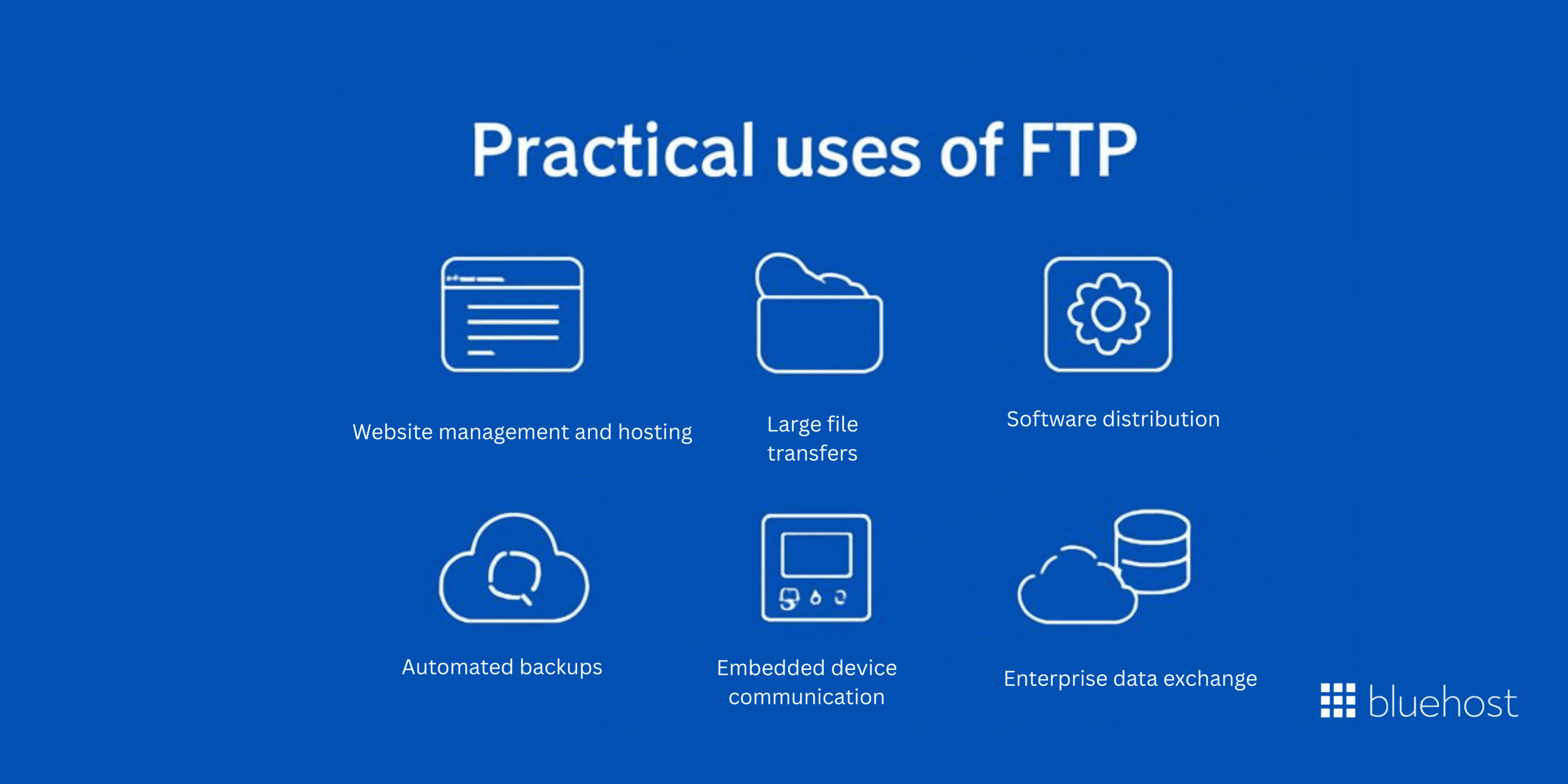
FTP is widely used across industries for reliable file transfers, especially when handling large files or automated processes. Despite newer alternatives, it continues to play an important role in many technical and business environments.
- Website management and hosting: FTP allows developers and site administrators to upload, modify and manage website files directly on hosting servers. It is commonly used for updating themes, plugins, media files and configuration files when working with shared or VPS hosting environments.
- Large file transfers: FTP is ideal for transferring large files or multiple files at once that may exceed email or browser-based upload limits. Features like transfer resumption and batch processing make it reliable for moving datasets, videos and backups.
- Software distribution: Organizations use FTP servers to host and distribute software installers, patches and updates. FTP provides a centralized and controlled way to deliver software to users, customers or internal teams.
- Automated backups: FTP supports scripting and automation, enabling systems to automatically send or retrieve files at scheduled intervals. This makes it useful for routine backups, log transfers and synchronization tasks without manual involvement.
- IoT and embedded device communication: Many IoT devices and embedded systems rely on FTP to transmit logs, sensor data and firmware updates to central servers. Its simplicity and broad support make it suitable for devices with limited resources.
- Enterprise data exchange and EDI: In enterprise environments, FTP and secure FTP variants are commonly used for Electronic Data Interchange (EDI). Businesses exchange large volumes of structured data, such as invoices, inventory records and transaction files, between systems.
When FTP is still the best option: FTP remains a strong choice when large-scale or recurring file transfers are required, especially in automated or legacy environments. In these cases, secure versions like SFTP or FTPS help maintain data integrity and confidentiality.
Also read: Website Security 101: Easy Steps to Protect Your Site from Cyber Threats
What are the advantages and limitations of FTP?
FTP has long been a reliable method for transferring files, especially in technical and server-based environments. While it offers speed and control that many modern tools lack, it also has limitations that can affect security, usability and collaboration.
| Advantages of FTP | Limitations of FTP |
| High transfer speed for moving large files and datasets efficiently | Security weaknesses in standard FTP due to unencrypted credentials and data |
| Batch processing support for uploading or downloading multiple files at once | Complex setup that can be challenging for non-technical users |
| Automation capabilities through scripts and scheduled tasks | Firewall and port issues caused by FTP’s multi-channel architecture |
| Efficient handling of large files with resume support | Lack of real-time collaboration compared to cloud-based tools |
| Server-level control over files, permissions and directory structures | Compliance challenges for industries with strict security requirements |
FTP excels in scenarios where speed, automation and direct server access are priorities, such as backups, website management and large data transfers. However, its limitations make it less suitable for collaborative workflows, highly regulated industries or teams without technical expertise.
FTP vs SFTP vs FTPS vs MFT: which option is the most secure?
Choosing the right file transfer protocol depends on your security requirements, performance needs and operational complexity. While FTP is simple and fast, secure alternatives like SFTP and FTPS add encryption and Managed File Transfer (MFT) solutions provide enterprise-grade control. The table below compares these options across the factors that matter most.
| Features | FTP | SFTP | FTPS | MFT |
| Security | None (unencrypted) | Strong encryption via SSH | SSL/TLS encryption | Advanced encryption + governance |
| Ports used | 21 (control), 20 (data) | 22 | 21 / 990 | Configurable |
| Ease of setup | Easy | Moderate | Moderate to complex | Complex |
| Firewall friendly | Poor | Excellent | Moderate | Excellent |
| Authentication | Username/password | Password, SSH keys, MFA | Certificates, credentials | Centralized identity management |
| Automation support | Basic | Strong | Strong | Advanced workflows |
| Compliance support | No | Limited | Limited | Full (HIPAA, PCI, GDPR) |
| Scalability | Low | Medium | Medium | High |
| Typical use case | Legacy systems | Secure transfers | Secure FTP compatibility | Enterprise file workflows |
Which is the safest?
MFT is the safest option, offering encryption, auditing, access control and compliance features. Among protocol-based options, SFTP is generally considered the most secure due to its single encrypted channel and SSH-based authentication.
Which is the fastest?
Standard FTP is often the fastest in controlled environments because it lacks encryption overhead. However, in real-world scenarios, SFTP and FTPS deliver comparable speeds while providing essential security.
Best for individuals vs. businesses
- Individuals & small teams: SFTP or FTPS for secure, simple file transfers
- Small to mid-sized businesses: SFTP or FTPS with automation
- Large enterprises: MFT for compliance, visibility and scalability
Final recommendation: If security and compliance matter, avoid plain FTP. SFTP is the best balance of security and simplicity, while MFT is ideal for organizations handling sensitive data at scale.
How to use FTP?
File Transfer Protocol (FTP) is one of the oldest and most reliable methods for transferring files between computers over the Internet. While newer technologies have emerged, FTP remains a preferred choice for many because of its simplicity and speed. Let’s dive into the different ways you can use FTP:
1. Using a web browser
A web browser is the simplest way to access FTP servers. You don’t need any special software—just open your browser and enter the FTP server address, usually in the format:
ftp://[username]@[server] This method is most useful for quick file downloads or browsing directories. However, it’s slower and less reliable than other methods, especially when dealing with large files or complex tasks.
2. Using an FTP client (GUI)
For more control and flexibility, using an FTP client is the best option. FTP clients, like FileZilla or Cyberduck, offer a user-friendly interface for connecting to FTP servers. Once connected, you can upload, download and manage files easily with drag-and-drop functionality.
FTP clients also support advanced features like file synchronization, resuming interrupted transfers and managing multiple connections at once. It’s the most efficient method, especially for developers and power users.
Also read: How to Use FileZilla: Beginner’s Guide to FTP & File Transfer
3. Using command-line FTP
If you’re comfortable with command-line tools, you can use the built-in FTP client on most operating systems. On Windows, open Command Prompt, while on macOS/Linux, open Terminal. This method allows you to manually type FTP commands to connect, navigate directories, upload and download files.
While this method is less user-friendly, it’s still popular among developers due to its simplicity and speed in certain cases. For example, you can run FTP commands to transfer files without the need for extra software or a graphical interface.
Also read: FTP – General FTP Settings
Common FTP commands
- LIST: View files and folders on the server
- PUT: Upload a file from your computer to the server
- GET: Download a file from the server to your computer
- CD: Change folders on the server
- MGET / MPUT: Transfer multiple files at once
- PWD: See the current folder on the server
- HELP: Get a list of all commands
- .. (double dot): Move up one folder level
- ASCII / BINARY: Switch between text and binary file transfer modes
- QUIT: Exit the FTP session
Quick tips:
- Use LIST often to know where you are.
- Switch between ASCII (text) and BINARY (images, videos, etc.) depending on the file type.
- MGET and MPUT save time when transferring many files.
Is FTP still safe today?
FTP is generally not considered fully safe today because it transfers data in plain text. This means that any files, including passwords, can potentially be intercepted by hackers if used over the internet. While it is still functional, using plain FTP carries security risks you should be aware of.
Using plain FTP comes with several risks. Data is unencrypted, making it easy for anyone to capture files or login credentials. FTP is also an easy target for hackers and there is no way to verify file integrity, meaning files could be altered without your knowledge.
For safer file transfers, it’s better to use SFTP or FTPS, which encrypt data and protect your credentials. If you’re looking for a secure and reliable hosting solution that supports encrypted FTP and easy website management, Bluehost Hosting offers strong security features and professional support for both beginners and experienced users.
Final thoughts
FTP remains a reliable and fast file transfer solution for specific scenarios, such as moving large files, managing website content or automating backups in controlled networks. However, when handling sensitive data, financial records or client information, it’s essential to switch to secure alternatives like SFTP or FTPS. These protocols encrypt your data, protect login credentials and ensure safe transfers across the internet, reducing the risk of interception or tampering.
For beginners and website owners who want a secure, reliable and hassle-free way to manage files, Bluehost offers built-in support for encrypted FTP, strong security features and professional assistance to make file management simple.
Ready to transfer your files securely? Start using encrypted FTP services with Bluehost Hosting.
FAQs
An FTP connection allows your computer or FTP client to communicate with a remote server using the file transfer protocol. It enables users to upload files, download files and manage the file structure securely or anonymously, depending on the setup.
Data transfer over FTP uses a command channel for instructions and a data channel for sending content. This standard network protocol ensures you can transfer files or share files between local and remote servers efficiently.
Anonymous FTP allows users to access public files without a username or password. Many FTP servers support anonymous FTP, allowing users to download or upload files in a restricted, read-only mode to protect sensitive data from unauthorized sessions.
The file structure on an FTP server mirrors a typical directory layout. Users can navigate folders, upload files, download files and maintain text files or image files while keeping the command line FTP or GUI organized efficiently.
Yes, modern FTP services integrate with cloud storage solutions. This allows users to transfer data, upload files and download files directly between cloud services and a remote server using a secure file transfer protocol.
FTP software such as FileZilla or WinSCP supports FTP connections, SSH file transfer protocol and secure transmission. It simplifies uploading files, downloading files and managing the file structure without relying solely on command line FTP.
The main types of FTP include standard FTP, FTP secure (FTPS) and SSH file transfer protocol (SFTP). Each type provides secure file transfer, password protection and options for continuous stream or block mode transfers.
Many web browsers like Google Chrome or Microsoft Edge support FTP for simple file transfer tasks. While convenient, using FTP protocol in browsers may lack secure transmission, making FTP software or secure FTP alternatives preferable.
Stream mode and block mode are FTP data transfer modes. Stream mode sends a continuous stream of data, while block mode divides files into blocks with headers for error checking, enhancing reliability for large files or image files.
FTP secure (FTPS) and SFTP use secure tunnels or secure shell (SSH) to encrypt commands and data. This ensures secure transmission, prevents unauthorized sessions and protects sensitive text files, image files or financial data.
An FTP server is a remote server that supports FTP, secure file transfer protocol and file structure management. It handles client requests to upload files, download files and share files while controlling access via port numbers and password protection.
FTP alternatives include cloud storage, secure shell transfers and modern file transfer applications. These options offer encrypted transmission, continuous stream or compressed mode and better integration with operating systems like Microsoft Windows for sharing files safely.



Write A Comment