


Key highlights
- Understand what triggers PHP 400 errors and how they manifest across different browsers, servers and development environments to quickly identify the issue.
- Learn systematic diagnostic techniques using error logs, request headers and debugging tools to pinpoint the exact root cause.
- Discover proven step-by-step solutions for common scenarios, including form submissions, API communication and server configuration conflicts.
- Master preventive coding practices through proper input validation, error handling and monitoring to minimize future occurrences.
- Know when to escalate complex issues and leverage advanced debugging tools for persistent problems beyond standard troubleshooting.
Have you ever watched your website suddenly reject user requests, displaying cryptic error messages? When php 400 errors appear, they signal that your server cannot process incoming requests – whether from form submissions, API calls or user registrations – creating immediate frustration for visitors and potential revenue loss.
Despite being one of the most common HTTP status codes developers encounter, php 400 errors can stem from various underlying issues, from malformed request syntax to server configuration problems. This comprehensive guide equips you with systematic troubleshooting methods and proven solutions.
You’ll gain a practical framework for diagnosing root causes, implementing effective fixes and establishing preventive measures to maintain optimal website performance – even in complex scenarios.
Understanding the 400 error code in PHP applications
The 400 error code represents a client-side error in HTTP communications, indicating that the server cannot understand or process the request due to invalid syntax or formatting. Unlike server errors (5xx codes), 400 errors suggest the problem originates from the client’s request rather than server functionality issues.
In PHP applications, these errors typically manifest when your application receives requests that don’t meet expected parameters, contain invalid data or violate specific formatting requirements. The server essentially responds with “I received your request, but something about it doesn’t make sense.”
What is a 400 error?
A 400 Bad Request occurs when the server has not read the browser’s request because it appears malformed or is an invalid data item. Such cases often happen to a request where the data fails to adhere to the proper requirements and structure and becomes unreadable to the server.
How 400 bad request errors appear?
PHP 400 bad request errors display differently depending on your browser, server configuration and development environment. Understanding these variations helps you quickly identify and diagnose the issue.
- Browser display: Most browsers show plain text messages like “400 Bad Request,” “Bad Request – Invalid URL” or “HTTP Error 400. The request hostname is invalid.”
- WordPress admin: Errors may appear as a white screen with black text or within a styled error box in the admin interface.
- Nginx servers: Server configurations often include the server type (Nginx) directly in the error message.
- Development tools: When using cURL, the PHP response 400 status code appears directly in your terminal output.
- Hosting environments: Error formatting varies by host – some display detailed error pages while others show minimal information.
Take a screenshot of the exact error message to confirm you’re dealing with a 400 error and to help troubleshoot the specific cause more efficiently.
How PHP handles HTTP status codes?
PHP applications communicate HTTP status codes through headers and understanding this process is essential for effective troubleshooting. When your PHP script encounters an issue with an incoming request, it can explicitly set a 400 status code using the header() function or through framework-specific methods.
Common scenarios where php status code 400 might be triggered include:
- Malformed JSON in POST requests
- Missing required parameters in form submissions
- Invalid data types sent to API endpoints
- Requests exceeding size limitations
- Improperly encoded URLs or data
Also read: HTTP Status Codes List 2026 – All HTTP Error Codes Explained
Common causes of PHP 400 errors
Understanding 400 error causes is the first step toward effective resolution. These errors rarely occur randomly and usually point to specific issues in how requests are formatted, processed or handled by your application.
1. Request formatting issues
The most frequent cause of 400 errors stems from improperly formatted requests. This includes scenarios where the request syntax doesn’t match what your PHP application expects, such as sending XML data to an endpoint expecting JSON or using incorrect HTTP methods for specific operations.
Form data encoding problems also contribute significantly to these errors. When special characters aren’t properly encoded or when content-type headers don’t match the actual data being sent, your PHP application may reject the request entirely.
2. Data validation failures
Modern PHP applications implement strict data validation to prevent security vulnerabilities and ensure data integrity. When incoming requests fail these validation checks, applications typically respond with 400 errors to indicate the request couldn’t be processed safely.
This commonly occurs with:
- Input exceeding maximum length requirements
- Data containing prohibited characters or patterns
- Type mismatches between expected and received data
- Missing mandatory fields in form submissions
3. Server configuration conflicts
Sometimes, 400 bad request nginx errors or similar web server issues can appear to be PHP problems when they’re actually configuration-related. Web servers like Nginx, Apache or IIS may reject requests before they even reach your PHP application based on their own rules and limitations.
Cookie size limitations represent another common configuration issue. When cookies become too large, you might encounter “400 bad request error cookie too large” messages, which require adjustments to both server and application settings.
How to diagnose PHP 400 errors effectively?
Systematic diagnosis is crucial for efficient php troubleshooting. Rather than guessing at potential causes, following a structured approach saves time and ensures you address the actual problem rather than symptoms.
Examining error logs
Your first stop should always be the error logs. PHP error logs, web server logs and application-specific logs often contain detailed information about what triggered the 400 response. Look for entries that coincide with the timing of reported errors.
Key log locations to check include:
- PHP error logs (typically in /var/log/php/ or configured location)
- Web server error logs (Apache, Nginx access and error logs)
- Application logs (framework-specific logging systems)
- System logs for broader server issues
Also read: Discover PHP Error Logs in Your Account Manager
Analyzing request headers and content
Use browser developer tools or command-line utilities like curl to examine exactly what’s being sent to your server. Pay particular attention to Content-Type headers, request methods and the actual payload being transmitted.
This analysis often reveals discrepancies between what your application expects and what’s actually being sent, making it easier to identify the root cause of request failed with status code 400 scenarios.
Troubleshooting PHP 400 errors
If you’re hosting your WordPress site on Bluehost, you can follow the steps below to fix PHP 400 errors directly from your account dashboard. Here are steps to fix the PHP 400 Error:
Start by checking core files for issues, ensuring your permalinks are set correctly and temporarily disabling the .htaccess file. If the error persists, follow advanced troubleshooting steps to resolve the issue.
Check core files
- Log in to your Bluehost Account Manager.
- From the left-hand menu, click Websites.
- Locate the website experiencing the error and click Manage.
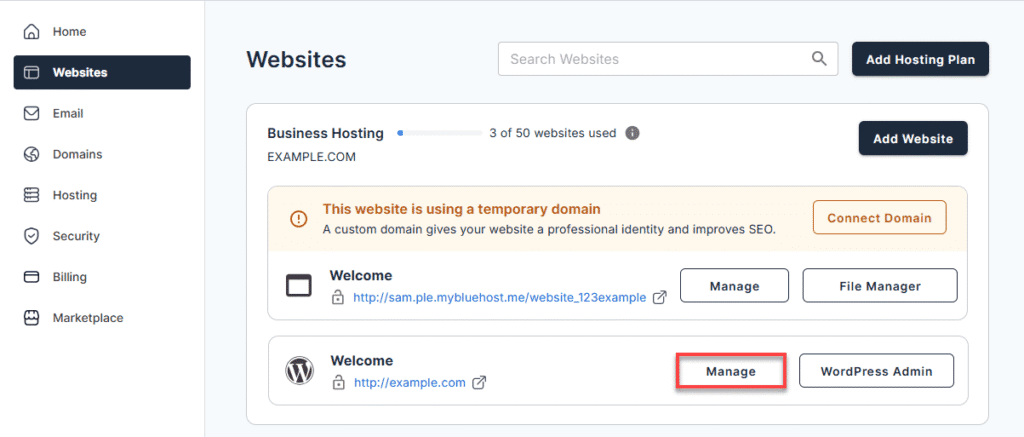
4. In the top horizontal menu, click on the ‘SECURITY’ tab.

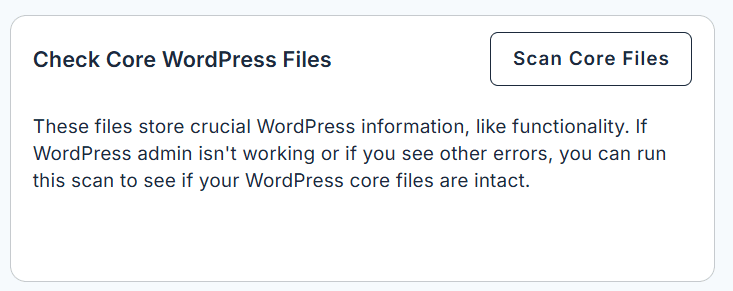
5. Scroll to the ‘Check Core WordPress Files’ section and click the ‘SCAN CORE FILES’ button to initiate the scan.
Also read: How to Troubleshoot and Repair WordPress Core Files
6. After the scan, open your website in a private or incognito browser window.
- If the error persists, check your Permalink Settings for further troubleshooting.
Check permalinks
- Log in to your WordPress Admin Dashboard.
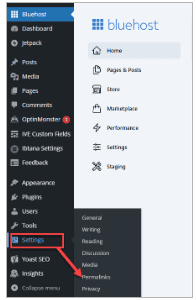
- From the left-hand side menu, click on ‘Settings’, then select ‘Permalinks’ from the dropdown.
3. Leave the current settings as they are and click ‘Save Changes’ to refresh the permalink structure.
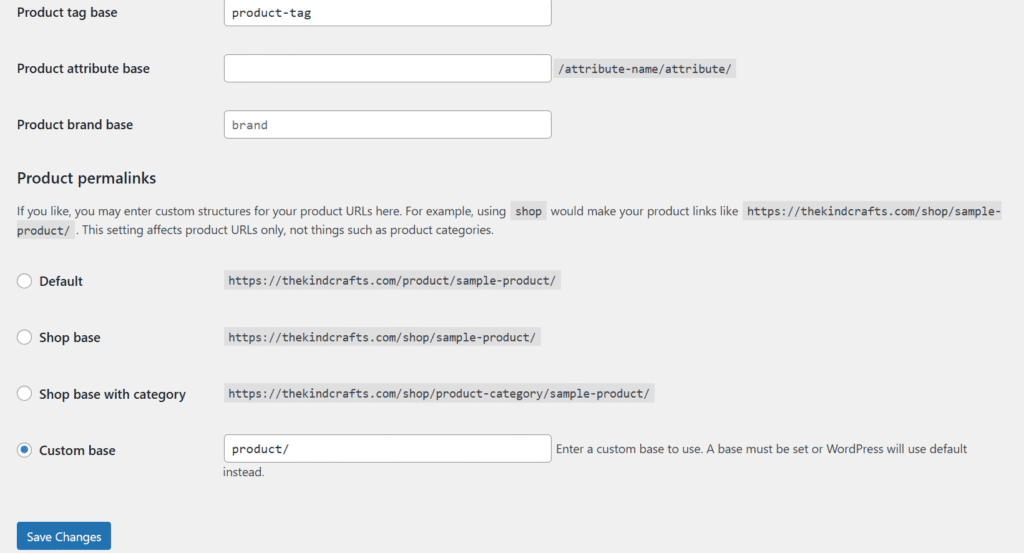
4. Open your website in a private or incognito browser window.
- If the error persists, proceed to the next step to disable the .htaccess file temporarily.
Temporarily Disable the .htaccess File
- Log in to your Bluehost Account Manager.
- Click Websites in the left-hand menu.
- Click Manage next to the affected site.
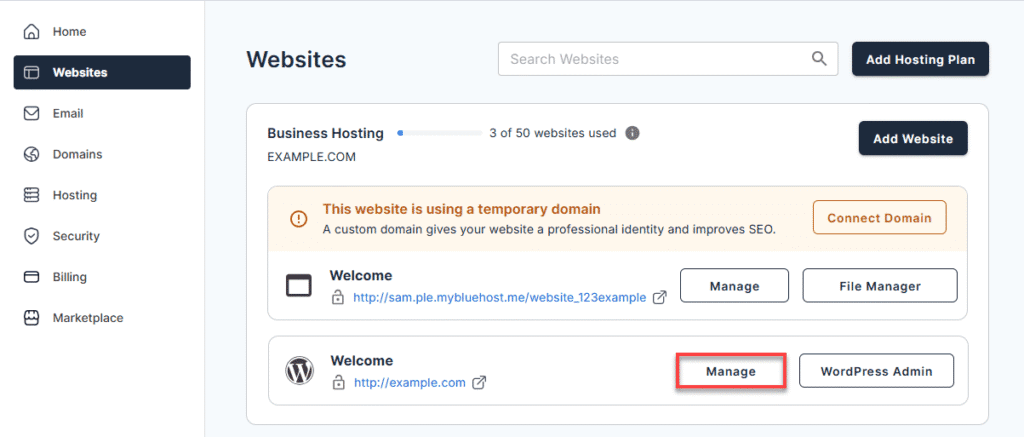
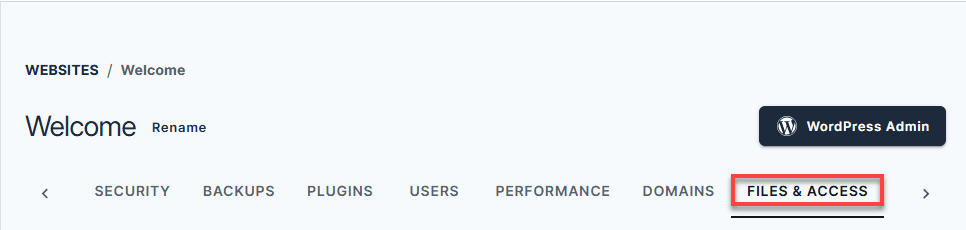
4. In the top navigation menu, click the ‘FILES & ACCESS’ tab.
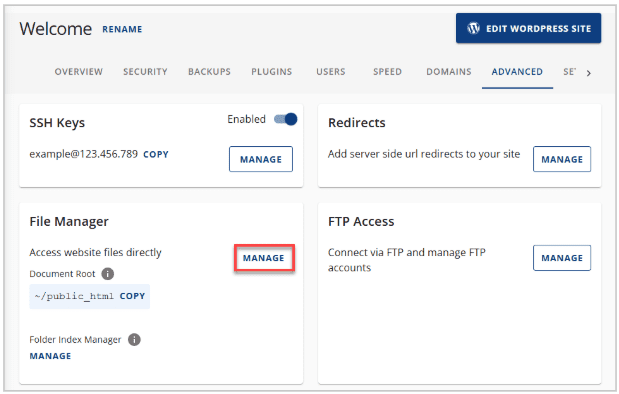
5. Under ‘File Manager’, click ‘Manage’.
6. In the top-right corner, click ‘Settings’.

7. Check the box for ‘Show Hidden Files’ (dotfiles) and click ‘Save’.
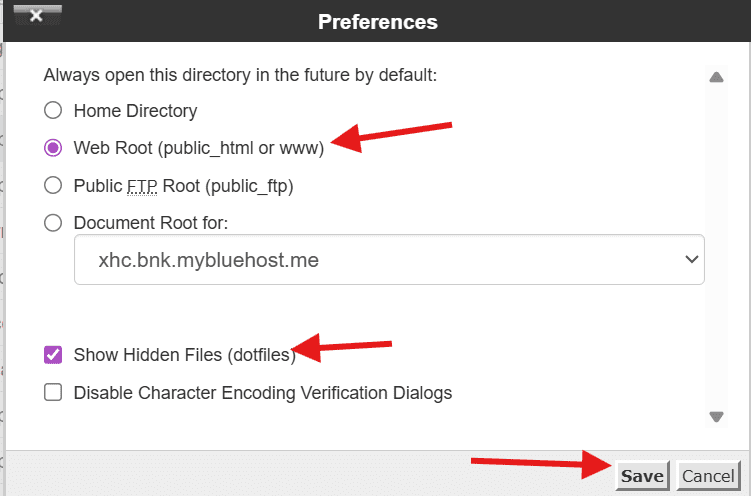
8. In the File Manager, locate the purple file icon named .htaccess.
9. Right-click on it and select Rename from the pop-up menu.
Important: Renaming the file (e.g., “.htaccess-old”) instead of deleting it is important, as it may contain critical code for your website’s functionality. Renaming temporarily disables the file.
10. In the File Manager, create a new .htaccess file:
- Click the + File option in the top left corner.
- In the pop-up box, enter .htaccess as the new file name, ensuring it’s created in the correct directory, then click Create New File.
11. Once created, edit the .htaccess file:
- Locate the new .htaccess file.
- Click ‘Edit’ to copy and paste the following code
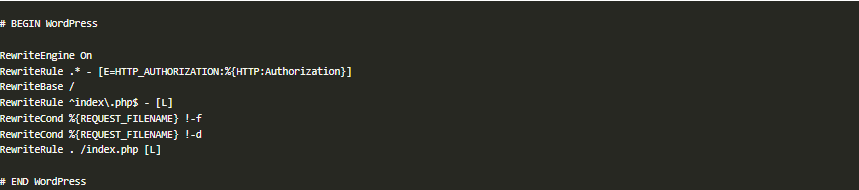
12. Once done, click Save Changes.
13. Open your website in a private or incognito browser window to check if the error has been resolved.
These steps cover the most common hosting-level causes of PHP 400 errors. If you’re working on a WordPress site and want access to tools that make troubleshooting easier – from file management to core file checks – our WordPress hosting is designed to support this kind of hands-on problem solving. Bluehost WordPress hosting provides a structured environment for managing site files, settings and updates in one place.
Implementing fixes for common PHP 400 error scenarios
Once you’ve identified what’s triggering the 400 Bad Request response, the fix usually involves correcting how requests are formatted, validated or handled before PHP rejects them.
- Fixing form submission errors
- Resolving API communication issues
- Addressing server configuration problems
- When basic fixes aren’t enough (advanced debugging tools)
1. Fixing form submission errors
When dealing with php registration error troubleshooting or similar form-related issues, ensure your forms properly encode data and include all required fields. Implement client-side validation to catch obvious errors before they reach your server.
Server-side validation should provide clear, specific error messages that help users understand what went wrong and how to correct their input. Avoid generic “bad request” messages that don’t guide users toward a solution.
2. Resolving API communication issues
API-related 400 errors often stem from content-type mismatches or incorrect request formatting. Ensure your API endpoints properly validate incoming data and return meaningful error responses that include details about what specific validation failed.
Implement proper error handling that distinguishes between different types of validation failures, allowing clients to programmatically understand and respond to specific issues.
3. Addressing server configuration problems
When server configuration contributes to 400 errors, you may need to adjust settings related to request size limits, timeout values or security policies. Work with your hosting provider or system administrator if you don’t have direct access to server configuration.
Common configuration adjustments include:
- Increasing maximum request size limits
- Adjusting cookie size restrictions
- Modifying security header requirements
- Updating URL length limitations
4. Using debugging tools and profilers
Leverage PHP debugging tools like Xdebug to step through request processing and identify exactly where validation fails or errors occur. Profiling tools can help identify performance issues that might contribute to timeout-related 400 errors.
Application Performance Monitoring (APM) tools provide insights into request patterns and can help identify systemic issues that lead to increased error rates.
Also read: How to Enable WordPress Debug Mode (WP Debugging)
Preventing PHP 400 errors through better coding practices
Prevention is always preferable to reactive troubleshooting. By implementing robust php error codes handling and validation practices, you can significantly reduce the occurrence of 400 errors in your applications.
1. Input validation and sanitization
Implement comprehensive input validation at multiple levels of your application. Client-side validation provides immediate user feedback, while server-side validation ensures data integrity regardless of how requests reach your application.
Use PHP’s built-in validation functions and consider implementing a validation library that provides consistent, reusable validation rules across your application.
2. Error handling and user feedback
Design your error handling system to provide meaningful feedback without exposing sensitive system information. Users should understand what went wrong and how to correct their actions, while technical details remain in logs for developer analysis.
Implement logging that captures sufficient detail for troubleshooting while maintaining user privacy and security standards.
When to seek additional help?
Some PHP 400 errors go beyond basic troubleshooting, especially with complex integrations or security-related configurations.
You may need help when errors involve third-party services, authentication systems or when downtime impacts business operations.
Keeping a record of attempted fixes helps speed up resolution when issues need escalation or expert review.
If server-level issues persist, Bluehost offers Pro Design Live, where WordPress experts help review hosting settings and request handling. Pro Design Live provides access to one-on-one guidance for WordPress configuration, troubleshooting and site improvements.
Final thoughts
Successfully troubleshooting php 400 error issues requires a systematic approach combining proper diagnosis, understanding of HTTP protocols and familiarity with common application patterns. By implementing the troubleshooting strategies outlined in this guide, you can efficiently identify and resolve most php 400 error scenarios while maintaining optimal website performance for your visitors.
Don’t let php 400 error problems disrupt your site’s functionality and user experience. Get started with Bluehost WordPress hosting to access tools that support faster troubleshooting, structured site management and reliable performance, along with 24/7 expert support to help resolve issues as they arise.
FAQs
PHP 400 errors occur when the server cannot process a request due to client-side issues like malformed syntax, invalid request formatting, oversized headers or incorrect parameter encoding. Check request data, headers and URL structure first.
Start by checking server error logs for specific details. Verify request headers, validate JSON or XML formatting, check file upload sizes, clear browser cache and ensure proper URL encoding of parameters and form data.
Yes. Server misconfigurations like restrictive ModSecurity rules, small request size limits, incorrect PHP settings or firewall rules can trigger 400 errors. Review php.ini settings, server configurations and security module rules carefully.
Enable detailed error logging, use browser developer tools to inspect requests, check HTTP headers, validate input data format, test with tools like Postman and review server access logs for specific error details and patterns.
Yes, frequently. Form submissions can trigger 400 errors due to oversized POST data, invalid field values, CSRF token mismatches, missing required fields or incorrect content-type headers. Validate form data and check field limits.


Write A Comment