



Key highlights
- Learn how to find where is WordPress hosted using WHOIS, DNS and reliable online hosting checker tools.
- Understand the difference between WordPress.com and WordPress.org hosting and how each affects site control, management and performance.
- Discover how to interpret WHOIS data, including nameservers, domain registration and registrant details to identify a website’s host.
- Use Bluehost Hosting Checker alongside Ping.eu to find accurate server location and domain information easily.
- Get expert tips on choosing a reliable web hosting provider with strong uptime, security and support for better WordPress performance.
When managing a website, you’ll sometimes need to figure out who’s hosting it. This is especially true when you take over a project without complete documentation, or when your domain registrar and web host are two separate companies.
You might also need this information when planning to transfer a site, update billing records or troubleshoot DNS issues. Luckily, several easy methods exist. This guide covers how to find where your WordPress site is hosted, explains the key difference between a domain host and a web host and walks you through the best lookup tools to use.
Let’s dive in!
How to identify where is WordPress hosted?
Curious about where your WordPress site is hosted? You can easily identify the web hosting provider using WHOIS lookup tools, DNS checkers or hosting checker tools to find details like server location, IP address and domain host information.
WordPress sites are hosted in one of two ways: through WordPress.com or through a third-party provider via WordPress.org. Each works differently and understanding the distinction helps you find the right information faster.
Skip the jargon and get live human help 24/7
💬 Chat with an ExpertWhat is the difference between WordPress.com and WordPress.org hosting?
| Feature | WordPress.com | WordPress.org (Self-hosted) |
|---|---|---|
| Who manages hosting | Automattic (WordPress) | You choose a provider |
| Server control | None | Full root/admin access |
| DNS/Nameserver control | Managed by WordPress | Managed by you |
| Custom domain | Paid plans only | Yes, included with most hosts |
| Ideal for | Blogs, personal sites | Businesses, growing websites |
| Migration allowed | No | Yes |
WordPress.com hosting
WordPress.com is a fully managed platform run by Automattic. WordPress handles the server, software updates and nameservers directly. You don’t manage any infrastructure.
Free accounts get a subdomain (for example, example. [wordpress].com). Free domains are available on higher-tier plans. This setup suits small blogs and personal sites that don’t need custom server configurations.
WordPress.org hosting (self-hosted)
WordPress.org sites require you to choose a third-party hosting provider. You get full control over your domain name, DNS settings, database access and PHP configuration. This is the preferred setup for businesses, agencies and any site that needs scalability or custom functionality.
The most common self-hosted options include:
- Shared hosting: Cost-effective; ideal for new sites
- WordPress hosting: Optimized infrastructure for WordPress performance
- WooCommerce hosting: Built for online stores with eCommerce-specific tools
- VPS hosting: Dedicated resources; better for high-traffic sites
- Dedicated hosting: Maximum performance and control
Bluehost is the longest-running WordPress.org recommended host – trusted by 5 million websites. Our WordPress hosting plans include free SSL, managed updates and an AI Website Builder.
How do I find where a WordPress site is hosted?
You can find any website’s hosting provider using three methods: a WHOIS lookup, a ping test or a dedicated hosting checker tool. Each method takes under two minutes.
| Method | Best for | Effort level |
|---|---|---|
| WHOIS Lookup | Finding nameservers and registrar | Low |
| Ping + IP WHOIS | Confirming server IP and host | Low |
| Hosting Checker Tool | Fastest all-in-one lookup | Very Low |
How to perform a WHOIS lookup to check a website’s hosting provider
A WHOIS lookup is the fastest way to identify a hosting provider. Follow these steps:
1. Go to ICANN’s WHOIS Lookup tool.
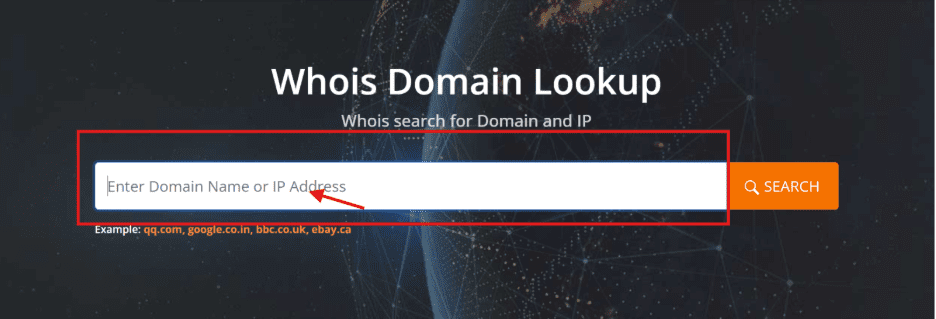
2. Enter the domain name (for example, [scoopsoffavor].com) and click Lookup.
3. Locate the Nameserver section in the results.
4. The nameserver reveals the hosting provider (for example, NS1.BLUEHOST.COM = Bluehost).
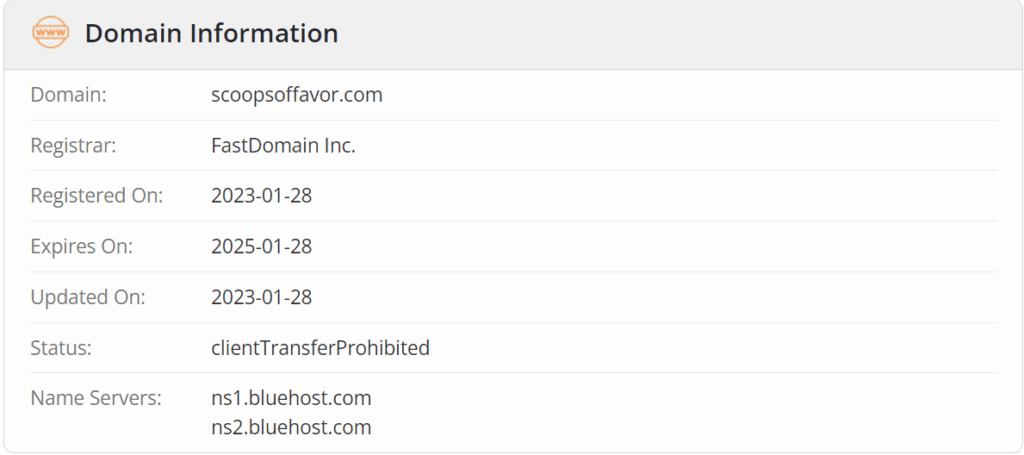
Understanding WHOIS lookup results
When you run a WHOIS lookup, you get a detailed report. Here’s how to read the key sections:
| WHOIS section | What it tells you |
|---|---|
| Nameservers | Identifies the web hosting provider |
| Registrant Details | Shows who registered the domain |
| Registrar | Shows the domain registration company |
| Domain Age | Shows when the domain was first registered |
Nameservers are the most useful data point. If you see NS1.BLUEHOST.COM and NS2.BLUEHOST.COM, the site is hosted on Bluehost.
Registrant details show the person or company that registered the domain. This helps when you need to contact the account owner directly.
WHOIS privacy hides registrant contact details when enabled. You’ll see:

When privacy protection is active, use a DNS lookup or ping test instead to confirm the host.
How to use ping and WHOIS together to find your host?
A ping test sends a small data request to the server and returns the server’s IP address. You can then run a second WHOIS lookup on that IP to identify the hosting provider.
Steps to ping a domain:
1. Go to Ping.eu.
2. Enter the domain name without “http://” (for example, [scoopsoffavor].com).
3. Click Go and note the IP address returned (for example, 66.235.200.146).

4. Copy that IP address and run a WHOIS lookup on it.
5. The WHOIS result for the IP reveals the hosting provider and data center location.
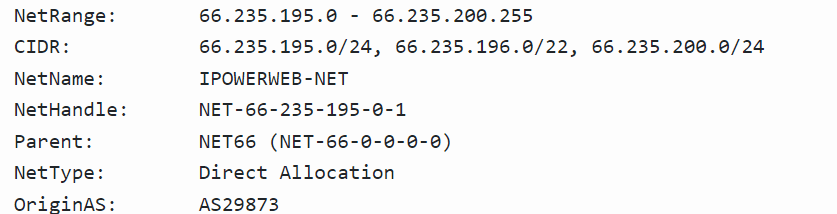
Combining both methods gives you a confirmed answer even when nameserver data is incomplete.
Note: Your domain verification typically completes immediately. In some cases, it may take up to 72 hours due to DNS propagation.
What makes for a good WordPress website host?
A good WordPress host delivers consistent uptime, fast load times, strong security and expert support. These fundamentals directly impact user experience and SEO – Search Engine Optimization rankings. Quality providers also offer clear upgrade paths as your site grows.
When evaluating WordPress hosting, prioritize these capabilities:
- Uptime and reliability: Target 99.9% uptime backed by redundant server architecture and automatic failover systems that prevent outages
- Speed and performance: Modern caching layers, current PHP versions and optimized configurations keep load times under two seconds – critical for visitor retention
- Security infrastructure: Daily automated backups with one-click restore, included malware detection and removal and free SSL certificates for encrypted connections
- Development tools: Staging environments for safe testing, CDN – Content Delivery Network – compatibility for global speed and managed WordPress updates
- Expert support: 24/7 WordPress-specialized assistance that understands plugin conflicts, theme issues and database optimization – not just generic hosting help
- Scalability and eCommerce: Auto-scaling infrastructure handles traffic spikes while native WooCommerce optimization and secure payment tools support online stores
- Migration flexibility: Easy-to-use transfer tools and clear documentation simplify switching hosts as needs evolve
If you’re ready to move your site to a host built around these standards, our WordPress hosting plans are a strong place to start. Everything you need comes pre-configured – so you spend less time managing hosting and more time growing your site.
Final thoughts
Knowing where your WordPress site is hosted helps you manage, migrate and troubleshoot it efficiently. Use WHOIS lookups for nameserver data, ping tests for IP-level confirmation and hosting checker tools for the fastest all-in-one results.
If your current host doesn’t offer the uptime, performance or support your site needs, it may be time to switch. Bluehost WordPress Hosting delivers a 99.9% uptime guarantee, managed updates and 24/7 support – so you never go it alone.
FAQs
Yes, you can switch web hosting providers for WordPress.org sites. Just migrate your files and database to the new host. WordPress.com sites are hosted on WordPress’s servers. They can’t be transferred to another host.
It depends on the platform you use. WordPress.com hosts your site automatically- Automattic manages everything including servers and updates. WordPress.org does not host your site. You need to choose a separate web host for WordPress and manage your own hosting environment.
Run a WHOIS lookup on your domain at ICANN’s lookup tool. Locate the Nameserver section in the results – it directly identifies your hosting provider. You can also use our Hosting Checker tool or a ping test for a faster result.
Enter the domain into a WHOIS lookup tool or hosting checker. The nameserver data in the results reveals the hosting provider. If WHOIS privacy is enabled, a ping test or DNS lookup gives you the server IP to trace the host.
If WHOIS privacy is enabled, the registrant’s contact details remain hidden. To verify the host, you can contact the domain registrar directly or use alternative tools like DNS lookups.
A name server translates a domain name into an IP address for the web browser. The hosting service offers the servers that store your website’s files and data.
Yes, online ping tools and DNS lookup services can help identify a website’s hosting provider. These alternatives are useful when WHOIS lookups lack information or privacy protection conceals details.


Write A Comment