



Key highlights
- Enable comment moderation, restrict anonymous commenting and install a robust anti-spam plugin. Consider adding CAPTCHA or honeypot protection for additional security.
- Implement multiple layers of security, including WordPress settings, anti-spam plugins, form protection tools and hosting-level malware scanning.
- Enable email verification for new users, limit login attempts, add CAPTCHA or honeypot fields to registration forms and restrict default user roles.
- Block suspicious keywords and URLs through Disallowed Comment Keys, disable trackbacks and pingbacks if not needed and regularly monitor your site’s search engine indexing.
Spam is no longer limited to “nice post” comments. Modern WordPress spam includes automated bot registrations, SEO link drops, fake trackbacks and form submissions designed to plant malicious URLs or manipulate rankings. If you’re searching for how to stop spam comments on WordPress and also prevent fake sign-ups, this guide walks you through practical, proven controls from native WordPress settings to plugins, CAPTCHAs, honeypots and hosting-layer protection.
You will learn how to clean up existing spam, harden your comment and registration flows and add targeted protections for popular setups like forums (wpForo), booking plugins, Events Manager and contact forms.
Why spam prevention is important?
Learning how to stop spam comments on WordPress goes beyond keeping your site clean. Protecting your WordPress site from spam comments shields your business from genuine operational threats and security vulnerabilities:
- Protects visitors from malicious content: Comment and form spam often contain dangerous URLs that lead to phishing sites, malware or scams.
- Maintains credibility and trust: A comment section flooded with generic “SEO spam” looks unprofessional and discourages genuine engagement from your readers.
- Prevents performance issues: Automated bots can overload your database with write requests and increase server load, potentially slowing down your site.
- Safeguards your SEO rankings: Search engines may penalize your site for hosting spammy outbound links and low-quality user-generated content.
When learning how to stop spam comments on WordPress, the primary goal is to block automated submissions before they reach your database. This proactive approach reduces the risk of publishing harmful content and makes your moderation workload much easier to handle.
Before diving into advanced spam prevention techniques, it’s essential to understand the basics of how comment spam works and why it poses a threat to your WordPress site.
WordPress comment spam 101
WordPress comment spam is the digital equivalent of junk mail cluttering your website. Instead of genuine engagement, these are typically unwanted messages generated by automated bots to plant malicious links, spread malware or manipulate search rankings. You will often see this manifest as generic praise (“Nice post!”), incoherent text or blatant SEO link drops pointing to unrelated sites. Because modern bots are relentless and constantly evolving, relying on a single setting rarely works; the most effective way to stop WordPress comment spam is through the layered defense strategy we will cover in this guide.
It is important to distinguish between standard comment spam, trackback clutter and form injection, as each requires a specific approach found in the sections below. While WordPress spam in comments targets your discussion area, trackbacks flood your notifications and form spam attacks your registration or contact pages. Use this quick checklist to identify spam signals in your moderation queue:
- Suspicious URLs: Links pointing to high-risk industries (gambling, pharma) or unrelated products.
- Generic keywords: Vague phrases like “Great content” or “Thank you” with no specific details about your post.
- Repeated usernames in WordPress spam: Multiple spam comments using the same username or identity but originating from various IP addresses, a red flag when learning how to stop spam comments on WordPress.
- Foreign language WordPress spam: Comments posted in languages unrelated to your site’s primary audience that WordPress spam filters should block.
How to stop spam comments on WordPress: 7 practical methods
These WordPress spam prevention strategies are organized from basic to advanced implementation. Choose and combine methods based on whether you need to stop spam comments on WordPress with minimal restrictions, moderate oversight or maximum security controls for your site.
1. Disable comments entirely
If your website does not require user interaction, such as a brochure or portfolio site, the most effective method to stop spam comments on WordPress is to disable the feature completely.
- Navigate to Settings > Discussion in your dashboard.
- Uncheck the box labeled “Allow people to submit comments on new posts.”
- (Optional) Use the bulk edit feature under Posts > All Posts to turn off comments on previously published content.
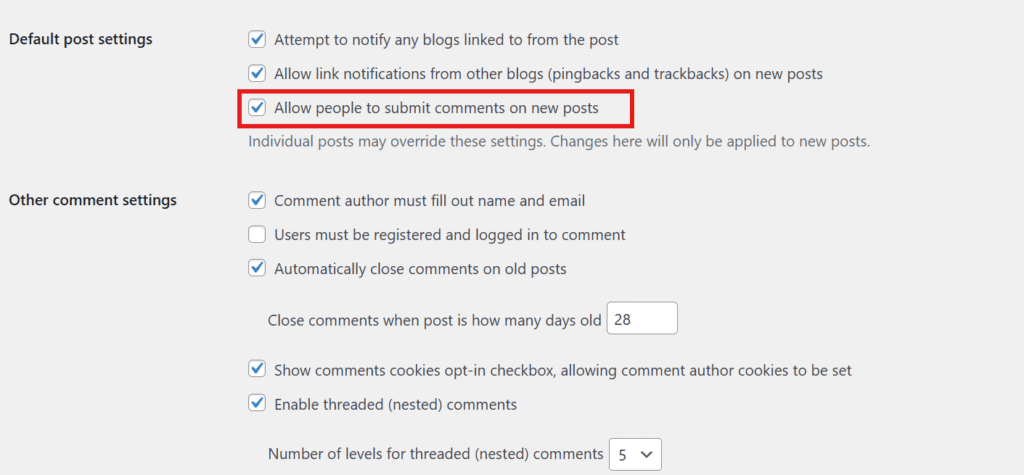
This method effectively blocks automated spam bots on WordPress while safeguarding your older posts that continue to generate organic search traffic.
2. Turn off anonymous comments
Allowing anonymous posts acts as a magnet for spam comments. At a minimum, you should require visitors to provide a name and email address. For larger or more sensitive communities, consider forcing users to register an account before they can participate.
- Navigate to Settings > Discussion in your WordPress dashboard and verify that “Comment author must fill out name and email” is checked.
- Keep your comment form simple and distraction-free to avoid user confusion while enforcing these identity requirements.
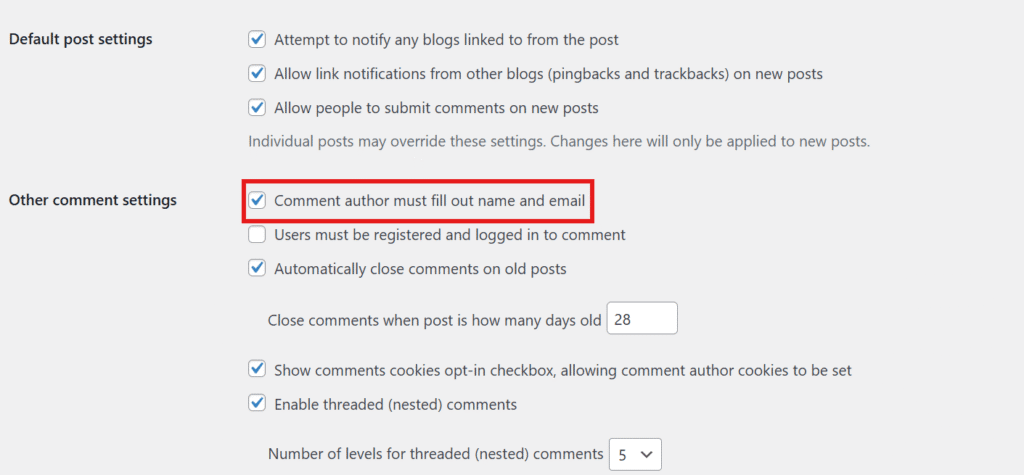
Although sophisticated bots can still bypass these fields, this requirement adds necessary friction to the process and helps you distinguish between legitimate readers and automated spam.
3. Enable comment moderation
Moderation is a powerful tool to stop spam comments on WordPress without blocking real discussions.
- Turn on “Comment must be manually approved”
- Enable “Comment author must have a previously approved comment”
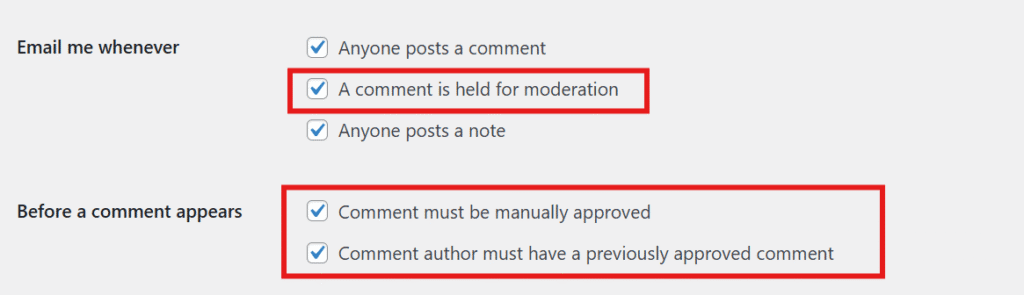
For most websites, a balanced approach is best. Manually approve first-time commenters to vet new visitors, then allow their future comments to post automatically once trust is established.
4. Only allow comments from logged-in users
If you manage a membership site, online course or private community, restricting discussions to authenticated users is one of the most effective ways to stop spam comments on WordPress.
- Navigate to Settings > Discussion and enable the option “Users must be registered and logged in to comment”.
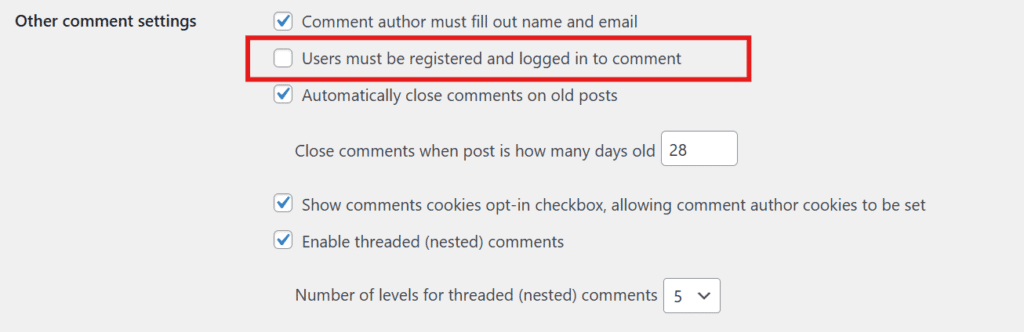
This setting works best when combined with the strategies in the registration section below to help stop spam registrations on WordPress.
5. Create a list of blacklisted words (Disallowed comment keys)
WordPress includes a powerful built-in filter called Disallowed Comment Keys. This feature is your best defense for blocking known spam terms, scam attempts and repetitive bot behaviors before they clutter your site.
Navigate to Settings > Discussion in your dashboard and add specific terms to the Disallowed Comment Keys field. We recommend including patterns you encounter frequently, such as:
- High-risk spam industries (gambling, cryptocurrency, payday loans or counterfeit goods)
- Repetitive gibberish, brand impersonation attempts or bot placeholders like “anonymized by Google”
- Trackback spam footprints, including specific strings like trackback act or suspicious promotional URLs
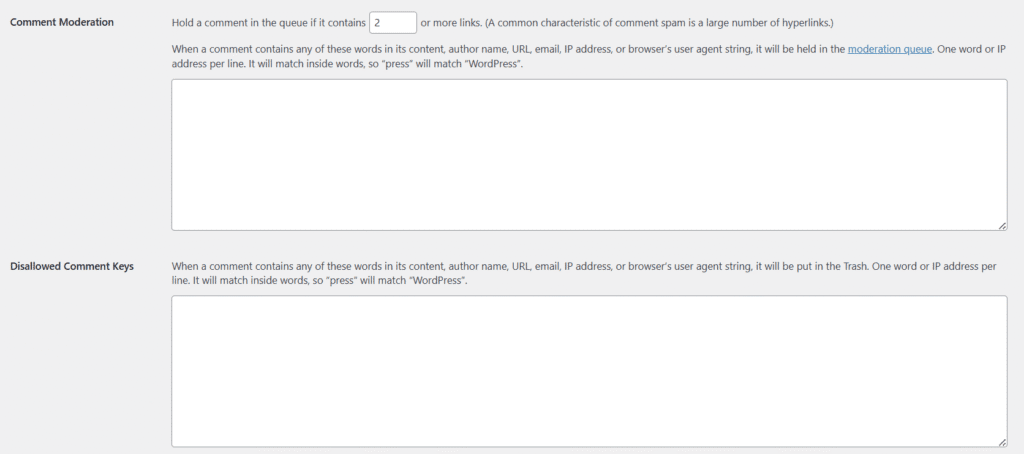
Tip: Treat this field like a spam prevention firewall that adapts over time. To effectively stop spam comments on WordPress, review your spam queue each month to spot emerging patterns, then add those specific characteristics to your blocklist for permanent protection against future attacks.
6. Reduce or ban links in comments
Since the primary goal of most comment spam is to plant backlinks on your site, restricting them is one of the most effective ways to clean up your discussion area. You can reduce this behavior using two simple tactics:
- Limit allowed links: In your Comment Moderation settings, configure WordPress to automatically hold any comment containing 1 or more links. This ensures you can approve legitimate resources while stopping link-heavy spam.
- Block link patterns: Add terms like “http,” “https,” “.ru,” “.xyz,” or common URL shorteners to the Disallowed Comment Keys section. This will automatically trash comments containing these strings, effectively blocking most link attempts.
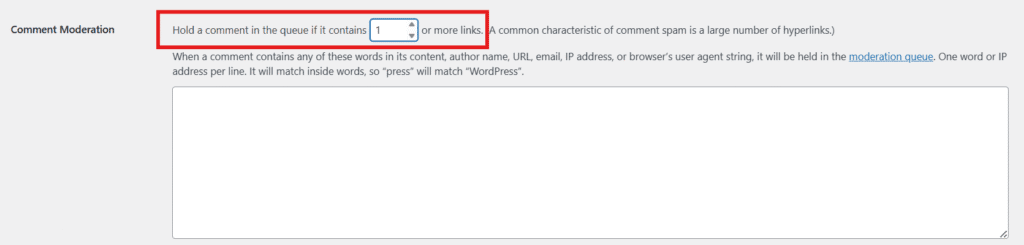
When learning how to stop spam comments on WordPress through link banning strategies, use caution if your site hosts a technical community or support forum. While blocking links is effective for preventing WordPress spam comments, overly restrictive settings may accidentally stop legitimate users from sharing valuable resources, documentation or reference materials that contribute meaningfully to discussions on how to stop spam comments on WordPress and related topics.
7. Disable comments for individual posts
Older blog posts frequently become targets for automated spam bots. If you notice specific pages are being overwhelmed, you can restrict access to those areas directly:
- Manually disable comments for a specific article by unchecking Allow comments in the post’s Discussion settings sidebar.
- Automatically close comments on articles older than a specific timeframe (e.g., 14 to 30 days) by navigating to Settings > Discussion.
This targeted approach reduces your spam moderation workload while keeping engagement open on your newest, most relevant content.
Stop WordPress comment spam using a plugin
When manual moderation becomes too time-consuming, but you need to keep discussions open, Akismet is the most efficient way to stop WordPress comment spam. This dedicated anti-spam plugin uses IP reputation checks, scoring systems and global databases to automatically filter bots and queue suspicious messages before they reach your visitors. To get fast wins, focus on this simple configuration checklist:
- Enable filtering immediately: Switch on the main protection features to start catching high-volume spam right away.
- Review false positives: Check your spam queue weekly to ensure legitimate comments aren’t being blocked by aggressive filters.
- Tune thresholds: Keep logs active for the first week to adjust sensitivity levels based on your actual traffic patterns.
Caution: Avoid installing multiple anti-spam plugins simultaneously. Stacking different filters often creates conflicts that can mistakenly block real users or slow down your website. Instead, choose one reliable solution to effectively stop spam comments on WordPress without impacting performance.
Stop WordPress spam comments with a captcha
When automated bots bypass your moderation filters, a CAPTCHA adds a necessary verification layer to stop WordPress comment spam. While effective, traditional puzzle-based challenges create friction that often frustrates legitimate readers.
- Target high-risk areas: Only enable CAPTCHA on the comment forms of viral posts or older content attracting bots.
- Test for accessibility: Verify that the challenge works on mobile devices and does not block screen readers.
- Monitor impact: Review your logs to confirm the tool is stopping bots rather than preventing genuine engagement.
- Layer your defense: Combine this with keyword blocking and manual moderation for the best results.
How to stop spam user registrations on WordPress and lock down your site
If you’re seeing fake accounts, you’re dealing with more than comment spam. Bots register to post later, scrape content or trigger WordPress spam emails (password resets, notifications or autoresponders). Here’s how to stop it systematically.
1. Harden WordPress registration settings
- Disable open registration unless you truly need it (in Settings > General, uncheck Anyone can register).
- Set the default role to Subscriber (never Administrator Editor).
- Require email verification if your membership supports it.
2. Add CAPTCHA or a honeypot to registration forms
There are two primary approaches to protecting your forms from automated bots:
- CAPTCHA: This method creates a verification barrier that is easy for humans to pass but difficult for bots. While traditional puzzles are common, many site owners now prefer modern, invisible solutions like Cloudflare Turnstile or Google reCAPTCHA v3. You can easily implement these protections on login and registration pages using plugins like CAPTCHA 4WP.
- Honeypot: This technique uses a “hidden field” that is invisible to real users but visible to automated scripts. Since bots are programmed to fill out every field they detect, any submission with this hidden field completed is automatically flagged as spam. This stops many low-effort bots without adding any friction for your visitors.
In many cases, using a honeypot combined with rate limiting is enough to stop the majority of spam. However, if you continue to see aggressive bot activity, adding a CAPTCHA provides a stronger final layer of defense.
3. Limit attempts, Block obvious bots and monitor patterns
- Limit login attempts and throttle repeated registrations from the same IP range.
- Block disposable emails if they dominate your spam sign-ups.
- Review registration logs weekly to catch new spam campaigns early.
4. Protect popular form plugins (including Ninja Forms)
Contact forms, quote requests and lead generation pages are frequent targets for automated bots. To stop them effectively, you must enable the robust security features available within your form plugin.
- Ninja Forms anti-spam: Ensure the Honeypot feature is active (often found in Advanced Settings) to trap bots invisibly. For stronger protection on high-risk pages, enable the Anti-Spam field (math questions) or integrate reCAPTCHA v3 and Akismet.
- Notification safety: Configure your settings to prevent email flooding. Avoid sending admin alerts for every submission if spam is suspected and use conditional logic to block notifications for flagged entries.
Implementing these layers of defense significantly reduces the risk of form-driven inbox overload, a common source of WordPress spam emails.
WordPress spam protection for forums, events, bookings and specialized plugins
Spam often targets interactive plugins because they expose public forms and searchable content. If you run a community or accept bookings, use plugin-specific controls alongside global protections.
1. wpForo spam protection (Forum sites)
If you plan to build a forum website with WordPress, you must prioritize anti-spam measures from the start. Forums are often primary targets for spammers.
- Mandate email verification and consider requiring admin approval for first-time posters.
- Turn on flood control settings to limit posting frequency.
- Add CAPTCHA or honeypot fields to your registration and posting forms to secure both account creation and content submission.
- Moderate initial posts and restrict signatures until users build trust.
2. WordPress events manager spam protection
Bots frequently abuse event submission forms and RSVP fields to distribute spam.
- Restrict event submissions to logged-in users only.
- Moderate new event listings before they are published.
- Add CAPTCHA or honeypot protection to any public event submission or contact fields. Spam protection for WordPress Events Manager is most effective when applied directly at the form layer.
3. WP booking system spam protection
Booking forms are frequent targets for bots because they are easy to automate and often trigger immediate email workflows. To ensure robust WP Booking System spam protection, consider these strategies:
- Enable Google reCAPTCHA (v2 or v3) or integrate a honeypot to verify submissions.
- Keep forms minimal by disabling unnecessary public fields.
- Implement rate limiting and block repeat offenders by IP address whenever possible.
4. WordPress supsystic spam and other plugin forms
Any plugin that generates public-facing forms can become a gateway for unwanted submissions. This is a frequent issue with popular tools, often referred to in the context of WordPress Supsystic spam. To secure these forms, you should apply a layered defense strategy:
- Enable form validation and honeypot fields to catch bots silently.
- Implement CAPTCHA on high-risk pages to verify human users.
- Utilize moderation approval workflows whenever the plugin supports them.
Services for WordPress spam protection
Combine spam protection tools based on where spam comes from (comments, registrations, forms) and your preferred user experience.
1. Core spam protection categories
- Comment filtering services: Tools like Akismet block spam comments automatically.
- Form anti-spam tools: Use CAPTCHA, honeypots, or verification systems to prevent bot submissions.
- Firewall layers: WAF blocks malicious traffic before it reaches WordPress.
- Security scanners: Detect malware that generates spam links.
2. What to look for in an antispam plugin
- Accuracy: Low false positive rate for legitimate comments.
- Coverage: Protects comments, registrations and forms simultaneously.
- UX impact: Invisible methods like honeypots are preferred over CAPTCHAs.
- Transparency: Access to logs and rejection reasons.
3. Common spam protection configurations
- Low spam: Comment moderation, keyword filters, honeypot plugin.
- High spam: Cloudflare Turnstile or reCAPTCHA, rate limiting, strict firewall rules.
- Community sites: Login requirement, first comment moderation, flood control.
Some prefer “set-and-forget” solutions like the WordPress Zero Spam plugin. Review logs periodically and maintain backup protection, never rely on a single plugin.
4. Best WordPress plugins to stop spam comments
To effectively stop WordPress comment spam and stop spam registrations WordPress, choose a tool that balances protection with site performance. These WordPress spam plugins can be selected based on their ability to protect specific areas (forms, comments, logins), false-positive control and ease of configuration.
| Plugin name | Protects | Best for | Key consideration |
|---|---|---|---|
| Akismet | Comments, Forms | Personal Blogs | High accuracy; requires API key. |
| Antispam Bee | Comments | Privacy Focus | Free; GDPR compliant; no ads. |
| Jetpack | All-in-one | Business Sites | Includes backups & speed tools. |
| CleanTalk | All Forms | eCommerce | Cloud-based; no CAPTCHA needed. |
| Titan Security | Reg, Comments | Hardening | Checks existing spam; strict rules. |
| WP Cerber | Login, Forms | High Traffic | Strong bot protection; detailed logs. |
| Stop Spammers | All Inputs | Aggressive Bots | 50+ configuration options. |
| WP Zero Spam | Forms, Comments | User Experience | Invisible protection (JavaScript). |
| CAPTCHA 4WP | Login, Comments | Specific Forms | Easy reCAPTCHA/Turnstile setup. |
Akismet is the standard for most blogs; simply activate your API key to start. Antispam Bee offers excellent privacy-compliant protection without requiring an account. Jetpack integrates deeply with WordPress for robust security; check the Anti-spam module settings. CleanTalk keeps databases light via cloud filtering, making it ideal for WooCommerce.
Titan and WP Cerber specialize in hardening registration forms; review their login limit thresholds. Stop Spammers is powerful for blocking persistent attacks, while WordPress Zero Spam and CAPTCHA 4WP focus on invisible or specific challenges to maintain a smooth user experience.
Recommendation: Beginners should start with Jetpack or Akismet for reliable ease of use. High-volume stores benefit most from CleanTalk, while community sites should use Antispam Bee to avoid user friction. Always monitor your spam folder initially to catch any false positives.
WordPress search spam protection and SEO spam cleanup
Spam is not limited to the comments section. It frequently appears as “search spam” or SEO pollution, manifesting as indexed junk pages, spammy internal search URLs or trackback exploitation. Robust WordPress search spam protection involves minimizing crawlable low-quality content and preventing automated content injection.
1. Disable trackbacks and pingbacks
Trackbacks are a legacy feature that has evolved into a common spam vector. If you notice unusual strings like “trackback” in your moderation queue, it is best to disable them entirely:
- Navigate to Settings > Discussion in your dashboard.
- Uncheck the option to “Allow link notifications from other blogs (pingbacks and trackbacks)”.
This setting significantly reduces trackback-style spam attempts and cleans up your log noise, allowing you to focus on genuine engagement.
2. Prevent indexing of spammy search URLs
Malicious bots can generate thousands of internal search URLs, which wastes your crawl budget and pollutes analytics data. To mitigate this issue:
- Use a reputable SEO plugin to set all internal search results pages to noindex.
- Block identifiable spam query patterns at the server or firewall level.
- Monitor Google Search Console for sudden spikes in indexed “search” pages or unusual query strings.
3. Audit outbound links and remove Spam
If spam comments or content have already been published, immediate action is required to maintain your site’s health:
- Bulk delete spam messages directly from the Comments section of the WordPress dashboard.
- Scan your posts and pages for injected links, particularly if you suspect a security compromise.
- Update administrator passwords and ensure all plugins are running the latest versions.
These steps help protect your site’s reputation from negative “SEO spam” signals and ensure a safe experience for your users.
How Bluehost SiteLock helps minimize cyberthreats?
Beyond basic comment moderation settings, learning how to stop spam comments on WordPress often requires security tools that work at the site level. Bluehost offers SiteLock, which delivers comprehensive protection with automated malware scanning and real-time threat detection to safeguard your WordPress site from malicious spam attempts.
- SiteLock scans your website daily for malware
- Automatically detects and alerts you on security threats
- Helps block bots and known spam sources
- Protects WordPress sites from common cyberattacks
- Available through Bluehost and integrates seamlessly with hosting plans
While comment and registration spam often require specific WordPress controls, security scanning helps reduce the broader risk of compromise. This is one of the most effective ways to prevent a clean site from turning into a spam distributor.
Final thoughts
If you want a durable answer to how to stop spam comments on WordPress, rely on layers, not a single setting. Start with WordPress-native controls (moderation, link limits, disallowed comment keys), then add friction where needed (logged-in comments, CAPTCHA or a honeypot WordPress plugin). For communities and interactive sites, extend protections to forums, events and booking forms. Finally, add security monitoring to reduce the chance of malware-driven spam and suspicious behavior.
Next steps: review your spam queue for patterns, update your Disallowed Comment Keys list and implement registration controls immediately if you are seeing fake users. With consistent tuning, you can drastically reduce WordPress spam protection overhead and keep your site credible, fast and safe.
FAQs
Go to Comments in your WordPress dashboard, use the checkbox to select multiple comments (or use “Screen Options” to show more per page), choose Mark as spam from the bulk actions dropdown and apply. For very large volumes, consider cleaning in batches to avoid timeouts.
You’re likely being targeted by automated bots that crawl WordPress sites and submit forms at scale. Common triggers include open comments without moderation, allowing anonymous comments, older posts still receiving traffic or public forms (contact, booking, event submission) without CAPTCHA protections.
Open the Spam tab under Comments and click Empty Spam. If you want to review first, select specific comments and use bulk actions to delete them permanently. After cleanup, tighten settings to prevent recurrence.
To disable sitewide comments for new posts, go to Settings > Discussion and uncheck “Allow people to submit comments on new posts.” To disable comments on existing content, use bulk edit in Posts > All Posts (or Pages) and set Comments to Do not allow.



Write A Comment