 ChatGPT,
  Claude,
  Gemini,
  Grok — all four for
 How to Clone an Installation in Softaculous
Learning how to clone an installation in Softaculous allows you to create an exact copy of your website so you can test updates, changes, or new features without affecting your live site. This is especially helpful when preparing upgrades or experimenting with new configurations.
Here are a few important notes to keep in mind before you begin:
- Softaculous Clone Feature Availability
- The clone function is available only for supported scripts
- Softaculous continues to expand this feature
- For a current list of supported scripts, refer to Softaculous' Clone Scripts page.
- Important for Manually Installed Apps
If you installed your application manually and want to use Softaculous features (including cloning), you must import the installation into Softaculous first.
Refer to: How to Import WordPress or Apps into Softaculous.
- SMF Clone Feature Update
- As of April 5, 2022, Softaculous temporarily removed the clone option for the SMF script due to major updates in version 2.1.1.
- They are working on reintroducing the feature.
- To monitor updates, visit the Softaculous SMF Clone Option forum thread.
Clone installation in Softaculous
- Log in to your Bluehost Portal.
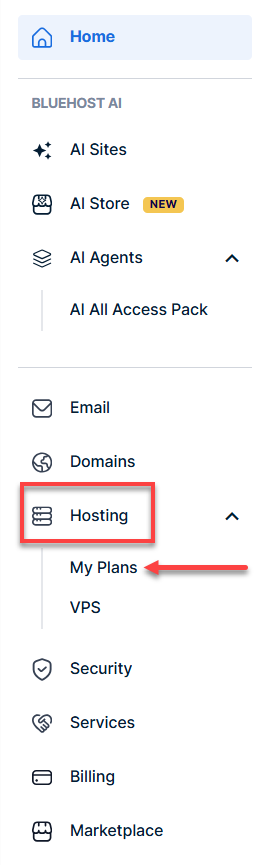
- In the left-hand menu, click Hosting, then select My Plans.
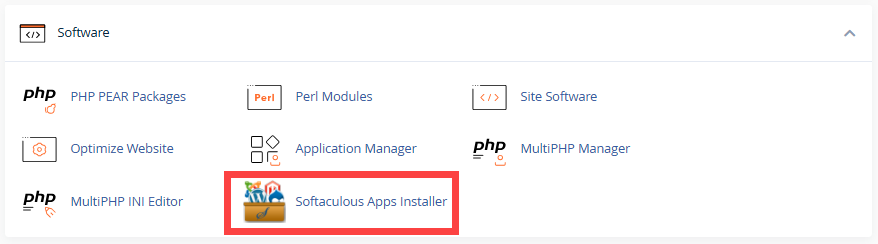
- In the Software section, click Softaculous Apps Installer.
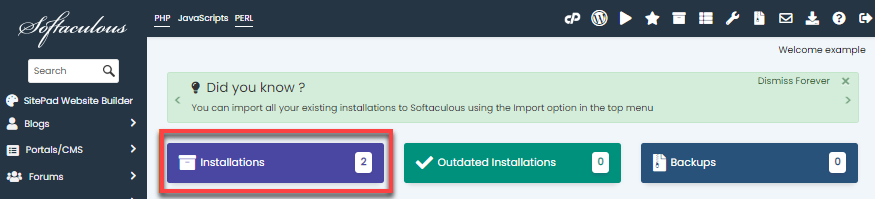
- Click Installations to see a list of all apps installed.
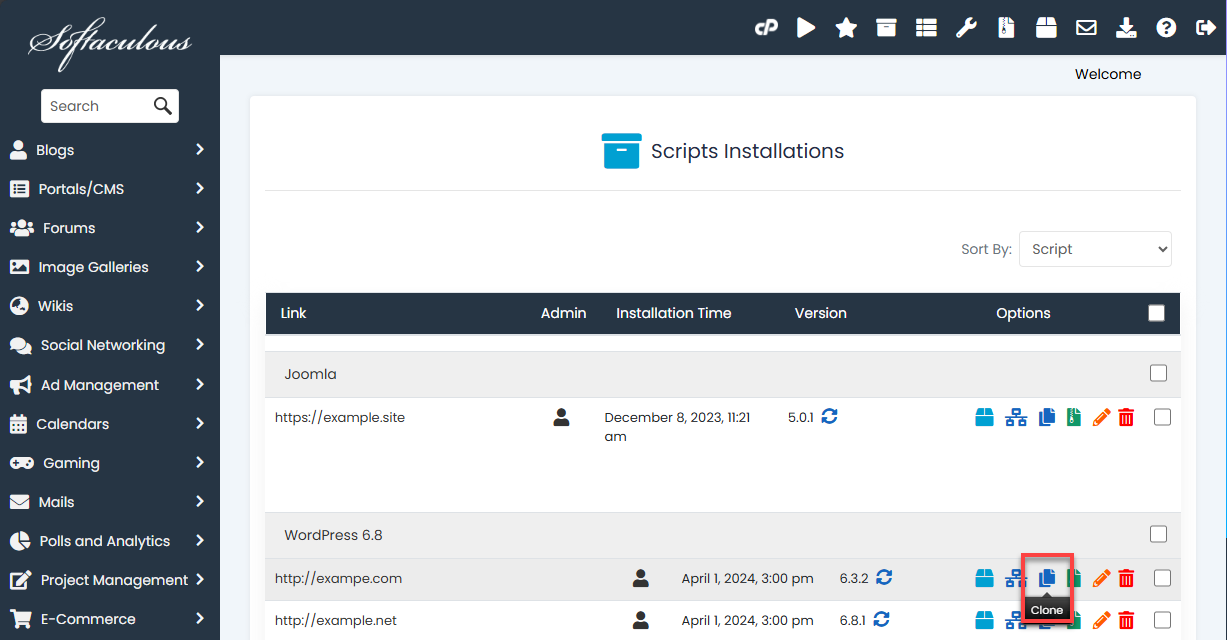
- Locate the site or application you want to clone and click the Clone icon next to it.
- On the Clone Installation page, fill in the required fields:
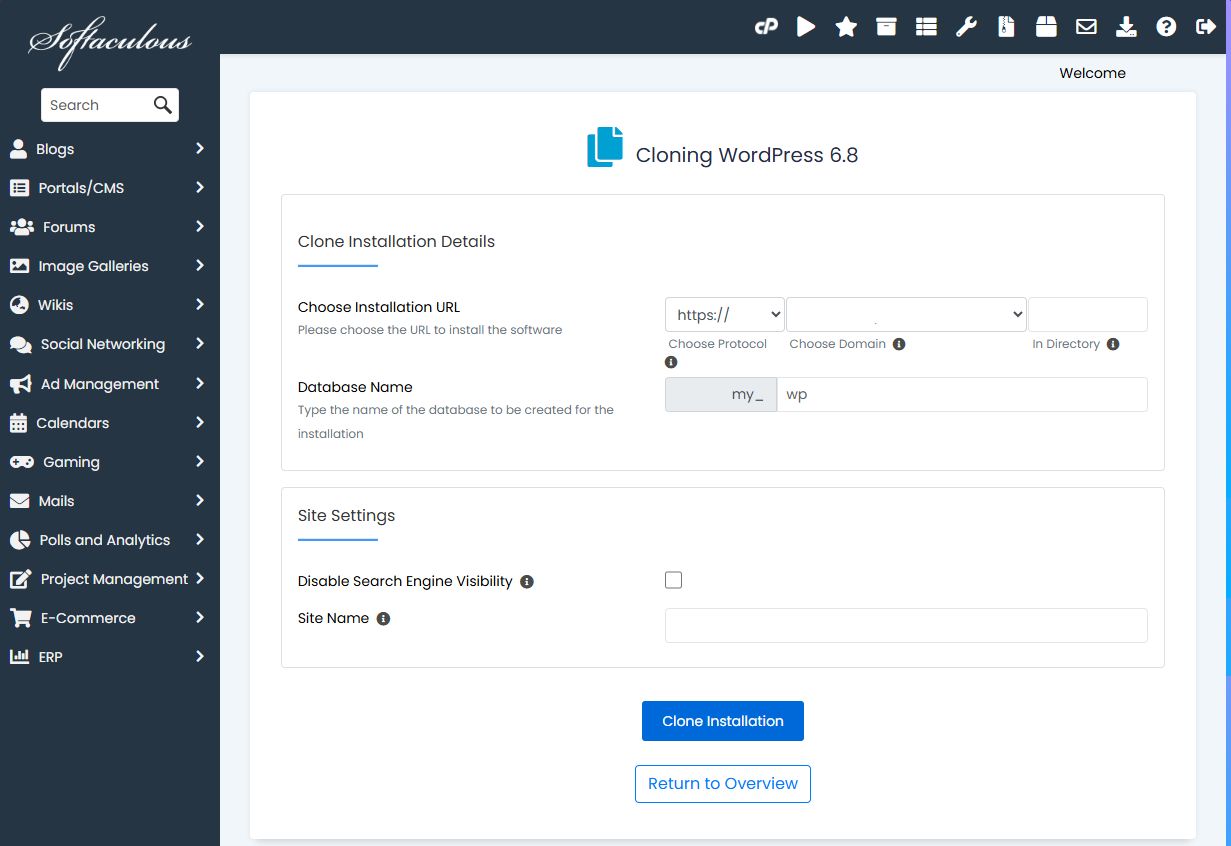
- Choose Installation URL
This determines the URL where your cloned site will be accessible.- Choose Installation URL – Select the correct domain from the dropdown.
- In Directory – Enter the directory name where the cloned files will be stored.
(Leave blank if cloning to the main directory.) - Database Name
Softaculous will auto-generate a database name, but you may edit it if preferred.
- Site Settings
If selected, this option asks search engines not to index the site. However, it is up to each search engine to honor this request.
You can change this setting later in the WordPress admin panel under Settings → Reading.- Site Name – Enter a Site Name for the new site. If you want to reuse the source site’s name, do not enter anything in this field.
- Choose Installation URL
- Click Clone Installation at the bottom of the page.
- The cloning speed depends on the size of your existing installation.
- Do not close the page while the process is running.
After cloning is complete, Softaculous will display:
- The URL of your cloned site
- The URL to access the admin area
Clone installation details will be emailed to you if email notifications are enabled. The login credentials (admin/user) for the clone are the same as your original installation.
Summary
Cloning your installation in Softaculous is a quick and reliable way to create a safe testing environment for updates, design changes, or major site adjustments. By following the steps above, you can easily duplicate your website without affecting your live version. Whether you're preparing for upgrades, troubleshooting, or experimenting with new features, Softaculous provides a straightforward cloning process that helps keep your workflow secure and efficient. If you ever need additional help, Bluehost Support is always here to assist.
If you need further assistance, Bluehost Chat Support is available 24 hours a day, 7days a week while Bluehost Phone Support is available 7 days a week from 7 am-12 midnight EST.
- Chat Support - While on our website, you should see a CHAT bubble in the bottom right-hand corner of the page. Click anywhere on the bubble to begin a chat session.
- Phone Support -
- US: 888-401-4678
- International: +1 801-765-9400
You may also refer to our Knowledge Base articles to help answer common questions and guide you through various setup, configuration, and troubleshooting steps.