 ChatGPT,
  Claude,
  Gemini,
  Grok — all four for
 How to Create a New WordPress Site in Agency Hosting
Starting a new website with Agency Hosting is quick and easy. Using the Bluehost Portal, you can create and install a new WordPress website directly from the Websites section. This article will guide you through the steps to create a new WordPress site on your Agency Hosting account.
Create a New WordPress Site
Follow the steps below to create a new WordPress website.
Step 1: Access the Websites Page
- Log in to your Bluehost Portal.
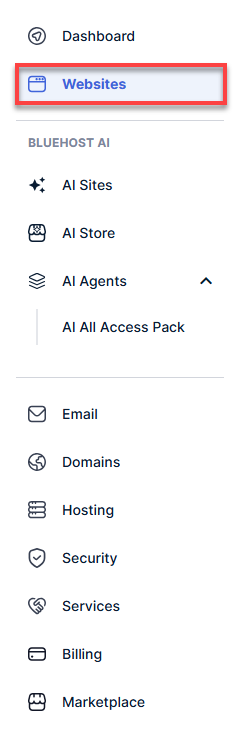
- Click Websites from the left-hand navigation menu.
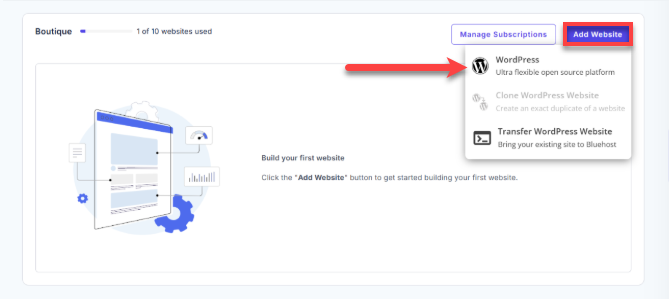
- (If applicable) Locate the hosting package where you want to create your new website.
- Click the Add Website button.
- From the drop-down menu, select WordPress.
Step 2: Configure Your New WordPress Site
- Enter the following information:
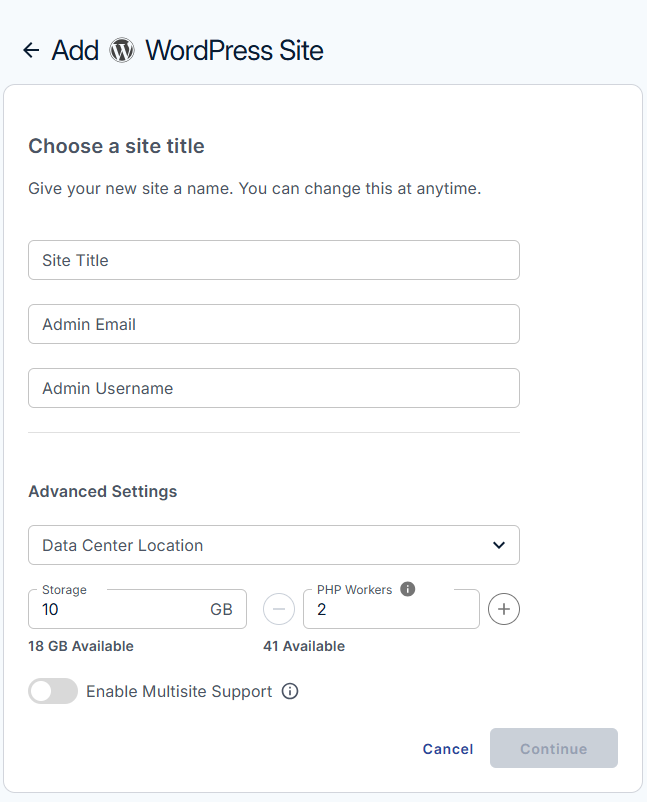
- Site Title
- Admin Email
- Admin Username
- Configure the Advanced Settings:
- Select a Data Center Location.
- Adjust the Storage allocation.
- Adjust the number of PHP Workers.
- (Optional) Enable Multisite Support if you intend to create and manage multiple websites from a single WordPress installation.
Important: Before Enabling Multisite Support
WordPress Multisite is an advanced WordPress feature that allows multiple websites to operate from a single WordPress installation and share the same core files.
Multisite should only be enabled if you specifically require a WordPress Multisite network. It is not intended as a way to add more websites to your hosting plan or avoid website allocation limits.
Please note the following before enabling Multisite:
- Enabling Multisite is a significant architectural decision that increases administrative complexity.
- Once a Multisite network has been configured, the change cannot be reversed automatically.
- Some WordPress features and services may have limited functionality or may not be supported in a Multisite environment, including:
- Staging
- Jetpack Backup
- Jetpack Scan
- We recommend reviewing WordPress Multisite requirements and limitations before proceeding.
If you are unsure whether you need Multisite, create a standard WordPress installation instead.
- If you enable Multisite Support, choose one of the following network configurations:
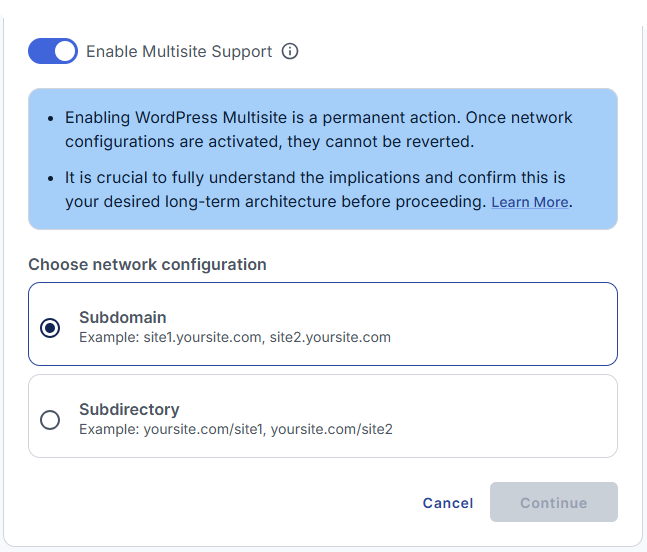
- Subdomain (example:
site1.yourdomain.com) - Subdirectory (example:
yourdomain.com/site1)
- Subdomain (example:
- Click Continue.
Step 3: Connect a Domain
- Enter the domain name you want to connect to the new WordPress site.
OR
Select Use a temporary domain if you are not ready to connect a domain yet.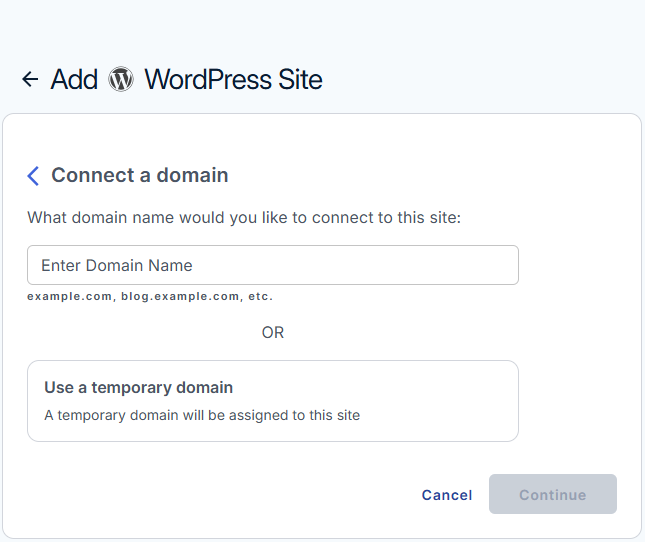
- Click Continue.
Step 4: Complete the WordPress Installation
- After clicking Continue, the system begins creating and configuring your WordPress website.
- Wait for the installation process to complete.
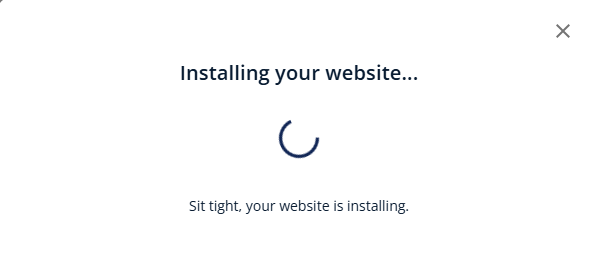
- Once the installation is successful, a confirmation message appears indicating that WordPress has been installed.
- Choose one of the following options:
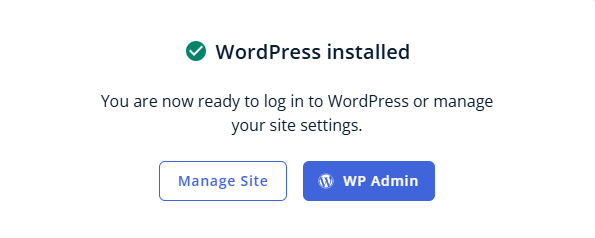
- Manage Site to access your website settings in the Bluehost Portal.
- WP Admin to log in directly to the WordPress Admin Dashboard.
Things to Know
- Each new WordPress site created through Agency Hosting counts toward your website allocation limit.
- The Add Website option may be unavailable if you have reached the maximum number of websites allowed by your hosting plan.
- New websites require available hosting resources, including storage space and PHP Workers.
- If site creation fails, verify that your hosting package has sufficient unallocated storage and PHP Workers available.
- If all resources have been allocated to existing sites, you can:
- Reduce allocations assigned to existing websites, if appropriate.
- Upgrade your hosting plan to gain additional resources.
- Newly created websites are installed with WordPress and can be managed directly through the Bluehost Portal.
Summary
Creating a new WordPress site in Agency Hosting allows you to quickly launch and manage websites from your Bluehost Portal. During setup, you'll configure site details, allocate hosting resources, and connect a domain. If you're considering WordPress Multisite, be sure to review the additional complexity and feature limitations before enabling it. Once installation is complete, you can manage your website through either the Bluehost Portal or the WordPress Admin Dashboard.
If you need further assistance, Bluehost Chat Support is available 24 hours a day, 7days a week while Bluehost Phone Support is available 7 days a week from 7 am-12 midnight EST.
- Chat Support - While on our website, you should see a CHAT bubble in the bottom right-hand corner of the page. Click anywhere on the bubble to begin a chat session.
- Phone Support -
- US: 888-401-4678
- International: +1 801-765-9400
You may also refer to our Knowledge Base articles to help answer common questions and guide you through various setup, configuration, and troubleshooting steps.