 ChatGPT,
  Claude,
  Gemini,
  Grok — all four for
 How to Clone a WordPress Site in Agency Hosting
Cloning a WordPress website allows you to create a duplicate of an existing site within your Agency Hosting account, replicating its content and core configuration. This can be useful for testing changes, creating a staging environment, or using an existing site as the foundation for a new project. This article walks you through the steps to clone a WordPress website using the Bluehost Portal.
Clone a WordPress Site
Follow the steps below to create a copy of an existing WordPress website.
Step 1: Access the Websites Page
- Log in to your Bluehost Portal.
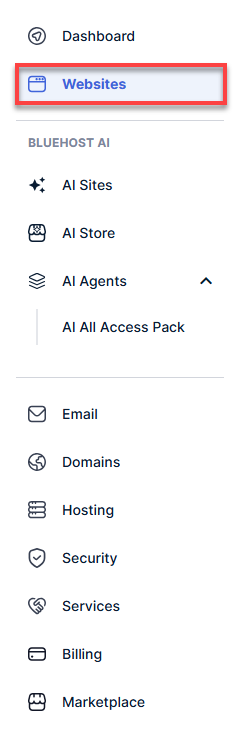
- Click Websites from the left-hand navigation menu.
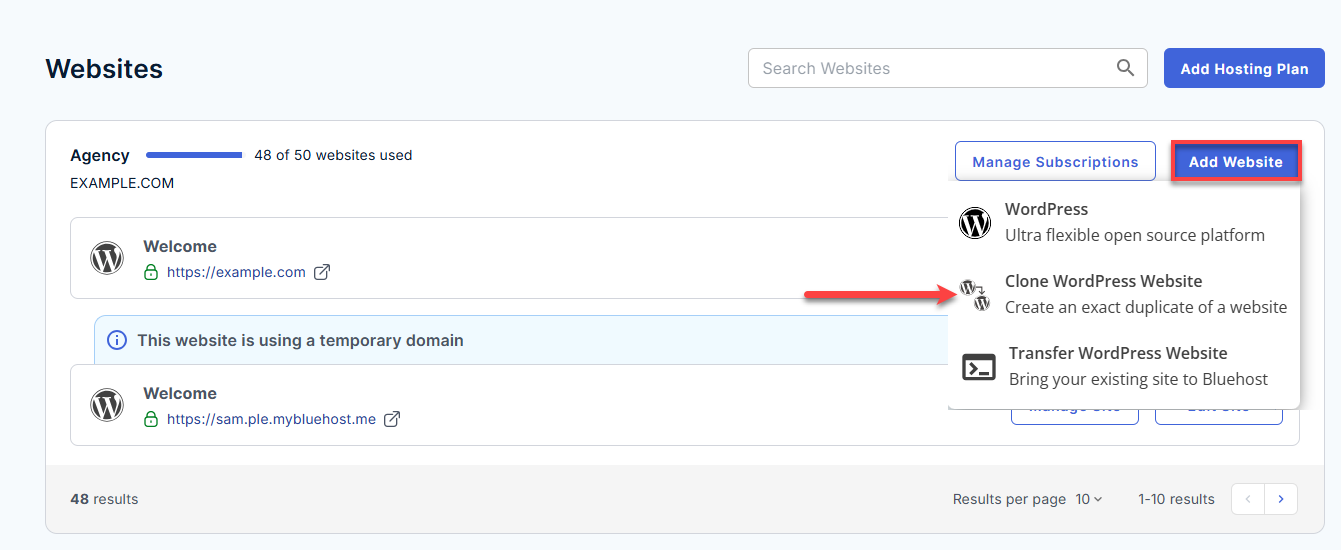
- (If applicable) Locate the hosting package where you want to create the cloned website.
- Click the Add Website button.
- From the drop-down menu, select Clone WordPress Website.
Step 2: Select a Site to Clone
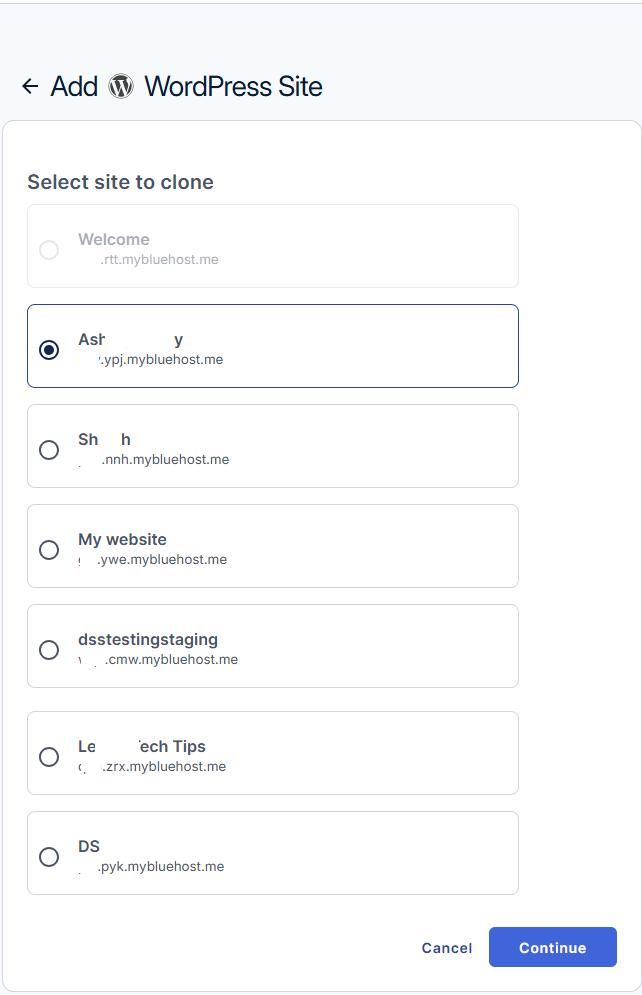
- Browse the list of available WordPress websites.
- Select the website you want to clone.
- Click Continue.
Step 3: Configure the Cloned Site
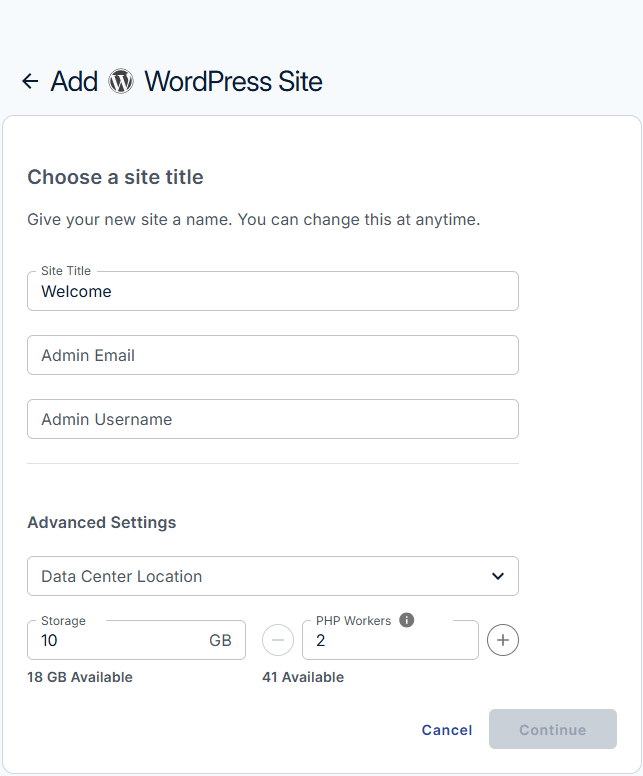
- Enter a Site Title for the cloned website.
- Enter the Admin Email address.
- Enter the Admin Username.
- Configure any available Advanced Settings, including:
- Data Center Location
- Storage Allocation
- PHP Workers
Note: Available resources such as storage allocation, PHP workers, and website allowances depend on your hosting plan. If you have reached your website limit or do not have sufficient available resources, you may be unable to complete the cloning process until additional resources become available or your hosting plan is upgraded. Refer to the article about adding a website for more information on website allowances and resource allocation.
- Click Continue.
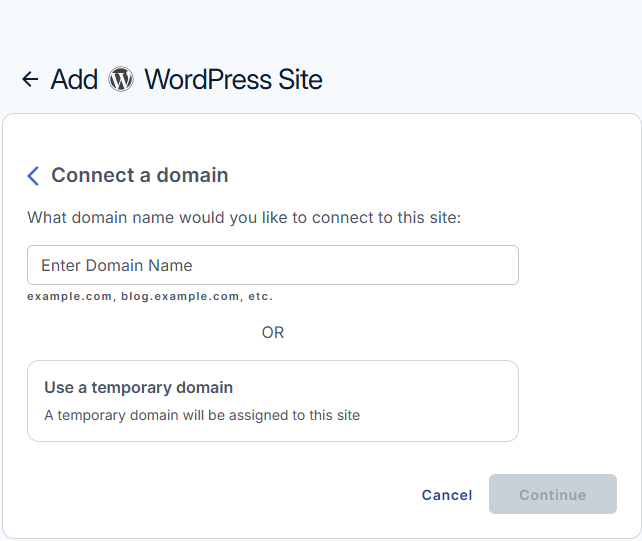
Step 4: Connect a Domain
-
Enter the domain name you want to assign to the cloned website.
OR
Select Use a temporary domain if you do not want to connect a domain yet. -
Click Continue.
Step 5: Complete the Cloning Process
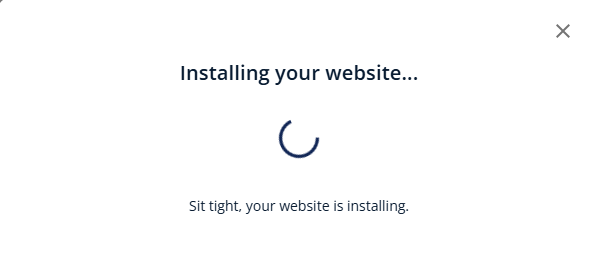
- The system will begin creating the cloned WordPress website.
- Wait for the cloning process to complete.
- Once the clone has been successfully created, a confirmation message will appear.
- Choose one of the following options:
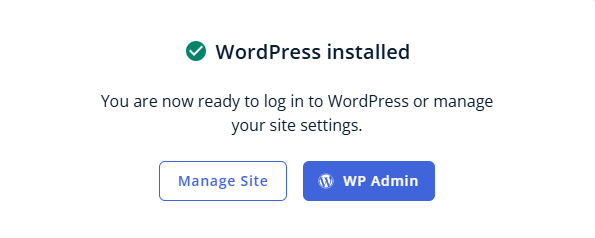
- Manage Site to access site settings in the Bluehost Portal.
- WP Admin to log in to the WordPress Admin Dashboard.
Things to Know
- Cloning creates a copy of an existing WordPress website within your Agency Hosting account.
- The cloned website counts toward your website allocation limit.
- A unique domain or temporary domain must be assigned to the cloned website.
- Changes made to the cloned website do not affect the original website.
- Only WordPress websites already hosted within your Agency Hosting account can be cloned. Websites hosted with another provider must first be migrated to your Agency Hosting account.
- Website allocation limits and available hosting resources may affect your ability to clone a website.
- If the Clone WordPress Website option is unavailable, verify that your hosting package has available website capacity and sufficient hosting resources.
Summary
Cloning a WordPress website in Agency Hosting allows you to quickly create a copy of an existing site for testing, development, or launching a similar project. Once the cloning process is complete, you can manage the cloned site through the Bluehost Portal or access it directly through the WordPress Admin Dashboard.
If you need further assistance, Bluehost Chat Support is available 24 hours a day, 7days a week while Bluehost Phone Support is available 7 days a week from 7 am-12 midnight EST.
- Chat Support - While on our website, you should see a CHAT bubble in the bottom right-hand corner of the page. Click anywhere on the bubble to begin a chat session.
- Phone Support -
- US: 888-401-4678
- International: +1 801-765-9400
You may also refer to our Knowledge Base articles to help answer common questions and guide you through various setup, configuration, and troubleshooting steps.