 ChatGPT,
  Claude,
  Gemini,
  Grok — all four for
 What is Object Caching at Bluehost
Object Caching at Bluehost improves your WordPress site's performance by storing frequently requested data in memory instead of repeatedly querying the database. This process helps your site load more efficiently and stay responsive, especially during high traffic.
At Bluehost, Object Caching is automatically enabled using Redis, so no manual setup is required.
How Object Caching Works
When WordPress runs, it frequently retrieves the same data from the database—such as settings, posts, user information, and configuration details. Without Object Caching, WordPress must request this data from the database every time it's needed.
With Object Caching, that data is stored temporarily in memory. Instead of repeatedly querying the database, WordPress reuses the cached data, reducing server load and improving response time.
Bluehost uses Redis, a widely adopted in-memory data store, to manage cached objects between requests. You don't need to configure Redis or understand how it works—Bluehost handles everything automatically.
Do I Need to Enable or Set Up Anything
No. Object Caching is automatically enabled and fully managed by Bluehost.
You do not need to:
- Install any plugins
- Configure Redis
- Modify WordPress settings
- Access server configurations
Object Caching runs in the background without requiring any action from you.
Do I Still Need a Caching Plugin
No. You should not install third-party caching plugins.
Bluehost already provides and configures:
- Page caching
- Object caching
- Performance optimization settings
Installing third-party caching plugins (such as W3 Total Cache, LiteSpeed Cache, WP Super Cache, or WP Fastest Cache) can cause:
- Performance conflicts
- Increased server resource usage
- Site instability
- Unexpected caching behavior
If you currently have a caching plugin installed, it is recommended to remove it.
For more information, refer to:
Is Object Caching the Same as Page Caching
No, they serve different purposes.
- Page Caching - Stores fully rendered pages and delivers them quickly to visitors without regenerating the page each time.
- Object Caching - Stores frequently used data objects in memory, so WordPress does not need to repeatedly query the database.
Both Object Caching and Page Caching work together automatically on Bluehost to optimize your site's performance.
Will Object Caching Make My Site Faster
In many cases, yes.
Object Caching reduces the number of database queries required to load a page. This often improves:
- WordPress admin dashboard responsiveness
- Dynamic page performance
- High-traffic site stability
- Database-heavy functionality
Sites that have complex themes, plugins, and e-commerce functionality, or frequent database calls typically benefit the most. Less dynamic websites may still see improvements, though changes may be more subtle.
What if Something Goes Wrong
Issues directly caused by Object Caching are uncommon.
If you notice unusual behavior that may be related to caching:
- Log in to your Bluehost Portal.
- In the left-hand menu, click Websites.
- Click the Edit Site button located next to the website you want to manage.
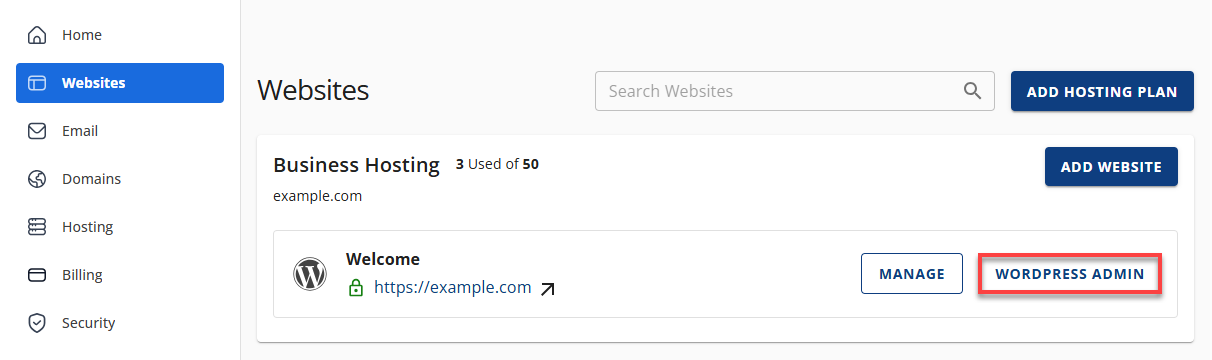
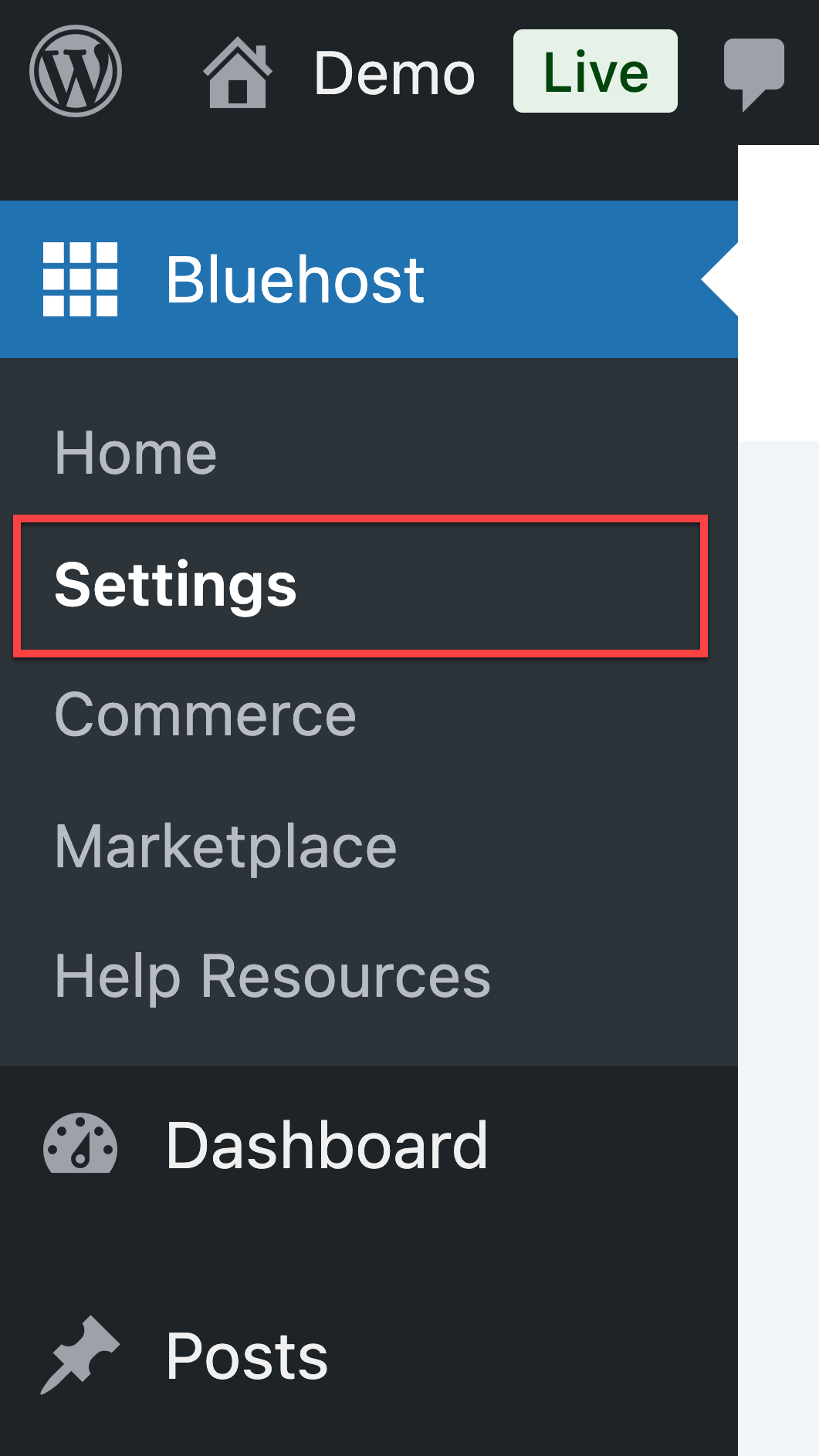
- In the Bluehost plugin, go to the Settings tab.
- Then, go to the Performance section to Disable or enable the Object Caching.
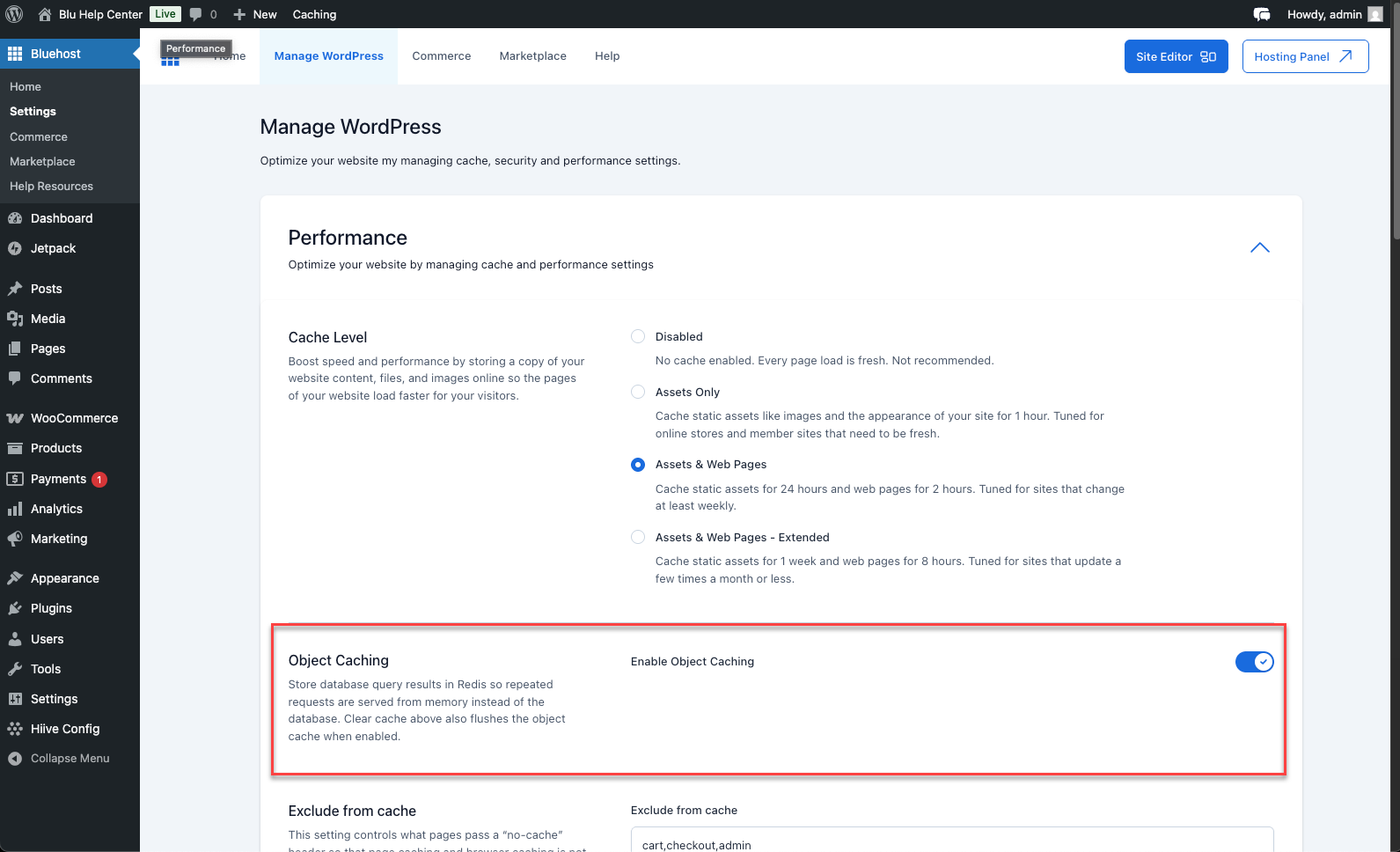
If the issue persists, contact Bluehost Support so we can review your caching configuration.
Summary
Object Caching at Bluehost uses Redis to store frequently accessed WordPress data in memory, reducing database queries and improving performance. It is automatically enabled, requires no setup, and works alongside page caching for optimal speed.
To ensure stability and avoid conflicts, do not install third-party caching plugins. Bluehost manages caching on your behalf so your site stays fast and responsive.
If you need further assistance, Bluehost Chat Support is available 24 hours a day, 7days a week while Bluehost Phone Support is available 7 days a week from 7 am-12 midnight EST.
- Chat Support - While on our website, you should see a CHAT bubble in the bottom right-hand corner of the page. Click anywhere on the bubble to begin a chat session.
- Phone Support -
- US: 888-401-4678
- International: +1 801-765-9400
You may also refer to our Knowledge Base articles to help answer common questions and guide you through various setup, configuration, and troubleshooting steps.