 ChatGPT,
 Claude,
 Gemini,
 Grok — all four for
Bluehost Professional Email: Bounce and Reject Codes
When an email can't be delivered, the mail server that stopped it returns a code explaining why. In Bluehost Professional Email, these codes appear in two situations: in a bounce message you receive when an email you sent doesn't reach the recipient, and in a reject message that a sender receives when Professional Email refuses an email addressed to you. This article explains how to read these codes, what the most common ones mean, and what to do about each.
Bounces vs. Rejects
- Bounce: An email you sent couldn't be delivered. You receive a bounce message in your inbox with the reason for the failure.
- Reject: An email sent to you was refused by Professional Email before it reached your inbox. The sender receives the error, not you. If someone tells you their email to you bounced, ask them to share the error message so you can match it to the table in this article.
How to Read an Error Code
Most error messages start with two codes, followed by a short description. For example:
550 5.1.1 <[email protected]>: Recipient address rejected: User unknown
- Reply code (
550): A three-digit code that shows whether the problem is temporary or permanent. - Status code (
5.1.1): A more specific code that pinpoints the cause. - Description: A plain-text explanation from the server.
The first digit tells you the most important thing:
| Starts With | Type | What It Means |
|---|---|---|
| 4 (for example, 421 or 450) | Temporary failure (soft bounce) | The sending server will usually retry automatically. The email is often delivered on a later attempt without any action from you. |
| 5 (for example, 550 or 554) | Permanent failure (hard bounce) | The email won't be delivered as sent. You need to fix the cause before sending again. |
Log In to Professional Email Webmail
Option 1: Use the Login to Webmail Button
- Log in to your Bluehost Portal.
- From the left-hand navigation menu, click on the Email tab.
- Optional: In Professional Email, if multiple plans are listed, click Manage for the plan you want to use.
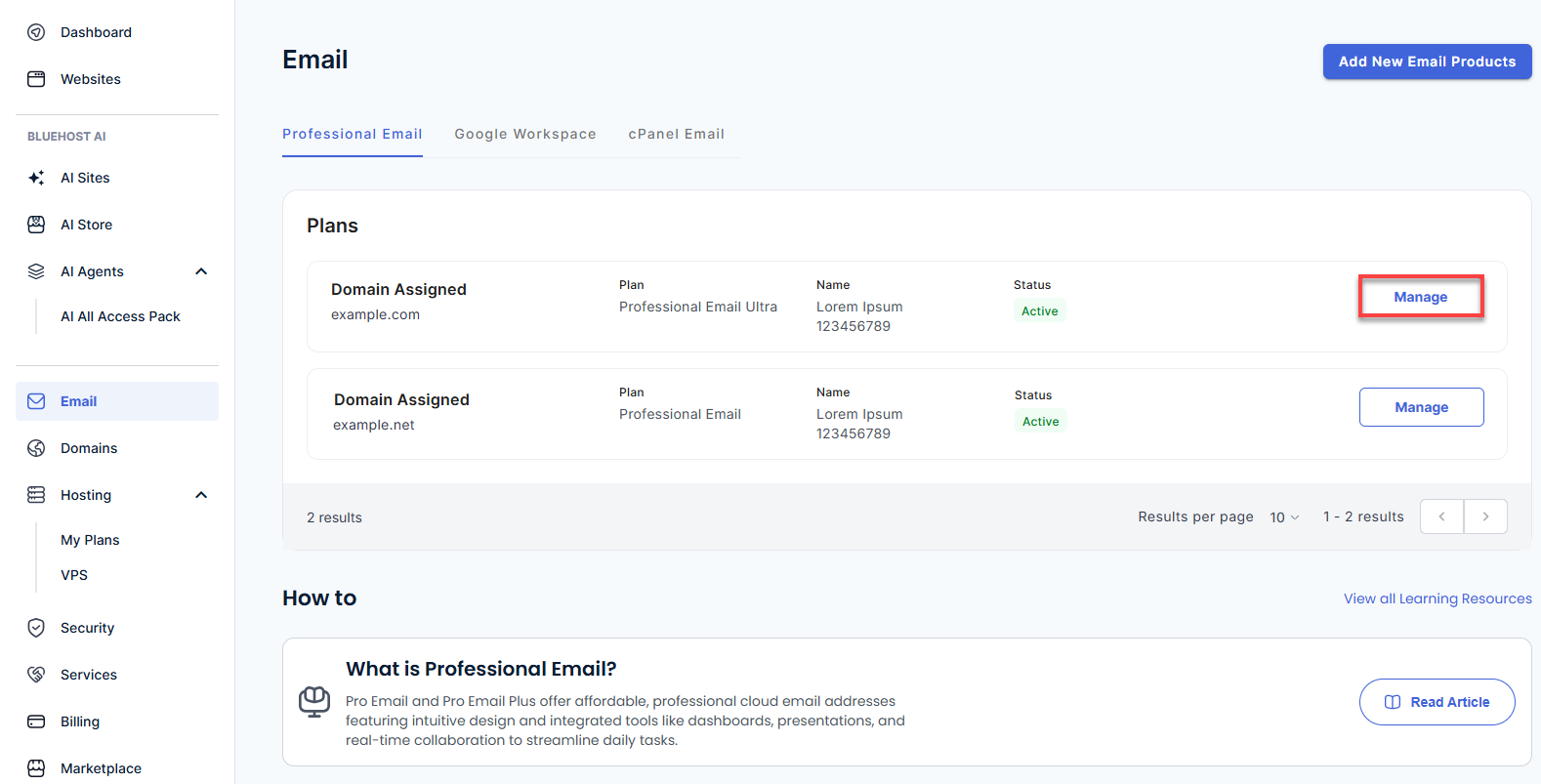
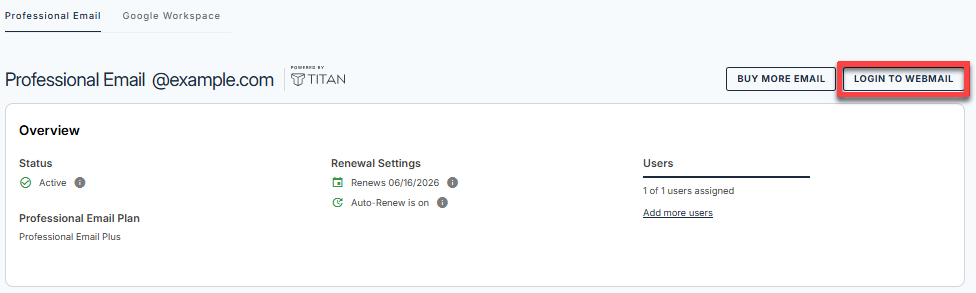
- You’ll be automatically redirected to the Email Management page, where you can manage your email settings and subscriptions.
- Click the Login to Webmail button.
- Enter your Professional Email username and password.
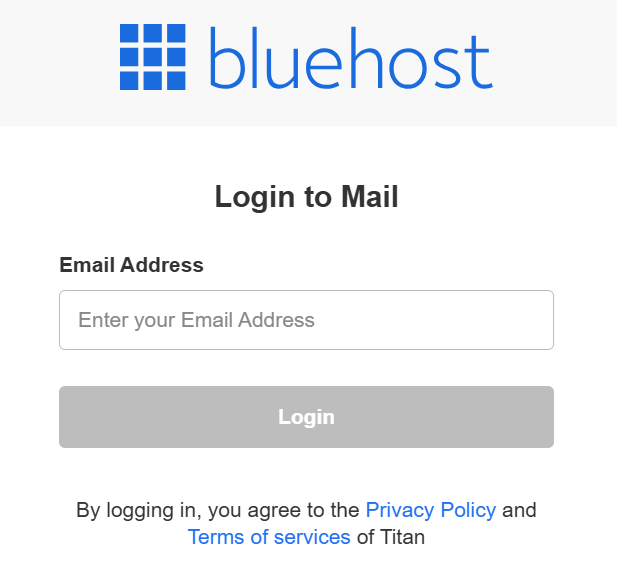
- Click Login.
Option 2: Use the Direct Login Link
- Go to the Professional Email login page.
- Enter your Professional Email username and password.
- Click Login.
How to Find the Code in a Bounce Message
- In your webmail, open the bounce message. It usually comes from Mail Delivery System or MAILER-DAEMON, with a subject such as Undelivered Mail Returned to Sender.
- Look for a line that starts with a three-digit number, such as
550or450, followed by a status code like5.1.1. - Match the code and description to the tables below.
Common Reasons Your Sent Emails Bounce
- The address doesn't exist or has a typo: For example,
gmial.cominstead ofgmail.com. Check the spelling and confirm the address is active. - The recipient's mailbox is full: The recipient needs to free up space. Try again later or reach them another way.
- The recipient's server is temporarily unavailable: These are usually 4xx errors and resolve on their own after a retry.
- Your email was flagged as spam or your domain is on a blocklist: Check that your domain's SPF, DKIM, and DMARC records are set up correctly, and avoid sending to purchased or outdated lists.
Incoming Reject Codes
These are the codes Professional Email returns when it refuses an incoming email. The sender sees the code in their own bounce message.
Recipient Address and Mailbox Errors
| Code | Example Message | What It Means |
|---|---|---|
550 5.1.1 |
Recipient address rejected: User unknown in virtual mailbox table (or local recipient table) | The email address doesn't exist. Check the spelling, or create the mailbox if it should exist. |
554 5.7.1 |
Relay access denied | The recipient’s domain isn’t set up to receive email on Professional Email. Check that the domain’s MX records point to Professional Email. |
552 5.2.2 |
Recipient address rejected: Quota exceeded (mailbox for user is full) | The recipient's mailbox has reached its storage limit. Delete old emails or upgrade the plan for more storage. |
Plans and storage limits can change. For current Professional Email plans and pricing, visit the Bluehost website.
Sender Domain and DNS Errors
| Code | Example Message | What It Means |
|---|---|---|
550 5.1.8 |
Sender address rejected: Domain not found | The sender's domain has no MX or A record, so it can't receive replies or bounce messages. The sender needs to fix their domain's DNS records. |
550 5.7.27 |
Sender address rejected: Domain does not accept mail (nullMX) | The sender's domain has a malformed or empty MX record. The sender needs to correct it. |
550 5.5.1 |
Protocol error | The sending server isn't following standard email commands or is sending them in the wrong order. The sender's email provider needs to fix this. |
Authentication (SPF) Errors
| Code | Example Message | What It Means |
|---|---|---|
550 5.7.1 |
Message rejected due to: SPF fail - not authorized | The sending server isn't listed in the sender domain's SPF record, and the record tells receiving servers to reject unlisted senders (for example, with -all). If the email is legitimate, the sender needs to add their sending service to their SPF record. |
Sending IP and Reputation Errors
| Code | Example Message | What It Means |
|---|---|---|
554 5.7.1 |
Service unavailable; Client host [IP] blocked using b.barracudacentral.org | The sending IP address is on a public blocklist. The sender should ask their email provider to request removal from the list. |
554 5.7.1 |
Command rejected | The sending IP address was flagged as suspicious. |
550 5.7.2 |
Sender IP rejected: spam rate exceeded | The sending server has sent an unusually high volume of spam or suspicious email, so its messages are blocked. |
421 4.7.0 |
(Temporary rejection) | The sending IP address is new and hasn't built enough reputation yet. This is temporary; the email should go through when the sender tries again later. |
450 4.2.0 |
Recipient address rejected: greylisted: please retry after sometime | The email came from an IP address that looked suspicious, often because of a reverse DNS issue, so it was deferred. The sending server should retry automatically, and later attempts are usually accepted. |
Sending Limit Errors
| Code | Example Message | What It Means |
|---|---|---|
550 5.4.7 |
Recipients Domain Hourly Quota Exceeded / Recipients Domain Daily Quota Exceeded | The receiving domain has hit its hourly or daily limit for incoming email. Wait for the limit to reset, then try again. |
550 5.4.6 |
Recipient Quota Exceeded | The recipient has hit their limit for incoming email. Wait for the limit to reset, then try again. |
550 5.4.6 |
Mailbox Does Not Exist: Domains Hourly (or Daily) Quota Exceeded | Too many emails were sent to addresses that don't exist on the domain within the hour or day. Check the recipient addresses before trying again. |
550 5.7.1 |
Message content rejected | The email was rejected by Professional Email's sending limits or filtering. |
Account Suspension Errors
| Code | Example Message | What It Means |
|---|---|---|
550 5.2.1 |
Recipient address rejected: Incoming suspended due to abuse | The recipient's domain is suspended because of suspicious activity, so incoming email isn't accepted. Contact Bluehost support. |
550 5.2.1 |
Recipient address rejected: Incoming temporarily suspended due to partner migration | The recipient's domain is in the middle of a migration, so incoming email is paused until it's complete. |
Bounce Limits on Professional Email
To protect your domain's reputation, Professional Email limits how many bounced emails your account can generate. If you go over a limit, sending is paused until the limit resets: after an hour for the hourly limit, or after 24 hours for the daily limit.
Domain Limits (Emails to Other Domains)
| Time Frame | Bounce Limit |
|---|---|
| Hourly | 10 |
| Daily | 20 |
| 3 days | 50 |
Mailbox Limits (Emails to Other Domains)
| Time Frame | Bounce Limit |
|---|---|
| Hourly | 5 |
| Daily | 10 |
| 3 days | 20 |
Email forwarders have a separate limit of 20 bounces per mailbox per day. If a forwarded email bounces because the destination address doesn't exist, the forwarder is removed automatically and you're notified. If the daily limit is reached, forwarding pauses for 24 hours and incoming email is kept in your inbox instead.
A consistently high bounce rate can lead to your mailbox or domain being permanently blocked from sending. A sudden spike in bounce messages you didn't cause can also mean your account has been compromised. If that happens, change your password right away.
Troubleshooting
Problem: Emails I send keep bouncing back.
Cause: The recipient's address doesn't exist, is inactive, or has a typo.
Solution: Check the address carefully, confirm it's active, and then resend.
Problem: I'm getting a lot of bounce messages for emails I didn't send.
Cause: Someone may have access to your account and be using it to send spam.
Solution: Change your email password immediately, then contact Bluehost support if the bounces continue.
Problem: I can't send any emails.
Cause: Your account may have reached its hourly or daily bounce limit.
Solution: Wait for the limit to reset, and remove invalid addresses from your recipient list before sending again.
Problem: Someone says their email to me was rejected.
Cause: Professional Email refused the email, usually because of the sender's DNS or SPF setup, their IP reputation, or your mailbox being full.
Solution: Ask the sender for the full error message and match the code to the tables above. If your mailbox is full, free up space. Otherwise, the sender usually needs to fix the issue with their own email provider.
Summary
Bounce and reject codes help explain why an email wasn't delivered. Codes starting with 4 are temporary and usually resolve on their own, while codes starting with 5 are permanent and need a fix before you try again. Bounces affect emails you send, while rejects affect emails sent to you. Keeping your recipient list clean, checking addresses before sending, and setting up your domain's email authentication records will help keep your bounce rate low and your emails reaching inboxes.
Related Articles
If you need further assistance, Bluehost Chat Support is available 24 hours a day, 7days a week while Bluehost Phone Support is available 7 days a week from 7 am-12 midnight EST.
- Chat Support - While on our website, you should see a CHAT bubble in the bottom right-hand corner of the page. Click anywhere on the bubble to begin a chat session.
- Phone Support -
- US: 888-401-4678
- International: +1 801-765-9400
You may also refer to our Knowledge Base articles to help answer common questions and guide you through various setup, configuration, and troubleshooting steps.