 ChatGPT,
  Claude,
  Gemini,
  Grok — all four for
 Keep your to-do list right next to your inbox. With Tasks in Bluehost Professional Email, you can create to-dos, add due dates and notes, and check items off as you finish them. When you turn an email into a task, the task links back to that email, so you can jump back into the conversation anytime.
Before You Begin
Tasks is included with the Professional Email Plus and Professional Email Ultra plans. Not sure what your plan includes? Check out Bluehost Professional Email: Features, Plans Comparison & FAQs. For current plans and pricing, visit Bluehost Professional Email.
| Plan | Tasks |
|---|---|
| Professional Email | Not included |
| Professional Email Plus | Included |
| Professional Email Ultra | Included |
You need:
- Your Professional Email address and password. Your Bluehost account login won't work here.
- Bluehost Professional Email webmail.
Note: Tasks works in Bluehost Professional Email webmail only.
Important: Can't find Tasks? Your plan may not include it. Upgrade your email plan in your Bluehost account to get it.
Log In to Professional Email Webmail
Option 1: Use the Login to Webmail Button
- Log in to your Bluehost Portal.
- From the left-hand navigation menu, click on the Email tab.
- Optional: In Professional Email, if multiple plans are listed, click Manage for the plan you want to use.

- You’ll be automatically redirected to the Email Management page, where you can manage your email settings and subscriptions.
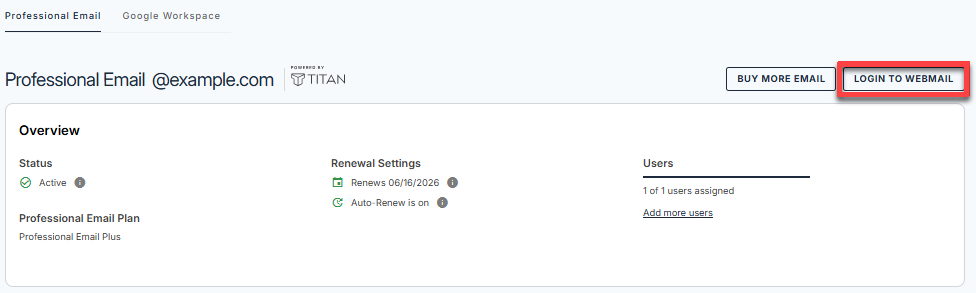
- Click the Login to Webmail button.
- Enter your Professional Email username and password.
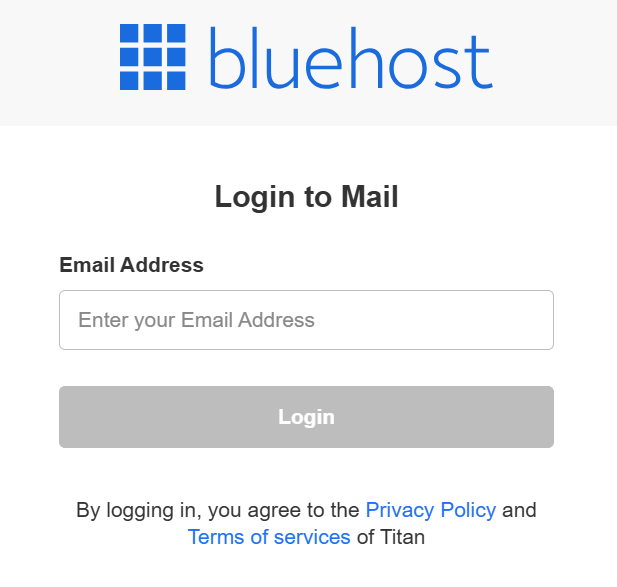
- Click Login.
Option 2: Use the Direct Login Link
- Go to the Professional Email login page.
- Enter your Professional Email username and password.
- Click Login.
Open Tasks in Bluehost Professional Email
Log in to Bluehost Professional Email webmail. Then open Tasks in one of two ways:
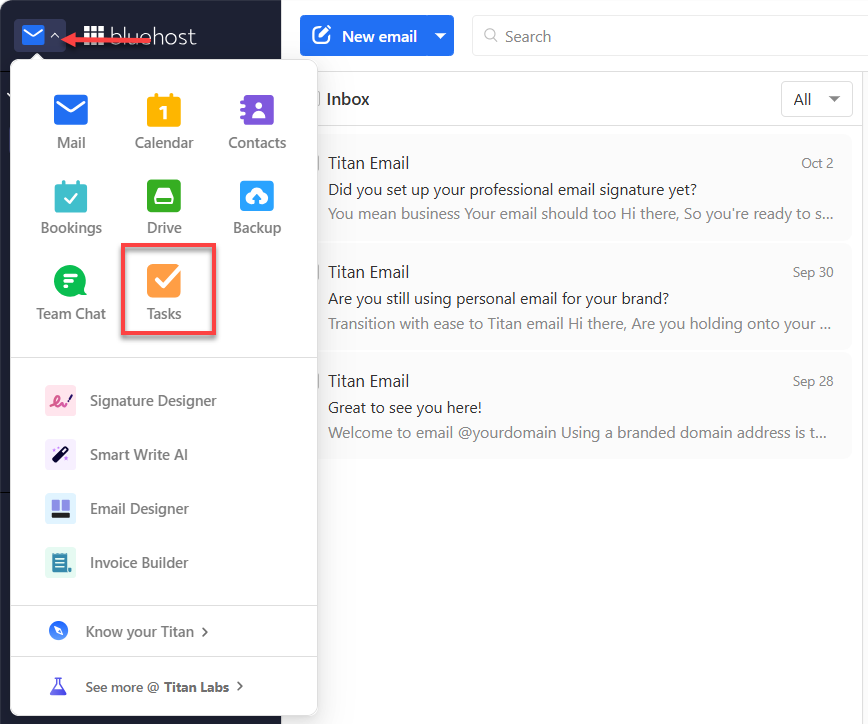
- App Switcher: Click the mail icon with the dropdown arrow in the top-left corner, next to the Bluehost logo. Then click Tasks. The full-screen Tasks app opens in a new browser tab.
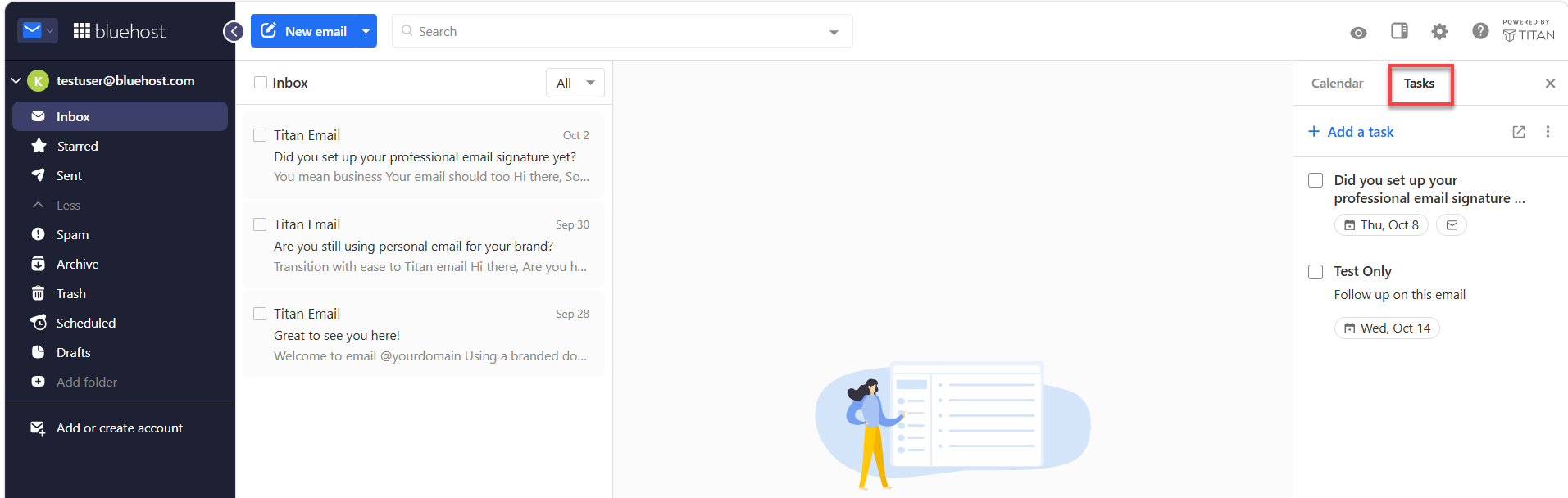
- Side panel: Click the panel icon in the top-right corner, next to the settings gear. Then open the Tasks tab to see your to-dos beside your inbox. Want more room? Click the expand icon to open the full-screen Tasks app.
Create a Task
Turn an email into a task, or start one from scratch.
From Your Inbox
Got an email you need to act on? Turn it into a task from the toolbar above the message.
- In your Inbox, click the email you want to turn into a task.
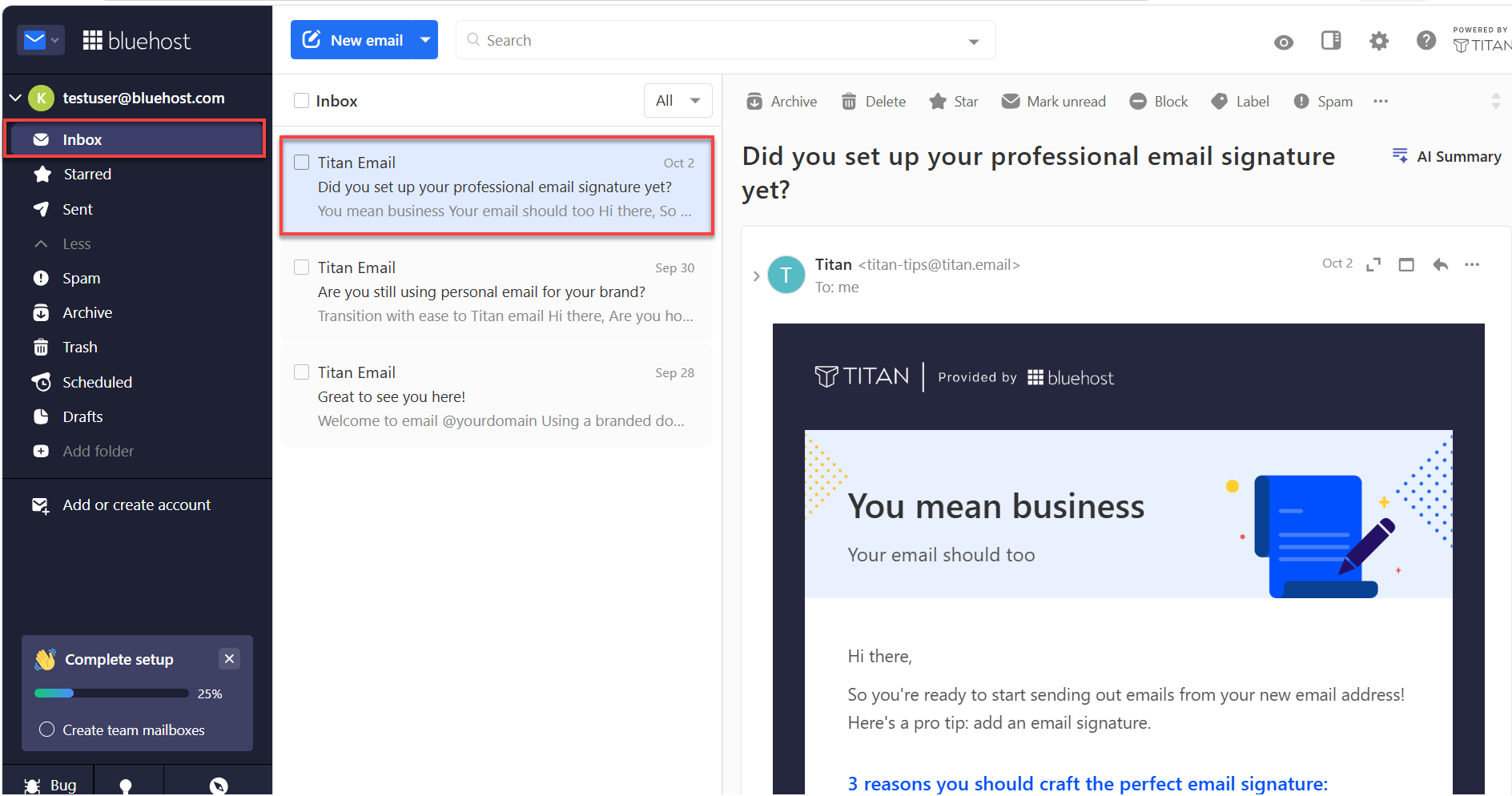
- In the toolbar above the email, click the three-dot icon (
...), and then click Add to Tasks.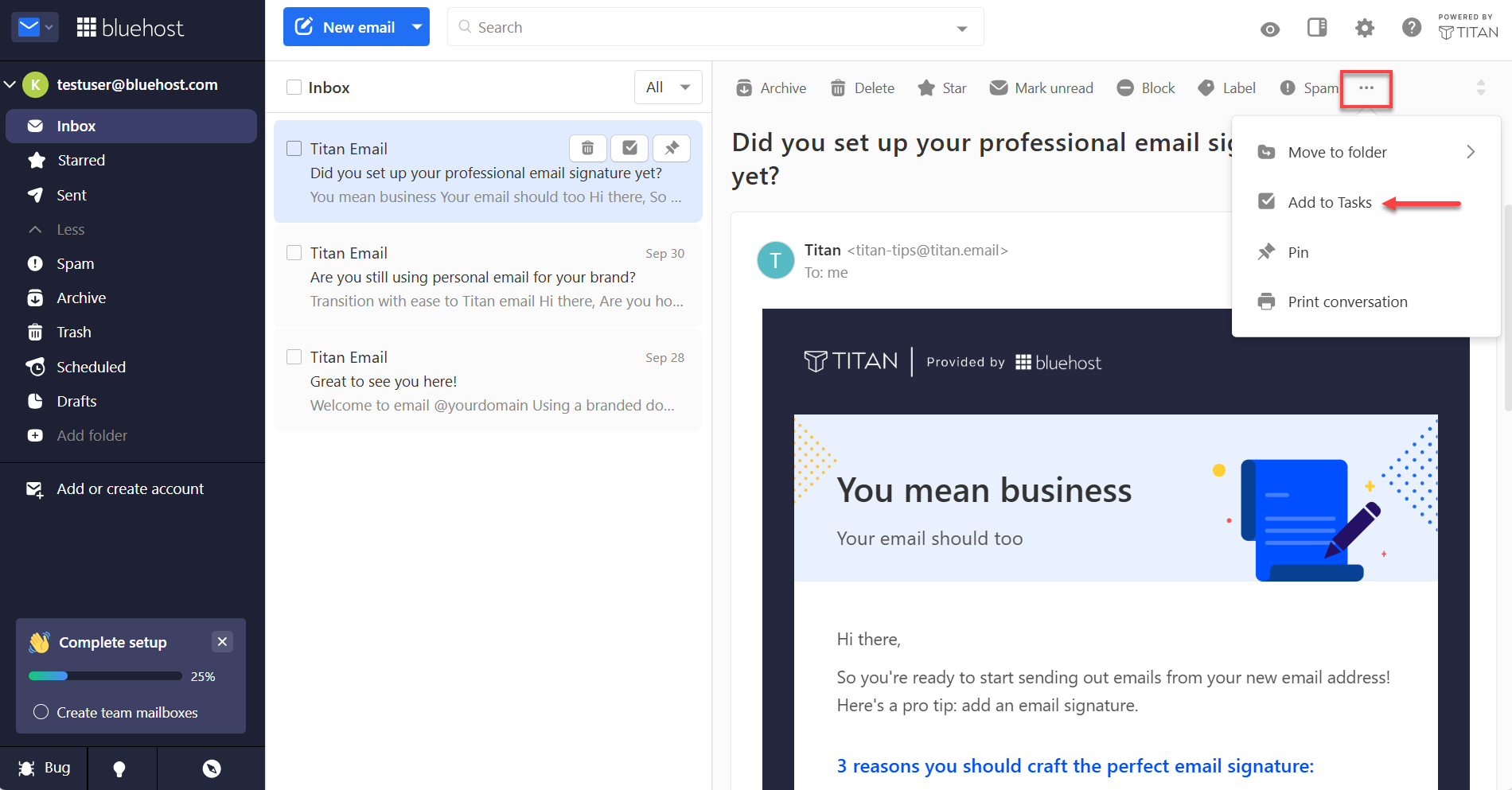
- Review the task card:
- Title: Bluehost Professional Email fills this in with the email subject. Edit it if you'd like.
- Add details: Add notes, instructions, or reminders, up to 300 characters.
- Today: Click to make the task due today.
- Calendar icon: Click to pick a different due date.
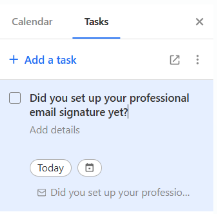
- Press Enter or click outside the task card to save it. A confirmation message appears when your task is added.
When you create a task from an email, Bluehost Professional Email:
- Uses the email subject as the task title.
- Adds a link to the original email.
- Opens the task so you can add a due date or notes right away. Your task won't have a due date until you add one.
Tip: For a faster way, hover over an email in your inbox and click the checkbox icon that appears next to the trash icon. Don't see it? Go to Settings > Preferences > Email Actions, turn on Tasks under Message List Actions, and then save your changes.
From an Open Email
Already reading the message? Add it to Tasks right from the message header.
- In your Inbox, click the email you want to turn into a task.
- In the message header, next to the date, click More actions (
...).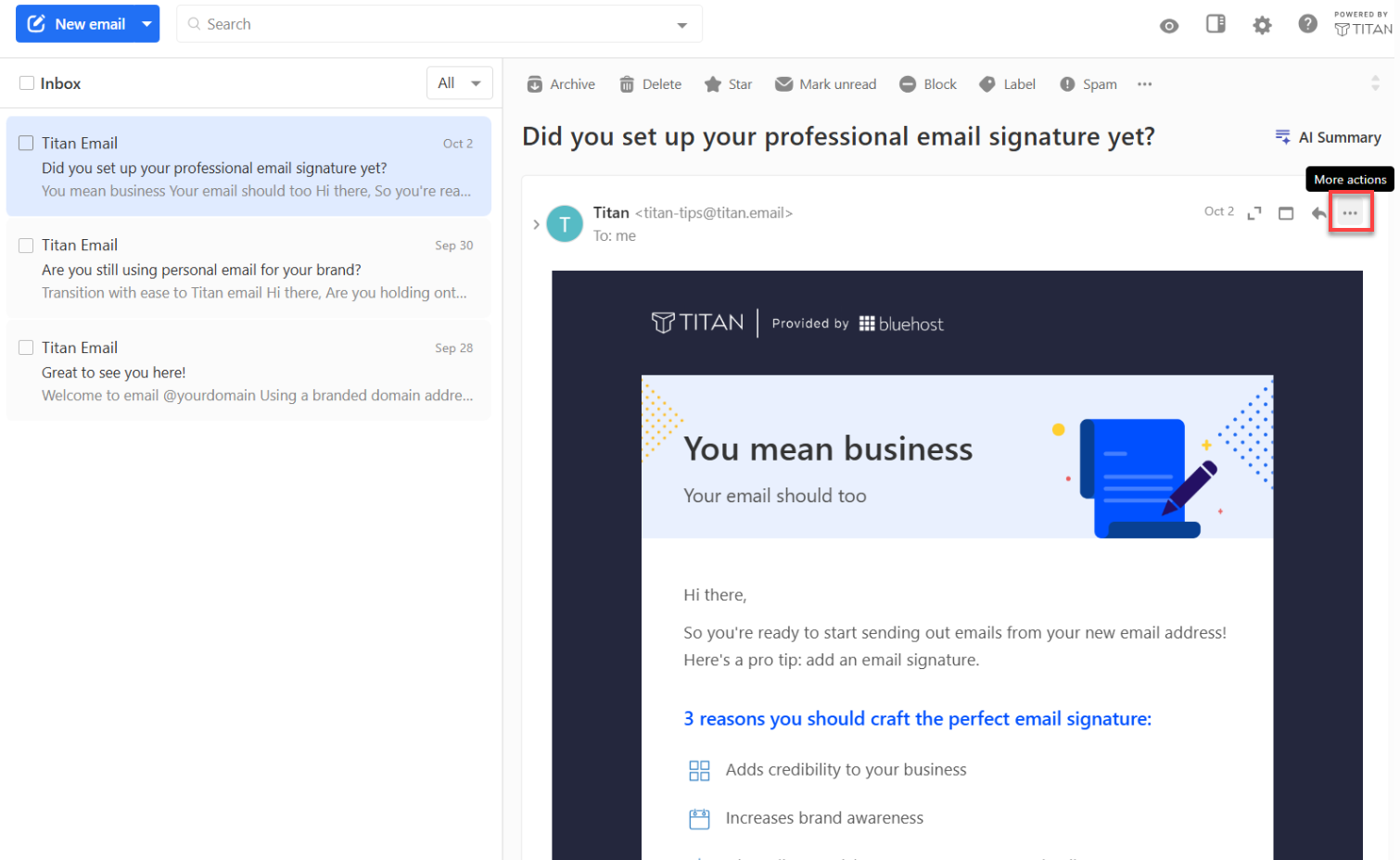
- Click Add to Tasks.
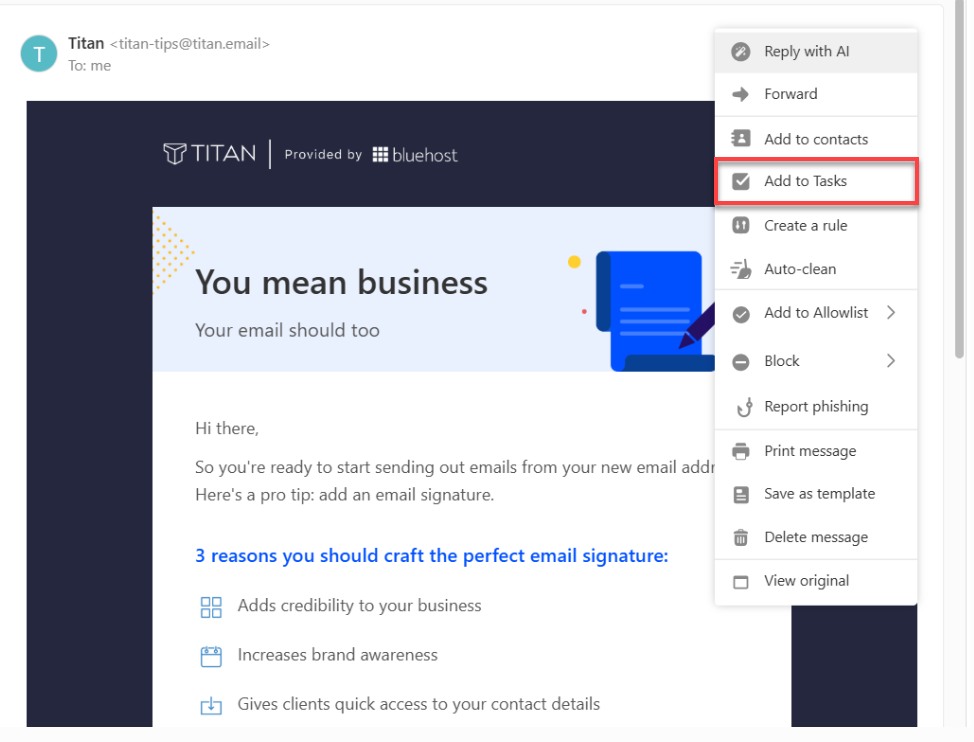
- Review the task card, and then press Enter or click outside the task card to save it. For details on each field, see From Your Inbox.
From the Tasks Panel or App
Need a to-do that isn't tied to an email? Start a new task from scratch.
- Open Tasks in the side panel or the full-screen app. For help, see Open Tasks in Bluehost Professional Email.
- Click + Add a Task.
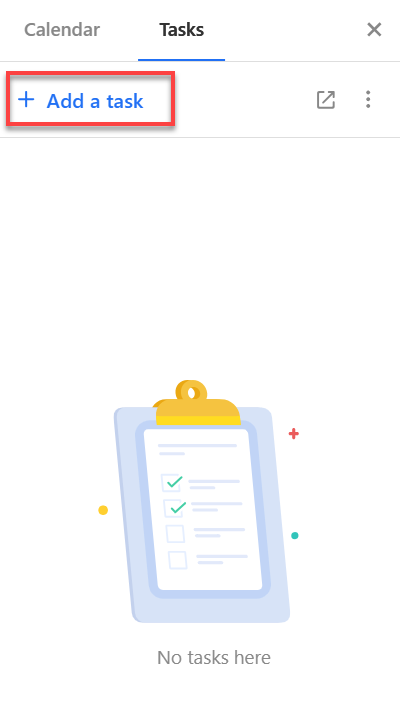
- Fill in the task card:
- Title: Type a name for your task. This field is required.
- Add details: Add notes, instructions, or reminders, up to 300 characters.
- Today: Click to make the task due today.
- Calendar icon: Click to pick a different due date.
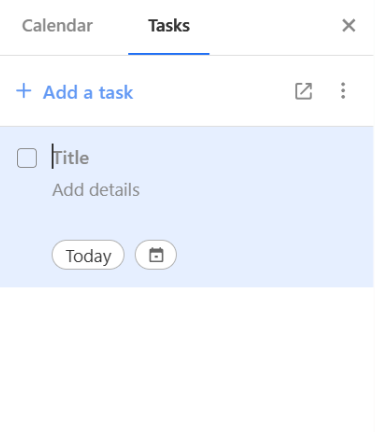
- Press Enter or click outside the task card to save it. A confirmation message appears when your task is added.
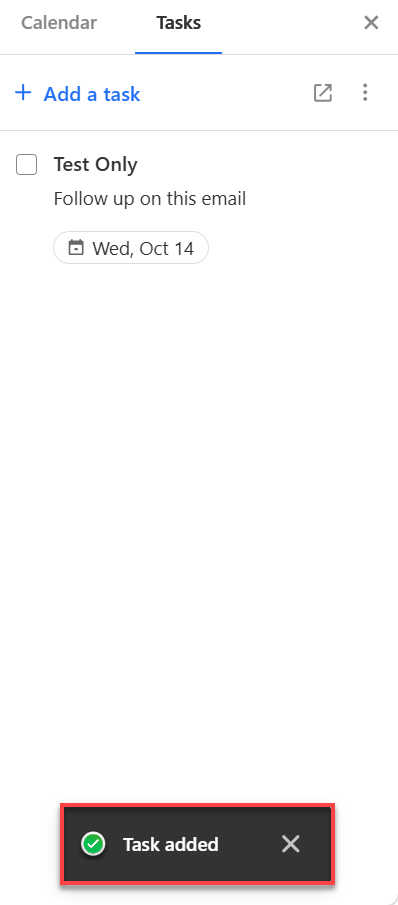
Note: Give every task a title. Tasks without a title won't save.
Manage Your Tasks
Update, sort, and finish your tasks as your day changes.
Add Due Dates and Notes
Give your tasks more context so you know what to do and when. Click a task to add more details:
- Due date: Pick a date from the calendar.
- Description: Add reminders, instructions, or meeting notes, up to 300 characters.
Edit a Task
Plans change, and your tasks can too. Click a task and change its title, due date, or description. Press Enter or click outside the task card to save.
Note: Editing a task won't change its creation date or its spot in your list.
Sort Your Tasks
Arrange your list so your most important tasks are easy to spot. Choose how you want your list sorted:
- Date created: Shows your newest tasks first. This is the default view.
- Due date: Groups your tasks into Overdue, Today, Later, and No Date. Empty groups are hidden, and you can expand or collapse each one.
- My Order: Lets you drag and drop tasks into any order you like. Drag and drop works only in this view.
Complete or Reopen a Task
Check off finished tasks to keep your list focused on what's next. Done with a task? Click the checkbox next to it. Completed tasks are hidden from the side panel, but you can still find them in the full-screen Tasks app. Need to pick one back up? Reopen it from the full-screen app anytime.
Tip: Use the Calendar tab in the side panel to check today's schedule and add or edit events without leaving your inbox.
Frequently Asked Questions
Find quick answers to common questions about Tasks.
Q: Can I use Tasks in the Bluehost Professional Email mobile app?
A: No. Tasks works in Bluehost Professional Email webmail only.
Q: Where do my completed tasks go?
A: Completed tasks are hidden from the side panel to keep your list tidy. You can still see and reopen them in the full-screen Tasks app.
Q: Why can't I find Tasks?
A: Tasks is included with the Professional Email Plus and Ultra plans. If your plan doesn't include it, upgrade your email plan in your Bluehost account.
Summary
Tasks in Bluehost Professional Email keeps your to-do list right next to your inbox. Turn any email into a task from the three-dot menu, or start one from scratch in the side panel or full-screen app. Add due dates and notes, sort your list your way, and check off tasks as you finish them. Tasks is included with the Professional Email Plus and Ultra plans.
Related Articles
If you need further assistance, Bluehost Chat Support is available 24 hours a day, 7days a week while Bluehost Phone Support is available 7 days a week from 7 am-12 midnight EST.
- Chat Support - While on our website, you should see a CHAT bubble in the bottom right-hand corner of the page. Click anywhere on the bubble to begin a chat session.
- Phone Support -
- US: 888-401-4678
- International: +1 801-765-9400
You may also refer to our Knowledge Base articles to help answer common questions and guide you through various setup, configuration, and troubleshooting steps.