 ChatGPT,
  Claude,
  Gemini,
  Grok — all four for
 Bluehost Professional Email: How to Manage Admin Access
Professional Email administrators can manage email accounts and access administrative features through the Bluehost Portal Email Management page. This article explains how to grant or remove administrator privileges and outlines the features available to administrator accounts.
Admin Features
Users with administrator privileges can manage email accounts and perform the following administrative tasks:
- Create and manage email accounts.
- Reset mailbox passwords.
- Manage email aliases.
- Suspend or unsuspend mailboxes.
- Delete mailboxes.
- Configure internal email forwarding.
- Set up a catch-all mailbox.
- Import email data from another provider.
Depending on your Professional Email plan, additional features may be available, such as:
- Email Backups
- Custom Branding
- Spam Filter controls
Note: Some administrator features, such as Email Backups, Custom Branding, and Spam Filter controls, are only available on select Professional Email plans. For the latest plan details, features, and pricing, visit the Bluehost Professional Email page.
Grant Admin Rights
Important: Only the Registered Email address or an existing administrator can grant or remove administrator privileges for another email account.
- Log in to your Bluehost Portal.
- From the left-hand navigation menu, click on the Email tab.
- Optional: In Professional Email, if multiple plans are listed, click Manage for the plan you want to use.

- You’ll be automatically redirected to the Email Management page, where you can manage your email settings and subscriptions.
- On the Overview page, click Email Accounts.
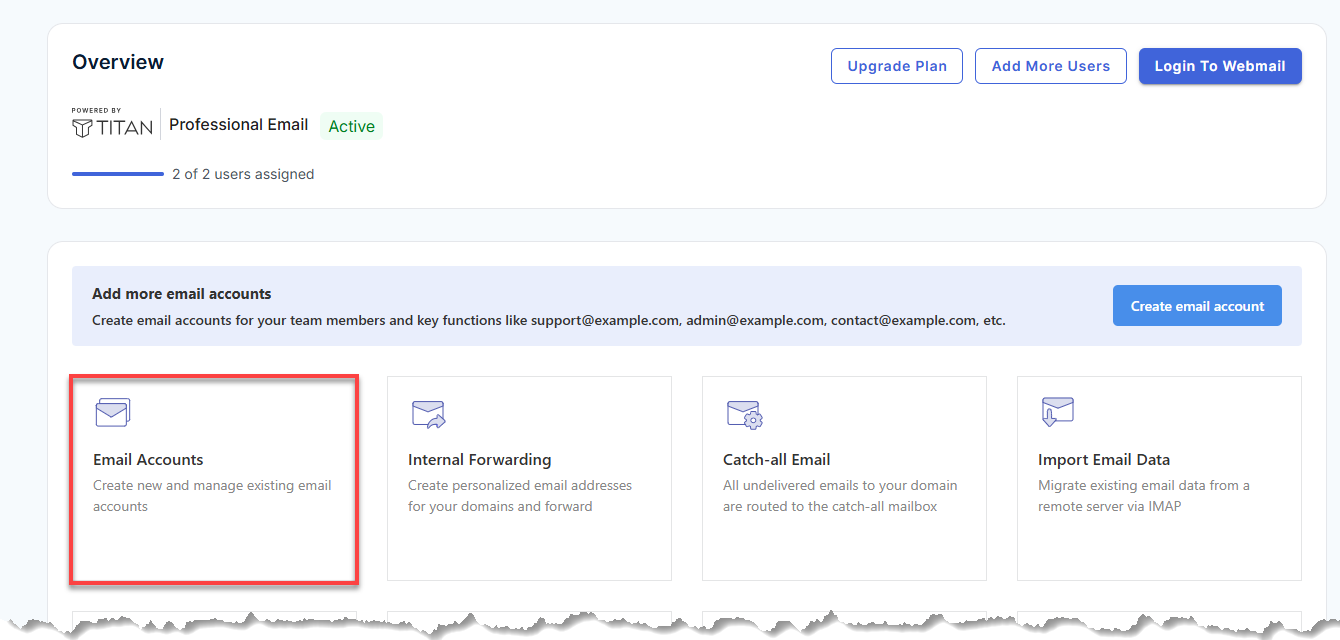
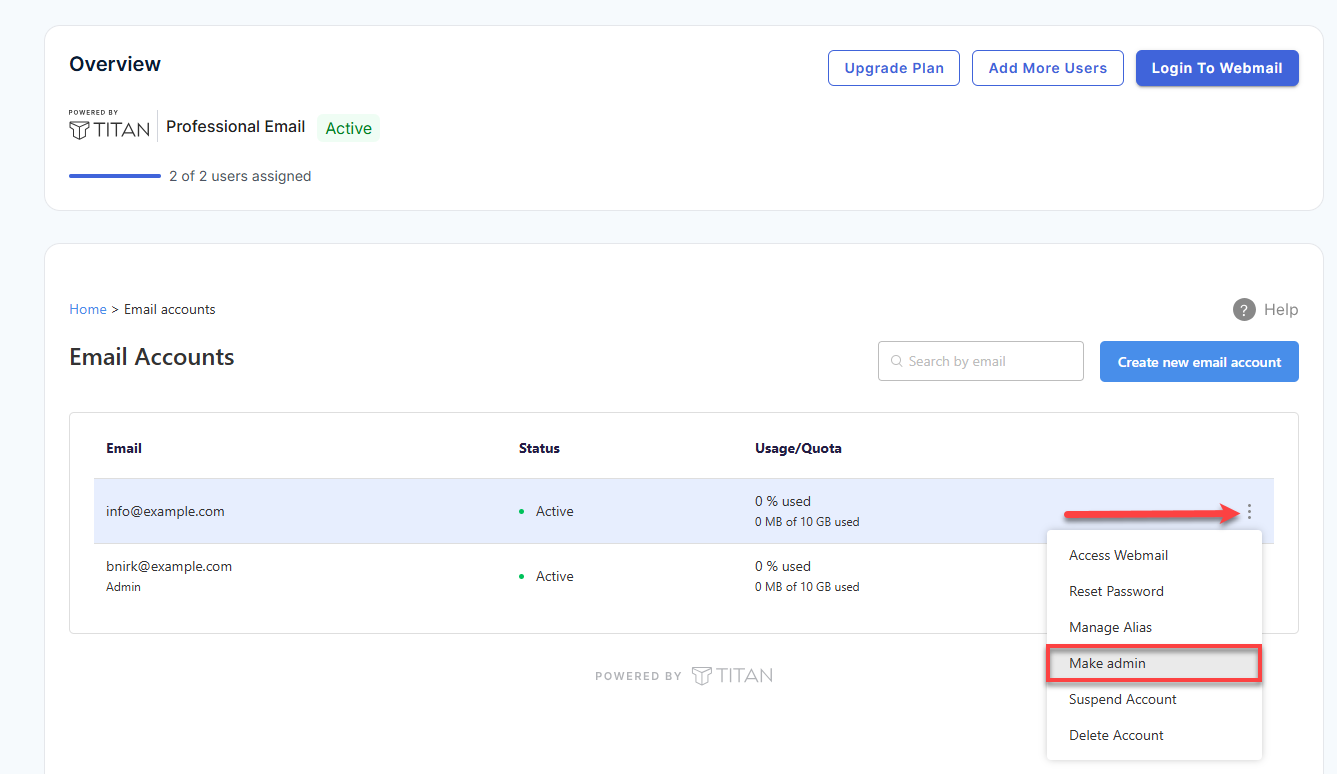
- Locate the email address you want to make an administrator.
- Click the three-dot menu (⋮) beside the email account.
- Select Make Admin.
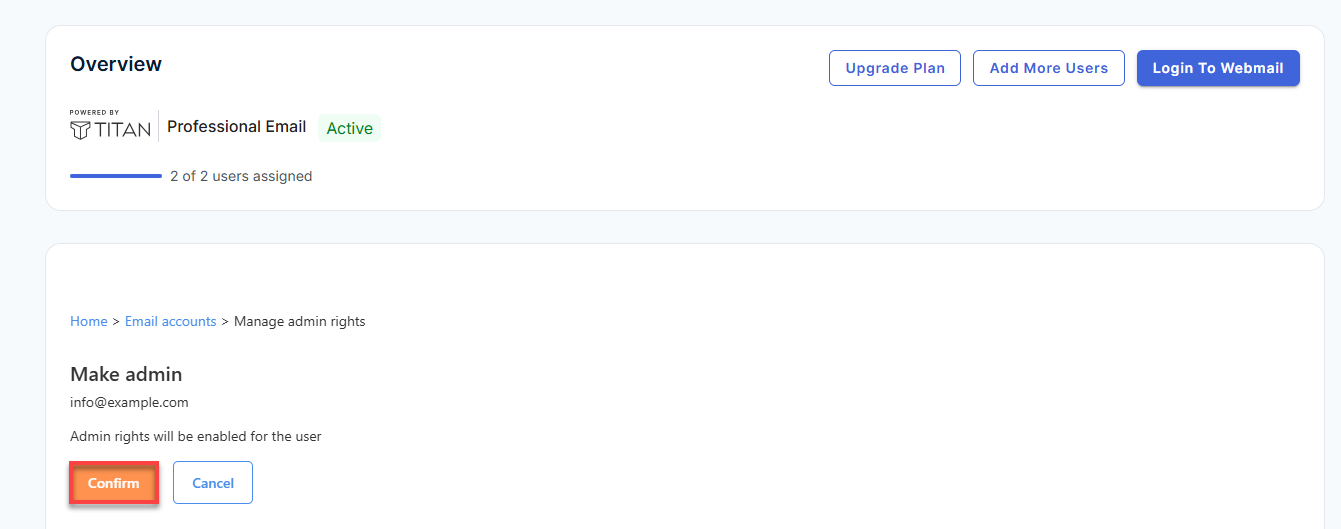
- Review the confirmation page, then click Confirm.
- Click OK after the Admin rights enabled confirmation message appears.
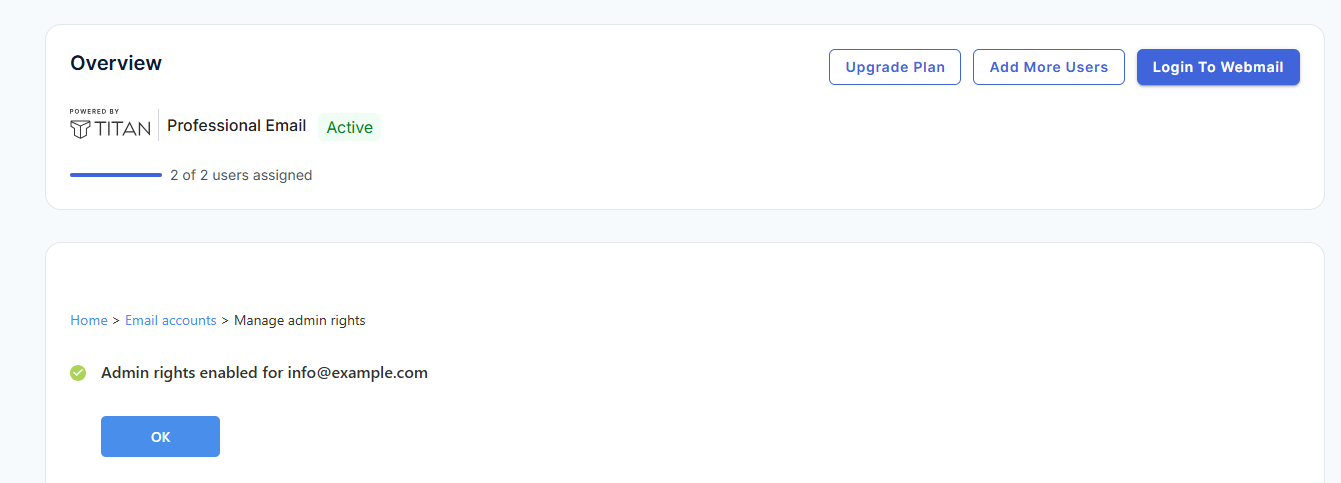
The selected email address will receive administrator privileges after the change is confirmed.
Warning: Grant administrator access only to trusted users. Admins can manage mailboxes, modify account settings, and perform administrative actions for your organization's email service.
Remove Admin Right
Important: Only the Registered Email address or an existing administrator can grant or remove administrator privileges for another email account.
- Log in to your Bluehost Portal.
- From the left-hand navigation menu, click on the Email tab.
- Optional: In Professional Email, if multiple plans are listed, click Manage for the plan you want to use.
- You’ll be automatically redirected to the Email Management page, where you can manage your email settings and subscriptions.
- On the Overview page, click Email Accounts.
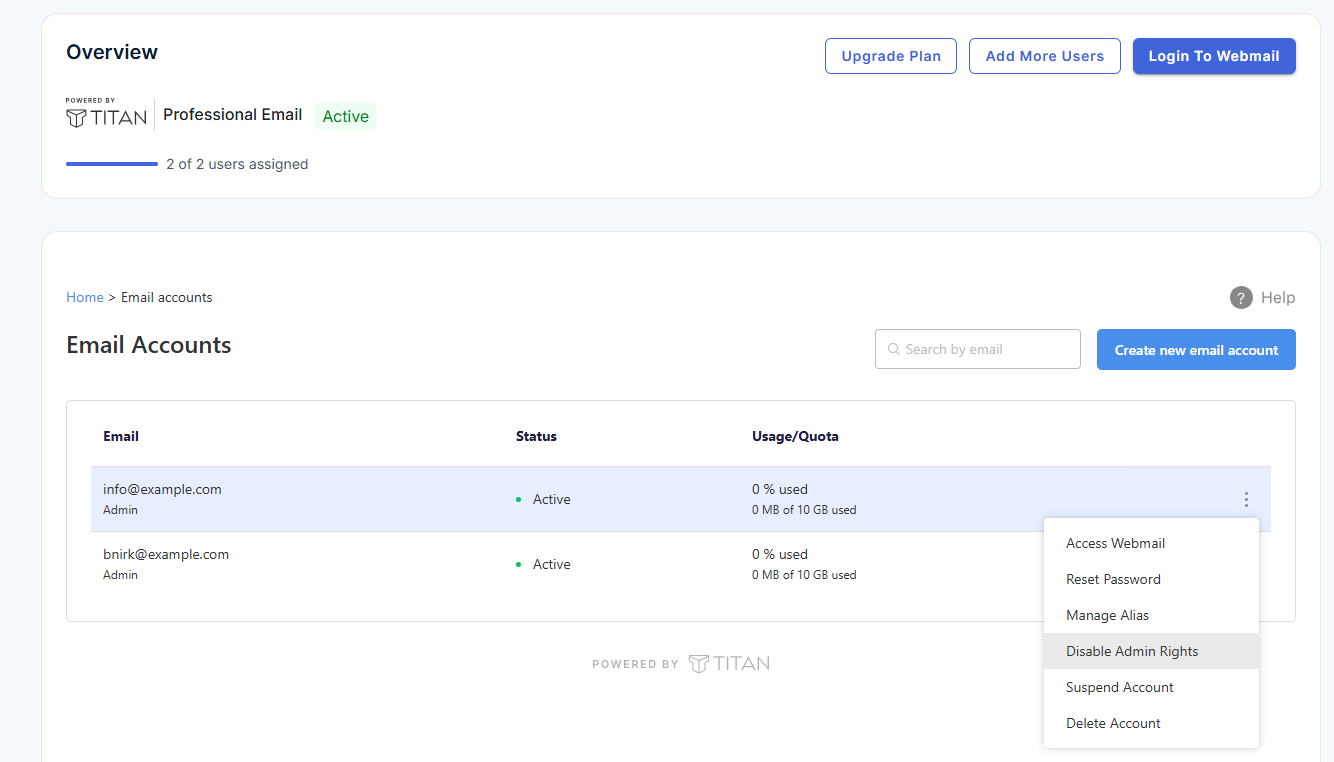
- Locate the email address you want to remove administrator rights from.
- Click the three-dot menu (⋮) beside the email account.
- Select Disable Admin Rights.
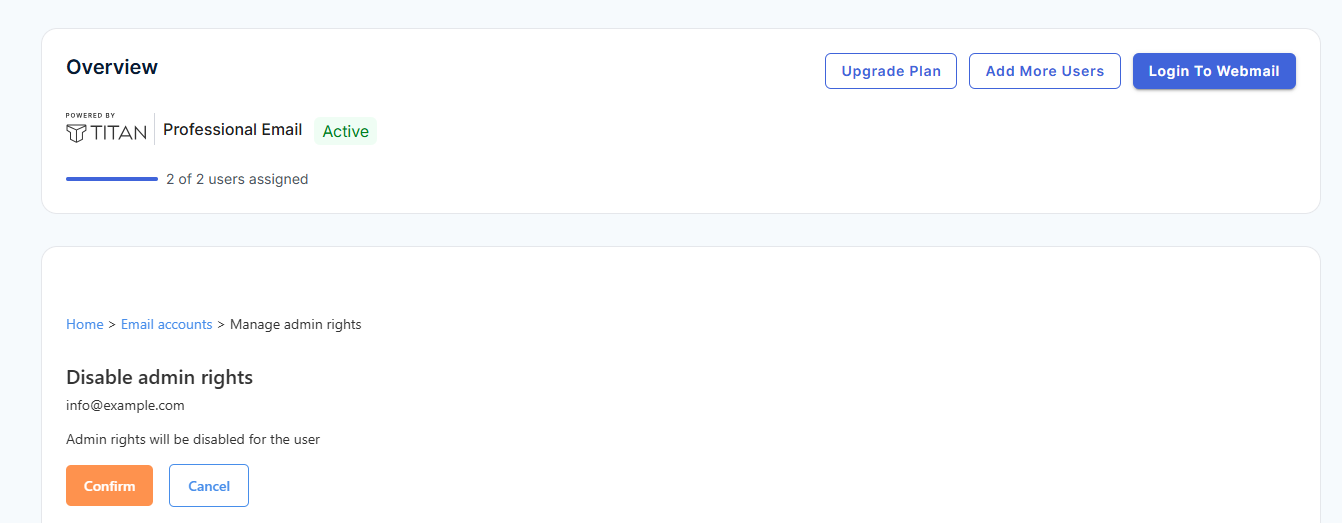
- Review the confirmation page, then click Confirm.
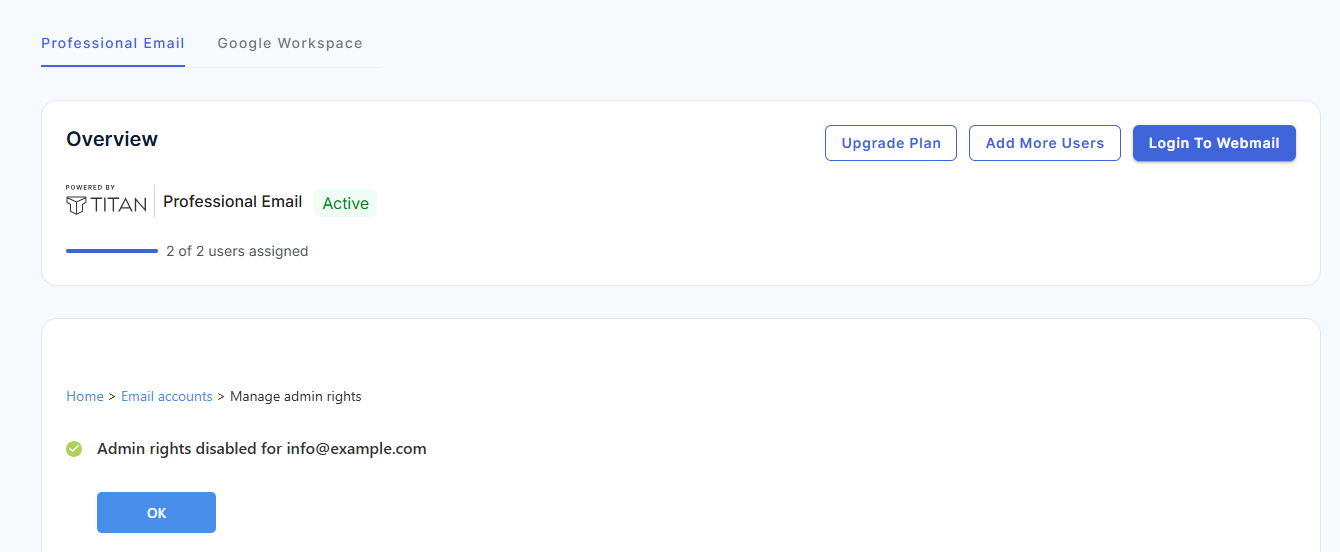
- Click OK after the success message appears.
Important: Ensure that at least one administrator account remains available to manage your Professional Email service.
Related Article
Summary
Managing administrator access in Professional Email allows you to delegate email administration tasks while maintaining control over your organization's email service. Use the Email Management page to grant or remove admin rights as needed and manage available admin features for your Professional Email account.
If you need further assistance, Bluehost Chat Support is available 24 hours a day, 7days a week while Bluehost Phone Support is available 7 days a week from 7 am-12 midnight EST.
- Chat Support - While on our website, you should see a CHAT bubble in the bottom right-hand corner of the page. Click anywhere on the bubble to begin a chat session.
- Phone Support -
- US: 888-401-4678
- International: +1 801-765-9400
You may also refer to our Knowledge Base articles to help answer common questions and guide you through various setup, configuration, and troubleshooting steps.