 ChatGPT,
  Claude,
  Gemini,
  Grok — all four for
 Bulk Import Manual Installations With Softaculous
Softaculous offers an efficient way to detect and import script installations that were added manually. The steps below guide you through the bulk import process so you can easily manage all your scripts within the Softaculous interface.
To bulk import script installations to Softaculous:
How To Bulk Import Manual Installations
- Log in to your Bluehost Portal.
- In the left-hand menu, click Hosting, then select My Plans.
- On the hosting details page, click the cPanel button.

- Your cPanel will open in a new tab.

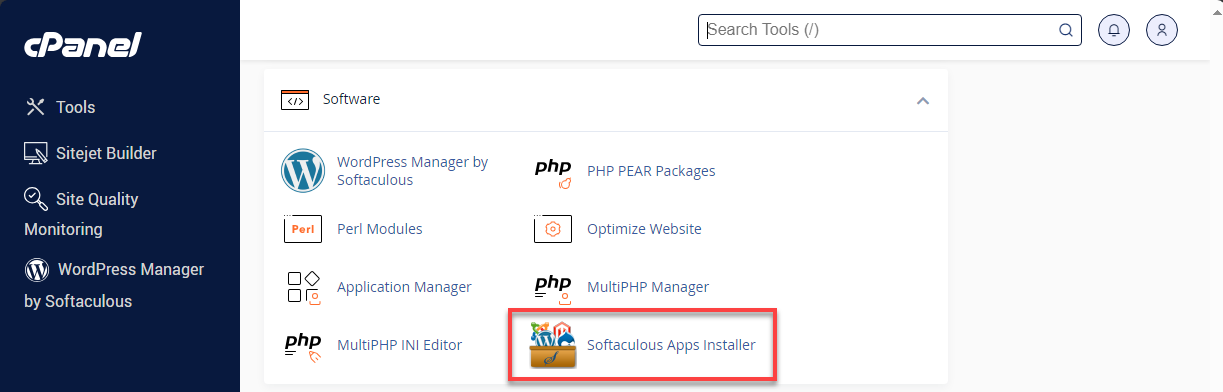
- In the Software section, click on the Softaculous Apps Installer.
- Select the Import Installations icon found in the upper-right area of the page.

- On the Import Installations screen, switch to the Manual Installations tab.
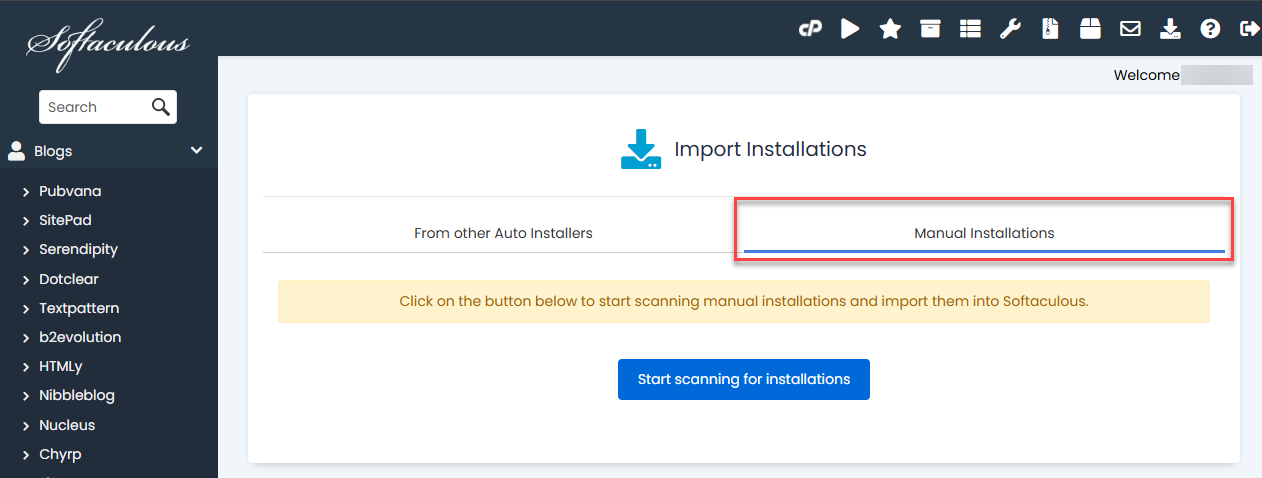
- Select Start scanning for installations.
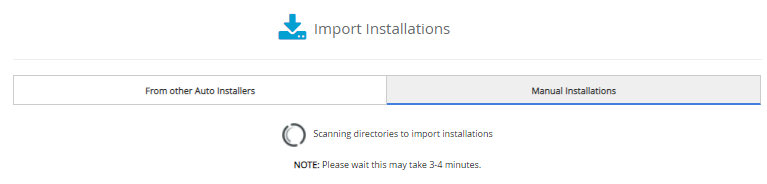
- Softaculous will begin scanning your directories for any manual script installations.
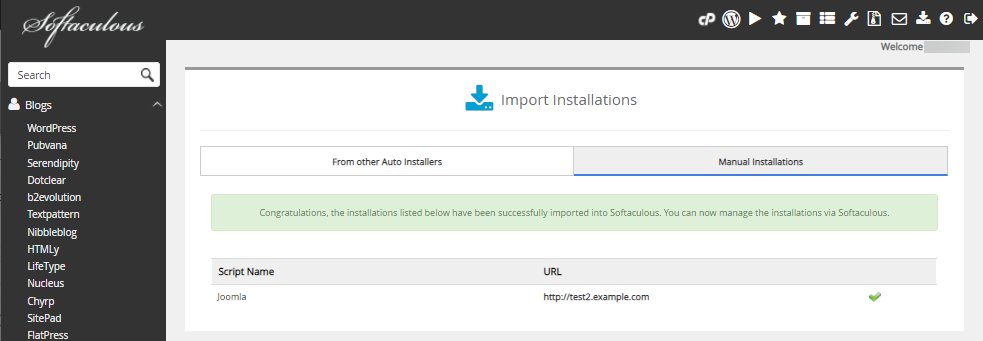
- Once the scan is complete, a confirmation message along with your detected installations will appear, indicating a successful import.
Summary
The Softaculous bulk import tool makes it simple to bring manually installed scripts under one management panel. By scanning your directories and detecting existing installations, Softaculous helps you organize and maintain your scripts more efficiently. Once imported, these installations can be updated, backed up, and managed just like any script originally installed through Softaculous.
If you need further assistance, Bluehost Chat Support is available 24 hours a day, 7days a week while Bluehost Phone Support is available 7 days a week from 7 am-12 midnight EST.
- Chat Support - While on our website, you should see a CHAT bubble in the bottom right-hand corner of the page. Click anywhere on the bubble to begin a chat session.
- Phone Support -
- US: 888-401-4678
- International: +1 801-765-9400
You may also refer to our Knowledge Base articles to help answer common questions and guide you through various setup, configuration, and troubleshooting steps.