 ChatGPT,
  Claude,
  Gemini,
  Grok — all four for
 cPanel Images Tools
The cPanel Images tools allow you to view and modify images in your account. Using the cPanel Images tools, you may resize your images, convert their respective file types, or view them.
Accessing the cPanel Images Tool
- Log in to your Bluehost Portal.
- In the left-hand menu, click Hosting, then select My Plans.
- On the hosting details page, click the cPanel button.

- Your cPanel will open in a new tab.

- Select the Images icon under the Files section. This will take you to the cPanel Images Tools list.
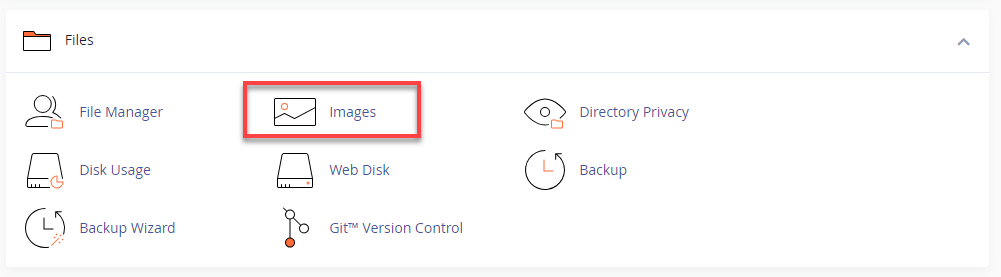
When using the cPanel Images tools available, you have three options:
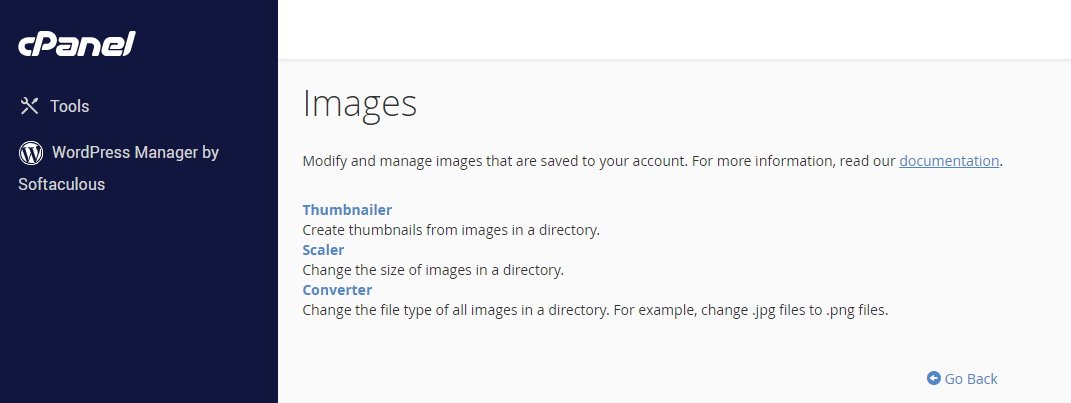
| cPanel Images Tools | |
| Thumbnailer | It allows you to create thumbnails from images in your site directory. |
| Scaler | It allows you to change the size of an image in your site directory. |
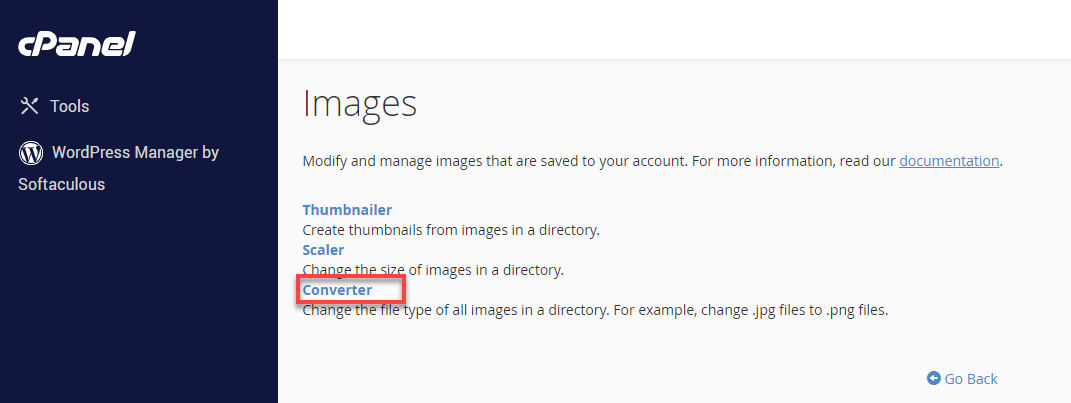
| Converter | It allows you to change the file type of all images in your site directory (jpg, gif, bmp, etc.). For example, change .jpg files to .png files. |
Using the Images Thumbnailer Tool
- Click on the Thumbnailer link under the cPanel Images section.
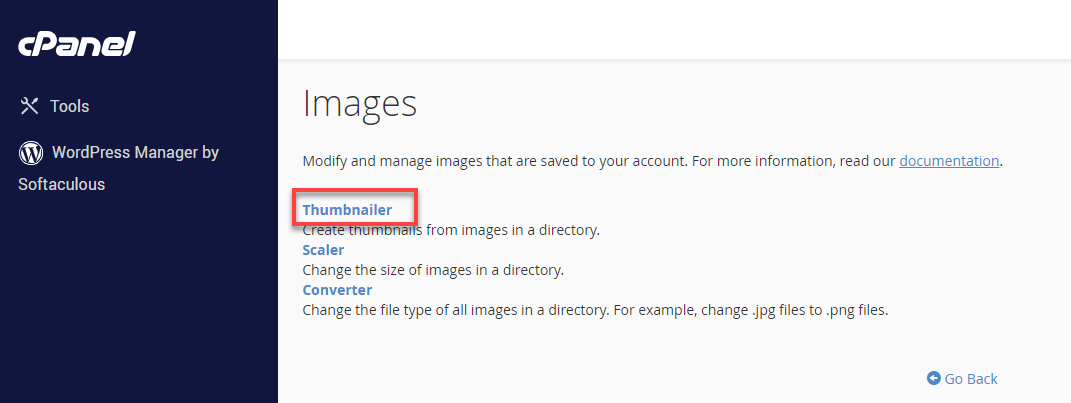
- Click the directory or image where you want to create a thumbnail by clicking the THUMBNAIL button under the Actions column on the right side of the directory you wish to thumbnail.
- A list of the home directory for your web hosting account will appear after clicking the Thumbnailer link.
- You may select the folder icon next to the directory name corresponding to the path to the directory you want to view, or you may go directly to the directory you wish to thumbnail.
- Modify the Aspect Ratio of the thumbnail image.
- You will notice two Scale Percent text boxes when the website loads. Both text fields' default values are 25%.
- To better suit your tastes, you may change the percentage. The Keep Aspect Ratio box is checked by default.
- If you leave the Keep Aspect Ratio box ticked, cPanel will maintain the correct proportional sizing of your thumbnail images. If you uncheck the Keep Aspect Ratio box, cPanel will use both values in the Scale Percent text boxes.
Using the Images Scaler Tool
- Click on the Scaler link under the cPanel Images section.
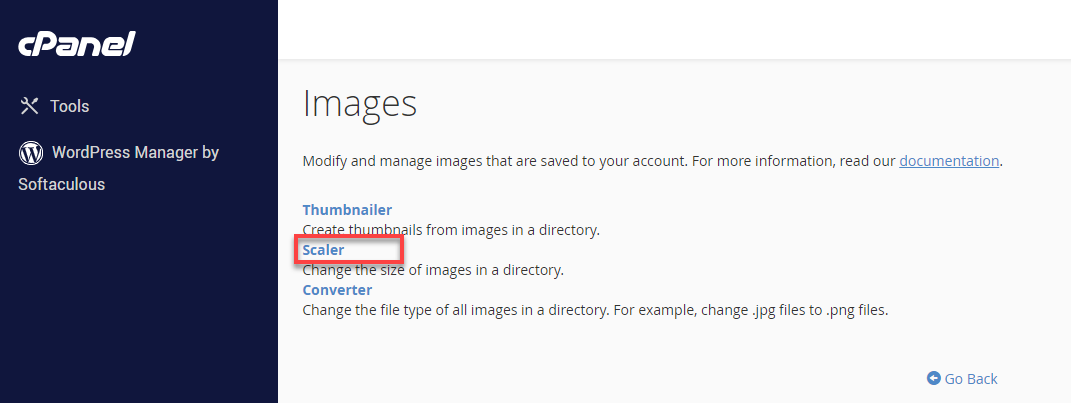
- Select the directory or image where you want to scale by clicking the SCALE button under the Actions column on the right side of the file or directory you want to scale.
- After clicking the Scaler link, a list of the home directory for your web hosting account will appear.
- You may search and choose a single image you wish to scale, or go to the directory holding the photos you want to resize.
- Click a folder’s icon or name to navigate the file system.
- Ensure that the Retain a copy of the old image box is automatically checked by default. The image will be duplicated and put in the indicated directory. The system sets the default path to your original image's directory. It adds the "old-" prefix to your image's original name.
- After that, click the Scale Image button to continue with the changes or the Reset Dimensions button to restore the dimensions to their default settings (for display only).
Using the Images Converter Tool
- Click on the Converter link under the cPanel Images section.
- Select the directory or image where you want to scale by clicking the CONVERT button under the Actions column on the right side of the file or directory you want to convert.
- After clicking the Converter link, a list of the home directory for your web hosting account will appear.
- You may search and choose a single image or go to the directory holding the photos you want to convert.
- Click a folder’s icon or name to navigate the file system.
- Select the type of file you want to convert the image into.
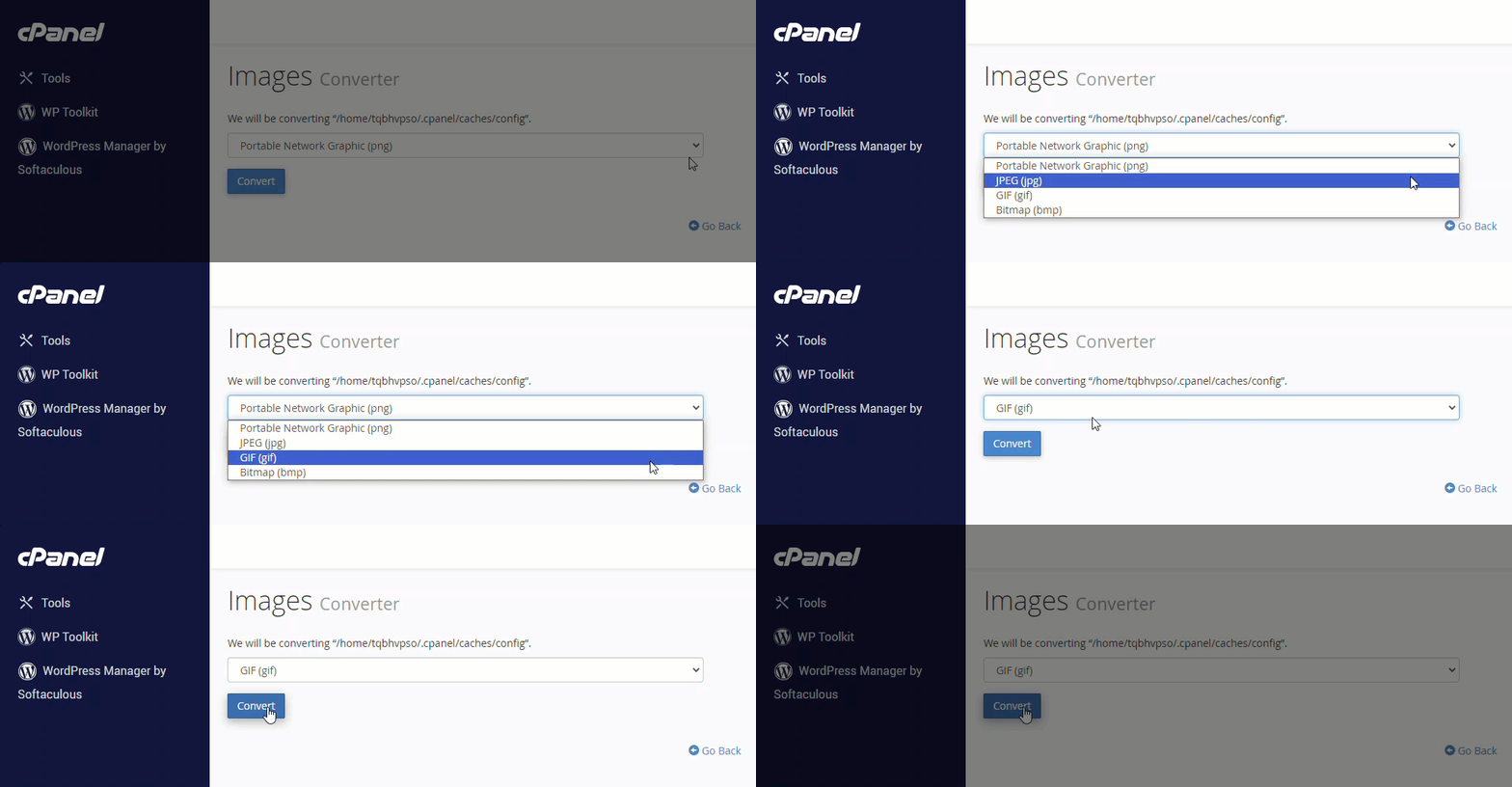
- Lastly, click the Convert button. Once done, you will see the Your images have been converted prompt telling you that the conversion was successful.

Summary
So, here you go! Image Tools in cPanel allow the easy management of your web images. It resizes, converts, and makes thumbnails. You can also optimize images to let your website load faster and generally enhance the experience. Now, go out there and make your website look amazing!
If you need further assistance, Bluehost Chat Support is available 24 hours a day, 7days a week while Bluehost Phone Support is available 7 days a week from 7 am-12 midnight EST.
- Chat Support - While on our website, you should see a CHAT bubble in the bottom right-hand corner of the page. Click anywhere on the bubble to begin a chat session.
- Phone Support -
- US: 888-401-4678
- International: +1 801-765-9400
You may also refer to our Knowledge Base articles to help answer common questions and guide you through various setup, configuration, and troubleshooting steps.