 ChatGPT,
  Claude,
  Gemini,
  Grok — all four for
 What Are DNS Records? Understanding the Basics
DNS records are essential for directing your domain name to the correct web and email services. Understanding the basics of DNS records can save time and prevent outages, whether launching a website or configuring email.
What Are DNS Records?
DNS (Domain Name System) records are instructions stored in your domain’s zone file. They translate human-readable domain names (like yourdomain.com) into technical data (like IP addresses or mail server locations) that browsers and email clients use.
Common DNS Record Types and What They Do
| Type | Purpose | Example |
|---|---|---|
| A | Points domain to an IPv4 address | @ → 192.0.2.1 |
| AAAA | Points to an IPv6 address | @ → 2001:db8::1 |
| CNAME | Creates an alias to another domain | www → yourdomain.com |
| MX | Directs email to mail servers | @ → mail.yourdomain.com |
| TXT | Adds text-based data (e.g., SPF, DKIM) | @ → v=spf1 include:_spf.google.com ~all |
| SRV | Defines services like VOIP or chat | _sip._tcp → service URL and port |
DNS Glossary
- Zone File: The DNS configuration file for a domain.
- TTL (Time to Live): The duration for which DNS data is cached before refreshing.
- Host Record: Specifies the subdomain (e.g.,
@= root,www,mail). - Priority (MX): Determines mail server preference (lower = higher priority).
- Weight & Port (SRV): Used to balance service traffic or route to specific ports.
When Should You Update DNS Records?
You may need to update DNS records when:
- Pointing your domain to a new website host
- Setting up third-party email providers like Google Workspace or Microsoft 365
- Verifying your domain ownership for services like Google Search Console
- Adding custom records for services like Zoom, Shopify, or HubSpot
How to Update DNS Records
Important: Take a screenshot or export your existing DNS records before making changes in case you need to revert.
To update your DNS records, please check out our DNS Management guide. It's filled with easy-to-follow instructions to make the process simple.
How Long Do DNS Changes Take?
Nameserver (NS) changes can take up to 24-48 hours to propagate globally. Individual DNS record updates may take a few minutes to process but can take up to 8 hours to complete. The exact time may vary depending on DNS caching and the record's TTL (Time to Live) setting, as different networks and providers refresh DNS records at different intervals.
DNS Records
- Name Servers
- A Record
- CNAME Record
- MX Record
- TXT Record (for SPF)
- SRV Record
- AAAA Record
Name Servers
Name servers (NS records) tell the internet which DNS servers are authoritative for your domain. These DNS servers store and provide the DNS records that direct traffic to your website, email, and other services.
For example, when a user enters support.bluehost.com in a web browser, DNS lookups query the domain's authoritative name servers to find the appropriate records needed to connect to the service.
For more information on Name Servers and how to edit them, please refer to the following articles:
A Record
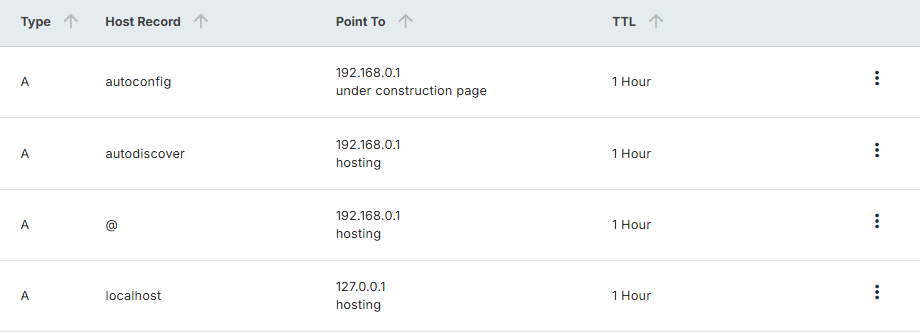
An A record (Address Record) maps a domain or subdomain (like example.com or blog.example.com) to an IP address (e.g., 192.168.0.1). This allows users to access websites using easy-to-remember domain names instead of numerical IP addresses.
CNAME Record
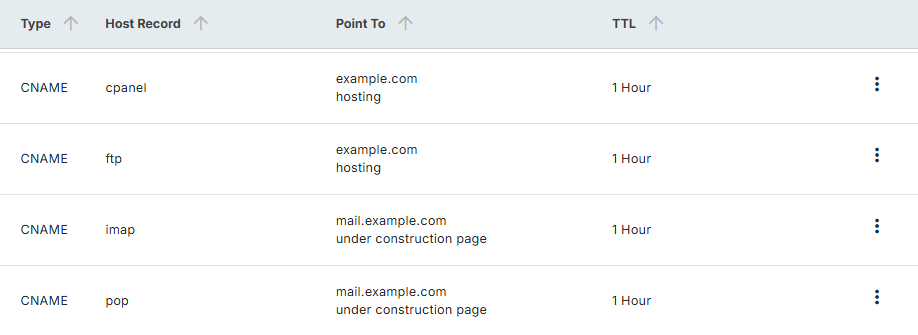
A CNAME record (Canonical Name) points a domain or subdomain to another domain name rather than directly to an IP address. This simplifies updates; you only need to change the linked A record, and all CNAMEs pointing to it will automatically resolve to the new IP.
For example, www.example.com can point to example.com, or docs.example.com can point to ghs.googlehosted.com for Google Workspace services.
MX Record
An MX Entry (Mail Exchanger) directs email for a domain to its designated mail server. Similar to CNAMEs, MX entries must point to a domain name, not directly to an IP address. They also include a "priority" value, determining the order in which mail servers are contacted.
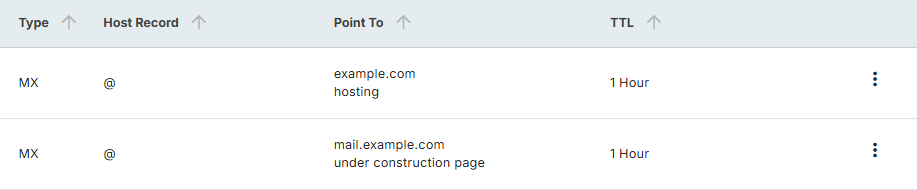
For more information on managing MX records, please see How to Edit MX Records.
TXT Record (for SPF)
A TXT record (Text record) stores human-readable text for various purposes beyond directing traffic.
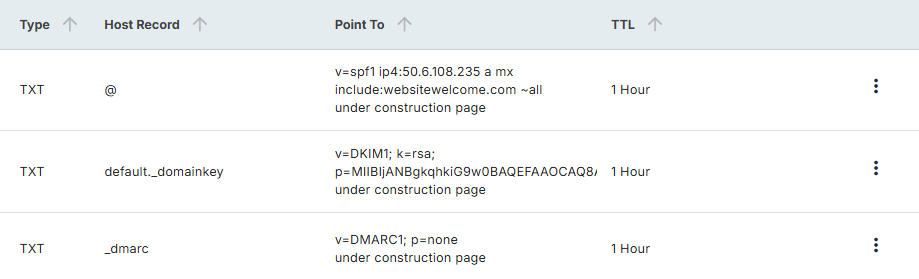
They are dynamic and commonly used for:
- Google Verification: To prove domain ownership for Google services.
- Sender Policy Framework (SPF): Helps identify legitimate email senders from your domain, reducing spam and spoofing. More information is available on How to Set up SPF Records.
- DomainKeys Identified Mail (DKIM): Verifies email authenticity through cryptographic signatures, ensuring messages haven't been tampered with and originated from a trusted source. For more details, visit dkim.org.
SRV Record
SRV records are commonly used by services such as VoIP, messaging, and conferencing applications to direct traffic to a specific server and port. The exact values required will vary by provider. Always refer to your service provider's documentation when creating an SRV record.
For example, an SRV record can be used to direct traffic for a specific service to a designated server and port.
_service._tcp.example.com. IN SRV 10 5 5060 sip.example.com.
When adding the DNS record, you should input the settings in this manner:
- Service: _service
- Protocol: _tcp
- Host: @ (or a subdomain such as sip)
- TTL: 14400
- Type: SRV
- Priority: 10
- Weight: 5
- Port: 5060
- Points To: sip.example.com
AAAA Record
The AAAA record is similar to the A record, allowing you to point the domain to an IPv6 address. More information on IPv6 can be found at https://ipv6.com/.
Important: You can add AAAA records in your Bluehost DNS settings, for example, to point your domain or a subdomain to a third-party service that uses IPv6. However, Bluehost hosting servers do not currently use IPv6 addresses, so you don’t need an AAAA record to point your domain to your Bluehost hosting. Use an A record instead.
What Happens If You Lose Hosting?
If your Bluehost hosting plan expires, DNS records stored on the hosting server may no longer be accessible and are not automatically backed up. To help prevent data loss, keep a copy of your DNS records so they can be restored if needed.
Warning: To protect your configuration, keep a copy of your DNS records or use a third-party DNS history service to help review previous DNS configurations if available.
Summary
DNS records are the backbone of your website and email functionality. Whether pointing your domain to a new server, verifying ownership, or setting up third-party services, knowing how to manage DNS records gives you control and peace of mind.
Understanding the purpose of each record type and how to update them in Bluehost will help you avoid common misconfigurations and keep your domain running smoothly. Always document changes and allow time for propagation.
If you need further assistance, Bluehost Chat Support is available 24 hours a day, 7days a week while Bluehost Phone Support is available 7 days a week from 7 am-12 midnight EST.
- Chat Support - While on our website, you should see a CHAT bubble in the bottom right-hand corner of the page. Click anywhere on the bubble to begin a chat session.
- Phone Support -
- US: 888-401-4678
- International: +1 801-765-9400
You may also refer to our Knowledge Base articles to help answer common questions and guide you through various setup, configuration, and troubleshooting steps.