 ChatGPT,
 Claude,
 Gemini,
 Grok — all four for

Key highlights
- Discover the updated Bluehost Account Manager with a cleaner layout and smarter navigation.
- Learn quick login steps to access your dashboard instantly.
- Explore each dashboard section – Websites, Domains, Hosting, Email, Security and Billing.
- Understand new features like guided actions, unified website management and clearer controls.
Welcome to the next evolution of your Bluehost experience. The redesigned Account Manager brings a fresh, modern way to control everything that powers your online world. Whether you’re launching a new idea or managing a lineup of websites, this upgraded dashboard puts clarity, speed and simplicity at the heart of every action.
With the new dashboard, everything you need is now exactly where you expect it to be. From creating your site to managing WordPress, Domains, Hosting, Billing and Security, the dashboard now brings everything together in a streamlined flow. You’ll find streamlined navigation, helpful prompts and a clean layout that guides you step-by-step – making every action feel more purposeful.
This isn’t just a new interface. It’s a smarter, more confident way to manage your digital presence. Let’s step inside and explore what the new Bluehost Account Manager has to offer.
What’s new in the Bluehost Account Manager?
The updated Account Manager introduces a simplified, action-driven layout that helps you get things done faster. Here’s a look at the key enhancements designed to improve your day-to-day website management experience:
1. A cleaner, more intuitive layout
The redesigned interface makes navigation effortless. Important sections like websites, domains, hosting, billing and marketplace are now clearly organized, helping you find the right tools right when you need them.
2. Smarter guidance and quick actions
Whether you’re setting up WordPress, activating add-ons or managing renewals, the dashboard now highlights the next best step – guiding you through tasks with confidence and clarity.
3. Better visibility and control
Status indicators, plan details, domain settings and security features are presented more transparently. This gives you a complete and at-a-glance view of your entire account.
4. Unified website management
All website tools and connections are now grouped more logically, so you can manage performance, backups, access and customizations without jumping through multiple sections.
But what exactly does the “My Bluehost” dashboard look like? Let’s explore from scratch.
Bluehost Account Manager login steps
If you’re wondering how can I access my Bluehost account, the login process is simple and beginner-friendly. Follow these steps to reach your updated dashboard quickly:
Bluehost account login steps:
- Go to the Bluehost login page.
- Enter your registered Email address and password.
- Select your hosting plan or website (if you manage more than one.
- You’ll be redirected to the account manager’s home screen.
Once logged in, you’re inside my Bluehost dashboard – your control center for everything related to your hosting and website services.
You can also use the video tutorial to login to My Bluehost!
Once you have logged in, you will be taken to the Bluehost dashboard. Let’s see how the dashboard will appear.
A walkthrough of the new Bluehost Account Manager dashboard
The dashboard is divided into sections for easy navigation, which allows you to experience a smooth website management process. You can find the below mentioned pages and features while using the My Bluehost Account Manager.
Homepage
This is your homepage, where it all starts. Here you’ll see any alerts that need your attention, for example, when a domain name is about to expire.
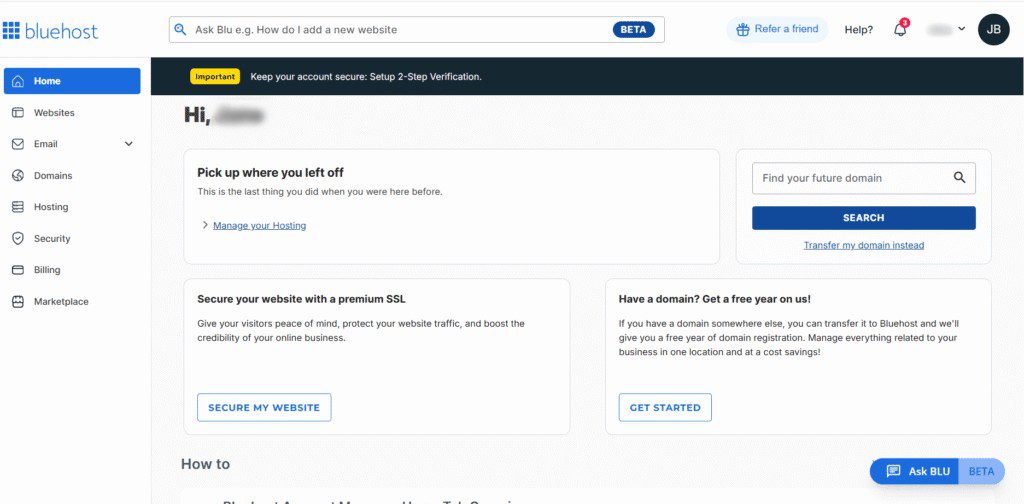
In the section Pick up where you left off, you’ll see some quick links that directly guide you to sections you most frequently visit.
Side Panel
On the left, you’ll see eight different sections: Home, Websites, Email, Domains, Hosting, Security, Billing and Marketplace.
- Home: Get a complete view of your websites and quick access to essential actions right after your account manager login.
- Websites: Manage all your sites in one place, including WordPress setup, performance tools and backups, directly inside the Bluehost Account Manager.
- Email: Create and control professional Email accounts linked to your domain for a more credible online brand.
- Domains: Register, renew and configure domains with ease so you never lose access to your online identity.
- Hosting: View your hosting plan details, expand resources and keep your websites running smoothly at all times.
- Security: Protect your website with SSL, malware scanning and enhanced security features available within My Bluehost dashboard.
- Billing: Track payments, renewals and invoices effortlessly to stay in full control of your services.
- Marketplace: Explore add-ons, WordPress themes, plugins and marketing tools that help grow your website faster.
The drop-down menu in the upper-right corner
In the upper right corner, you’ll see your username. If you click on it, a drop-down menu will open. Here’s the options you can explore:
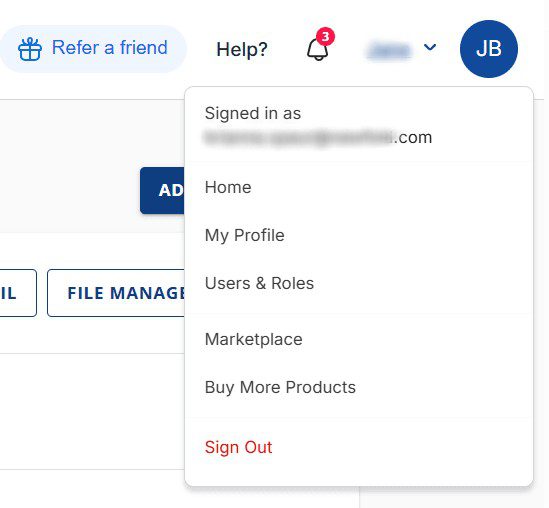
- Home: A quick link which you can use to navigate directly to the homepage.
- My Profile: Access to your profile, where you can see and edit your contact and profile information, as well as your account security, like your password and security pin.
- Users & Roles: Manage the different people who have access to various aspects of your account.
- Marketplace: Quick access to the Bluehost Marketplace, where you can find add-on products and features for your hosting plan.
- Buy More Products: One click to explore the Bluehost website, where you can explore more products suitable for your growing business.
- My Payment Methods: An overview of the payment methods you’ve added and are using. You can add new ones here!
- Order History: Get an overview of the products you’ve purchased.
- Sign out: Log out of My Bluehost Account Manager.
AskBLU
AskBLU is your built-in help assistant inside the Bluehost account manager. It offers quick answers, guided steps and support articles based on what you’re trying to do – whether it’s managing domains, fixing login issues or updating your website. Instead of searching manually, you can simply type your question and get instant guidance tailored to the tool or section you’re currently viewing.
Refer a friend
The Refer a friend section lets you share your Bluehost experience and earn rewards. You’ll get a unique referral link that you can send to friends, clients or colleagues. When they sign up using your link, they receive a discount and you get a referral bonus. It’s an easy way to support someone starting their website journey while earning perks for yourself.
Websites
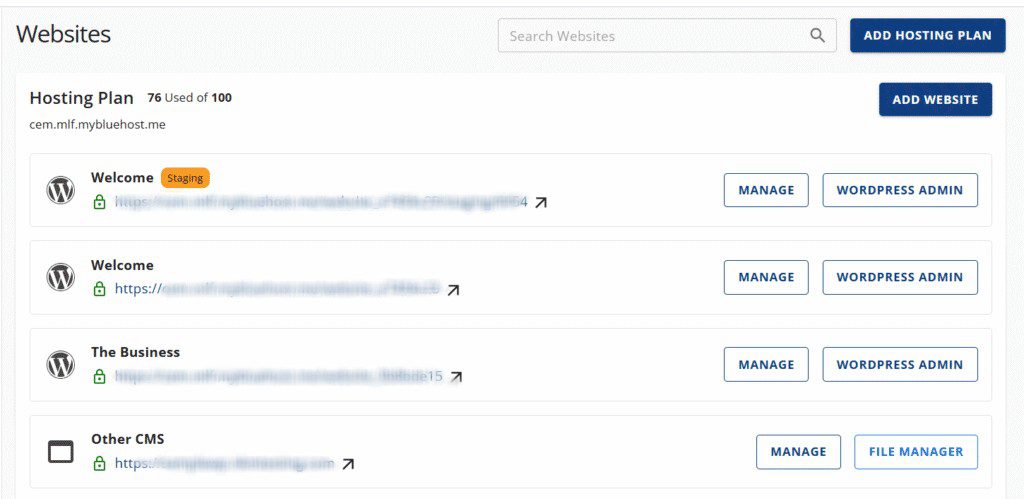
Your central hub for everything related to your websites – whether you’re managing one or many. From here, you can:
- View all your sites in one place
- Monitor performance and basic site health
- Access editing tools and site settings instantly
- Connect security, backups and analytics with ease
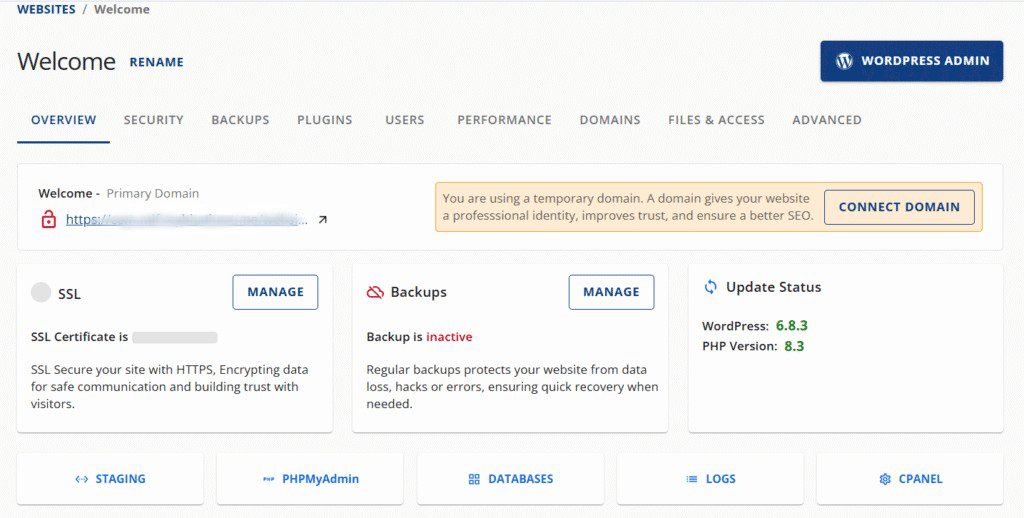
It’s designed to keep your website management simple, organized and quick.
What you can do within the Websites:
| Feature | What it helps you with |
| Manage websites | Open WordPress Admin, preview your site, track updates |
| Performance tools | Speed checks, caching controls, optimization tools |
| Security setup | SSL, malware scanning, firewall configuration |
| Backups & restore | Create scheduled backups and restore points |
| Staging | Test changes safely before publishing |
How to Add a Website?
Getting a new website live is just a few clicks:
- Go to Websites in the left panel
- Click Add Website
- Choose the setup type:
- WordPress Site – for blogs, business sites, online stores
- Custom/Manual Setup – if you already have your files or another CMS
- Follow the quick setup steps (including domain and basic settings)
- Hit Launch to go live
Tip: If you choose WordPress, your login details and editor access will appear right on your Websites dashboard – no hunting around.
Read more: How to Add a Website: WordPress or Other CMS
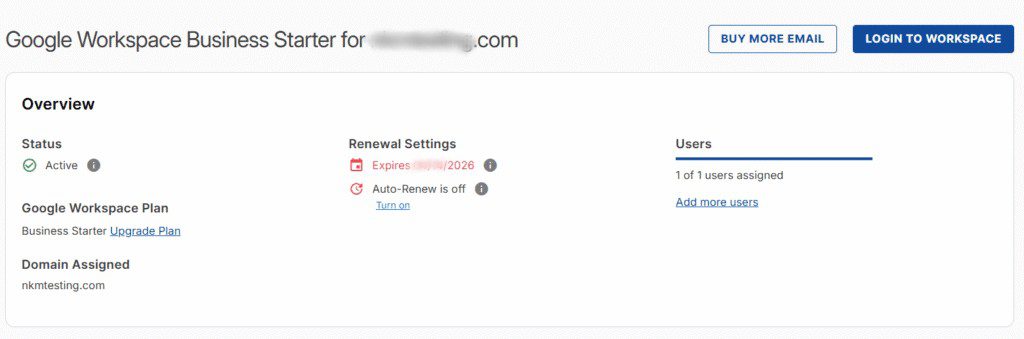
The Email tab in your Bluehost account manager centralizes all tools for managing professional, domain-based Email. You can create and manage mailboxes, monitor storage and control forwarding and spam settings – all from one convenient dashboard.
What you can do within Email:
| Feature | What it helps you with |
| Create mailboxes | Set up branded Emails like name@[yourdomain].com |
| Manage accounts | Reset passwords, storage and mailbox settings |
| Webmail access | Log in to your Email from any device |
| Integrations | Connect Email to apps like Gmail or Outlook |
| Spam & security tools | Keep inboxes safe from phishing + unwanted mail |
You can even access and manage the Google Workspace under the Email section.
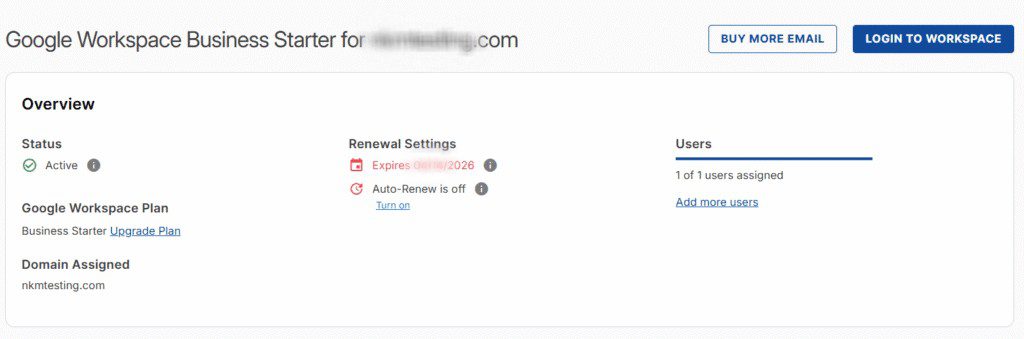
The Email tab ensures your communications stay professional, organized and secure, making it easy to manage multiple accounts efficiently.
Domains
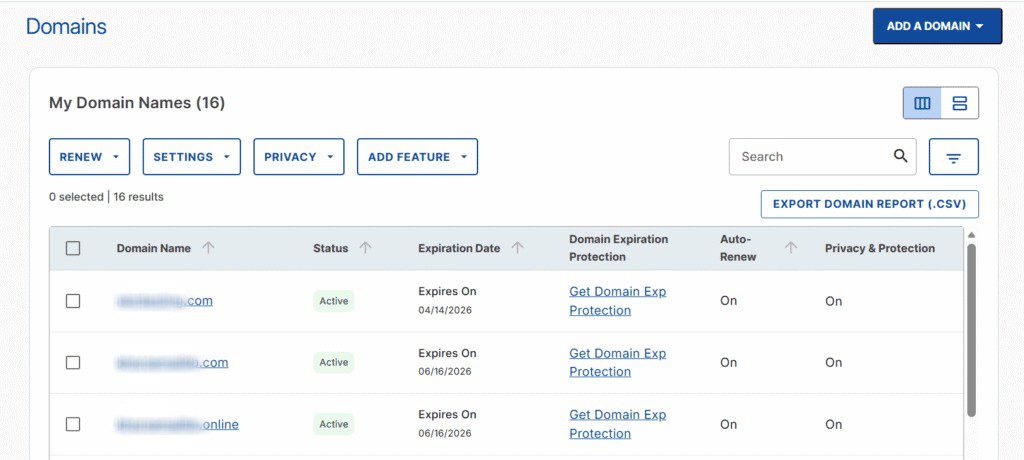
Let’s go back to the home page! Click on the Domains tab in the menu on the left to open the domain overview page. If you’ve purchased multiple domain names, they will be listed here. It will show all details like status, renewal data and whether the domain registration details are protected with Private Registration. If you want to view the details of a specific domain name, simply select it!
What you can do within Domains:
| Feature | What it helps you with |
| Register & Transfer Domains | Buy new domains or move existing ones to Bluehost |
| DNS Management | Update records, redirects and name servers quickly |
| Renewals & Expiry | Track upcoming renewal dates to avoid downtime |
| Privacy & Protection | Enable WHOIS privacy and protect your domain ownership |
| Organization Tools | Sort and filter multiple domains for easy management |
On the Domain Overview page, you’ll see the domain name you are currently managing at the top. Below, you’ll find the status of said domain name and if it’s connected to any services. In addition, you’ll find below buttons for easy navigation:
- Renew
- Settings
- Privacy
- Add Feature
Add a Domain
On the top right side, you have a tab to add a domain. Under this, you will find three options:
- Get a brand new domain: This will take you to the Bluehost website, where you can register and buy a new domain name!
- Transfer in a domain to Bluehost.com: This is where you can transfer your domain name to Bluehost’s services!
- Connect an external domain: If you already have a domain name with Bluehost, this tab helps you connect it with our hosting.
Hosting
If you click on the Hosting tab on the left, it will open the hosting overview page. If you have multiple hosting packages with Bluehost, you’ll see all of your plans and their details listed below. For more details, you can click on a plan.
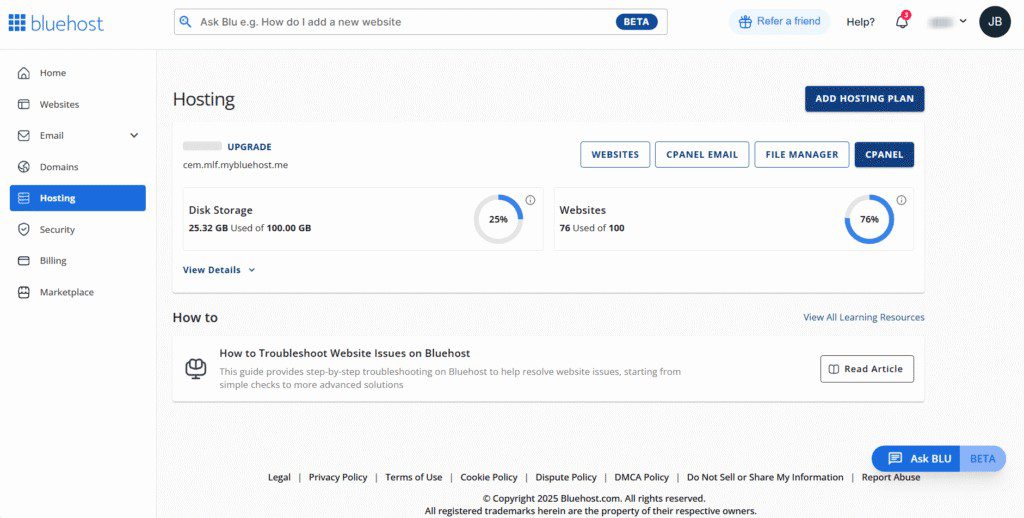
If you are viewing an individual hosting package, it will be listed at the top with additional information about your hosting plan. You’ll be able to see the following details about the plan:
- Upgrade: You can directly upgrade the hosting plan to avail additional benefits.
- Disk storage: Verify how much space is left on your disk for the current hosting plan and upgrade accordingly.
- Websites: Navigate to the websites page in one click to manage all sites under this hosting plan.
- Name servers: View and manage the name servers associated with your hosting package.
- SSH Keys: Manage secure SSH access for advanced users who need direct server-level control.
- FTP access: Create, edit or remove FTP accounts to upload and manage files with ease.
- IP address: View your hosting plan’s IP address, which is helpful for DNS, Email or technical setups.
- Data center: See the data center location associated with your hosting package for transparency on where your site is hosted.
These quick-access details ensure you always have clarity on your hosting configuration, making it simple to maintain, update and optimize your site’s performance.
Besides the above, you have buttons to directly navigate to the following pages:
- Websites
- cPanel Email
- File manager
- cPanel
You will also find a button at the top right, “Add Hosting Plan.” This will navigate you to our website, where you can explore more plans to buy or upgrade.
What you can do within Hosting:
| Feature | What it helps you with |
| View hosting plans | Check details of your active plan, including resources and limits |
| Upgrade or add services | Scale hosting or add performance and security features as needed |
| Performance tools | Access caching, CDN and optimization options to speed up your site |
| Manage server settings | Control PHP versions, databases and other technical configurations |
| Monitor resource usage | Track storage, bandwidth and traffic at a glance |
Also read: Best Windows Web Hosting 2025: Top 5 Providers Compared
Security
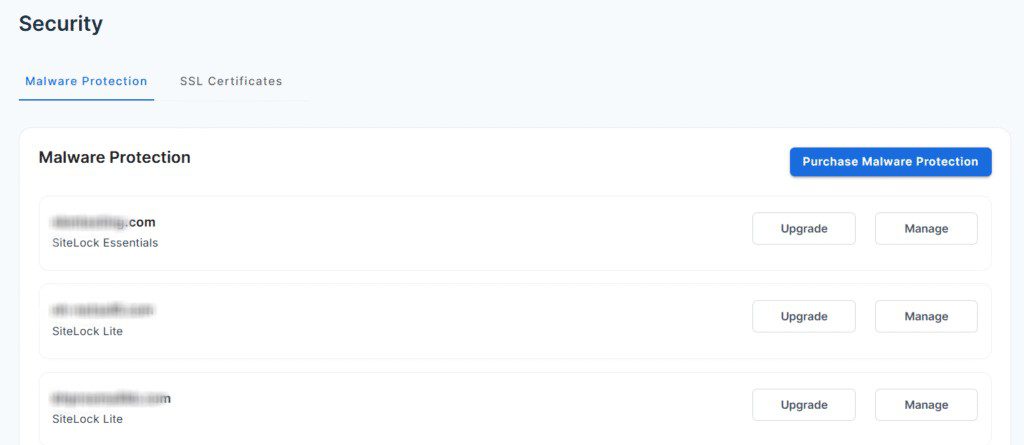
If you click on the Security tab on the left, you’ll see the security overview page.
Here, you’ll see all the security products you’ve purchased and are currently using. You’ll be able to see 2 options – Malware protection and SSL certificates.
- Malware Protection: Here, you can upgrade your protection by clicking the Upgrade button. You can even manage your Bluehost Malware Protection directly. By clicking Manage you will be redirected to the Bluehost Malware Protection dashboard.
- SSL Certificates: Here, you can manage and purchase new SSL certificates for your websites easily.
What you can do within Security:
| Feature | What it helps you with |
| SSL certificates | View or manage your free SSL, renew it or upgrade to advanced protection |
| Malware Scan & removal | Detect suspicious activity and clean your site with automated tools |
| Firewall settings | Add or configure firewalls to block threats and unauthorized access |
| Security alerts | Get notifications on vulnerabilities or tasks that need immediate action |
Billing
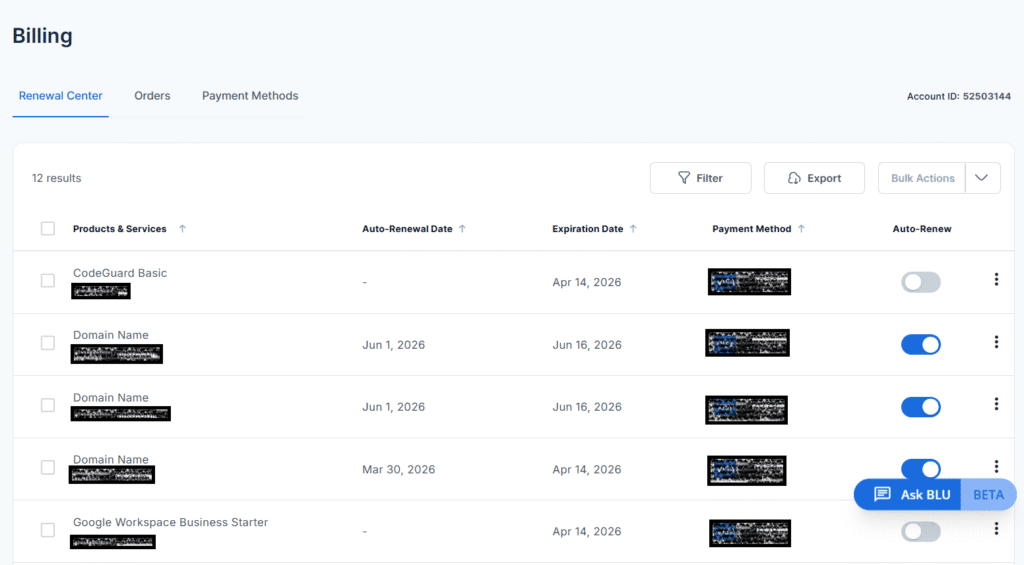
The Billing tab in your Bluehost account manager gives you a complete overview of your renewals, orders and payment methods – all organized for quick access.
Here, you’ll see your active services, renewal dates and any pending actions that may need your attention. Clear labels and quick links help you stay on top of your subscriptions without any confusion.
What you can do within Billing:
| Feature | What it helps you with |
| View invoices & payment history | Track all past transactions in one place |
| Manage renewals | See what’s renewing next and adjust settings anytime |
| Update payment methods | Add, remove or change credit card or PayPal details |
| Manage subscriptions | Review active services and modify plans if needed |
| Download receipts | Easily export invoices for business or personal records |
The Billing tab keeps your financial information organized, helping you manage renewals confidently and ensuring your website stays active without interruption.
Marketplace
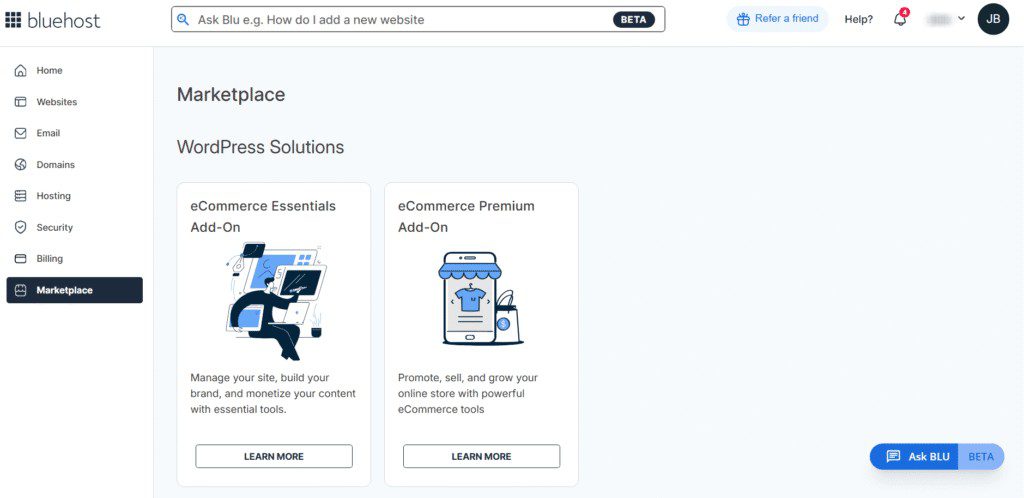
If you click on the Marketplace tab, you’ll see a page with multiple products. They are ordered per category:
- WordPress Solutions
- Domains
- Migration
- Professional Services
- Hosting
- Security
- Marketing
- eCommerce
You’ll be able to purchase amazing services in simple steps to upgrade your website instantly.
With each section of the Bluehost Account Manager designed to be clearer, faster and more intuitive, managing your online presence becomes easier than ever.
Final thoughts
The new Bluehost Account Manager puts you in the driver’s seat. Everything you need to run your online world is now clearer, faster and easier to act on. No hunting, no guesswork – just simple, streamlined tools that help you get things done.
Whether you’re updating your site, securing your domain or checking renewals, the dashboard keeps you moving with confidence. Log in, take charge and build something incredible – your upgraded Bluehost experience is ready when you are.
FAQs
What is the Bluehost Account Manager?
The Bluehost account manager is your central dashboard. A unified control panel where you manage websites, domains, hosting, security, billing, Email and more. It replaces older separate panels and brings everything under one intuitive interface.
How do I access my Bluehost account? / What are the Bluehost account login steps?
To log in, head to bluehost.com and click login. Enter your user ID (your Email, account name or domain) and password. If prompted, complete two-factor authentication. Once verified, you’re redirected to the account manager dashboard.
What happens after I log in – where do I go first?
Right after the account manager login, you’ll find the home tab. It shows recommended actions, alerts (like expiring domains) and quick-links to your most used sections, making it easy to pick up where you left off.
Will my domains, websites or hosting settings change after the update?
No – your websites, domains, hosting plans and existing settings remain intact. The redesign only simplifies how you access and manage them.
Can I still use the old dashboard view?
No – the new Account Manager replaces the old view. All features are migrated; the navigation and layout are updated permanently to offer a smoother experience.
Will my billing cycles or renewal dates change with the new Account Manager?
No – your renewal dates, billing cycles and existing payment schedules stay the same. The update only improves how you interact with billing data, renewals and invoices.
What if I forget my password or lose access to my Email?
You can use the password-reset or account-recovery options built into the login flow. If you’ve configured recovery Email or phone, these will help restore access securely.
Is it safe to log in and manage everything from one dashboard?
Yes! The new Bluehost Account Manager supports modern security standards. This includes two-factor authentication, secure password storage and robust access controls – to keep your account, websites and data safe.

Write A Comment