 ChatGPT,
 Claude,
 Gemini,
 Grok — all four for
Key highlights
- Learn how to view and further reduce disk usage in cPanel so you can quickly spot and fix what is taking up space.
- Understand what is disk usage in cPanel and what “Other usage” disk space means so you do not waste time chasing the wrong files.
- Explore how to clean disk usage in cPanel by clearing backups, logs, cache files and old emails to free up hosting storage safely.
- Know what to do when cPanel disk usage is full, including how to reduce disk usage in cPanel without breaking your site.
- Uncover how to fix cPanel disk usage incorrect issues and run cPanel recalculate disk usage so your storage numbers match reality.
Is your website feeling sluggish or throwing up errors because you’re running out of disk space? Don’t worry! This guide will walk you through effective strategies to reduce disk usage and free up valuable hosting storage, ensuring your site runs smoothly and efficiently.
We’ll explore ways to prevent disk usage issues, compare how different elements consume your storage and even show you how to automate some cleanup!
Understanding disk space
Disk space is the digital real estate on your hosting server where all your website’s files reside. This includes everything from images and videos to your website installation files, plugins, themes, databases and emails. Your Bluehost hosting File Manager can show you how your disk space is organized.
When your website approaches or hits its disk usage limit, it can lead to a host of problems, including:
- Reduced website performance: Your site might load slowly or become unresponsive as it struggles to manage temporary files and expand.
- Website malfunction: In severe cases, your website might not function correctly or load entirely.
- Inability to receive emails: If your email service is tied to your hosting, you might miss important communications.
- Problems with updates: WordPress, plugins and themes might fail to update due to insufficient space.
How to check disk usage?
Your hosting control panel provides tools to monitor your disk space usage. Here’s how to typically find this information:
- Disk Space:
- Log in to your Bluehost account and access cPanel from the hosting or advanced settings section.
- Navigate to the Files section.
- Click on Disk Usage.
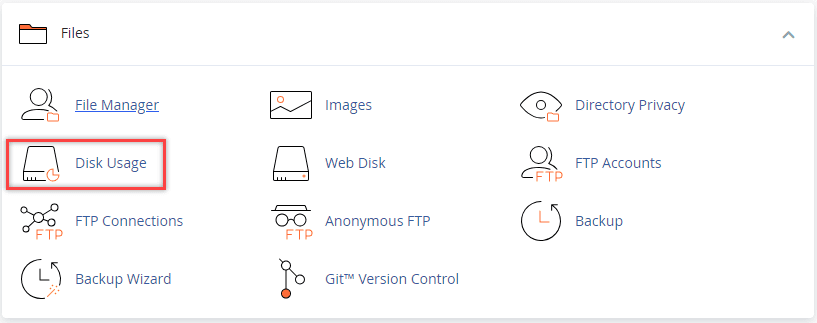
This page provides an overview of your total disk usage and how it’s distributed. For more detailed information, refer to How to View Disk Space and Bandwidth Usage.
- MySQL Databases:
- From the Disk Usage page, scroll down to the list of directories.
- Look for MySQL under the Location column and click on the corresponding link.
- This will redirect you to the MySQL Databases page. Under Current Databases, you’ll see a list of all databases associated with your account and their respective sizes. Take note of any unusually large databases. Refer to Database Limits for a detailed explanation of these limits, why they matter and how to optimize them to avoid any issues.
- Inode Usage:
- In cPanel, locate the Statistics section on the main dashboard.
- Look for the Inode Usage statistic. Inodes represent the number of files and folders on your hosting account. High inode usage can prevent new files, emails or uploads from being created and, when limits are reached, may indirectly affect site functionality. For more information, refer to Hosting Inode Limit.
Measuring and reducing disk usage in cPanel
This measurement-first approach lets you find the biggest storage wins, confirm what’s safe to remove and prioritize your cleanup efforts for maximum impact.
Always create a backup before making changes to protect your website. By understanding how to clear disk space usage in cPanel systematically, you’ll avoid the frustration of a cPanel disk usage full situation and keep your site running smoothly.
Start with the largest files first, this targeted approach helps you reduce disk space efficiently while saving time on smaller, less impactful cleanups.
How to use the cPanel disk usage tool?
The cPanel Disk Usage tool provides a visual breakdown of how your hosting storage is consumed, making it easy to identify which directories are taking up the most space. This tool is essential when your cPanel disk usage is full and you need to reduce disk space quickly.
- Access the tool: Log into cPanel and click “Disk Usage” under the Files section.
- Review the folder tree: You’ll see a hierarchical view showing directories with their sizes in MB or GB.
- Drill down into large directories: Click on folder names to explore subdirectories and identify specific files consuming space.
- Spot common space hogs: Look for oversized backup folders, cache directories, log files, uploaded media in wp-content/uploads and email storage in mail folders.
- Interpret the results: Directories over 100MB typically warrant investigation, especially if they contain old backups or temporary files.
Pro tip: Before you delete anything, always confirm a file’s purpose, create a backup of important data and check file dates to avoid removing recent or active content.
Examine disk space usage by file and directory
Once you identify which areas consume the most storage, drill down into individual directories to understand specific patterns driving your disk usage. Look for single oversized files like uncompressed videos or database exports that may have been forgotten, versus thousands of small files accumulating in cache or temporary folders.
Pay attention to dated archives, duplicate uploads in your media library and old backup files stored locally rather than offsite. Start with the largest folders first, removing one 2GB backup file has more immediate impact than deleting hundreds of small cache files.
Before removing anything, create a simple list documenting what you plan to delete and when each file was last modified. This safety check prevents accidentally removing active files and gives you a recovery path if needed.
Focus on obvious wins like outdated backups, redundant media files and clearly labeled temporary directories, rather than diving into system folders you’re unsure about.
How to reduce disk usage?
Now, let’s get to the actionable steps you can take to free up space and optimize your hosting:
- Delete unnecessary files and folders:
- Regularly review your File Manager and remove any files or folders no longer essential to your website. This includes old backups you’ve already downloaded, temporary files, or unused installation packages.
- Remove unused CMS installations:
- If you have multiple WordPress installations (e.g., for testing or staging), delete those you no longer need. Each installation consumes significant disk space.
- Optimize and manage WordPress backups:
- While backup plugins are convenient, storing numerous backups on your hosting account can quickly consume disk space.
- Cloud storage services (Google Drive, Dropbox, Amazon S3, etc.)Your local computer or an external hard drive.
- Comparison point: Consider that a full website backup can easily range from a few hundred megabytes to several gigabytes, depending on your media library and database size. Regularly review and delete older, redundant backups from your server after you’ve stored them externally.
Also read: Identify WordPress Themes
5. Deactivate and delete inactive WordPress plugins and themes:
- Over time, you might accumulate plugins and themes you no longer use. These files still occupy disk space.
- Go to your WordPress admin dashboard, deactivate it and then delete any plugins and themes that are not currently active on your site. You can always reinstall them later if needed. For detailed instructions, see How to Disable/Delete Themes and Plugins in WordPress.
6. Optimize your WordPress media library:
- Your media library (images, videos, audio files) can significantly contribute to disk usage.
- Review and remove unused media: Regularly review your media library and delete any images or files no longer used in your posts or pages.
- Image optimization: Before uploading new images, optimize them for web use to reduce their file size without significantly losing quality. Consider using WordPress image optimization plugins that automatically compress images upon upload.
- Video hosting: For larger video files, consider hosting them on dedicated video platforms like YouTube or Vimeo and embedding them on your site. This can significantly reduce your hosting disk usage.
7. Clean up WordPress transients:
- Transients are temporary data stored by WordPress and some plugins. Sometimes, these can become orphaned or bloated, consuming unnecessary disk space.
- You can use plugins to manage and clear out these transients.
8. Manage WordPress revisions:
- WordPress automatically saves multiple revisions of your posts and pages as you edit. While helpful, these revisions can accumulate over time and increase your database size.
- You can limit the number of revisions WordPress stores by adding a line to your
wp-config.phpfile:
Also read: Best Practices for Keeping Data Usage Low
9. Delete unused email folders:
- If you’re using webmail provided by your hosting, your email folders, especially junk/spam and trash, can contribute to high inode usage and disk space consumption. Regularly clean out these folders.
- Consider professional email: For more robust email management and to avoid impacting your hosting inodes, consider switching to professional email services like Bluehost Professional Email or Google Workspace, as these typically don’t utilize inodes in your File Manager.
How to optimize hosting account space?
Optimize media uploads before publishing by compressing images and avoiding oversized files. Remove unused installations and deactivated plugins promptly. Monitor email storage by regularly clearing old messages and attachments from your hosting-based email accounts.
Final thoughts
And if your numbers look off, fixing cPanel disk usage incorrect and running cPanel recalculate disk usage can bring your totals back in line.
The key is to make cleanup a routine, not a one-time fix. When you regularly check cPanel disk usage, clear out clutter and stay on top of logs, media files and email storage, you’ll avoid cPanel disk usage full warnings and keep your hosting account running smoothly with room to grow.
FAQs
Yes, to some extent. Many WordPress optimization plugins offer features to automatically clean up transients, database revisions and even schedule database optimization. However, be cautious when automating file deletion and ensure you understand the plugin’s settings.
Yes, plugins offer features like scheduled database optimization, transient cleaning and sometimes even image optimization. Always research and choose reputable plugins.
The frequency depends on how often you update your site, upload media and install/uninstall plugins. For active sites, a regular check-up every month or two is recommended.
Incorrectly configured automation settings could lead to the accidental deletion of important data. Always back up your website before implementing automated cleanup processes and review the plugin’s documentation carefully.
Many database optimization plugins allow you to schedule regular database optimization, which can help reduce its size over time.

Write A Comment