 ChatGPT,
 Claude,
 Gemini,
 Grok — all four for
Key highlights
- Understand why your WordPress site shows blank pages, often caused by plugin conflicts, exhausted PHP memory or script errors.
- Learn 9 proven fixes to resolve WordPress blank pages, including isolating plugins, checking themes and enabling debug logs.
- Discover prevention strategies to avoid future downtime with staging environments, regular backups and safe update practices.
- Master systematic troubleshooting from fastest fixes like plugin isolation and cache purge to deeper solutions like debug logs.
- Know when to restore from backup when time is critical and stop troubleshooting to contact professional support instead.
A blank white page in WordPress can appear suddenly with no visible error message. Your website, WordPress admin area or a specific page may stop displaying even though the site was working moments earlier.
This problem is commonly called the WordPress White Screen of Death (WSoD). In many cases, you can fix it by first checking whether the issue affects one or multiple sites. Then troubleshoot plugins, your active theme, cache, PHP memory and compatibility, debug logs, file permissions and WordPress core files. If the problem persists, restore a recent clean backup.
In this guide, you’ll learn what causes a blank page in WordPress and nine troubleshooting methods to restore your site safely.
TL; DR: Causes and fixes of WordPress White Screen of Death
Here’s a quick look at the most common WordPress blank-page scenarios, what they usually mean and the fastest fix to try first.
| Scenario | What it means | Fastest fix |
| Blank white page on entire site | Plugin conflict or fatal PHP error | Disable all plugins and reload |
| White screen only in wp-admin | Admin-specific plugin or theme issue | Disable plugins via FTP or File Manager |
| White screen after update | Failed or incompatible update | Reinstall or roll back the update |
| WordPress white screen after migration | Server, PHP or compatibility mismatch | Check PHP version and permissions |
| Blank page on specific post/page | PHP memory exhausted | Check PHP and WordPress memory limits |
These quick fixes can help narrow down the likely cause, but the exact solution depends on where the blank page appears and what changed before it happened.
Next, let’s look at what the WordPress White Screen of Death is and why it occurs in detail.
What is the WordPress White Screen of Death? (Blank white page in WordPress explained)
The WordPress White Screen of Death is an error where WordPress cannot complete a page request, leaving you with a completely blank page instead of your website or dashboard. A fatal PHP error is a common cause. In some cases, WordPress may display a critical error message or activate Recovery Mode instead of showing a completely blank screen.
What does the White Screen of Death look like in WordPress?
Common appearances include:
- A completely blank white page on the homepage
- A blank page only in wp-admin
- The dashboard partially loads and then stops
- A specific post, page or editor fails to load
- A white screen appears after a migration or update
Important: Not every white page is a true WSoD. Sometimes the page loads but its content is invisible because of CSS or theme styling, such as white text on a white background.
Why does the WordPress White Screen of Death occur?
WSoD usually occurs when WordPress hits a blocking error and cannot continue executing. The root cause is commonly related to plugins, themes, PHP limits, corrupt updates or server configuration.
1. Plugin conflicts
Plugins can conflict with each other, your theme or your PHP version. A single incompatible plugin or update can cause a blank page across your website or only on specific WordPress admin screens.
2. Theme-related issues
A faulty theme update, broken template file or incompatible custom code can trigger a white screen on the frontend, WordPress dashboard or both.
3. PHP Memory limit exhausted
When PHP runs out of available memory, WordPress may stop processing the request. This can happen on resource-heavy pages, complex page builders or processes that require more memory.
If you see a white screen or blank page on shared hosting, check whether your site has reached its available PHP memory or another server-level resource limit. Increasing the WordPress memory value cannot override the maximum configured by your hosting provider.
4. Syntax errors in code
A missing semicolon, unmatched bracket or accidental change to a PHP file can immediately make WordPress stop loading. These types of syntax errors in code often happen after editing functions.php or adding custom code snippets.
5. Failed WordPress core, theme or plugin updates
If an update times out or stops before completing, some files may be left incomplete or mismatched. An update can also introduce compatibility issues between WordPress, your plugins, theme and PHP version. Both situations can result in a blank page immediately after an update.
6. File permission & server configuration issues
Incorrect file permissions, ownership problems, security rules, PHP version mismatches or missing PHP extensions can also prevent WordPress from loading correctly. These server-level differences are especially worth checking after migrating a website to a new hosting environment.
Identifying the likely cause makes it easier to choose the right fix instead of changing multiple settings at once.
With these common causes in mind, here’s how to troubleshoot and fix the WordPress White Screen of Death.
How to fix the WordPress White Screen of Death: Step-by-step guide
Start with the least invasive checks first, then move to plugins, themes, PHP, debugging and file-level fixes. If possible, back up your WordPress website before changing files or configuration settings.
Before you begin, check the email address associated with your WordPress administrator account. If WordPress detected a fatal PHP error, it may send a Recovery Mode link that lets you access the dashboard and troubleshoot the affected plugin or theme without editing files manually.
Method 1: Check if the issue affects other sites
If you host multiple WordPress sites on the same account:
- Check whether the blank page affects only one website.
- If a white screen or blank page affects multiple sites on the same account, check for hosting-level issues such as PHP problems, resource limits, disk space or server availability before changing individual WordPress files.
Also test:
- Open your site in a private incognito window.
- Try a different device and network.
- Check a server status page (if available) or contact hosting support if the server appears unstable.
Method 2: Disable all WordPress plugins
Plugin conflicts are one of the most common causes of a blank white page in WordPress. Disable your plugins, check whether the site loads and then re-enable them one at a time to identify the plugin causing the problem.
If you can still access wp-admin:
- Go to Plugins > Installed Plugins.
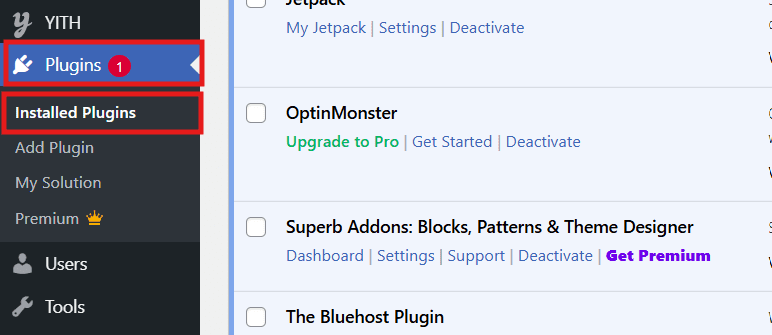
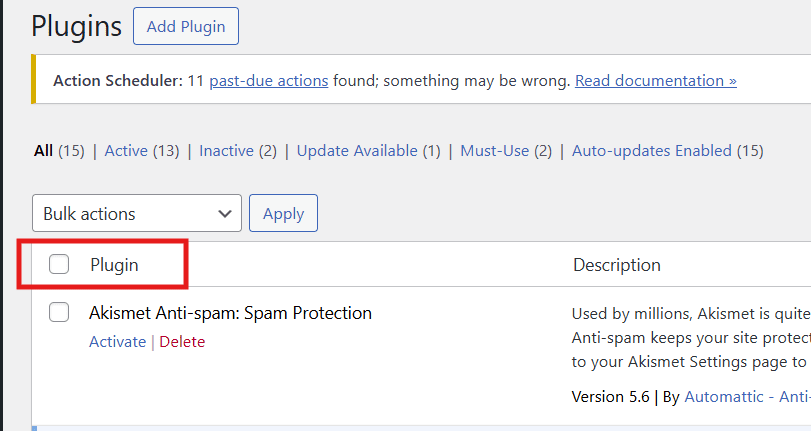
2. Select all plugins.
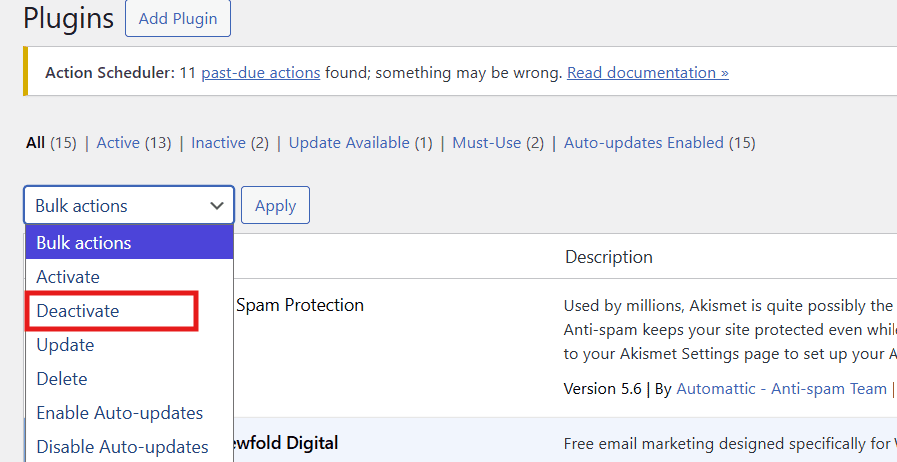
3. Choose Deactivate from the bulk actions dropdown.
4. Reload the page that was blank.
If the blank page disappears after deactivation, re-enable plugins one at a time and test the affected page after each activation. When the problem returns, the last plugin you activated is likely involved.
Disable plugins via FTP or file manager
If your WordPress admin area is blank and you cannot log in, you can access your website files through FTP or Bluehost File Manager.
For Bluehost File Manager:
1. Log in to your Bluehost Portal.
2. Click Hosting in the left-hand menu.
3. On the hosting details page, click File Manager.
4. Navigate to your website’s /wp-content directory.
5. Rename the plugins folder to plugins.disabled.
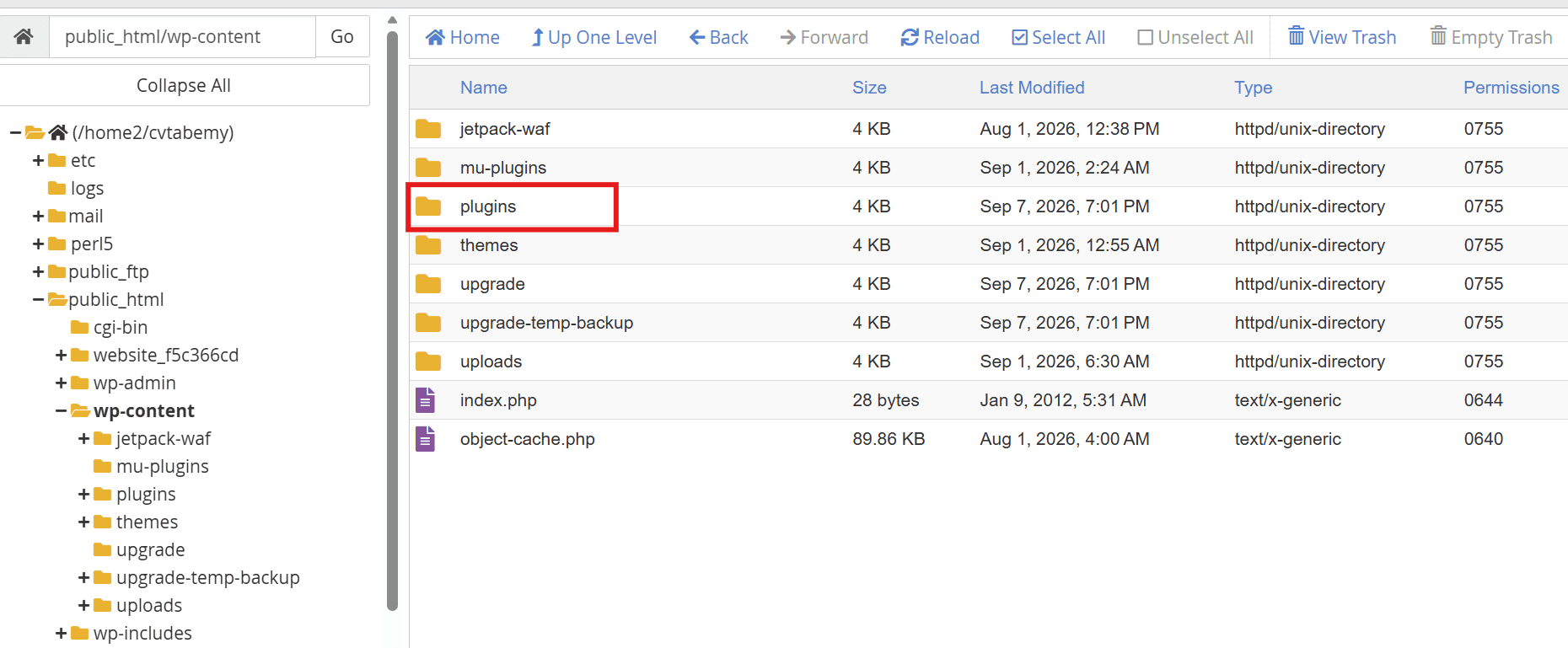
6. Reload your website.
If the site loads, rename the folder back to plugins, then go into it and rename individual plugin folders (for example plugin-name to plugin-name.off) to isolate the plugin causing the issue.
Method 3: Switch to a default WordPress theme
If disabling plugins does not help, your active theme may be causing the error. Switch temporarily to a default WordPress theme, such as Twenty Twenty-Five, and test the site again.
If you can access wp-admin, change the theme in Appearance > Themes.
If you cannot access wp-admin:
- Use FTP or File Manager to locate your active theme inside /wp-content/themes.
- Rename the active theme folder, for example theme-name to theme-name.disabled.
- If an available default theme is installed, WordPress should attempt to use it instead.
If the site loads after switching, the theme likely contains an incompatible template, function or builder integration. At that point, update the theme, roll back to a previous version or contact the theme developer with your error log.
Method 4: Clear WordPress and browser cache
Sometimes WordPress itself is working, but cached files continue serving a broken or outdated response. Clearing the available cache layers helps rule this out before you change site files.
1. Clear browser cache
Perform a hard refresh to bypass the cached version of the page, then check the site again. You can also open the site in an incognito or private browsing window to rule out a browser cache issue.
2. Clear cache via hosting panel
Many hosts provide server-level caching. Purge or disable it temporarily, then retest your homepage and wp-admin.
3. Clear cache using caching plugins
If you use a caching plugin and can access wp-admin, purge all caches. If you cannot access wp-admin, temporarily disable the caching plugin using the same folder-renaming approach used for plugins.
Method 5: Increase WordPress & PHP memory limit
Memory exhaustion can cause WordPress to stop processing a page request. Increasing the available memory may resolve the blank page if memory is actually the cause, but you should still identify what consumed the extra resources, such as a plugin, page builder, import process or scheduled task.
1. Increase memory limit via wp-config.php
Add or update the following line in wp-config.php above the “stop editing” line:
define('WP_MEMORY_LIMIT', '256M');Keep in mind that WP_MEMORY_LIMIT cannot override the PHP memory limit configured by your hosting environment.
2. Check your PHP memory limit
The way you change PHP limits depends on your hosting environment. You may be able to update memory_limit through php.ini or your hosting control panel.
On Bluehost Shared Hosting, the PHP memory_limit has a server-level maximum of 256M. If your account has already reached the maximum, setting a higher WordPress value will not provide additional memory.
If you are unsure which limits apply to your hosting plan, check your PHP configuration or contact your hosting provider before changing server settings.
3. Check your PHP version and compatibility
If the blank page appeared after an update, migration or PHP change, confirm that your active PHP version is compatible with your WordPress version, theme and plugins. If the issue started immediately after changing PHP versions, switch to a supported version and test the site again.
4. When memory issues occur for long articles
If the blank screen happens when editing a large post, reduce editor load by:
- Disabling heavy editor add-ons temporarily
- Splitting extremely long posts into sections or multiple posts
- Reducing excessive embedded blocks, large tables or massive galleries
Method 6: Enable WordPress debug mode
If the page is blank with no visible error, WordPress debugging can help identify the plugin, theme, file or function causing the failure.
1. How to enable WP_DEBUG
In wp-config.php, set:

define('WP_DEBUG', true);
To log errors (recommended), also add:
define('WP_DEBUG_LOG', true);
define('WP_DEBUG_DISPLAY', false);
Then reproduce the issue and check /wp-content/debug.log.
2. Understanding debug error messages
Common messages and what they usually mean:
- “Allowed memory size exhausted”: Check memory usage and investigate resource-heavy plugins or processes.
- “Call to undefined function…”: Check for a PHP, WordPress or plugin compatibility mismatch.
- “Syntax error, unexpected…”: a code typo in a theme file you edited or that updated incorrectly.
- “Failed to open stream”: missing files, wrong paths or permission problems (Methods 7–8).
Pro tip: Turn off debug mode after fixing
After resolving the issue, disable debugging to avoid exposing file paths and to keep logs from growing indefinitely:
define('WP_DEBUG', false);Method 7: Check file permissions
Incorrect file permissions can prevent WordPress from reading the files it needs to load a page. As a common baseline, many hosting environments use:
- Folders: 755
- Files: 644
If permissions changed during a migration, review both permissions and file ownership. Incorrect ownership can also prevent WordPress or PHP from accessing required files.
Method 8: Fix a WordPress blank page after an update or repair corrupt core files
If the WordPress blank page started immediately after an update, first consider whether the update failed or introduced a compatibility issue. Check the affected plugin or theme and your PHP version. If those are compatible, incomplete or corrupted WordPress files may be the cause.
1. Re-Upload WordPress core files
Re-uploading clean core files replaces corrupted files without touching your content:
- Download a fresh copy of WordPress from the official source.
- Extract it locally.
- Upload and replace
wp-adminandwp-includeson your server.
Do not overwrite wp-content or wp-config.php.
2. Restore missing or corrupted files
If your debug log shows missing files in a plugin or theme:
- Reinstall the affected plugin from a trusted source.
- Replace only that plugin folder to avoid losing configuration files.
- Confirm compatibility with your WordPress and PHP versions.
Method 9: Restore your WordPress site from backup
If you need to restore your website quickly, returning to a recent clean backup may be more practical than continuing to troubleshoot the live site. Consider restoring when:
- You cannot access wp-admin or FTP comfortably
- The error began after multiple changes (update + migration + new plugin)
- Core files and the database may be out of sync
Best practice is to restore to a point before the blank screen started, then re-apply changes carefully, ideally on a WordPress staging site first.
Special case: White Screen of Death in WordPress admin only
When the frontend loads but the dashboard is blank, focus on admin-specific triggers:
- Plugin conflict affecting admin screens: disable plugins via FTP (Method 2).
- Theme functions impacting wp-admin: switch to a default theme (Method 3).
- Browser-related issues: clear cache, disable extensions, test another browser (Method 4).
- Fatal error limited to admin routes: enable debug and inspect debug.log (Method 6).
If the page is not completely blank but appears white or unreadable, check whether a CSS or theme styling issue is hiding the content. White text on a white background, an admin color setting or a stylesheet that failed to load can look similar to WSoD without being a PHP failure.
How to prevent the WordPress White Screen of Death in the future?
You cannot prevent every WordPress error, but careful updates, staging, backups and monitoring can reduce the likelihood of a blank page and make recovery easier when something goes wrong.
1. Keep plugins, themes and core updated safely
Keep WordPress core, themes and plugins updated, but make changes carefully. Update one component at a time so it is easier to identify the cause if something breaks. Check changelogs for compatibility issues and remove unused plugins to reduce potential conflicts and security risks.
2. Test changes on a staging site
A staging environment lets you validate updates, new plugins and code snippets without risking production. This is one of the most effective ways to avoid a WordPress blank site event after a major change.
3. Use reliable hosting and server monitoring
Some blank-page incidents can be related to hosting-level conditions such as PHP resource limits, disk space or security rules. Monitoring resource usage and server errors can help you identify patterns, especially during traffic spikes or scheduled processes.
4. Maintain regular backups and security scans
Schedule automated backups and keep multiple restore points so you can recover your website if an update or configuration change causes problems. Make sure to store backups off-site when possible. Run regular malware scans and secure administrator accounts with strong passwords and appropriate user permissions.
Migration note: If you move a WordPress site, verify the PHP version, required PHP extensions, file permissions and site URLs after the migration. Differences between the old and new server environments can expose compatibility problems that were not visible previously.
These preventive practices can reduce the risk of future blank-page issues, but your hosting environment also affects how easily you can investigate and recover when problems occur.
How Bluehost helps troubleshoot WordPress blank pages
If your site is still showing a blank page after trying the fixes above, we can help. If your site is hosted with Bluehost, use the following options to troubleshoot the issue.
- Access key settings easily: Your Bluehost account brings website files, PHP settings and other hosting controls together in one place. This helps you quickly find and review the settings you may need while troubleshooting.
- Use troubleshooting resources: Our Help Center guides walk you through common WordPress and hosting issues, helping you identify possible causes and try relevant fixes faster.
- Get help from our support team: Our team can assist with supported WordPress and hosting-related issues, including plugins, themes, PHP settings and site access. This can help you narrow down the possible cause and identify the right troubleshooting step.
Together, these resources make it easier to investigate the issue and get your WordPress site back on track. If your site is hosted somewhere else, check out the provider’s support resources for further steps.
If you are looking to switch to Bluehost, we offer free migration of eligible WordPress sites with 24/7 support. Explore Bluehost WordPress hosting plans.
Final thoughts
A blank white page in WordPress or the White Screen of Death can interrupt your site, but having the right hosting environment can make troubleshooting, recovery and ongoing site management easier.
Bluehost WordPress Hosting gives you the tools and support to manage your WordPress site with more confidence when issues arise. With managed WordPress updates, staging, backups and built-in security tools, Bluehost helps reduce the day-to-day work of maintaining your site.
Looking for a WordPress setup built to support easier site management, testing and recovery? Explore Bluehost WordPress Hosting.
FAQs
It can be. WSoD itself is a symptom, not a cause. The underlying issue might be a harmless plugin conflict, but it could also indicate corrupted files, failed updates or (in rare cases) malicious code. Treat it as urgent: restore access, check logs and verify file integrity and security.
A white screen or blank page on shared hosting can result from PHP memory or resource limits, server configuration, security rules or a WordPress plugin, theme or code error. Check your error logs and whether other sites on the account are affected to narrow down the cause.
No. Memory increases help when logs show memory exhaustion, but they will not fix syntax errors, broken updates, incompatible plugins or permission issues. Use debugging (WP_DEBUG) to confirm the real cause rather than relying on memory as a universal solution.
It depends on the cause. Cache, plugin and theme conflicts may be resolved once you isolate the affected component, while corrupt updates, migration issues, PHP incompatibility, permissions or server configuration problems may require deeper troubleshooting. A recent clean backup can provide a faster recovery path when needed.

Write A Comment