 ChatGPT,
 Claude,
 Gemini,
 Grok — all four for
Key highlights
- Learn how XML-RPC enables remote publishing, mobile app integration and automated tasks.
- Discover use cases like Jetpack and mobile editing that require XML-RPC access.
- Follow clear instructions to activate XML-RPC without exposing your site to threats.
- Use firewalls, plugins and access rules to defend against brute-force and DDoS attacks.
- Take advantage of 1-click WordPress setup, built-in security and 24/7 expert support.
Need to connect your WordPress site with external apps or manage it remotely? That’s where WordPress XML-RPC comes in. This powerful but often overlooked feature lets you publish content and run commands remotely. It also allows you to integrate services like Jetpack or mobile apps without logging into your dashboard.
While many users focus on disabling XML-RPC for security reasons, there are legitimate cases where enabling it is essential. In this guide, we’ll explain what XML-RPC is and when it makes sense to use it. We’ll also show you how to enable it safely, especially if your site is hosted with a secure, WordPress-optimized provider. Ready to unlock remote publishing power without compromising security?
Let’s get started.
What is XML-RPC in WordPress?
XML-RPC (XML Remote Procedure Call) is a protocol that lets your WordPress site communicate with external applications and services.
In simple terms, it allows you to:
- Publish posts and upload media remotely.
- Run commands without logging into the WordPress dashboard.
- Connect third-party tools and services to your site.
How it works
- The XMLRPC.PHP file acts as a gateway for remote requests.
- External apps send commands to this file.
- WordPress processes those requests securely in the background.
Common use cases
- Publishing content from mobile apps
- Using desktop publishing tools like Windows Live Writer
- Running automated content workflows
- Powering services like Jetpack for backups, security monitoring, and social sharing
Modern alternatives
- Many integrations now use the WordPress REST API for better security and flexibility.
- XML-RPC is still useful for older tools or services that depend on it.
Now that you know what XML-RPC does, the next question is: do you actually need it enabled on your site? Let’s look at some common scenarios.
When should you enable XML-RPC?
You should enable XML-RPC on your WordPress site only when you have a specific need for remote access functionality. This feature creates a connection point that allows external applications and services to communicate with your website. But it’s not necessary for most standard WordPress operations.
The most common scenarios where you’ll need XML-RPC enabled include:
- Using Jetpack plugin: Jetpack requires XML-RPC to connect with WordPress.com services for features like site stats, security scanning and automated backups
- Publishing from mobile apps: The official WordPress mobile app and other publishing apps need XML-RPC to post content remotely
- Remote content management: If you publish content using desktop clients or automated posting tools
- Legacy integrations: Some older plugins or third-party services may still rely on XML-RPC connections
If you’re not using any of these features, it’s better to keep XML-RPC disabled for security reasons. Most modern WordPress integrations now use the REST API instead, which offers better security and functionality.
Only enable XML-RPC when you have a clear need for it and consider disabling it again if your requirements change. This approach helps minimize your site’s attack surface while ensuring you can still use the tools and services that matter to your workflow.
If one of those use cases applies to you, the next step is to find out whether XML-RPC is currently active on your site.
How to check if XML-RPC is enabled?
Checking whether XML-RPC is enabled on your WordPress site is straightforward and can be done using several reliable methods. The most common approach involves testing the xmlrpc.php endpoint directly, while additional verification methods help confirm the status across different scenarios.
- Test the XMLRPC.PHP endpoint directly: Visit [yourdomain].com/xmlrpc.php in your browser. If XML-RPC is enabled, you’ll typically see a simple message indicating the service is available. If disabled by security plugins or server configurations, you may encounter a 403 error or blocked access message.
- Use online XML-RPC testing tools: Reputable tools like XML-RPC validators can test your endpoint remotely and provide detailed status reports about functionality and available methods.
- Look for common blocking indicators: Security plugins often display admin notices when XML-RPC is disabled. Firewall rules may block requests or you might notice that WordPress mobile apps and external integrations stop working properly.
- Check your WordPress admin settings: Navigate to Settings > Writing in your dashboard. Then, look for Remote Publishing options, though this section only appears if XML-RPC has been manually disabled.
Safety reminder: When using online testing tools, avoid sharing your full site URL publicly or including any login credentials. Stick to reputable testing services and consider testing from a staging environment first to protect your live site’s security.
Logging into the WordPress Dashboard
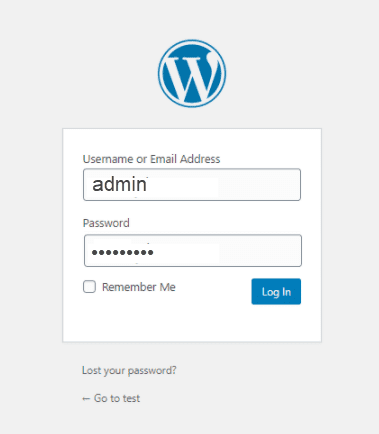
- Log in to your WordPress Dashboard. Add wp-admin to the end of the URL to visit the log in page.
e.g., http://example.com/wp-admin. - Enter the Admin Username or Email Address.
- Enter the Admin Password.
- Click the Log in button.
Enabling XML-RPC
XML-RPC functionality is turned on by default. If it’s not enabled, you may follow these steps:
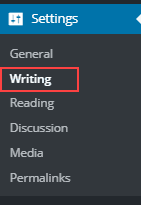
1.Click the Settings tab from the side navigation menu to the left.
2. Click the Writing from the sub-menu.
3. Locate the Remote Publishing section, put a check in the checkbox, and then click the Save Changes button.
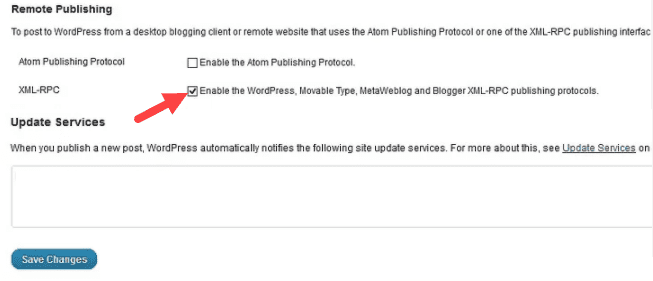
Important: If you do not see this option in the Settings for Remote Publishing on your site, it means that Remote Publishing is enabled by default. If you do not intend to use that feature, you will first need to install a Disable XML-RPC plugin.
Pro Tip: If you want to customize or modify the XML-RPC in your dashboard, then check the article, WordPress XML-RPC. Here, you will be able to find a plugin that works for you. In order to install a WordPress plugin, see the tutorial at WordPress: Installing Plugins.
Enabling XML-RPC is just part of the process. Now let’s talk about how to keep your site safe while using this feature.
How to use XML-RPC securely?
While XML-RPC enables powerful remote functionality, implementing proper security measures protects your site from common vulnerabilities like brute-force login attempts and potential amplification attacks used in DDoS scenarios.
- Restrict access at the network level: Configure firewall or Web Application Firewall (WAF) rules to limit XML-RPC access to specific IP addresses when possible or block unnecessary methods you don’t actively use.
- Monitor login activity: Set up monitoring for repeated failed login attempts and implement rate limiting to prevent brute-force attacks targeting your XML-RPC endpoint.
- Enable two-factor authentication: Use 2FA and application-specific passwords for any remote publishing tools to add an extra security layer beyond standard username/password combinations.
- Limit XML-RPC methods: Install security plugins that allow you to disable specific XML-RPC methods you don’t need while keeping essential functionality active.
- Choose managed security options: Work with hosting providers that offer built-in XML-RPC protection and automated security monitoring as part of their hosting environment.
For the most comprehensive protection, consider a secure WordPress hosting environment with expert support and built-in security protections. Professional hosting providers offer 24/7 monitoring and reliable security measures that automatically handle many XML-RPC security concerns. This allows you to focus on growing your site rather than managing technical security details.
Still unsure if XML-RPC is worth enabling for your needs? Let’s explore why many users leave it disabled – and which modern alternatives may work better.
Why do most users not need it (and safer alternatives)?
Most WordPress sites today can safely keep XML-RPC disabled without losing functionality. Modern WordPress features and most third-party integrations now use the more secure REST API instead of XML-RPC.
Popular alternatives include publishing directly from the WordPress admin dashboard and using native scheduling features for automated posts. You can also leverage official integrations like Jetpack, which work seamlessly with WordPress.
Reliable, secure hosting solutions often provide built-in tools that eliminate the need for remote publishing through XML-RPC. Content creators and businesses can continue using REST API–based applications and integrated marketing tools. This allows them to manage content efficiently without exposing their sites to potential security risks.
What to do next: First, check if you actually need XML-RPC by reviewing your current tools and plugins. If you don’t use remote publishing apps or legacy integrations, keep it disabled. If you must enable it, implement proper security measures and monitor your site regularly.
If you do need XML-RPC enabled, the right hosting provider can make a huge difference in balancing functionality and protection. Here’s how Bluehost can help.
Bluehost: Secure WordPress hosting with XML-RPC support
Running WordPress features like XML-RPC requires a hosting provider that delivers both flexibility and strong security. Bluehost makes it easy to enable and manage XML-RPC with built-in tools, support and safeguards:
- 1-Click WordPress setup
- Instantly launch your WordPress site with just one click.
- XML-RPC and other core features are automatically configured.
- Eliminates the need for manual installation or setup errors.
Bluehost’s WordPress hosting interface simplifies site setup while supporting advanced features like XML-RPC right out of the box.
2. Jetpack integration ready
- Ensure full compatibility with Jetpack, which relies on XML-RPC for remote services.
- Use features like automated backups, performance monitoring and security scanning without connection issues.
- Simplify setup with no advanced configuration required – just activate and go.
Also read: Jetpack Account Setup: Account Creation, Purchase and More
- 24/7 Expert support
- Get help enabling XML-RPC or troubleshooting access problems anytime.
- Connect with Bluehost’s WordPress-trained support team via chat or phone.
- Resolve issues related to firewall rules, plugin conflicts, or .htaccess adjustments.
3. Built-in firewall & brute-force protection
- Protect your site with server-level security that automatically blocks XML-RPC attacks..
- Helps mitigate common threats like brute-force login attempts and DDoS amplification.
- Keeps your site secure even when XML-RPC is enabled.
Pro tip: Enabling XML-RPC doesn’t have to compromise your site’s security – especially when your host is already built to defend against vulnerabilities.
Final thoughts
Enabling XML-RPC can be essential for features like Jetpack, mobile publishing and remote content management. But to keep your site secure, you need a hosting provider that’s built for both flexibility and protection.
Bluehost makes it easy to manage advanced WordPress features with:
- 1-click WordPress installation
- Seamless Jetpack integration
- Built-in firewall and brute-force protection
- 24/7 support from WordPress experts
With the right hosting foundation, you can unlock the full power of WordPress – safely and confidently.
Choose a WordPress Hosting Plan
Get secure, high-performance hosting optimized for WordPress – backed by trusted support and smart tools built to grow with your site.
FAQs
Modern Jetpack versions work without XML-RPC, using secure WordPress.com connections instead.
It can be safe with proper security measures, but leaving it disabled is the most secure option for most sites.
Yes, you can restrict XML-RPC access through firewall rules or security plugins to specific IP addresses.
REST API is WordPress’s modern, more secure method for remote connections, while XML-RPC is the older legacy system.
Yes. The WordPress mobile app relies on XML-RPC to connect to your site, allowing you to publish posts, upload media and manage comments remotely. If XML-RPC is disabled, the app won’t be able to sync with your website. If you plan to use the mobile app, make sure XML-RPC is enabled and secured properly.
Not directly. XML-RPC works as a core interface – so enabling it gives access to all functions it supports. However, you can limit exposure by using security plugins or server rules to restrict access by IP, block certain methods or monitor traffic. Bluehost’s built-in security tools can help manage this effectively.

Write A Comment