 ChatGPT,
 Claude,
 Gemini,
 Grok — all four for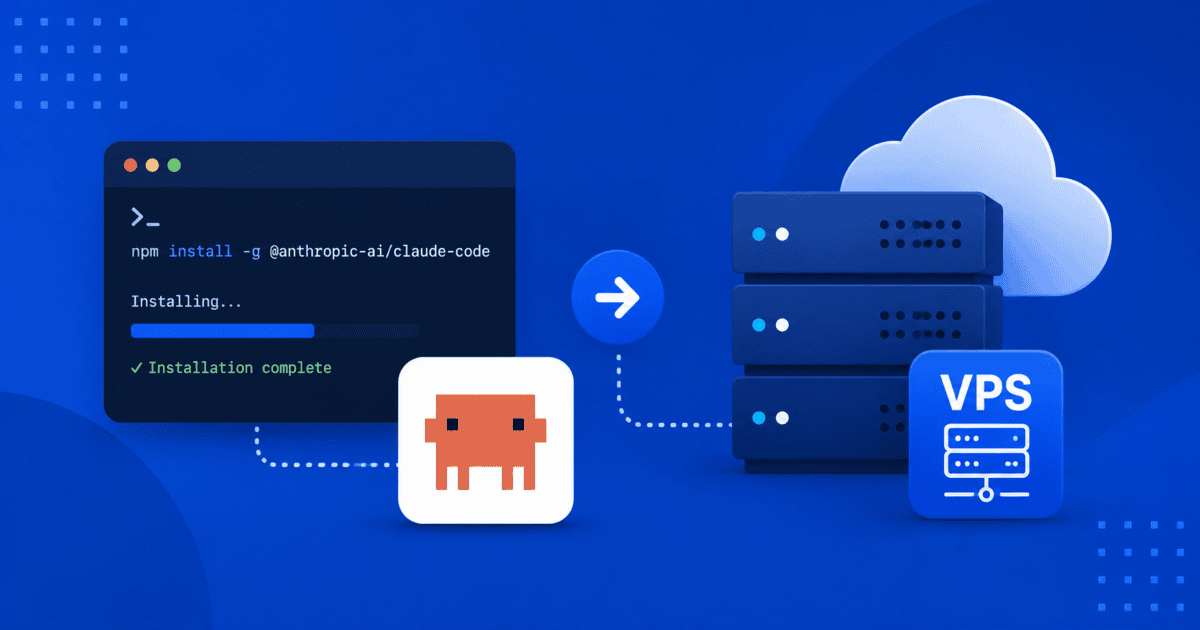
Key highlights
- Learn how to connect to your Bluehost VPS using SSH for secure access.
- Discover the essential commands to prepare your server for installation.
- Understand the step-by-step process to install Claude Code from its source.
- Explore how to configure and run the Claude Code application on your VPS.
Are you ready to run advanced AI tools on your own self-managed server? When you install Claude Code on a Virtual Private Server, you gain complete control over your development environment alongside dedicated, isolated resources. Choosing a Bluehost VPS provides the high-performance NVMe storage and rapid provisioning needed to handle demanding AI development tasks without resource congestion from neighboring accounts.
Our step-by-step tutorial walks you through the entire deployment process, from establishing a secure SSH connection to configuring your environment and launching the command-line application. Running the assistive tool on your dedicated infrastructure ensures data privacy, consistent processing speeds and a tailored workspace optimized for your specific programming projects. Let us configure your remote server now to begin the installation.
What are the prerequisites for installation?
Before we begin the installation process, you will need a few things. First, ensure you have an active Bluehost VPS plan. You also need your server’s IP address and root password, which are in your Bluehost control panel. A terminal application on your local computer is necessary to connect to the server. For this tutorial, we assume Claude Code is a Python-based application that requires Git. Now we can connect to the server. The next section explains how to establish a secure connection.
How do you connect to your VPS?
Securely accessing your server via Secure Shell (SSH) is the first step to install Claude Code. SSH establishes an encrypted connection, allowing you to safely manage your VPS from your local machine.
Step 1: Open your terminal
On macOS or Linux, launch the built-in Terminal app. Windows users can use PuTTY or the Windows Subsystem for Linux (WSL).
Step 2: Connect using the SSH command
Run the following command, replacing “your_server_ip” with your actual VPS IP address:
ssh root@your_server_ip Enter your root password when prompted. Once connected, your server environment is ready for software installation.
How do you prepare the server environment?
Once connected, it is important to update your server. This ensures all existing software is current and secure before you install anything new. These commands help maintain a healthy and stable environment for your application. If you’re considering your options, a VPS vs Shared Hosting Comparison can help clarify the benefits.
Step 1: Update package lists
This command downloads the latest information on available software packages.
sudo apt update Step 2: Upgrade installed packages
This command upgrades all the installed software on your server to their latest versions.
sudo apt upgrade -y Step 3: Install essential tools
We need Git to download the Claude Code software and Python with its package manager pip to run it.
sudo apt install git python3 python3-pip -y Now that your server is up to date and has the necessary tools, we can proceed with the main installation.
How do you install Claude Code?
With the server ready, you can download the application files. We will use Git to clone the source code directly from its repository. This is a common method for deploying applications because it makes updates easy to manage.
Step 1: Clone the repository
For this example, we will assume the source code is hosted on GitHub. Replace the URL with the actual repository for Claude Code.
git clone – https://github.com/example/claude-code.git
Step 2: Navigate into the directory
Change into the newly created directory to work with the project files.
cd claude-code Step 3: Install Python dependencies
A requirements.txt file typically lists all the Python libraries the application needs.
pip3 install -r requirements.txt The core software is now installed. The final step is to configure it for your specific use case.
How do you configure and run the application?
Most applications require some basic configuration, like setting up API keys or defining a port. This is usually done in a configuration file. After setup, you can start the application to make it accessible.
Step 1: Create a configuration file
Often, you will copy a sample file. Check the project’s documentation for specific instructions.
cp .env.example .env Step 2: Edit the configuration
Use a simple text editor like nano to add your API keys or other settings.
nano .env Step 3: Run the application
You can start the application using Python. The exact command depends on the project’s main file.
python3 app.py Your Claude Code application should now be running on your Bluehost VPS. Next, we will cover why Bluehost is a great choice for this kind of project.
Why choose Bluehost for your AI project?
When you install Claude Code, your development environment needs dedicated power and rapid responsiveness. Our VPS hosting delivers isolated virtual resources and complete root access, allowing you to build with confidence.
- Full root access: Install custom software and configure complex dependencies to your exact specifications without administrative restrictions.
- High-speed NVMe storage: Experience fast data retrieval and rapid execution times for your command-line AI tools.
- Isolated resources: Avoid performance drops from neighboring accounts, ensuring consistent processing power for your operations.
Managing your own virtual private server provides complete configuration freedom, but it also requires you to handle routine server maintenance. If you prefer to focus entirely on coding, our Managed VPS plans offer expert technical assistance for backend tasks. Our dependable, high-performance infrastructure allows you to confidently deploy and scale your AI projects.
What are your final thoughts?
You have successfully completed the setup to install Claude Code on our fast and secure VPS. Our virtual private server environment gives you a scalable, private workspace for your AI development projects. You can experiment with different models and build custom applications with confidence. Remember to keep your server and applications updated for optimal performance and security.
Ready to launch your own AI application? Our VPS plan provides full root access and high-speed NVMe storage to get you started. Get started with Bluehost Claude Code VPS hosting today to power your development projects with maximum control.
Frequently asked questions
Yes. A Bluehost VPS gives you root access, which allows you to install any compatible software, including other AI models and development tools. You have the freedom to customize your server environment to fit your project’s needs.
Managing a VPS does require some command-line knowledge. However, our guides are here to walk you through common tasks. If you prefer not to handle server maintenance, our Managed VPS plans provide expert support to help you.
Securing your application involves several steps. You should use a strong password for your root user, configure a firewall and keep your server’s software updated. It is also wise to follow the specific security recommendations provided by the Claude Code developers.
Bluehost makes it easy to scale your resources. You can upgrade your VPS plan directly from the Bluehost control panel at any time. This allows you to add more CPU, RAM, and storage as your projects grow.

Write A Comment