 ChatGPT,
 Claude,
 Gemini,
 Grok — all four for
Key highlights
- Learn DNS_PROBE_FINISHED_NXDOMAIN meaning and why it appears when your browser can’t find a website’s IP address.
- Understand how DNS resolution issues, incorrect settings or corrupted cache trigger this error across Chrome, Firefox, Safari and other browsers.
- Explore the most common causes, including misconfigured DNS servers, malware interference and local network problems.
- Get quick, practical DNS_PROBE_FINISHED_NXDOMAIN error fix such as clearing the DNS cache or switching to a reliable public DNS server.
- Discover how proactive steps like checking DNS records and maintaining clean network configurations help prevent future NXDOMAIN errors.
Are you frustrated by the DNS_PROBE_FINISHED_NXDOMAIN error while browsing? If you’ve ever encountered the DNS_PROBE_FINISHED_NXDOMAIN error, you know how annoying it can be. It prevents you from accessing websites and disrupts your online experience. But what exactly does it mean and how can you fix it quickly? Let’s break it down in simple terms.
This error message typically pops up when your browser fails to connect to a website and it can be a real roadblock for anyone trying to surf the internet. But don’t worry, this error is often easy to fix if you know where to look. The DNS_PROBE_FINISHED_NXDOMAIN error is a DNS error that typically occurs when your browser is unable to resolve a domain name to an IP address. The error message usually appears as:
“This site can’t be reached. The server IP address could not be found. DNS_PROBE_FINISHED_NXDOMAIN.”
In this article, we’ll cover how to fix the DNS_PROBE_FINISHED_NXDOMAIN error, prevent future occurrences and understand how to resolve the error efficiently. Let’s dive into what’s going wrong when you encounter this error and how you can fix it in a snap!
TLDR: Fix DNS_PROBE_FINISHED_NXDOMAIN
- Only one website won’t load: Check domain status, nameservers, and DNS records (A/AAAA/CNAME).
- All websites won’t load: It’s likely the local DNS or network. Flush DNS cache, restart router, disable VPN, try a public DNS.
- It started after DNS edits: Allow for propagation, then re-check records and roll back the last change if needed.
- Bluehost: Account Manager → Domains → DNS to verify nameservers + A/CNAME records.
What is DNS_PROBE_FINISHED_NXDOMAIN error?
The DNS_PROBE_FINISHED_NXDOMAIN error appears when your browser can’t find the IP address for the website you’re trying to visit. This happens because DNS (Domain Name System), the system that translates domain names into IP addresses, isn’t able to complete the lookup.
A simple way to understand DNS is to think of it as the internet’s phone book. When you type a domain like [example].com into your browser search bar, DNS looks up the matching IP address and sends your browser to the right server location. If DNS can’t find that match, the request fails and you see the “Non-Existent Domain” (NXDOMAIN) error instead.
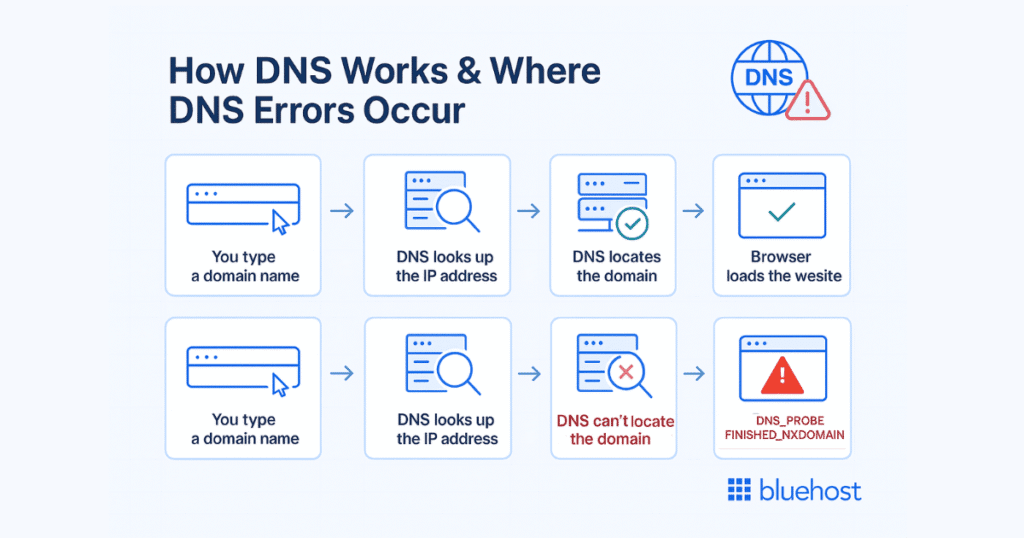
This issue can be triggered by several common factors, including incorrect DNS settings, DNS server problems, network connectivity issues or malware interfering with DNS requests. In all these cases, your browser simply can’t retrieve the valid IP address, so the website doesn’t load.
This error can occur due to a variety of reasons, such as:
- DNS server issues
- Incorrect DNS configuration
- Network connectivity issues
- Malware/virus infections
Understanding the DNS_PROBE_FINISHED_NXDOMAIN error message is important because it helps you troubleshoot and fix the problem quickly, ensuring that you can access the website you need to visit. Ignoring the error message could lead to frustration and wasted time trying to access a website that won’t load.
Where might you see the DNS_PROBE_FINISHED_NXDOMAIN error?
You’ll know you’re impacted by the “DNS_PROBE_FINISHED_NXDOMAIN” error when you try to visit a website, but it fails to load and you receive a message that says, “This site can’t be reached” or “DNS_PROBE_FINISHED_NXDOMAIN.”

This error can show up in various browsers and on different platforms. Let’s take a look at some of the common scenarios where you might run into it.
1. Google Chrome: It’s the most common browser where users encounter DNS_PROBE_FINISHED_NXDOMAIN error. Chrome is unable to resolve the domain name due to DNS issues. For instance, trying to visit [example].com may result in this message instead of the webpage.
2. Mozilla Firefox: In Firefox, users might see the “The server could not be found” error along with the DNS_PROBE_FINISHED_NXDOMAIN message. This error is typically caused by a DNS configuration problem on your device or a server issue.
3. Microsoft Edge: Similar to Chrome, Edge users may see the “DNS_PROBE_FINISHED_NXDOMAIN” error when attempting to access websites. Edge, being Chromium-based, shares many of the same underlying issues as Chrome, including DNS-related problems.
4. Safari: Safari on Mac devices may show a “Cannot open page” message when the DNS_PROBE_FINISHED_NXDOMAIN error occurs. This can happen after changes to DNS settings or when the DNS client service fails to properly fetch domain information.
5. Windows: On Windows, this error is most often triggered by corrupted DNS cache or misconfigured network settings. For instance, if your DNS client is pointing to a non-functional or misconfigured DNS server, you’ll get the DNS_PROBE_FINISHED_NXDOMAIN message. An example would be when trying to access a page like [example].com, but the page doesn’t load.
6. Linux: Linux users (especially on Ubuntu) may run into DNS issues due to local resolver settings. This often happens when systemd-resolved conflicts with custom DNS configurations.
7. Mobile devices: DNS issues can also trigger this error on mobile devices, such as Android or iPhone. For example, if you’re using a custom DNS server or your mobile data connection is weak, the browser might not be able to resolve the domain name. If you’re using mobile data or Wi-Fi with custom DNS entries, errors can occur.
It’s possible that the error is caused by a temporary issue with the website or your internet connection, in which case the problem may resolve itself after a few minutes. However, if the error persists, it’s important to troubleshoot and fix the underlying issue to ensure you can access the websites you need.
What causes DNS_PROBE_FINISHED_NXDOMAIN error?
The DNS_PROBE_FINISHED_NXDOMAIN error occurs when your browser asks a DNS server to resolve a domain name, but the DNS server responds that the domain does not exist or cannot be found. In simple terms, the browser can’t translate the website name into an IP address.
This usually happens due to one of three broader issues:
- Domain or DNS configuration problems
- Device or network-related issues
- Third-party interference (VPNs, security tools, CDNs)
Below are the most common and practical causes you should check.
1. Domain does not exist, is expired or not active
If a domain is expired, unregistered or suspended, DNS servers return an NXDOMAIN response by default. This commonly happens when:
- A domain registration expires
- Auto-renew is disabled
- The domain was never registered
- The domain is registered but not connected to hosting
This is one of the first things to check if NXDOMAIN appears only for one website.
2. Incorrect nameservers
Nameservers tell the internet where to look for a domain’s DNS records. If the nameservers are incorrect, missing or pointing to the wrong provider, DNS lookups will fail.
Common scenarios include:
- Nameservers were changed recently but not updated at the registrar
- The domain points to old hosting nameservers
- Nameservers were mistyped or removed
DNS changes can also take time to propagate, which may temporarily trigger NXDOMAIN.
3. Missing or misconfigured DNS records
Even if nameservers are correct, the domain still needs valid DNS records to resolve properly.
NXDOMAIN errors can occur when:
- No A record exists for the root domain
- The www record points to a non-existent target
- Records were deleted or edited incorrectly
- A CDN or proxy DNS record is misconfigured
This is a very common cause after DNS edits or website migrations.
4. DNS propagation delay
When DNS records or nameservers are changed, it can take time for those changes to update globally.
During this propagation window:
- Some users can access the site
- Others receive DNS_PROBE_FINISHED_NXDOMAIN
- Browsers may cache outdated DNS responses
5. Corrupted or outdated local DNS cache
Your device stores DNS responses locally to speed up browsing. If that cache becomes outdated or corrupted, your browser may continue requesting invalid DNS data.
This often happens after:
- DNS record changes
- Network changes
- Switching ISPs, VPNs or DNS providers
Flushing the DNS cache usually resolves this issue quickly.
6. Incorrect DNS server configuration
If your device is using an unreliable, unreachable or misconfigured DNS server, domain lookups can fail entirely.
This may occur when:
- ISP DNS servers are temporarily down
- Custom DNS addresses are entered incorrectly
- Router-level DNS settings are misconfigured
Switching to a trusted public DNS (such as Google or Cloudflare) often fixes the problem.
Also read: How to Enable Cloudflare CDN
7. VPN, firewall or antivirus interference
Some VPNs, firewalls and security tools route DNS queries through their own servers. If those DNS resolvers fail or block a request, NXDOMAIN errors can appear.
This is common when:
- A VPN uses private DNS resolvers
- Firewall rules block DNS traffic
- Antivirus software modifies DNS behavior
Disabling these tools temporarily can help confirm the cause.
8. Hosts file conflicts
The local hosts file can override DNS entirely. If a domain is mapped incorrectly or blocked in the hosts file, DNS lookups may fail.
This typically affects:
- Developers
- Systems with manual host entries
- Devices previously infected by malware
9. CDN or proxy DNS issues
If a domain uses a CDN (such as Cloudflare), DNS records are often proxied through the CDN. Incorrect proxy settings or origin server issues can result in NXDOMAIN responses.
This usually happens when:
- DNS records are missing in the CDN dashboard
- Proxy status is misconfigured
- The origin server is unreachable
How to fix DNS_PROBE_FINISHED_NXDOMAIN error in Bluehost
If you only see NXDOMAIN for one specific domain, the issue is often a DNS record or nameserver problem. At Bluehost, we offer comprehensive solutions and support to help our customers keep their websites running smoothly. With our Web Hosting plan, you can easily address the DNS_PROBE_FINISHED_NXDOMAIN error, particularly when DNS misconfigurations are involved. Here are the key solutions:
Here’s how to verify and fix it in Bluehost.
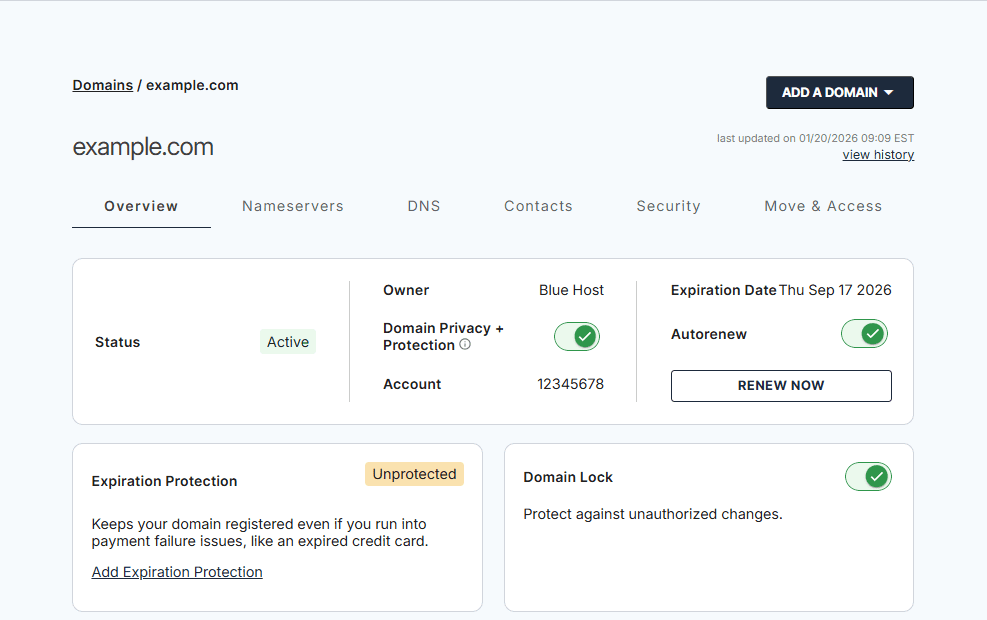
Step 1: Confirm your domain is active
Make sure the domain isn’t expired or unregistered in your registrar dashboard. If your domain is registered elsewhere, you can still point your domain to Bluehost by updating the nameservers.
Also read: How to Transfer A Domain Name To Us
Step 2: Verify nameservers
- Log in to Bluehost Account Manager.
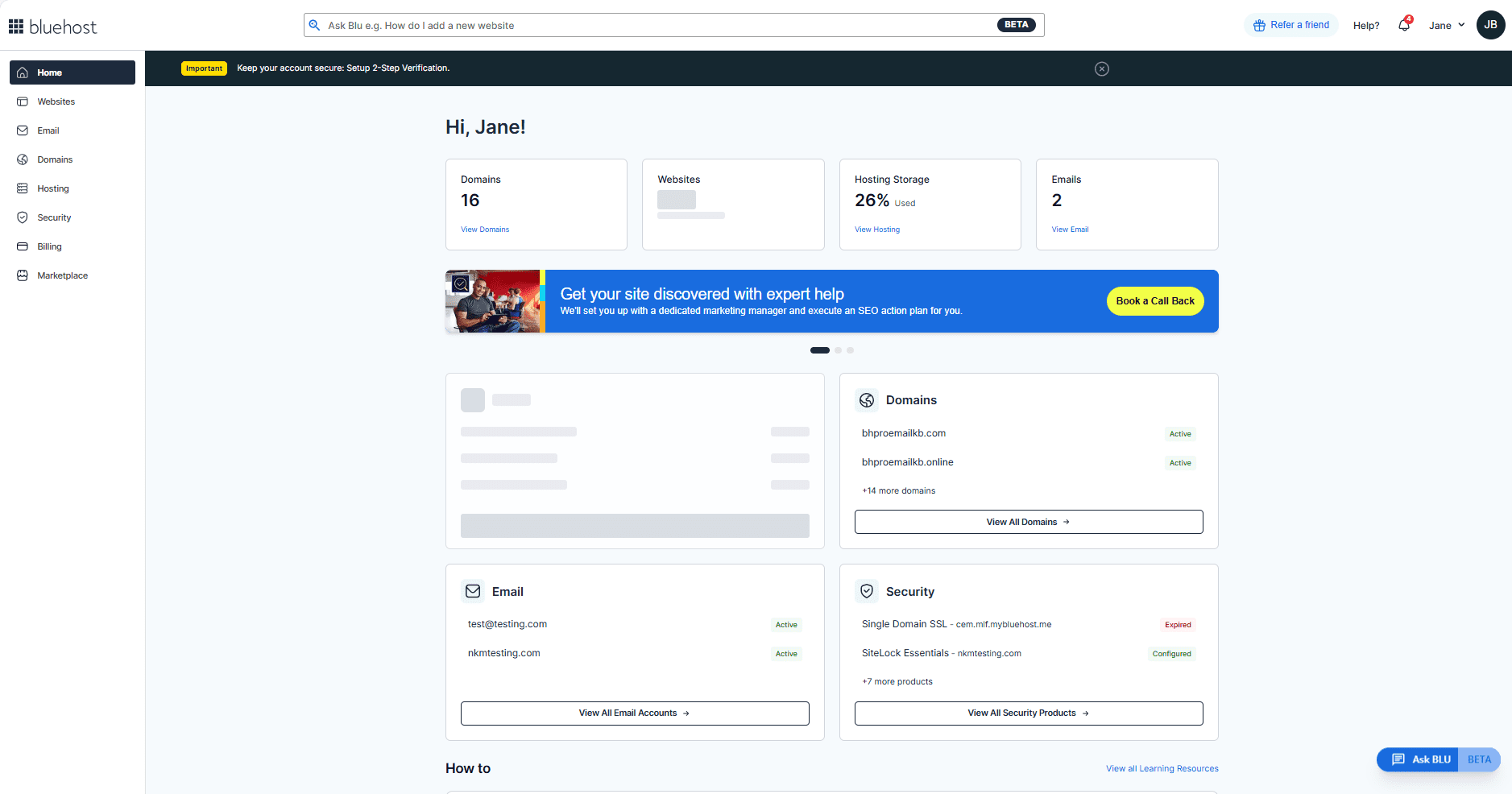
2. Go to “Domains”
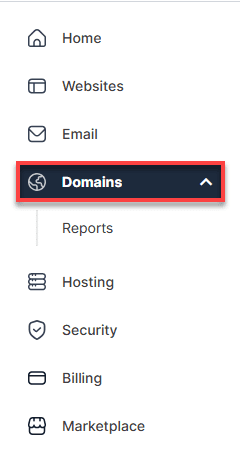
3. Open Nameservers and click on “Change nameservers”.

Ensure your registrar is using the nameservers listed in Bluehost’s help doc (commonly ns1.bluehost.com and ns2.bluehost.com).
Also read: How to Change Your Name Servers
Note: Nameserver changes can take 24–72 hours to propagate worldwide and email/traffic may route inconsistently during propagation.
Step 3: Check essential DNS records in Bluehost
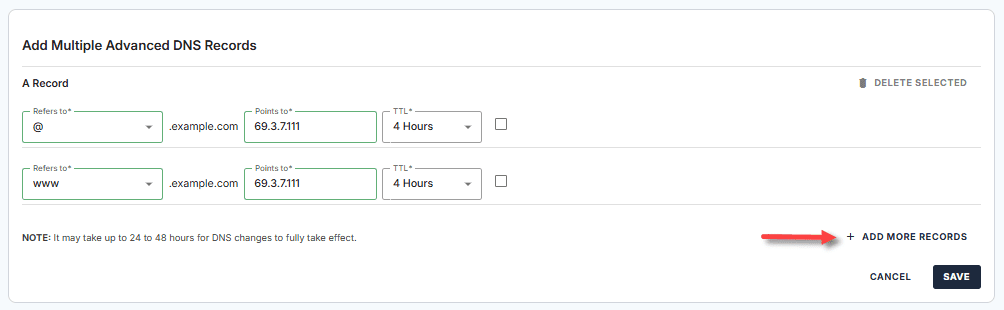
- In Account Manager, go to Domains → DNS tab → Manage Advanced DNS Records.

Confirm you have:
- An A record for @ (root domain) pointing to your website’s correct IP address/host.
- A CNAME for www pointing to @ (common setup) or an A record for www pointing to the same IP.
Also read: DNS Records Introduction: A Beginner’s Guide
Step 4: Undo a bad change (fast rollback)
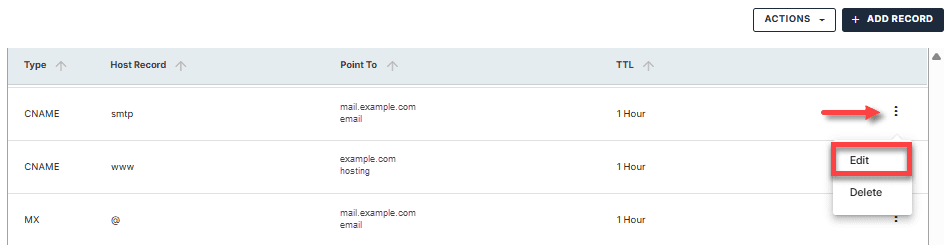
If NXDOMAIN started after a DNS edit, revert the last change:
In Manage Advanced DNS Records, find the edited record → Edit → restore previous value → save.
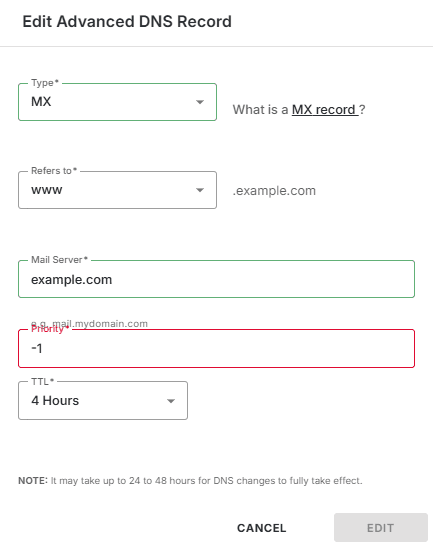
Step 5: If you use email, double-check MX records
Incorrect MX records can break email (even if the website works). Confirm MX records match your email provider’s requirements in the same DNS editor.
Email routing quick guide
| Setting | Use this if… | Quick check |
|---|---|---|
| Local mail exchanger | Email for the domain is hosted on Bluehost | MX records should point to Bluehost |
| Remote mail exchanger | Email is hosted with a third-party provider (Google Workspace, Microsoft 365, etc.) | MX records must match your email provider |
| Automatically detect | You’re unsure where email is hosted (not recommended) | Set Local or Remote manually once confirmed |
Ready to secure your domain and avoid DNS disasters? To stay protected and proactive:
- Enable Domain Privacy + Protection to guard against blacklisting and provides privacy + monitoring/alerts.
- Add Bluehost Malware Protection to scan for malware that could interfere with your DNS settings and site functionality.
Don’t let DNS issues slow down your site or break critical connections. With a Bluehost domain, your DNS, hosting and email are managed in one place. Bluehost makes it easier to configure records, avoid misrouting and resolve errors faster. Get reliable domain management, simplified DNS control and seamless integration with Bluehost Domain.
Advanced troubleshooting steps to fix DNS_PROBE_FINISHED_NXDOMAIN error
If basic fixes like restarting your router, clearing browser cache or switching DNS servers didn’t work, the issue may be caused by deeper system, network or configuration conflicts. The following advanced troubleshooting steps help identify and resolve persistent DNS_PROBE_FINISHED_NXDOMAIN errors.
- Resetting your DNS settings
- Checking the router configuration
- Updating or reinstalling network drivers
- Checking for malware
- Editing the local hosts file
Let’s understand these advanced troubleshooting steps in detail.
1. Reset your DNS settings
- Resetting the DNS client settings can help if there’s a deeper configuration issue. Here’s how to reset them – Open Command Prompt as an administrator then type the following command:
netsh winsock reset- After it completes, type:
netsh int ip reset- Restart your computer.
2. Checking the router configuration
The second step is to check your router configuration to ensure that it’s not blocking any DNS requests. To do this, log in to your router’s settings, find the option to check the DNS settings and ensure that DNS requests are allowed.
3. Updating or reinstalling network drivers
The third step is to update or reinstall your network drivers, as outdated or corrupted drivers can sometimes cause DNS errors. Outdated or corrupted network drivers can also interfere with your DNS settings. To update your drivers:
- Open Device Manager.
- Expand Network adapters, right-click on your network device and select Update driver.
- Follow the prompts to install the latest driver.
4. Check for malware
Malware can sometimes modify your DNS settings, leading to errors like
DNS_PROBE_FINISHED_NXDOMAINRun a full system scan using your antivirus software to ensure your system is clean.
5. Edit the local hosts file
Your local hosts file can sometimes override DNS settings and block certain websites. To ensure this isn’t the cause:
- Go to:
C:\Windows\System32\drivers\etc\hosts- Open the file using Notepad with administrator privileges.
- Look for any entries that might be blocking access to certain websites and remove them.
These advanced troubleshooting steps can often help resolve the “DNS_PROBE_FINISHED_NXDOMAIN” error, but if the error persists, you may need to seek professional help or contact your internet service provider.
How to prevent future DNS_PROBE_FINISHED_NXDOMAIN error?
To avoid encountering the DNS_PROBE_FINISHED_NXDOMAIN error in the future, it’s important to take proactive steps. It is important to ensure your DNS client service and DNS settings are configured correctly.
- Clear your DNS cache regularly: Over time, your DNS cache can build up with outdated entries that may cause errors. Flushing the cache on a regular basis can prevent DNS probe issues. You can clear the cache easily using Windows Command Prompt or through the browser settings (e.g., Google Chrome browser or Mozilla Firefox).
- Use a reliable DNS server: Set your device to use a preferred DNS server or an alternate DNS server like Google DNS or OpenDNS. These servers are generally faster and more reliable than your Internet Service Provider’s (ISP) default servers, reducing the chances of encountering a DNS_PROBE_FINISHED_NXDOMAIN error.
- Check the DNS server address: Ensure that the DNS server addresses in your network settings are correct. An incorrect DNS server address can prevent your device from resolving domain names correctly.
- Ensure correct IP address configuration: Make sure your IP address is correctly set. You can manually configure the IP addresses in the network settings or use DHCP to automatically obtain an IP address. This is crucial for maintaining a stable internet connection.
- Review your local host’s file: The local host’s file can override DNS settings, causing issues with DNS resolution. Make sure that the file doesn’t contain incorrect or outdated entries that could interfere with accessing websites.
- Disable VPN or proxy services: Sometimes, a VPN service or proxy server can cause DNS issues by misdirecting traffic or blocking access to certain domain names. Disabling the VPN or proxy service might resolve the problem.
- Update your antivirus software: Certain antivirus software can block DNS requests, leading to the DNS_PROBE_FINISHED_NXDOMAIN error. Check your antivirus settings and ensure that it’s not interfering with the DNS service.
- Reset Chrome Flags: If you encounter an error in Google Chrome, try resetting the Chrome flags. Some experimental features in Chrome might conflict with your DNS settings. You can reset them by navigating to the chrome://flags page and selecting “Reset all to default.”
- Check your network settings: In Windows or Mac, go to the Network and Sharing Center or System Preferences and make sure that your network adapter settings are properly configured. Ensure that DNS client and network settings are correctly aligned with the required settings for your internet connection.
- Change DNS settings on your router: Sometimes, the issue can stem from your internet router. Access your router’s configuration page and ensure that the DNS server addresses are correctly set. Using a public DNS like Google DNS or Cloudflare DNS can improve your overall internet experience.
- Use Internet Protocol version 4 (IPv4): If your Internet Protocol version is set to IPv6, switch to IPv4, as it’s more commonly supported and may help prevent DNS resolution issues.
By following these steps, you can reduce the risk of encountering the DNS_PROBE_FINISHED_NXDOMAIN error in the future. If the issue persists, contacting your ISP’s support team for further assistance might be necessary to ensure that your DNS settings are correctly configured.
Also read: How to Configure DNS Settings in WHM (Bluehost Guide)
Final thoughts
The DNS_PROBE_FINISHED_NXDOMAIN error can be frustrating, but in most cases it’s easy to fix with the right troubleshooting steps. From checking DNS settings and clearing local caches to switching to a reliable public DNS resolver, small adjustments often restore access quickly. With a methodical approach, you can reduce the chances of recurring DNS issues and keep your browsing experience smooth and uninterrupted.
If you want a dependable hosting foundation that helps minimize DNS-related hiccups, Bluehost hosting is a solid choice. Bluehost offers reliable infrastructure, integrated DNS and hosting management and strong uptime, all backed by 24/7 expert support. With everything managed in one place, it’s easier to configure settings correctly, troubleshoot faster and keep your website accessible when it matters most.
Power your site with Bluehost hosting for dependable uptime and easy management.
FAQs
DNS_PROBE_FINISHED_NXDOMAIN occurs when the DNS server cannot resolve a domain name, indicating that the domain either does not exist or cannot be found. This error means the browser failed to retrieve the correct IP address from the DNS server.
A DNS probe error occurs when DNS can’t resolve a domain you enter in the address bar. Common causes include incorrect IP settings, corrupted DNS cache, expired or misconfigured domain records, interference from VPN/firewalls, issues with secure DNS or browsers loading outdated temporary internet files that block proper DNS resolution.
Flushing your DNS cache clears outdated records so your device can request fresh DNS data.Windows:Open Command Prompt → run ipconfig /flushdns. If DNS still fails, restart the DNS Client through Windows Services Manager or refresh network settings via Windows System Configuration.macOS:Open Terminal → run:sudo dscacheutil -flushcachesudo killall -HUP mDNSResponderThis often fixes DNS_PROBE_FINISHED_NXDOMAIN by removing invalid DNS entries.
To fix DNS_PROBE_FINISHED_NXDOMAIN, follow these steps: 1. Clear your browser cache and cookies to remove corrupted data. 2. Restart your internet router or modem to refresh your internet connection. 3. Flush the DNS cache to clear outdated DNS records. 4. Reset your network settings or release and renew your IP address to obtain the correct network configuration. 5. Change your DNS servers to a reliable public DNS, such as Google DNS (8.8.8.8) or Cloudflare DNS (1.1.1.1).
NXDOMAIN error in Google Chrome indicates that the DNS server failed to resolve the domain name, meaning the domain is non-existent or unreachable. This prevents the browser from establishing a connection to the website.
To fix DNS errors on Google Chrome: 1. Clear Chrome’s DNS cache by visiting chrome://net-internals/#dns and clicking “Clear host cache.” 2. Disable browser extensions or antivirus software that may block DNS requests. 3. Reset Chrome flags by navigating to chrome://flags/ and selecting “Reset all to default.” 4. Update your network settings to use a trusted public DNS server address. 5. Restart Chrome and test if the DNS_PROBE_FINISHED_NXDOMAIN error persists.
To fix DNS_PROBE_FINISHED_NXDOMAIN on macOS: 1. Flush the DNS cache using Terminal commands: sudo dscacheutil -flushcache sudo killall -HUP mDNSResponder 2. Change the DNS server addresses in System Preferences > Network > DNS tab to a reliable public DNS, such as Google DNS (8.8.8.8). 3. Restart your Mac to apply changes.
Yes, using a VPN can cause the DNS_PROBE_FINISHED_NXDOMAIN error because VPNs often use their own DNS servers. These DNS servers may fail to resolve certain domain names correctly, resulting in this error. To fix it, disconnect from the VPN and check if the issue persists. Alternatively, configure the VPN to use reliable DNS server addresses such as Google DNS (8.8.8.8) or Cloudflare DNS (1.1.1.1) to prevent DNS resolution failures.
It means your browser cannot resolve the domain name due to DNS errors. To fix this error: Configure DNS by changing your DNS server addresses to reliable public DNS servers, such as Google DNS (8.8.8.8) or Cloudflare DNS (1.1.1.1). Clear the DNS cache using system commands (e.g., ipconfig /flushdns on Windows) and clear your browser cache to remove outdated records. – Check that your domain registration is active and that DNS records correctly point to the proper web server.
Yes, switching to a different DNS server often resolves the DNS_PROBE_FINISHED_NXDOMAIN error. Reliable public DNS servers like Google DNS (8.8.8.8) or Cloudflare DNS (1.1.1.1) can bypass issues caused by your current DNS server.
Clearing the DNS cache resolves the DNS_PROBE_FINISHED_NXDOMAIN error by removing outdated or corrupted DNS records stored locally. This forces your device to request fresh DNS information from the DNS server, ensuring accurate domain name resolution.

Write A Comment