


Key highlights
- Learn how to use cPanel File Manager to upload, edit, delete and organize website files directly from your browser.
- Follow a cPanel File Manager tutorial for step-by-step navigation, folder management and file operations to maintain your website structure efficiently.
- Explore advanced editing, HTML edits, permission settings and file compression to manage content securely and quickly.
- Uncover best practices for safe file management, including backing up files, showing hidden files and avoiding common mistakes.
- Learn to avoid mistakes like deleting critical files, misconfiguring permissions or uploading oversized files to keep websites secure and functional.
The cPanel File Manager is one of the most useful tools for managing your website files. It lets you upload, edit, delete, copy files and organize folders directly from your hosting control panel, without needing an FTP client.
If you work on a website regularly, relying on external tools is not always practical. File Manager gives you instant, browser-based access to your server files, allowing you to make quick changes without installing additional software. You can even display hidden files like .htaccess to make critical updates safely.
From editing HTML pages using the built-in editor to managing compressed files and folders, File Manager handles everyday tasks efficiently. You can work with one file or multiple files at once, saving time while keeping your website organized.
In this guide, you’ll learn how to use cPanel File Manager step by step. We’ll cover navigation, file uploads, editing options and common mistakes to avoid while managing your website safely. This cPanel File Manager tutorial is suitable for both beginners and experienced users.
TLDR summary
- Manage website files directly from your browser using cPanel File Manager in this cPanel File Manager tutorial.
- Upload, edit, delete, copy and organize files, including hidden system files like .htaccess.
- Navigate folders and perform advanced edits to maintain your website efficiently and securely.
- Follow best practices like backing up files, checking permissions and avoid common mistakes that can cause errors.
- Choose Bluehost WordPress Hosting to access a built-in File Manager and manage your website files more simply and reliably.
The cPanel File Manager is a browser-based tool that allows you to manage files and folders on your web server directly from your cPanel account. It provides quick access to your website’s file structure without relying on external applications.
Using File Manager, you can upload files, create directories, edit HTML, change permissions and delete unwanted data. It also supports compressed files, making it easier to upload, extract or download multiple items at once.
File Manager is especially useful for quick edits and direct file access.
You can select a file, click the edit icon, make changes using the built-in editor and save them instantly. This makes it a reliable option for managing website files, fixing errors and handling updates efficiently.
Also read: How to Upload Files Using File Manager
How do you open the file manager in cPanel?
To access the cPanel File Manager and understand how to use cPanel File Manager for everyday tasks, log in to your hosting control panel. This gives you direct access to your website files and folders.
Steps to access File Manager:
- Log in to your cPanel dashboard using your hosting account credentials.
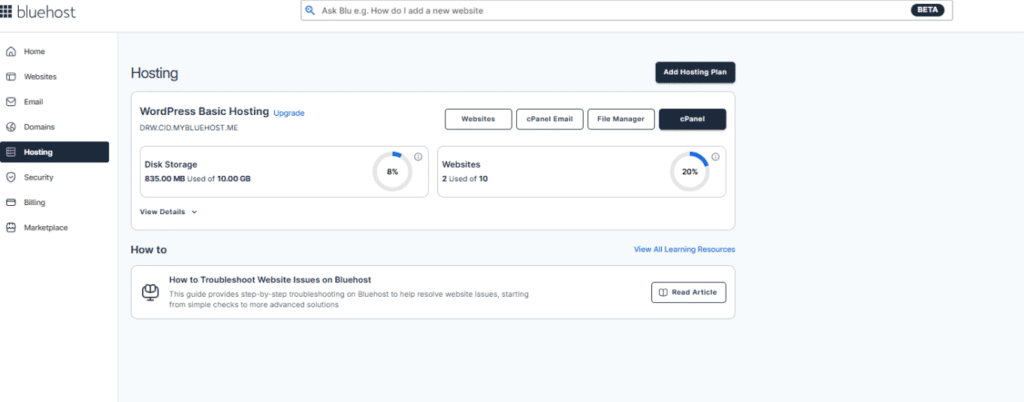
2. Go to Hosting → cPanel to access the main control panel interface.
3. Under the Files section, click on the File Manager.
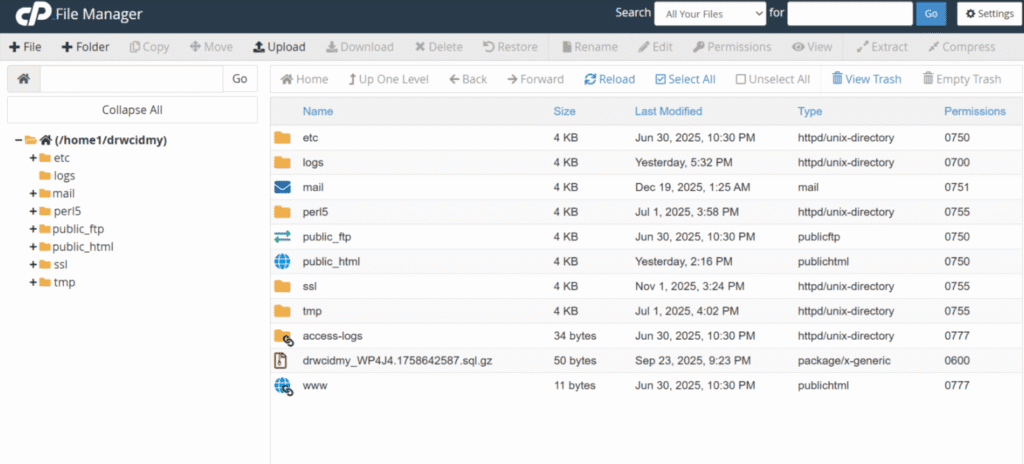
Once opened, File Manager launches in a new tab. You’ll see your server directory structure, toolbar options and file listings, allowing you to manage files immediately.
With File Manager now open, the next step is understanding how to navigate through your folders and locate the files you need.
How do you navigate folders inside file manager?
Understanding how to use cPanel File Manager to navigate folders is essential for managing website files safely and efficiently. Each folder represents a different part of your hosting account, so navigating correctly helps you avoid editing or deleting the wrong files.
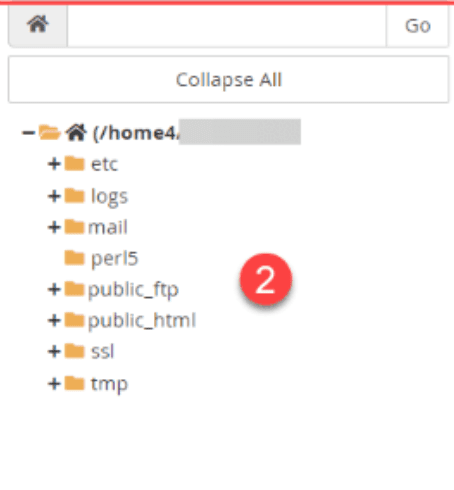
Use the left directory listing to browse folders: The left-hand directory listing shows a structured view of all folders on your server. You can expand and collapse folders to quickly access key locations like the public_html folder or document root. This makes it easy to navigate domain-specific directories without opening files individually.
Double-click folders in the right file listing to open: The right-side file listing displays the contents of the selected folder in detail. Double-click a folder to open it and view its files, subfolders and file sizes. This makes it easier to locate and manage the exact file or folder you need.
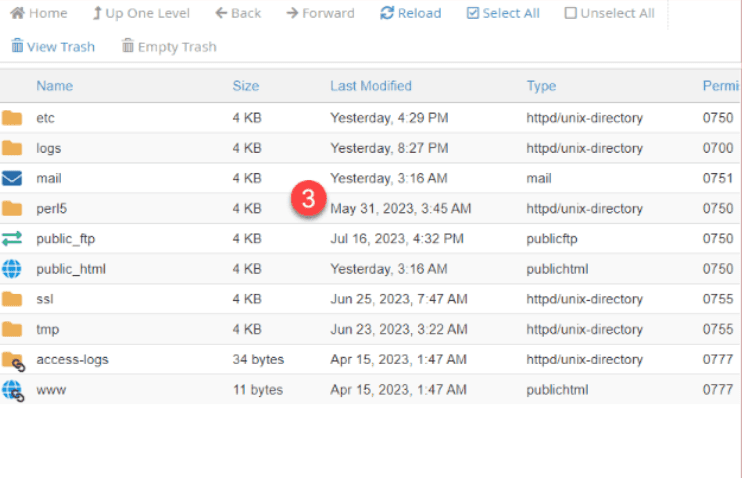
Click up one level to go back to the parent folder: The up one level option in the top toolbar lets you return to the previous directory instantly. This is especially helpful when navigating deep folder structures, as it prevents confusion and helps maintain awareness of your current file path.
Mastering folder navigation in cPanel File Manager helps you locate files faster, reduce errors and manage your website’s structure with confidence before making any changes.
How can you upload files to your hosting account?
Uploading files becomes straightforward once you understand how the cPanel File Manager works. You can add new pages, images, scripts or compressed files directly from your computer using the built-in upload tools.
Steps to upload files:
- Click the Upload button on the toolbar at the top of File Manager.
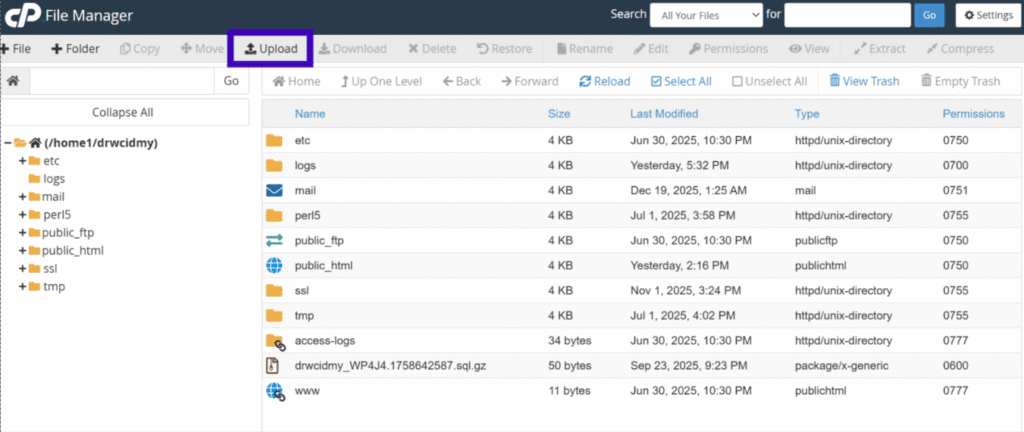
2. Select one or multiple files from your computer (most cPanel accounts allow up to 500 MB per file).
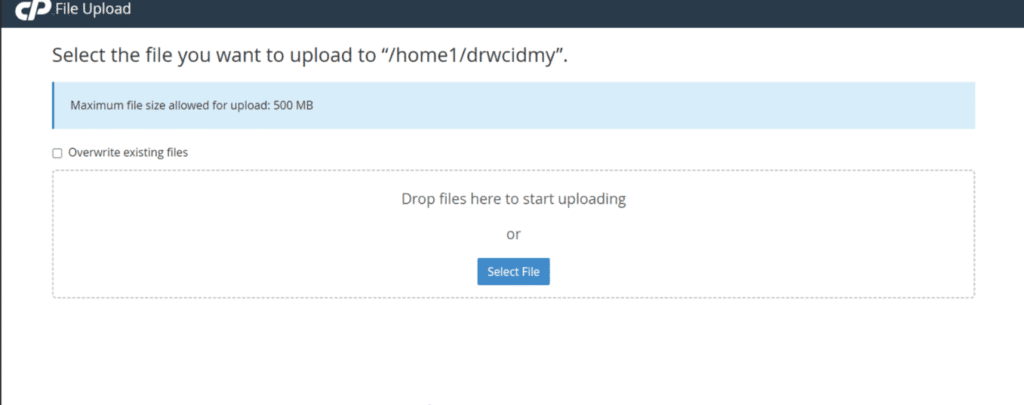
3. Drag-and-drop files directly into the upload area if your interface supports it.
4. Wait for the upload to complete, then click Go Back to return to the folder.
File Manager also lets you upload compressed files like ZIPs. You can then use the Extract option to decompress them directly on the server, saving time when adding multiple files or entire directories.
Also read: How to Upload Files Using File Manager
Once your files are uploaded, it’s important to know how to manage and edit them effectively within cPanel File Manager.
How do you manage and edit files in cPanel?
Managing and editing files in cPanel File Manager is essential for maintaining your website. With File Manager, you can organize your files, update content and perform advanced actions without needing an FTP client. Knowing how to handle files correctly ensures your website remains secure, organized and functional.
1. Create new files or folders
You can easily create a new file or folder using the toolbar options. Click + File or + Folder, enter the desired name and choose the location. Creating folders helps keep related files organized, while new files allow you to add pages, scripts or styles. This feature is especially useful for managing multiple projects within the same hosting account.
2. Delete, rename, copy or move files
File Manager allows you to delete, rename, copy or move files efficiently. Select the file or folder, then use the toolbar or right-click menu to perform the action. Moving files helps maintain a clean structure, renaming avoids confusion and deleting removes unnecessary data safely. Always double-check the file path before deleting important files.
3. Right-click for advanced actions
Right-clicking a file or folder reveals advanced options that give you more control over your content. You can compress, download, edit, change permissions or restore files from the trash folder. This functionality is ideal for users managing multiple files or making bulk updates. It saves time and simplifies complex tasks.
4. Edit or HTML edit
The Edit option lets you modify files directly in the built-in editor, while HTML Edit is perfect for coding changes. Make sure to select the correct character encoding to prevent display issues. Editing files directly in File Manager eliminates the need for external software and allows for quick updates to your website content.
5. Change permissions
Changing file and folder permissions ensures your website remains secure while maintaining functionality. You can restrict or grant access to specific files, protecting sensitive data. Correct permissions prevent unauthorized changes and reduce security risks. Always verify permissions after creating new files or uploading content.
6. Download files
The Download feature lets you save individual files or entire folders to your computer. This is ideal for creating backups or transferring content to another server. Regularly downloading critical files ensures you have a copy in case of accidental deletion or server issues.
7. File compression
The Compress option allows you to create ZIP archives of files or folders. Compressed files are easier to manage, upload or transfer, especially when handling multiple items. This is particularly useful for backing up large directories or moving entire projects between servers.
By mastering file management in cPanel, you can efficiently create, edit, organize and secure your website files. Using these tools correctly minimizes errors, improves workflow and keeps your website running smoothly.
With a solid understanding of managing and editing files, it’s equally important to follow best practices to use File Manager safely and avoid costly mistakes.
What are the best practices for using file manager safely?
Using cPanel File Manager efficiently is important, but safety should always come first. Following best practices ensures that your website remains secure, avoids errors and prevents accidental data loss. These guidelines help you manage files confidently, even if you are editing critical server files.
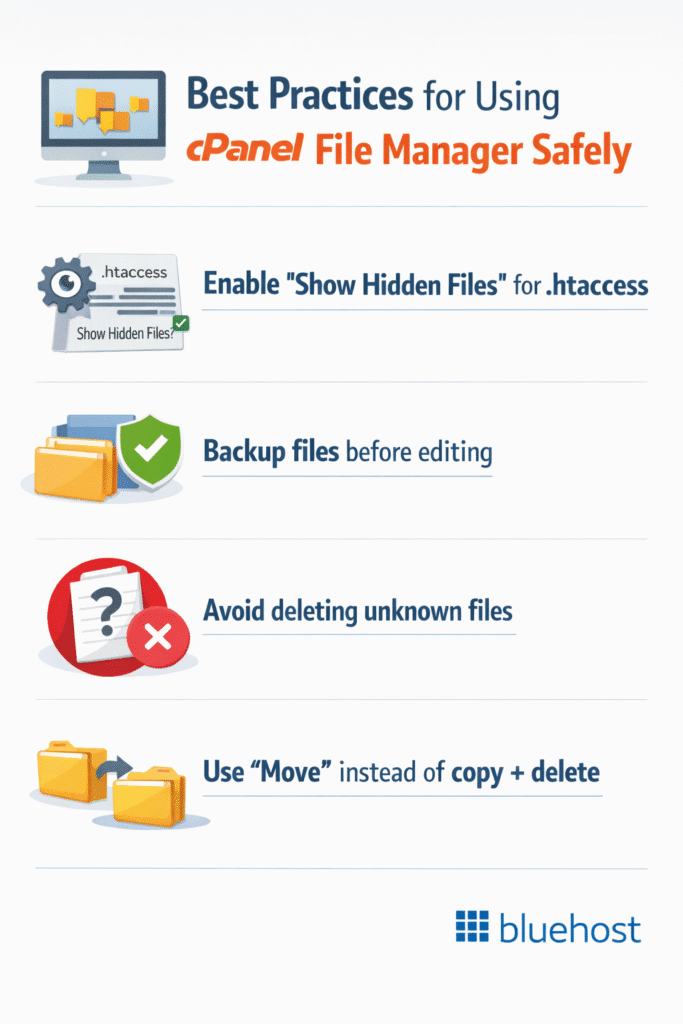
1. Enable show hidden files to edit .htaccess
Hidden files, like .htaccess, control essential website settings. Enable the Show Hidden Files option in File Manager to view and edit them safely. Always check the content before making changes, as incorrect edits can break your website or affect security settings.
Also read: How to Redirect a URL Using an .htaccess File
2. Backup files before editing
Before making any changes, create a backup of the file or folder. This ensures you can restore the original version if something goes wrong. Regular backups are crucial for preventing data loss and recovering from accidental mistakes.
3. Avoid deleting unknown files
Never delete files unless you are sure of their purpose. Some system or configuration files are critical for your website to function properly. Deleting unknown files can cause errors, downtime or loss of functionality.
4. Use move instead of copy + delete
When reorganizing files, use the Move option instead of copying and then deleting. This reduces the risk of leaving duplicate files or accidentally deleting the wrong one. It also helps maintain proper file paths and reduces clutter on your server.
5. Add an extra layer of security
For ongoing protection, use security and backup tools available with Bluehost. Jetpack helps create reliable backups, so you can restore files quickly if something goes wrong. SiteLock adds security by scanning for malware, monitoring vulnerabilities and protecting your site from common threats while you manage file
Following these best practices ensures your website remains safe, organized and fully functional while using File Manager. Proper precautions prevent mistakes and protect your data during everyday file management tasks.
What mistakes should you avoid in the file manager?
Even with a powerful tool like cPanel File Manager, small mistakes can lead to big problems. Understanding common errors helps you manage your website safely and prevents downtime, data loss or broken functionality.
1. Editing the wrong domain folder
Working in the wrong folder can accidentally affect another website on the same server. Always double-check the document root or web root before making edits. Use clear folder names, navigate carefully and remember that you can click edit on one file at a time to avoid unintended changes.
2. Accidentally deleting config files
Configuration files are critical for your website and server to function properly. Deleting files like wp-config.php or .htaccess can break your website instantly. Only use the delete option if you are certain of a file’s purpose and always keep a backup.
Also read: .htaccess Tutorial: How to Create, Edit, and Use .htaccess Files in Bluehost
3. Changing permissions incorrectly
Incorrect file or folder permissions can make your website vulnerable to attacks or cause features to stop working. Always verify permissions after changes and follow recommended settings for files and directories to maintain security and functionality.
4. Uploading oversized files without FTP
Uploading very large files directly through File Manager can fail or time out due to server limits. Most cPanel accounts support uploads up to 500 MB per file.
For larger files, consider using alternative transfer methods provided by your hosting account or split files into smaller compressed archives before uploading. You can also select multiple files at once for bulk uploads when working within size limits.
For smaller batches, click Create and then Save to ensure uploads complete smoothly without data corruption or performance issues.
Final thoughts
Mastering how to use cPanel File Manager is crucial for managing your website efficiently. This cpanel file manager tutorial helps you follow best practices and avoid common mistakes, keeping your site secure and well-structured. Using File Manager’s tools to upload, edit, rename and organize files ensures it remains fully functional. You can even select multiple files at once to save time, use the delete option for outdated files or click create and click save when adding new content.
Whether you’re updating pages, managing multiple domains or troubleshooting issues, File Manager simplifies tasks that would otherwise require additional file transfer tools. Regular backups, careful folder navigation and correct permissions ensure your website stays safe while you make changes. For example, you can click edit on one file to quickly make adjustments without disrupting other content.
If you’re starting a new website or want a reliable hosting solution to manage your files with ease, Bluehost WordPress Hosting provides a secure, fully managed platform with built-in cPanel File Manager access. With our hosting, you can focus on building your website while we handle the technical setup.
Start managing your website files with ease. Get started with Bluehost and access cPanel File Manager today.
FAQs
The cPanel File Manager lets you upload files, edit a file using the HTML editor and permanently delete unwanted files. You can also copy files, create new folders or display hidden files directly from your browser without using an FTP client.
Your main folder is usually public_html or web root. Click on the file listings or expand folders, then use the left directory to locate your selected file. Check the file name and organize or edit it as needed.
Some files are hidden by default for security. Enable display hidden files in File Manager to access, edit a file or permanently delete content safely without affecting other critical website files.
File Manager doesn’t offer an undo feature. Always backup files before editing, note the original file name and make edits in the HTML editor. This ensures you can restore content if changes cause issues.


Write A Comment