


Key highlights
- Understand the common causes of WordPress theme and plugin issues, such as compatibility issues and conflicting code, to prevent website errors.
- Learn to troubleshoot the “White Screen of Death” by verifying server requirements and managing PHP versions.
- Explore database adjustments using phpMyAdmin to resolve login access issues and reset theme settings.
- Uncover the impact of browser and plugin caching on your site and how to clear them to ensure changes appear.
- Know the steps to fix image display problems and properly configure new themes to match their demo layouts.
Right now, WordPress runs about 42.8% of all websites on the internet but that doesn’t mean the ride’s always smooth. Even the strongest platform hits snags. You’ve probably run into one yourself: a blank screen staring back at you, themes refusing to load properly or WordPress plugins that just stop working. It’s frustrating. And when your site’s down or acting up, that’s not just an inconvenience, it can actually hurt your business.
This guide walks you through how to actually fix WordPress theme and plugin issues without losing your mind. You’ll learn how to track down what’s causing the issue, apply fixes that work and here’s the important part: stop the same problems from happening again down the road. By the time you’re done here, you’ll have the tools and confidence to handle most WordPress troubleshooting on your own.
TL;DR: Troubleshooting WordPress theme and plugin issues
- WordPress powers 43% of all sites – conflicts between plugins and themes are common
- White screen errors and loading failures often stem from compatibility issues
- Systematic troubleshooting helps pinpoint root causes quickly
- Most problems can be resolved without technical expertise
- Preventive measures reduce future plugin and theme conflicts
What are WordPress plugin and theme issues?
WordPress plugin issues and theme problems occur when there’s a conflict between different components of your website. These issues can manifest in various ways, from minor display problems to complete site crashes. Understanding the nature of these conflicts is crucial for effective troubleshooting.
Why plugin and theme issues happen?
WordPress operates on a modular system where themes control your site’s appearance and plugins add functionality. When these components don’t work well together, conflicts arise. The most common scenarios include:
- Plugin conflicts with other plugins
- Theme conflicts with plugins
- Compatibility issues with WordPress core updates
- Outdated or abandoned plugins causing security vulnerabilities
- Server limitations affecting plugin performance
Plugin vs plugin, plugin vs theme, plugin vs WordPress core conflicts
To effectively manage and troubleshoot these issues, it’s essential to understand the type of conflict:
| Conflict type | Common cause | Impact on website |
|---|---|---|
| Plugin-to-plugin | Two plugins modify the same functionality or use conflicting code | Features stop working, error messages or site crashes |
| Plugin-to-theme | Plugin conflicts with theme’s design elements or scripts | Layout issues, broken appearance or visual inconsistencies |
| Plugin-to-WordPress core | Plugin not updated for latest WordPress version | Compatibility errors, security vulnerabilities or reduced performance |
Each conflict type requires specific troubleshooting steps, such as selectively disabling plugins, updating themes or rolling back WordPress versions.
For a smoother WordPress experience with fewer plugin and theme conflicts, consider using Bluehost WordPress hosting. We offer full access to the WordPress ecosystem, allowing you to install any plugin or theme without artificial restrictions. Our platform is optimized for WordPress performance and reliability, reducing the chances of conflicts caused by server limitations. Plus, you get 24/7 expert human support to quickly resolve any plugin or theme issues that arise.
Ready to simplify your WordPress hosting and minimize plugin and theme conflicts? Get started with Bluehost WordPress Hosting today!
Common causes of WordPress plugin issues
Before diving into troubleshooting steps, it’s essential to understand what typically causes these WordPress problems. Identifying the root cause helps you implement the most effective solution.
1. Outdated or incompatible plugins
One of the most frequent causes of WordPress plugin issues is using outdated plugins that haven’t been updated to work with your current WordPress version. Developers regularly release updates to maintain compatibility, fix bugs and patch security vulnerabilities.
2. Theme conflicts
WordPress themes can conflict with plugins, especially when they modify similar functionality. Custom themes or heavily modified themes are more likely to cause compatibility issues than well-coded, regularly updated themes.
3. WordPress version mismatches
When WordPress releases major updates, some plugins may not immediately be compatible. This can cause your WordPress themes not to work properly or plugins to malfunction until developers release compatible versions.
4. Poorly coded or abandoned plugins
Plugins that haven’t been maintained or were poorly coded from the start can cause various issues. These plugins may have memory leaks, inefficient code or security vulnerabilities that affect your entire site.
5. Server or hosting limitations
Sometimes the issue isn’t with WordPress itself but with your hosting environment. Insufficient memory limits, outdated PHP versions or server configuration problems can prevent plugins from functioning correctly.
Common WordPress errors you may encounter due to plugin issues
Recognizing specific error types helps you understand the severity of the problem and choose the appropriate troubleshooting method. Here are the most common WordPress troubleshooting scenarios:
1. White Screen of Death
This error displays a blank white screen instead of your website. It’s often caused by PHP errors from conflicting plugins or themes, memory limit issues or corrupted files.
Also read: Guide on WordPress Blank White Pages (White Screen of Death)
2. Site crashes after plugin or theme activation
When your site becomes inaccessible immediately after installing or activating a plugin or theme, there’s likely an immediate compatibility conflict that needs to be resolved.
3. Login page not loading
WordPress plugins not working can sometimes affect your ability to access the admin dashboard. This could be due to security plugins, caching issues or database connection problems.
4. Changes not reflecting on the site
When WordPress changes not showing after making updates, this could be related to caching plugins, server-side caching or theme conflicts preventing proper rendering.
5. Broken images or layouts
Layout issues often indicate theme and plugin conflicts, particularly when plugins modify how content is displayed or when themes don’t properly support plugin functionality.
6. Slow website after installing plugins
Performance issues can occur when plugins consume too many server resources, conflict with caching mechanisms or contain inefficient code that slows down your site.
Before you start troubleshooting WordPress plugin issues (do this first)
Taking proper precautions before troubleshooting WordPress theme issues can save you from potential data loss and additional complications. These preparatory steps are crucial for safe troubleshooting.
1. Create a full website backup
Always create a complete backup of your website before attempting any troubleshooting. This includes your database, files, themes, plugins and media. If something goes wrong during the troubleshooting process, you can restore your site to its previous state.
Also read: 5 WordPress Website Backup Methods to Protect Your Site
2. Avoid making changes on a live site
Whenever possible, troubleshoot on a staging environment or development site. This prevents your live site from experiencing downtime while you work through the issues.
3. Use a staging environment if possible
Many hosting providers offer staging environments where you can safely test changes before applying them to your live site. This is particularly important for eCommerce sites or high-traffic websites.
How to troubleshoot WordPress plugin issues (when you have admin access)?
When you have access to your WordPress dashboard, you can follow these systematic steps to identify and resolve WordPress plugin issues.
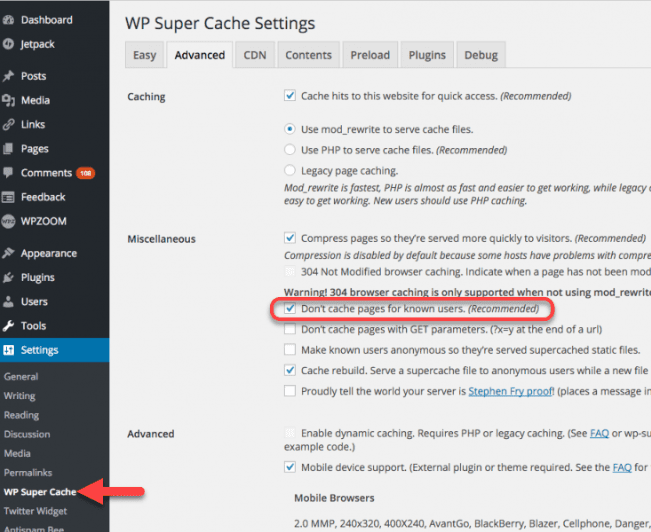
Step 1: Clear browser and site cache
Before diving into complex troubleshooting, start with the simplest solution. Clear your browser cache and any caching plugins on your site. Many apparent issues are actually cached versions of pages displaying outdated or corrupted information.
To clear site cache:
- Access your caching plugin settings
- Look for “Clear Cache” or “Purge Cache” options
- Clear all cached content
- Check if the issue persists
Step 2: Update WordPress, plugins and themes
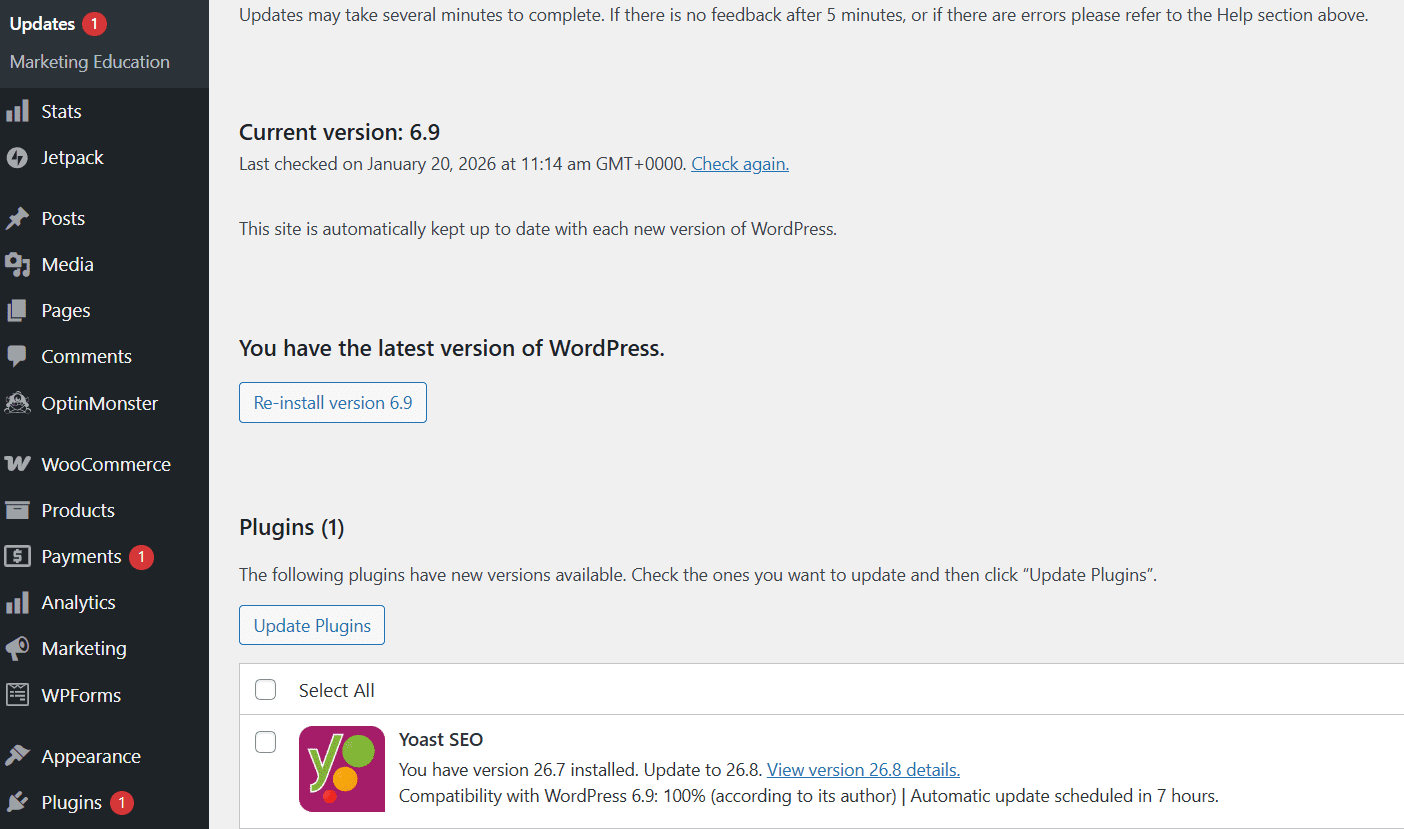
Keeping everything updated is crucial for preventing WordPress theme conflicts. Navigate to your WordPress dashboard and check for available updates:
- Update WordPress core to the latest version
- Update all plugins to their latest versions
- Update your active theme
- Test your site after each update to identify any new issues
Step 3: Check plugin vs WordPress version compatibility
Verify that all your plugins are compatible with your current WordPress version. In the Plugins section, look for compatibility warnings or check the plugin’s WordPress.org page for version requirements.
Step 4: Test plugin vs theme conflicts
To identify theme-related conflicts, temporarily switch to a default WordPress theme like Twenty Twenty-One. If the issue disappears, your theme is likely causing the conflict. You can then work with your theme developer or find an alternative theme.
Step 5: Identify plugin vs plugin conflicts
This is often the most time-consuming step but is essential for resolving WordPress troubleshooting issues:
- Deactivate all plugins.
- Check if the issue is resolved.
- If the problem disappears, reactivate plugins one by one.
- Test your site after each activation.
- When the issue returns, you’ve identified the problematic plugin.
Step 6: Find, replace or report the faulty plugin
Once you’ve identified the problematic plugin, you have several options:
- Contact the plugin developer for support.
- Look for alternative plugins with similar functionality.
- Check if there are pending updates that might fix the issue.
- Consider hiring a developer to create a custom solution.
How to fix WordPress plugin issues without admin access?
Sometimes WordPress plugin issues can prevent you from accessing your dashboard. In these cases, you’ll need to use alternative methods to resolve the problems.
1. Disable plugins manually using FTP or File Manager
If you can’t access your WordPress admin area, you can disable plugins through your hosting control panel’s file manager or FTP:
- Access your website files via FTP or hosting file manager
- Navigate to /wp-content/plugins/
- Rename the plugins folder to “plugins-disabled”
- Try accessing your WordPress admin area
- Once you regain access, rename the folder back and troubleshoot individual plugins
2. Switch to a default WordPress theme
If WordPress themes are not working properly, you can manually switch to a default theme:
- Access your website database through phpMyAdmin
- Find the wp_options table
- Locate the “template” and “stylesheet” rows
- Change their values to a default theme like “twentytwentyone”
- Check if this resolves the issue
3. Restore access to the WordPress dashboard
If the above methods don’t work, you may need to restore from a recent backup or contact your hosting provider for assistance in resolving database connection issues or server-related problems.
Advanced diagnostics for plugin and theme issues
For more complex WordPress plugin issues, you may need to use advanced diagnostic techniques to identify the root cause.
1. Review WordPress error logs
WordPress error logs provide detailed information about what’s causing issues on your site. You can access these through:
- Your hosting control panel’s error logs section
- FTP access to the /wp-content/ directory
- Debug logging enabled in wp-config.php
2. Use the health check & troubleshooting plugin
This official WordPress plugin allows you to troubleshoot issues without affecting your live site visitors. It creates a separate environment where you can test plugin and theme conflicts safely.
3. Test plugins and themes in a staging site
Setting up a staging environment allows you to replicate your live site and test potential solutions without risking your main website’s functionality.
How to prevent WordPress plugin issues in the future?
Prevention is always better than cure when it comes to WordPress troubleshooting. Implementing these best practices will help you avoid most common issues.
1. Maintain regular backups
Schedule automatic daily backups of your website. This ensures you can quickly restore your site if any issues arise during updates or when testing new plugins.
2. Limit the number of plugins
Only install plugins you actually need. Each additional plugin increases the potential for conflicts and can slow down your site. Regularly review and remove unused plugins.
3. Avoid bulk or auto-updates on live sites
While keeping plugins updated is important, avoid automatic updates on live sites. Test updates in a staging environment first, especially for major plugin or WordPress core updates.
4. Use trusted, well-maintained plugins
Choose plugins from reputable developers with good support records. Check plugin reviews, last update dates and compatibility with your WordPress version before installing.
5. Test changes before going live
Always test new plugins, themes or major updates in a staging environment before implementing them on your live site. This helps identify potential conflicts before they affect your visitors.
Final thoughts
Dealing with WordPress theme issues and WordPress plugin issues doesn’t have to be a nightmare. Whether your WordPress themes aren’t loading or you’re struggling to fix WordPress theme problems, the solutions we’ve covered will get your site back on track. Remember, most issues stem from compatibility conflicts, outdated files or hosting limitations.
Even the best troubleshooting won’t matter if your hosting can’t keep up. That’s where Bluehost WordPress hosting makes all the difference. Built specifically for WordPress, Bluehost offers plans that eliminate common compatibility headaches, provide automatic updates and deliver 24/7 expert support whenever you face WordPress theme or plugin challenges.
Don’t let technical issues hold you back. Get started with Bluehost WordPress hosting today, and keep your site running smoothly.
FAQs
Your theme might not load due to conflicts with plugins, outdated WordPress core files or corrupted theme files. Try deactivating plugins one by one, updating WordPress to the latest version and reinstalling the theme to resolve the issue.
Roll back to the previous theme version through your hosting file manager or use a backup. Check for plugin conflicts, clear your cache and ensure your PHP version meets the theme’s requirements. Contact the theme developer if problems persist.
A white screen typically indicates PHP errors, memory limit issues or plugin conflicts. Enable WordPress debugging in wp-config.php to identify the exact error. Increase your PHP memory limit or switch to a default theme temporarily to troubleshoot.
Yes, incompatible plugins can break theme functionality. Deactivate all plugins, then reactivate them individually to identify the culprit. Check each plugin’s compatibility with your theme and WordPress version before installation to avoid future conflicts.
Direct edits to theme files get overwritten during updates. <a href=”https://www.bluehost.com/blog/working-with-child-themes-in-wordpress/” target=”_blank” title=”How to Make WordPress Child Themes and Use Them”>Use a child theme</a> to preserve customizations or rely on the WordPress Customizer for changes. Always backup your site before updating themes to prevent losing important modifications.
Start by deactivating all plugins to see if the issue resolves. Reactivate them one at a time to pinpoint the problematic plugin. Check error logs, verify plugin compatibility with your WordPress version and remove any outdated or abandoned plugins.
Clear your browser and server cache first. Check if custom CSS is causing conflicts and disable any page builders temporarily. Ensure your theme is updated and compatible with your current WordPress version. Try switching to a default theme to isolate the problem.
Missing images usually stem from incorrect file paths, broken media uploads or CDN configuration issues. Regenerate thumbnails using a plugin, check file permissions on your uploads folder and verify that your site URL settings are correct in WordPress settings.
CSS loading failures often result from file path errors or caching issues. Clear all cache layers including browser, plugin and server cache. Check your theme’s functions.php file for proper stylesheet enqueuing and inspect the browser console for loading errors.
Maintain regular backups, keep WordPress core, themes and plugins updated and test updates in a staging environment first. Use reputable themes from trusted sources, implement a child theme for customizations and monitor your site regularly for compatibility issues.


Write A Comment