


Key highlights
- Understand the basics of phpBB, including the hierarchy of categories, forums and topics.
- Verify your hosting with phpBB requirements before starting the setup.
- Log into the Admin Control Panel (ACP) via direct link or tools like SimpleScripts.
- Learn how to create a phpBB forum, assign parents and apply phpBB styles.
- Configure permissions correctly to prevent common visibility issues.
- Plan for future growth with moderation tools and optional features like phpBB chat.
Building an online community is one of the most effective ways to foster loyal traffic, provide customer support and encourage long-term engagement. A well-organized phpBB forum acts as the foundation for these interactions, serving as a support hub, a niche discussion board or a structured alternative to standard blog comments. In this guide, we will explore exactly how to create a phpBB forum that is secure, scalable and user-friendly.
This tutorial covers everything you need to know to set up a phpBB forum, from checking prerequisites and accessing the admin panel to configuring categories and managing permissions. You will also discover best practices for organizing your board and phpBB SEO to ensure your new community is visible to the right audience.
You might be deciding where to host your phpBB forum. Perhaps you’re evaluating premium versus free phpBB hosting options. Or you’ve already installed the phpBB software and are ready to build. This guide shows you how to create a phpBB forum. It provides professional workflows used by experienced administrators.
What Is phpBB?
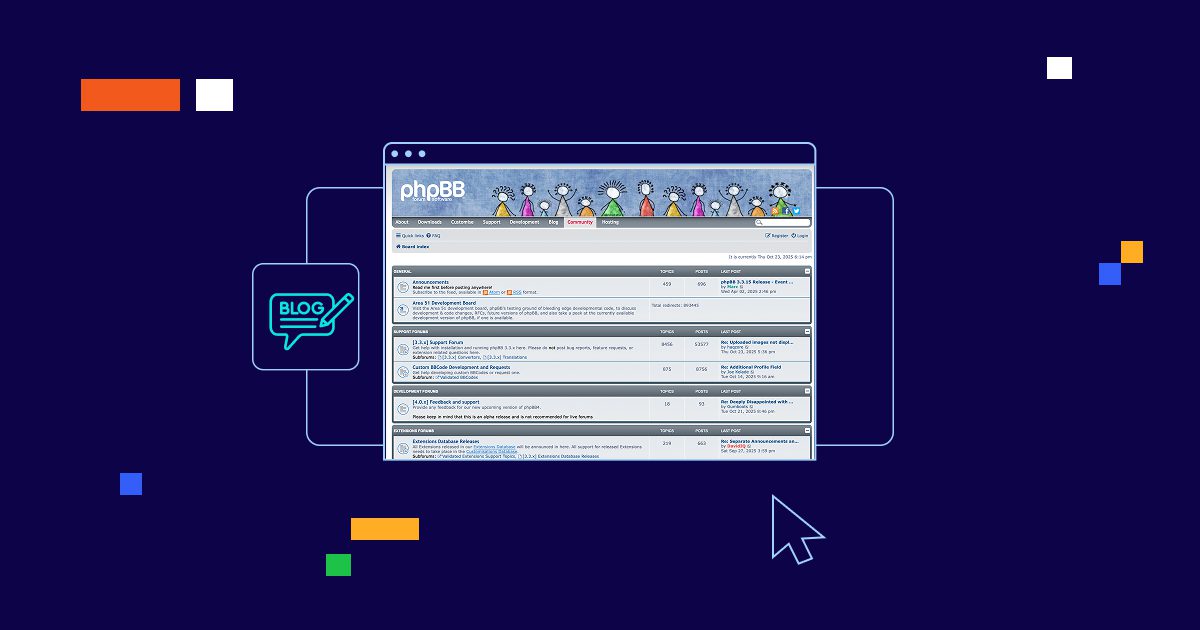
phpBB (PHP Bulletin Board) is a robust, open-source forum software designed to facilitate structured online conversations. If you have visited the official phpbb.com site to download extensions or read documentation, you have seen the power of this platform in action. It is widely trusted for its flexibility and strong community support.
At its core, phpBB allows you to create a phpBB discussion board where you can manage categories, define user groups and enforce granular permissions. Administrators favor it for its reliability and the ability to customize the look and feel through templates and styles.
Difference between forums and topics
New administrators often confuse “forums” with “topics.” Understanding the phpBB hierarchy is crucial for a clean setup:
- Category: A container for organization (e.g., “General Discussion,” “Support”).
- Forum: A specific section inside a category (e.g., “Installation Help,” “Off-Topic”).
- Topic: A single discussion thread created by a user inside a forum.
- Post: An individual reply within a topic.
When learning how to create a phpBB forum, organizing your board structure is essential, start by creating a Category for your “Support” area, then add multiple Forums within it to cover different topics. This hierarchical approach not only simplifies navigation for users but also strengthens your phpBB SEO by establishing a clear, logical information architecture that search engines can easily crawl and index.
What planning and hosting do you need before creating a phpBB forum?
Verifying your environment before you begin will prevent performance issues later. A solid foundation ensures your community can grow without technical interruptions.
1. phpBB installation requirements
Before launching your first forum, confirm that your phpBB host meets the necessary requirements:
- A compatible PHP version (phpBB 3.3+ generally requires PHP 7.1.3 or newer).
- A supported database (MySQL, MariaDB or PostgreSQL).
- HTTPS (SSL/TLS) support for secure user logins.
- Sufficient disk space for the database and file attachments.
- Proper file permissions for the cache and store directories.
When choosing hosting with phpBB, prioritize reliability and security over the lowest price. While free phpBB forum hosting is available for testing, a paid plan usually offers better control over your files and database, essential for long-term success.
2. Admin credentials and access
To create a phpBB discussion board structure, you need full administrative rights. Ensure you have:
- The administrator username and password.
- Access to the Administration Control Panel (ACP) URL (usually ending in /adm).
- Access to your hosting control panel for backups.
If you inherited the board, verify domain ownership and backup locations immediately.
3. When to use the phpBB user guide
This guide focuses on the practical workflow of setting up forums. For version-specific nuances, always refer to the official documentation on phpbb.com. The official guide is invaluable for troubleshooting specific error codes or understanding complex extension settings.
If you encounter unique errors, the official community forums are often the best place to find solutions tailored to your specific version of phpBB.
How to access the phpBB admin control panel
Once the installation is complete, you will need to log in to the administrative dashboard to configure your forum’s settings and manage user permissions.
1. Logging in through Softaculous
If you installed your forum using a one-click installer like Softaculous, you might find a direct link to your admin area in your hosting dashboard. These tools often store installation paths and credentials, making the initial login easier. However, rely on the direct ACP login for daily management.
2. phpBB admin login process
To access the ACP manually:
- Navigate to your forum URL (e.g., https://yourdomain.com).
- Log in with your administrator account.
- Click the Administration Control Panel link, typically found in the footer.
- Re-authenticate if prompted for security.
Navigating directly to the /adm folder often works, but logging in through the main board interface is the standard and safest method.
How to create a phpBB forum (Step-by-step)
After installing phpBB, use the administrative link provided in Softaculous to access the login area. Follow the steps below to create a new forum.
Note: On the forum permissions screen, you can set permissions for your forum. Once you have configured them, scroll to the bottom of the page and click Apply all Permissions.
Important: If you do not set specific permissions, your forum will not be visible or accessible to users.
Follow these steps to configure your forum settings in phpBB:
1. Log in to the Admin Control Panel (ACP): Use the administrator username and password you created during installation to access the dashboard.
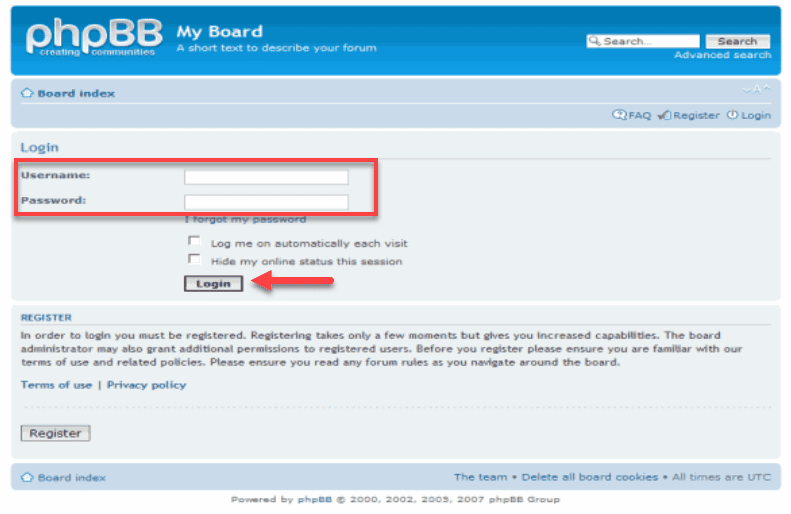
2. Open the Forums tab: From the ACP main menu, click the FORUMS tab to view your management tools.
3. Select or create a forum: To build a new section, click Create new forum, enter a name and confirm. To edit an existing board, simply select it from the list.
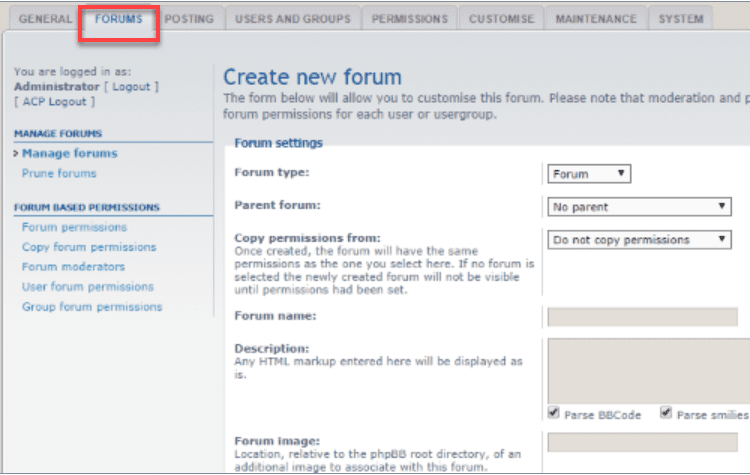
4. Configure forum options: Adjust the specific settings for your forum, such as:
- Parent Forum: Choose if this forum is a subforum.
- Copy Permissions: Copy permissions from another forum if desired.
- Forum Style: Choose the style for the forum.
- Add a brief description to inform users about the forum’s purpose.
5. Set permissions: Control who can view, post or moderate content within the forum. Click Apply all Permissions when you are finished.
6. Save your settings: Click the Submit button to finalize your configuration. A success message will appear to confirm the changes.
7. Advanced customization: You can further adjust styles, user roles and group settings by navigating to the CUSTOMISE or USERS AND GROUPS tabs in the ACP.
For a more personalized look, you can also install and manage custom phpBB styles directly through the ACP.
Important: You must set these permissions; otherwise, the forum will remain inaccessible to everyone.
How to configure forum settings
After naming your forum, you must configure its settings to ensure it behaves correctly within your community structure.
1. Setting the parent forum
The Parent forum setting determines where your new section appears. You have two main choices:
- Category: Place the forum inside a main category (e.g., putting “News” inside “General”).
- Forum: Place it inside an existing forum to create a subforum.
For example, a “Support” category might contain forums like “Installation” and “Bugs.” This hierarchy keeps your main index page organized.
2. Copying permissions from an existing forum
Setting permissions from scratch is time-consuming. The most efficient method is to copy permissions from an existing forum that already works (e.g., “Your First Forum”).
This is critical for security. If you are creating a staff-only area, copy permissions from an existing private forum to ensure you don’t accidentally expose sensitive topics to the public.
3. Choosing a forum style
phpBB allows you to assign specific phpBB styles to individual forums. While most admins use a global style, you can override this for special sections (e.g., a dark theme for a gaming subforum).
Ensure any custom style is fully installed and tested. If you use WordPress, you might also look for phpBB WordPress integration tools to match your forum’s look with your main site.
4. Saving forum settings
Once configured:
- Review the name, description and parent setting.
- Verify that you have copied permissions from the correct source.
- Click Submit to save.
- Check the board index to see if the forum is visible.
If the forum does not appear, it is almost certainly a permissions issue, even if the settings are saved. You must explicitly grant “Read” access to user groups.
How to set forum permissions
Permissions are the most critical part of learning how to create a phpBB forum. Without them, your forum remains invisible to users.
1. Understanding forum permissions
phpBB uses a granular permission system. To simplify management, always assign permissions to User Groups rather than individuals:
- Registered users: Standard access to read and post.
- Guests: Usually “Read Only” (important for SEO).
- Moderators: Rights to edit or delete content.
- Administrators: Full control (must still be explicitly added).
Decide early if you want guests to see your content. Making forums viewable to guests allows search engines to index your discussions.
2. Applying permissions to the forum
Follow this workflow in the ACP:
- Go to the Permissions tab and select Forum permissions.
- Select your new forum(s) and click Submit.
- Select the groups (e.g., Guests, Registered Users) and click Edit permissions.
- Assign a Role (e.g., Standard Access, Read Only Access) from the dropdown.
- Save and test with a non-admin account.
Roles are pre-set bundles of permissions that save you from checking dozens of individual boxes manually.
3. Common permission issues to avoid
- Forum not visible: usually means the “Can see forum” permission is missing.
- Users cannot post: The “Standard Access” role was not applied.
- “Never” vs “No”: If a user is in two groups and one is set to “Never,” they will be blocked, even if the other says “Yes.”
- Inheritance: Permissions do not automatically trickle down unless you copy them during creation.
If you face issues, check the “Forum permissions” screen again. Most “broken” forums are simply misconfigured permissions.
Final thoughts
Learning how to create a phpBB forum involves more than just clicking “Add Forum.” It requires planning your category structure, securing your board with proper permissions and ensuring a user-friendly experience. By following this guide, you can launch a structured, secure phpBB discussion board ready for growth.
Your next steps should include creating clear rules, setting up a “Start Here” thread and recruiting moderators. If your needs evolve, you can explore phpBB SEO extensions or even hire a phpBB expert for complex integrations. With the right foundation, your community can thrive for years to come.
FAQs
A forum is a section that holds discussions (like a folder), while a topic is the actual discussion thread inside that forum. Users post replies within topics.
Yes, only users with Administrator permissions can access the ACP to create or delete forums. Moderators can manage content but cannot change the board structure.
This is almost always a permission issue. You must assign a permission role (like “Standard Access”) to user groups (like “Registered Users”) for the new forum to appear.
Yes. When creating the new forum, simply select an existing forum as its “Parent.” This nests the new section inside the existing one.
Absolutely. You can modify permissions at any time via the “Permissions” tab in the ACP. It is good practice to audit these settings periodically.


Write A Comment