


Key highlights
- Understand what a WordPress theme is and how it controls your website’s design and functionality.
- Learn the key factors to consider when evaluating themes for your specific website needs.
- Discover the step-by-step process to select a theme that aligns with your goals and brand.
- Explore the differences between free and premium themes to make informed decisions.
- Know how to customize your chosen theme to create a unique online presence.
Have you ever wondered why some websites look stunning and professional while others appear outdated and unprofessional? The secret often lies in one crucial element: the WordPress theme. But even the best theme needs the right hosting environment to truly shine, ensuring speed, performance and a seamless user experience.
If you’re building a website or looking to refresh your existing one, understanding “what is a WordPress theme” and how to choose the right one can make the difference between a site that converts visitors and one that drives them away.
In this comprehensive guide, you’ll discover everything you need to know about WordPress themes, from their basic definition to a step-by-step process for selecting the perfect theme for your specific needs. Whether you’re a complete beginner or someone looking to upgrade your current site, this article will equip you with the knowledge to make an informed decision.
What is a WordPress theme (Quick definition)
A WordPress theme is a collection of files that controls your website’s design, layout, colors and overall appearance without changing your content.
TL;DR: WordPress themes explained
- A WordPress theme controls how your website looks
- It does not affect your content
- You can choose free or premium themes
- The right theme improves SEO, speed and UX
Everything you need to know about WordPress themes
A WordPress theme is essentially the visual foundation of your website. Think of it as your website’s outfit – it determines how your content looks and how visitors interact with your site. More technically, a WordPress theme is a collection of files that work together to create the graphical interface and design of your WordPress website.
When someone asks “what is a theme in WordPress,” the simplest answer is that it’s a pre-designed template that controls your website’s appearance, layout, typography, colors, and overall user experience. Unlike the content you create (blog posts, pages, images), which remains the same regardless of your theme, the theme only affects the visual presentation of that content.
WordPress themes are built using PHP, HTML, CSS, and JavaScript files that tell your website how to display your content. When a visitor loads your website, WordPress combines your content with your active theme to create the final webpage they see.
Anatomy of a WordPress theme
To better understand how to choose a WordPress theme, it helps to know what components make up a typical theme. The anatomy of a WordPress theme includes several key elements:
- Header: Contains your site logo, navigation menu, and often contact information
- Navigation menu: Helps visitors move between different sections of your site
- Content area: Where your main content (blog posts, pages) appears
- Sidebar: Often contains widgets like recent posts, categories, or advertisements
- Footer: Typically includes copyright information, additional links, and contact details
- Color scheme and typography: Determines your site’s visual identity
These components work together to create a cohesive user experience. Understanding these elements helps you evaluate whether a theme will meet your specific needs.
What is a WordPress child theme?
A WordPress child theme is a theme that inherits all the functionality and styling from another theme, called the parent theme. Think of it as a safety layer that lets you customize your site’s appearance without touching the original theme files. When your parent theme updates, your customizations stay intact because they’re stored separately in the child theme.
You’ll want to use a child theme when you’re planning to modify your theme’s CSS, customize templates, or add custom functions. This approach keeps your changes safe during updates. However, you can skip creating a child theme if you’re only using your theme’s built-in customization options or a page builder. Common child theme modifications include adjusting colors and fonts through CSS, overriding header or footer templates, modifying layout structures, or adding custom post type templates for specific content needs.
What does a WordPress theme actually do?
A WordPress theme acts as the visual operating system for your website, strictly controlling how your stored data is presented to visitors. While the WordPress core manages your actual content—such as blog posts, images and comments—the theme dictates the layout structure, typography, color palettes and widget areas used to display that information. Through a combination of template files and a functions.php file, themes define the visual hierarchy, determining where your logo sits or how your navigation menus behave across different devices.
It is a common misconception that themes manage a website’s entire functionality. In reality, there is a clear separation of roles: themes handle the visual presentation while plugins manage features and data processing. For instance, a theme displays your products with specific styling, but a plugin like WooCommerce powers the shopping cart logic. Understanding this distinction is vital when learning how to choose a WordPress theme. Relying on a theme for critical functionality, such as SEO or custom post types, can create a “lock-in” effect where switching designs later causes you to lose those features.
What is a WordPress parent theme?
A WordPress parent theme is a complete theme containing all the necessary files and assets to function independently. It serves as the primary powerhouse for your website, providing the core design and functionality. While you can run a parent theme on its own, it acts as the essential foundation that a child theme inherits from. This structure allows the parent theme to receive critical updates from developers without overwriting your specific design tweaks.
Popular examples include the default Twenty Twenty-Four and the eCommerce-focused Storefront. Understanding this relationship is vital for beginners: modifying a parent theme directly puts your changes at risk during updates. This knowledge helps you understand how to choose a WordPress theme that balances robust features with safe customization options.
What are WordPress themes made of?
At a technical level, a WordPress theme is a collection of files that function together to produce your website’s graphical interface. These components rely on four primary languages: PHP retrieves content from your database, HTML structures that data for the browser, and CSS applies visual styling. The style.css file is particularly crucial, as it contains the main design rules for fonts and colors. Additionally, JavaScript files are often included to power dynamic elements, ensuring your site remains interactive and responsive across devices.
WordPress processes these files using a logic system known as the template hierarchy. When a visitor lands on a page, the engine searches for the most specific template file available to display it. For instance, it might look for single.php to render an individual blog post; if that file is absent, it falls back to index.php, the default template required in every theme. Another essential component is functions.php, which operates like a built-in plugin to add custom features. It is important to remember that while theme files control the presentation and visual output, they are distinct from plugin files, which manage site functionality and data processing independent of the design.
Types of WordPress themes you should know in 2026
When exploring what are WordPress themes available to you in 2026, you’ll encounter several distinct categories that reflect modern web design trends. Each type serves different purposes and comes with unique advantages tailored to today’s website needs:
1. Free vs premium themes
Free themes remain available through the WordPress repository and offer solid functionality with full site editing (FSE) capabilities. While they’re perfect for beginners or simple websites, they typically have limited customization options, fewer design variations and basic support.
Premium themes in 2026 typically range from $40-150 and offer AI-powered customization, advanced performance optimization, priority support, automatic updates and extensive design libraries. For business websites, premium themes provide better value long-term with enhanced security features and accessibility compliance built in.
2. Multipurpose vs niche themes
Multipurpose themes work across various website types and industries using modern block patterns and full site editing. They’re flexible and now more intuitive than ever, though they can still feel overwhelming with extensive feature sets. Niche themes are designed for specific industries (restaurants, portfolios, eCommerce) and often provide streamlined functionality with pre-built templates optimized for your specific use case.
3. Block themes vs classic themes
Block themes leverage WordPress’s native full site editing system, allowing complete site customization through the block editor without code. They load faster and integrate seamlessly with the WordPress ecosystem. Classic themes still exist but are gradually being phased out, relying on the traditional Customizer and often requiring plugins or page builders for advanced customization.
Understanding the different types of WordPress themes available in 2026 helps you narrow down your options based on your website’s purpose, whether you’re building a blog, business site, eCommerce store, or portfolio.
Now that you know which theme types align with your goals, let’s explore the essential features that separate a good theme from a great one.
What features should you look for in a WordPress theme?
When evaluating potential themes, focus on these essential features that indicate quality and functionality:
- SEO optimization: Clean code structure that helps search engines understand your content
- Schema markup: Built-in structured data to enhance search result appearance
- Social media integration: Easy sharing buttons and social media connections
- Translation readiness: Support for multilingual websites if needed
- Widget compatibility: Support for WordPress widgets and custom widget areas
- Plugin compatibility: Works well with popular WordPress plugins
- Accessibility features: Ensures your site is usable by people with disabilities
By prioritizing these key features when selecting a WordPress theme, you’ll ensure your website is built on a solid foundation that supports both current needs and future growth.
Understanding what makes a quality theme is just the first step—now let’s explore why choosing the right theme is essential for your website’s success.
Before you choose a WordPress theme
Before diving into theme directories, take a moment to clarify your website’s foundation. Knowing what you need before you start browsing will help you choose a WordPress theme that aligns perfectly with your goals and saves you from costly redesigns later. Think of this as your pre-selection checklist—a roadmap that ensures every decision supports your website’s success.
Start by defining your brand basics: your logo dimensions, primary color palette and preferred fonts. Next, identify your site’s core purpose—are you generating leads, selling products or sharing educational content? List the essential page types you’ll need (homepage, about, contact, blog, shop) and any must-have functionality like eCommerce capabilities, appointment booking or membership systems. Consider your content strategy too: will you publish blog posts weekly, showcase a portfolio or manage restaurant menus? Your budget range matters as well—knowing whether you can invest in premium themes or need to start with free options narrows your search. Finally, assess your technical comfort level—are you comfortable with block-based editing or would you prefer drag-and-drop page builders?
Aligning your theme choice with user intent is equally important. Educational blogs require different layouts than lead-generation landing pages or product-focused eCommerce sites. With these considerations mapped out, you’re ready to explore the step-by-step selection process with clarity and confidence.
Need more guidance?
Get expert guidance over a call
📞 Call 888-401-4678Step-by-step guide: How to choose a WordPress theme
Now that you understand what WordPress themes are and why they matter, let’s walk through the systematic process of how to choose a WordPress theme that perfectly fits your needs.
Step 1: Define your website’s purpose and goals
Before browsing themes, clearly identify what you want your website to achieve. Are you creating a blog, business website, online store, or portfolio? Your website’s primary purpose should guide your theme selection process.
Consider these questions:
- What’s your website’s main goal (generate leads, sell products, share information)?
- Who is your target audience?
- What features are absolutely essential?
- How much content will you publish regularly?
Step 2: Prioritize mobile responsiveness
With mobile traffic dominating the web, your theme must look perfect on all devices. Test potential themes on various screen sizes and ensure they provide excellent mobile user experience.
Step 3: Evaluate loading speed and performance
Website speed directly impacts user experience and search rankings. Look for themes with clean code, optimized images, and minimal resource usage. Avoid themes loaded with unnecessary features that could slow down your site.
Step 4: Check browser compatibility
Your chosen theme should work flawlessly across all major browsers (Chrome, Firefox, Safari, Edge). Most reputable theme developers test their products across different browsers, but it’s worth verifying.
Step 5: Review customization options
Consider how much customization you need. Some themes offer extensive customization through the WordPress Customizer, while others integrate with page builders for more flexibility. Choose based on your technical comfort level and customization requirements.
Step 6: Assess support and documentation quality
Good themes come with comprehensive documentation and reliable support. Check user reviews, support forums, and available documentation before making your decision. This becomes crucial when you need help troubleshooting issues.
Step 7: Verify regular updates and security
Choose themes from developers who provide regular updates and maintain security standards. Outdated themes can create security vulnerabilities and compatibility issues with newer WordPress versions.
Step 8: Test with demo content
Most theme developers provide demo sites showcasing their themes with sample content. Explore these demos thoroughly to understand how your content might look and function within the theme.
WordPress themes vs templates: What’s the difference?
When learning what is a WordPress theme, many beginners confuse the term with “template.” While often used interchangeably, they serve distinct roles. A WordPress theme is the complete design package that controls your entire website’s visual style, functionality, and overall look. In contrast, a template is a specific file within that theme (such as single.php or page.php) that defines the layout for a particular page or part of a page.
To visualize the relationship, think of a theme as a complete wardrobe and a template as an individual piece of clothing. You choose a theme to define your site’s overall style, but that theme relies on multiple underlying templates to display specific content types. Users install themes, not individual templates. Understanding this distinction is vital for customization; it clarifies whether you need to adjust your global theme settings or simply edit the layout for a specific page type.
| Feature | WordPress Theme | WordPress Template |
|---|---|---|
| Scope | Controls the design of the entire website | Controls the layout of a specific page area |
| Composition | A collection of many files (CSS, PHP, images) | A single file within the theme folder |
| Analogy | A complete wardrobe | An individual clothing item |
Why are WordPress themes essential for your website?
Choosing the right WordPress theme isn’t just about aesthetics—it’s the foundation of your entire online presence. Here’s why your theme selection can make or break your website’s success:
1. The 50-millisecond rule: Your theme is your digital storefront
Imagine walking past two coffee shops. One has a polished, inviting exterior with clear signage, while the other looks cluttered and outdated. Which one would you enter? Your website works the same way. Studies show visitors form judgments about your site in just 50 milliseconds. A professional, well-designed theme instantly builds credibility, while a poor design makes visitors question whether they can trust your business at all.
2. From confused clicks to smooth conversions: Navigation that works
Think of your theme as the blueprint for your visitor’s journey. A quality theme ensures users can find what they’re looking for without frustration—whether that’s your contact form, product catalog, or latest blog post. Good themes prioritize intuitive navigation, clear call-to-action buttons, and logical page layouts that guide visitors naturally toward their goals and your conversions.
3. Speaking Google’s language: SEO built into every line of code
Search engines can’t see your beautiful design—they read code. Premium themes are built with clean, semantic HTML and optimized structure that search engines love. This technical foundation helps Google understand your content better, improves your page speed scores, and gives you a competitive edge in search rankings before you even publish your first post.
4. The smartphone shopper: Winning the mobile-first world
Picture this: A potential customer searches for your services on their phone during their commute. If your site doesn’t display properly on their screen, they’ll hit the back button in seconds. With over 60% of web traffic now coming from mobile devices, responsive design isn’t optional—it’s essential. Modern themes adapt seamlessly to any screen size, ensuring every visitor gets a perfect experience whether they’re on a phone, tablet, or desktop.
5. Future-proof flexibility: Grow from startup blog to enterprise powerhouse
Your website today might be a simple blog, but what about next year? A well-architected theme grows with your ambitions. Whether you’re adding an online store, building a membership site, or scaling to handle thousands of daily visitors, the right theme provides the flexibility and performance foundation you need without requiring a complete redesign every time your business evolves.
Ultimately, your WordPress theme is the silent partner in your online success—working 24/7 to attract visitors, build trust, and drive results.
What is a best theme for WordPress?
There isn’t one universal “best” WordPress theme—the ideal choice depends entirely on your website’s purpose and goals. What works perfectly for a photography portfolio won’t serve an online store well, and a theme optimized for bloggers might overwhelm a simple business site. The key is understanding what makes a theme right for your particular situation.
When evaluating themes, consider five essential factors:
- First, identify your site type: blog, business, portfolio or eCommerce.
- Second, choose your editor approach: block themes offer native full site editing, while classic themes often pair with page builders for customization.
- Third, assess performance and support expectations—look for clean code, regular updates, and reliable developer assistance.
- Fourth, verify compatibility with essential plugins for forms, SEO, or eCommerce.
- Finally, evaluate long-term scalability to ensure the theme grows with your website.
Here’s a quick reference for matching themes to use cases:
- Personal blogs: Lightweight themes with strong typography and reading-focused layouts
- Business websites: Professional themes with service pages and contact forms
- Creative portfolios: Image-optimized themes with gallery features
- Online stores: WooCommerce-compatible themes with product showcase and checkout optimization
- Membership sites: Themes with user dashboard integration and content restriction
Focus on themes that excel in your specific requirements rather than chasing the most popular or feature-packed options that may slow your site.
Popular WordPress themes
While there’s no one-size-fits-all option, some themes consistently stand out for their reliability, flexibility and ease of use.
Here are some of the most popular WordPress themes to consider:
- WonderTheme – AI-powered set up
- GeneratePress – performance-focused
- Astra – lightweight and fast
- Storefront – best for WooCommerce stores
- OceanWP – flexible and beginner-friendly
Which WordPress theme should you choose?
| Your goal | Recommended theme | Why it fits |
|---|---|---|
| Build a website quickly (no coding) | WonderTheme (Bluehost) | AI-powered setup, beginner-friendly, ready-to-use designs |
| Create a fast, lightweight site | GeneratePress | Minimal design, excellent speed and performance |
| Build a flexible all-purpose website | Astra | Highly customizable, works with all page builders |
| Launch an eCommerce store | Storefront | Built for WooCommerce, reliable and simple setup |
| Need advanced customization | OceanWP | Deep customization options and strong WooCommerce features |
Quick tip: If you’re a beginner, start with WonderTheme or Astra.
5 common theme selection mistakes to avoid in 2026
Learning how to pick a theme involves understanding what not to do. Here are the most common mistakes that lead to poor theme choices:
1. Choosing based on appearance alone
While visual appeal matters, functionality should be your primary concern. A beautiful theme that doesn’t serve your website’s purpose will ultimately hurt your success.
How to avoid this mistake: Start by listing your website’s core functions before browsing themes. Test each theme’s features against your requirements, not just its visual design. Choose functionality first, then customize the appearance to match your brand aesthetic.
2. Ignoring loading speed
Many attractive themes are poorly coded and load slowly. Prioritize performance over complex visual effects that could frustrate your visitors.
How to avoid this mistake: Always run speed tests using tools like GTmetrix or Google PageSpeed Insights before finalizing your theme choice. Look for lightweight themes with clean code and minimal dependencies. Avoid themes bundled with excessive plugins or animations that can slow down your site significantly.
3. Overlooking mobile experience
Always test themes on mobile devices before making final decisions. What looks great on desktop might be unusable on smartphones.
How to avoid this mistake: Preview every theme on multiple mobile devices and screen sizes during your evaluation process. Check that navigation menus, buttons, and forms work smoothly on touchscreens. Verify that images and text resize properly without breaking your layout or requiring horizontal scrolling.
4. Selecting themes with too many features
Feature-heavy themes might seem appealing, but they often create bloated websites that load slowly and become difficult to manage.
How to avoid this mistake: Choose themes with only the features you actually need for your website goals. Remember that you can always add specific functionality through targeted plugins later. Focus on themes that excel at core performance rather than those promising to do everything at once.
5. Neglecting theme support and updates
A theme without regular updates or reliable support can leave your website vulnerable to security issues and compatibility problems as WordPress evolves.
How to avoid this mistake: Research the theme developer’s track record for providing timely updates and responsive customer support. Check user reviews for feedback about support quality and update frequency. Verify that the theme is compatible with the latest WordPress version and receives security patches regularly.
By steering clear of these five common mistakes, you’ll be well-equipped to choose a WordPress theme that not only looks great but also performs optimally, supports your long-term goals, and provides a solid foundation for your website’s success in 2026 and beyond.
Where to find good WordPress themes?
Finding trustworthy WordPress themes requires knowing where to look and what to verify. The WordPress.org theme directory provides thousands of free, security-reviewed themes—examine last update dates (ideally within 6 months), active installation counts, and user ratings before choosing. Reputable theme marketplaces offer premium options with dedicated support, but scrutinize licensing terms, update policies, and refund guarantees. WordPress hosting providers frequently include curated theme collections with streamlined onboarding and simplified customization workflows.
Essential vetting checklist before committing:
- Update frequency: Quarterly minimum for security and compatibility
- Documentation: Comprehensive guides and video tutorials
- Support channels: Active forums, tickets, or live chat
- Refund policy: Money-back guarantees for premium themes
- Accessibility: WCAG compliance verification
- Performance: Independent speed test confirmation
Never download “nulled” or pirated themes from unauthorized sources. These modified versions harbor malware, security exploits, and hidden backdoors that devastate your website. Data breaches, search penalties, and irreparable damage eclipse any cost savings—legitimate sources are your only safe option.
The official WordPress theme directory
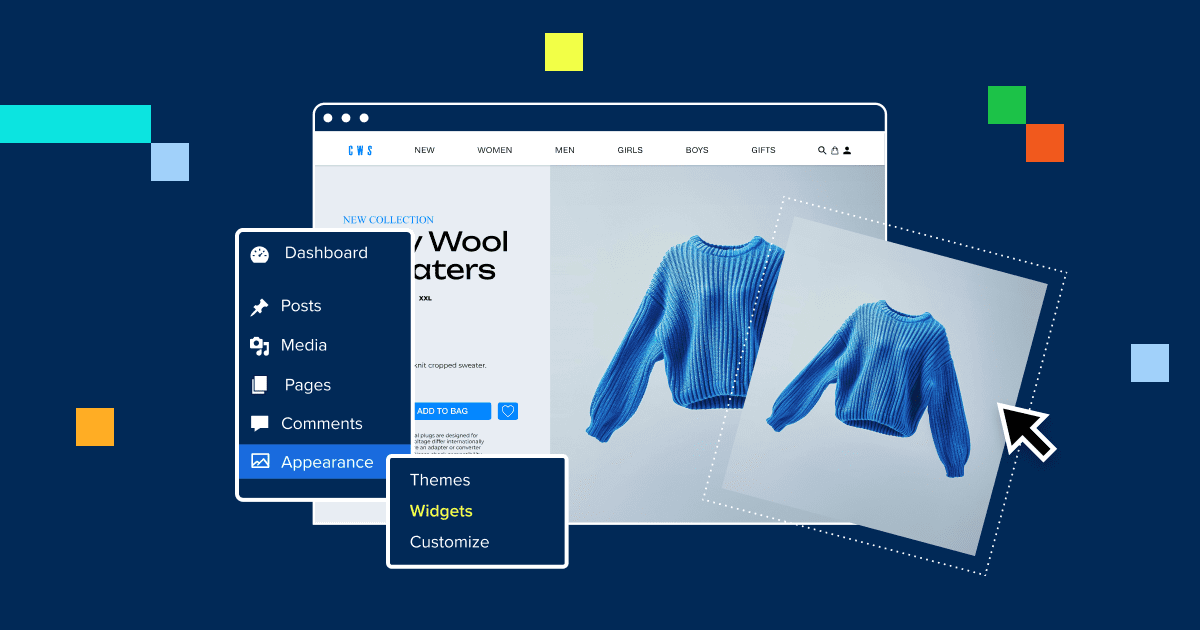
When learning how to choose a WordPress theme, the official WordPress.org directory is your most reliable resource. Hosting over 10,000 free themes, this repository ensures every option is rigorously reviewed for security, code quality, and standard compliance. You can access it directly by navigating to Appearance > Themes > Add New Theme in your dashboard or by visiting wordpress.org/themes.
- Smart Filtering: Use the “Feature Filter” to narrow results by layout, subject, or specific features like e-commerce support.
- Quality Metrics: Evaluate a theme’s reliability by checking its star ratings, active installation counts, and the “Last Updated” date.
- Pros & Cons: While these themes are free, secure, and auto-updated, they often provide less advanced support compared to premium alternatives.
Once you identify a theme that fits your criteria, simply utilize the Preview feature to test it, then click Install to add it directly to your website.
How to install and activate a WordPress theme?
Once you have determined how to choose a WordPress theme that aligns with your goals, the next step is installation. Before beginning, always create a full backup of your website to ensure you can restore your previous layout if necessary. It is important to note that installing a theme simply adds the files to your WordPress dashboard, while activating it effectively applies the design to your live site. To install a free theme, navigate to Appearance > Themes > Add New Theme, search for your selection and click the Install button. For premium themes purchased externally, click Upload Theme at the top of the screen to select your ZIP file. Advanced users can also upload extracted theme folders directly to the /wp-content/themes/ directory using an FTP client.
Before making your new design live, always utilize the Live Preview feature to verify how your existing content displays. This critical testing step helps you identify potential layout shifts or missing widgets without affecting your visitor’s experience. If you encounter common installation hurdles like “upload_max_filesize” errors or permission denials, you likely need to increase your PHP limits or verify file permissions with your hosting provider. Once you are satisfied with the preview and have resolved any issues, click Activate to officially launch your new website design.
Next, let’s see how Bluehost equips WordPress users with AI-based abilities.
How does Bluehost’s WordPress hosting plans simplify theme customization?
Bluehost WordPress hosting plans eliminate the traditional complexity of theme installation and customization. Each plan includes access to WonderSuite, an AI-powered WordPress Website Creator that streamlines your entire site setup process.
AI-powered website creation with WonderSuite
WonderSuite is Bluehost’s comprehensive suite of AI-driven tools designed specifically for WordPress users. When you choose any Bluehost WordPress hosting plan, you gain instant access to an intelligent website builder that creates professional designs based on your business needs and preferences.
The AI analyzes your industry, brand style and content requirements to generate a complete website framework. This means you can skip manual theme hunting and move straight to a customized design that aligns with your vision.
WonderTheme: Smart design customization made simple
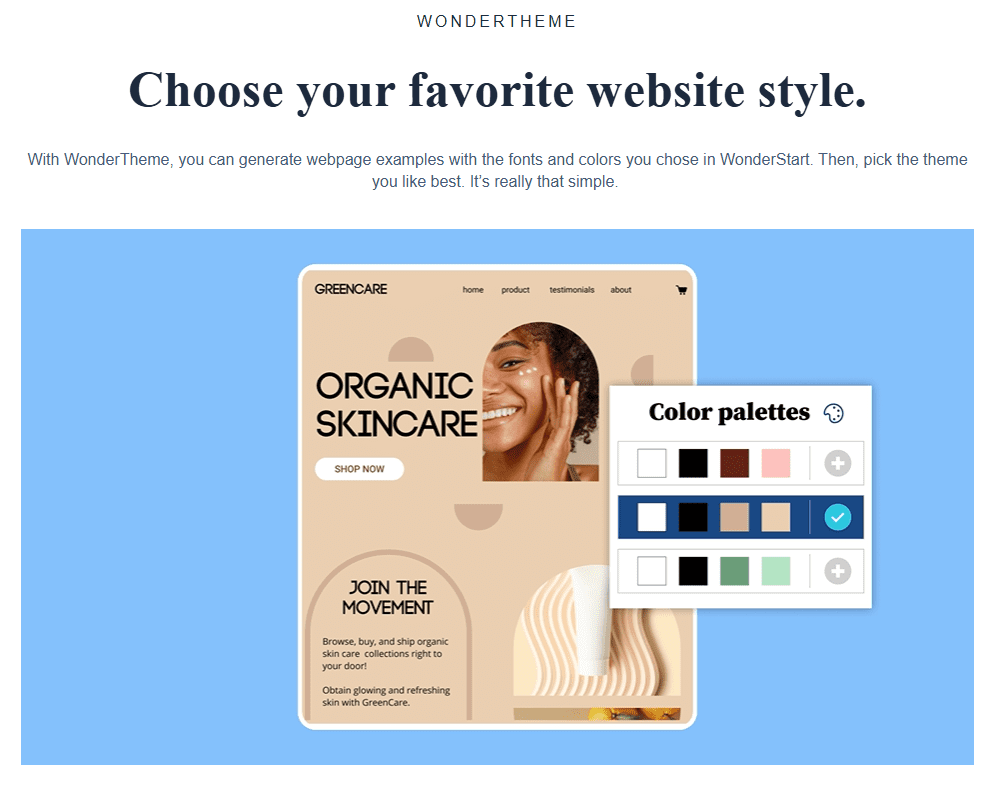
WonderTheme is the intelligent theming tool within WonderSuite that gives you complete design control without requiring coding knowledge. Here’s what makes it powerful:
- Instant color palette adjustments that maintain visual harmony across your entire site
- Typography controls with professionally curated font pairings
- Layout modifications through an intuitive drag-and-drop interface
- Real-time preview of all design changes before publishing
- Mobile-responsive designs that automatically adapt to any device
WonderTheme works seamlessly with WordPress’s native customizer, giving you both AI-powered suggestions and manual fine-tuning capabilities.
Setting up your WordPress site with Bluehost
Setting up your Bluehost WordPress hosting plan and choosing the right theme takes just minutes:
- Select your WordPress hosting plan and complete the signup process.
- Access your Bluehost dashboard and launch the WonderSuite setup wizard.
- Answer a few questions about your website goals and preferred style.
- Let the AI generate your personalized design using WonderTheme.
- Customize colors, fonts and layouts through the visual editor.
- Add your content and publish your site with one click.
Your Bluehost WordPress hosting plan automatically includes WordPress installation, SSL certificate, automatic updates and 24/7 expert support to ensure your site stays secure and performs optimally.
Your perfect WordPress theme needs the perfect foundation. Start with Bluehost’s AI-powered WordPress hosting and deliver flawless performance that keeps every visitor engaged.
Final thoughts
Now that you understand what’s a theme and how it shapes your WordPress website’s design and functionality, you’re ready to bring your vision to life. Choosing the right theme is crucial for creating a professional, user-friendly site that resonates with your audience. Whether you’re building a blog, business website or online store, the perfect theme sets the foundation for your success.
Ready to get started? Explore Bluehost WordPress hosting plans, which include an AI-based WordPress Website Creator featuring WonderTheme and tons of powerful tools to simplify your website creation journey. Transform your ideas into reality today with the right hosting and theme combination.
FAQs
A WordPress theme is a collection of templates and stylesheets that controls your website’s visual appearance and layout. It determines colors, fonts, page structure, and overall design without affecting your content. Themes provide a ready-made design framework for your WordPress site.
A WordPress theme controls the overall design and layout of your entire website, including colors, fonts and structure. A template, on the other hand, is a specific file within a theme that defines the layout of individual pages or sections, such as blog posts or landing pages.
Yes—WordPress requires a theme to function. A theme acts as the visual layer that displays your content, and without an active theme, your site won’t render. That’s why every WordPress installation includes a default theme (like Twenty Twenty-Four) to ensure your site works immediately.
For beginners, the best WordPress theme is one that is simple, fast and easy to customize without coding. WonderTheme, included with Bluehost hosting plans through WonderSuite, is a strong beginner-friendly option because it offers AI-guided setup, drag-and-drop customization and responsive design tools inside WordPress. Other beginner-friendly choices include Twenty Twenty-Four, Astra and Neve, but WonderTheme is especially useful if you want an easier setup experience with Bluehost.
Choose a WordPress theme based on your website’s purpose, desired features, mobile responsiveness, and loading speed. Consider customization options, browser compatibility, regular updates, and support quality. Ensure the theme aligns with your brand identity and offers the functionality you need. Check out our webinar on: Choosing the Right WordPress Theme and Plugins for Your Site.
Yes, you can change your WordPress theme anytime without losing content. Your posts, pages, and media remain intact when switching themes. However, some customizations and widget placements may need adjustment. Always preview the new theme before activating it live.
Free WordPress themes work well for basic websites but often have limited features and customization options. Premium themes typically offer advanced functionality, dedicated support, regular updates, and unique designs. Your choice depends on your budget, technical skills, and specific website requirements.
A WordPress theme controls your site’s appearance and design, while plugins add functionality and features. Themes manage layout, colors, and fonts, whereas plugins handle tasks like contact forms, SEO optimization, or security. Both work together to create a complete website experience.
Install a WordPress theme by navigating to Appearance > Themes in your dashboard, clicking Add New, then either searching the directory or uploading a theme file. Preview the theme before activation, then click Activate to apply it to your site immediately.
Yes, WordPress themes significantly impact site speed. Poorly coded or feature-heavy themes can slow down your website, affecting user experience and SEO rankings. Choose lightweight, well-optimized themes with clean code and minimal unnecessary features for optimal performance and faster loading times.
Default themes are lightweight, compliant with the latest coding standards and suitable for simple blogs or testing. However, they can feel limited for advanced needs. As your site grows—whether for eCommerce, portfolios or business use—you’ll likely need a premium theme for better customization, features and support. Choosing the right theme is essential for aligning your website with long-term goals.



Write A Comment