 ChatGPT,
 Claude,
 Gemini,
 Grok — all four for
Bluehost AI Builder: How to Make Changes After Build
Your first build is a starting point, not a finished product. Most apps get better through a series of small, clear change requests. This article explains how changes work in Bluehost AI Builder, how to ask for one, and how to check that it did what you wanted.
How Changes Work
When you ask for a change, AI Builder doesn't rebuild your app from scratch. It reads the code it already wrote and edits that code to match your request.
To request a change, type it in the chat box at the bottom of the chat panel on the left side of the editor, then click the send arrow (↑).
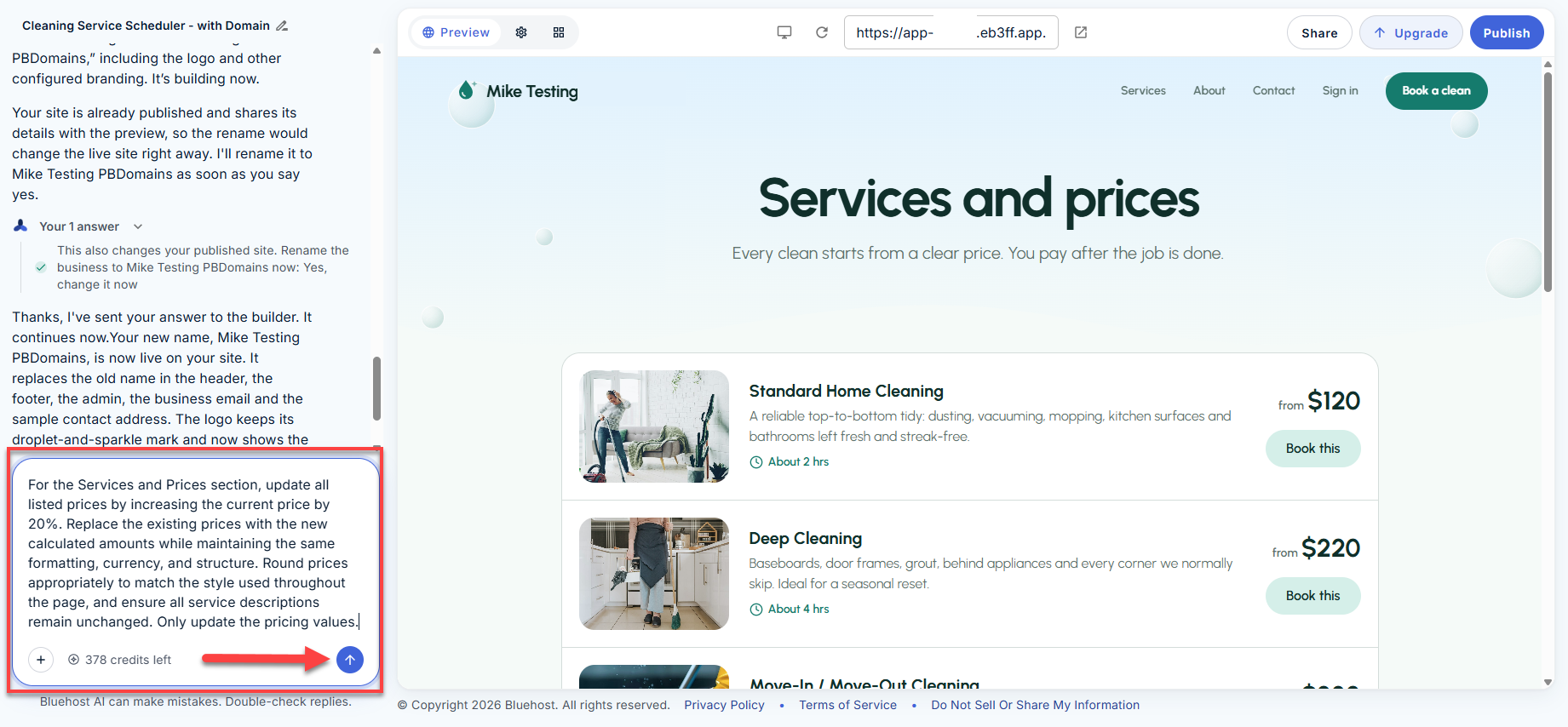
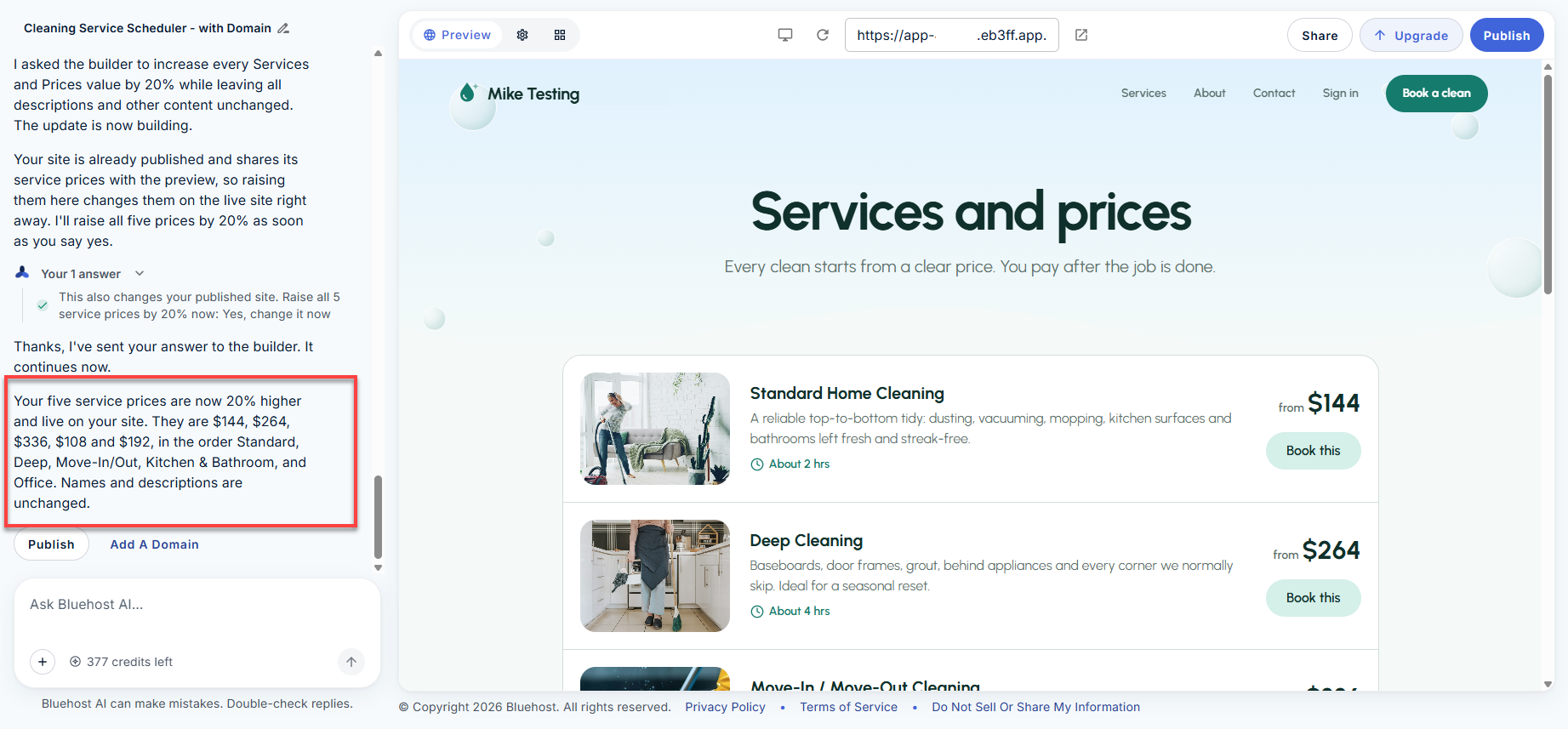
When the change is done, AI Builder usually replies with a summary of what it changed and what it left alone, and the Preview panel on the right shows the updated app. Your changes save automatically, so there's no separate save step.
This is different from editing a document, where you click on a word and type over it. In AI Builder, you describe the result you want, and the builder decides which parts of the code to change. A few things follow from that:
- Your existing app is the starting point. Each request builds on whatever is there now, including earlier changes.
- Parts of your app are connected. A change to one screen can affect another screen that shares the same data or layout.
- Clear requests get predictable results. The more precisely you describe what should change, the less the builder has to guess.
How to Scope a Change Request
A well-scoped request names one change, says where it happens, and describes the result. Use these steps each time:
- Ask for one change at a time. Each change request uses 1 credit (5 a day on the Free plan), and the chat box shows how many credits you have left. Related edits on the same screen, such as two field labels on one form, can go in one message. Keep unrelated changes separate. Bundled requests are harder to check, and if something goes wrong, it's harder to tell which part caused it. Questions are free, so you can ask AI Builder to explain or plan a change before you spend a credit on it. For current plans and pricing, visit the Bluehost AI Builder page.
- Say where the change belongs. Name the screen, page, form, or button by what it's called in your app, for example, "the Book Appointment form."
- Describe what should happen, not just how it looks. “When a customer submits the form, show a confirmation message that thanks them and says we’ll be in touch” is clearer than “make the form better.”
- Name the data involved. If the change touches information your app stores, such as customers, orders, or bookings, say which information and which fields.
- Include an example when it helps. A sample of the text, number, or format you expect removes guesswork.
| Instead of this | Try this |
|---|---|
| Fix the signup page. | On the Sign Up page, make the Phone field optional instead of required. |
| Make it look more professional. | Change the header background to dark blue and use white text for the menu links. |
| Add a dashboard. | Add a Dashboard screen that shows the total number of bookings this week and a list of the next five appointments. |
How to Describe What Should Stay the Same
Telling AI Builder what not to touch is as important as telling it what to change. Because parts of your app are connected, a request without limits can change more than you expected.
Add a short line to your request about what should stay as it is:
- "Change the button color on the Home screen only. Leave the other screens as they are."
- "Add a Notes field to the booking form. Don't change the existing fields or the order they appear in."
- "Rename the Clients tab to Customers. Keep all existing customer records."
Tip: If something in your app is working exactly the way you want, say so whenever you request a change nearby.
How to Check That a Change Worked
After each change, test your app in the Preview panel before you request the next one. Checking one change at a time makes it much easier to spot what caused a problem.
- Read AI Builder's summary. The reply usually lists what changed and what was left unchanged. AI Builder can make mistakes, so if the summary mentions anything you didn't ask for, check that first.
- Check the change itself. Go to the screen you asked about in the Preview panel and confirm it looks and behaves the way you described. If the change doesn't appear, select the refresh icon at the top of the Preview panel.
- Try it the way a visitor would. Click the buttons, fill out the forms, and submit them. A change can look right and still not work.
- Check nearby features. Open the screens and features that share data or layout with what you changed, and make sure they still work.
- Check your data. If the change involved stored information, confirm existing records are still there and new entries save correctly. Preview and your live app share the same data, so any test records you create are real. Delete them in your app's admin when you're done.
- Check on a smaller screen. At the top of the Preview panel, select the device view icon to switch between the desktop and mobile views.
If the result isn't what you wanted, send a follow-up request that describes the difference: what you asked for, what happened instead, and what you expected. For example: "I asked for the Phone field to be optional, but the form still won't submit without it. It should submit when Phone is blank."
There's no undo button. If a change isn't what you wanted, ask AI Builder to change it back. This uses 1 credit.
When Your Changes Go Live
Most changes stay private until you publish. When you're happy with them, select Publish again so visitors see the latest version.
Some changes go live right away, even before you publish. This includes changes to your business name, business details, or service prices, because your preview and live site share the same data. If your site is already published, AI Builder asks you to confirm first, for example: This also changes your published site. Raise all 5 service prices by 20% now? Select Yes, change it now to apply the change, or Not now to skip it.
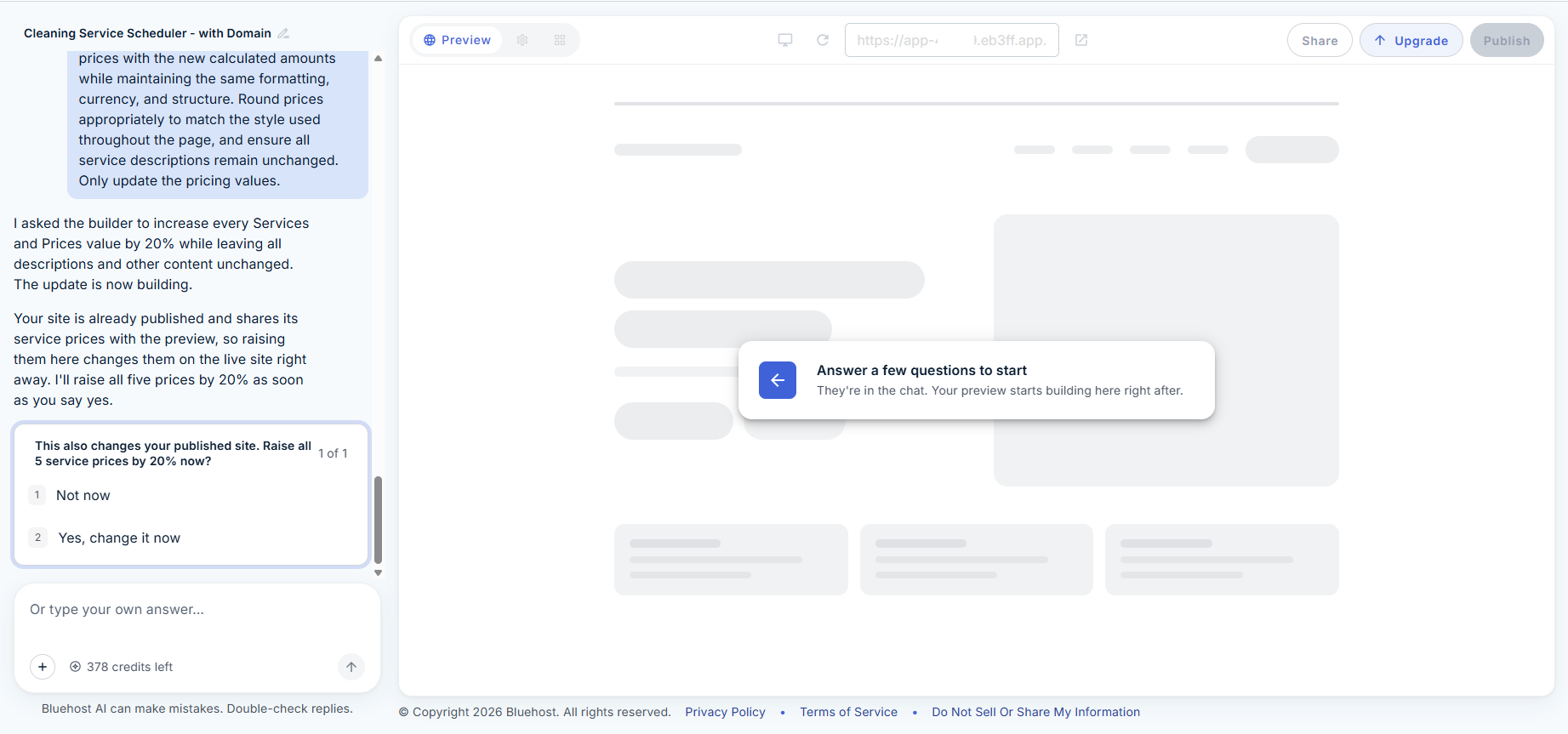
Important: Changes that go live right away are visible to visitors as soon as AI Builder finishes. Review the request carefully before you select Yes, change it now.
To learn what to do when a new feature breaks something that used to work, see Bluehost AI Builder: Why Your App Broke When You Added a Feature.
If a Change Keeps Missing
Sometimes AI Builder misses a small detail even after a couple of tries, such as a typo, one word in a heading, or a single number. When that happens, change how you ask instead of repeating the same request:
- Quote the exact text. Put the current wording and the new wording in quotation marks, for example: Change the Home screen button from "Book a clean" to "Book now."
- Make the request smaller. Ask only for the part that's still wrong.
- Say what happened last time. Describe what the previous attempt changed and why it wasn't right.
Related Articles
Summary
In Bluehost AI Builder, every change is a request against the code your app already has. Ask for one change at a time, say where it belongs and what it should do, and name what should stay the same. Test each change in the preview before moving on. Most changes go live when you publish, but changes to shared details, such as your business name or prices, go live as soon as you confirm them.
If you need further assistance, Bluehost Chat Support is available 24 hours a day, 7days a week while Bluehost Phone Support is available 7 days a week from 7 am-12 midnight EST.
- Chat Support - While on our website, you should see a CHAT bubble in the bottom right-hand corner of the page. Click anywhere on the bubble to begin a chat session.
- Phone Support -
- US: 888-401-4678
- International: +1 801-765-9400
You may also refer to our Knowledge Base articles to help answer common questions and guide you through various setup, configuration, and troubleshooting steps.