 ChatGPT,
 Claude,
 Gemini,
 Grok — all four for
How to Troubleshoot Your Website or App Build Using Prompts
When a Bluehost AI Builder build isn’t what you expected, the fix is usually another prompt. This guide shows you how to describe a problem so AI Builder can correct it, how to diagnose issues without spending credits, and when to stop and contact Support instead.
First, Work Out Which Kind of Problem You Have
The approach depends on what went wrong. Find your situation, then go to that section.
| What you’re seeing | Go to |
|---|---|
| It built something quite different from what I asked for | It Built the Wrong Thing |
| It was fine, then I asked for one change and something else broke | Something That Worked Stopped Working |
| I keep asking for the same thing and it keeps getting it wrong | It Won’t Understand What I Mean |
| I asked for a change, and nothing happened on my live site | The Change Isn’t Live Yet |
| The build has been running a long time | The Build Is Taking a While |
| My published app is slow to load or won’t open | Your App Is Asleep or Not Responding |
| The text is wrong, generic, or about the wrong business | The Content Is Wrong |
| It works, but it doesn’t look right | The Look Isn’t Right |
Before You Spend a Credit, Ask First
Questions that don’t change your app don’t use credits, which makes asking a question the cheapest first move when something is wrong. Free messages are limited to prevent abuse.
Useful free questions:
PromptWhat changed in the last update?
PromptWhich page is the contact form on?
PromptWhy did you put the prices on their own page?
PromptWhat do you think I was asking for when I said “make it simpler”?
The last one is especially useful. If AI Builder describes something different from what you meant, you’ve found the problem without spending a credit.
Only Changes Use Credits
Any message asking AI Builder to build, add, fix, or change something uses 1 credit. Questions, answers to AI Builder’s own questions, previewing, publishing, and sharing are free. Diagnose for free, then spend one credit on a well-aimed fix.
For current plans and pricing, visit the Bluehost AI Builder page.
The Skill That Fixes Most Problems: Describing It Well
A vague complaint produces a vague fix. Three things make a correction far more likely to work.
1. Say Where It Is
Name the page, the section, or the element. Without it, AI Builder has to guess which part of your site you mean.
PromptOn the services page, the second price box is cut off on my phone.
2. Say What You Expected Instead
Saying what’s wrong only rules out one option. Saying what you wanted gives AI Builder something to aim for.
PromptThe homepage headline sounds corporate. We’re a family business. Make it warmer and more personal.
3. Say What Must Not Change
This is the most underused technique, and the one that prevents the most repeat problems.
PromptFix the spacing on the contact page. Don’t change any other page, and leave the wording exactly as it is.
It Built the Wrong Thing
This is common on a first build and is usually fixed in one or two messages. Don’t start a new project. A new first build uses another credit, and you’d start from scratch instead of building on what’s already right.
- Work out how far off it is. If the structure is right and only the details are wrong, correct the details. If the whole idea is wrong, describe the business and the job again in one message.
- Describe it again instead of criticizing it. Instead of “this isn’t what I wanted,” give the description you would have given at the start, with the missing detail.
- Correct one layer at a time. Fix the structure first, then the content, then the look. Changing the colors of a page you’re about to replace wastes a credit.
PromptThis is closer to a restaurant site. We’re a catering company. We don’t have a dining room or opening hours. Customers book us for events at their own venue, so the key thing is requesting a quote for an event date.
Something That Worked Stopped Working
You asked for one change, and something unrelated broke or disappeared. This is a common frustration with any AI builder, and it has a straightforward cause.
Why It Happens
Parts of your app share underlying pieces. A change to something used in several places can affect all of them. When you ask for something broad, such as “tidy up the layout,” AI Builder has to decide how far that reaches, and sometimes it reaches further than you meant.
How to Fix It
- Say what broke and what you had just asked for. AI Builder has your project’s full history and can use both.
- Describe how it was before. Explain how it looked or worked, as precisely as you can.
- Protect the rest while it’s fixed. Add a line saying what must stay as it is.
PromptAfter the last change, the booking button on the homepage disappeared. It used to be a green button under the main photo that said “Request a visit.” Please put it back, and don’t change anything else on the page.
There’s no undo button. To reverse a change, ask AI Builder to change it back. This uses 1 credit.
For more on this kind of problem, see Bluehost AI Builder: Why Your App Broke When You Added a Feature.
How to Avoid It Next Time
- Ask for one change per message instead of five.
- Use specific instructions instead of broad ones. “Make the heading on the About page smaller” is safer than “fix the typography.”
- Say what should stay the same whenever you’re happy with part of the result.
- Check the preview after each change instead of after five.
Check Before You Publish
Most changes stay in your preview until you publish them, so a problem in the preview usually isn’t one your visitors see. Changes to your business name, business details, or prices go live right away, after AI Builder asks you to confirm.
If you test forms or bookings in the preview, delete the test entries afterward. Your preview and live app share the same data, so test entries are saved to your live app too.
It Won’t Understand What I Mean
If two or three attempts haven’t worked, stop repeating the request and change how you describe it.
- Describe the outcome instead of the method. “People keep missing the phone number” often works better than “move the phone number.”
- Give a concrete example. “Like the way the menu page lists items, but for our services.”
- Break it into smaller pieces, and ask for the first one only.
- Ask a free question first: “What do you understand by what I just asked?”
If a word has a particular meaning in your trade, spell it out. AI Builder knows general language better than it knows your industry.
The Change Isn’t Live Yet
If you can see a change in the preview but not on your live site, it hasn’t been published yet. AI Builder doesn’t publish design and page changes on its own.
Click Publish again to make your latest changes live. Publishing doesn’t use credits.
If you’ve published and still can’t see the change, open the page in a private browser window. Browsers sometimes keep an older copy of a page for a while.
The Build Is Taking a While
Most builds finish in a few minutes. If yours takes longer, AI Builder keeps going. A longer build doesn’t cost extra.
You don’t need to watch it. You can close the tab or leave the page. The build keeps running, and when you come back, the chat shows what finished while you were away.
A build that fails or ends in an error still uses 1 credit. If a build fails, or appears to have stopped instead of just taking longer, contact Support, who can review it. Don’t start the build again.
Your App Is Asleep or Not Responding
If no one visits your published app for 15 minutes, it goes to sleep. The next visit or edit wakes it, so that first page load is slower than usual. This is normal, and you don’t need to do anything.
If your app isn’t responding at all, reboot it:
- In your app, click the Settings gear icon above the preview.
- In the left menu, click Runtime.
- Under Reboot sandbox, click Reboot.
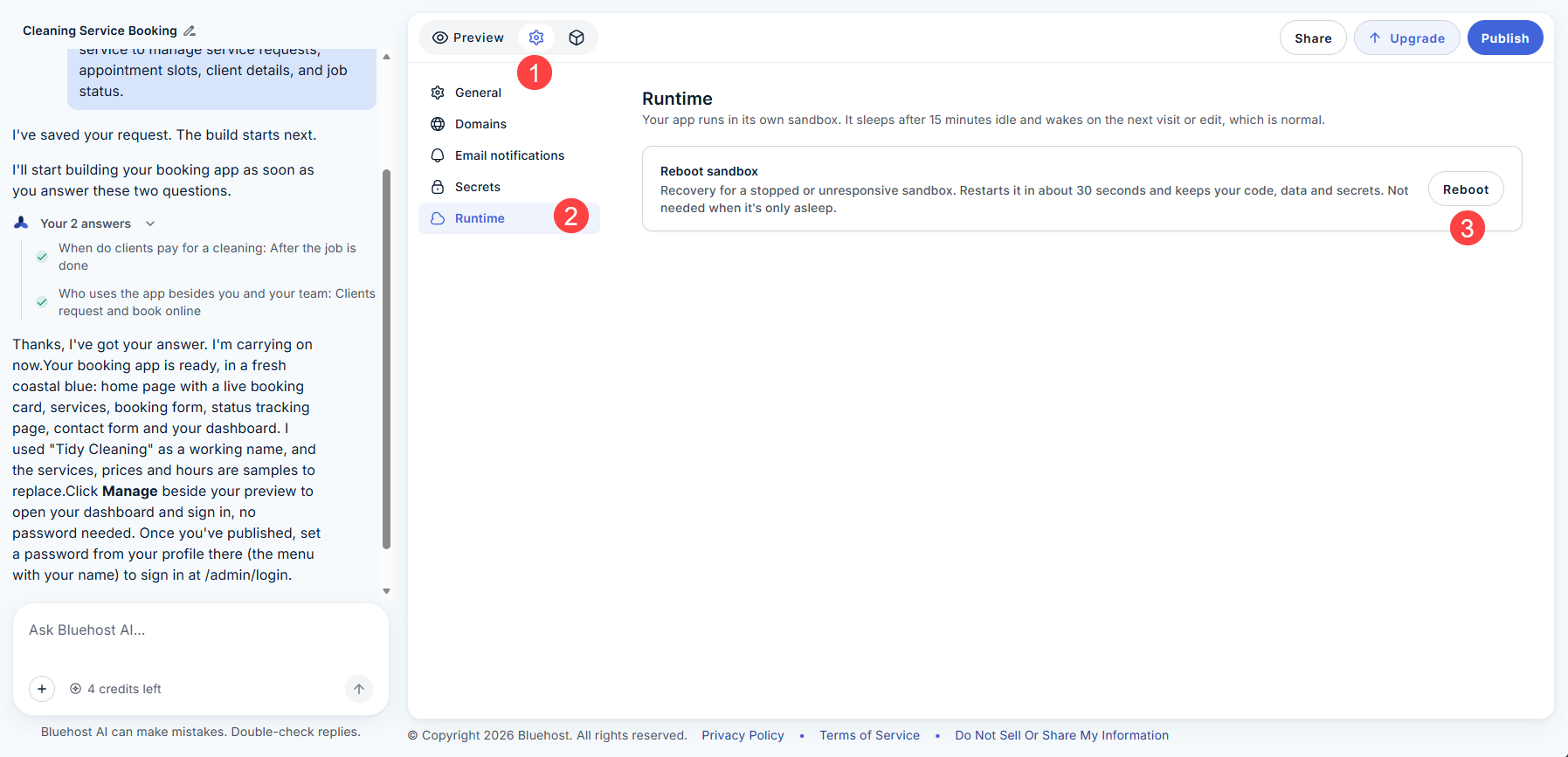
Rebooting takes about 30 seconds and is designed to keep your code, data, and secrets. You don’t need to reboot an app that’s only asleep. If rebooting doesn’t help, contact Support.
The Content Is Wrong
If the text describes a business that isn’t yours, or reads like generic filler, AI Builder didn’t have enough information to work from.
- Give it your material. Attach what you already have, such as a PDF brochure, a price list, or a spreadsheet of services, and say what it’s for.
- Give it specifics. “We’ve been family-run since 1987” changes the tone of the whole page.
- Correct one page at a time. Point out the exact sentence that’s wrong instead of saying “the text is off.”
PromptOn the About page, we’re not a nationwide chain. We’re one shop in Hudson, run by two sisters. Please rewrite that page with that in mind, and leave the other pages alone.
The Look Isn’t Right
Describe the feeling you want in plain words instead of design terms. If you have brand colors, name them.
PromptIt’s too dark and heavy. Make it lighter and calmer, with more white space and softer colors. Keep the layout exactly as it is.
If only one part is wrong, say so. Asking for a full redesign when you only dislike one heading is the quickest way to lose things you liked.
Prompts Worth Keeping
| When | Try |
|---|---|
| Something broke after a change | “After the last change, [X] is missing. It used to [describe it]. Put it back and change nothing else.” |
| You’re not sure what changed | “What changed in the last update?” (free) |
| Checking it understood you | “What do you understand by what I just asked?” (free) |
| Protecting good work | “Change only [X]. Leave everything else exactly as it is.” |
| The result missed completely | Describe the business and the job again in full, with the missing detail |
| A fix keeps failing | “Let’s do this in steps. First, just [smallest piece].” |
When to Contact Support Instead
Prompting fixes most things, but not everything. Contact Bluehost Support, available 24/7, if:
- A build fails or appears to have stopped instead of just taking longer.
- Your published app won’t load, and rebooting hasn’t helped.
- Something is wrong with your domain or hosting, not the app itself.
- Something looks wrong with your plan, your credits, or a payment.
- You’ve tried several clearly worded prompts and things are getting worse.
When you contact Support, have ready the name of your project, what you asked for most recently, what happened instead, and which page it’s on.
Related Articles
Summary
Most build problems are fixed with another prompt. Find your problem type, ask free questions to diagnose it, then spend one credit on a fix that says where the problem is, what you expected, and what must not change. Publish again to make changes live, reboot an app that isn’t responding, and contact Support for failed builds, domain or hosting issues, or problems prompting can’t fix.
If you need further assistance, Bluehost Chat Support is available 24 hours a day, 7days a week while Bluehost Phone Support is available 7 days a week from 7 am-12 midnight EST.
- Chat Support - While on our website, you should see a CHAT bubble in the bottom right-hand corner of the page. Click anywhere on the bubble to begin a chat session.
- Phone Support -
- US: 888-401-4678
- International: +1 801-765-9400
You may also refer to our Knowledge Base articles to help answer common questions and guide you through various setup, configuration, and troubleshooting steps.