 ChatGPT,
  Claude,
  Gemini,
  Grok — all four for
Bluehost AI Store: Getting Started with AI Store Free Trial
Bluehost AI Store is an AI-powered ecommerce solution that lets you create, launch, and manage an online store through simple conversations. Instead of manually configuring store settings, you can use natural language prompts to build and manage your online store.
This article will help you get started with Bluehost AI Store and guide you through creating your AI-generated website using natural language prompts.
Here are the steps to get started with the 14-day AI Store Free Trial, which allows you to build and preview your storefront before upgrading to Sell Online plan.
- Step 1: Start Your AI Store
- Step 2: Build Your Website Using AI Prompts
- Step 3: Create or Sign In to Your Bluehost Account.
- Step 4: Manage Your Online Store
- Step 5: Upgrade to Sell Online Plan to Publish Your Website
For additional assistance, watch our video tutorial that walks you through each step.
What Does the AI Store Do?
AI Store simplifies online business management by utilizing AI to perform essential tasks, such as:
- Creating and managing products
- Tracking and fulfilling orders
- Handling payments (currently through Stripe)
- Providing insights and performance data for the store
- Assisting with store updates using AI chat
Before You Start
Before you get started, make sure you have the following:
- A valid email address
- A Bluehost account (optional)
- A business idea, product, or website concept
- A Stripe account for payment processing (optional, can be connected later)
Complete the setup process below to access the AI Store's full feature set.
Step 1: Start Your AI Store
Your journey begins with a free trial, allowing you to build, design, and preview your website.
Think of this as your planning and setup phase!
To get started:
- Visit https://www.bluehost.com/ai-store.
You can also go to this webpage by visiting the Bluehost.com website, clicking the AI & Developers tab in the top menu, then selecting AI Store.
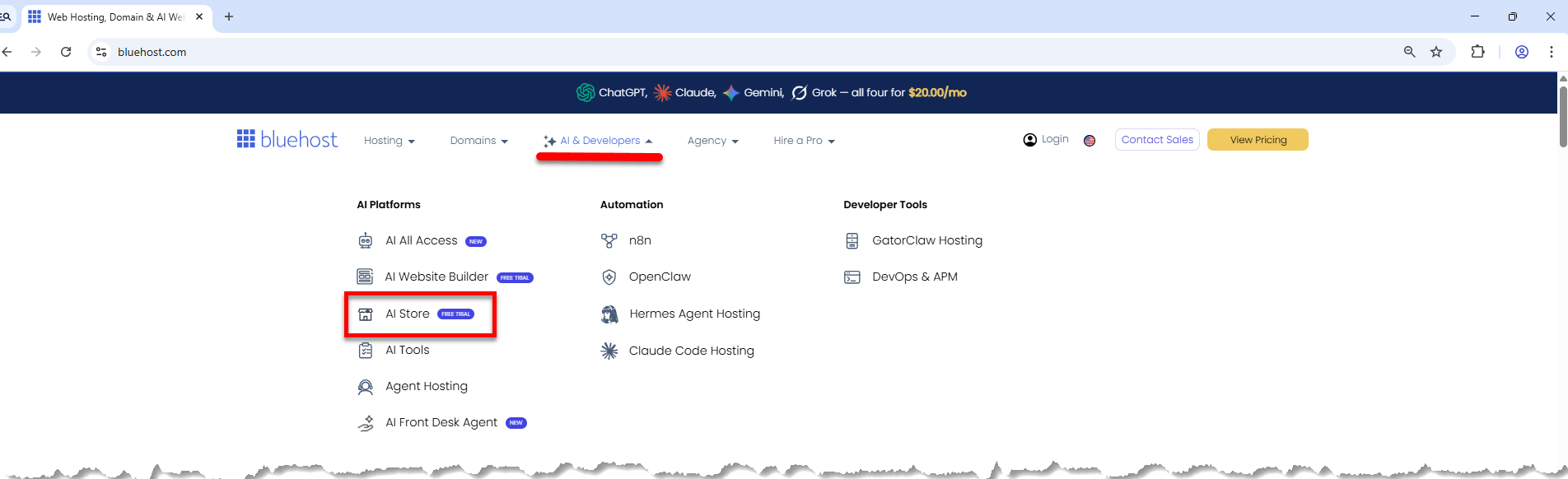
Another way to access the AI Store setup process is through the Bluehost.com website. Simply select the "I want to sell products online" checkbox to get started. For detailed instructions, see the Build a Website Storefront with Bluehost AI Free Trial article.
- On the AI Store page, you should see the prompt box.
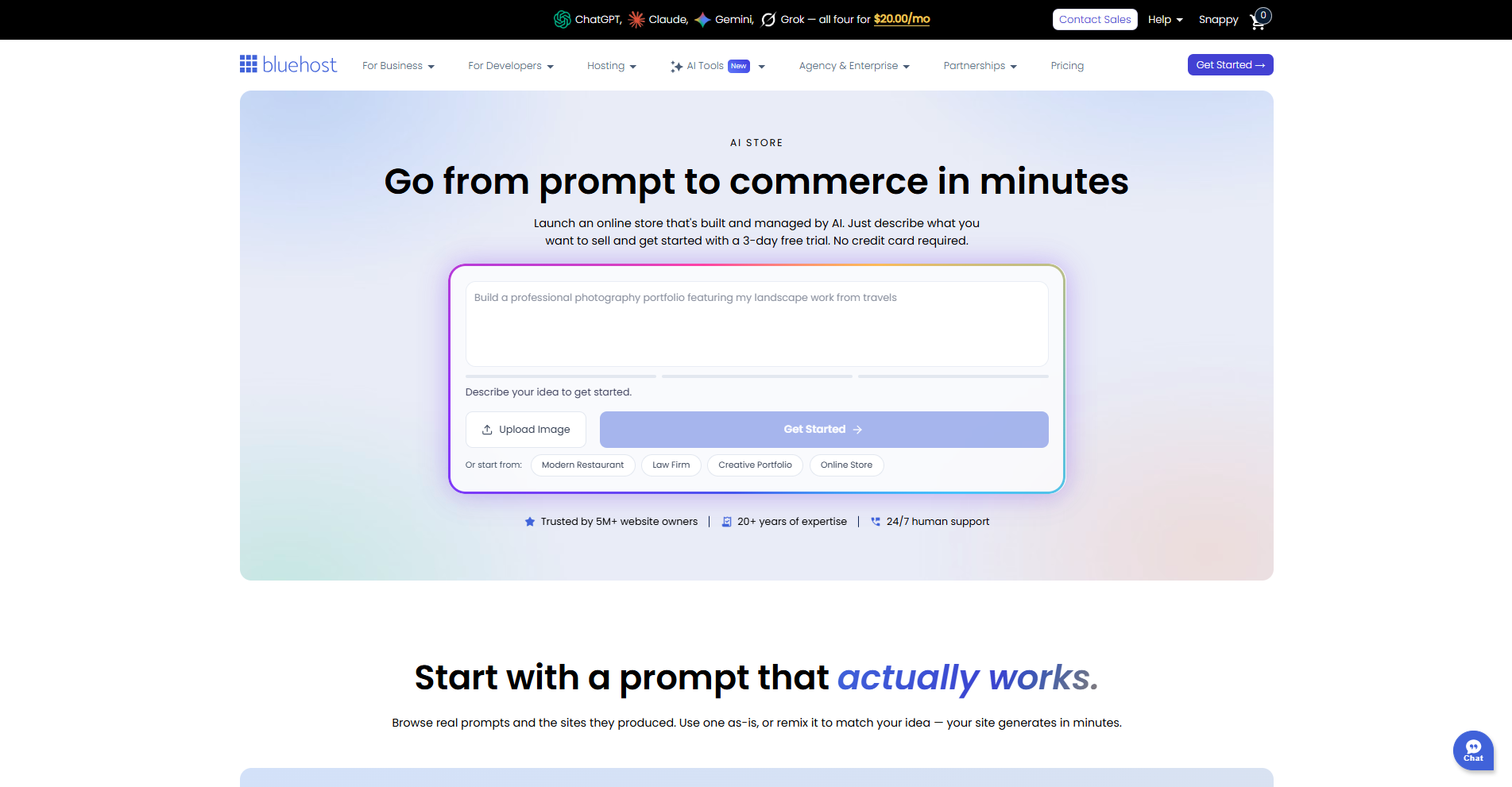
Continue the setup steps below.
Step 2: Build Your Website Using AI Prompts
Bluehost uses natural language prompts to help create and customize your website. Simply describe your brand, products, and business goals, and the AI will begin building your website based on the information you provide.
You can either create your own prompt or use one of the available pre-built prompts.
- Enter a description of your business, brand, products, or website in the prompt box.
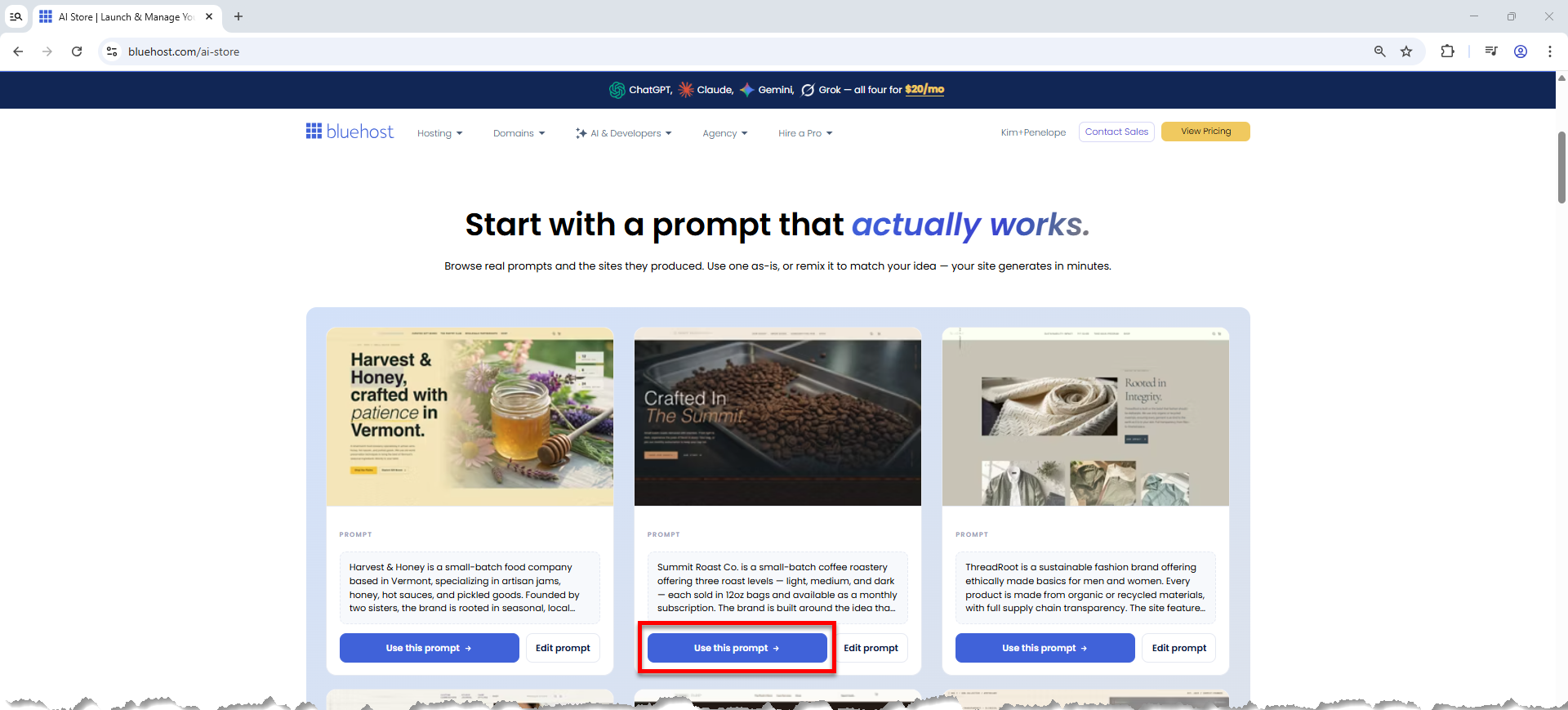
- If you need inspiration, scroll down to the pre-built prompts, choose a prompt, and then click Use this prompt.
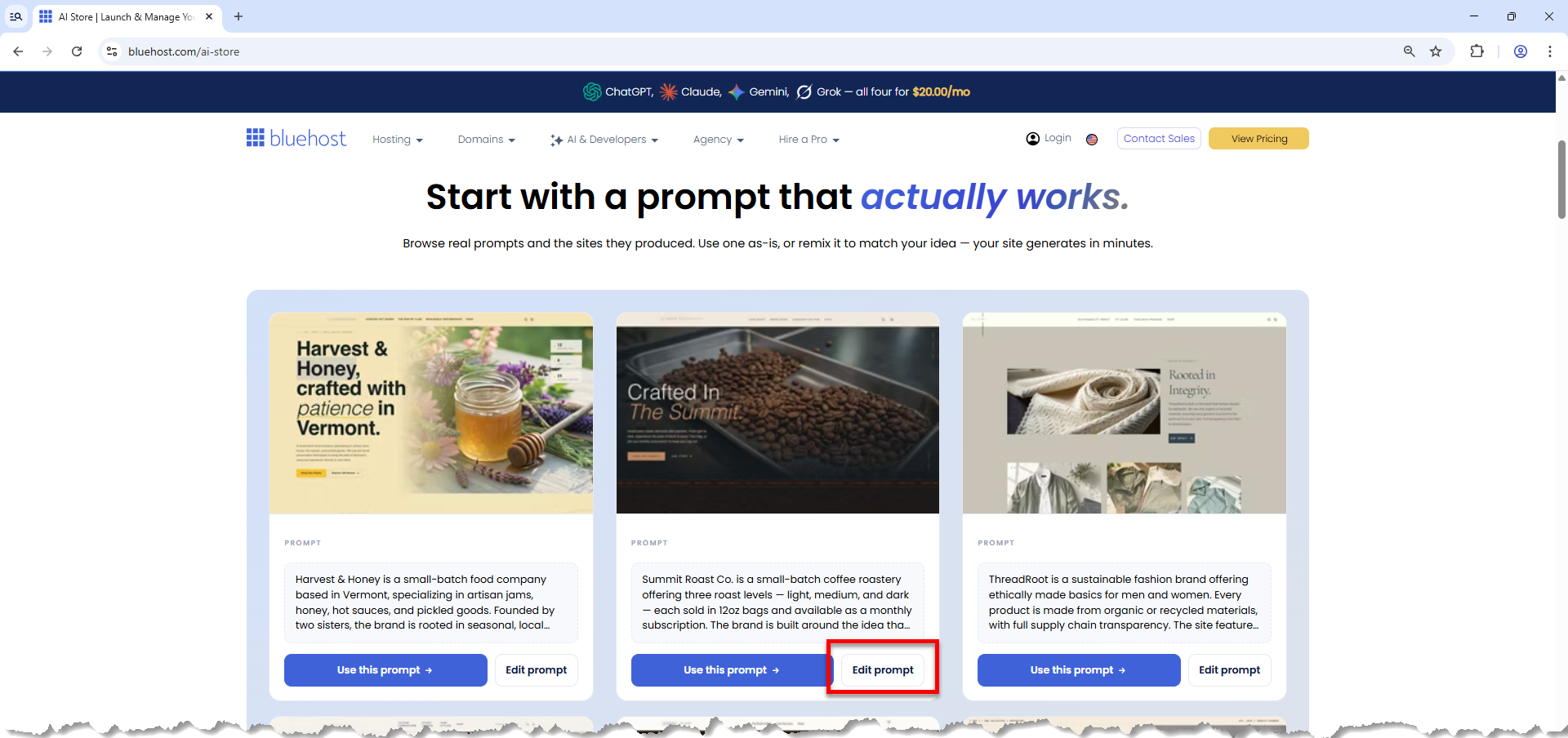
- To customize a pre-built prompt, click Edit Prompt.
- Make your changes, and then click Use edited prompt.
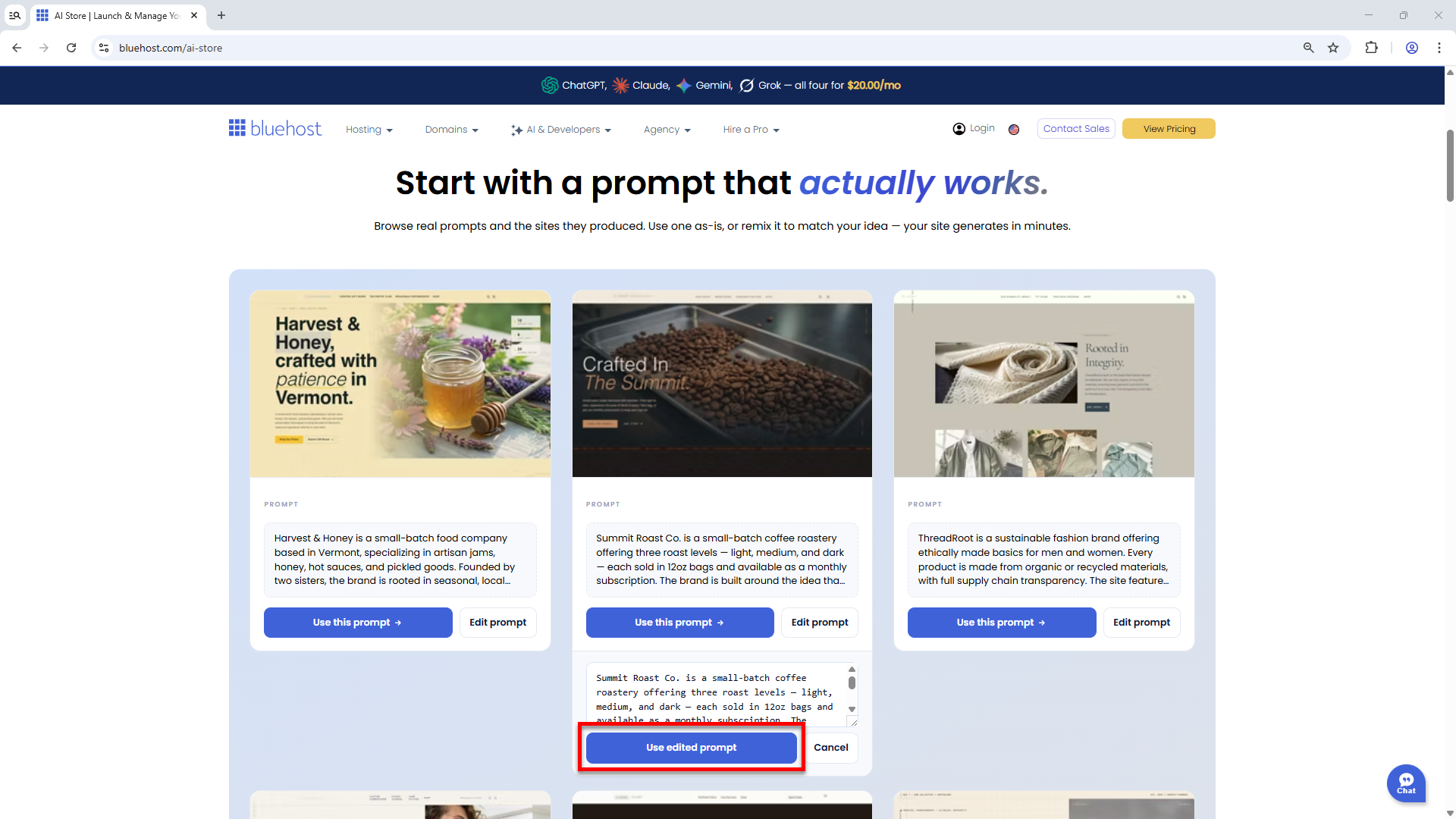
- Scroll back up to verify that the prompt box is filled out with your selected or customized prompt.
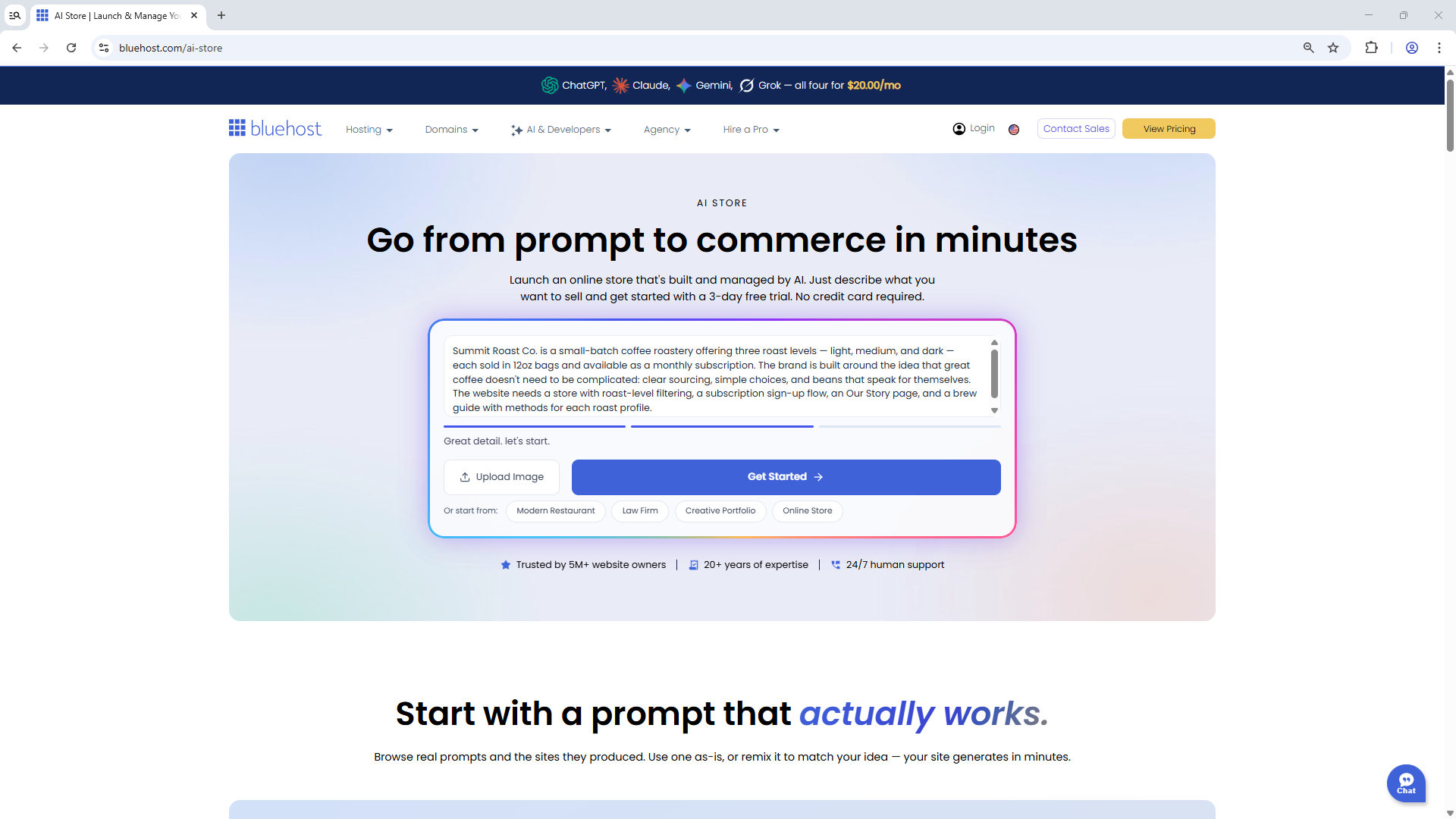
- Click Get Started to continue.
Bluehost will begin generating your website based on your prompts.
For examples of prompts and best practices, you can also visit the Bluehost AI Store: How to Build an AI Storefront Website Using Effective Prompts article.
Step 3: Create or Sign In to Your Bluehost Account
After submitting your initial prompt:
- You will be redirected to the editor, where you'll be asked to provide more details about your website or brand. Use the chat box as if you're having a conversation with the AI.
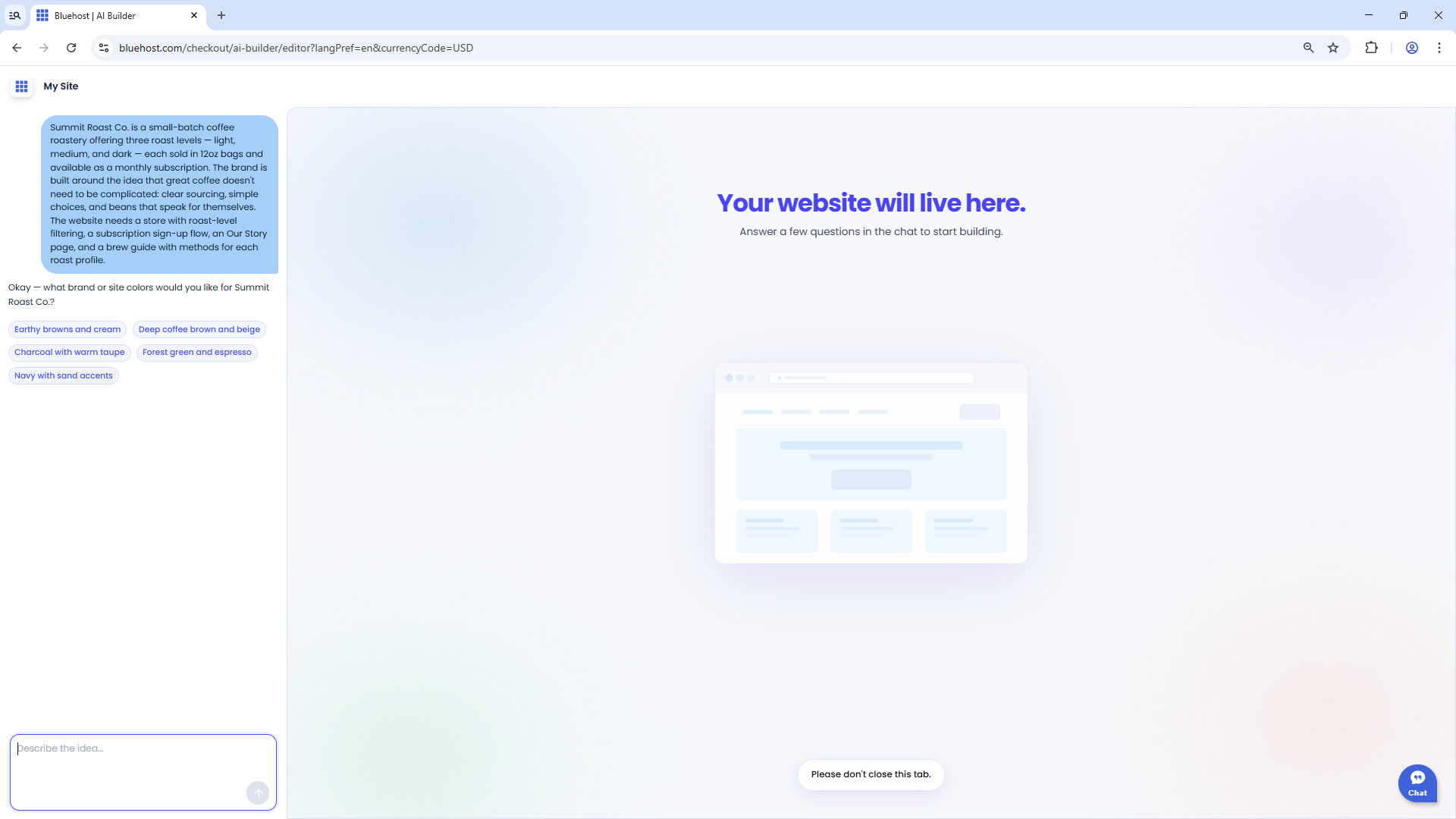
You can also click the suggested prompts.
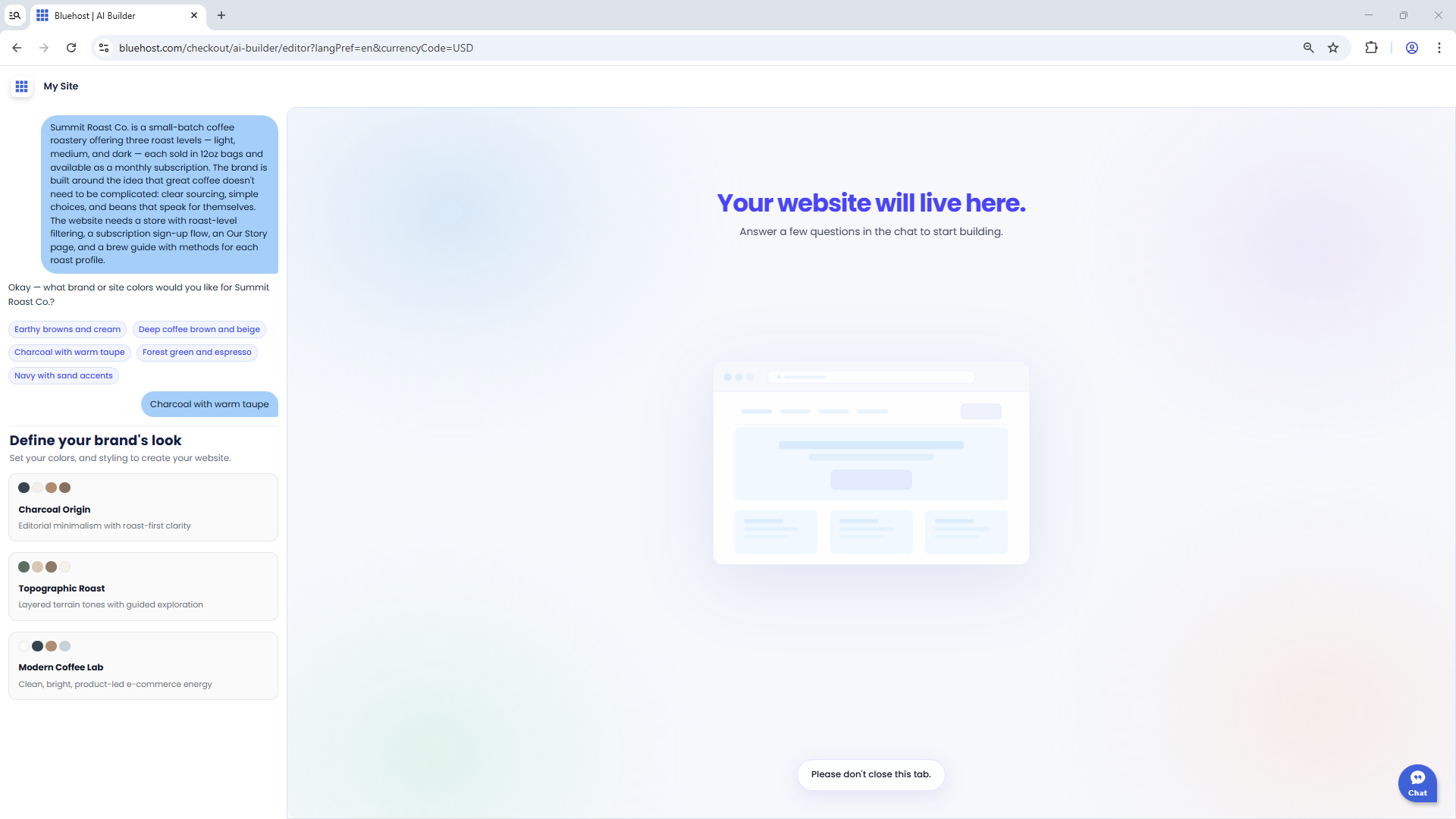 Please don't close this tab, as this is where your website is being created.
 - During this process, create a Bluehost account.
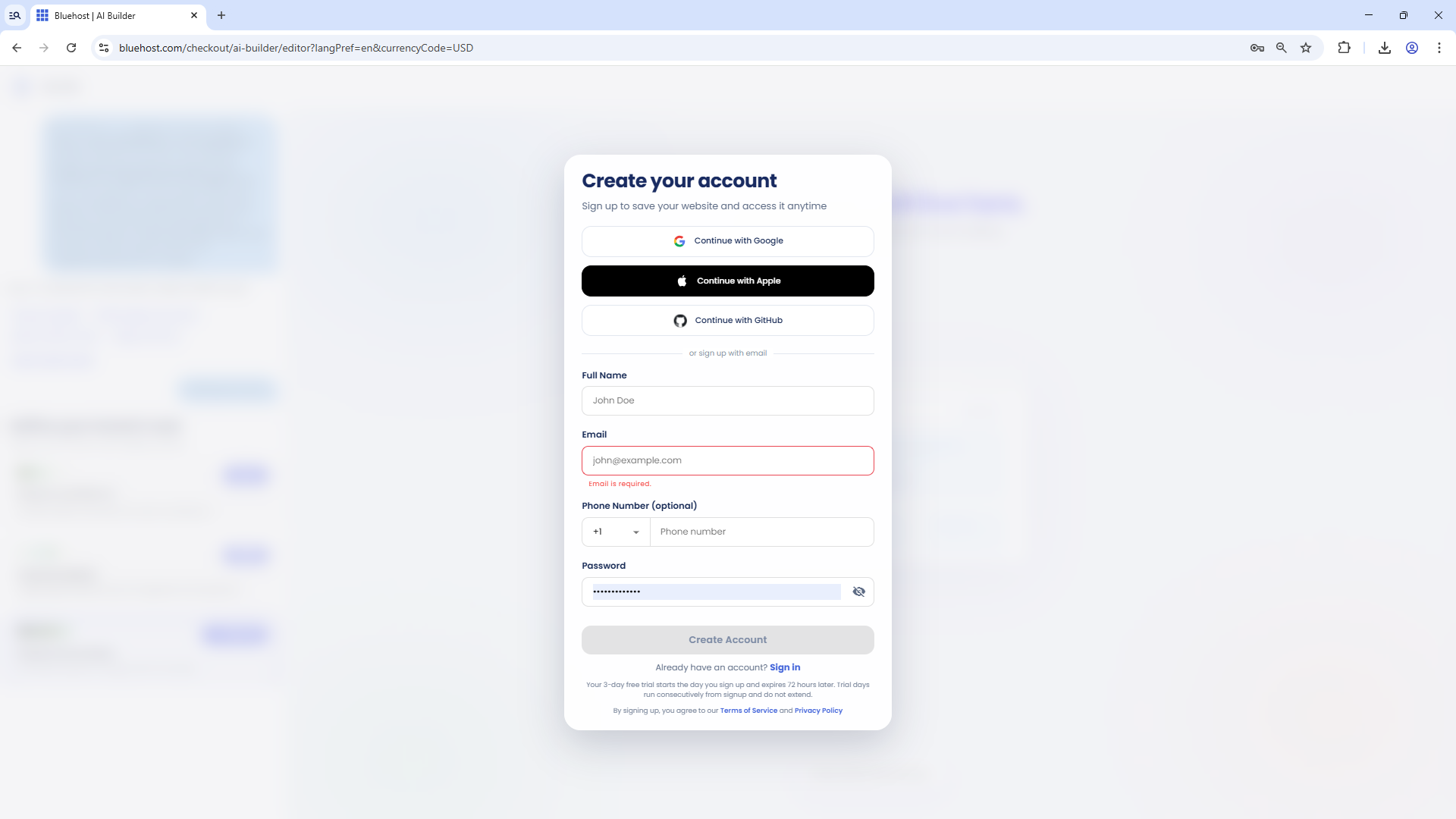
Alternatively, sign in to your existing account.
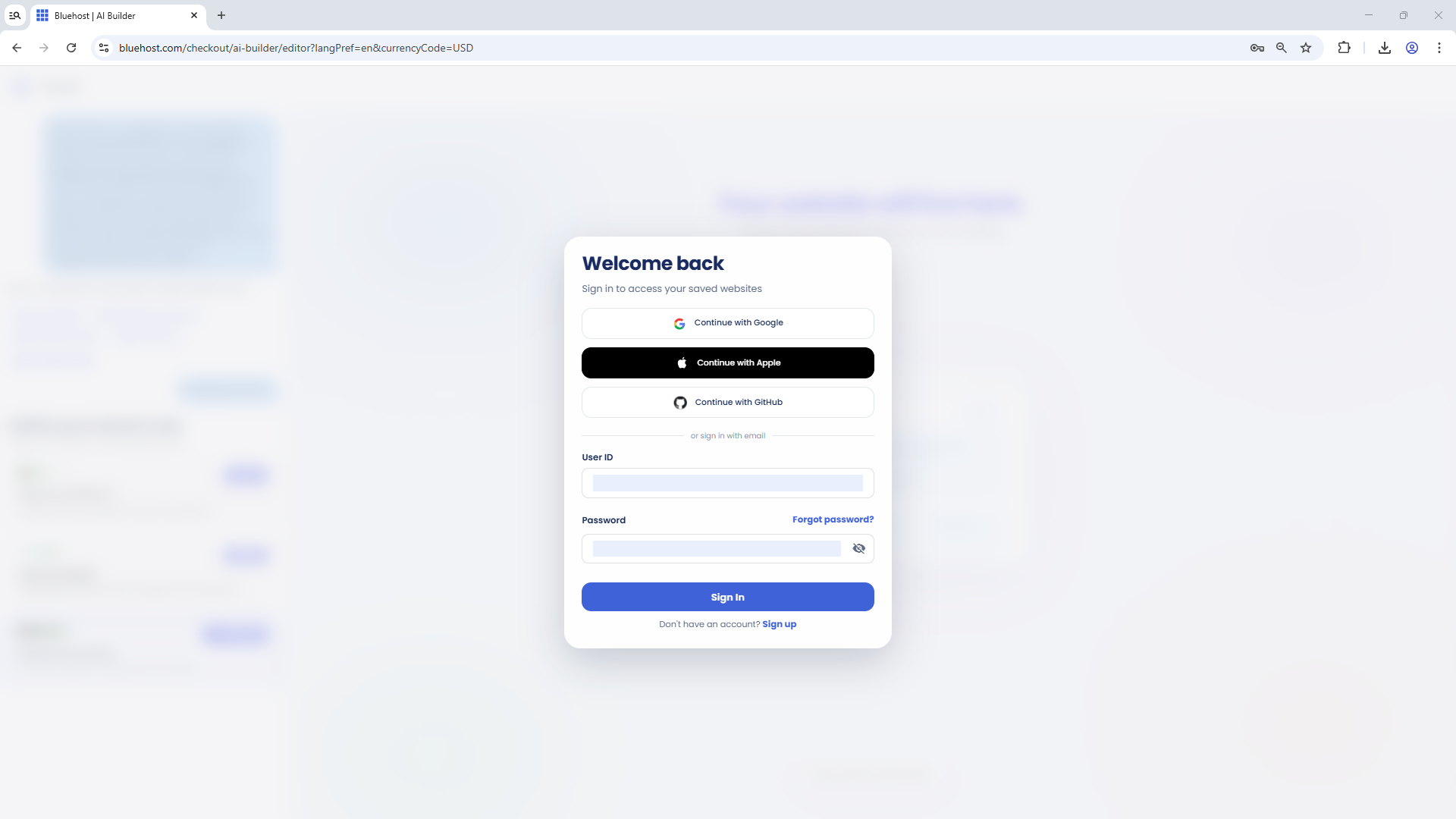
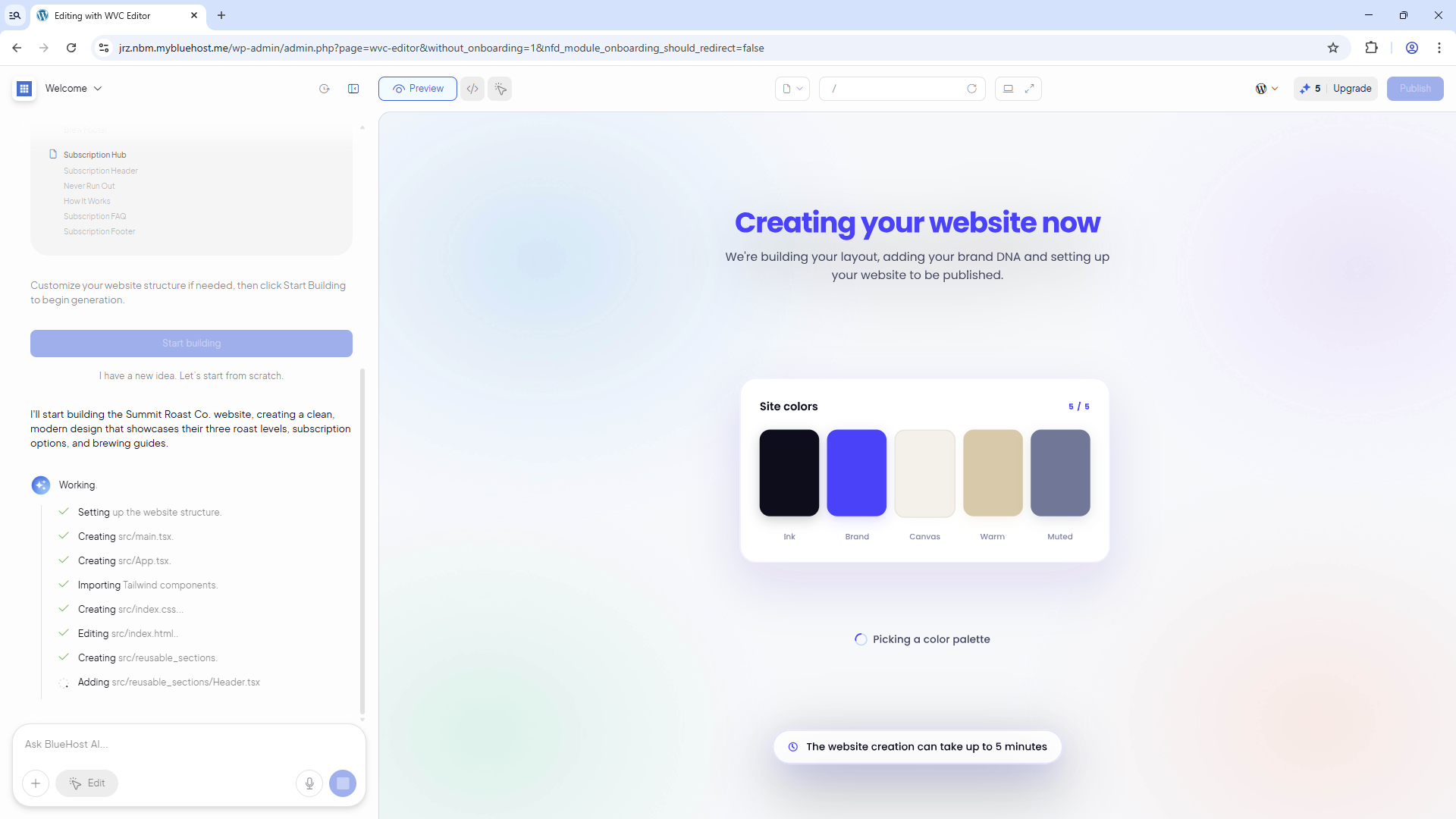
- After signing in, the system will continue building your website. This process may take a few moments.
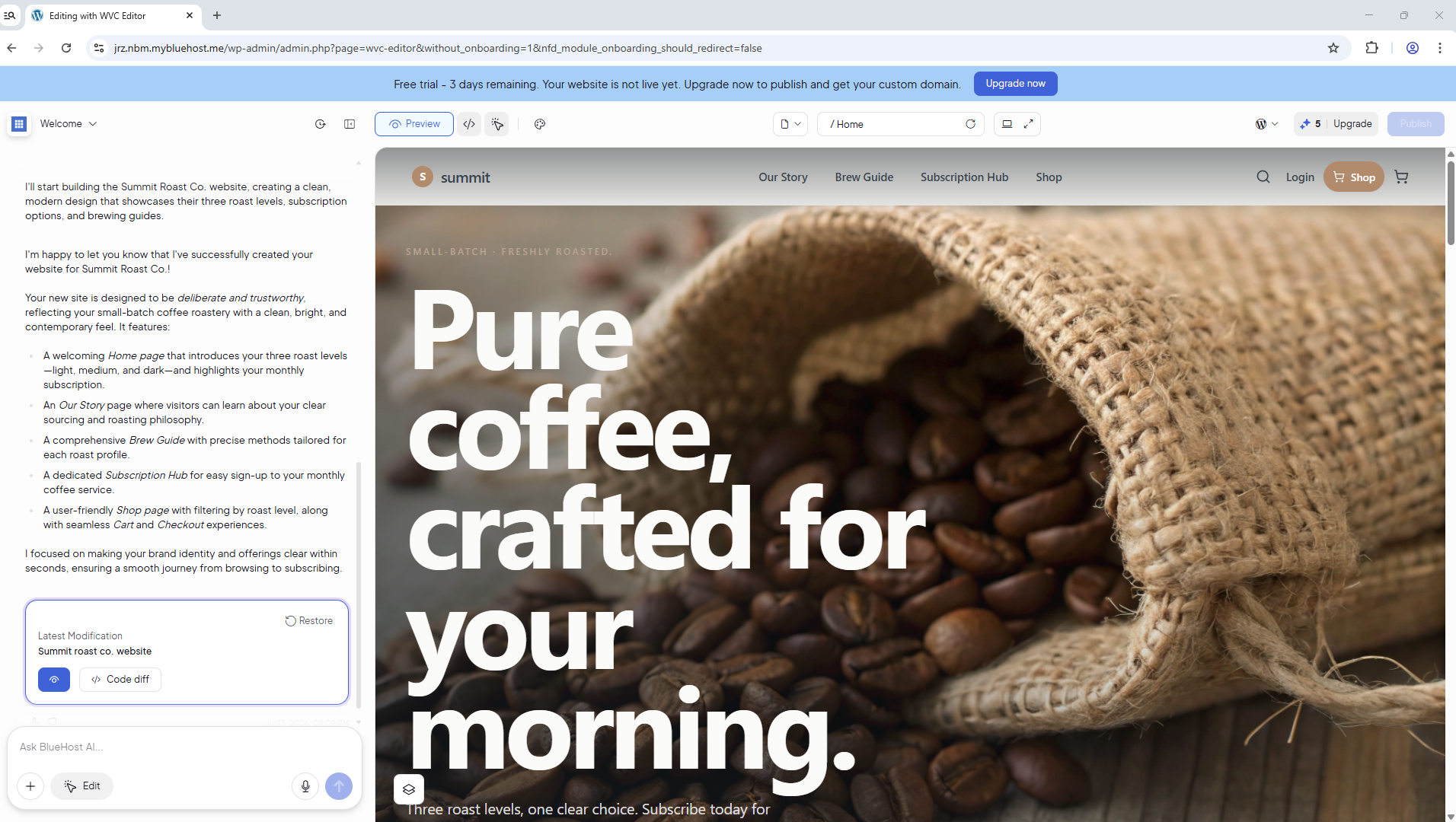
- Once your website is ready, you can explore it and make additional customizations as needed.
Step 4: Manage Your Online Store
After creating your website, you can begin managing and configuring your online store through the AI Store Dashboard.
To manage your online store:
- In your Bluehost Portal, locate your website from either the Dashboard or Websites tab.
- Click Manage Store.
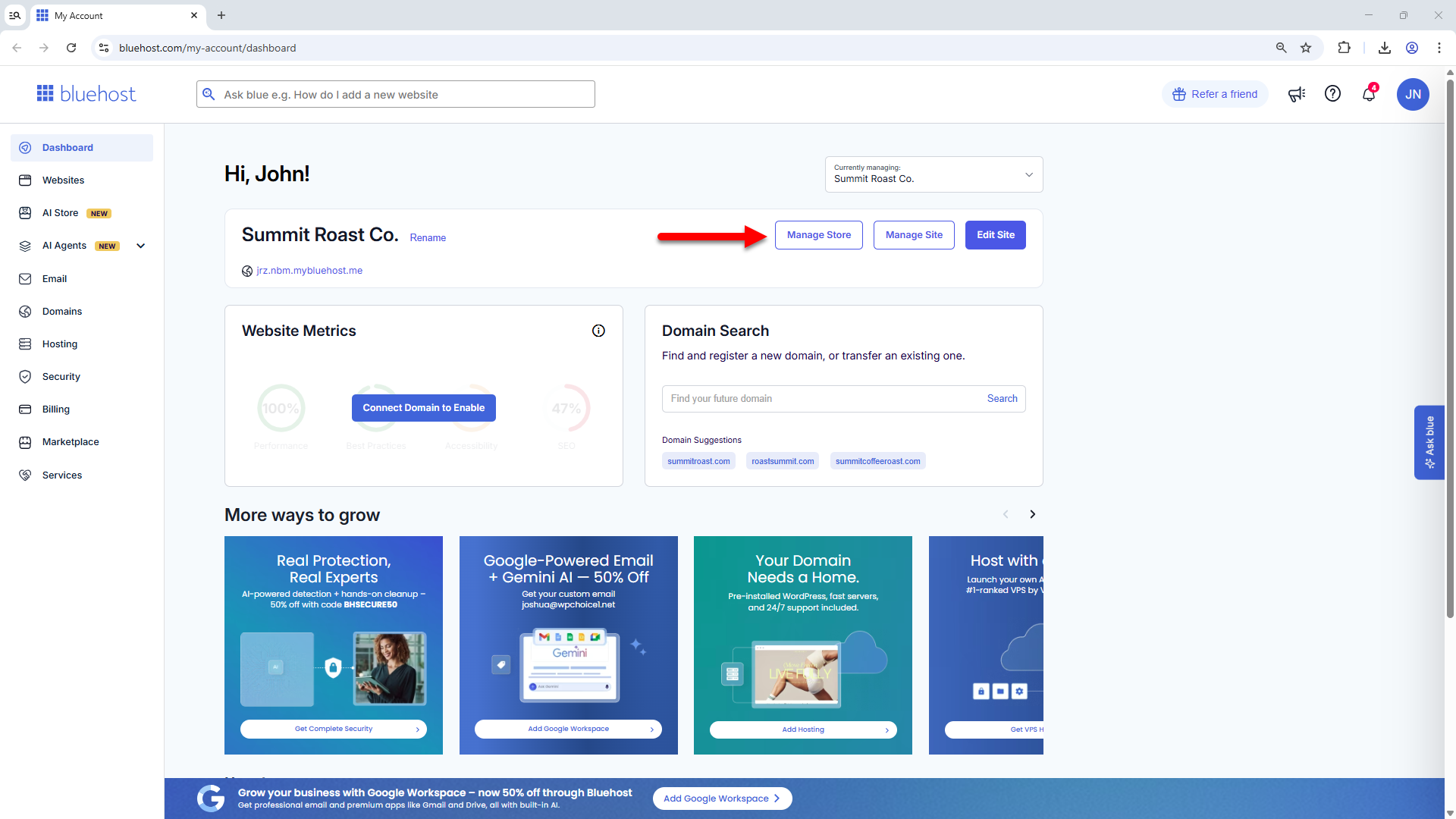
- Your AI Store Dashboard will open in a new tab. From there, you can start setting up and managing your online store using the available features.
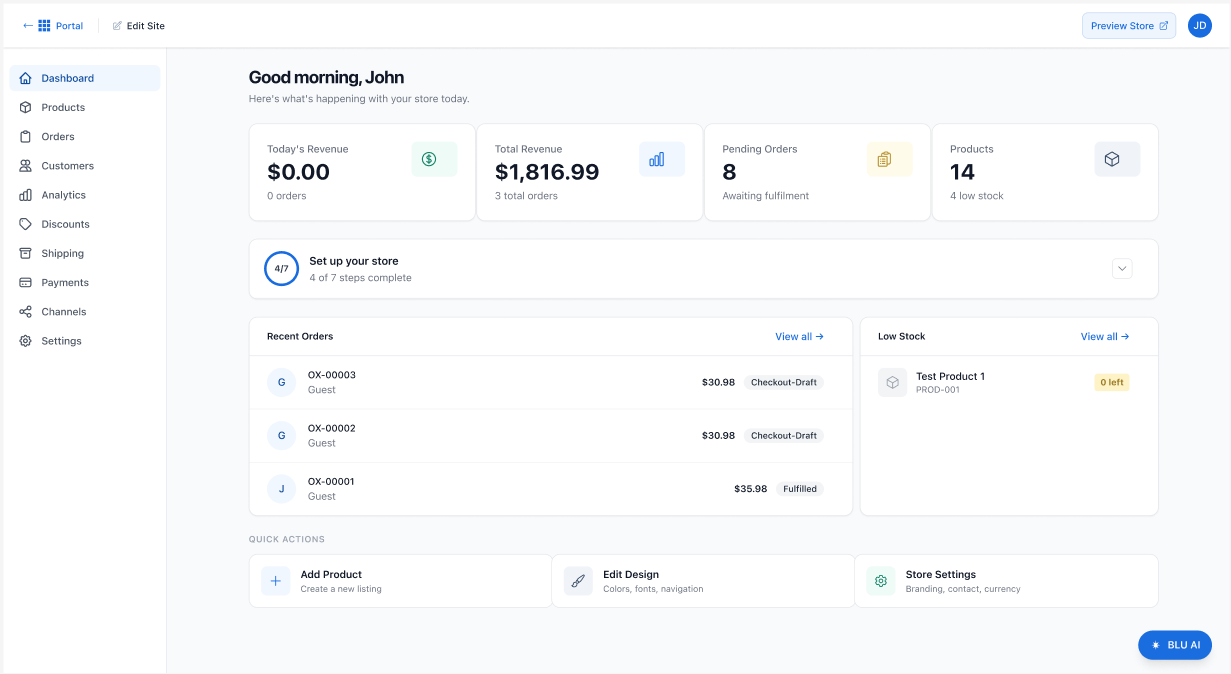
Here is the AI Store Setup Checklist:
- Add store details
- Configure taxes
- Add products
- Connect Stripe
- Set up shipping
For detailed setup instructions, see the Bluehost AI Store: Setting Up the AI Store Dashboard article.
Step 5: Upgrade to Sell Online Plan to Publish Your Website
After creating your website and configuring your store, you are now ready go live. To publish your storefront and unlock the full AI Store experience, you need to upgrade from the free trial to the Sell Online plan. For step-by-step upgrade instructions, please visit the Bluehost AI Store: Upgrade to Sell Online Plan to Publish Website article.
After upgrading to the Sell Online plan, click the Publish button in the editor.
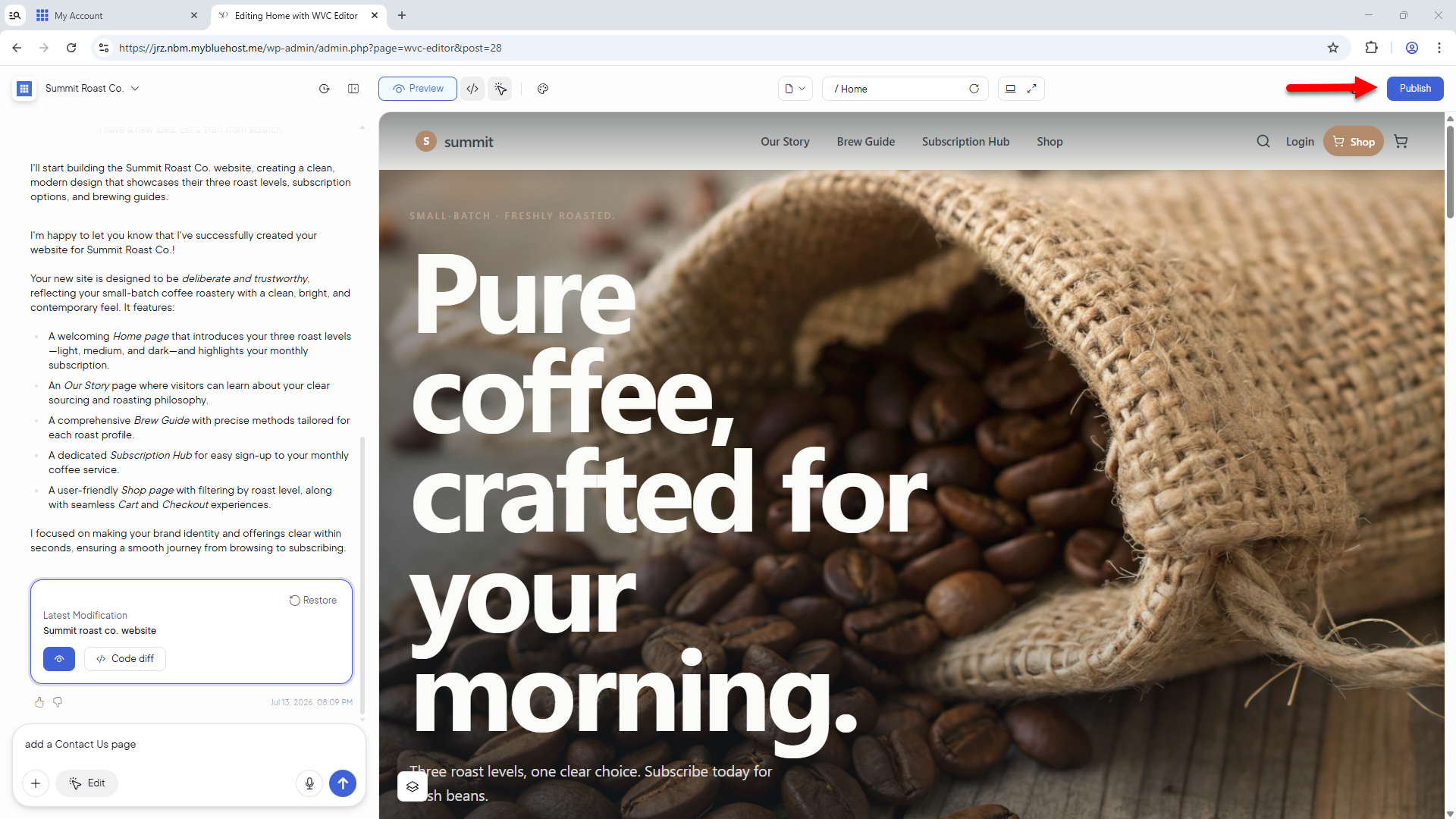
Once your website is published, you can begin accepting orders and payments.
Frequently Asked Questions
Q: Do I need a Bluehost account before starting?
A: No. You can create an account during the setup process or sign in with an existing Bluehost account.
Q: Can I connect payments later?
A: Yes. Payment processing can be configured after your storefront has been created. Bluehost currently supports Stripe.
Q: Do I need to create my own prompts?
A: No. Pre-built prompts are available to help you get started. You can simply select and use these prompts or customize them.
Q: When can I customize my website?
A: After your storefront is generated, you can continue working with the AI assistant and use the editor to customize your website's content, branding, design, and other elements.
Summary
Bluehost AI Store, an AI-powered solution, helps you create, customize, and manage your storefront using natural language prompts. This article walks you through starting an AI Store free trial, generate a storefront with AI, and manage products, orders, payments, and store settings through the AI Store Dashboard. To publish the website and start accepting orders, users must upgrade to the Sell Online plan and click Publish.
If you need further assistance, Bluehost Chat Support is available 24 hours a day, 7days a week while Bluehost Phone Support is available 7 days a week from 7 am-12 midnight EST.
- Chat Support - While on our website, you should see a CHAT bubble in the bottom right-hand corner of the page. Click anywhere on the bubble to begin a chat session.
- Phone Support -
- US: 888-401-4678
- International: +1 801-765-9400
You may also refer to our Knowledge Base articles to help answer common questions and guide you through various setup, configuration, and troubleshooting steps.