 ChatGPT,
  Claude,
  Gemini,
  Grok — all four for
Bluehost AI Store: Getting Started with the Direct-to-Paid Experience
Bluehost AI helps you build a professional website or online store with minimal setup. After providing basic information about your business, AI generates a site designed around your brand and business objectives. This article walks you through signing up, creating your website, customizing its appearance, managing eCommerce features, and publishing your site when you're ready to go live.
Step 1: Sign up and Setup Your Account
-
Determine the type of website you want to create:
- Get Online (AI Website Builder) - For non-eCommerce websites, visit https://www.bluehost.com/special/ai-website-builder-get-started
- Sell Online (AI Store) - For online stores, visit https://www.bluehost.com/special/ai-store-get-started
-
Navigate to the Plans & Pricing and click Buy Now.
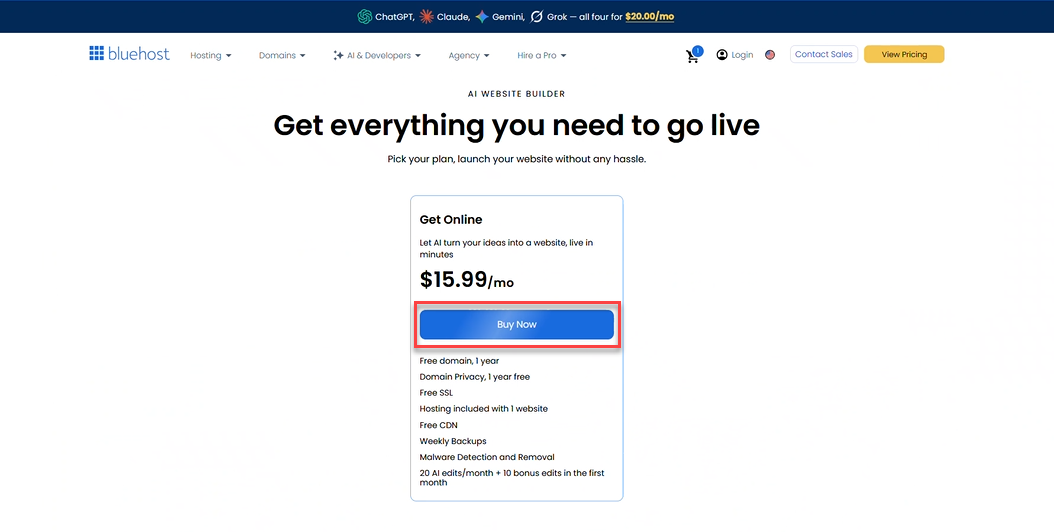
*Introductory pricing is available for new customers. Please check your Renewal Center for renewal rates and pricing details. Pricing shown is for reference only — visit the Bluehost AI Website Builder pricing page for current rates.
**SSL and CDN are only free for the first year. -
Sign up for a Bluehost account using your email, Google, Apple, or GitHub account.
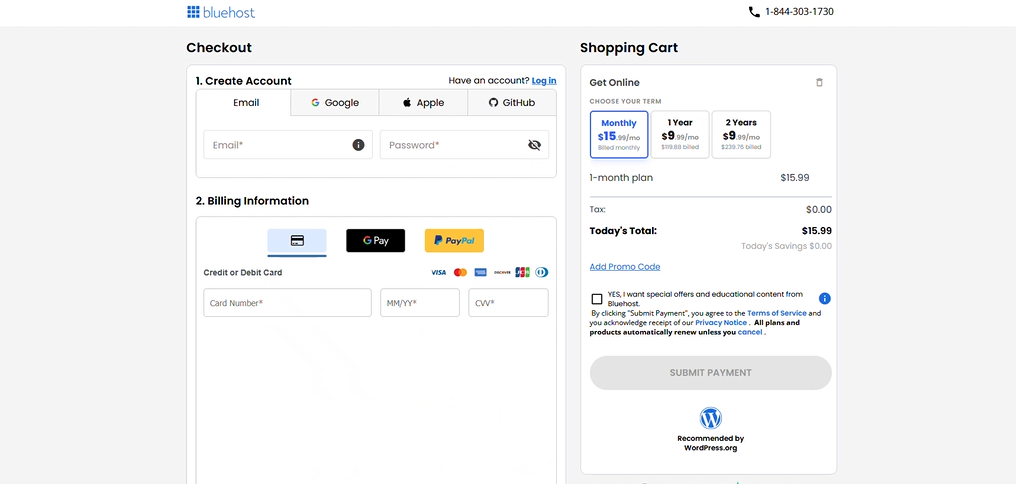
If you already have an account, sign in with your Bluehost login credentials.
-
Bluehost will automatically create your account or sign you in and continue the purchase process.
-
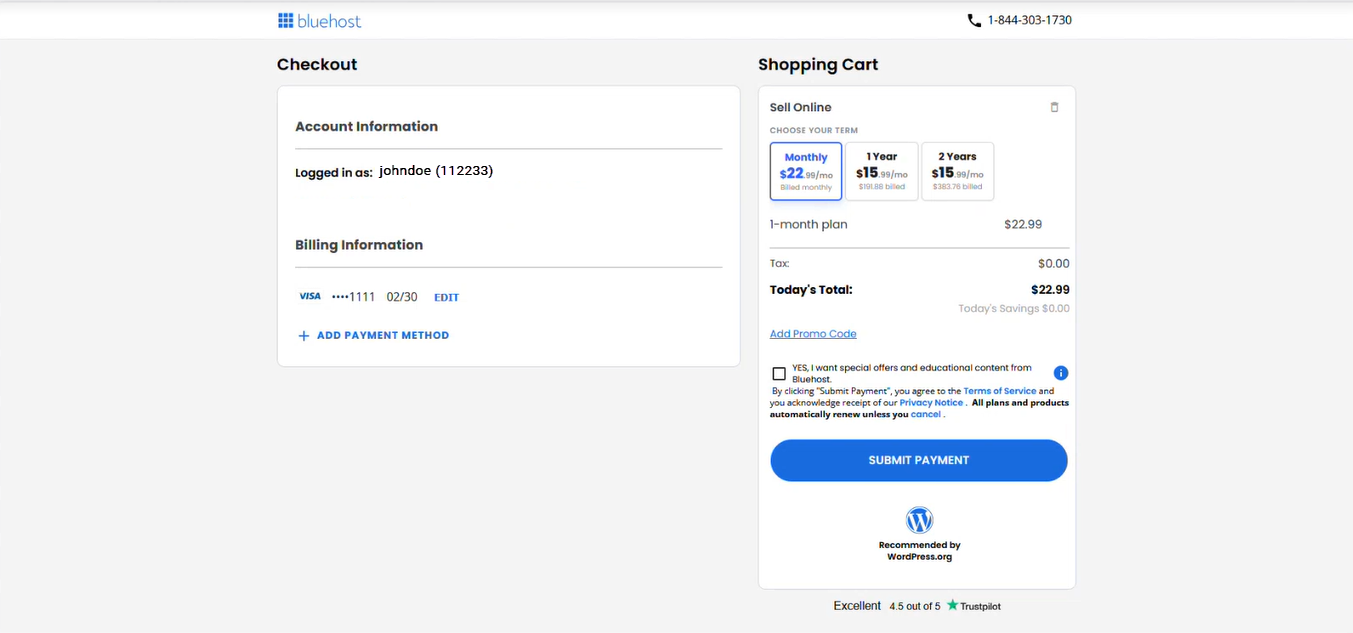
Review your cart details, including your plan and billing term, then click Submit Payment to complete your purchase.
Step 2: Create Your Website
-
Enter a brief description of your business in the prompt field. The more details you provide, the better Bluehost AI can tailor your website to your business needs.
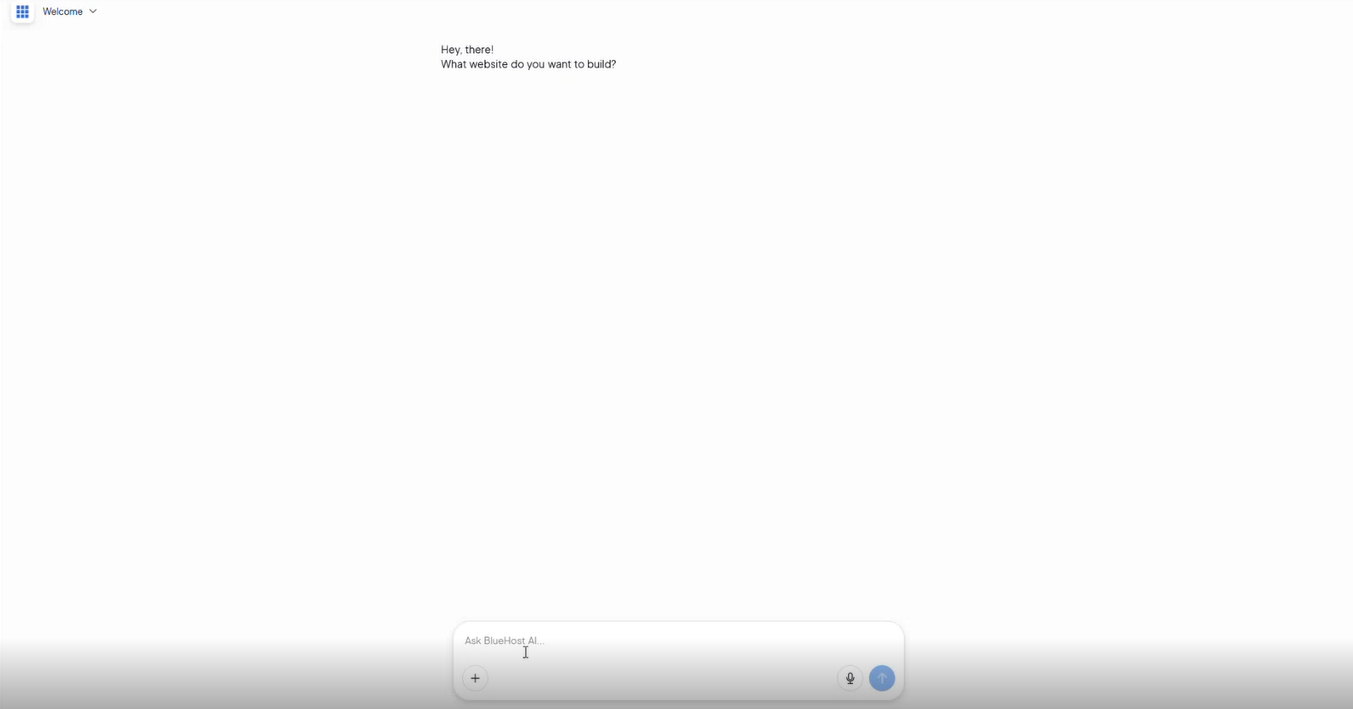
For tips on creating effective prompts, see the Bluehost AI Store: How to Build an AI Storefront Website Using Effective Prompts article.
-
Continue with the website-building experience associated with your selected plan:
- AI Website Builder: Create a website for your business, portfolio, blog, or other online presence. To learn more, see the Getting Started with Bluehost AI Website Builder article.
- AI Online Store: Build an eCommerce website with tools designed for selling products online. For more information, see the Bluehost AI Store: Getting Started with AI Store article.
-
Select a visual style that matches your brand, or allow Bluehost AI to choose a recommended design for you.
-
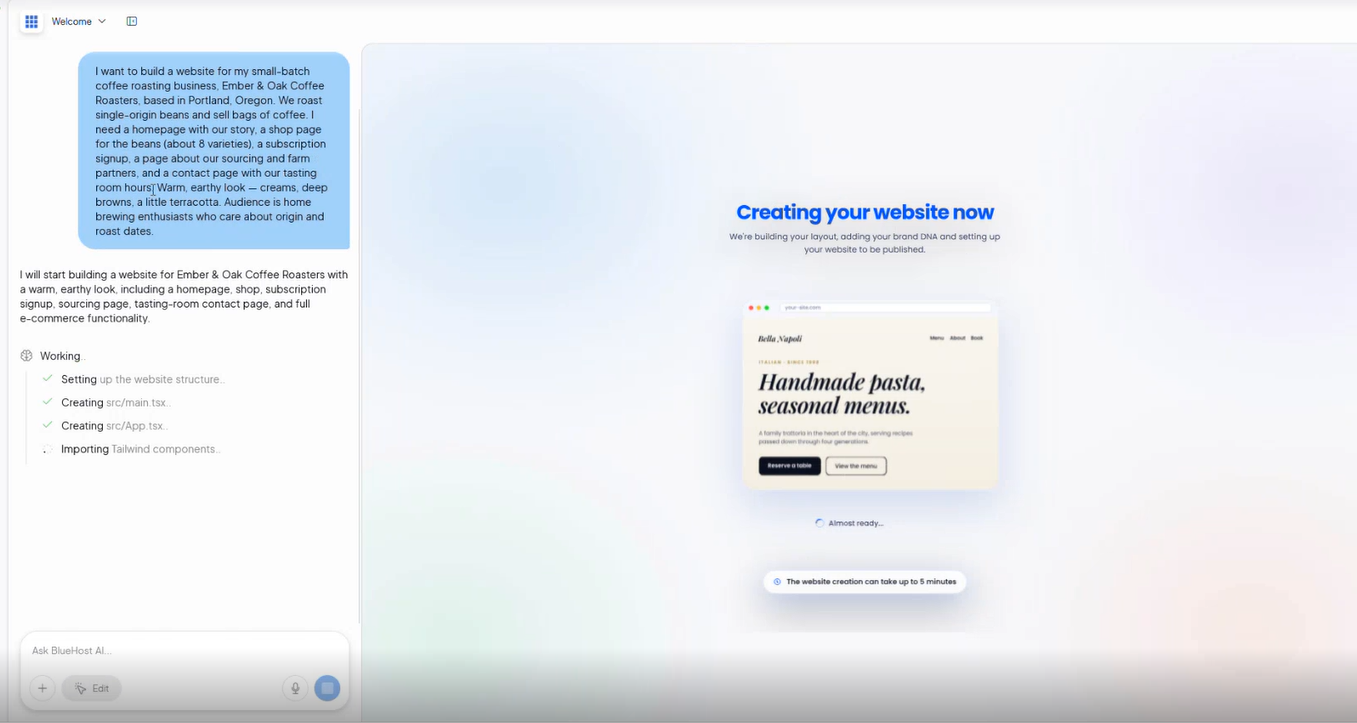
Once you've completed these steps, the editor will generate your website. This process may take a few minutes, so please wait while your site is being created.
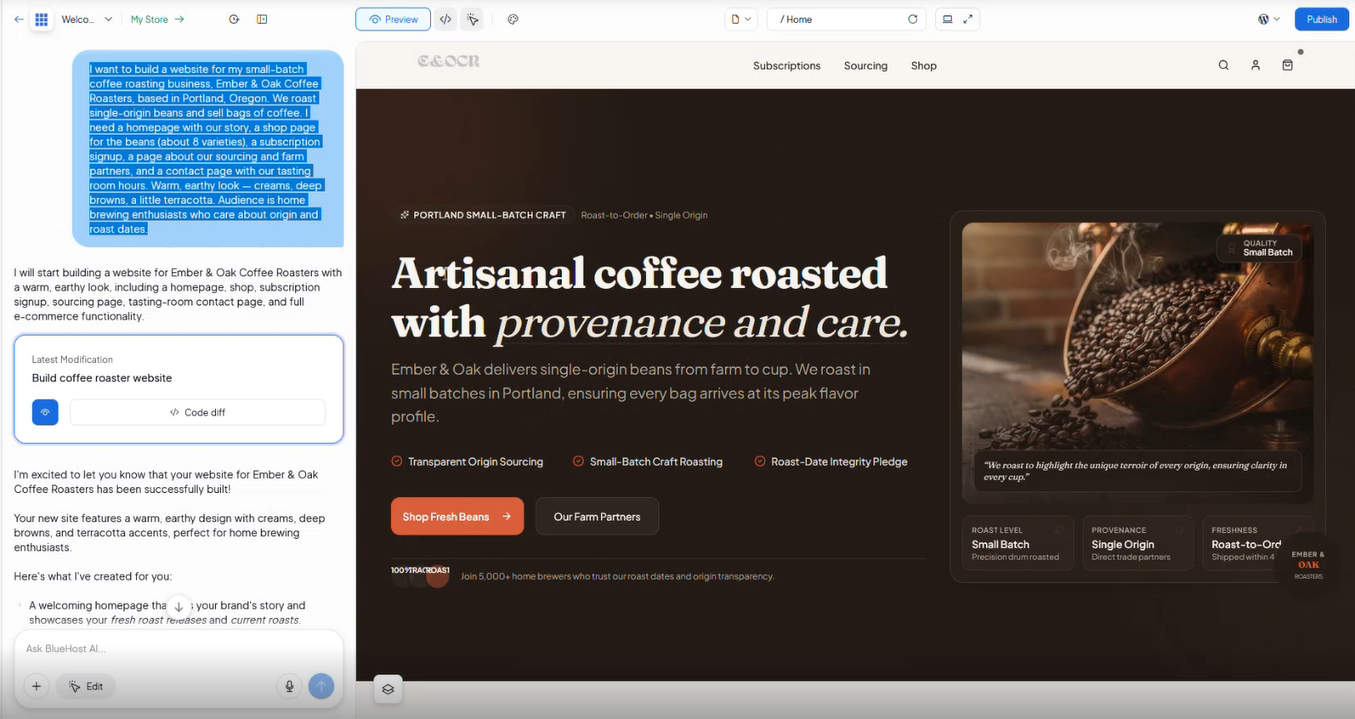
Step 3: Launch or Publish Your Website
When you're ready to make your website publicly available, click the Publish button. Your publishing experience will vary depending on the plan you selected:
- Get Online: Designed for websites built with Bluehost AI Website Builder, such as business websites, blogs, portfolios, and other non-eCommerce sites. To learn more, see the Getting Started with Bluehost AI Website Builder article.
- Sell Online: Designed for AI Store websites with eCommerce functionality, allowing you to sell products, manage orders, and grow your online business. For more information, see the Bluehost AI Store: Getting Started with AI Store article.
Step 4: Manage Your Online Store
If you selected Sell Online, you can manage your store through the AI Store Dashboard. From the dashboard, you can add and manage products, process orders, configure store settings, and access tools to help grow your online business.
To learn more about using and setting up your AI Store, refer to the following articles:
Summary
With Bluehost AI, you can quickly create, customize, and publish a website or online store tailored to your business. Whether you're building a standard website with AI Website Builder or launching an online store with AI Store, Bluehost provides an easy, guided experience to help you get online and start growing your brand.
If you need further assistance, Bluehost Chat Support is available 24 hours a day, 7days a week while Bluehost Phone Support is available 7 days a week from 7 am-12 midnight EST.
- Chat Support - While on our website, you should see a CHAT bubble in the bottom right-hand corner of the page. Click anywhere on the bubble to begin a chat session.
- Phone Support -
- US: 888-401-4678
- International: +1 801-765-9400
You may also refer to our Knowledge Base articles to help answer common questions and guide you through various setup, configuration, and troubleshooting steps.