 ChatGPT,
  Claude,
  Gemini,
  Grok — all four for
Bluehost AI Store: Upgrade to Sell Online to Publish Website
The Sell Online plan unlocks the full feature set of the Bluehost AI Store, enabling you to publish your website, manage products, process and fulfill orders, accept payments, and monitor performance. During the 14-day free trial, you can design and preview your website and configure your AI Store Dashboard. To publish your website, sell products, and process orders through your online store, you must upgrade to the Sell Online plan.
This article explains how to upgrade to the Sell Online plan.
New to Bluehost AI? With the Bluehost AI 14-day free trial, you can create either an online store or a non-eCommerce website. To learn more, see the Build Your Website and Storefront with Bluehost AI Free Trial article.
Need help getting started with the Bluehost AI Store 14-day free trial? Visit the Bluehost AI Store: Getting Started with AI Store Free Trial article for the full setup walkthrough.
How to Upgrade to Sell Online
If you have already set up your AI Store website during the free trial, follow the steps below to upgrade to the Sell Online plan.
- Log in to your Bluehost Portal.
- Look for the Upgrade Now banner at the top of the page.
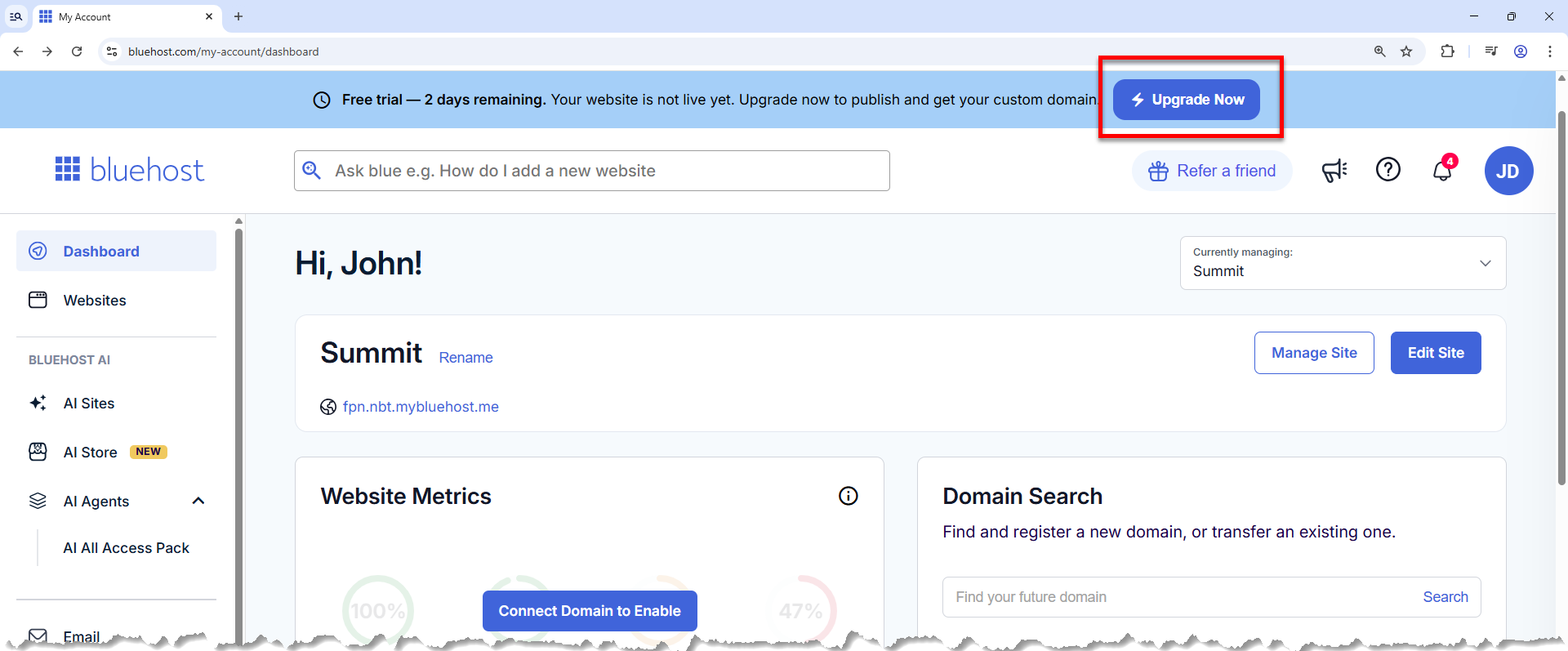
- If you don't see the "Upgrade Now" banner:
- Click the Edit Site button next to your online store in the Dashboard tab.
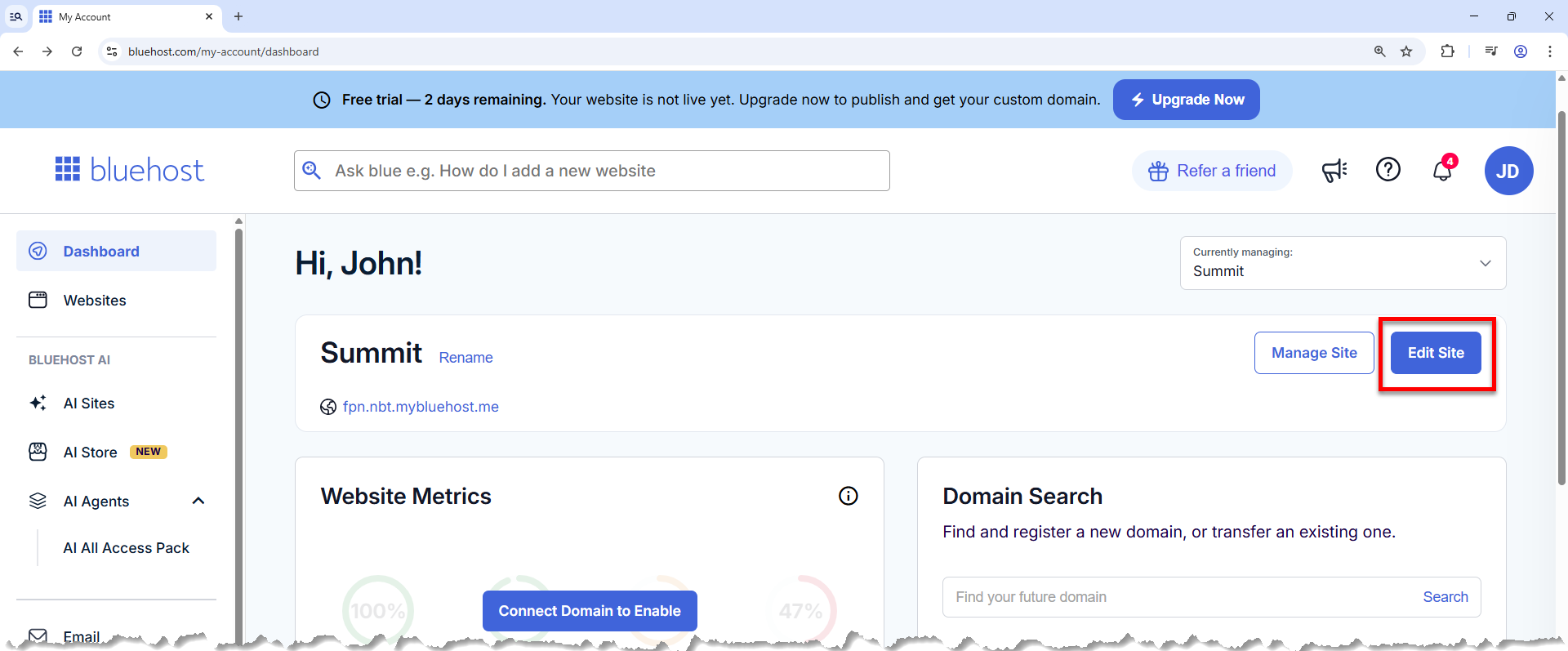
- If you do not see it in the Dashboard, click Websites in the left-hand menu, then click Edit Site next to your website.
- Click the Upgrade button or banner in the AI Store editor.
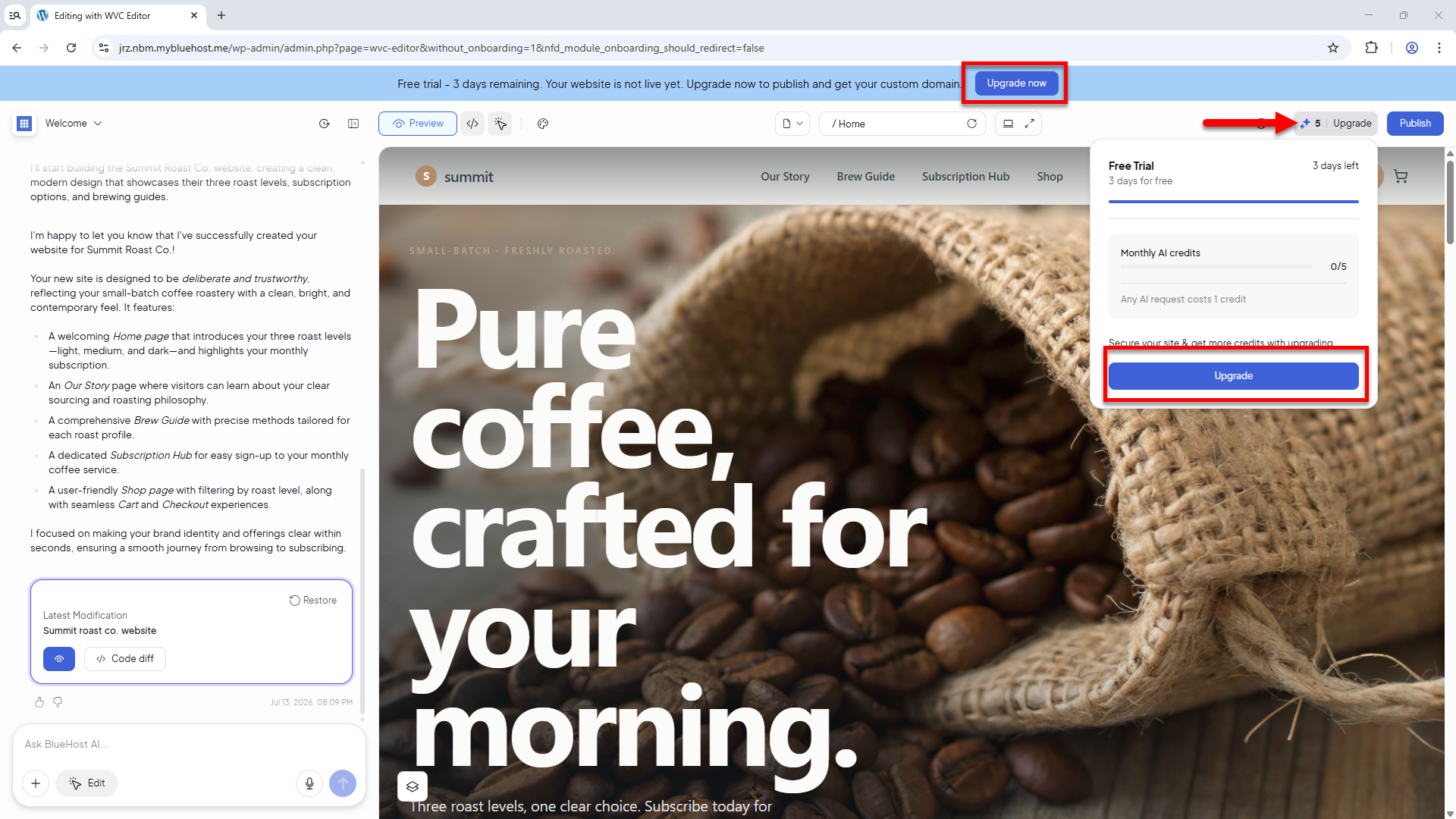
- Click the Edit Site button next to your online store in the Dashboard tab.
- Select Continue with Sell Online.
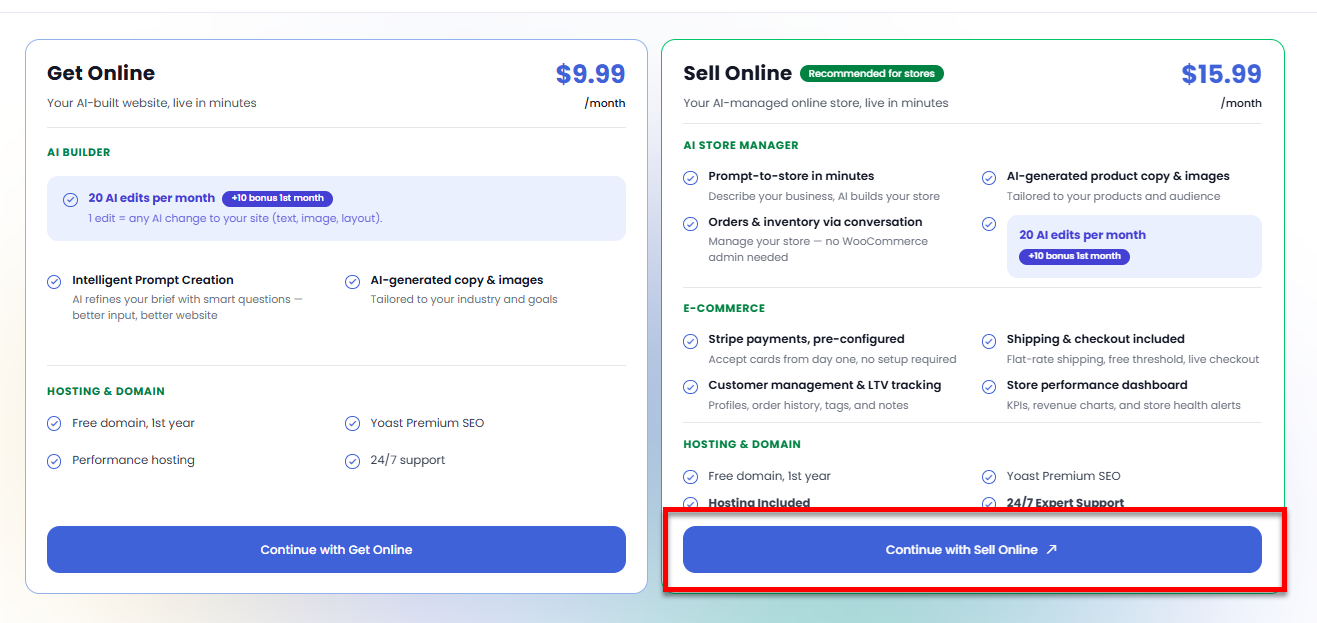
- On the Checkout page, select the billing term for your Sell Online plan.
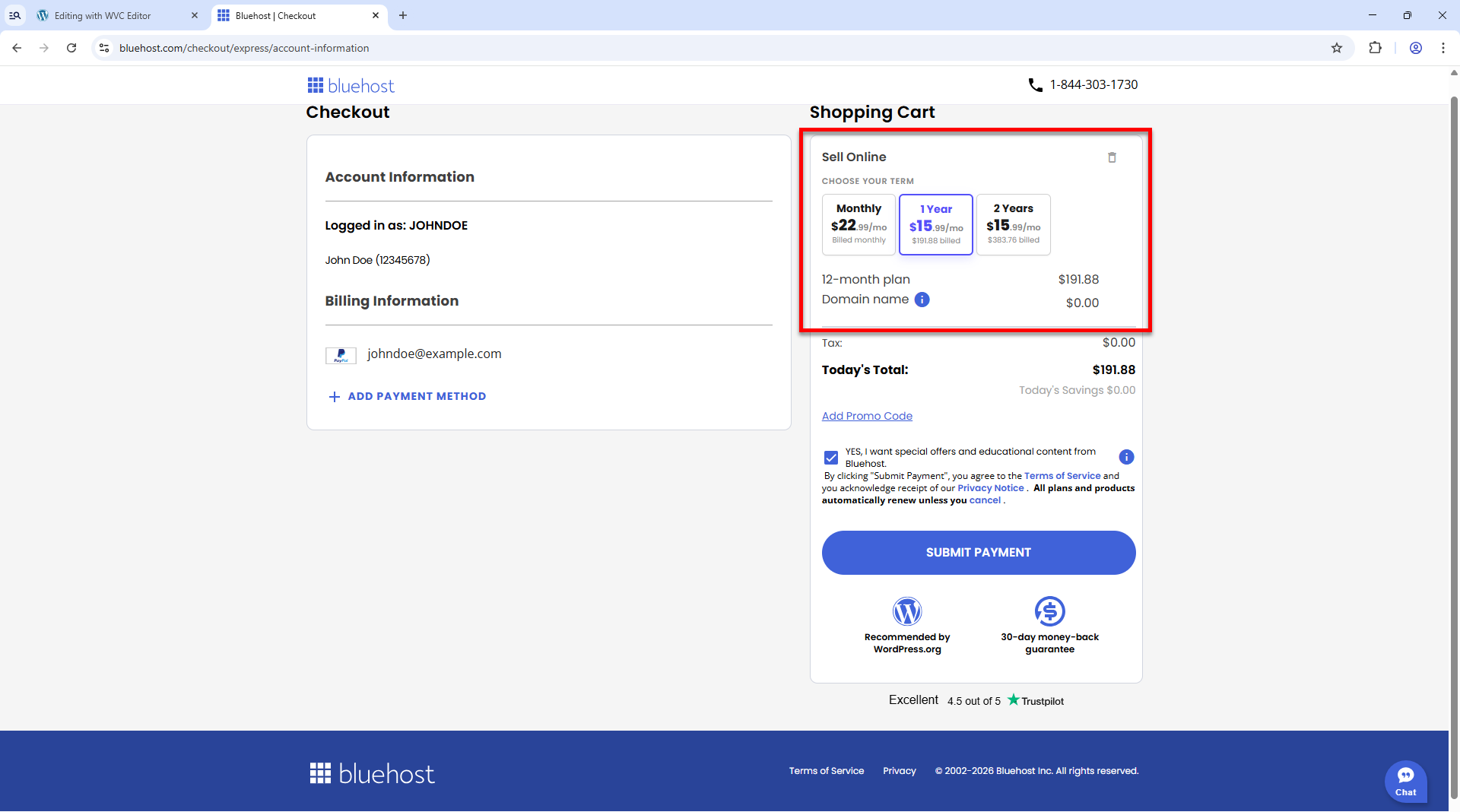
- Add a Promo code, if available.
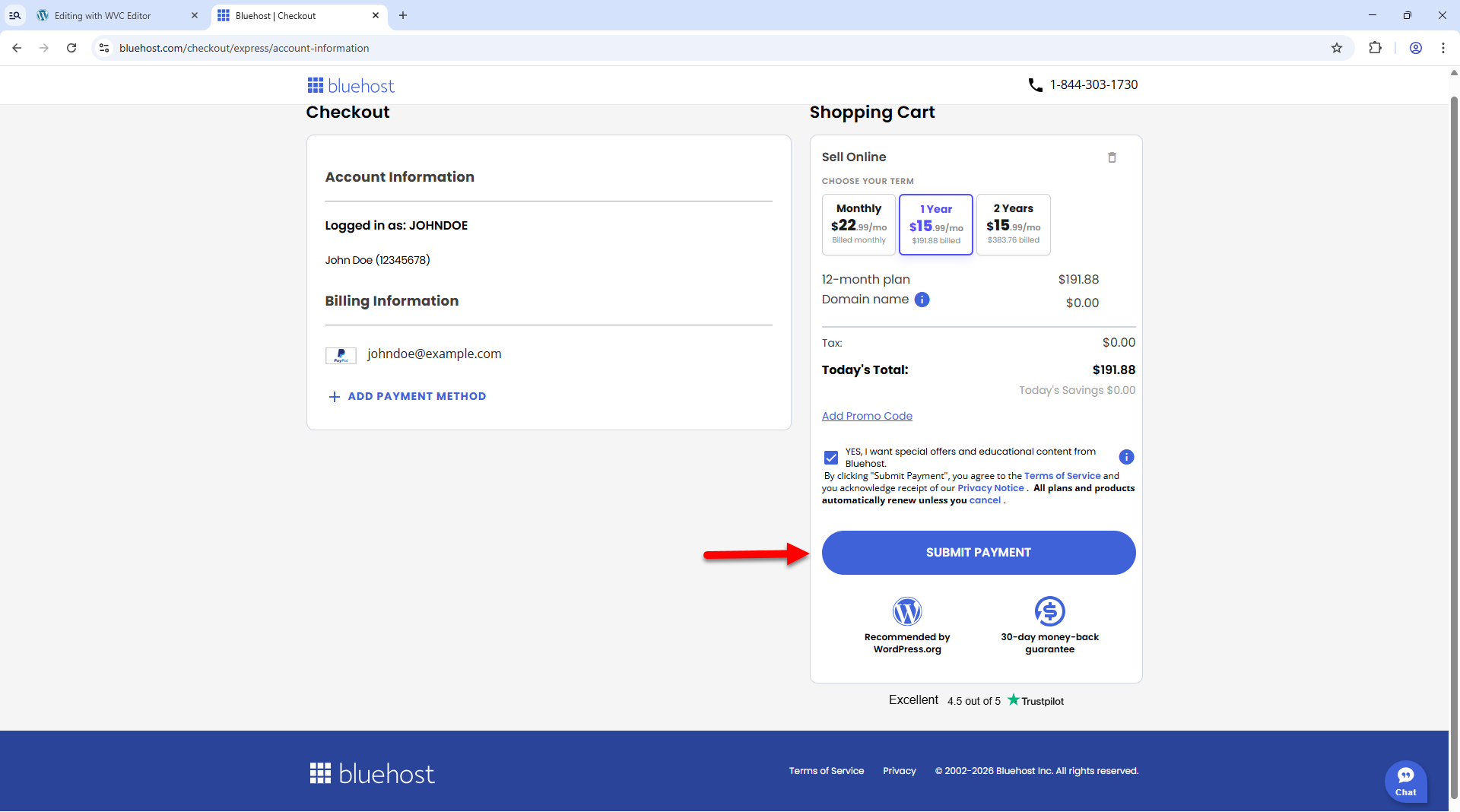
- Click Submit Payment to complete your purchase.
What's Next After the Upgrade: Publish Your Website
Upgrading to the Sell Online plan gets you access to the backend features of the AI Store, but your website is not yet visible to customers unless you publish it. Publishing your site is the final step in launching your online store.
Before You Publish
Perform a final review of your online store to make sure everything is ready for launch.
- Products - Confirm that every product has a title, description, price, and image. Make sure that inventory counts are accurate.
- Payments - Make sure Stripe is fully connected.
- Shipping and taxes - Double-check your shipping zones and rates. Tax settings should be configured for the regions you sell to.
- Content - Review the AI-generated product listings and page copy, and personalize them with your own photos and brand details.
- Domain - Connect your online store to an active domain. Visit the How to Connect a Domain Name from Websites Tab article to learn more.
How to Publish Your Website
- Log in to your Bluehost Portal.
- Click the Edit Site button next to your AI Store website.
- In the AI Store editor, click Publish in the upper-right corner.
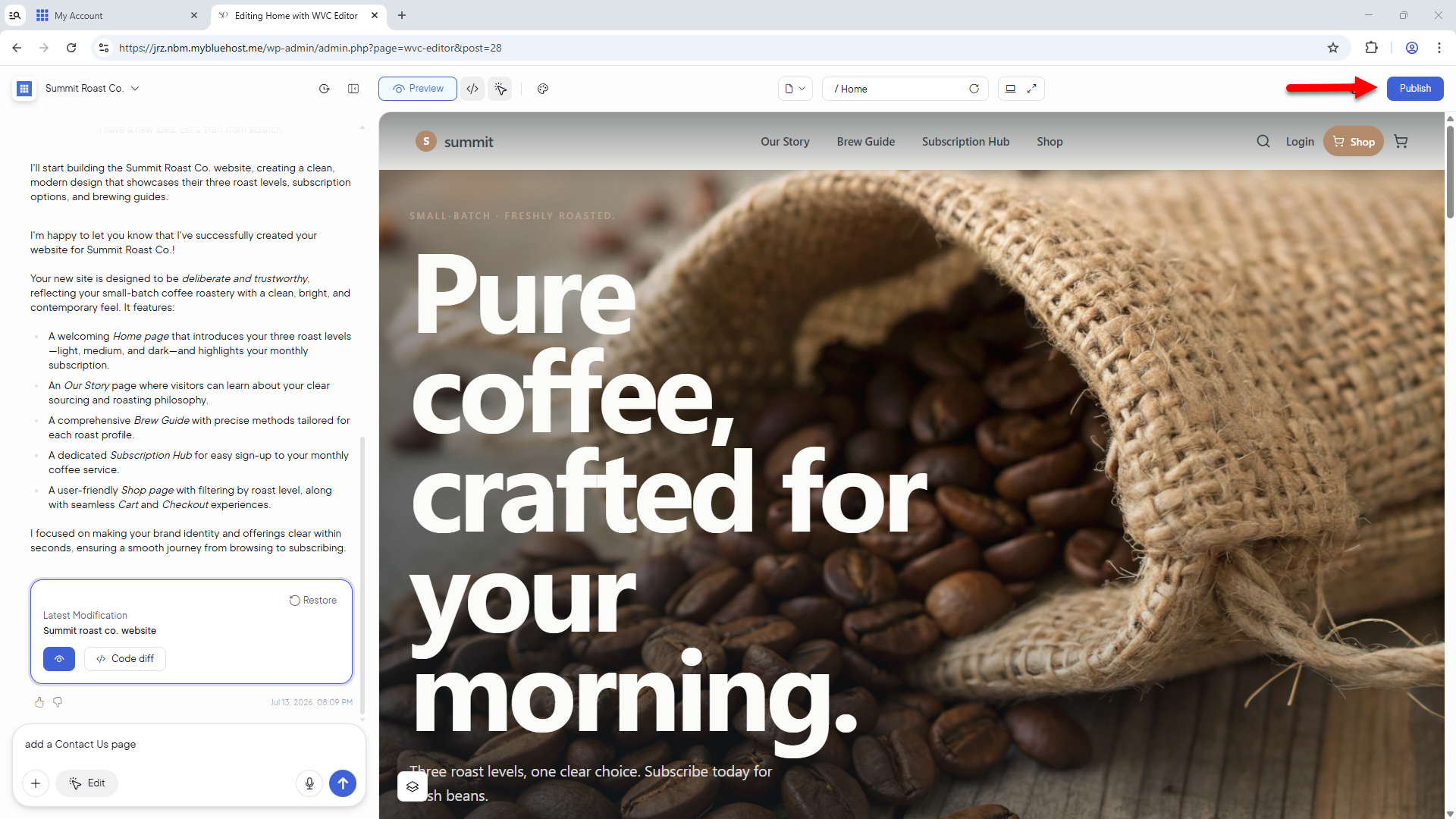
Once published, your online store is live and can accept orders and payments.
Summary
Learn how to upgrade your Bluehost AI Store from the 14-day free trial to the Sell Online plan. This article explains the upgrade requirements, provides step-by-step instructions for upgrading to the Sell Online plan, and outlines what to do next, including reviewing your store settings and publishing your website so customers can browse products and place orders.
If you need further assistance, Bluehost Chat Support is available 24 hours a day, 7days a week while Bluehost Phone Support is available 7 days a week from 7 am-12 midnight EST.
- Chat Support - While on our website, you should see a CHAT bubble in the bottom right-hand corner of the page. Click anywhere on the bubble to begin a chat session.
- Phone Support -
- US: 888-401-4678
- International: +1 801-765-9400
You may also refer to our Knowledge Base articles to help answer common questions and guide you through various setup, configuration, and troubleshooting steps.