 ChatGPT,
 Claude,
 Gemini,
 Grok — all four for
Turned on two-factor authentication (2FA) for your Bluehost Professional Email account, and now Outlook, Apple Mail, Thunderbird, or the Gmail app won't connect? Don't worry, your email is fine. This guide explains why it happens and shows you how to get your apps working again, either by creating an application password or by changing how you check your email.
Why This Happens
When 2FA is on, email apps that connect through IMAP or POP can't sign in with your regular password. These apps can't ask for the 6-digit code from your authenticator app, so Bluehost Professional Email blocks them to protect your account.
The good news: you don't have to turn off 2FA. Create an application password and enter it in your app instead of your regular password.
Signs You're Affected
You likely have this issue if:
- Your email app keeps asking for your password, even though you typed it correctly.
- You see a login or authentication error in Outlook, Apple Mail, or another app.
- Your app stopped syncing new mail right after you turned on 2FA.
- You can still sign in to Bluehost Professional Email webmail without any problems.
Choose Your Fix
You have three options. Pick the one that fits how you check your email.
| Option | Keeps 2FA on? | Best for |
|---|---|---|
| Option 1: Create an application password | Yes | Using Outlook, Apple Mail, or another email app while keeping 2FA on |
| Option 2: Use webmail or the mobile app | Yes | Checking email in your browser or on your phone |
| Option 3: Turn off 2FA | No | Signing in to your email app with your regular password |
Option 1: Create an Application Password
An application password is a separate code that lets your email app connect while 2FA stays on.
Note: Haven't set up 2FA yet? Follow the steps in Bluehost Professional Email: How to Enable Two-Factor Authentication (2FA) first, and then come back to create your application password.
- Log in to Bluehost Professional Email webmail.
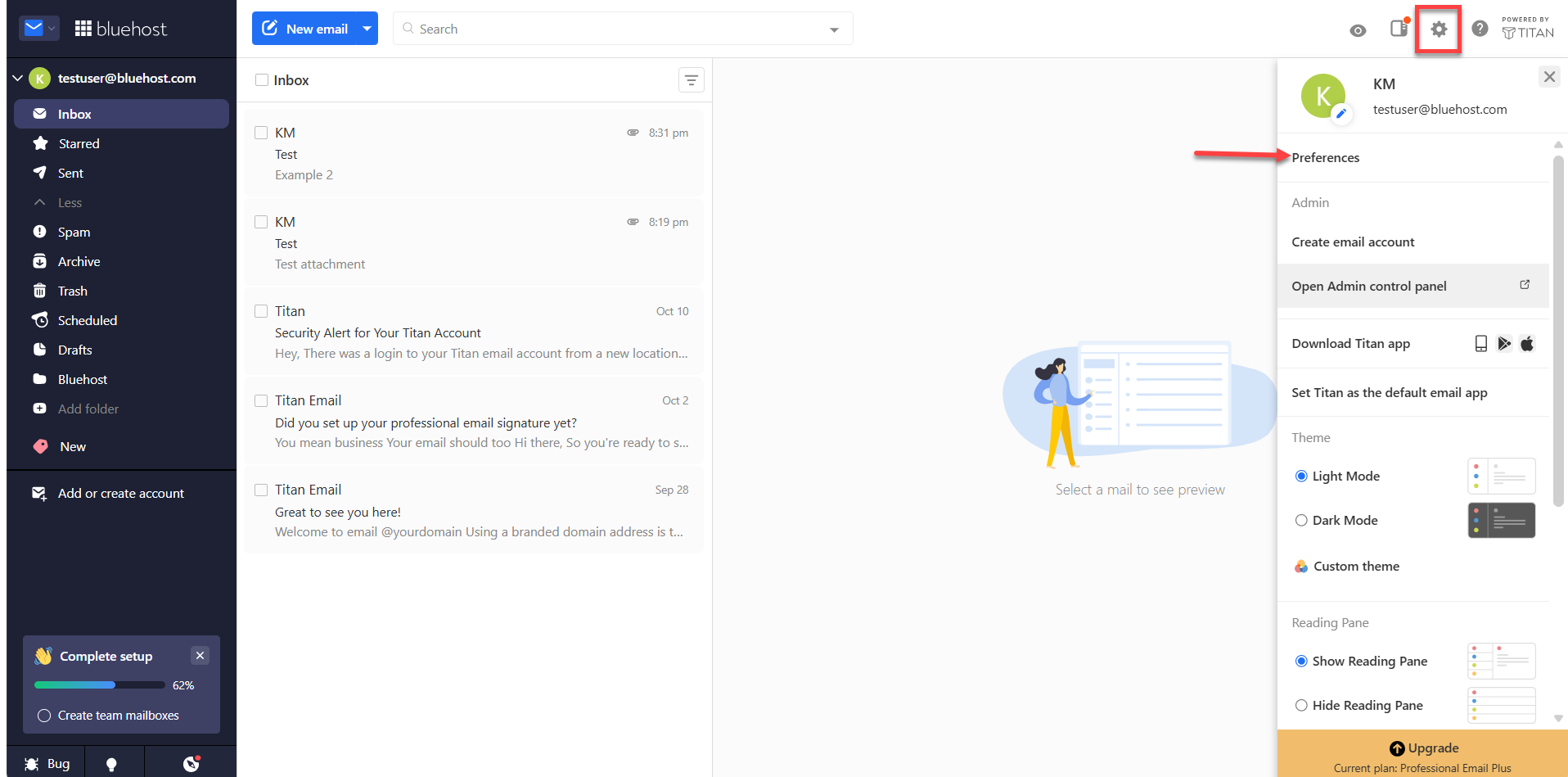
- Click Settings in the top-right corner, and then click Preferences.
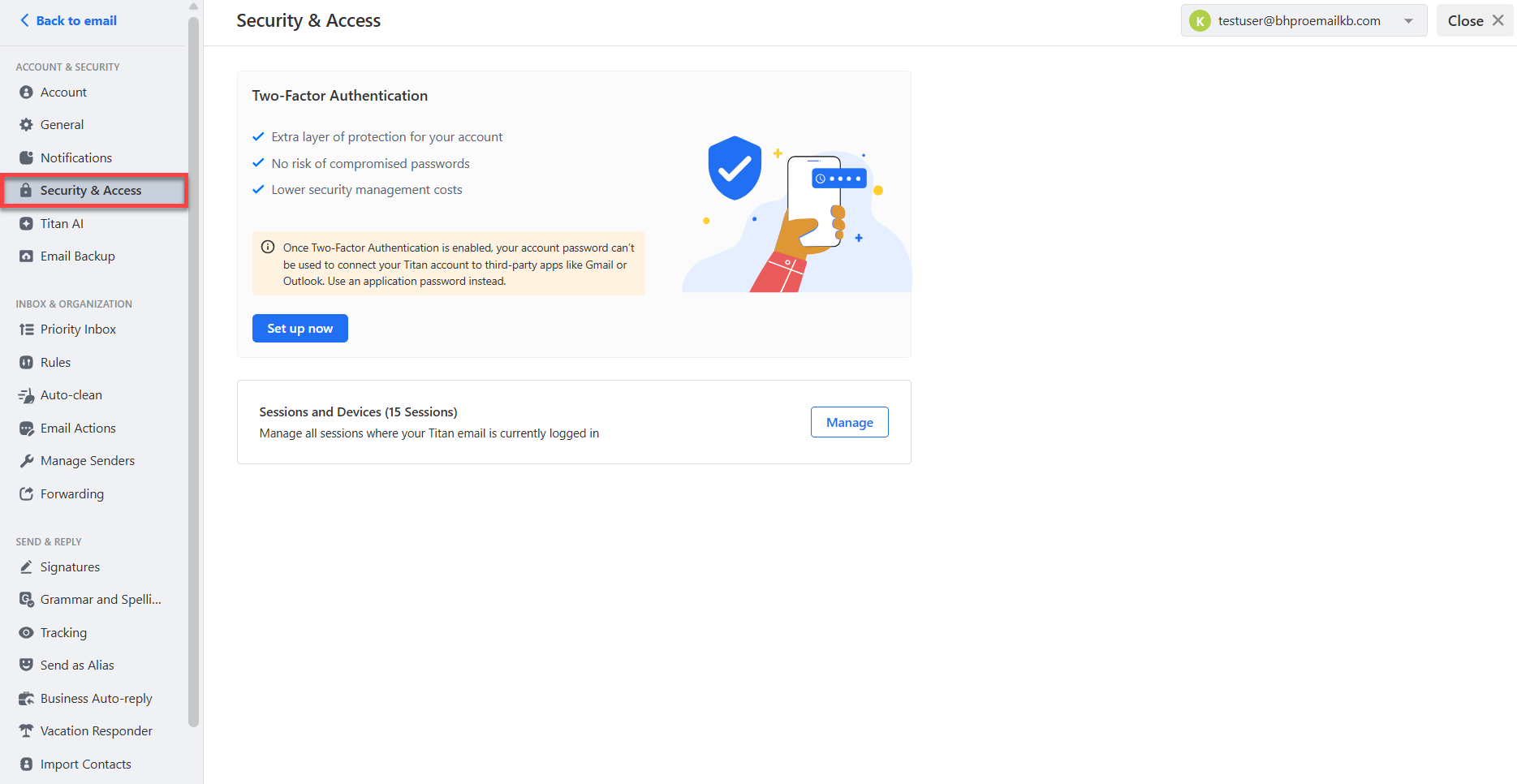
- Under Account & Security, click Security & Access.
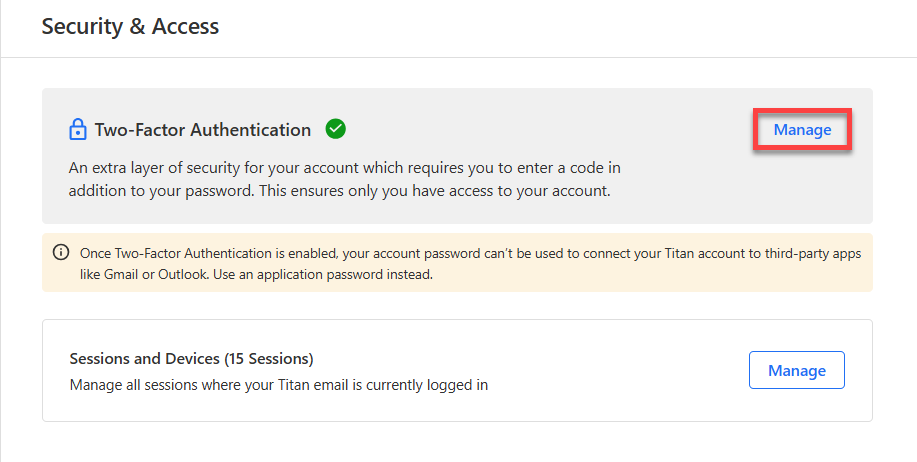
- Under Two-Factor Authentication, click Manage.
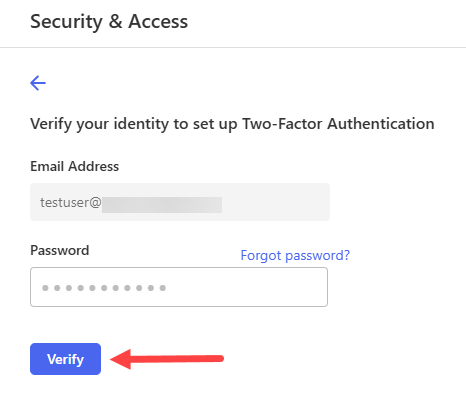
- Enter your email password, and then click Verify. Enter the 6-digit code from your authenticator app, and then click Verify again.
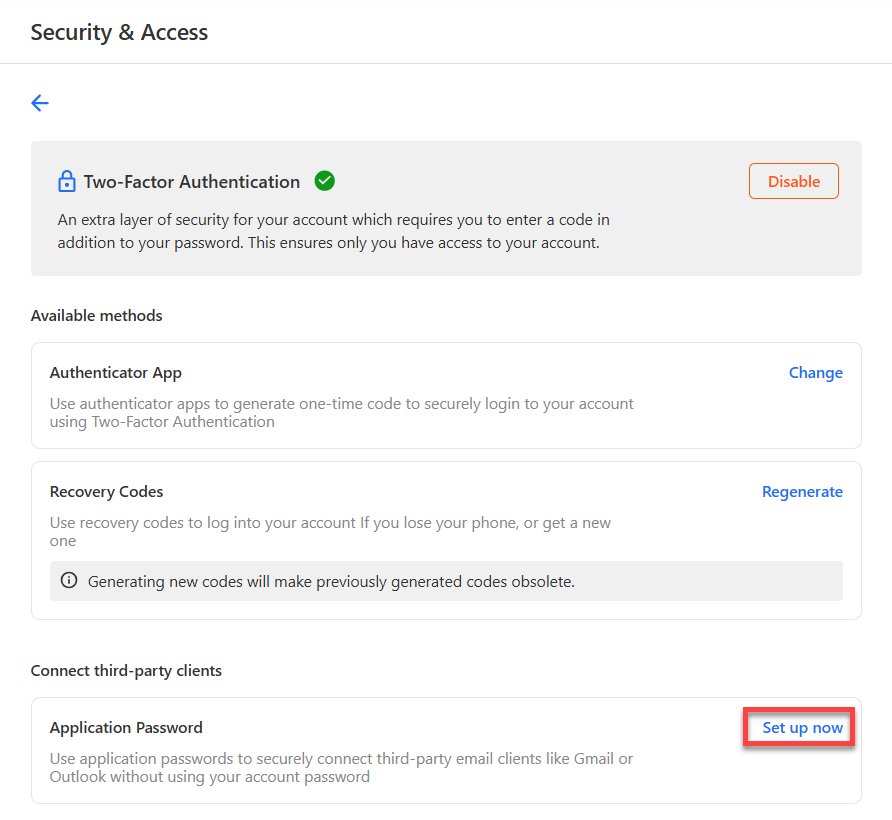
- Under Connect third-party clients, click Set up now.
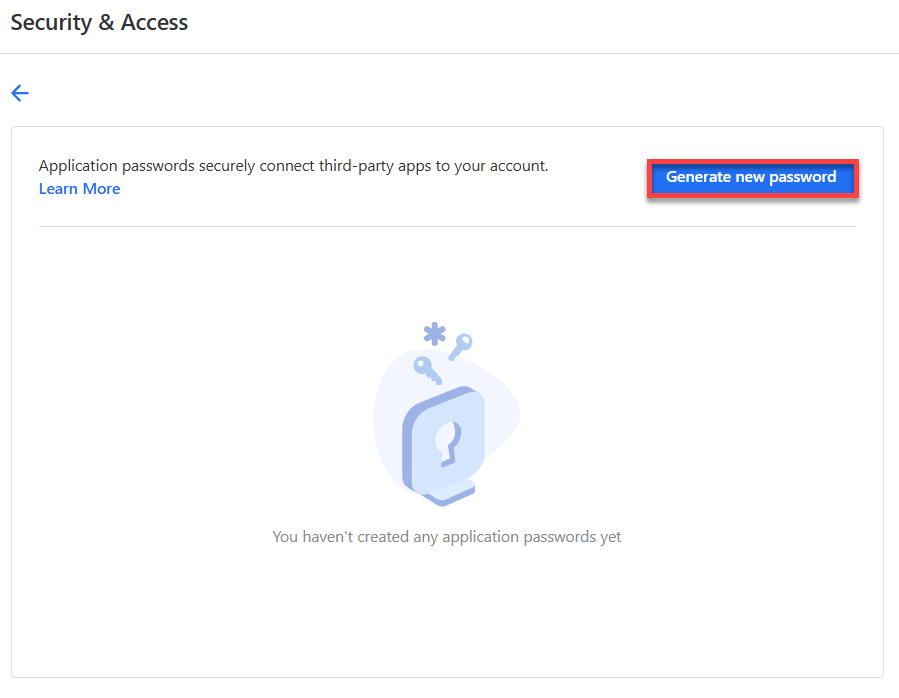
- Click Generate new password.
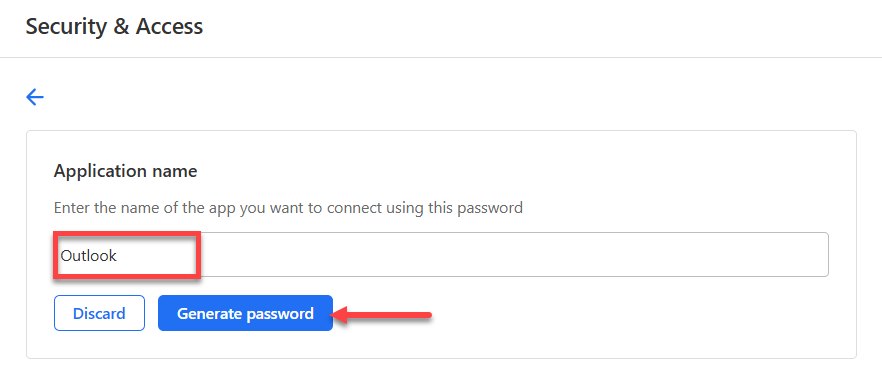
- Enter a name you'll recognize, like the name of your email app, and then click Generate password.
- Click Copy, save the password somewhere safe, and then click Done.
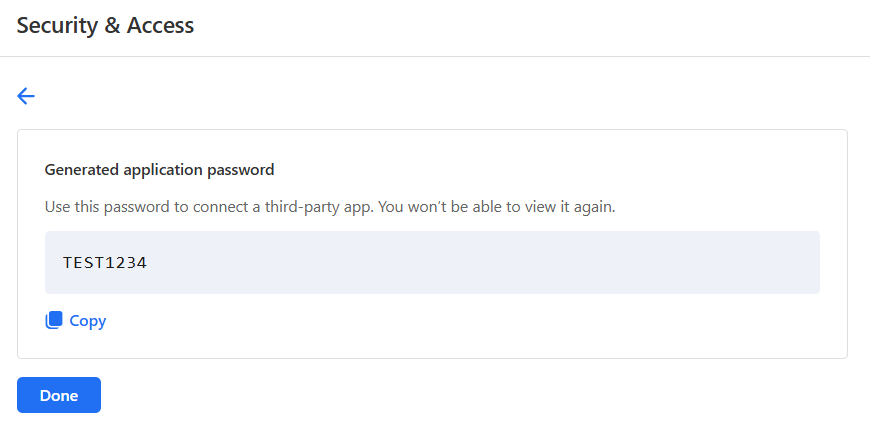
Warning: You can see the application password only once. If you close the window before you copy it, revoke that password and generate a new one.
Next, add your account to your email app. For the settings to use, see How to Configure Bluehost Professional Email on Other Apps. In the password field, paste your application password, not your regular email password.
Tip: Create a separate application password for each email app. That way, you can revoke access for one app without affecting the others.
Option 2: Use Webmail or the Mobile App
Keep 2FA on and check your email in places that support it:
- On a computer: Log in to Bluehost Professional Email webmail from your Bluehost Portal or your web browser. For steps, see How to Access Webmail: Log into Your Email Account.
- On your phone: In your Bluehost Portal, go to the Professional Email management page and click Get Mobile App to download the app. Then sign in with your email address, password, and 2FA code. .
Then remove your Professional Email account from your third-party app so it stops showing login errors.
Option 3: Turn Off 2FA
Prefer to sign in with your regular password? You can turn off 2FA in one of two ways.
Method 1: From the Bluehost Portal
The Bluehost account owner can turn off 2FA for any mailbox from the Bluehost Portal. This is also the way to regain access if you've lost your authenticator app and recovery codes. For step-by-step instructions, see Bluehost Professional Email: How to Enable Two-Factor Authentication (2FA).
Method 2: From Webmail
If you can still sign in to your mailbox with 2FA, turn it off yourself in webmail.
- Log in to Bluehost Professional Email webmail.
- Click Settings in the top-right corner, and then click Preferences.
- Under Account & Security, click Security & Access.
- Under Two-Factor Authentication, click Manage.
- Enter your email password, and then click Verify. Enter the 6-digit code from your authenticator app, and then click Verify again.
- Click Disable.
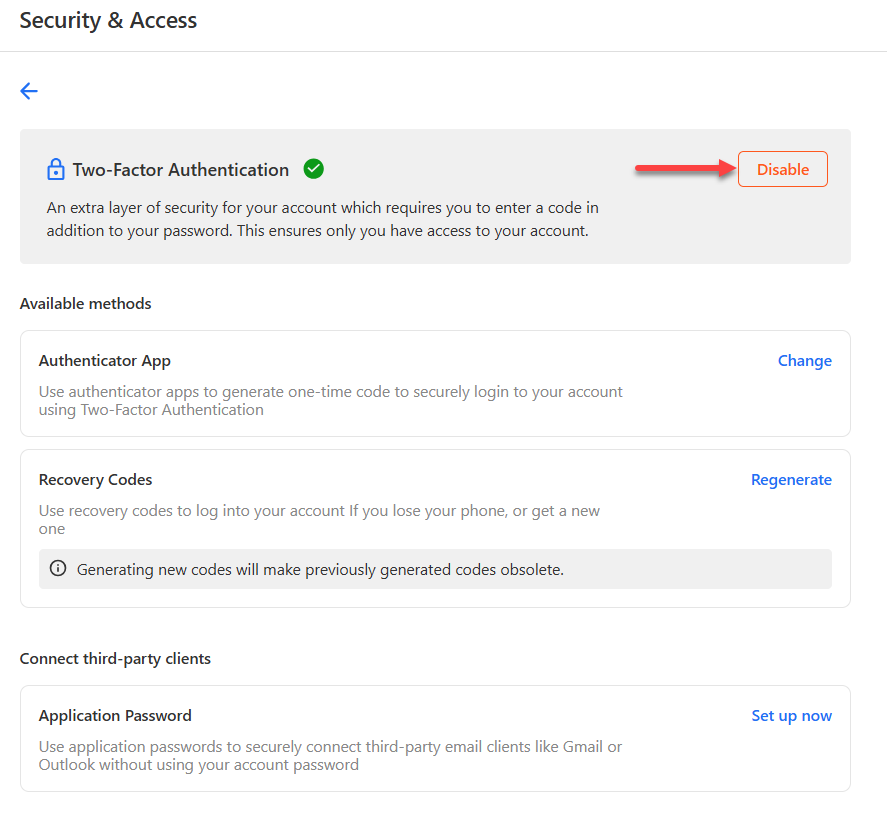
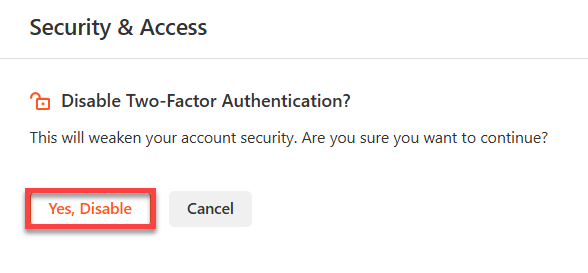
- Click Yes, Disable to confirm.
Reconnect Your Email App
Before you connect an email app, make sure third-party email access is turned on for your account. For more details, see How to Enable Bluehost Professional Email on Other Apps.
- Log in to Bluehost Professional Email webmail.
- Click Settings, and then click Enable Titan on other apps. If you see Configure 3rd party apps instead, third-party access is already on, and you can skip the next step.
- After the feature tour, click Enable Titan on other apps to turn on access.
Then open your email app and add your account with these settings. If your app is already set up but still won't connect, remove the account and add it again.
| Setting | Value |
|---|---|
| Username | Your full email address |
| Password | Your application password if 2FA is on, or your regular email password if 2FA is off |
| Incoming server (IMAP) | imap.titan.email, port 993, SSL/TLS |
| Incoming server (POP) | pop.titan.email, port 995, SSL/TLS |
| Outgoing server (SMTP) | smtp.titan.email, port 465, SSL/TLS |
Tip: Choose IMAP unless you have a reason not to. IMAP keeps your mail in sync across webmail, your phone, and your computer. POP downloads mail to a single device and, depending on your app's settings, may remove it from the server.
Protect Your Account Without 2FA
If you turn off 2FA, take these steps to keep your email safe:
- Use a long, unique password that you don't use anywhere else.
- Store your password in a password manager.
- Change your password right away if you think someone else knows it.
- Watch for phishing emails that ask you to sign in or confirm your password.
Frequently Asked Questions
Find quick answers to common questions about 2FA and email apps.
Q: Can I create an application password?
A: Yes. Bluehost Professional Email supports application passwords when 2FA is on. Follow the steps in Option 1 to create one for each email app you use.
Q: How do I revoke an application password?
A: In webmail, go to Settings > Preferences > Security & Access. Under Two-Factor Authentication, open the application password list, click Revoke access next to the password you no longer need, and confirm. The app that used it stops connecting.
Q: Does 2FA work in the mobile app?
A: Yes. Update the mobile app to the latest version, and then sign in with your password and the code from your authenticator app.
Q: I lost my authenticator app. How do I sign in?
A: Use one of the recovery codes you saved when you set up 2FA. If you don't have them, ask the Bluehost account owner to turn off 2FA for your mailbox.
Q: Can I turn 2FA back on later?
A: Yes. In webmail, go to Settings > Preferences > Security & Access and set up 2FA again. Once 2FA is back on, your email apps need an application password to connect.
Summary
With 2FA on, your email apps can't connect to Bluehost Professional Email with your regular password. Create an application password to keep 2FA on and keep using Outlook, Apple Mail, or another email app. You can also check your email in webmail or the mobile app, or have the Bluehost account owner turn off 2FA and protect the account with a strong, unique password.
Related Articles
If you need further assistance, Bluehost Chat Support is available 24 hours a day, 7days a week while Bluehost Phone Support is available 7 days a week from 7 am-12 midnight EST.
- Chat Support - While on our website, you should see a CHAT bubble in the bottom right-hand corner of the page. Click anywhere on the bubble to begin a chat session.
- Phone Support -
- US: 888-401-4678
- International: +1 801-765-9400
You may also refer to our Knowledge Base articles to help answer common questions and guide you through various setup, configuration, and troubleshooting steps.