 ChatGPT,
  Claude,
  Gemini,
  Grok — all four for
 Import your existing contacts into Bluehost Professional Email using a CSV (comma-separated values) file instead of adding them one at a time. Imported contacts appear in My Contacts and are suggested as recipients when you compose an email.
Follow the steps below to import your contacts into your Bluehost Professional Email account.
Log In to Professional Email Webmail
Option 1: Use the Login to Webmail Button
- Log in to your Bluehost Portal.
- From the left-hand navigation menu, click on the Email tab.
- Optional: In Professional Email, if multiple plans are listed, click Manage for the plan you want to use.

- You’ll be automatically redirected to the Email Management page, where you can manage your email settings and subscriptions.
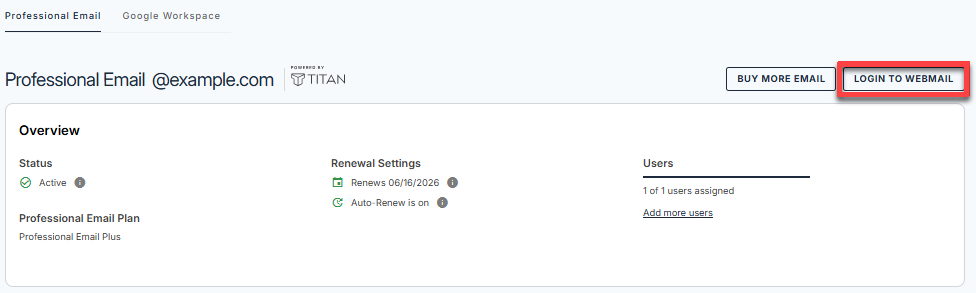
- Click the Login to Webmail button.
- Enter your Professional Email username and password.
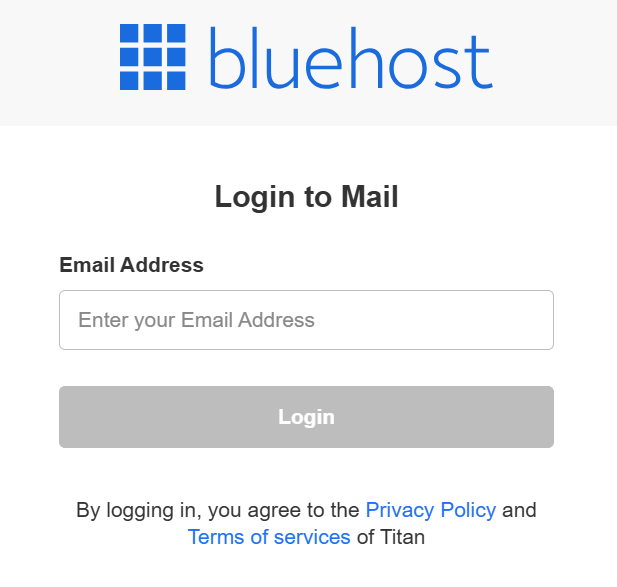
- Click Login.
Option 2: Use the Direct Login Link
- Go to the Professional Email login page.
- Enter your Professional Email username and password.
- Click Login.
Import contacts from a CSV file
Importing a CSV file is the quickest way to add multiple contacts to your email account at once.
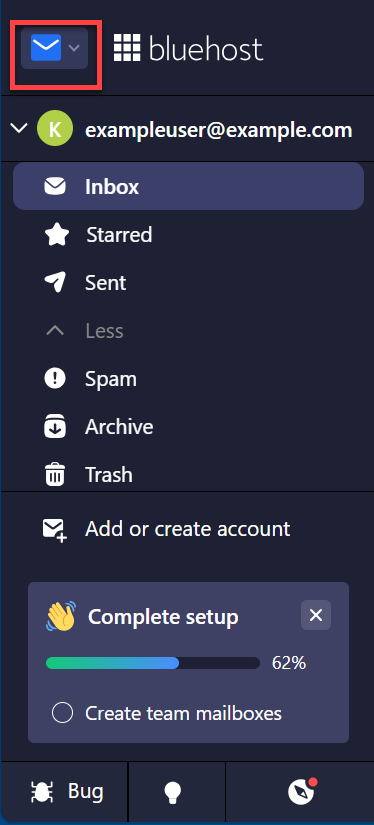
- In your webmail, go to the upper-left corner, and click the app switcher (the envelope icon).
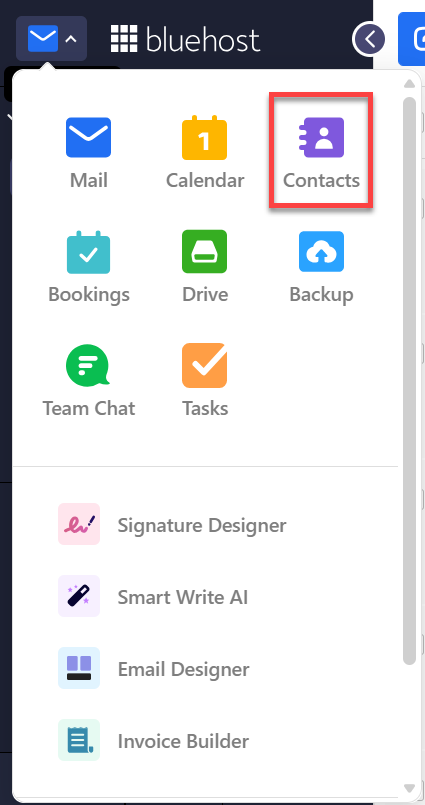
- Select Contacts.
- Click Import contacts in the upper-right corner.
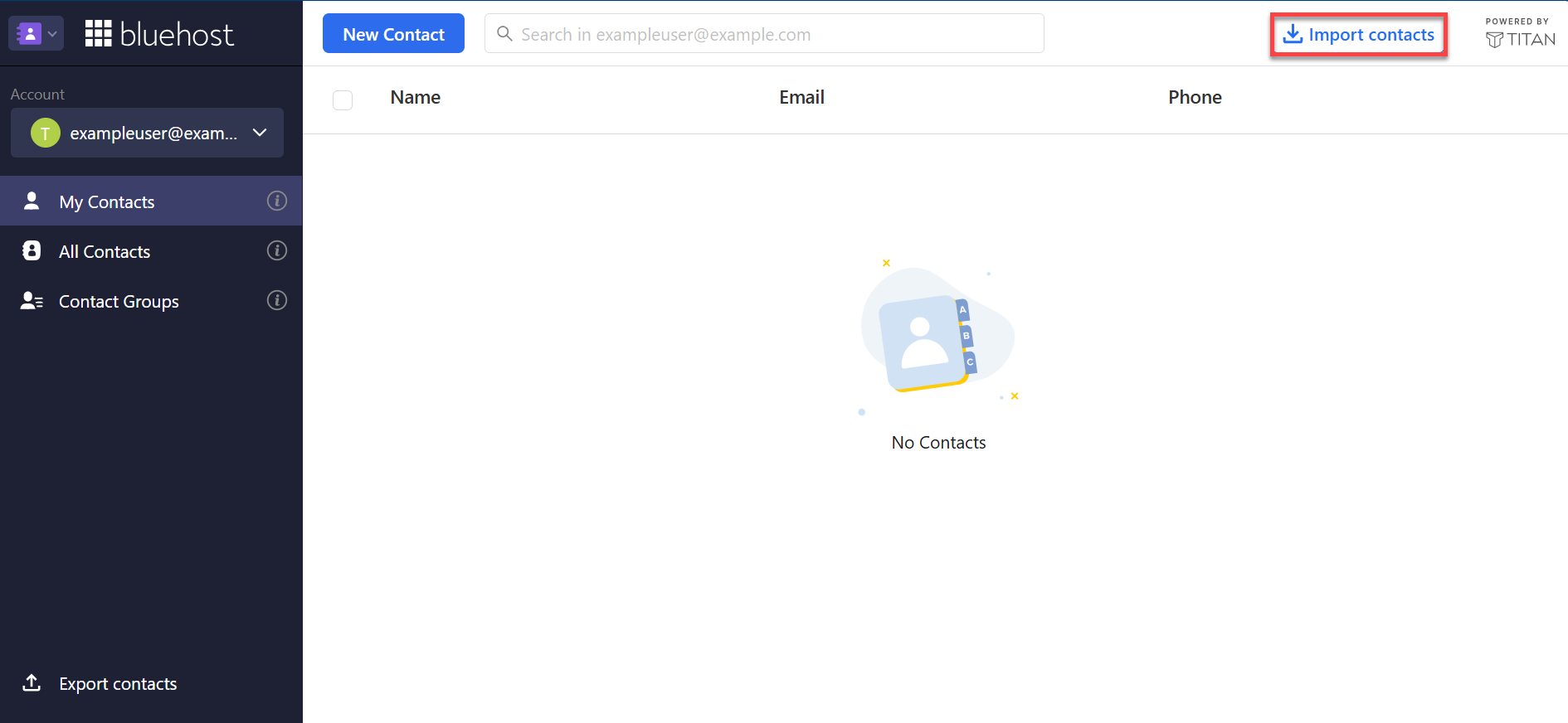
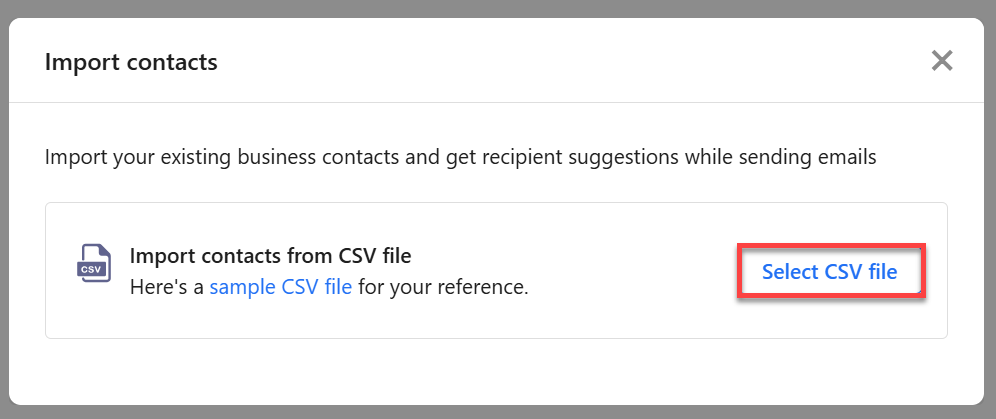
- In the Import contacts window, click Select CSV file, then choose the CSV file from your computer.
Tip: Before you import, compare your file with the sample CSV file in the Import contacts window to make sure your column headers match.
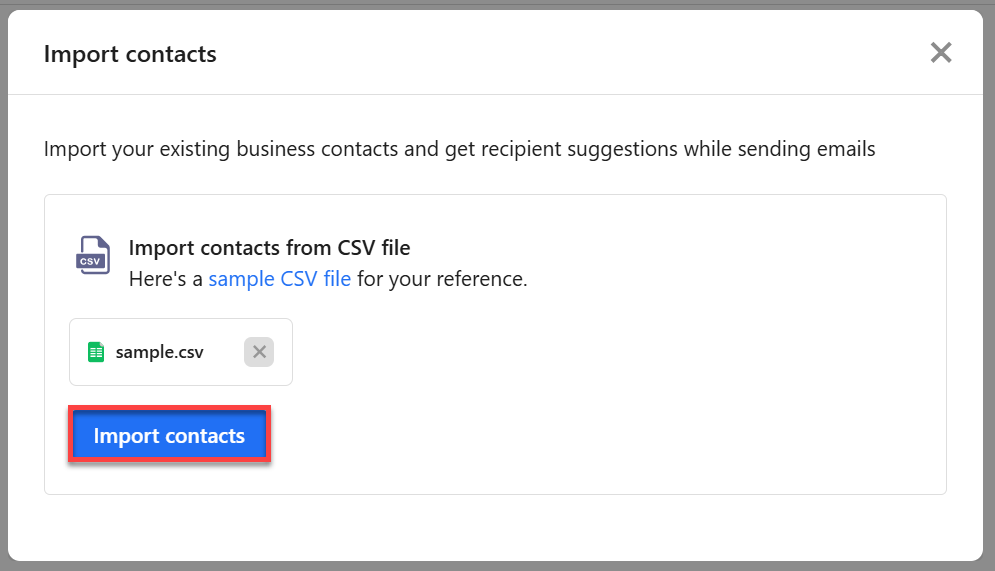
- Confirm the correct file name appears, then click Import contacts.
- Wait for the confirmation message, which shows how many contacts were imported.

Success: A message such as 3 contacts imported successfully confirms the import. Your imported contacts now appear in My Contacts.
Tips and troubleshooting
- The import doesn't work or contacts look wrong. Compare your file with the sample CSV file in the Import contacts window. Make sure your column headers match, and that the file is saved in CSV format rather than as an Excel workbook.
- Contacts went to the wrong account. Each email account has its own contacts. Check the Account selector on the Contacts page before you import.
- You need a copy of your contacts. Use Export contacts in the lower-left corner of the Contacts page to download your contacts as a backup.
Summary
Importing contacts from a CSV file lets you bring your existing contacts into Bluehost Professional Email in a few clicks. Open Contacts from the app switcher, click Import contacts, select your CSV file, and import it. Your contacts then appear in My Contacts and as suggestions when you compose an email.
Related Articles
If you need further assistance, Bluehost Chat Support is available 24 hours a day, 7days a week while Bluehost Phone Support is available 7 days a week from 7 am-12 midnight EST.
- Chat Support - While on our website, you should see a CHAT bubble in the bottom right-hand corner of the page. Click anywhere on the bubble to begin a chat session.
- Phone Support -
- US: 888-401-4678
- International: +1 801-765-9400
You may also refer to our Knowledge Base articles to help answer common questions and guide you through various setup, configuration, and troubleshooting steps.