 ChatGPT,
  Claude,
  Gemini,
  Grok — all four for
 You can keep your old messages when you move your email from cPanel to Bluehost Professional Email. The built-in Email Import Tool in Professional Email copies your existing emails from cPanel into your new Professional Email mailbox. The tool connects to your old mailbox through IMAP and moves your folders automatically. You only need your old email login details and a few minutes to set it up. Follow the steps below to prepare your accounts and start the import.
Prepare for the Migration
Complete these tasks before you start the import so your emails move over smoothly.
- Create your email accounts in Professional Email: In the Email tab of your Bluehost Portal, create the same email addresses you use in cPanel.
- Update your DNS records: Point your domain's MX and TXT records to Professional Email, and wait for the changes to fully propagate. To learn how, see the Guide to the DNS Tab in the Bluehost Portal.
- Check your storage space: Make sure your new Professional Email account has enough space for your cPanel mailbox. If it doesn't, upgrade your storage plan first so your emails move over in one go. For current storage plans and pricing, visit Bluehost Professional Email.
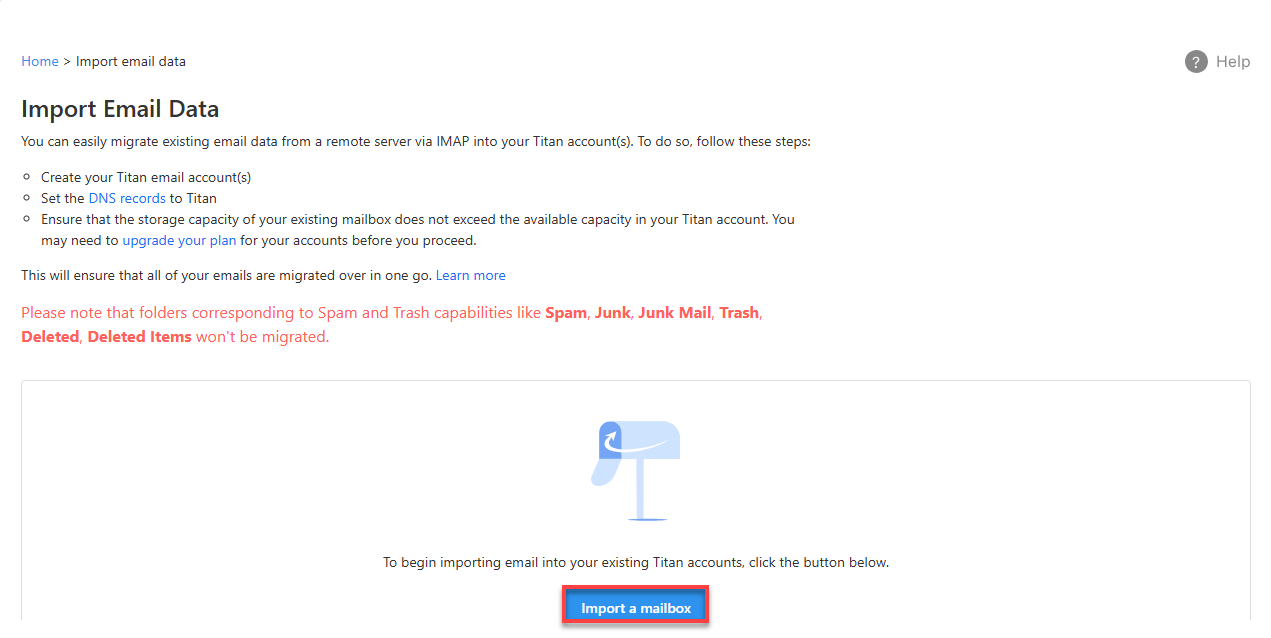
Warning: Professional Email doesn't import spam or trash folders, including Spam, Junk, Junk Mail, Trash, Deleted, and Deleted Items. To keep any emails from these folders, move them to your Inbox or a custom folder before you start.
Log In to Professional Email Webmail
Option 1: Use the Login to Webmail Button
- Log in to your Bluehost Portal.
- From the left-hand navigation menu, click on the Email tab.
- Optional: In Professional Email, if multiple plans are listed, click Manage for the plan you want to use.

- You’ll be automatically redirected to the Email Management page, where you can manage your email settings and subscriptions.
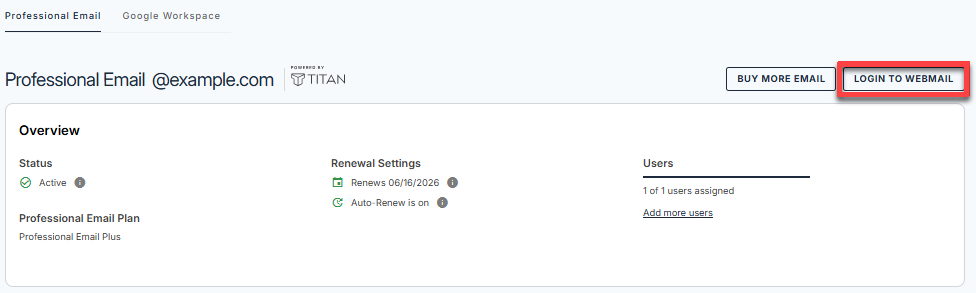
- Click the Login to Webmail button.
- Enter your Professional Email username and password.
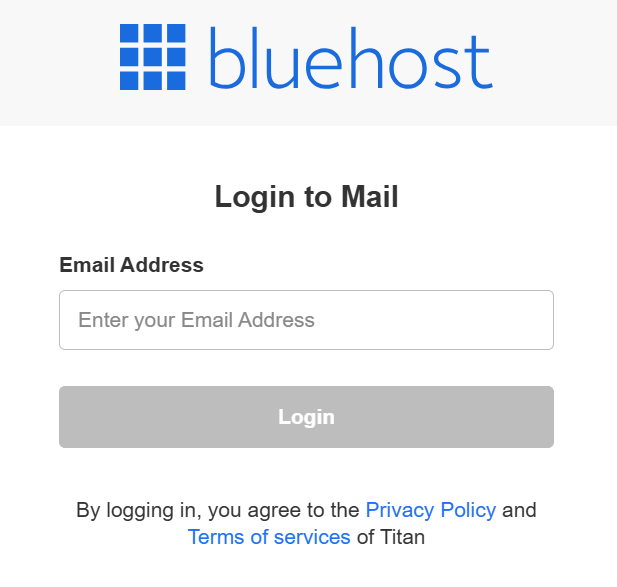
- Click Login.
Option 2: Use the Direct Login Link
- Go to the Professional Email login page.
- Enter your Professional Email username and password.
- Click Login.
Import Your Emails
Follow these steps to import your email data:
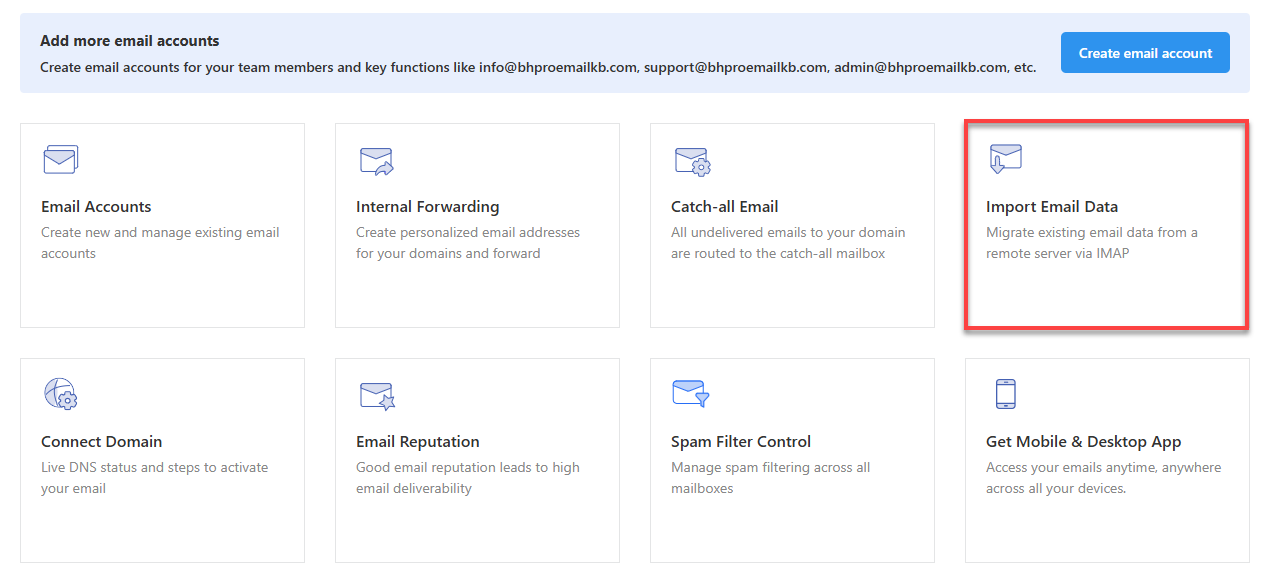
- Click Import Email Data.
- Click Import a mailbox.
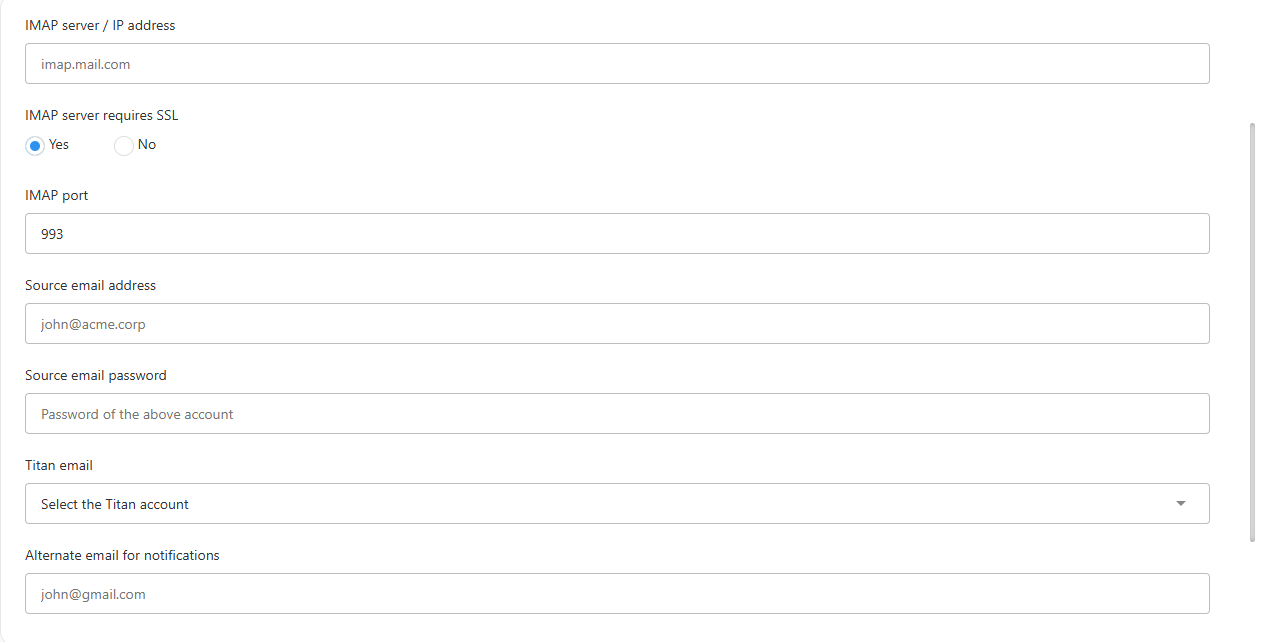
- Fill in your old mailbox credentials:
- IMAP server / IP address: Enter your source server hostname or IP address (this is a required field).
- IMAP server requires SSL: Select Yes or No based on your provider.
- IMAP port: Enter your server's IMAP port (typically
993for SSL). - Source email address: Enter your old email address.
- Source email password: Enter the password for your old mailbox.
- Titan email: Select the destination Professional Email account from the dropdown menu.
- Alternate email for notifications: Provide an external email address to receive updates on your migration progress.
- Click Submit.
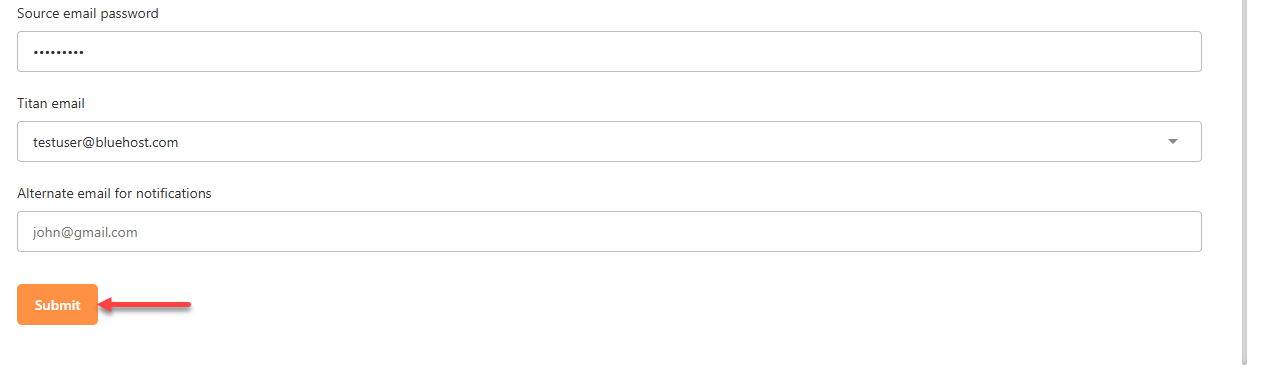
Professional Email now starts importing your emails.
What to Expect During the Migration
Keep these points in mind while your emails move over.
- Import order: The import moves your Inbox, Drafts, and Sent folders first, then your custom folders. It imports your newest emails first.
- How long it takes: The migration can take a few hours to a couple of days, depending on your mailbox size. You can check the progress anytime in the Email tab of your Bluehost Portal.
Once the import finishes, your imported emails will be waiting in your new Professional Email mailbox.
Summary
The Email Import Tool moves your old cPanel emails into Bluehost Professional Email for you. Create your email accounts in Professional Email, update your DNS, and check your storage before you start. Then enter your old mailbox details in the import tool and let it do the rest.
Related Articles
If you need further assistance, Bluehost Chat Support is available 24 hours a day, 7days a week while Bluehost Phone Support is available 7 days a week from 7 am-12 midnight EST.
- Chat Support - While on our website, you should see a CHAT bubble in the bottom right-hand corner of the page. Click anywhere on the bubble to begin a chat session.
- Phone Support -
- US: 888-401-4678
- International: +1 801-765-9400
You may also refer to our Knowledge Base articles to help answer common questions and guide you through various setup, configuration, and troubleshooting steps.