 ChatGPT,
  Claude,
  Gemini,
  Grok — all four for
 Bluehost Subscriptions: Payment Gateways for Automatic Recurring Payments
The Bluehost Subscription plugin supports several automatic payment methods, enabling you to charge customers automatically when a recurring payment is due. This helps streamline subscription management and improves customer experience.
Once a payment method is selected at checkout, it cannot be changed later. Customers wishing to switch payment methods must cancel the current subscription and start a new one.
Supported Payment Gateways
The plugin works with these gateways for automatic subscription payments:
- PayPal Payments (included in the Bluehost eCommerce plan)
- Stripe Payments (included in the Bluehost eCommerce plan)
PayPal Payments by Bluehost
The Bluehost PayPal Payments for WooCommerce plugin enables you to accept PayPal and credit card payments, providing a smooth and efficient checkout experience.
How to Set Up PayPal Payments
- Access Plugin Settings
Navigate toBluehost > Commerce > PayPal Payments, then click Manage.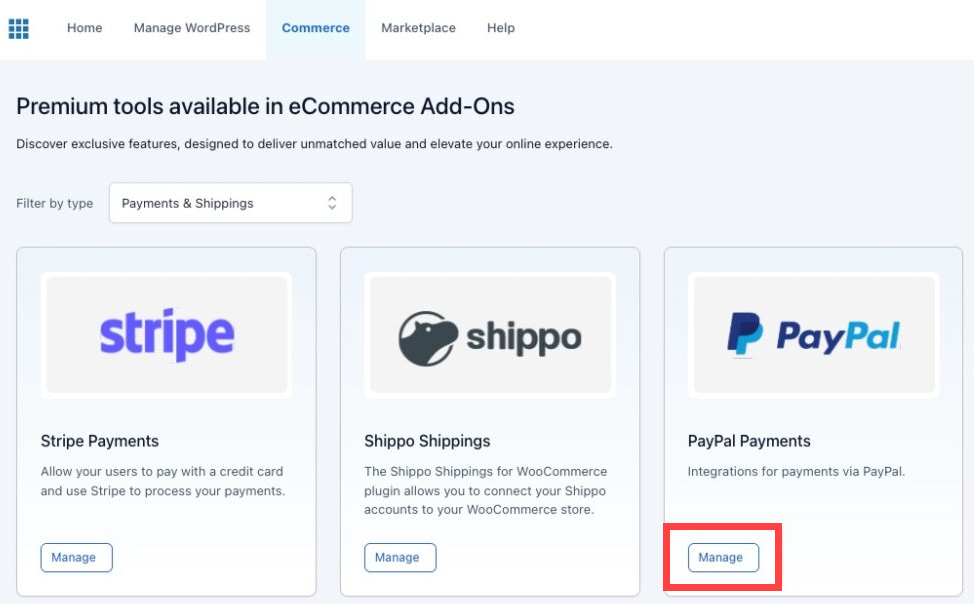
- Connect Your PayPal Account
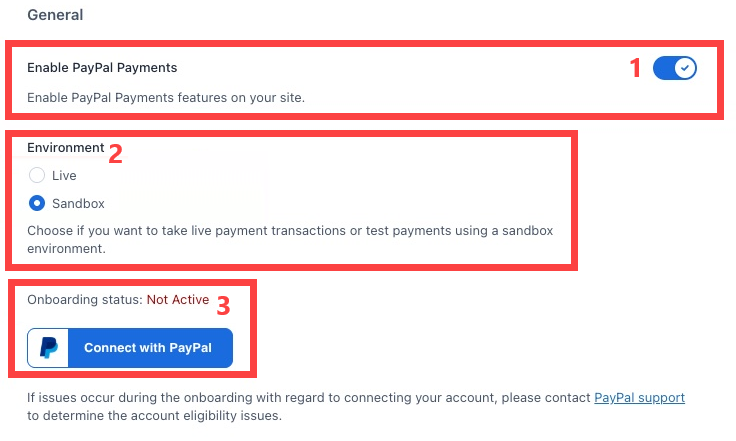
- Enable the plugin in the Settings tab.
- Choose between Sandbox (test environment) or Live (production).
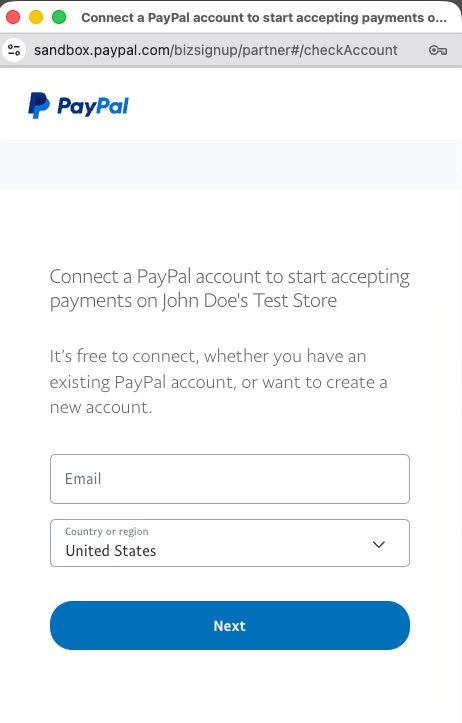
- Click Connect with PayPal and log in to your PayPal business account or create a new one.
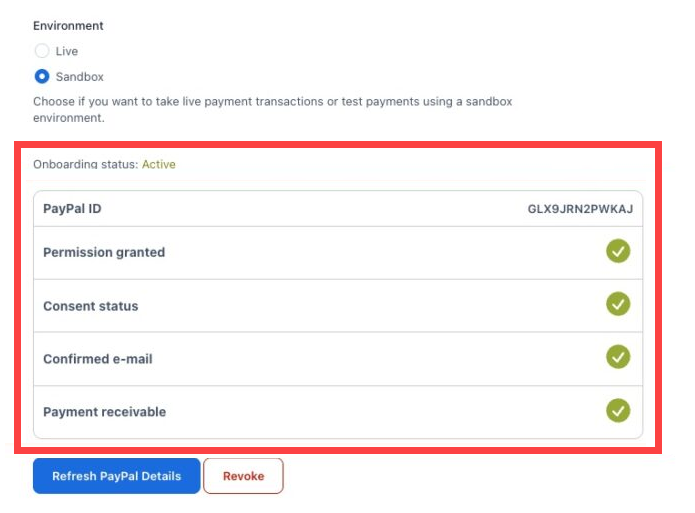
- After a successful connection, you will see Active in the Onboarding status, and additional configuration options appear.
- Configure Payment Actions
Select the desired action:- Sale (immediate funds transfer)
- Authorize and Capture (authorize now, capture later; order status set to on hold)
- Set Invoice Prefix
Useful for merchants with multiple shops connected to one PayPal account.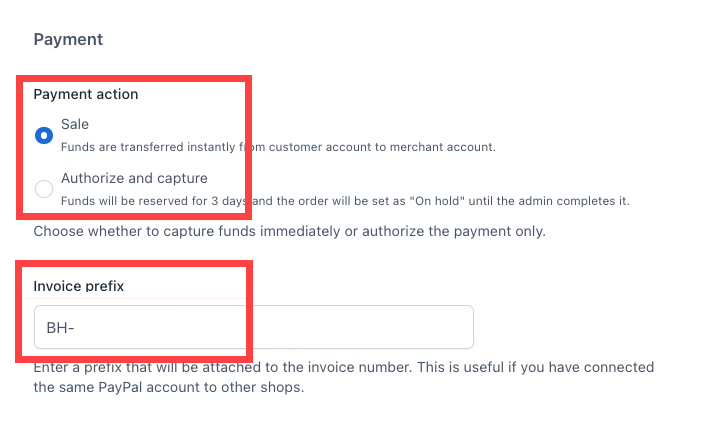
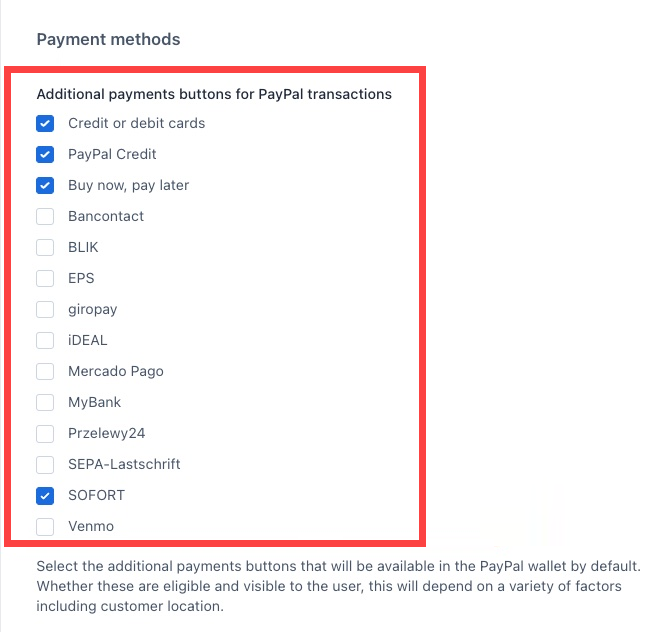
Payment Methods and Custom Credit Card Options
- Enable additional payment methods offered by PayPal checkout for more options at checkout.
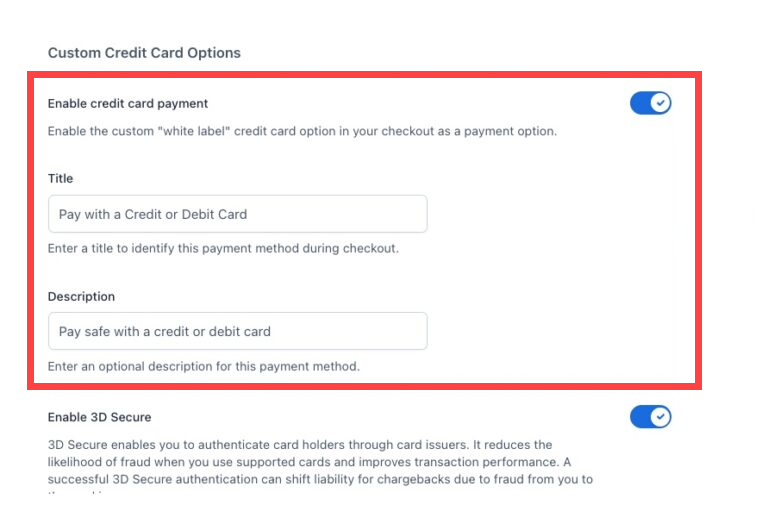
- Enable a Custom Credit Card Payment option that appears as a separate method on checkout without showing PayPal branding.
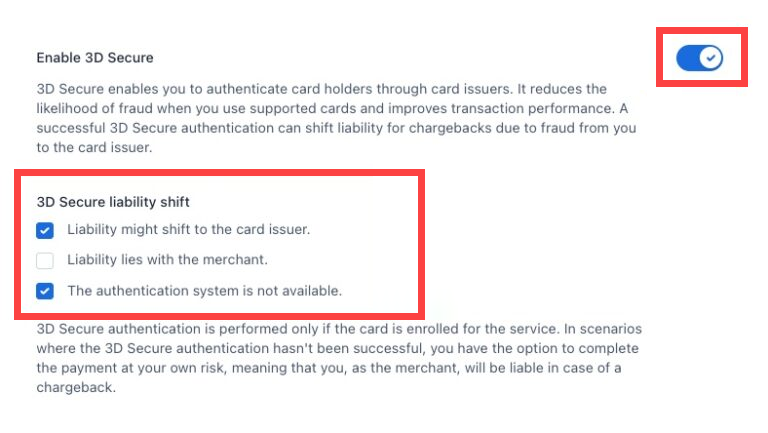
- Enable 3D Secure to add extra authentication, and choose how liability shifts are handled.
Google Pay and Apple Pay Integration
To provide a smoother and faster payment experience for your customers, you can enable Google Pay and Apple Pay options via the Bluehost PayPal Payments plugin.
How to Enable Google Pay
- In the Payment methods tab, enable the Google Pay option.

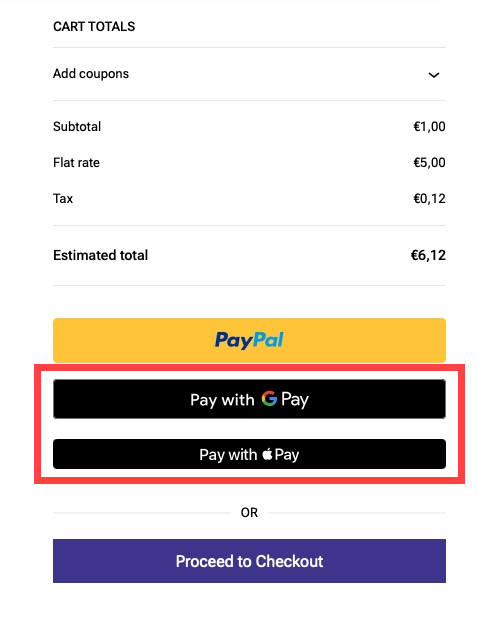
- Once enabled, if your customers have payment methods saved in their Google Wallet, the Google Pay button will automatically appear on the Cart and Checkout pages.
- No additional setup is required for Google Pay beyond enabling this toggle.
How to Enable Apple Pay
- In the Payment methods tab, enable the Apple Pay option.
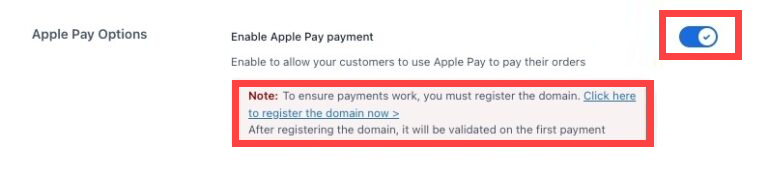
- Before Apple Pay can be activated on your site, you must register your website domain with PayPal:
- Click the link provided in the plugin panel to open PayPal’s domain registration page.
- Follow the instructions provided by PayPal to add and verify your domain.
- Once your domain is registered and verified by PayPal, Apple Pay will be automatically enabled.
- The Apple Pay button will appear on the Cart and Checkout pages for customers using compatible Apple devices.
- Domain validation occurs during the first Apple Pay payment attempt, so domain registration must be completed before accepting Apple Pay.
Both Google Pay and Apple Pay buttons display on the Cart and Checkout pages, offering customers fast and convenient payment options.
Customization Options
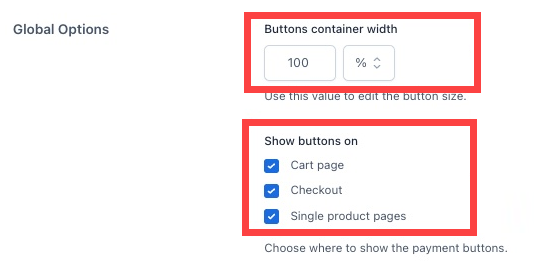
- Adjust the appearance and size of payment buttons and choose which pages display payment buttons (Cart, Checkout, Single product).
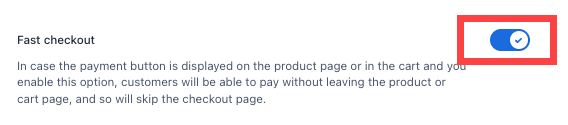
- Enable Fast Checkout to allow direct payment from the Cart or Single product pages, ideal for digital goods.
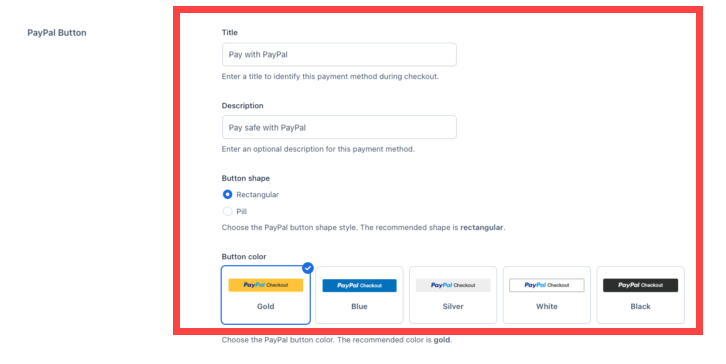
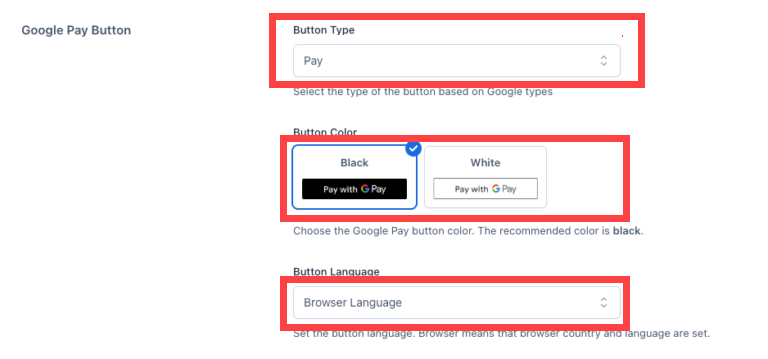
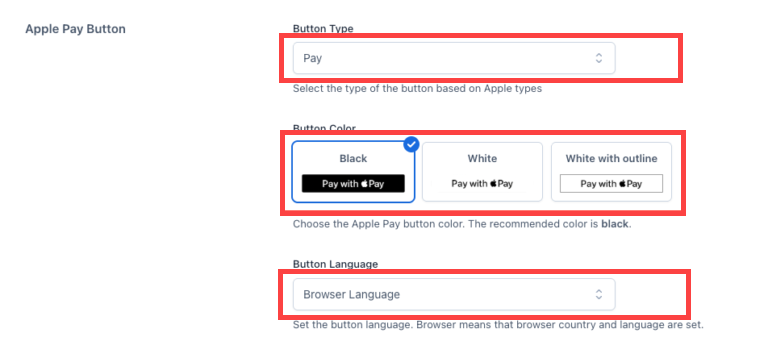
- Customize titles, descriptions, shapes, colors, and languages for PayPal, Google Pay, and Apple Pay buttons.
Stripe Payments by Bluehost
The Stripe Payments plugin facilitates card payments through Stripe, ensuring secure and reliable transactions.
How to Set Up Stripe Payments
- Access Plugin Settings
Go toBluehost > Commerce > Stripe Paymentsand click Manage.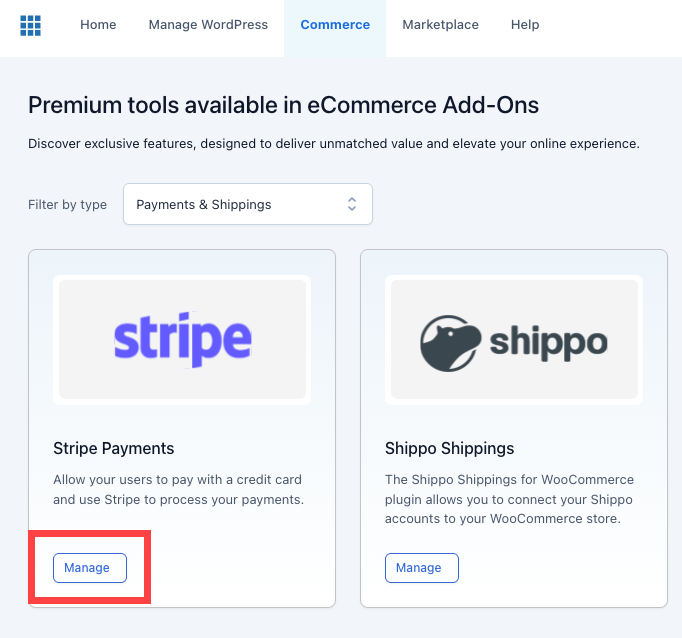
- Enable and Select Environment
The plugin is enabled by default. Choose Sandbox for testing, switch to Live for production.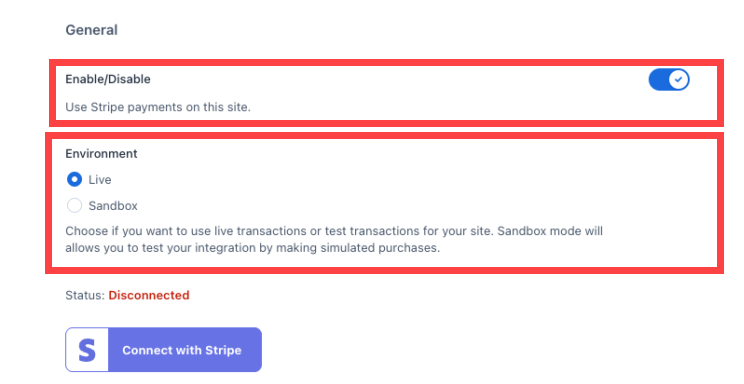
- Connect your Stripe Account.
Click Connect Stripe. Log in or create a Stripe account if needed.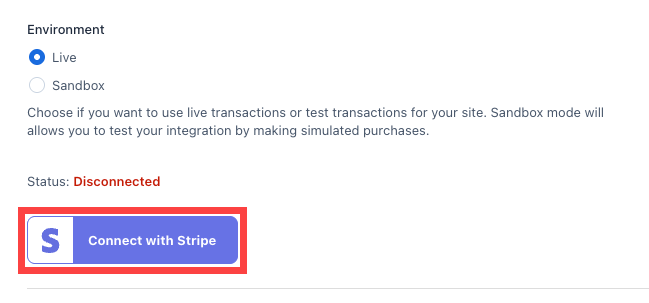
Complete two-step authentication and provide the required personal and business information.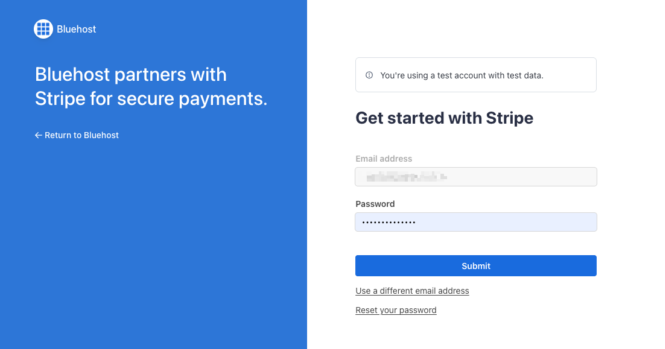
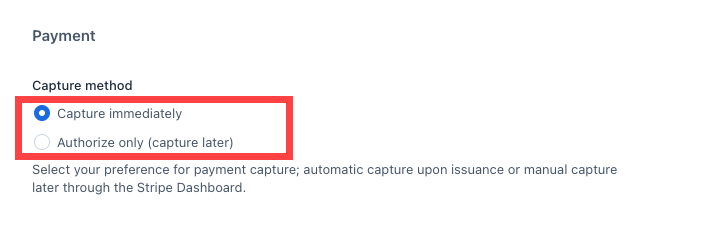
- Configure Capture Method
Choose between:- Capture immediately (charge customers at checkout)
- Authorize only (capture payment later via Stripe dashboard) – note that subscription renewals are automatically charged and do not follow this authorization option.
- Ready to Accept Payments
The Stripe payment option will appear on checkout for customers to enter their card details.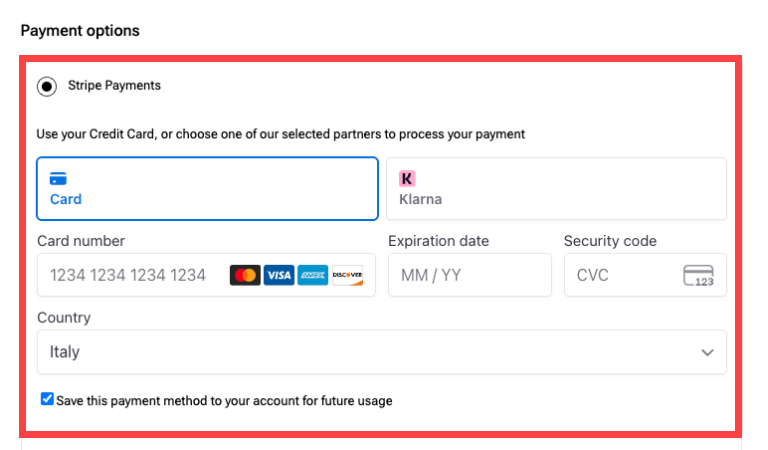
Summary
The Bluehost Subscription plugin and complementary payment gateway plugins for PayPal and Stripe provide a comprehensive, user-friendly system for managing automated subscription payments. Merchants benefit from easy setup, multiple payment options, and customizable checkout experiences. Customers enjoy seamless and secure payment methods, including popular digital wallets.
For best results, always test in Sandbox before going live, and make sure to communicate to customers that payment methods can’t be switched without canceling subscriptions.
Related Articles
If you need further assistance, Bluehost Chat Support is available 24 hours a day, 7days a week while Bluehost Phone Support is available 7 days a week from 7 am-12 midnight EST.
- Chat Support - While on our website, you should see a CHAT bubble in the bottom right-hand corner of the page. Click anywhere on the bubble to begin a chat session.
- Phone Support -
- US: 888-401-4678
- International: +1 801-765-9400
You may also refer to our Knowledge Base articles to help answer common questions and guide you through various setup, configuration, and troubleshooting steps.