 ChatGPT,
  Claude,
  Gemini,
  Grok — all four for
How Yoast SEO Premium Works with Bluehost
Enhancing your website’s search visibility doesn’t have to be a technical headache! To keep pace with the rapidly changing search landscape, it is important to create content that is relatable to both users and search engines. Good search engine optimization (SEO) begins with producing accessible, well-organized, and reliable content. With Yoast SEO Premium, you gain access to a professional-grade toolkit designed to enhance your content's ranking and connect with the right audience effectively.
We have created a video to explain what Yoast SEO Premium is and how it works.
What is Yoast SEO Premium?
Yoast SEO Premium is a WordPress plugin that simplifies search engine optimization (SEO) for your website. While the free Yoast SEO plugin provides essential starter features like keyword optimization and readability checks, the Premium version adds powerful automation, smarter optimization tools, and advanced insights that make managing SEO far easier and more effective.
Key improvements include:
- Content clarity - Ensures your writing is easy to understand.
- Structure - Helps organize your content for better readability.
- Discoverability - Guides you to make content easier to find.
This plugin provides feedback, connects related content, and supports ongoing improvements without requiring deep SEO expertise. As you create or update your website's content, Yoast SEO Premium offers suggestions for improvement before publishing. This happens seamlessly, without adding any extra steps or tools.
How to Activate Yoast SEO Premium
To make SEO even simpler, Bluehost integrates Yoast SEO Premium directly into your account. There are several methods to activate it through your Bluehost account
Via the Marketplace
- Log in to your Bluehost Portal.
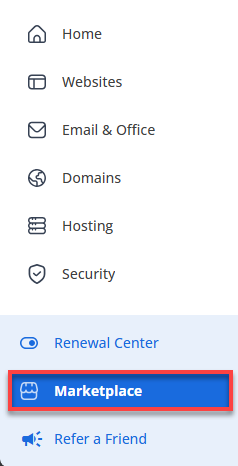
- Click Marketplace on the left-side menu.
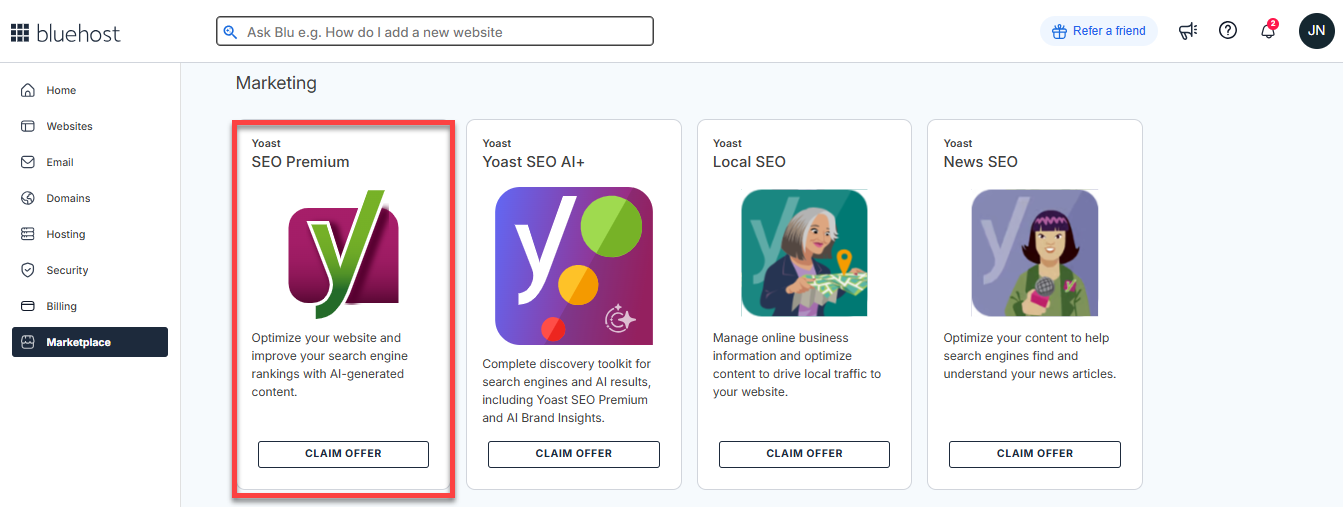
- Scroll down to the Marketing section, and click Claim Offer under the Yoast SEO Premium card.
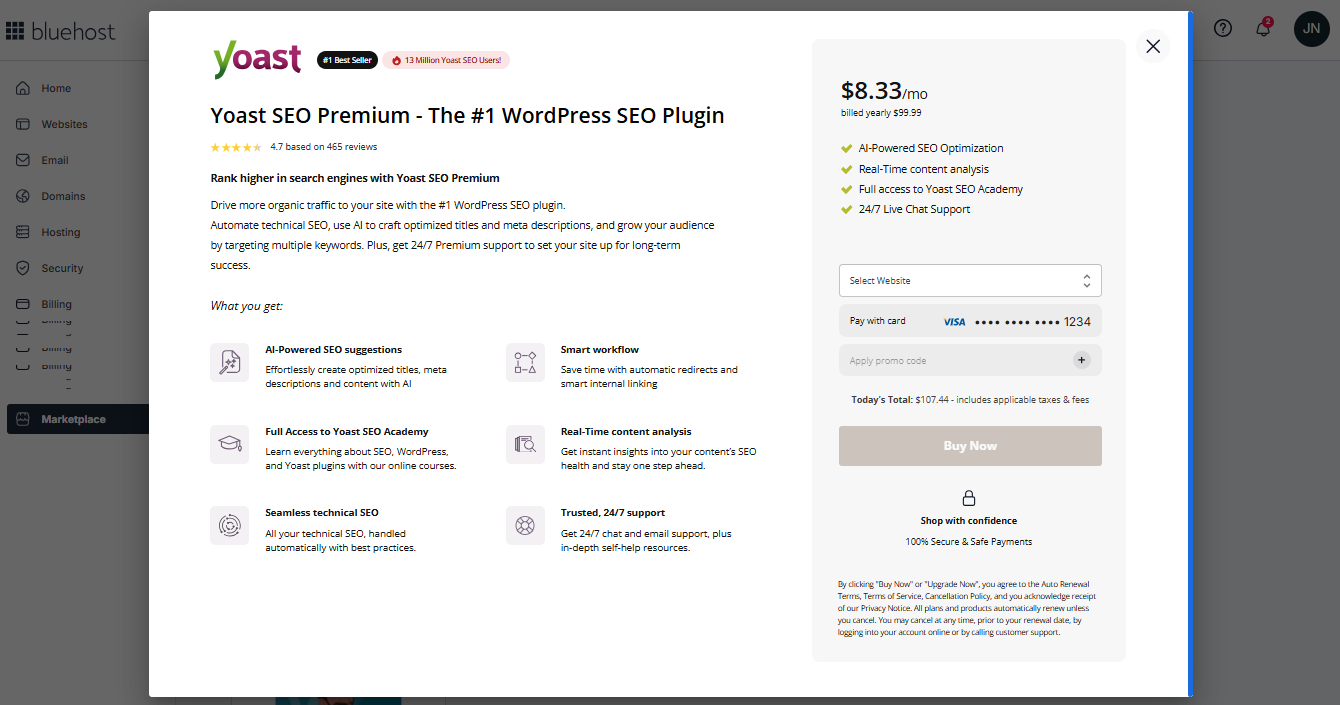
- A pop-up window will appear.
- Select your website from the drop-down menu.
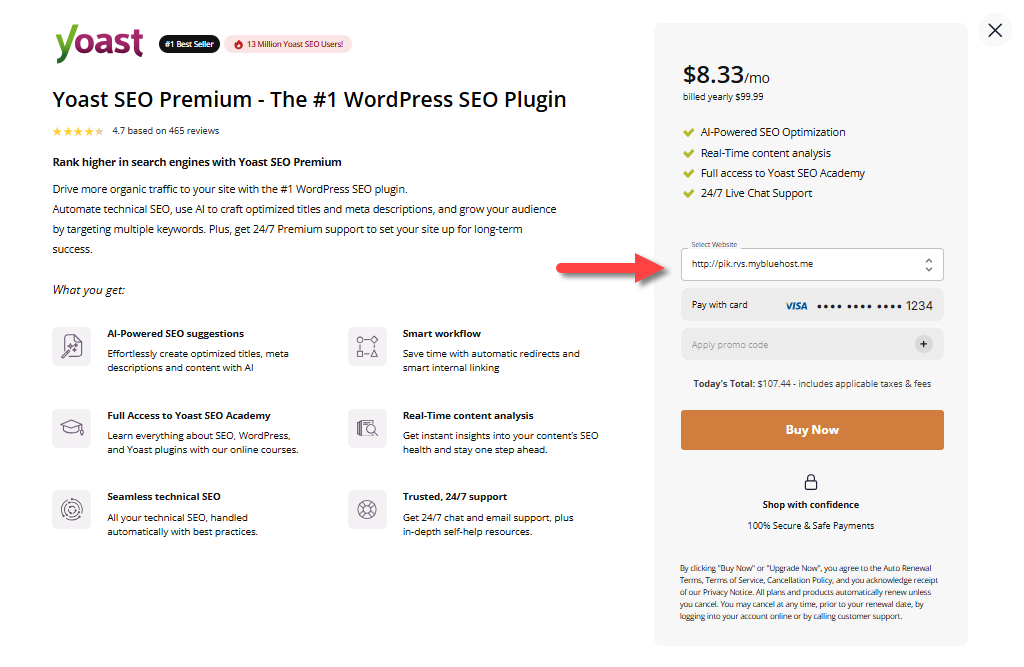
- Add a promo code if you have one, then click Buy Now to complete your payment.
Via the Websites tab
- Log in to your Bluehost Portal.
- In the left-hand menu, click Websites.
- Click the Manage Site button located next to the website you want to manage.

- Go to the Plugins tab.

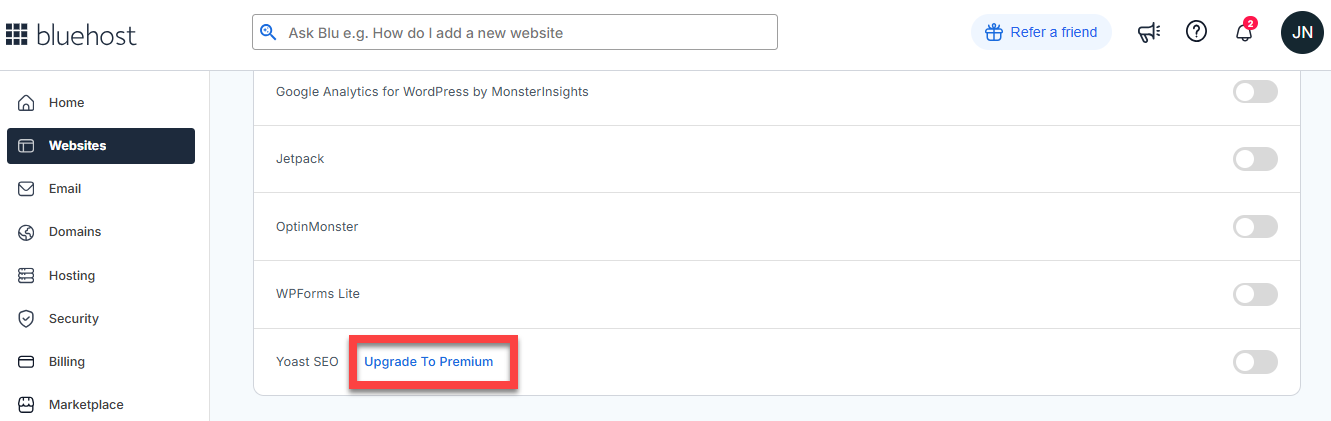
- Look for Yoast SEO, and then click Upgrade To Premium.
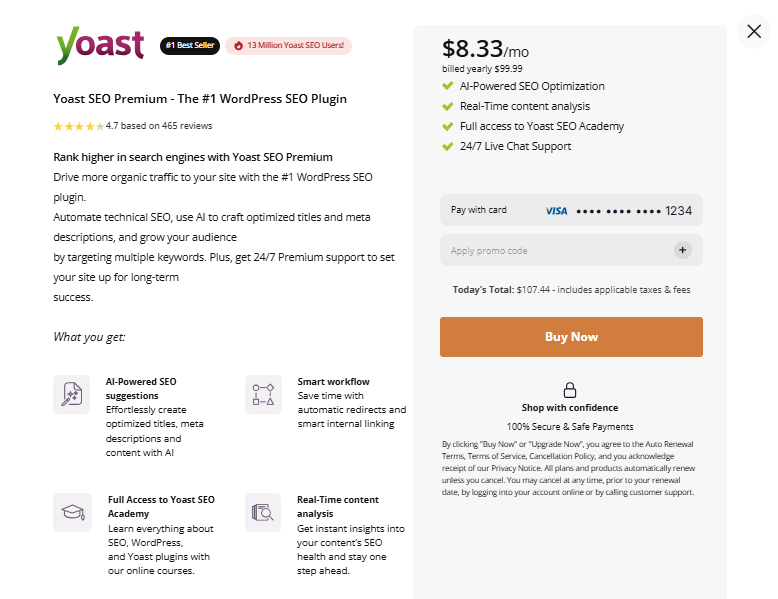
- In the pop-up window, click Buy Now to complete your payment.
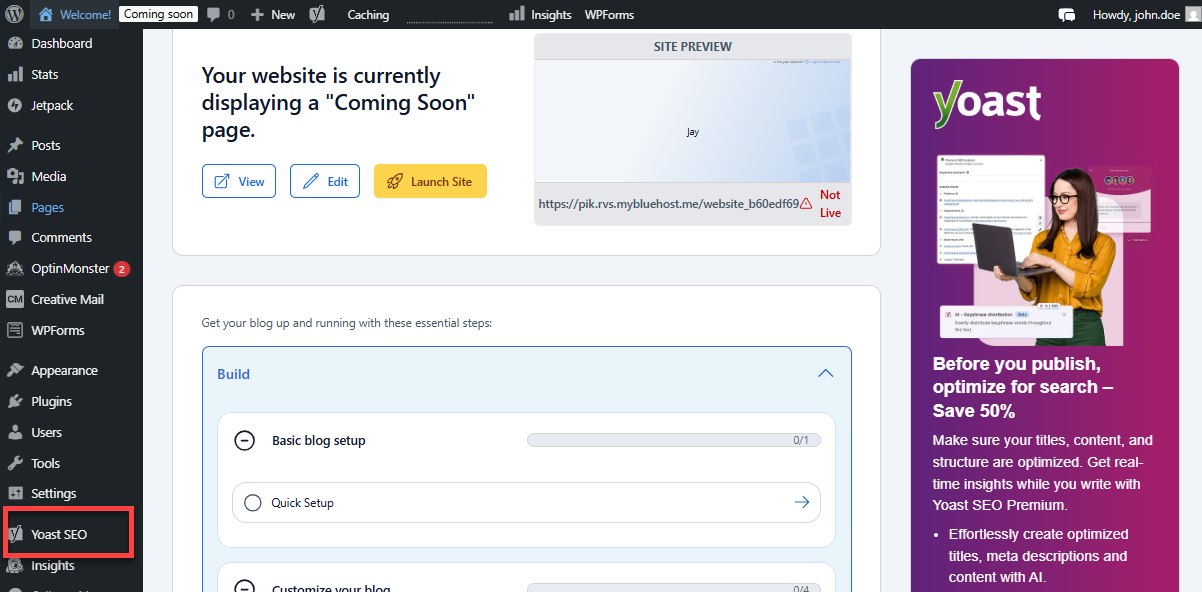
Where to Find Your Yoast SEO Tool?
After purchasing, you can find the Yoast SEO Premium tool in the admin dashboard of your WordPress website.
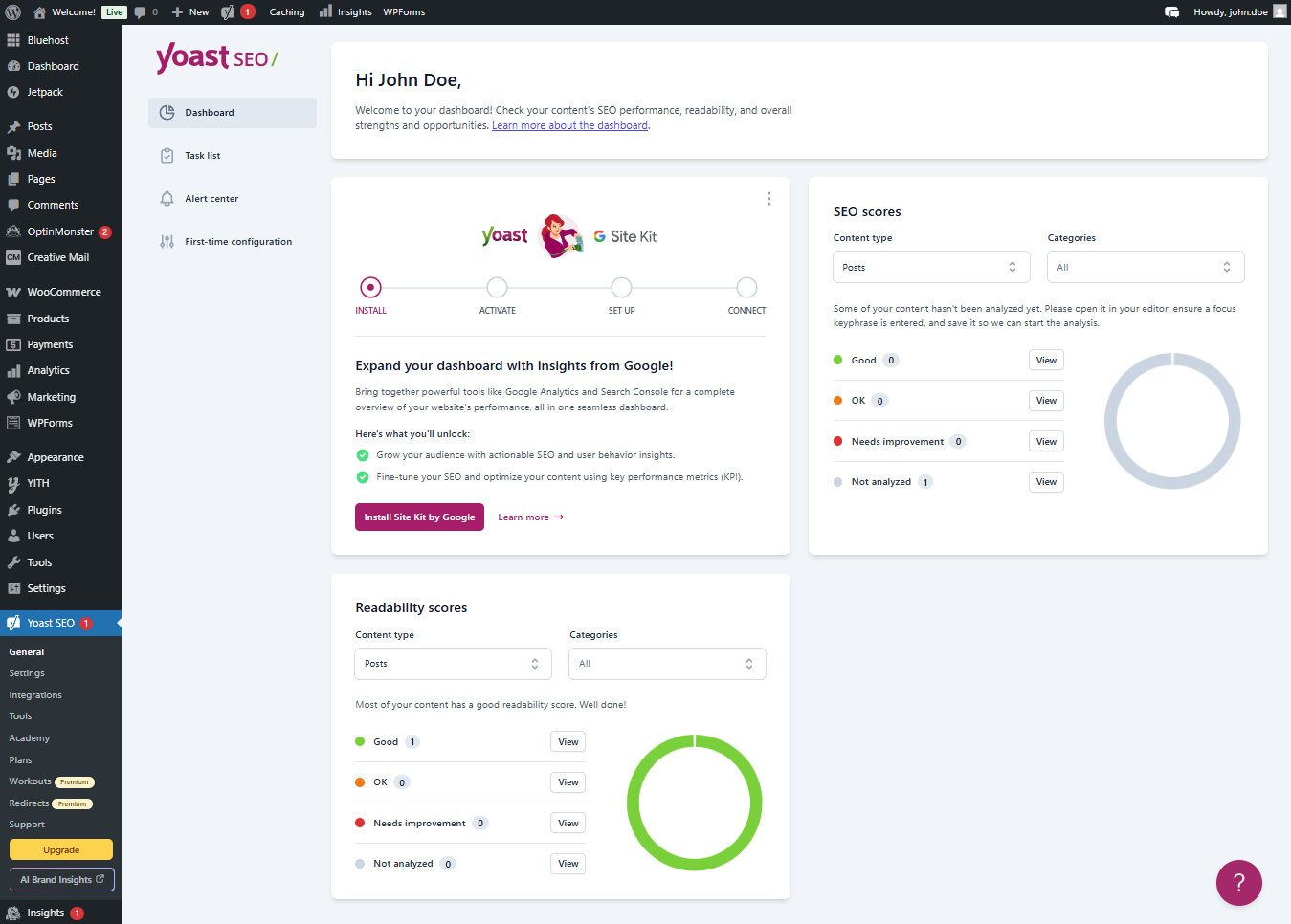
The Yoast SEO dashboard shows the following interface:
Summary
Yoast SEO Premium is a powerful WordPress tool that improves your site's search visibility. It offers advanced features, such as automation and smarter optimization tools beyond its free version. With easy integration through Bluehost, you can easily access it from your WordPress dashboard, focusing on making your content clear, well-organized, and easy to find.
If you need further assistance, Bluehost Chat Support is available 24 hours a day, 7days a week while Bluehost Phone Support is available 7 days a week from 7 am-12 midnight EST.
- Chat Support - While on our website, you should see a CHAT bubble in the bottom right-hand corner of the page. Click anywhere on the bubble to begin a chat session.
- Phone Support -
- US: 888-401-4678
- International: +1 801-765-9400
You may also refer to our Knowledge Base articles to help answer common questions and guide you through various setup, configuration, and troubleshooting steps.