 ChatGPT,
 Claude,
 Gemini,
 Grok — all four for
Key highlights
- Learn why you cannot bulk-import another AI’s memory into ChatGPT and what you can do instead.
- Discover the simple export prompt that pulls your ChatGPT preferences, projects and context in one step.
- Follow step-by-step instructions to import your ChatGPT memory into Claude and confirm that it worked.
- Know which Claude plans support memory import and how to move context from Gemini and Grok.
- Explore how Bluehost AI All-Access keeps your context in one dashboard so you stop repeating setup.
You have spent months teaching ChatGPT about your business, your projects and how you like to work. Now you want to try Claude, and you do not want to start over.
So how does ChatGPT import memory actually work? Here is the short answer: you cannot drop a bulk memory file into ChatGPT. You can, though, export what ChatGPT knows about you and import it into Claude in a few minutes.
The same export step also works for Gemini and Grok. This guide covers what ChatGPT memory holds, how to export it and how to import it into Claude. It also shows how to back it up and what to review before you move anything sensitive.
ChatGPT import memory: can you load another AI’s data?
No, you cannot bulk-import another assistant’s memory or upload a saved memory file directly into ChatGPT. ChatGPT builds its own memory from your conversations, and there is no setting that ingests a profile from Claude, Gemini or Grok.
What you can do is manage and export what ChatGPT already remembers. Open Settings > Personalization, then use Manage memories to view, edit or delete individual entries.
You can also tell ChatGPT to remember specific facts during a chat. For a full copy of your data, use Settings > Data controls > Export data. You can confirm how this works through the ChatGPT memory settings.
So the task most people actually want is the reverse of importing. You export what ChatGPT knows about you, then bring that into Claude. That is what the rest of this guide walks through.
What ChatGPT memory is and what it stores?
ChatGPT memory is the context ChatGPT keeps about you so you do not have to repeat yourself in every chat. It can include your name, your role, your business, ongoing projects, tools you use and the tone you prefer in replies.
Memory is cumulative, which means it can also hold old or off-topic details you added long ago. That is different from a single chat’s context, which disappears when the conversation ends.
Knowing what lives in memory matters before you export, because that stored profile is exactly what you will hand to another assistant. A quick look now saves you from moving stale or sensitive entries later.
How to export your ChatGPT memory?
Exporting your memory does not require a special file. You review what is stored, then ask ChatGPT to write it out so you can copy it. Start with two quick steps before you paste anything into another tool.
- Trim first: Open Settings > Personalization > Manage memories and delete stale or sensitive entries.
- Then export: Open a new ChatGPT chat and run a prompt that asks for a complete profile.
You do not need a perfect prompt. Here is a short one you can copy and adapt:
Summarize everything you know about me from our past chats and saved memories. Include my role, my business, my goals, my active projects, my communication style and any preferences you have stored. Write it as a clear, organized profile that I can share with another AI assistant.
Review the summary ChatGPT returns and remove anything you would rather not move. When it looks right, copy the full text.
Claude also displays a recommended prompt of its own during import, which you can see in Claude’s memory import guide. That copied profile is what you will paste into Claude next.
How to import your ChatGPT memory into Claude?
Claude can turn your ChatGPT profile into its own memory entries using a built-in import tool. The steps are short, and they follow the same copy-and-paste pattern you just used. Many people move from ChatGPT to Claude for writing and accuracy-sensitive work, as our ChatGPT vs Claude comparison explains.
Claude currently shows two different layouts, so check which screen you have before you start. Memory imports work on the Free, Pro, Max and Team plans, on the web and in Claude Desktop.
Start the import in Claude
First, open the import tool that matches your version of Claude. The path is slightly different in each layout.
- New experience: Go to Settings > Memory, then select Start import.
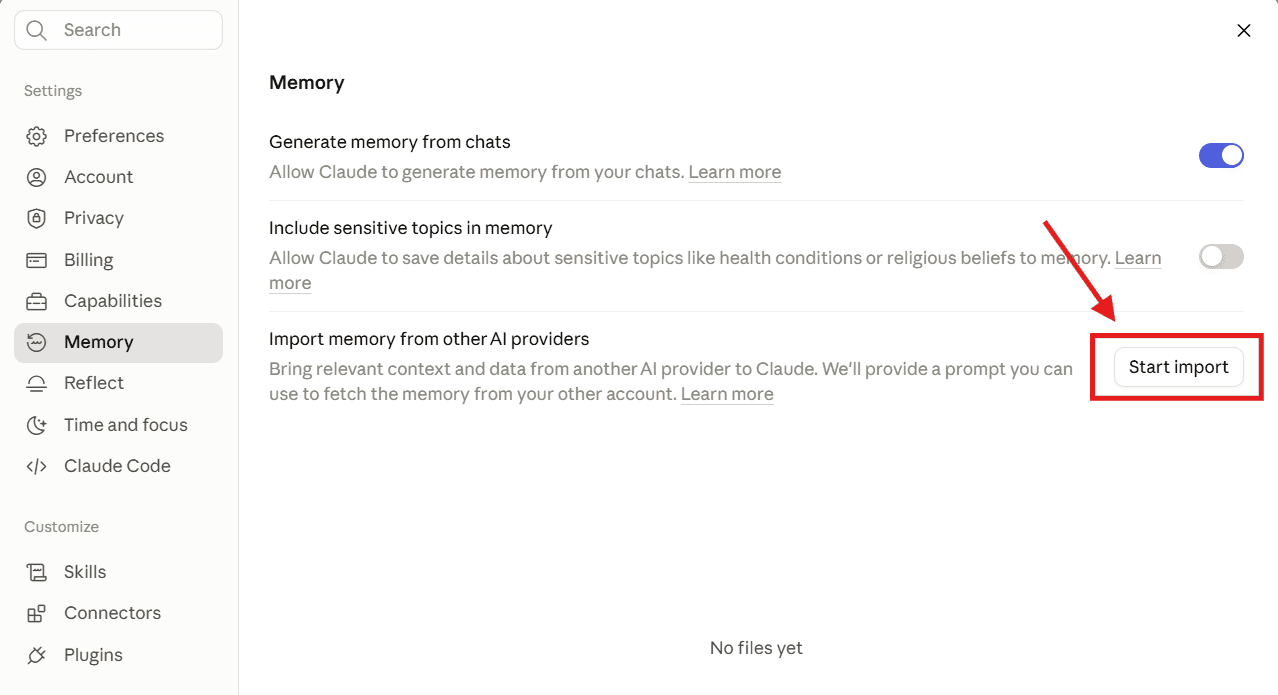
- Legacy experience: Go to Settings > Capabilities > Memory, then select Start import, or use the Import memory to Claude card on the home screen.
Claude will then show an on-screen prompt for you to run in your other assistant.
Paste your export and add to memory
Next, move the profile into Claude. Work through these three actions in order.
- Copy the Claude prompt: Run it in a new ChatGPT chat, much like the export prompt above.
- Copy the ChatGPT output: Select everything ChatGPT returns and copy the full text.
- Add it to memory: Paste the text into Claude’s import box, then click Add to memory.
Claude turns the text into individual memory entries you can review. In the legacy experience, use Manage edits to check and adjust them.
To confirm it worked, start a new chat and ask, “What did you learn about me?” Updates appear shortly in the new experience and can take up to 24 hours in the legacy experience.
Import is experimental and may not capture every entry. Claude tends to favor work-related context, so personal details that are not work-related may not persist. Add anything important by hand in your memory settings.
How to export memory from each AI tool?
The same export approach works beyond ChatGPT and Claude. Each assistant stores memory a little differently, so the table below shows where memory lives and how to get a copy you can move.
| AI tool | Where memory lives | How to export it |
|---|---|---|
| ChatGPT | Saved memories under Settings > Personalization | Ask it to summarize what it knows about you, then copy the text |
| Claude | Memory settings, plus a built-in import tool | Ask it to write out its memories verbatim, or copy them in settings |
| Gemini | Stored context from your activity, with less explicit user data | Run the same summary prompt, then copy the result |
| Grok | Retained context that varies by subscription tier | Run the same summary prompt, then copy the result |
The takeaway is that one summary prompt covers every tool, even though the results vary. Gemini tends to keep more conversational context and fewer explicit facts, and Grok’s retention depends on your plan. For more on how those two differ, see our Claude vs Gemini guide.
Back up or export your Claude memory
Once you have set up Claude, it is worth keeping your own copy of its memory. You can view and edit everything in Claude’s memory settings. You can also ask Claude to write out its memories of you verbatim, then save that text somewhere safe.
For a complete archive, Claude offers a full data export of your chat history and account information under Settings > Privacy. Keep one limitation in mind: conversation history and account data do not transfer between separate Claude accounts. Memory export is meant for your preferences and context, not for moving chat logs.
Review your data before you import
Before you move a profile into another assistant, read through it once. Your memory can hold client names, financial details or other information you would not want copied around. A quick review keeps your new assistant focused and your sensitive data out of it.
- Remove sensitive details: Strip client names, contracts, health notes and anything confidential before you export.
- Understand the concern: In Pew Research, 2026, 71% of US adults said AI will make personal information less secure.
- Note the wider scrutiny: The September 2025 FTC chatbot inquiry examines how chatbot firms handle personal data, focused on companion bots and minors.
- Know your data is yours: EU Data Act portability rules cover EU cloud and device data, not chatbot memory, yet signal a broader shift.
What to do if your imported memory didn’t stick?
Sometimes an import does not carry over everything you expected. Because Claude’s import is experimental, a few entries can go missing or arrive incomplete. These fixes usually solve it.
- Wait for the update: New-experience changes appear shortly, and the legacy experience can take up to 24 hours.
- Check the right screen: Confirm you used Settings > Memory or Settings > Capabilities for your version of Claude.
- Add missing facts by hand: Open your memory settings and enter any work details that did not carry over.
- Re-run the export: Ask ChatGPT for a fresh summary, then paste it into Claude again.
A simpler way to keep your AI context in one place
Exporting and importing every time you switch tools adds up, especially if you regularly use more than one of the best AI assistants in 2026. There is a way to avoid the repeat setup. You keep your context in one place and switch models when you need to.
Our Bluehost AI All-Access Pack brings ChatGPT, Claude, Gemini and Grok into one dashboard. You can switch models and compare answers side by side without juggling separate logins.
It has its own Chat Memory that carries context across your chats. It also adds an Import Memory tool that pulls context in from an external assistant, using the same copy-and-paste pattern you just learned. You set up your context once and reuse it across models.
You can see how those tools work in our AI All-Access memory update. For a wider look at using AI to run and grow a small business, see our roundup of AI tools for business.
In-dashboard access through AI All-Access is not the same as a direct ChatGPT, Claude, Gemini or Grok subscription. Quotas, features and terms can differ.
For sensitive work, the Privacy+ option adds privacy controls such as prompt sanitization, encryption and a privately hosted model. These reduce exposure risk, though no setting guarantees protection for every workflow.
If the real problem is paying for and logging into several tools, compare the best AI subscription for small businesses. A single dashboard may fit better.
Final thoughts
Moving your context from ChatGPT to Claude is simpler than it looks. You trim what you do not need, export what ChatGPT knows with one prompt, then paste it into Claude and confirm the result. Review anything sensitive first and back up your Claude memory.
If you would rather stop re-exporting every time you try a new model, keeping your assistants in one place removes that repeat work. Our AI All-Access Pack gives you ChatGPT, Claude, Gemini and Grok in one dashboard with its own memory tools. Set up your context once with AI All-Access.
FAQs
Yes. Claude’s memory import works on the Free, Pro, Max and Team plans, on the web and in Claude Desktop. It is experimental and favors work-related context, so add anything important by hand afterward.
No, ChatGPT has no native way to move memory between two separate accounts. The workaround is the same export you would use for Claude. Ask ChatGPT to summarize what it knows about you, copy the text, then re-add the details you want in the other account.
Yes, in a sense. Each import adds to Claude’s existing memory rather than replacing it. You can layer context from ChatGPT, Gemini and Grok with separate export prompts, then review the entries for duplicates.
It depends on your layout. In the new experience, imported memory appears shortly after you click Add to memory, while the legacy experience can take up to 24 hours. To check, ask Claude in a new chat what it learned about you.
No, memory does not work the same inside Claude Projects after importing. Projects keep their own scoped context, while global memory applies across your regular chats. Imported memory lands in global memory and works alongside Projects, so add details to a Project directly if you want them there.

Write A Comment