


Key highlights
- Discover how automatic plugin updates protect your website from vulnerabilities while saving valuable time and effort.
- Learn why many of WordPress security breaches stem from outdated plugins requiring immediate attention and updates.
- Implement automated update strategies to manage 20+ plugins efficiently across your business or client websites.
- Learn how to automatically update WordPress plugins with proven methods that improve site security and simplify website management.
- Explore comprehensive techniques for managing plugin updates from basic setup to advanced automation for optimal performance.
Managing WordPress plugins can feel like a never-ending task. With over 60,000+ plugins in the WordPress directory and the average website using 20+ plugins, keeping everything updated manually becomes overwhelming quickly. Many WordPress vulnerabilities stem from unpatched WordPress plugins, making automatic updates not just convenient but essential for your website’s security and performance.
WordPress plugin auto-updates offer a solution that saves time while protecting your site. Whether you’re running a small business website or managing multiple client sites, understanding how to automatically update WordPress plugins will improve WordPress plugin management and enhance your site’s security posture.
In this comprehensive guide, you’ll discover everything you need to know about WordPress plugins auto update functionality, from basic setup to advanced management strategies that keep your website running smoothly.
Understanding WordPress plugin auto-updates
With WordPress auto update plugins becoming a core feature in recent versions, website management has transformed significantly for site owners. This WordPress automatic update functionality enables plugins to refresh themselves seamlessly whenever new versions are released. It mirrors the long-standing WordPress auto-update mechanism used for core software maintenance, ensuring your site remains current with minimal manual intervention.
Now, let us also understand what are WordPress plugin auto updates!
Also read: WordPress troubleshooting plugins for auto-update issues
What are WordPress plugin auto-updates?
WordPress auto update plugins provide a hands-free solution for maintaining current plugin versions by automatically downloading and installing updates without manual intervention.
When you enable WordPress auto-update plugins through your dashboard, your site checks twice daily for available updates and installs them automatically for any plugins configured with auto-updates enabled. This ensures your WordPress plugins remain secure and up to date with the latest patches and improvements.
The system includes several safety measures:
- Email notifications: WordPress sends confirmation emails after successful updates
- Error reporting: Failed updates trigger immediate notifications
- WordPress version rollback: Some hosting providers offer automatic rollback for failed updates
- Staging environment support: Updates can be tested in staging before going live
Benefits of automatic plugin updates
Implementing WordPress plugins auto update provides numerous advantages for website owners:
- Enhanced security: Immediate installation of security patches reduces vulnerability windows
- Time savings: Eliminates manual update checking and installation processes
- Improved performance: Regular updates often include performance optimizations
- Feature enhancements: Automatic access to new plugin features and improvements
- Reduced maintenance overhead: Less time spent on routine website maintenance tasks
Types of WordPress automatic updates
WordPress manages four distinct types of automatic updates to keep your site secure and functional:
- Background updates: Silent security and maintenance patches that install automatically without any action from you
- WordPress core updates: Major version releases you can configure to run automatically
- Plugin updates: Keep your plugins current based on your settings
- Theme updates: Ensure your theme stays compatible and secure
These updates fall into three key categories:
- Security patches: Close vulnerabilities immediately
- Feature updates: Introduce new capabilities
- Compatibility updates: Ensure all site components work together seamlessly
Understanding these categories helps you make informed decisions about which updates to automate. It helps balance hands-free maintenance with the control you need over changes that might impact your site’s functionality or design.
Also read: WordPress AI plugins guide
When and why should you update WordPress?
Understanding the different types of WordPress updates is essential when learning how to automatically update WordPress plugins and maintain your site’s security, performance and functionality across multiple categories.
- Core updates: Manage the foundational WordPress software that powers your site
- Plugin updates: Maintain added functionality and close security vulnerabilities
- Theme updates: Ensure design compatibility and security
- Security patches: Close vulnerabilities that hackers actively exploit—delaying leaves your site exposed to breaches
- Performance updates: Optimize loading speeds and resource usage
Update timing depends on your website type and risk tolerance:
- Personal blogs: Can typically enable automatic updates for trusted plugins
- Small business sites: Test updates in a staging environment first to avoid disrupting customer-facing pages
- eCommerce sites: Require the most caution: always back up your site before major updates and test thoroughly to prevent checkout errors or payment gateway failures
Delaying updates creates compounding security risks. Each week without critical patches increases the likelihood that automated bots will exploit known vulnerabilities. Even minor plugin updates often include security fixes that protect against emerging threats. Staying current is your strongest defense against breaches that could cost thousands in recovery fees and lost customer trust.
Also read: WordPress backup plugins for automatic updates
How to enable automatic updates for WordPress plugins?
Activating automatic updates for your WordPress plugins involves several straightforward methods. Choose the approach that best fits your technical comfort level and website management needs.
Method 1: Using the WordPress admin dashboard
The simplest way to enable WordPress plugin auto-updates is through your admin dashboard:
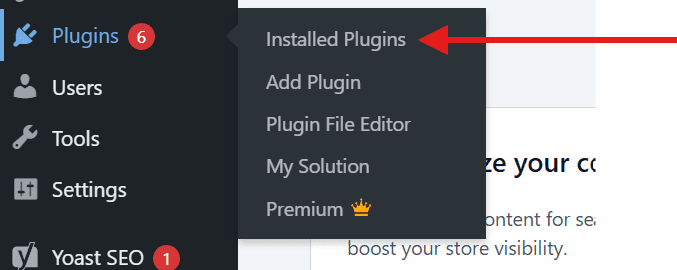
- Access your plugins page: Navigate to Plugins > Installed Plugins in your WordPress dashboard
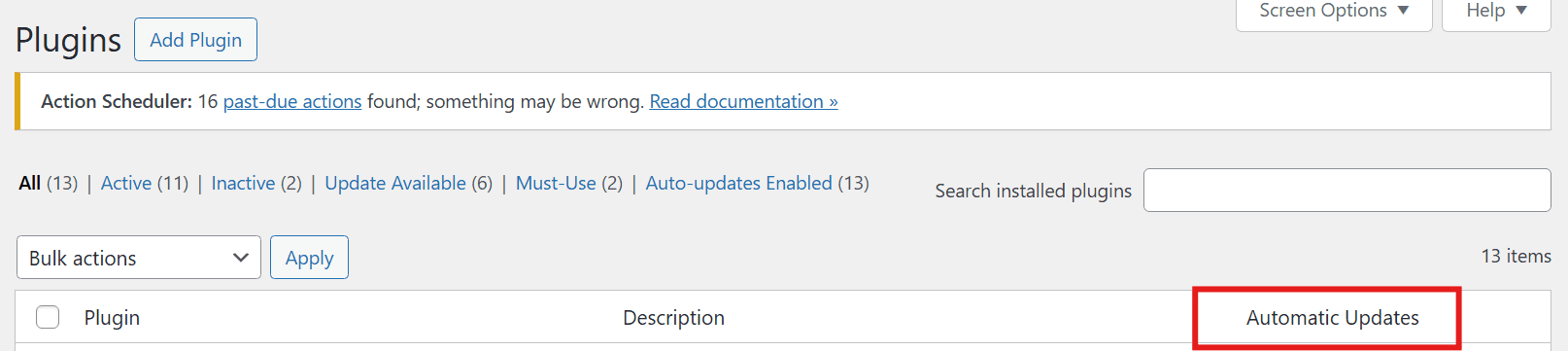
- Locate the auto-update column: Look for the “Automatic Updates” column in your plugins list
- Enable auto-updates: Click “Enable auto-updates” for each plugin you want to update automatically
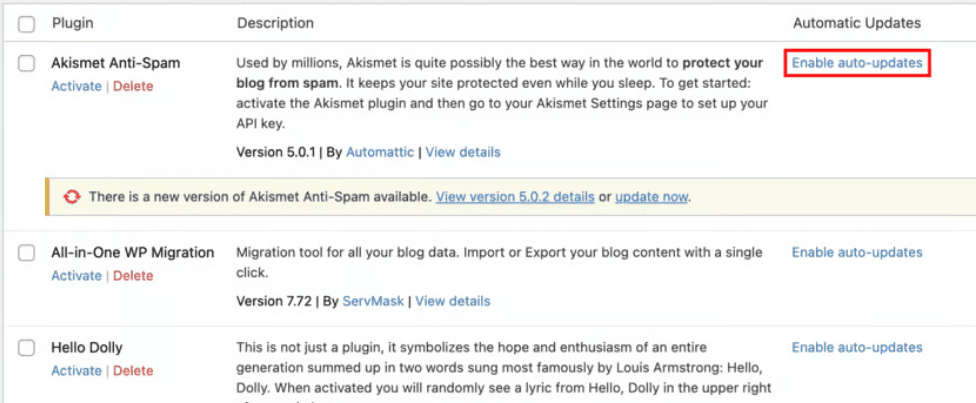
- Verify settings: Confirmed plugins will show “Auto-updates enabled” status
This method provides granular control, allowing you to select specific plugins for automatic updates while keeping others on manual update schedules.
Method 2: Bulk enabling auto-updates
For websites with many plugins, bulk enabling saves significant time:
- Select multiple plugins: Check the boxes next to plugins you want to auto-update
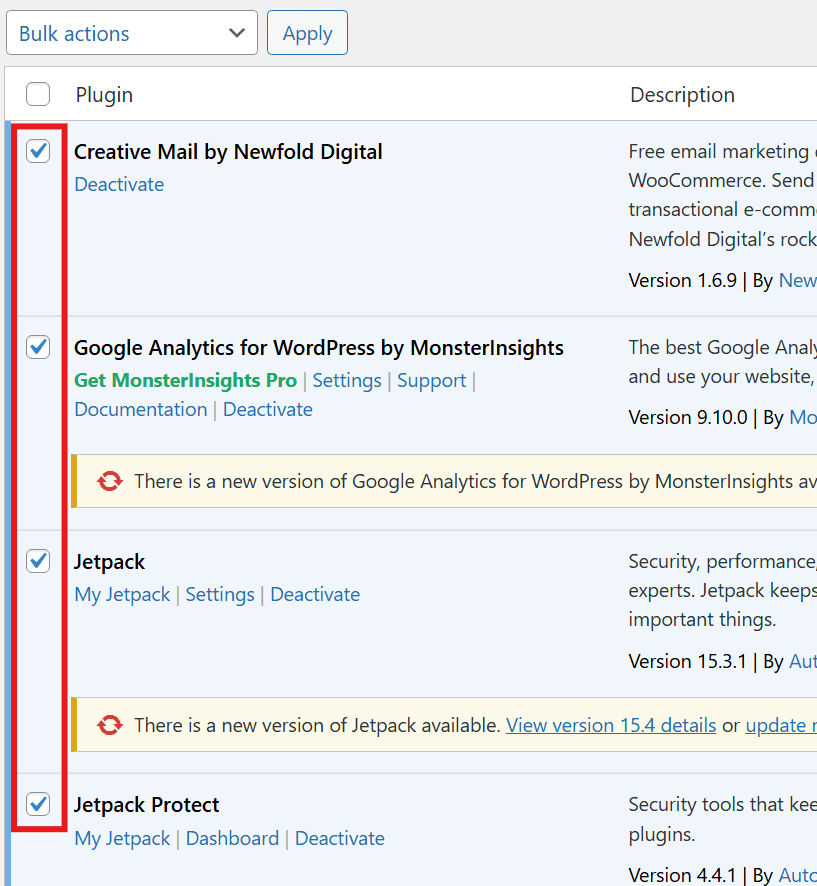
- Choose bulk action: Select “Enable auto-updates” from the bulk actions dropdown
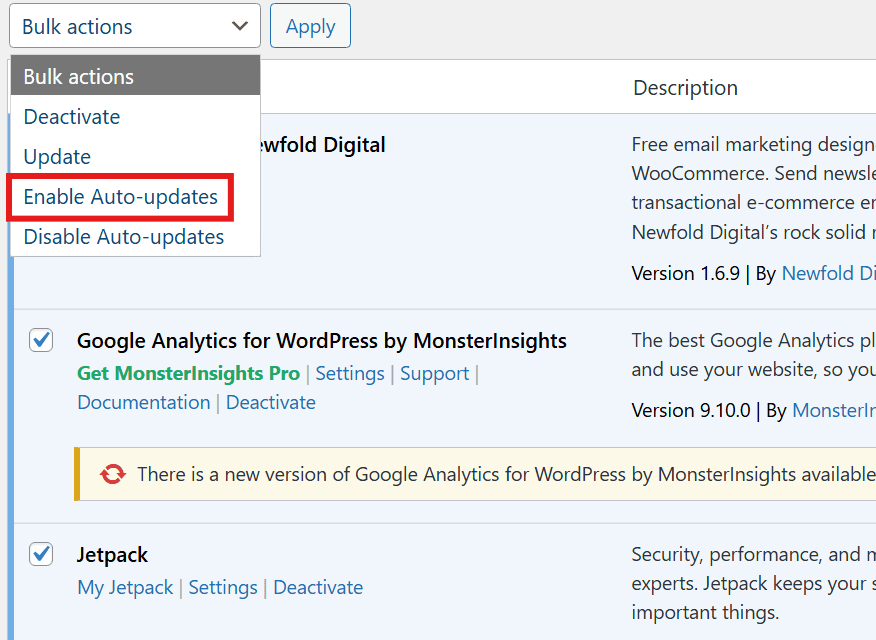
- Apply changes: Click “Apply” to enable auto-updates for all selected plugins
- Review settings: Verify that auto-updates are enabled for the correct plugins
Method 3: Using code to enable auto-updates
Advanced users can enable automatic updates through code modifications. Add this snippet to your theme’s functions.php file or a custom WordPress plugin:
Enable auto-updates for all plugins:
add_filter( 'auto_update_plugin', '__return_true' );
Enable auto-updates for specific plugins:
This approach requires careful implementation and should be tested in a staging environment first.
How to disable automatic updates for WordPress?
While automatic updates provide excellent security benefits, certain situations call for a more controlled update approach. Consider disabling automatic updates if you:
- Run an eCommerce store processing transactions
- Maintain mission-critical business functionality
- Use complex page builders or custom code
- Need to test updates in controlled environments first
These scenarios require testing updates before deployment to prevent potential conflicts that could impact revenue, user experience or critical operations.
WordPress gives you flexible control over automatic updates through multiple methods:
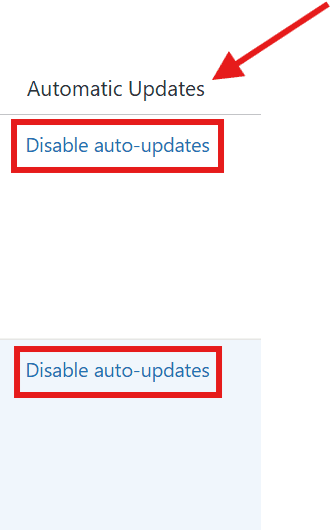
- For specific plugins: Click “Disable auto-updates” in the Automatic Updates column on your Plugins page
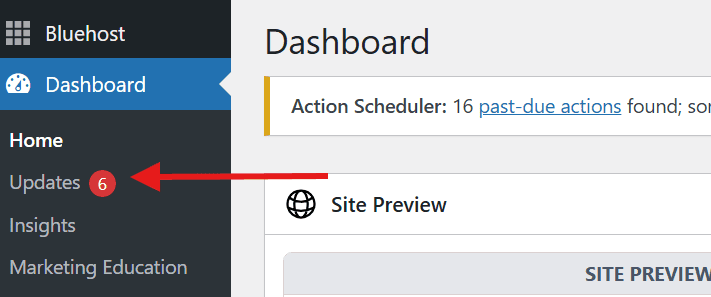
- For broader control: Navigate to Dashboard > Updates to manage site-wide settings
- Through your hosting provider: Many managed WordPress hosts offer additional controls through their account management interfaces
You can pause or customize update behavior across your entire site or multiple sites using these built-in WordPress features and hosting provider tools.
Configuring WordPress automatic updates
Before enabling automatic updates for WordPress plugins, ensure you have the following prerequisites in place:
- Verify your backup system is active with automated daily backups and one-click restore capability
- Ensure you have admin access to both your hosting account manager and WordPress Dashboard
- Enable email notifications to receive alerts about plugin updates
- Review your hosting control panel’s plugin management interface for centralized update controls
When deciding which plugins should receive automatic updates, consider the following factors:
- Well-maintained security plugins from reputable developers are ideal candidates for automation
- Popular tools with strong track records can safely auto-update
- Custom plugins and page builders may benefit from manual review before updating
- eCommerce extensions handling transactions should be carefully evaluated before enabling auto-updates
- Align your backup schedule with update timing by scheduling backups before update windows
- Consider using security and performance plugins to complement your auto-update configuration
Also read: WordPress Editor Plugin Management Guide
Managing WordPress plugin auto-updates effectively
Successfully implementing how to automatically update WordPress plugins requires strategic management to balance convenience with control.
1. Selecting plugins for auto-updates
Not all plugins should be automatically updated. Consider these factors when deciding which plugins to include in your auto-update strategy:
Good candidates for auto-updates:
- Security plugins with frequent updates
- Popular plugins with reliable update histories
- Plugins from reputable developers
- Non-critical functionality plugins
Plugins to keep on manual updates:
- Custom or heavily modified plugins
- Page builders and theme-dependent plugins
- eCommerce plugins handling transactions
- Plugins with complex configuration requirements
2. Monitoring auto-update notifications
WordPress sends email notifications for all automatic plugin updates. These messages include:
- Successful updates: Confirmation of completed plugin updates
- Failed updates: Error notifications requiring immediate attention
- Update summaries: Weekly reports of all automatic updates
Configure your email filters to prioritize failed update notifications, as these require prompt action to maintain site security.
3. Creating a WordPress update history log
Maintaining a comprehensive WordPress update history log helps track changes and troubleshoot issues. Consider using plugins that provide detailed logging:
- Activity Log plugins: Record all plugin updates with timestamps
- Backup plugins with change tracking: Document updates alongside backup creation
- Staging environment logs: Track updates in development environments
4. Disable WordPress auto-update with a plugin
For users managing multiple sites or requiring stricter control than default WordPress toggles, a dedicated update management plugin provides granular control over automatic updates for individual plugins, themes and core. Look for plugins offering clear user interfaces, selective per-component controls, update logging, broad compatibility and active maintenance.
To implement update control:
- Install your chosen plugin from the WordPress repository
- Configure settings to specify which components should auto-update
- Verify your desired update behavior is active
- Monitor update logs regularly to ensure proper functionality
Test changes in a staging environment first and maintain a consistent plan for timely manual updates and regular backups—disabling auto-updates increases your responsibility for keeping your site secure.
Also read: How to Safely Disable WordPress Plugins with Auto-Update Settings
Troubleshooting common auto-update issues
The following steps outline the most common causes of auto-update problems and provide practical guidance to help restore smooth, reliable plugin updates.
1. Resolving auto-update failures
When WordPress plugins fail to update automatically through your hosting Account, the cause is often insufficient file permissions or server-side restrictions. These issues block the update mechanism from accessing or modifying the necessary plugin files.
- Check file permissions: Ensure WordPress directories are typically set to 755 and files to 644 to allow proper access.
- Verify disk space: Insufficient storage can stop updates mid-process; ensure your plan has available space.
- Clear temporary files: Remove corrupted temp files from the
wp-content/upgradedirectory to prevent interference.
2. Addressing static files and caching
A frequent issue involves static files reappearing or content looking outdated immediately after an update. This is typically caused by caching layers serving old versions of files or backup plugins automatically restoring previous configurations.
- Clear all caches: Purge browser, server and plugin caches to ensure the latest content loads.
- Disable backups temporarily: Pause automated backup/restore features during the update process to prevent overwrites.
- Verify CDN settings: Ensure your Content Delivery Network is synchronized with the latest file versions.
3. Managing conflicts and logs
Complex challenges like plugin conflicts or database errors can crash a site even after a seemingly successful update. Accessing update history logs and debugging tools is essential for identifying the specific plugin or database schema causing the failure.
- Enable debugging: Activate
WP_DEBUGin yourwp-config.phpfile to capture specific error messages. - Isolate conflicts: Update plugins individually rather than in bulk to pinpoint compatibility issues.
- Check database privileges: Ensure your database user has permission to modify tables, as some updates require schema changes.
Best practices for WordPress plugin management
Implementing effective WordPress plugins auto update requires following established best practices that protect your website while maximizing automation benefits.
1. Backup strategy before enabling auto-updates
Always establish reliable backup systems before activating automatic updates:
- Automated daily backups: Schedule complete site backups before update windows
- Plugin-specific backups: Create targeted backups for critical plugins
- Database backups: Ensure database changes are captured and recoverable
- Quick restore capabilities: Verify backup restoration works quickly
2. Staging environment testing
Professional websites benefit from staging environment testing:
- Mirror production environment: Create exact copies of live websites
- Test auto-updates in staging: Allow updates to process in safe environments
- Validate functionality: Ensure all features work properly after updates
- Deploy to production: Push tested updates to live websites
3. Managing manager plugins effectively
Manager plugins help streamline WordPress plugin auto-updates across multiple websites:
Popular management solutions include:
- MainWP: Comprehensive dashboard for managing multiple WordPress sites
- ManageWP: Cloud-based management with automated update scheduling
- InfiniteWP: Self-hosted solution for bulk plugin management
Also read: Best WordPress CRM Plugins for Auto Updates
Managing automatic updates for premium plugins and themes
Premium WordPress plugins and themes require active license keys to receive automatic updates through vendor-specific delivery systems. Before enabling auto-updates, verify your license is active and properly connected to your site: expired or unlinked licenses will block updates entirely, creating security vulnerabilities.
- Confirm backup system is operational: Ensure automated daily backups with one-click restoration are in place before activating premium auto-updates.
- Test in staging first: Always test updates in a staging environment, especially for premium page builders or eCommerce extensions with complex functionality.
- Maintain a rollback plan: Document backup timestamps and plugin version numbers for quick recovery if needed.
- Verify hosting requirements: Check that your hosting account has sufficient file modification permissions and adequate disk space for update downloads.
- Refresh license connection: If updates fail to appear, refresh your license through the plugin’s settings panel or your account dashboard.
- Check hosting permissions: Verify your account has proper file modification rights and available disk space.
- Contact vendor support: When automatic updates consistently fail, reach out to the plugin developer’s support team with error logs from your WordPress dashboard—premium products typically include priority support for quick resolution.
Advanced plugin management tools and solutions
For users managing multiple websites or requiring advanced control over WordPress plugin auto-updates, specialized tools provide enhanced functionality.
Professional WordPress management platforms
Enterprise-level solutions offer comprehensive plugin management:
- Automated testing environments: Updates are tested automatically before deployment
- Rollback capabilities: Instant restoration to previous plugin versions
- Custom update scheduling: Control exactly when updates occur
- Detailed reporting: Comprehensive logs of all update activities
Hosting provider solutions
Many hosting providers offer enhanced plugin management features:
- Staging environment integration: Automatic staging site creation for testing
- One-click rollbacks: Quick restoration after problematic updates
- Update scheduling: Control update timing to avoid traffic peaks
- Performance monitoring: Track site performance before and after updates
Also read: WooCommerce Review Plugins That Auto-Update
Security and performance optimization
Maximizing the benefits of WordPress auto update plugins requires attention to security and performance implications.
Security considerations for auto-updates
While automatic updates improve security by closing vulnerability windows quickly, they also introduce considerations:
- Verify plugin sources: Only enable auto-updates for plugins from trusted developers
- Monitor security notifications: Subscribe to security advisories for installed plugins
- Implement malware scanning: Regular scans detect compromised plugin files
- Review plugin permissions: Understand what access plugins require after updates
Performance monitoring after auto-updates
Track website performance metrics to identify update-related issues:
- Page load times: Monitor for speed changes after plugin updates
- Server resource usage: Track CPU and memory consumption patterns
- Error log monitoring: Watch for new PHP errors or warnings
Choosing a hosting environment that supports plugin auto-updates
WordPress plugin auto-updates don’t operate in isolation, the reliability of your hosting environment plays an important role in how smoothly updates run and how easily you can recover if something goes wrong.
When using Bluehost WordPress hosting, WordPress core updates are handled automatically, while plugin updates are managed through the standard WordPress update system by the site owner. This means update success still depends on foundational hosting factors like server configuration, file permissions, backups and access to your WordPress dashboard.
When assessing whether your hosting setup is suitable for automated plugin updates, consider the following practical requirements:
- Regular website backups: Essential for restoring your site if a plugin update causes compatibility or layout issues.
- WordPress dashboard access: Required to manage plugin update settings and review update notifications.
- Server compatibility with WordPress updates: Proper PHP versions, file permissions and available disk space help prevent failed updates.
- Optional staging workflows: Useful for testing plugin updates before applying them to live websites, especially for business-critical pages.
- Email notifications from WordPress: Help you stay informed about successful or failed automatic updates.
For site owners managing multiple plugins, or multiple WordPress sites, using a hosting provider that aligns well with WordPress core functionality can make plugin auto-updates easier to monitor and troubleshoot over time.
Final thoughts
Automatic WordPress plugin updates transform website maintenance into an efficient, secure process. Strategic implementation protects your site from vulnerabilities while ensuring access to the latest features.
Balance automation with control by enabling auto-updates for trusted plugins while maintaining manual oversight for critical components. Pair updates with robust backup strategies.
Effective plugin management requires regular monitoring, performance tracking and security considerations for long-term success.
Ready for reliable WordPress hosting with advanced plugin management? Get started with Bluehost WordPress hosting today for professional performance, security and expert support.
FAQs
Enable automatic updates through the WordPress dashboard by navigating to Plugins, selecting the plugin name and toggling “Enable auto-updates.” You can also use Settings > Auto-updates to manage all plugins simultaneously. This ensures plugins stay current with security patches and features, enhancing site security and performance.
To enable WordPress auto update for plugins, navigate to the Websites section in your Bluehost Account Manager and select the Plugins tab. Locate the plugin you want to auto-update and toggle the automatic updates option to “On.” This ensures your plugins stay current with the latest security patches and features without manual intervention.
Yes, you have complete control over which plugins receive automatic updates. In the Plugins section of your WordPress dashboard, you can enable or disable auto-updates for each plugin individually. This is useful when you want to test certain plugin updates on a staging site first or maintain specific plugin versions for compatibility reasons.
WordPress plugin auto-updates help maintain your website’s security by automatically installing critical security patches and bug fixes. They reduce maintenance time, minimize vulnerability windows and ensure your site runs smoothly with the latest compatible plugin versions. Auto-updates also help prevent compatibility issues by keeping all plugins current with your WordPress core version.
While auto-updates are generally safe, there’s a small risk of compatibility issues with your theme or other plugins. It’s recommended to maintain regular backups before enabling auto-updates. You can also test updates on a staging site first or selectively enable auto-updates only for trusted, well-maintained plugins while manually updating others that are critical to your site’s functionality.



Write A Comment