 ChatGPT,
  Claude,
  Gemini,
  Grok — all four for
 Add a Domain or Domain Alias to Google Workspace Guide
Your Google Workspace account allows you to manage multiple domains for your business at no additional cost. You can either add a secondary domain or create a domain alias for your primary domain. A domain alias lets you send and receive email from multiple domains using the same Google Workspace users, making it ideal for brand variations or multiple business names.
Difference Between an Additional Domain and a Domain Alias
- Additional Domain: Create new users with unique email addresses.
- Domain Alias: Use the same user accounts, but receive email from multiple domains.
Understanding this distinction helps you choose the right configuration for your business email setup.
How to Add a Domain or Domain Alias to Google Workspace
Follow the step-by-step guide below to add a domain to the Google Workspace Admin Console.
- Log in to Google Workspace Admin Console.
- From the Admin Console dashboard, click Domains.
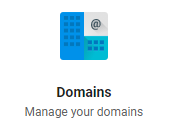
- On the next page, select Manage Domains.
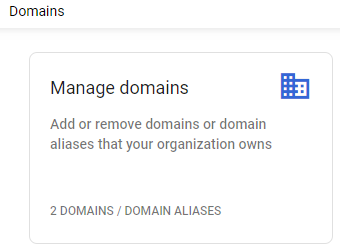
- Click Add a Domain or Add a Domain Alias located in the top-left corner of the page.
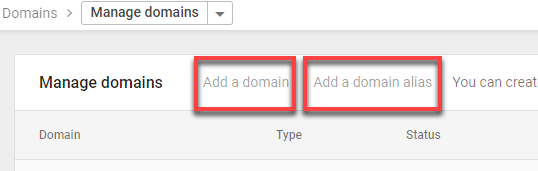
- In the pop-up window:
- Enter the domain you want to add
- Click Continue
- Choose a domain ownership verification method
Verify Domain Ownership in Google Workspace
Google will provide a TXT record for domain verification. This record must be added to your DNS host—such as Bluehost—to confirm domain ownership.
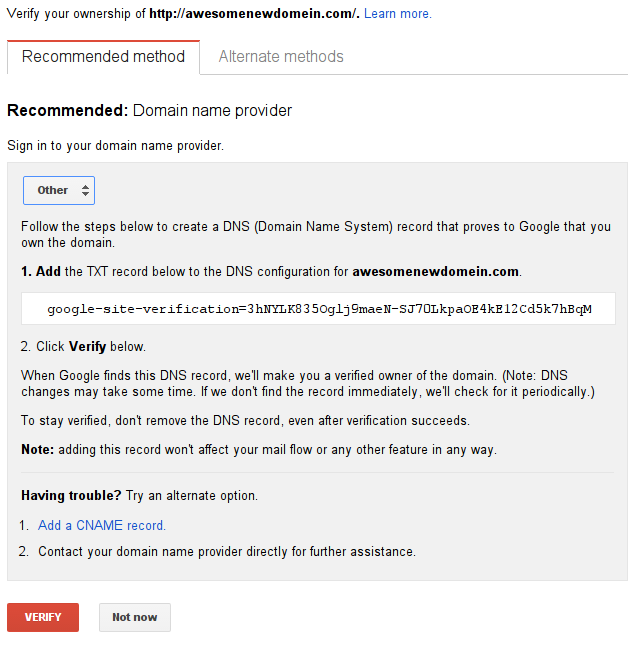
Adding a TXT Record via Bluehost DNS
If your domain is hosted with us, you can manage DNS records through your Bluehost Portal. Adding the TXT record confirms ownership so Google Workspace can activate the domain.
Complete Domain Verification
After creating the TXT record:
- Return to Google Workspace Admin Console
- Click Verify
DNS Propagation Time:
It may take up to 8 hours for the TXT record to fully propagate. If verification fails, wait and try again later.
Configure Email (MX Records)
Once your domain is verified, you can:
- Add new users or groups with the new domain
- Receive email using the domain alias
To send and receive email, you must set up MX records pointing to Google Workspace servers.
This step tells your domain to route email through Google Workspace.
Summary
Adding a domain or domain alias to Google Workspace is a powerful way to manage multiple business identities under one email system. By verifying domain ownership, updating DNS TXT records through Bluehost, and configuring MX records, you ensure seamless email delivery across all domains. Whether you're expanding your brand or consolidating email management, Google Workspace provides a flexible, secure solution with minimal setup required.
If you need further assistance, Bluehost Chat Support is available 24 hours a day, 7days a week while Bluehost Phone Support is available 7 days a week from 7 am-12 midnight EST.
- Chat Support - While on our website, you should see a CHAT bubble in the bottom right-hand corner of the page. Click anywhere on the bubble to begin a chat session.
- Phone Support -
- US: 888-401-4678
- International: +1 801-765-9400
You may also refer to our Knowledge Base articles to help answer common questions and guide you through various setup, configuration, and troubleshooting steps.