 ChatGPT,
 Claude,
 Gemini,
 Grok — all four for
Bluehost AI Builder: Understanding Your App's Database Structure
Every app you build with Bluehost AI Builder comes with its own database. When a visitor submits a form, books an appointment, or creates an account, the app saves that information as records in data tables. The content your site displays, such as your services, menu items, team members, or locations, is often stored the same way.
You don’t need to know how databases work to use AI Builder. But when your app grows, it helps to understand how your data is organized, especially before you ask AI Builder to change it. This article explains the parts of your app’s data structure, how to view them, and how to make structural changes without losing or breaking the data you already have.
If you’re new to forms and submissions, start with Bluehost AI Builder: How to Create and Validate Forms.
How Your App Stores Data
AI Builder designs your app’s database based on what you ask it to build. A booking app for a cleaning service, for example, might store its data in tables for clients, services, time slots, and bookings. Your app’s database is made of four parts:
| Part | What it means | Example in a cleaning booking app |
|---|---|---|
| Table | A collection of one kind of thing | Clients, Services, Bookings |
| Field | One piece of information saved for every record in a table | A client’s name, email, and phone number |
| Record | One entry in a table | One client, or one booking |
| Relationship | A link between records in different tables | Each booking is linked to one client and one service |
Fields and Field Types
Each field holds one type of information, such as text, a number, a date and time, a yes-or-no value, or a choice from a list. The field type controls what can be saved. A date field, for example, only accepts dates, so you can sort bookings by day.
Relationships Between Tables
Relationships keep your data connected without saving the same information twice. Instead of retyping a client’s name and phone number on every booking, each booking points to the client’s record. When the client updates their phone number, every booking shows the new number.
The most common relationship is one-to-many: one client can have many bookings, but each booking belongs to one client.
AI Builder doesn’t display field types or relationships in its interface. The Manage view shows your app’s tables and the data in each record. To see each field’s type and how your tables are linked, ask AI Builder to describe your data structure, as shown later in this article.
Data vs. Design: What You Change Where
Your app has two kinds of content, and each one is changed in a different place.
| Kind of content | Examples | How to change it |
|---|---|---|
| Data | Menu items, services and prices, team members, listings, locations, form submissions, bookings, users | Edit it yourself in the admin panel. No prompt needed. |
| Design and structure | Page layout, section headings, colors, which fields a form has, which tables exist | Describe the change in the AI Builder chat. |
For example, to change the price of a service, edit the service’s record in the admin panel. To add a new Duration field to every service, ask AI Builder. Adding a field changes the structure of the table, not just one record.
Tip: Editing records in the admin panel doesn’t use AI credits. Use the admin panel for routine updates, and save your prompts for changes to design and structure.
Note: Your preview and your live app share the same database. Changes you make to records in the Manage view or admin panel appear on your live app right away, without publishing. If you ask AI Builder to change data, such as your prices, on a published site, it asks you to confirm first, and the change goes live as soon as you confirm.
View Your App’s Tables and Data
You can see your app’s data in the Manage view inside AI Builder, or in your app’s admin panel on your live site. Both show the same data.
View Tables in the Manage View
- Log in to your Bluehost Portal.
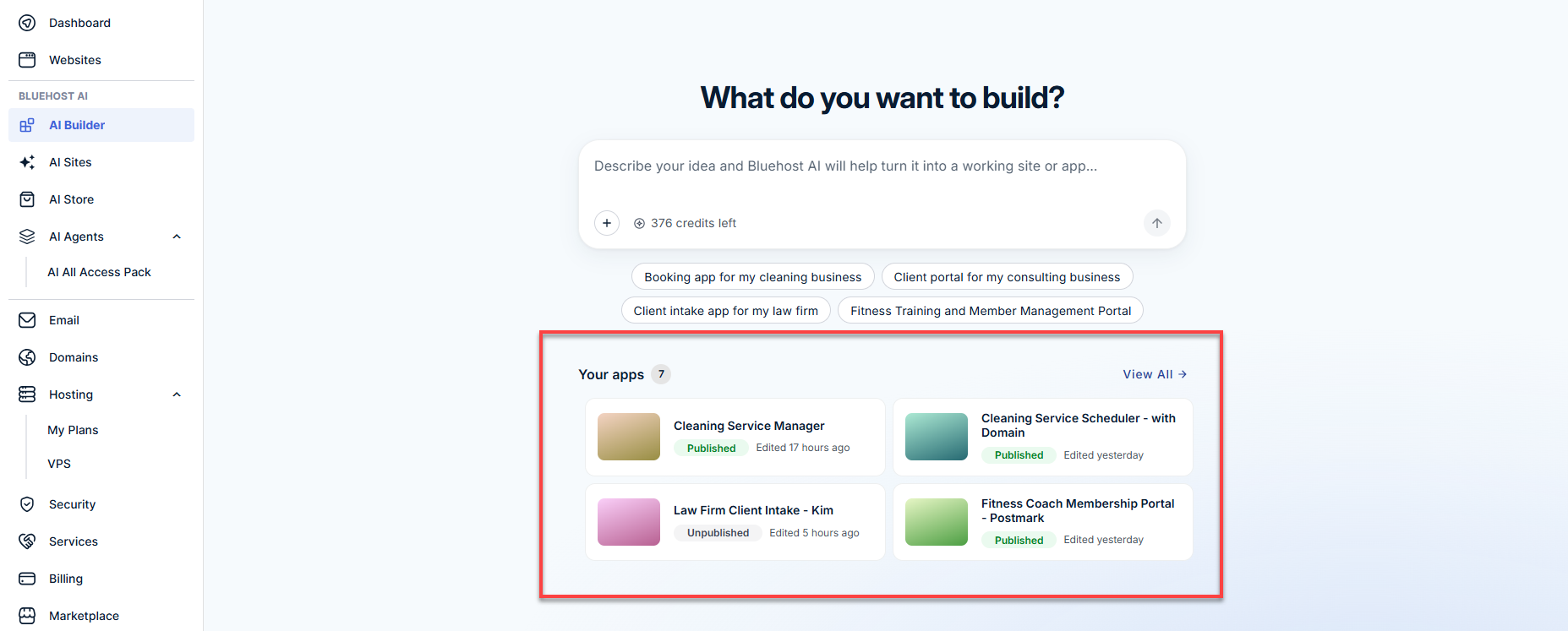
- In the left menu, under Bluehost AI, click AI Builder.
- Under Your apps, click your app.
- Above the preview, click the Manage icon (the cube icon next to Preview and the Settings gear).

- The Dashboard opens with a summary of recent activity, such as entries awaiting a reply and upcoming items.
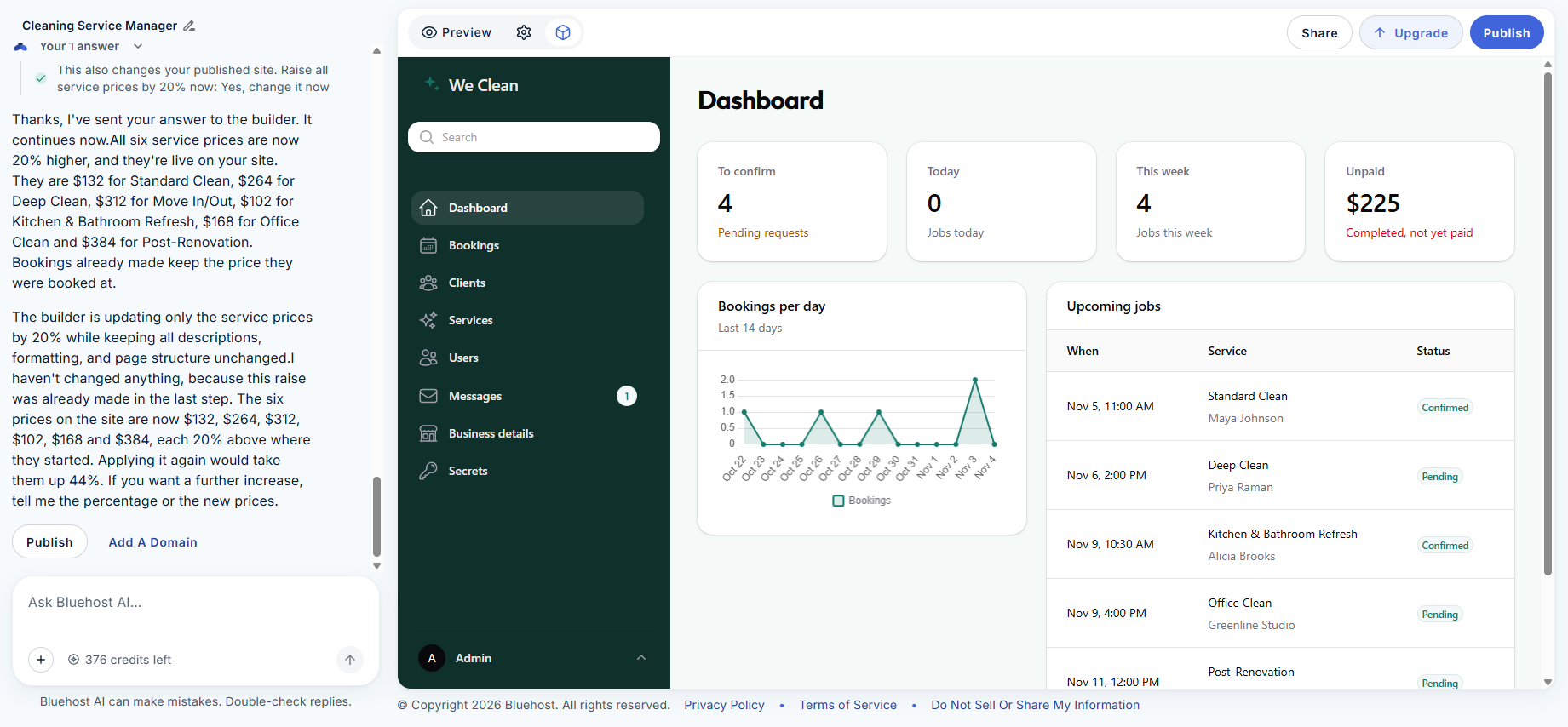
- In the left menu, each section, such as Bookings, Clients, or Services, shows the records in one of your app’s tables. The sections depend on what your app stores.
- Click a section to browse its records. Click a record to see or edit its fields.
The Manage view is built for your app. AI Builder creates a section for each table and feature in your app, so a booking app might show Bookings and Time Slots, while a client portal might show Clients and Documents. When AI Builder adds a table or field, it appears here too.
You can also sign in to your app’s admin panel at /admin/login on your site. Opening the admin from your AI Builder workspace signs you in without a password. To use /admin/login, set a password first from your profile in the admin. For steps, see Sign In to Your App’s Admin.
Ask AI Builder to Describe Your Data Structure
The Manage view shows your records. To see the full structure, including every field, its type, and how tables are linked, ask AI Builder. Include “Don’t change anything” so the builder only describes the structure:
PromptList every data table in my app. For each table, show its fields, the type of each field, which fields are required, and how it links to other tables. Don't change anything.
Note: Questions that don’t change your app, like this one, don’t use credits.
Save the builder’s answer. It’s a useful reference before you ask for structural changes later.
Make Structural Changes Safely
A structural change adds, renames, or removes a table, a field, or a relationship. Some changes are low risk. Others can hide, break, or permanently delete data you already have. The table shows common changes, the risk to existing records, and a safer way to ask.
| Change | Risk to existing data | Safer way to ask |
|---|---|---|
| Add a field | Low. Existing records have the new field empty. | “Add an optional Preferred contact time field to Clients. Leave all existing records unchanged.” |
| Make a field required | Existing records without a value may fail to save when edited. | Fill in the missing values first, or ask: “Make Phone required for new clients only. Don’t change existing records.” |
| Rename a field | Medium. If the builder creates a new field instead of renaming the old one, existing values stay behind in the old field. | “Rename the Phone field in Clients to Mobile phone and keep every existing value.” |
| Change a field’s type | Values that don’t fit the new type may be lost, such as text in a field changed to a number. | “Change Party size from text to a whole number. Convert existing values, and mark any records that can’t be converted so I can review them in the admin panel.” |
| Add a relationship | Medium. Existing records may not link correctly. | “Link each booking to a service. For existing bookings, match the service by name, and mark any you can’t match so I can review them in the admin panel.” |
| Remove a field or table | High. The data in it is deleted, including from your live app. | Save a copy first (see below), then ask: “Remove the Fax field from Clients. Don’t change any other fields or tables.” |
Save a Copy Before Removing Data
AI Builder doesn’t include a built-in export or an undo button. Before you remove a field or table, ask AI Builder to add a CSV export to your admin panel, then download a copy of the records you’re about to remove.
One Change per Message
Ask for one structural change at a time, and name the exact table and field. After each change, check your data before you ask for the next one. If something goes wrong, a single change is easier to spot and fix.
Before and After a Structural Change
Important: Your preview and your live app share the same database. Structural changes take effect as soon as AI Builder makes them, even before you publish. Save a copy of any data you might lose before you ask for the change.
Before you ask for the change:
- Ask AI Builder to describe your current data structure, and save its answer.
- If the change removes or converts data, export a copy of the affected records.
- Write the prompt so it names the table and field, says what to change, and says what to keep.
After AI Builder makes the change:
- Open the Manage view and check that your existing records are still there and their values look right.
- Check that any new or renamed fields appear in the right sections of the Manage view.
- Test every form and page that uses the changed table. Submit a test entry and confirm it saves correctly, then delete the test entry. Test entries are saved in the same database as your live app.
- When everything works, click Publish to make your updated pages and forms live.
If Something Goes Wrong
There’s no undo button. Ask AI Builder to make the change in reverse, and be specific. For example: “Add the Phone field back to Clients with its values.” A reverse request uses a credit, and data that was deleted may not come back, which is why saving a copy first matters.
Note: Bluehost Support can help with the AI Builder platform, such as building, hosting, publishing, domains, and credits. Bluehost doesn’t fix the logic or data of an app you built. To fix your app, describe the problem to AI Builder.
Prompt Templates for Data Changes
Copy a template, replace the bracketed parts, and send it to AI Builder.
Describe Your Data Structure
PromptList every data table in my app. For each table, show its fields,
the type of each field, which fields are required, and how it links
to other tables. Don't change anything.
Add a Field
PromptAdd an optional [field name] field to the [table name] table.
Show it on the [page or form name]. Leave all existing records unchanged.
Add a New Table Linked to an Existing One
PromptAdd a [new table name] table with these fields: [field 1], [field 2], [field 3].
Link each [new table] record to one [existing table] record.
Add a section for it in the admin panel. Don't change the existing tables.
Rename a Field Without Losing Data
PromptRename the [old field name] field in [table name] to [new field name].
Keep every existing value, and update every page and form that uses it.
Remove a Field Safely
PromptBefore you change anything, tell me which pages, forms, and tables use
the [field name] field in [table name]. Don't remove anything yet.
I'll confirm before you make the change.
Frequently Asked Questions
Do I need to know how databases work to use AI Builder?
No. AI Builder designs the database for you. Knowing the basics helps you ask for changes that keep your existing data safe.
Can I edit my data without sending a prompt?
Yes. Edit records, such as menu items, services, team members, and listings, in the Manage view or your admin panel. Editing records doesn’t use credits.
Can I access my app’s database or source code directly?
Not at this time. AI Builder doesn’t provide direct database access, source code access, or FTP access. View and edit your data in the Manage view or admin panel, and ask AI Builder for structural changes.
Can I export my data?
AI Builder doesn’t include a built-in export. Ask AI Builder to add a CSV export to your admin panel.
Will rebooting my app delete my data?
No. Rebooting your app (Settings > Runtime > Reboot) is designed to keep your code, data, and secrets.
Where should I store API keys and passwords?
In Settings > Secrets, not in a data table. AI Builder can use a secret by name without showing its value.
Is there a limit on how much data my app can store?
AI Builder doesn’t currently enforce a storage limit. Usage is subject to the Bluehost Terms of Service.
What happens to my data if my paid plan ends?
Your account returns to the Free plan at the end of your billing term. Your sites and apps stay published on their free Bluehost AI Builder addresses, and your projects and data are kept. Any custom domain is disconnected. To use your own domain again, upgrade to a paid plan. For current plans and pricing, visit the Bluehost AI Builder page.
Warning: Don’t use your app to store sensitive information, such as payment card numbers, health records, or government ID numbers.
Related Articles
Summary
Your Bluehost AI Builder app stores its data in tables made of fields, records, and relationships. Edit records yourself in the Manage view or admin panel, and ask AI Builder for changes to the structure. Before a structural change, describe the current structure, save a copy of any data you might lose, and ask for one change at a time. After each change, check your records and test your forms before you publish.
If you need further assistance, Bluehost Chat Support is available 24 hours a day, 7days a week while Bluehost Phone Support is available 7 days a week from 7 am-12 midnight EST.
- Chat Support - While on our website, you should see a CHAT bubble in the bottom right-hand corner of the page. Click anywhere on the bubble to begin a chat session.
- Phone Support -
- US: 888-401-4678
- International: +1 801-765-9400
You may also refer to our Knowledge Base articles to help answer common questions and guide you through various setup, configuration, and troubleshooting steps.