 ChatGPT,
  Claude,
  Gemini,
  Grok — all four for
 Bluehost DNS Records for Email Services
Reliable email delivery depends on publishing the correct DNS records and routing email through the appropriate mail service. Whether using Professional Email, Google Workspace, or cPanel Email, properly configured DNS records help ensure messages are delivered successfully and help protect your domain from spoofing and phishing. The information below outlines the DNS records commonly used for each email platform, along with related email routing considerations.
Professional Email and Google Workspace are paid services. cPanel Email may be included with eligible hosting plans, while upgraded cPanel Email offerings may require a separate subscription. For current plans and pricing, visit Bluehost's website.
Important: Only one email provider's MX records should be active for a domain at a time. Mixing MX records from different providers (for example, Professional Email and Google Workspace together) can cause unpredictable mail routing and lost messages.
- Before making any DNS changes, save or document your current DNS records. When switching providers, remove conflicting MX records after confirming the new provider's records are available to add.
- Individual DNS record updates may take a few minutes to process, but can take up to 8 hours to fully propagate, depending on your DNS provider, TTL, and cache settings.
1. Professional Email DNS Records
Professional Email on Bluehost is powered by Titan. These records point incoming mail to Titan's mail servers and authorize Titan to send mail on the domain's behalf.
MX Records
| Host / Name | Type | Points To / Value | Priority | TTL |
|---|---|---|---|---|
| @ | MX | mx1.titan.email | 10 | 1 Hour |
| @ | MX | mx2.titan.email | 20 | 1 Hour |
TXT / SPF Record
| Host / Name | Type | Value | TTL |
|---|---|---|---|
| @ | TXT | v=spf1 include:spf.titan.email ~all | 1 Hour |
DKIM Record
| Host / Name | Type | Value |
|---|---|---|
| <selector>._domainkey | TXT | v=DKIM1; k=rsa; p=<public key string> |
DKIM adds a digital signature to outgoing mail so receiving servers can confirm it genuinely came from the domain and wasn't altered in transit. Both the selector (the host prefix, e.g., titan1._domainkey) and the public key value are generated per domain — they are not static and must be copied from the Professional Email Management page:
- Log in to your Bluehost Portal.
- From the left-hand navigation menu, click on the Email tab.
- Optional: In Professional Email, if multiple plans are listed, click Manage for the plan you want to use.

- You’ll be automatically redirected to the Email Management page, where you can manage your email settings and subscriptions.
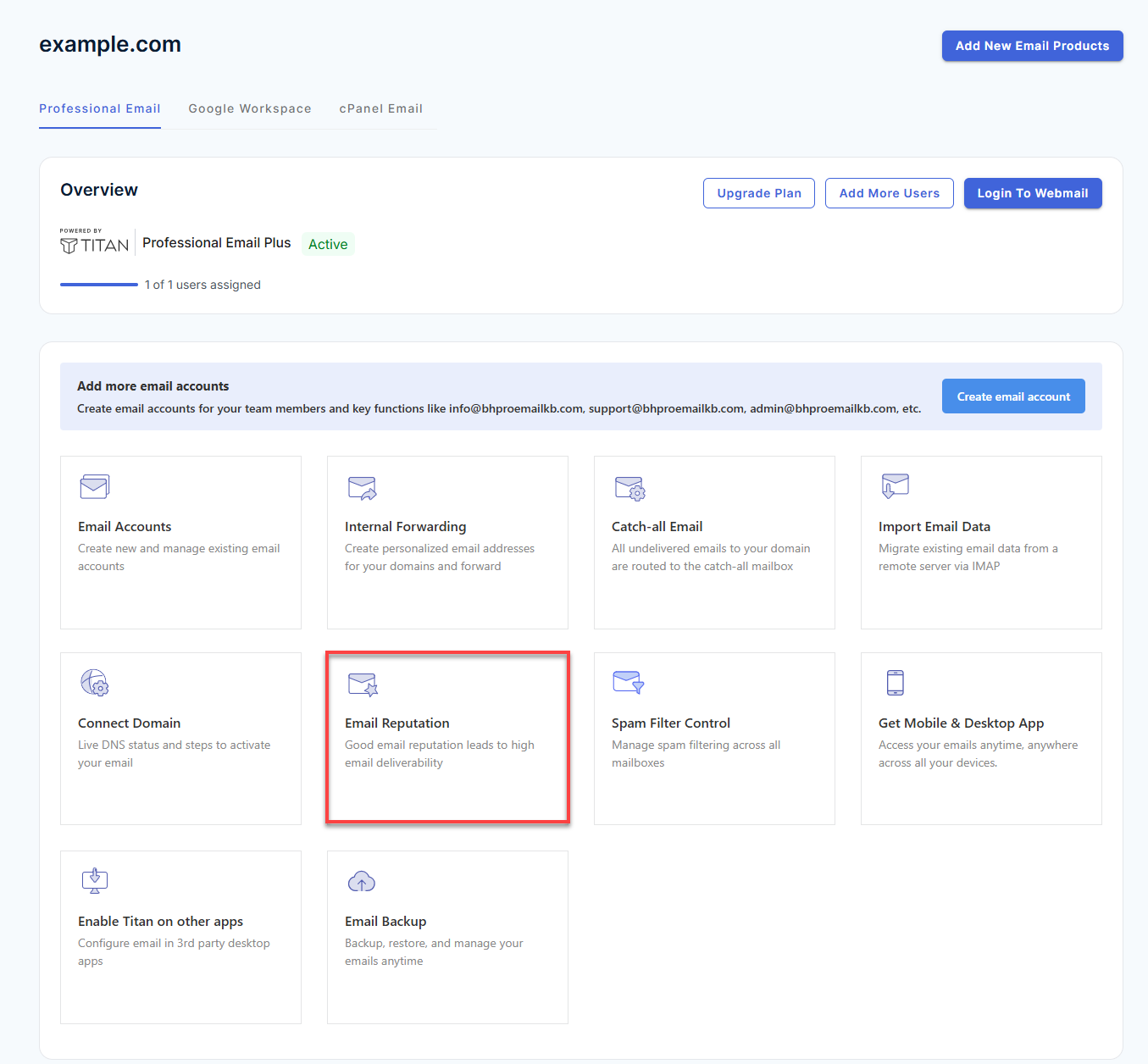
- In the Overview section, click Email Reputation.
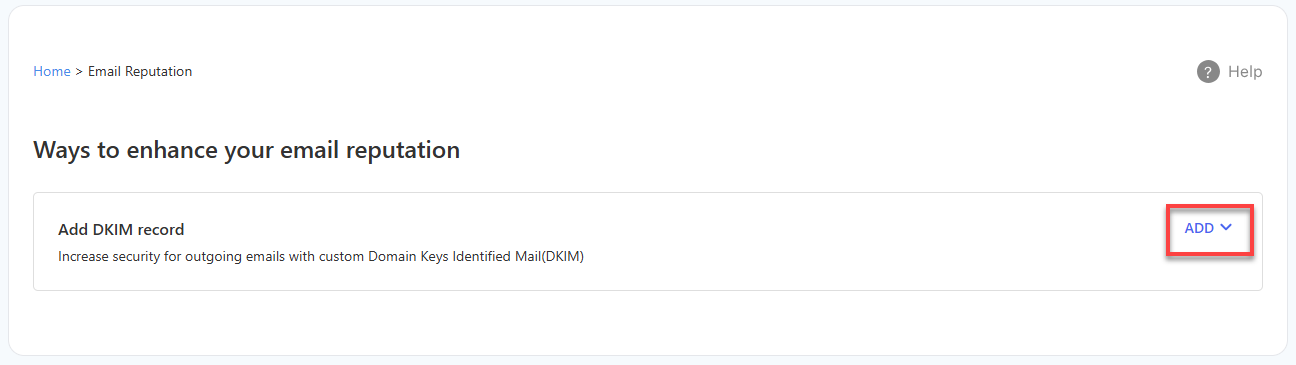
- Under Ways to enhance your email reputation, click Add beside Add DKIM record.
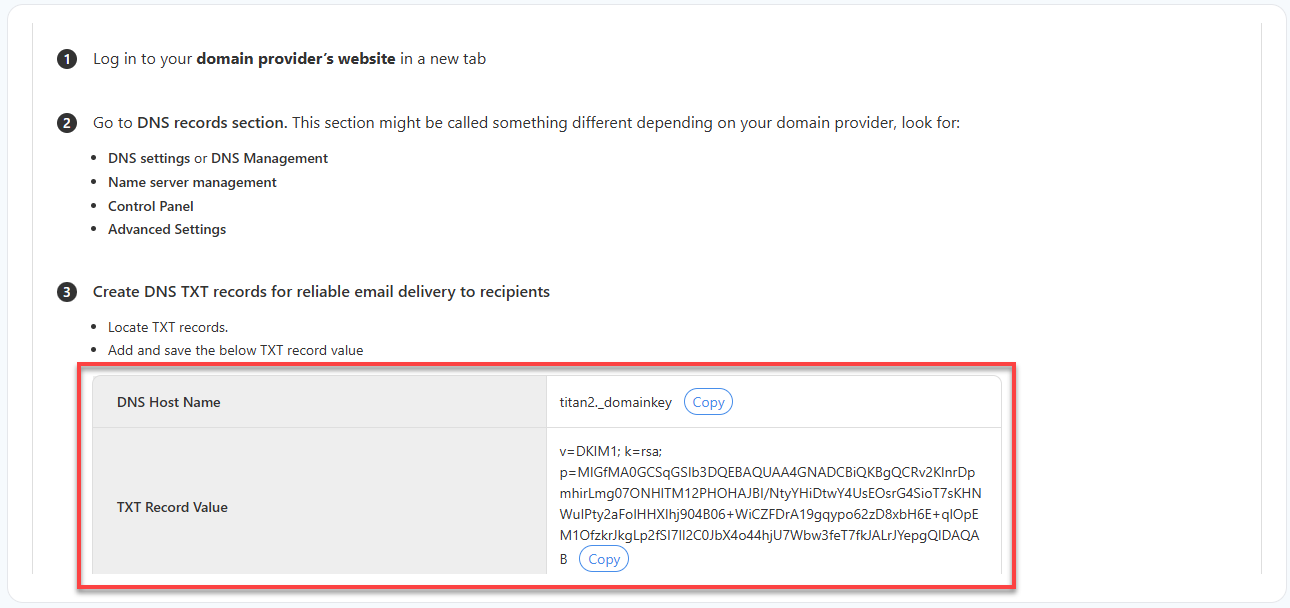
- Scroll down to view the generated DNS Host Name and TXT Record Value, then copy both values.
- Log in to your domain provider's DNS management page and locate the TXT records section.
- Create a new TXT record using the exact DNS Host Name and TXT Record Value displayed on the Email Management page, then save your changes.
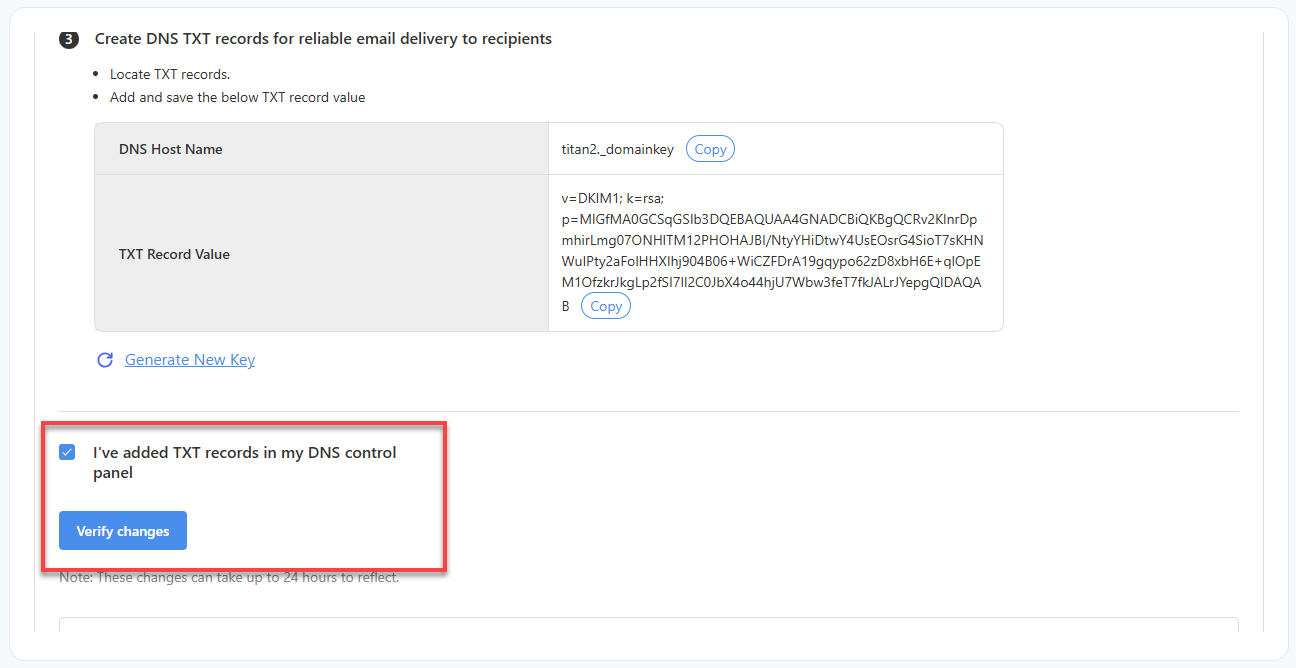
- Return to Email Reputation, click I've added TXT records in my DNS control panel, and click Verify Changes.
Important: Only one DKIM TXT record is allowed per selector — a duplicate under the same selector will cause verification errors.
DMARC Record
| Host / Name | Type | Value |
|---|---|---|
| _dmarc | TXT | v=DMARC1; p=none; rua=mailto:[email protected] |
DMARC builds on SPF and DKIM, telling receiving servers what to do with mail that fails those checks and where to send reporting data. The value above is a recommended monitoring-only starting policy — replace the rua mailbox with one that's actually monitored on the domain. Recommended phased rollout:
- Phase 1 — p=none: monitor only; no mail is blocked. Review the incoming aggregate reports to confirm legitimate senders are passing.
- Phase 2 — p=quarantine (optionally add pct=10 through pct=50 to ramp gradually): failing mail is routed to spam.
- Phase 3 — p=reject: failing mail is rejected outright. Move here only once SPF and DKIM are confirmed passing consistently.
Important: If your domain uses Bluehost nameservers, confirm that Email Routing is set to Remote Mail Exchanger in cPanel after publishing the Professional Email DNS records. See Email Routing.
2. Google Workspace DNS Records
Google Workspace supports two valid MX configurations. Either works — use whichever the domain's Google Workspace setup tool provided. Do not mix the two.
MX Records — Option A: Single Record (current default for new setups)
| Host / Name | Type | Points To / Value | Priority | TTL |
|---|---|---|---|---|
| @ | MX | smtp.google.com | 1 | 3600 |
MX Records — Option B: Legacy 5-Record Set (currently supported by Google)
| Host / Name | Type | Points To / Value | Priority | TTL |
|---|---|---|---|---|
| @ | MX | ASPMX.L.GOOGLE.COM | 1 | 3600 |
| @ | MX | ALT1.ASPMX.L.GOOGLE.COM | 5 | 3600 |
| @ | MX | ALT2.ASPMX.L.GOOGLE.COM | 5 | 3600 |
| @ | MX | ALT3.ASPMX.L.GOOGLE.COM | 10 | 3600 |
| @ | MX | ALT4.ASPMX.L.GOOGLE.COM | 10 | 3600 |
TXT / SPF Record
| Host / Name | Type | Value | TTL |
|---|---|---|---|
| @ (domain root) | TXT | v=spf1 include:_spf.google.com ~all | 14400 |
Optional CNAME Records (for Workspace subdomain features)
| Host / Name | Type | Points To / Value | TTL |
|---|---|---|---|
| CNAME | ghs.googlehosted.com | 14400 | |
| calendar | CNAME | ghs.googlehosted.com | 14400 |
| drive | CNAME | ghs.googlehosted.com | 14400 |
| groups | CNAME | ghs.googlehosted.com | 14400 |
| sites | CNAME | ghs.googlehosted.com | 14400 |
Note on domain verification: Google also requires a one-time domain ownership verification, typically a TXT record (google-site-verification=...) generated uniquely per domain in the Google Workspace Admin console during setup. Publish it exactly as provided; it is not a static value.
cPanel-Specific Steps for Google Workspace
- MX records:
- Log in to cPanel.
- Find and click the MX Entry or Email Routing.
- Select the domain you want to modify from the Domain dropdown.
- In the Add New Record section, add each MX record above.
- Click Add New Record to save each MX record.
- Set Email Routing to Remote Mail Exchanger.
- Click Change to save the routing setting.
- TXT/CNAME records:
- Log in to cPanel.
- Find and click on the Zone Editor.
- Select the domain you want to add the TXT record.
- Click the + Add Record dropdown and select Add "TXT" Record/Add "CNAME" Record.
- Add the SPF TXT record and any optional Google Workspace CNAME records you plan to use.
- Click Save All Records once done.
3. cPanel Email (Bluehost Native/Local Mail) DNS Records
cPanel Email is Bluehost's built-in mailbox service. When a domain uses Bluehost nameservers, mail is handled locally by default. No MX record changes are required unless you're restoring local mail delivery after using a third-party email provider.
Default (Local Mail) MX Record
| Host / Name | Type | Points To / Value | Priority | TTL |
|---|---|---|---|---|
| @ | MX | yourdomain.com | 0 | 14400 |
This is created automatically when a domain lives on Bluehost's nameservers — you don't need to add it manually. If it's missing or was overwritten by a third-party provider's records, restore local delivery from cPanel:
- Log in to cPanel.
- Find and click the MX Entry or Email Routing.
- Select the domain you want to modify from the Domain dropdown.
- Delete any MX records pointing to an external provider.
- If the default MX record is missing, create an MX record using:
- Host: @
- Points To: yourdomain.com
- Priority: 0
- If the default MX record is missing, create an MX record using:
- Under Email Routing, select Local Mail Exchanger and click Change (do this last, after MX records are corrected).
Recommended SPF Record (for Local Mail)
| Host / Name | Type | Value | TTL |
|---|---|---|---|
| @ | TXT | v=spf1 +a +mx include:... (auto-generated per server — use the SPF value shown in cPanel → Email Deliverability) | 14400 |
cPanel Email SPF, DKIM, and DMARC values are generated per server and per domain.
- Log in to cPanel.
- Find and click Email Deliverability.
- Select the domain.
- Review the SPF, DKIM, and DMARC records displayed.
- Click Install The Suggested Record next to any recommended record.
4. Email Routing Setting Reference (cPanel)
Whenever MX records are changed for a domain on Bluehost nameservers, the matching Email Routing setting in cPanel must also be confirmed. This setting tells the Bluehost server how to handle mail for that domain.
| Routing Setting | When to Use It |
|---|---|
| Local Mail Exchanger | Domain uses cPanel Email (default local mailboxes). |
| Remote Mail Exchanger | Domain uses an external provider — Titan/Professional Email or Google Workspace. |
| Automatically Detect Configuration | Let cPanel infer routing from the domain's current MX records (use with caution after a provider switch). |
Quick Decision Guide
- Using Professional Email? → Publish the 2 Titan MX records and SPF TXT record, generate and publish the DKIM TXT record from the Email Management page, optionally add the _dmarc TXT record, then set Email Routing to Remote Mail Exchanger.
- Using Google Workspace? → Publish either the single MX record or the 5-record legacy set (not both), add the SPF TXT record, complete Google's domain verification, and optionally add any supported Workspace app CNAME records. Then set Email Routing to Remote Mail Exchanger.
- Using cPanel Email? → Leave the default local MX in place (or restore it), set Email Routing to Local Mail Exchanger, and publish SPF/DKIM/DMARC from Email Deliverability.
Summary
Proper DNS configuration helps ensure reliable email delivery and authentication across Professional Email (Titan), Google Workspace, and cPanel Email. Publishing the appropriate DNS records and confirming the correct Email Routing setting helps direct messages to the intended mail service while improving domain reputation and reducing the risk of spoofing, phishing, and delivery failures. When changing providers or updating DNS records, allow time for DNS propagation and verify that legacy records from previous email services have been removed to prevent mail routing conflicts.
If you need further assistance, Bluehost Chat Support is available 24 hours a day, 7days a week while Bluehost Phone Support is available 7 days a week from 7 am-12 midnight EST.
- Chat Support - While on our website, you should see a CHAT bubble in the bottom right-hand corner of the page. Click anywhere on the bubble to begin a chat session.
- Phone Support -
- US: 888-401-4678
- International: +1 801-765-9400
You may also refer to our Knowledge Base articles to help answer common questions and guide you through various setup, configuration, and troubleshooting steps.