 ChatGPT,
 Claude,
 Gemini,
 Grok — all four for
Bluehost Google Workspace: How to Import Emails From Personal Gmail
If you’re moving from a personal Gmail account to Google Workspace, you can copy your existing messages into your new Workspace mailbox, so your old mail is there when you start using your business address. This guide walks you through importing mail from a personal Gmail account using the data import tool in the Google Admin console.
If you’re importing from somewhere else, choose the guide that matches where your email is now:
- If you’re importing from a Business Gmail account (another Google Workspace account), see Bluehost Google Workspace: How to Import Emails From Business Gmail.
- If you’re importing from Microsoft 365 or Exchange Online (Outlook), see Bluehost Google Workspace: How to Import Data From Microsoft Exchange Online.
- If you’re importing from another email provider that uses IMAP, such as Yahoo, iCloud Mail, or GoDaddy, see Bluehost Google Workspace: How to Import Email From an IMAP Account.
Before You Begin
Make sure you have the following in place before you start:
- You can sign in to the Google Admin console as a super administrator. Only a super administrator can set up and run the import.
- The Google Workspace user you’re importing into already exists, has a Google Workspace license, and has the Gmail service turned on.
- You can sign in to the personal Gmail account, or the account owner is available to approve the request.
Tip: You don’t need to export or download your Gmail messages first. The import tool copies your mail directly from the Gmail account once the account owner approves the request.
Important: Each import copies email from one personal Gmail account. If you need to import more than one account, complete one import, exit it, and then start the next.
What Gets Imported
The import copies your messages to the Workspace mailbox. It doesn’t delete or change anything in the original Gmail account. It includes:
- Email messages, including drafts and sent mail, across all labels and sublabels
- Attachments
- Read and unread status
- Labels and sublabels
- Stars
Spam and deleted messages are only imported if you choose to include them. An attachment isn’t imported if the message and attachment together are larger than 25 MB, or if Gmail blocks the file type, such as executable files.
Import Emails From Gmail to Google Workspace
The import runs in six steps. Work through them in order, from connecting the Gmail account to exiting the completed import.
Step 1: Connect to a Gmail Account
- Sign in to the Google Admin console as a super administrator.
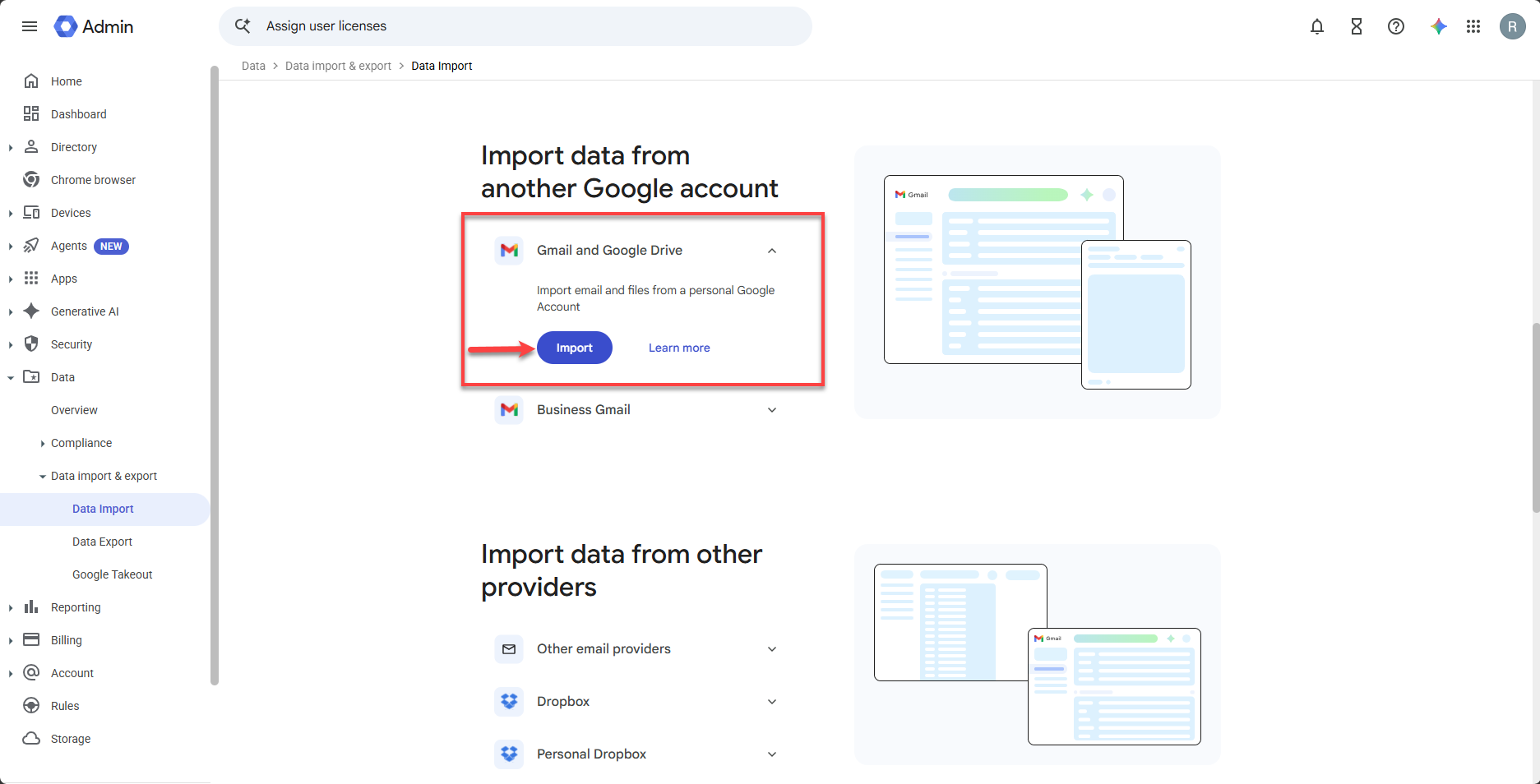
- Go to Menu, then Data, then Data import & export, then Data Import.
- Under Import data from another Google account, click Import in the Gmail and Google Drive section.
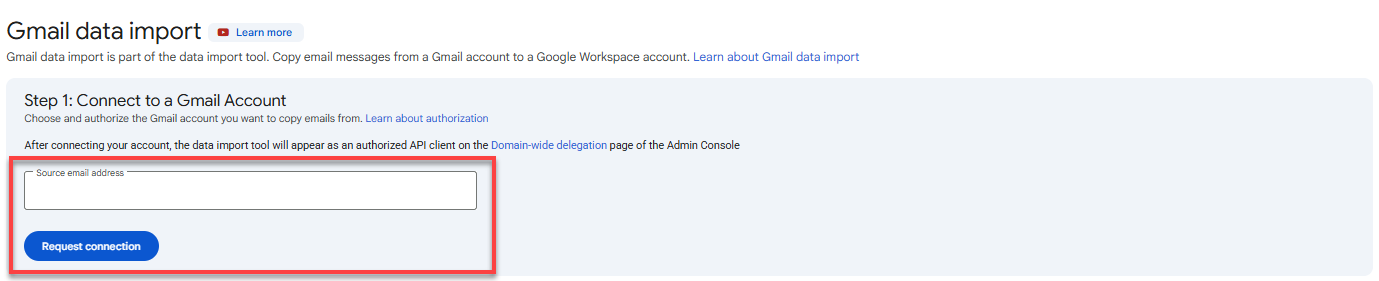
- For Source email address, enter the personal Gmail address you want to import from, and click Request connection.
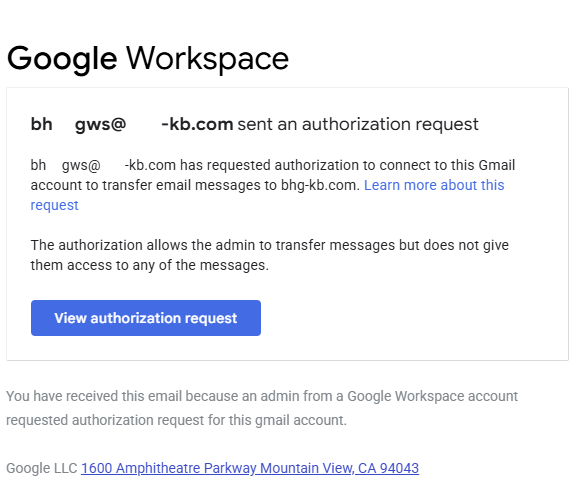
The Gmail account owner receives an email asking them to connect the account. They must open it and approve the request.
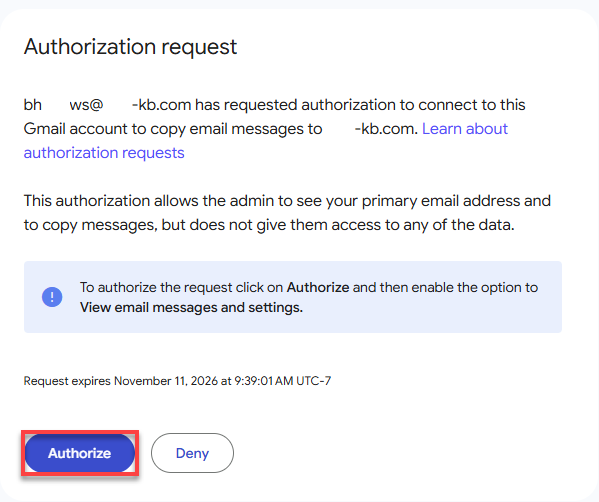
If you own the Gmail account, you can approve the request directly from the Admin console.
The Admin console checks the request automatically.
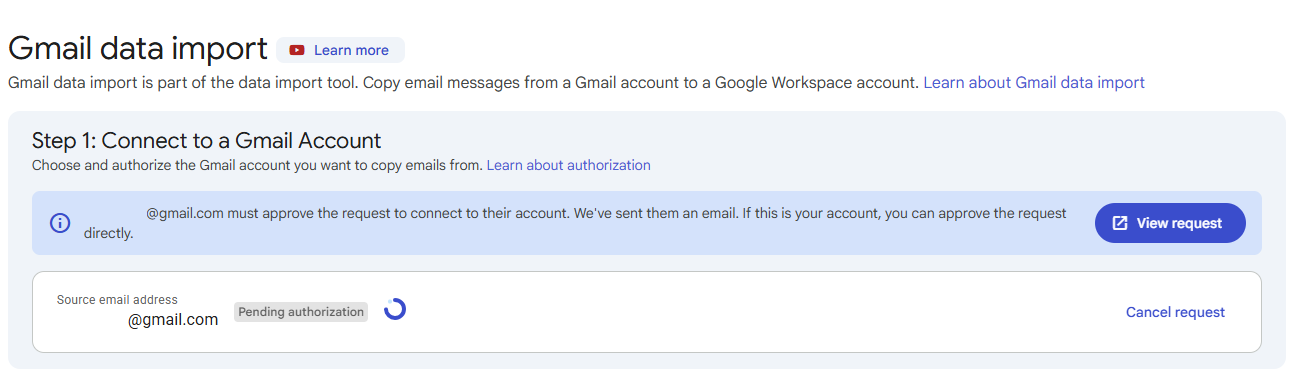
If the Pending authorization message disappears before the request is approved, click Verify connection to check again.
The status tells you where the request stands:
- Pending authorization: Waiting for the account owner to approve.
- Connected: The request was approved. Continue to the next step.
- Authorization denied: The request was rejected. Click Cancel request before sending a new request.
- Request expired: The request wasn’t approved within 24 hours. Click Refresh request to send it again.
Step 2: Specify Target User
- For Target account, enter the Google Workspace email address that should receive the messages.
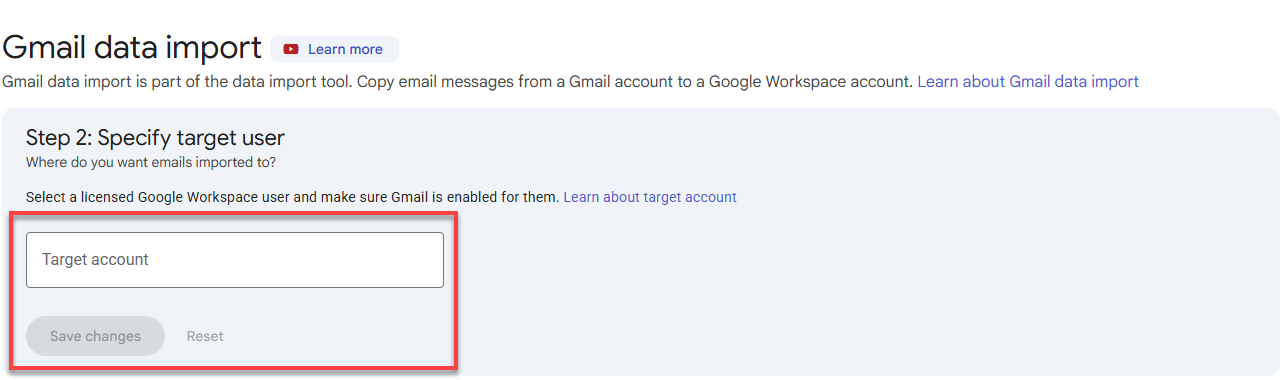
- Click Save changes.
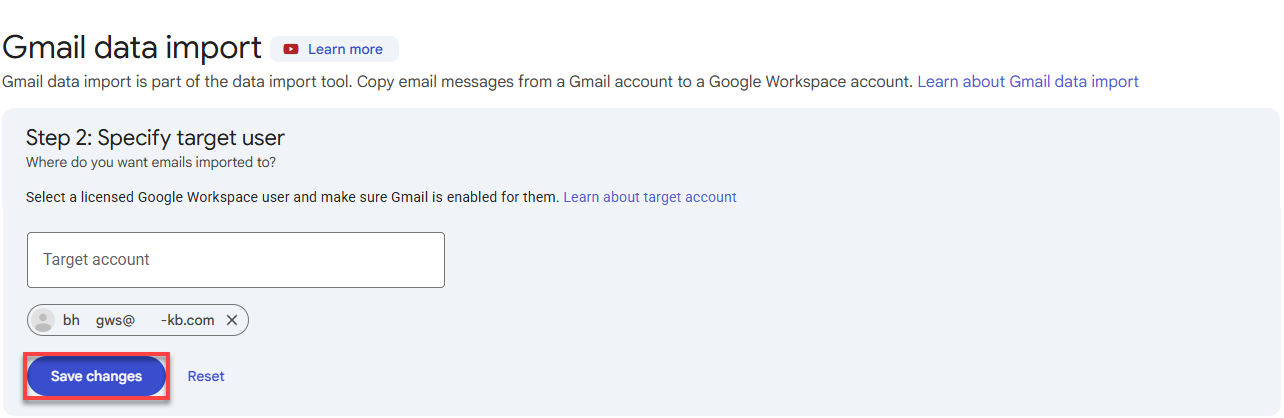
To change the target account later, click Edit target.

Step 3: Configure Data Import Settings
- For Start date, enter the date you want to copy mail from, in MM/DD/YYYY format, or select it from the calendar. All messages created or received starting from that date are copied to the target account.
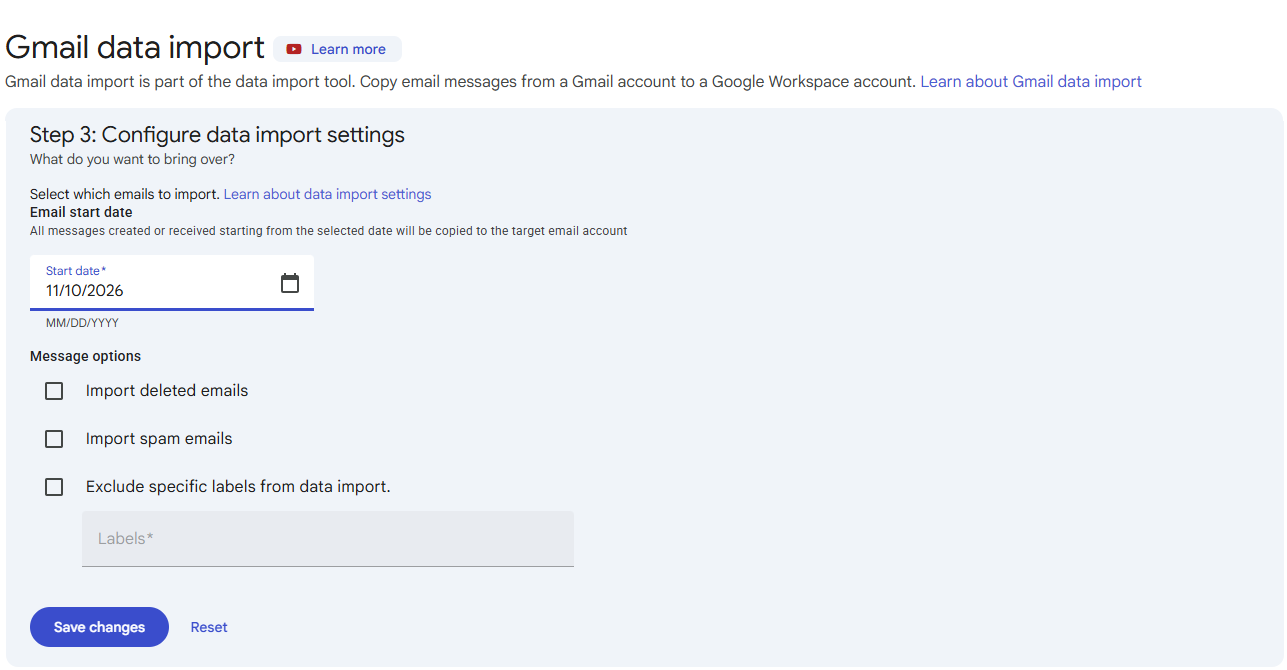
- Under Message options, check any of the following:
- Import deleted emails: Include messages that were deleted.
- Import spam emails: Include messages with the Spam label.
- Exclude specific labels from data import: Check this box, then enter the names of the labels you don’t want imported in the Labels field, separated by commas.
- Click Save changes. To clear your changes, click Reset.
Warning: Check the start date before you save. Only messages created or received from that date forward are copied, so choose a date early enough to include all the mail you want to keep.
When you exclude labels, keep the following in mind:
- Enter each label name separately.
- Excluding a label also excludes its sublabels and the messages in them.
- To exclude only a sublabel, enter its full path, with a forward slash between the parent label and the sublabel, for example
Travel/Asia. - If a label name contains a forward slash, replace each slash with an underscore. For example, to exclude
Folder/with/slash, enterFolder_with_slash.
Step 4: Start the Import and Track Progress
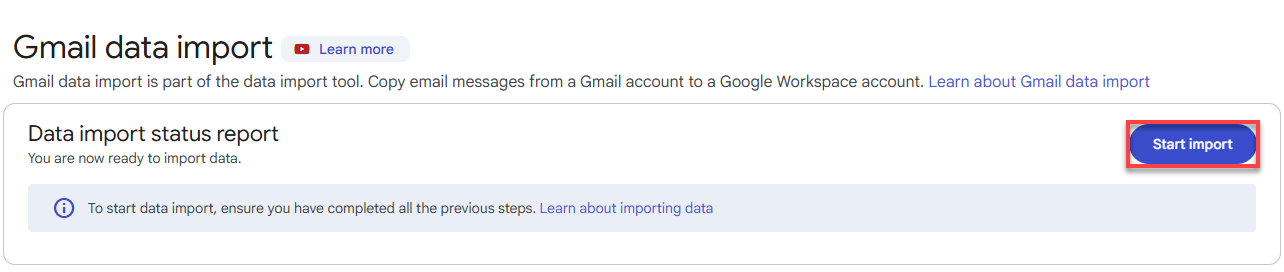
- Click Start import.
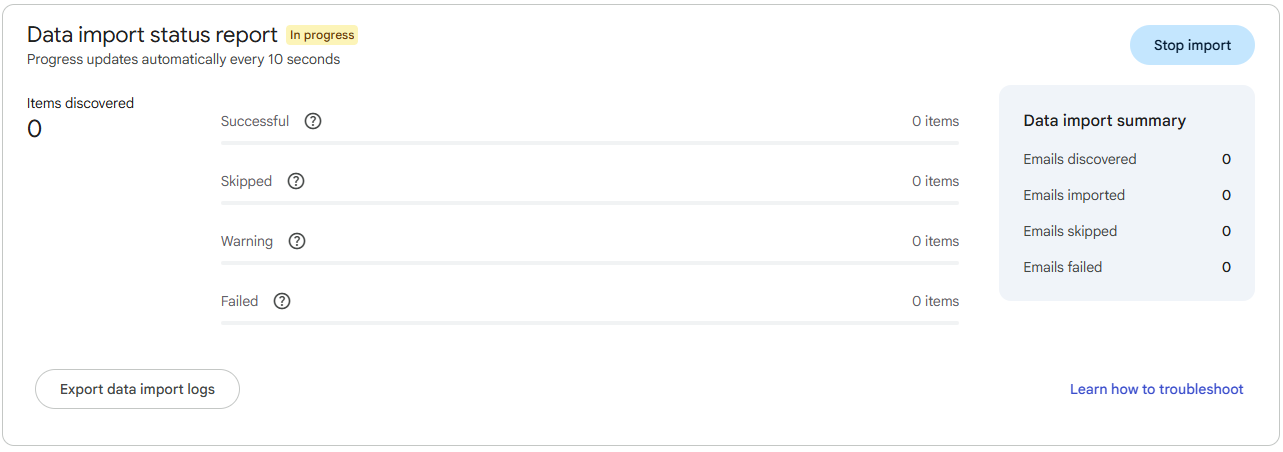
- The Admin console updates the number of items discovered, imported, skipped, and failed as the import runs, along with a count of items that imported with a warning.
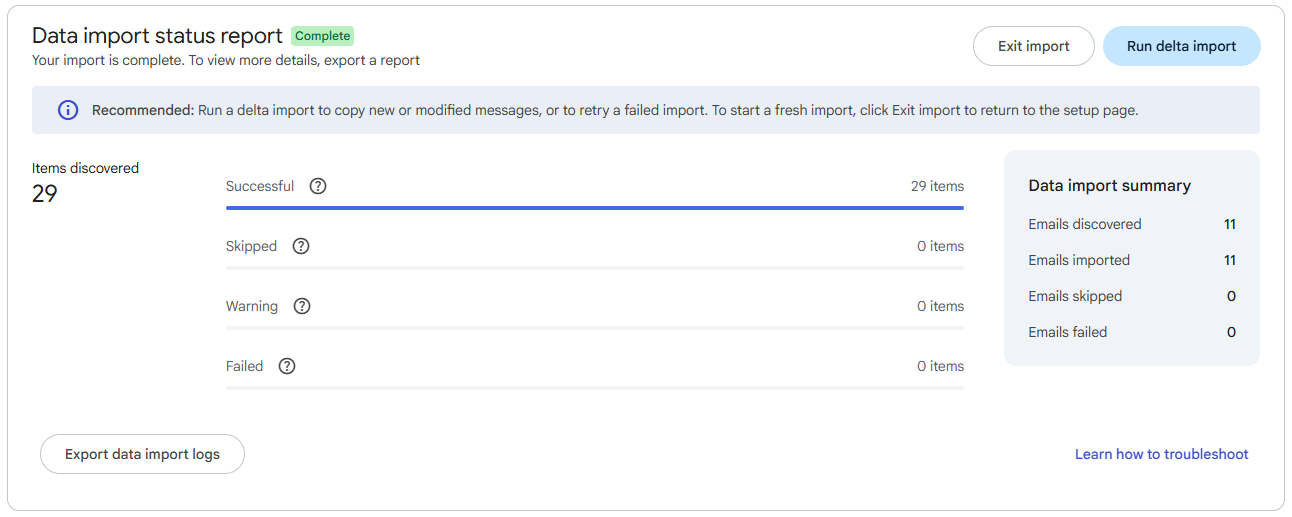
- When the import finishes, Google sends an email with the import statistics and any reports.
Important: The first phase of the import can take 15 minutes or longer, and the progress summary might not change during that time. Don’t stop or exit the import. You can leave the page and continue working, and the import keeps running.
Starting the import also gives the data import tool access to your Workspace account, which Google removes when you exit the import in Step 6. To stop an import that’s in progress, click Stop import. Messages that were already imported stay in the Workspace mailbox.
Step 5: Run a Delta Import (Optional)
After the first import finishes, you can click Run delta import to copy new or updated mail to your Workspace mailbox. You can also use it to try again for messages that didn’t import the first time. If labels or read status changed on messages that were already imported, the delta import updates them.
A delta import doesn’t delete anything. If you delete a message from the Gmail account after it was imported, the copy stays in your Workspace mailbox.
Step 6: Exit the Completed Import
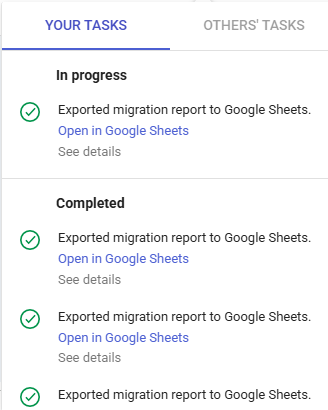
- Click Export data import logs, then select the information you want to see in the generated Google Sheet.

- Click Exit import, then Exit and delete import.

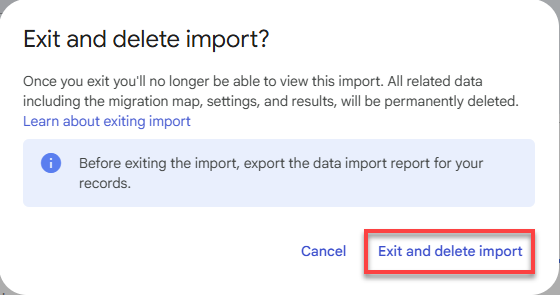
Warning: Once you exit an import, you can no longer see its settings or reports, so don’t exit until the import is complete and you no longer need delta imports. You also can’t start a new import until you exit the completed one. If you exit and then start a new import for the same Gmail account, the Workspace mailbox might end up with duplicate messages.
Check Your Imported Mail
Sign in to the Google Workspace mailbox you imported into and look for your messages. Your labels and sublabels should come across with your mail, and your read and unread status is kept.
Troubleshooting
| What you’re seeing | What to do |
|---|---|
| The connection request expired | Requests expire after 24 hours. Click Refresh request to send a new one, then ask the account owner to approve it promptly. |
| The status still shows Pending authorization | The account owner hasn’t approved yet. If they have, click Verify connection to check again. |
| The status shows Authorization denied | The account owner rejected the request. Click Cancel request, confirm the Gmail address is correct, then send a new request. |
| The progress summary hasn’t changed in several minutes | The first phase can take 15 minutes or longer. Don’t stop or exit the import. Leave the page open or come back later. |
| Some messages didn’t import | Run a delta import to try again. Check the import logs to see why items failed. |
| Attachments are missing from imported messages | An attachment isn’t imported if the message and attachment together are larger than 25 MB, or if Gmail blocks the file type. |
| Mail from before a certain date is missing | Only messages created or received on or after your start date are copied. To import older mail, you’d need to exit the import and start a new one with an earlier start date. The new import might copy messages that were already imported, which can create duplicates in the Workspace mailbox. Before you exit, make sure you no longer need this import’s reports or delta imports. |
| A whole label is missing | Check whether you excluded it in Step 3. Excluding a label also excludes its sublabels. |
| You can’t start a new import | Exit the completed import first. You can only run one import at a time. |
Frequently Asked Questions
Does importing delete anything from my Gmail account?
No. The import copies your messages. Nothing in the original Gmail account is changed or deleted.
How long does an import take?
It depends on how much mail you have. The first phase alone can take 15 minutes or longer. You can leave the page and the import keeps running.
Can I import more than one Gmail account?
Yes, but one at a time. Complete the first import, exit it, then start the next.
What happens if I delete a message in Gmail after importing it?
The copy stays in your Google Workspace mailbox. A delta import doesn’t delete anything.
Will I get duplicate messages if I run a delta import?
No. A delta import copies only new or updated messages. You could get duplicates if you exit an import and then start a new one for the same Gmail account.
Do my labels and read status come across?
Yes. Labels, sublabels, stars, and read and unread status are kept.
Can I import into a user who doesn’t have a license yet?
No. The target user must already exist, have a Google Workspace license, and have Gmail turned on.
Can Bluehost import my email for me?
No. Bluehost’s Email Migration service doesn’t cover personal Gmail accounts. Use the data import tool in the Google Admin console, as described in this article.
Related Articles
Summary
Importing your Gmail messages into Google Workspace lets you keep your email history when you move to your business address. A super administrator connects the Gmail account, chooses the Workspace mailbox to receive the mail, and starts the import. After it finishes, you can run a delta import for any mail that arrived later.
If you need further assistance, Bluehost Chat Support is available 24 hours a day, 7days a week while Bluehost Phone Support is available 7 days a week from 7 am-12 midnight EST.
- Chat Support - While on our website, you should see a CHAT bubble in the bottom right-hand corner of the page. Click anywhere on the bubble to begin a chat session.
- Phone Support -
- US: 888-401-4678
- International: +1 801-765-9400
You may also refer to our Knowledge Base articles to help answer common questions and guide you through various setup, configuration, and troubleshooting steps.