 ChatGPT,
 Claude,
 Gemini,
 Grok — all four for
To transfer a departing employee's email and Drive files, sign in to the Google Admin console as a super administrator. Copy their email to a colleague's mailbox with the data import tool, and then transfer ownership of their Drive files from Apps > Google Workspace > Drive and Docs.
Do this before you delete the user. Data that only the departing employee owns is permanently deleted if you don't transfer it. This article covers email and Drive files. Google offers other options for data like Calendar, Chat, and Groups.
Before You Begin
Make sure you have the following:
- Super administrator access to your Google Workspace account. The email import requires a super administrator, and Google doesn't allow resellers to run the import for a customer's account.
- A colleague who will receive the data. For email, their account needs a Google Workspace license and Gmail turned on. For Drive files, their account must be active, have enough storage, and have Drive turned on.
- A departing employee account that can still sign in. The email import asks the account owner to authorize the connection.
- Advanced Protection turned off for the departing employee, if they're enrolled in it. It has to stay off while the email import is set up and running.
- No litigation hold on the departing employee's account. Drive files can't be transferred from an account that's on hold.
Warning: Copy the email before you suspend or delete the account. A suspended user can't sign in, so they can't authorize the connection that the email import needs.
Choose How to Keep the Data
Google Workspace has different tools for different types of data. This article covers the first two rows.
| What you want to keep | Option | Covered in this article |
|---|---|---|
| Copy it to a colleague's mailbox with the data import tool | Yes | |
| Drive files | Transfer ownership to a colleague | Yes |
| Future messages | Forward the old address's email to a colleague after you've preserved the mail | No |
| Calendar, Chat, Groups, and other data | Data Export tool, Google Vault, or an Archived User license, depending on the data | No |
Google Vault and Archived User licenses may require a paid plan or add-on. For current pricing and plans, visit the Bluehost Google Workspace page.
Copy Email to Another User
The data import tool copies the departing employee's email messages to a colleague's Gmail account. Your colleague receives them in their own mailbox.
- Sign in to the Google Admin console with your super administrator account.
- Click the Menu hamburger icon (three horizontal lines) at the upper left, next to Admin.
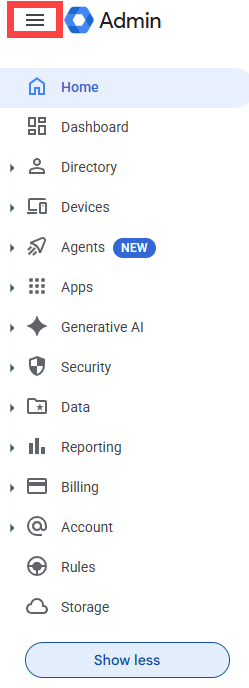
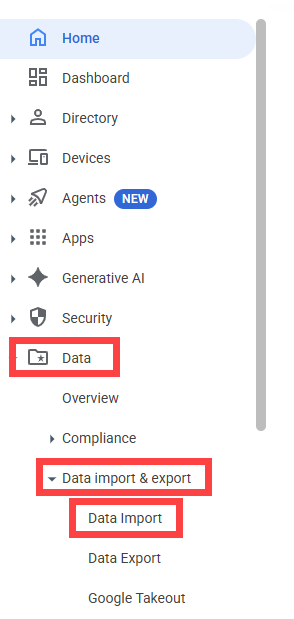
- Click Data > Data import & export > Data Import.
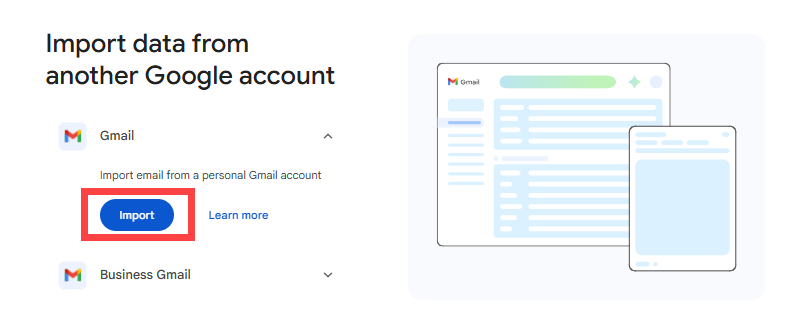
- For Gmail, click Import.
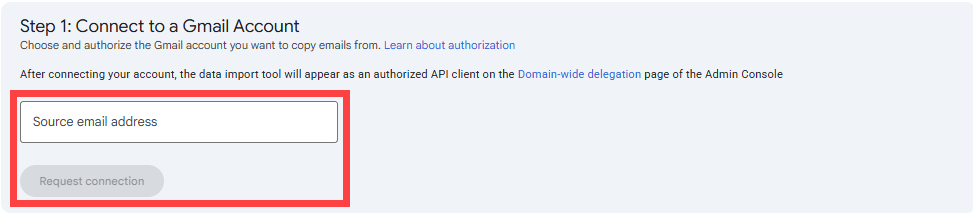
- Under Step 1: Connect to a Gmail Account, enter the departing employee's email address in the Source email address field, and then click Request connection.
- The owner of the Gmail account receives an email asking them to connect their account. Ask the departing employee to open it and approve the request. If you own the account, you can authorize the request directly from the Google Admin console. When the request is approved, the status changes to Connected.
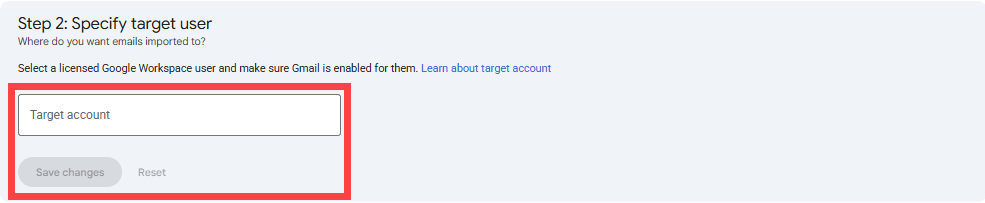
- Under Step 2: Specify target user, enter your colleague's Google Workspace email address in the Target account field, and then click Save changes. Choose a user who has a Google Workspace license and Gmail turned on.
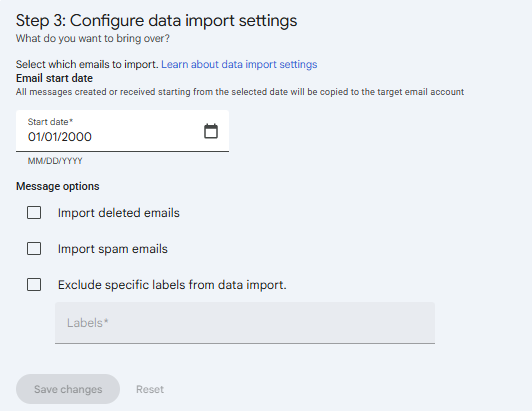
- (Optional) Under Step 3: Configure data import settings, click Edit settings.

- (Optional) Choose which messages to copy:
- Start date: Messages from this date onward are copied, in MM/DD/YYYY format. If you don't change it, Google copies messages starting January 1, 2000.
- Include deleted emails: Select this check box to copy deleted messages.
- Include spam emails: Select this check box to copy messages with the Spam label.
- Exclude specific labels: Select this check box and enter the label names, separated by commas. For a sub-label, use the full path with a forward slash, such as
Travel/Asia. Don't enterAll Mail, because that excludes every message.
- (Optional) Click Save changes.
- Under Data import status report, click Start import. The button turns on after you complete the previous steps.

- The status changes to In progress, and the page shows how many emails were imported, skipped, or failed. When the import finishes, Google emails you the import statistics, with any reports attached.
- After you've downloaded any reports you want to keep, click Exit import > Exit and delete import.
Important: After you exit an import, you can no longer see its settings or reports. You also can't start another import until you exit a completed one.
Transfer Drive Files to Another User
The Drive transfer changes the owner of all the files the departing employee owns. It doesn't change who has access to those files.
Prepare for the Drive Transfer
- Tell your colleague not to add files to their Drive while the transfer runs.
- Move any files you want to keep out of the departing employee's Trash. Items in Trash aren't transferred.
- Make sure the departing employee can't add or move files during the transfer, for example by suspending their account once the email import is finished.
Start the Drive Transfer
- Sign in to the Google Admin console with an account that has the Drive and Docs administrator privilege.
- Click the Menu hamburger icon (three horizontal lines) at the upper left, next to Admin.
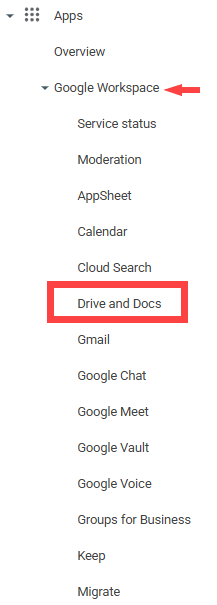
- Click Apps > Google Workspace > Drive and Docs.
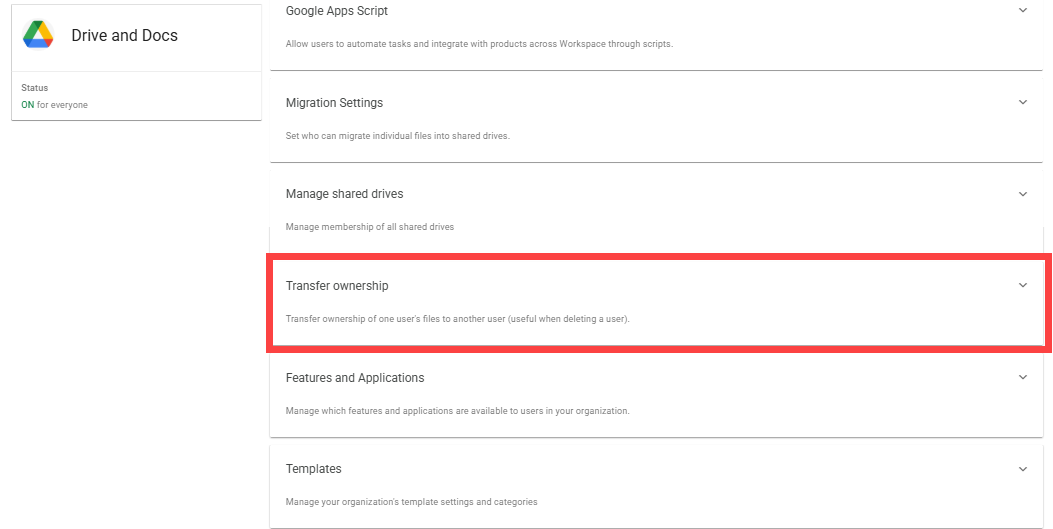
- Click Transfer ownership to expand it.
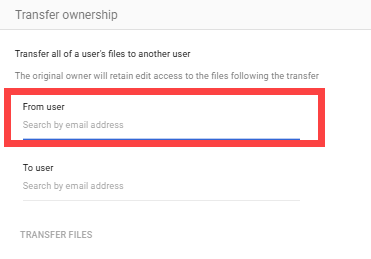
- In the From user field, search by email address and select the departing employee.
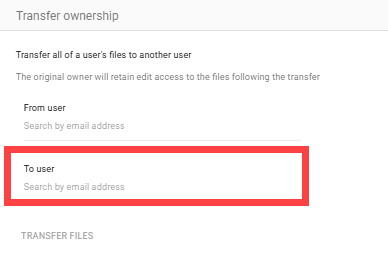
- In the To user field, search by email address and select your colleague.
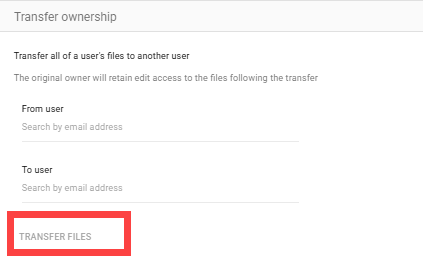
- Click Transfer Files.
- Wait for the transfer to finish. The new owner, the previous owner, and the admin who started the transfer each get a confirmation email.
If you transfer a lot of files, it can take a while for the changes to appear. If a transfer takes longer than 36 hours, it stops and you need to start it again.
Find the Transferred Files
When files change ownership, a transfer folder is created in your colleague's My Drive. It holds the folders and files that were in the departing employee's My Drive. The departing employee can still edit the transferred files until you delete their account or change their permissions.
Before You Delete the User
Once the email and Drive files are safe, you can delete the departing employee's account. Keep these points in mind first:
- Data that only the user owns and that you haven't transferred is permanently deleted when you delete the account.
- Super administrators can also transfer Drive files, primary Calendar data, and Looker Studio data during the deletion process.
- You can restore a recently deleted user within 20 days. After that, the email address is removed from Google Workspace unless you reassign it to another managed user.
Troubleshooting
The Authorization Request Expired or Was Denied
The request expires if the account owner doesn't approve it within 24 hours. Click Refresh request to send it again. If the owner denied the request, cancel the current request in the Google Admin console before you send a new one.
The Email Import Won't Start
Check that your colleague's account has a Google Workspace license and that Gmail is turned on for it. If the departing employee is enrolled in the Advanced Protection Program, they need to turn it off before the import is set up and while it runs.
The Drive Transfer Shows an Error
Check that your colleague's account is active, has enough storage, and has Drive turned on. Then confirm that the departing employee isn't on litigation hold and hasn't already been deleted. If the account was recently deleted, you can restore it and try again.
Some Drive Files Didn't Transfer
Files in Trash aren't transferred, and neither are Google Maps files. Files can't be transferred to or from an account outside your organization. If a transfer ran longer than 36 hours, it stopped, so start it again.
Frequently Asked Questions
Q: Does transferring Drive files also transfer email?
A: No. Email and Drive files are handled separately. Copy the email with the data import tool, and transfer the Drive files from the Drive and Docs settings.
Q: Does the Drive transfer change who can see the files?
A: No. Transferring ownership doesn't change who has access to the files.
Q: Can the departing employee still edit the files after the transfer?
A: Yes, until you delete their account or change their permissions.
Q: What happens to data I don't transfer?
A: Data that only the departing employee owns is permanently deleted when you delete their account. You can restore a recently deleted user within 20 days.
Q: Who can run the email import?
A: A super administrator on your Google Workspace account runs the import. Google doesn't allow resellers to import data for a customer's account.
Summary
When an employee leaves, copy their email to a colleague with the data import tool and transfer their Drive files with the Drive and Docs ownership transfer before you delete their account. Do the email first, because the departing user has to authorize the connection, and anything you don't transfer is permanently deleted with the account. Both tools need the right administrator access and an active, licensed colleague to receive the data.